Clean up a profile photo, class image, or presentation visual by describing the background or object change you want AI Image Editor to apply.
Profile photos
Use case
Use this AI photo editor to edit photos with simple text instructions for full-image or selected-area changes in seconds.
or drag and drop a file here
Switch between full-image editing and brushed local edits. Local brush mode only changes the painted area.
Processing...

If your photo needs changes before you can use it, start by adding it to AI Image Editor. The tool checks the image format, size, and dimensions before editing begins.

To edit photo with AI, type a request to remove an object, change a background, or retouch one area. You can also select a specific part of the image for local edits.

If the first result is close but not right, use AI Image Editor to regenerate the image. When the edit looks correct, download the new version for class, work, or personal use.
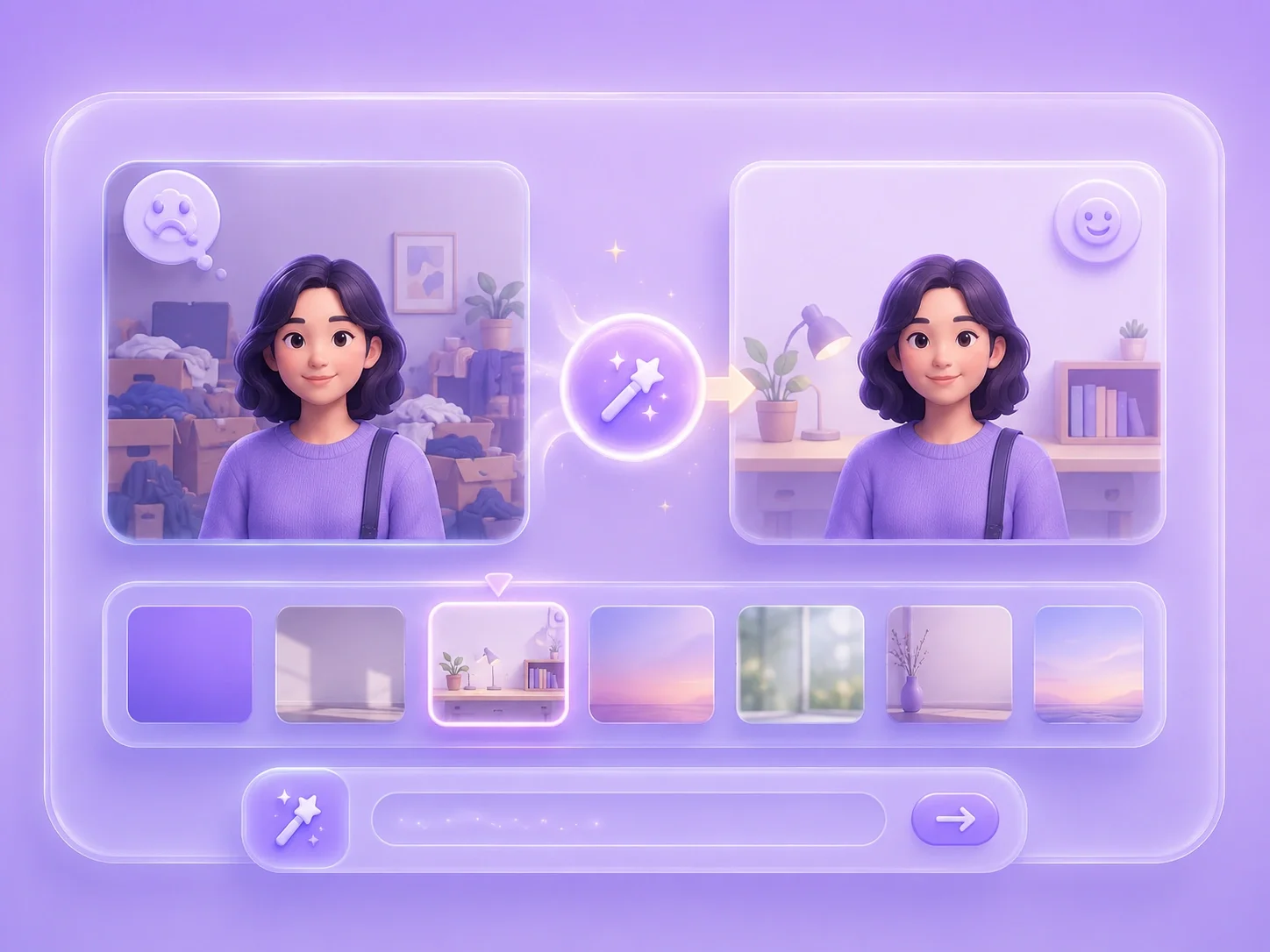
If a photo has a distracting or wrong background, it can look unusable for school, work, or sharing. AI Image Editor lets students, office workers, and general users replace the background by typing a simple instruction and generating a new version.
Replace BackgroundIf a photo includes clutter, strangers, or small mistakes, manual editing can take too long. This AI photo editor helps students, office workers, and general users remove objects through text instructions and selection-based editing.
Remove Objects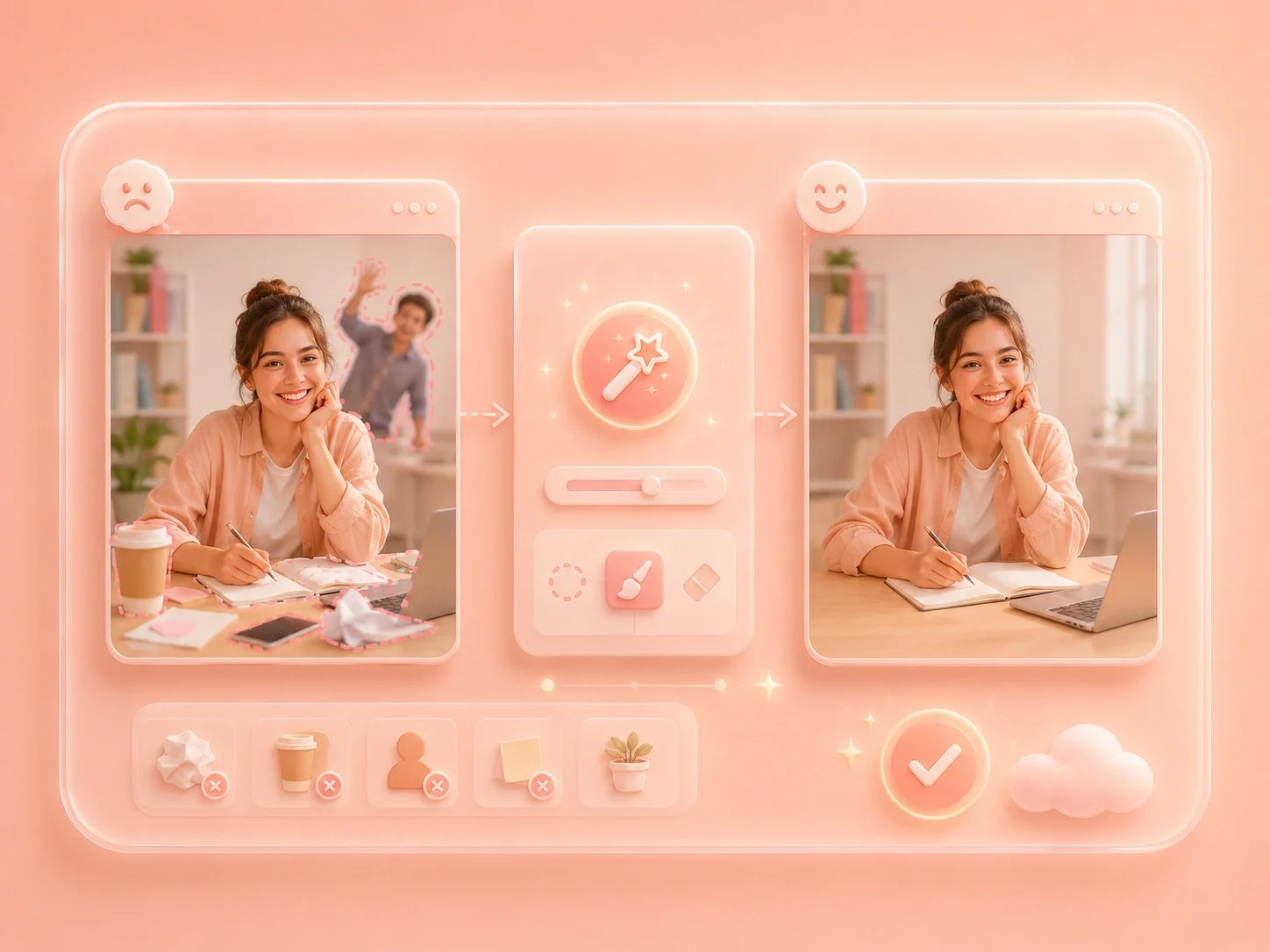

If only one part of an image needs fixing, editing the whole photo can create extra problems. The AI image editor free to use helps students, office workers, and general users select one area, retouch it, and keep the rest of the image unchanged.
Retouch AreaIf an image looks too plain or does not match the tone you need, restyling it by hand is hard. You can edit photo with AI using short prompts, apply style changes, and regenerate results in seconds.
Change Style

Clean up a profile photo, class image, or presentation visual by describing the background or object change you want AI Image Editor to apply.
Profile photos
Use case

Remove a distracting object from a product slide, social image, or work document while keeping the rest of the picture focused on the main subject.
Object removal
Use case
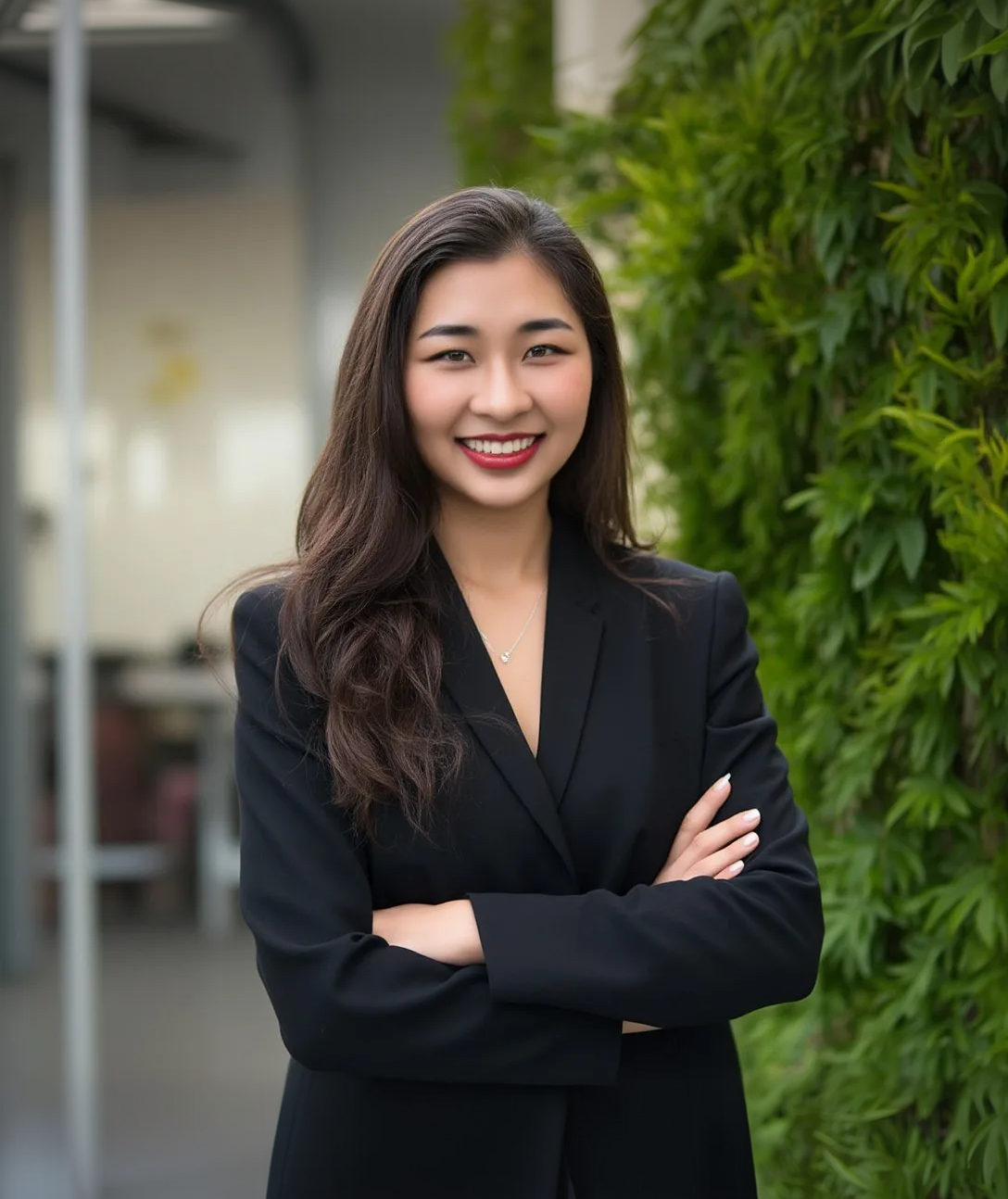
Try style changes, background ideas, or local retouch prompts when a photo needs a different look before sharing, presenting, or saving.
Style changes
Use case