Free All-in-One Office Suite with PDF Editor

Edit Word, Excel, and PPT for FREE.
Read, edit, and convert PDFs with the powerful PDF toolkit.
Microsoft-like interface, easy to use.
Windows • MacOS • Linux • iOS • Android

Catalog
Screenshot to Text: Convert Images into Editable Text with WPS
How to Use Screenshot to Text in WPS ?
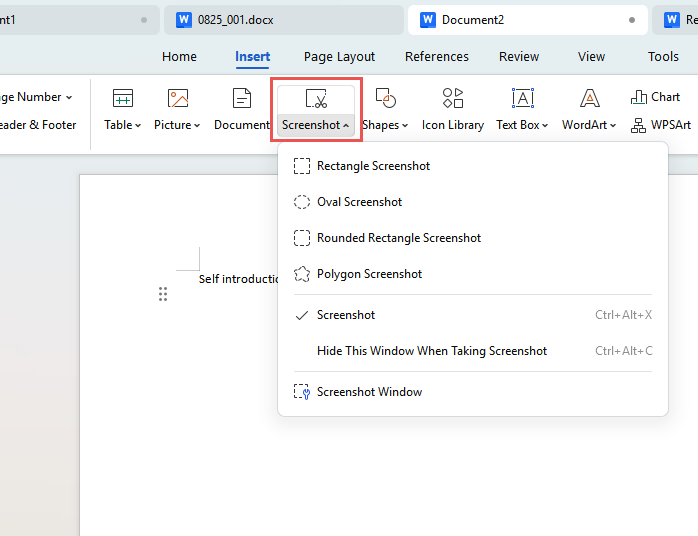
Step1:Open Screenshot Tool
In WPS, go to Insert → Screenshot, or simply press Ctrl + Alt + X to activate the screenshot tool instantly. Then choose a capture mode (Rectangle, Oval, Rounded Rectangle, or Polygon) based on your needs.
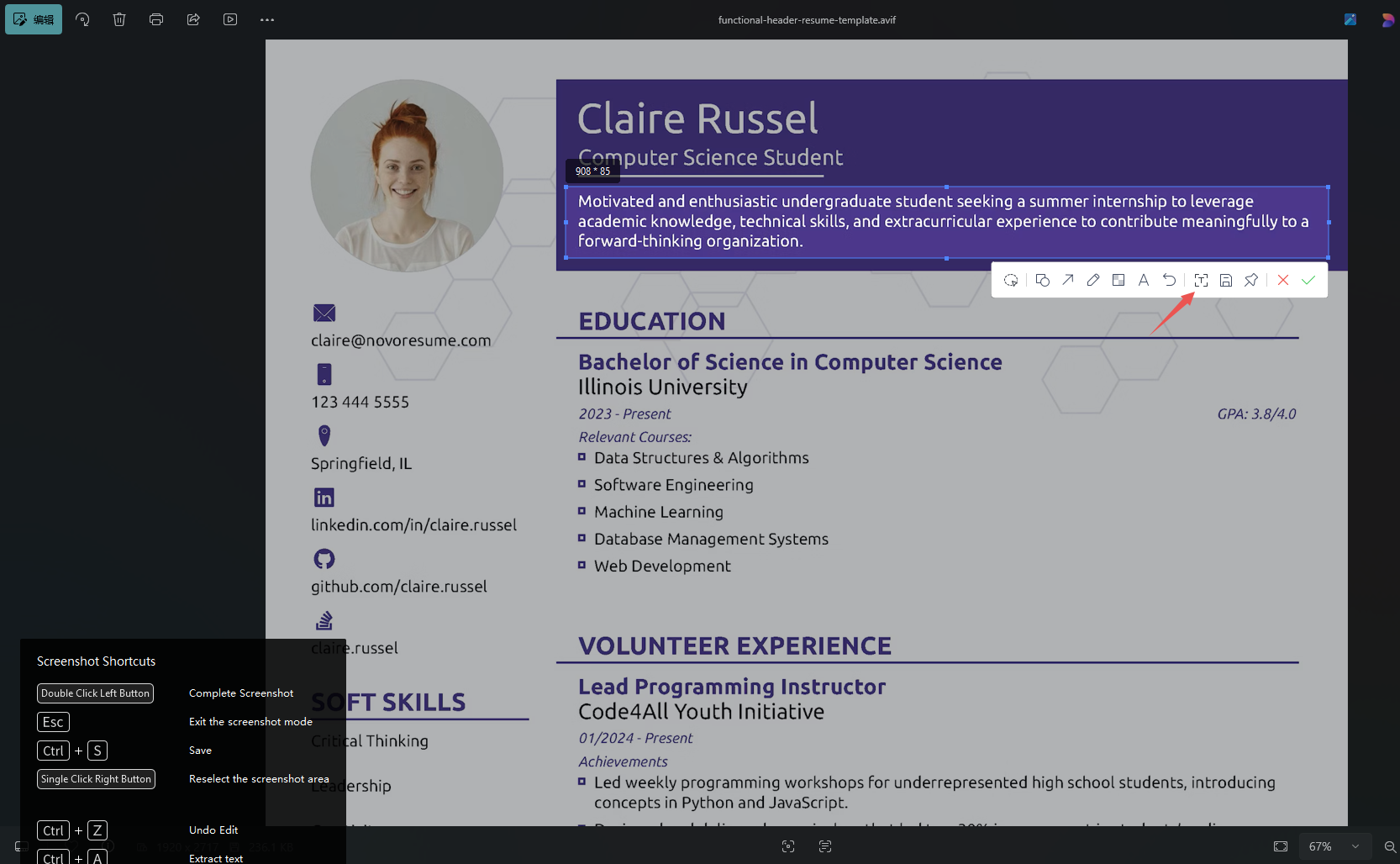
Step2:Capture the Text Area
Drag to select the exact area containing the text. You can fine-tune the selection before confirming. Then click the “Extract Text” button highlighted in the image.
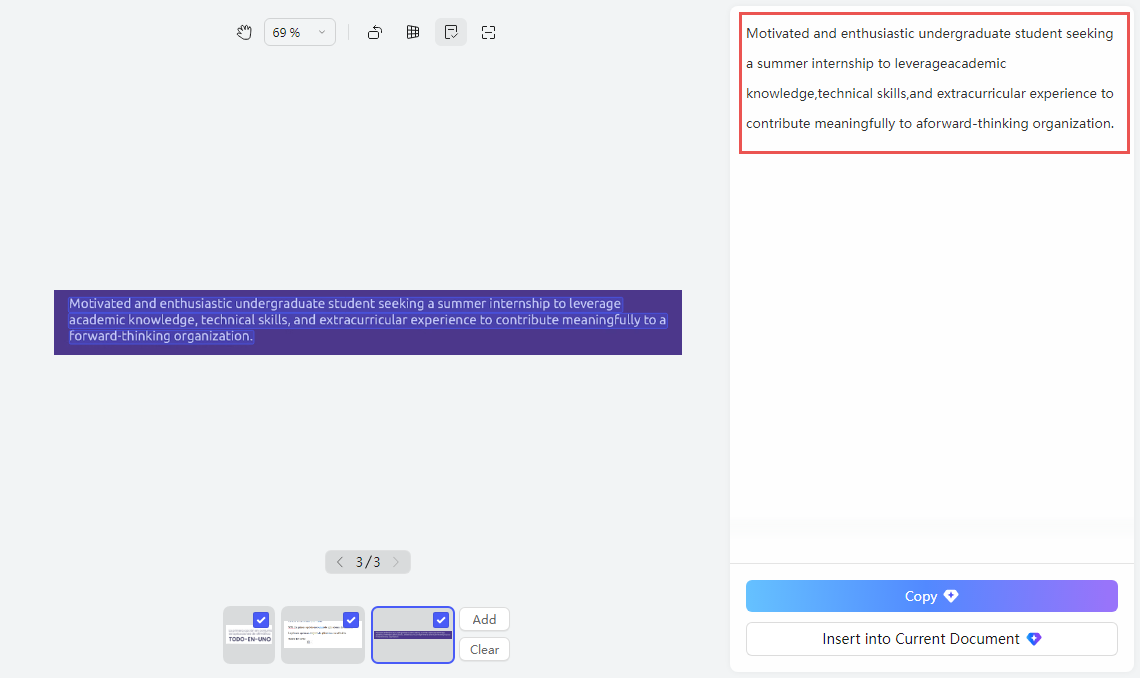
Step3:Extract Text Instantly
After you click “Extract Text” in the screenshot toolbar, WPS automatically recognizes the text from the captured image.
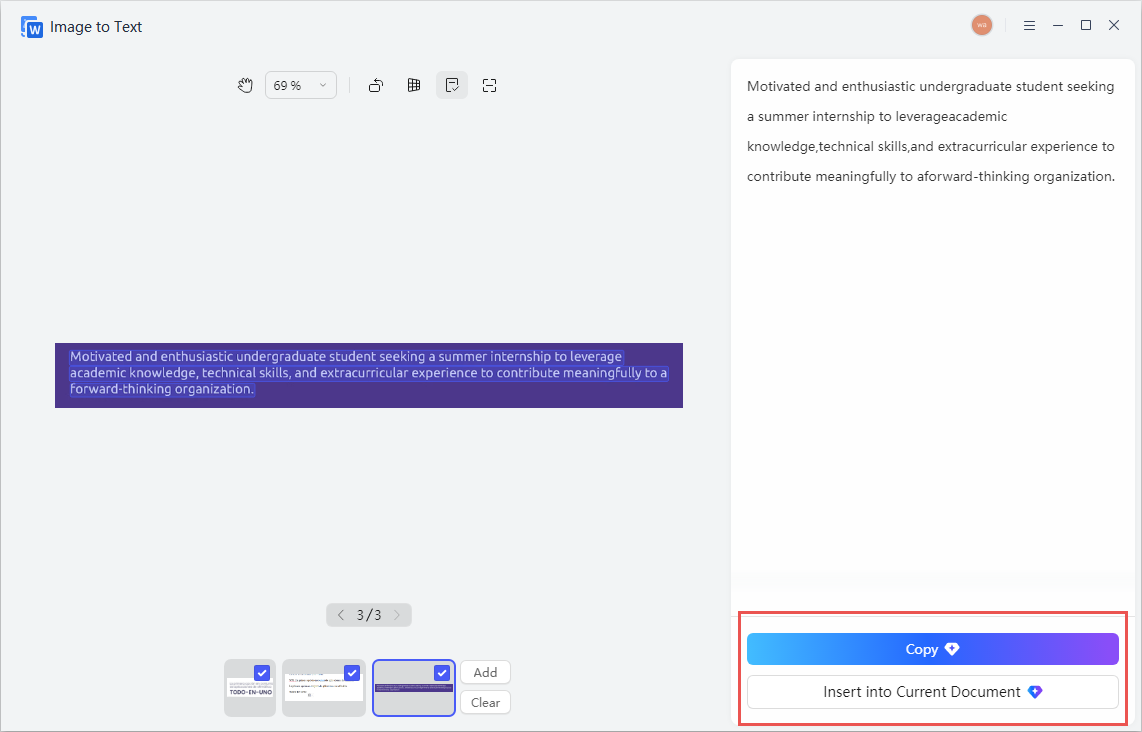
Step4:Copy or Insert into Document
In the Image to Text panel, review the result, then Copy the text or Insert it directly into your current document—no extra steps required.
🔔Extra Tips: Enable Faster Screenshot to Text Access
Once the Screenshot feature is activated, WPS keeps it running in your system tray, allowing you to quickly launch screenshot to text with a single click—even outside the WPS app.
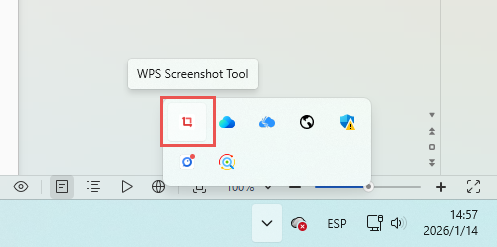
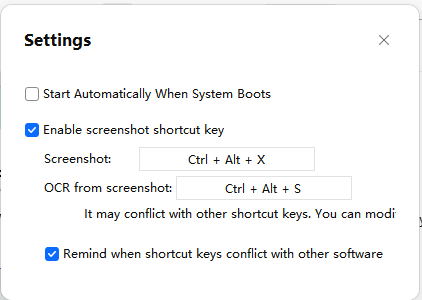
You can also right-click the system tray icon, open Settings, and enable “Enable screenshot shortcut key.”
After that, you can customize the shortcut key combination based on your personal workflow.
This makes screenshot to text instantly accessible when you’re working outside WPS, such as replying to messages, emails, or chats—without reopening any document.
Unlike many standalone OCR tools or browser extensions, WPS integrates screenshot to text seamlessly into its office suite. There’s no need to upload images, switch apps, or adjust formatting—text is ready to use where you work. This tight integration improves efficiency, reduces friction, and makes text extraction more practical for real-world, high-frequency use.
Also Read:
- 1. 10 Best Free Editable Certificate of Appreciation Template Word
- 2. How to convert number to text using the Excel TEXT function in Excel
- 3. 10 Free Editable Checklist Template Excel: Simple Blue, Fresh Green Task, and More
- 4. Quickly convert PDF to editable word in laptop
- 5. Top 10 free editable flowchart template word download 2022
- 6. 10 Best Editable Calendar Templates for 2026



15 years of office industry experience, tech lover and copywriter. Follow me for product reviews, comparisons, and recommendations for new apps and software.


