Free All-in-One Office Suite with PDF Editor

Edit Word, Excel, and PPT for FREE.
Read, edit, and convert PDFs with the powerful PDF toolkit.
Microsoft-like interface, easy to use.
Windows • MacOS • Linux • iOS • Android

Catalog
WPS Photo Editor 2026: Streamlining Photo Editing
Professionals, students, and content creators need a comprehensive and easy-to-use photo editing solution for their creative needs. However, most users struggle with professional tools that overwhelm beginners with their confusing menus and complicated features. So, is there a beginner-friendly, AI-powered alternative to help you be more productive? I’ll be providing you with an all-in-one solution with this WPS Photo guide, highlighting its key features and detailed steps to simplify the process.
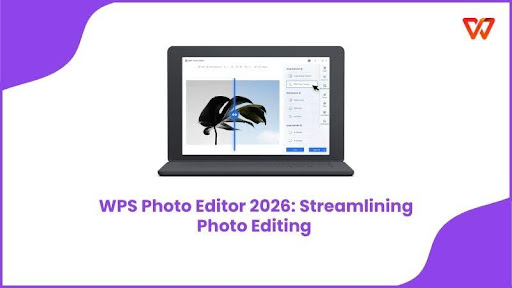
WPS AI Photo Editor: Overview & Features
WPS AI Photo Editor is a free and efficient alternative to professional photo editing tools like Adobe Photoshop, providing an easy-to-use and intuitive experience to its users. Being directly integrated into the WPS Office Suite, along with other tools like Writer, Presentation, and PDF, WPS Photos provides an all-in-one, AI-powered photo editing solution to its users.
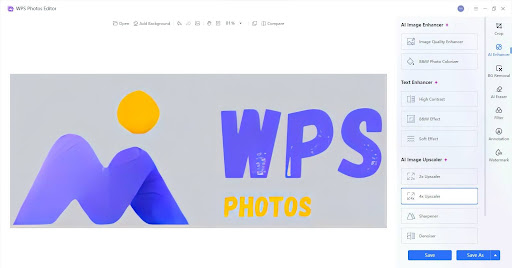
Unlike most other tools, which confuse their users with complicated menus and expensive subscriptions, WPS offers an incredibly beginner-friendly and seamless experience, ensuring accessibility for new and old users alike. Not only is it budget-friendly and reliable, but it also provides a vast library of powerful AI features to streamline your photos without any hassle, making it an excellent option for anyone looking to elevate their creative workflow.
Advantages
Beginner-Friendly Experience: Advanced photo editing tasks like masking and object removal are handled automatically, so there’s no technical expertise required for professional results.
Budget-Friendly: Get access to a wide library of powerful AI features without having to pay for expensive subscriptions.
Efficiency: AI-powered editing allows you to save a lot of time and edit your images with just a single click.
All-in-One Solution: Edit images, draft documents, and design PowerPoint slides all on one seamless platform.
Pros
Quick processing speeds
AI-powered automation
Polished results
Preservation of original formatting
Cons
AI features require an internet connection
Lacks advanced editing tools
May not work well on mobile devices
Feature 1: Background Blur
The Background Blur is designed to enhance your images by blurring out the distractions and emphasizing the focus on the main subject. It uses AI to detect the subject, and then applies a blur to everything else in the surrounding scene to remove clutter from your photos. I found the final result to almost always look professionally edited and polished, which is a great advantage for content creators.
Practical Example
Capturing your photos in public places and crowded areas often results in photos with unwanted elements and people in the background. This draws attention away from the main subjects of the photo and towards irrelevant distractions. If you want to get rid of these elements and want to clean up your image and bring focus back to your main subjects, you just need to follow a few simple steps I’ve highlighted below.
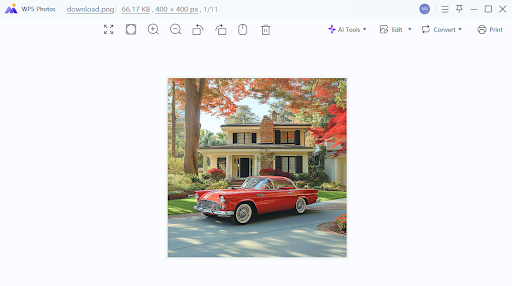
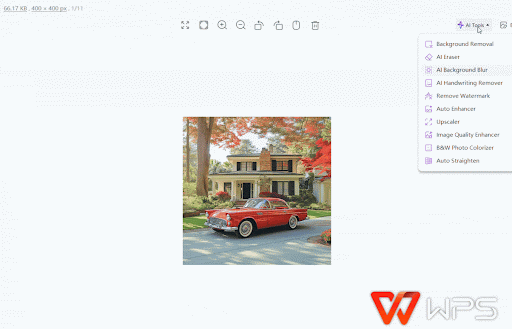
Step 1: Open the image you want to edit in WPS Photo to get started.
Step 2: Press AI Tools to open the dropdown menu, then select AI Background Removal.
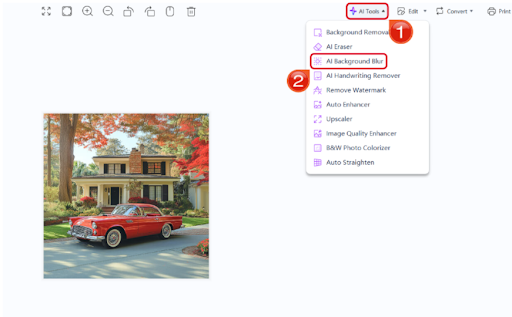
Step 3: Once your image is done processing, the background will be completely blurred out for you to use.
Common Issues & Solutions
Here, I’ll highlight a few problems you may face with the Background Blur tool, and how you can solve them using WPS AI Photo Editor.
Feature 2: AI Image Upscaler
If you’re dealing with low-res images that lack the clarity and detail required for your work, using the AI Image Upscaler is the obvious choice. It uses its AI-powered functionality to double the resolution of your image, giving it a level of detail and clarity never found before. I found it to be especially useful for restoring old images and documents. No matter how low the image resolution was, WPS Photos always delivered polished and accurate results every single time.
Practical Example
If you’re a student making a report or a project where you need to use incredibly small images while also keeping everything sharp and clean, you need an AI-based image upscaling tool like the one provided by WPS Photos to simplify the process for yourself. There have been many times when the only image I had was a very tiny, low-resolution version. That’s when WPS Photos came to save the day and streamlined my photo editing process, helping me upscale my images to twice their original size.
Step 1: Open the image you want to use in WPS Photos.
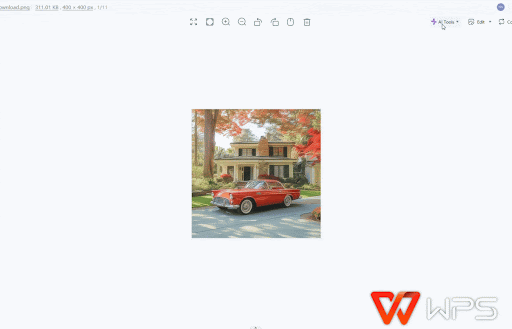
Step 2: In the AI Tools section, press the Upscaler to get started.
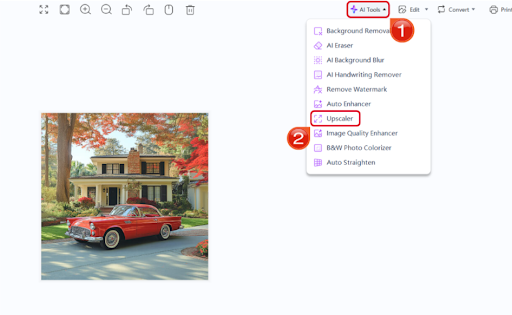
Step 3: Once the processing has been completed, the image will now be twice its original size.
Here, I’ll highlight a few problems you may face with the AI Image Upscaler tool and how you can solve them using WPS AI Photo Editor.
Feature 3: AI Background Removal
If you want to make an image more flexible and boost its reusability, removing the background is often the quickest and most effective way to do it. WPS Photos offers an AI-powered Background Remover that automates the process by detecting the main subject and separating it from the background, even in blurry or unclear photos. It eliminates the need for any manual tracing or using any third-party tools.
Practical Example
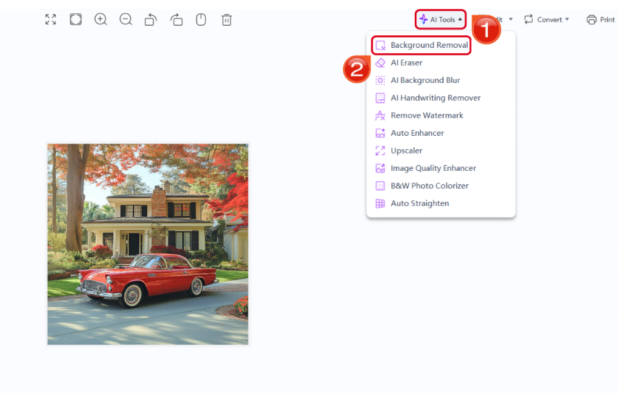
Let’s consider a content creator looking to post their new car on their social media, but all the pics you have have unwanted people or objects in the background. While the car may look really good as it is, some creators may want to remove the extra distractions in the background for a cleaner look. You can do this using the AI Background Removal tool provided by WPS Photos using the following steps.
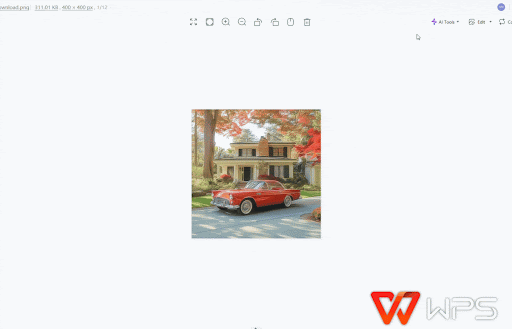
Step 1: Open the picture you want to edit in WPS Photos.
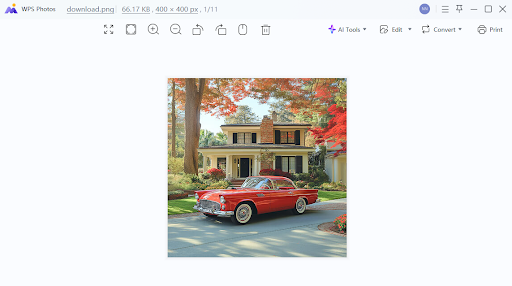
Step 2: In the AI Tools menu, select Background Removal to get started.
Common Issues & Solutions
Here, I’ll highlight a few problems you may face with the AI Background Removal tool, and how you can solve them using WPS AI Photo Editor.
WPS Photos vs. Market Competitors
Choosing the right photo editing tool for your own workflow ultimately comes down to your own requirements and preferences. For professional photo editing and designing elements from scratch, Adobe Photoshop is the ideal option. For content creators and students needing quick edits, Canva is an incredibly simple and easy-to-use choice. For professionals working on reports and documents on a regular basis, an AI-powered alternative like WPS Photos is the superior choice.
Best Tips for Polished Results
If you’re a beginner with no prior photo editing experience, it’s easy to feel lost and overwhelmed in the world of technical details and features to be aware of. While the AI features provided by WPS simplify the workflow greatly, the final results still depend on your own execution. In this section, I’ll be highlighting some important tips you should keep in mind while editing your photos for professional and clean results every single time.
Tips
Clear Images: Use clean source images with even lighting to ensure the best possible results across all AI tools.
Proper Cropping: Make sure to only include the part of the image you want to edit, as extra elements can often confuse the AI and give unreliable results.
Correct Export Format: Select the file format of your output based on your workflow requirements.
FAQs
Q1: Is WPS AI Photo Editor completely free to use?
WPS AI Photo Editor is free to use for most standard editing tasks. However, certain advanced AI features may require a WPS Pro subscription for unlimited access.
Q2: What image formats does WPS Photos support?
WPS Photos supports all the most widely used image formats, including PNG, JPG, and BMP.
Q3: Can WPS AI Photo Editor replace Adobe Photoshop?
For users with basic to intermediate photo editing needs, WPS AI Photo Editor is a capable and budget-friendly alternative to Adobe Photoshop. However, it is not designed to replicate the full depth of Photoshop's manual editing toolkit.
Q4: Does WPS Photos work on mobile devices?
WPS Photos is primarily optimized for desktop use and may deliver inconsistent performance on mobile devices.
Q5: How accurate is the AI background removal?
The accuracy of the AI Background Removal tool is generally high for images with a clear contrast between the subject and the background. Performance may vary with complex backgrounds, translucent objects, or fine details like hair and fur.
Photo Editing Made Easy
Learning how to edit your photos from scratch can be a time-consuming task and requires a lot of technical expertise, which not many people have. Moreover, most professional photo editing tools can be extremely overwhelming for beginners experiencing them for the first time. You can simplify the process for yourself by using AI-automated solutions like WPS AI Photo Editor. It’s completely free to use and is filled with a library of AI-powered features to streamline your workflow, eliminating the need to manually edit every single photo from scratch.
Also Read:
- 1. How to cancel the password of editing and extracting in a PDF file in WPS Office online?
- 2. How to excel file locked for Editing by Me
- 3. How to Apply a Photo Filter wps guide
- 4. Remove Shadow from Photo: How to Correct Image Lighting Using WPS Photos
- 5. How to Use WPS Photo Enhancer
- 6. How to crop a photo into a circle in WPS Office PowerPoint



15 years of office industry experience, tech lover and copywriter. Follow me for product reviews, comparisons, and recommendations for new apps and software.


