



'%3e%3cpath%20fill-rule='evenodd'%20clip-rule='evenodd'%20d='M21.4999%2010.9993C21.4999%205.20009%2016.7986%200.498901%2010.9993%200.498901C5.19994%200.498901%200.498657%205.20009%200.498657%2010.9993C0.498657%2016.2404%204.33858%2020.5844%209.35855%2021.3722V14.0346H6.69238V10.9993H9.35855V8.68594C9.35855%206.05427%2010.9262%204.60062%2013.3248%204.60062C14.4736%204.60062%2015.6753%204.80571%2015.6753%204.80571V7.38979H14.3512C13.0468%207.38979%2012.64%208.19921%2012.64%209.0296V10.9993H15.5523L15.0867%2014.0346H12.64V21.3722C17.66%2020.5844%2021.4999%2016.2404%2021.4999%2010.9993Z'%20fill='%231568EA'/%3e%3c/g%3e%3c/svg%3e)


'%3e%3cpath%20d='M2.42045%2022.1876H6.31818V12.7217L0.75%208.54553V20.5171C0.75%2021.4414%201.49892%2022.1876%202.42045%2022.1876Z'%20fill='%234285F4'/%3e%3cpath%20d='M19.682%2022.1876H23.5797C24.5041%2022.1876%2025.2502%2021.4387%2025.2502%2020.5171V8.54553L19.682%2012.7217'%20fill='%2334A853'/%3e%3cpath%20d='M19.682%205.48293V12.7216L25.2502%208.54543V6.31816C25.2502%204.25236%2022.8921%203.07469%2021.2411%204.31361'%20fill='%23FBBC04'/%3e%3cpath%20d='M6.31824%2012.7217V5.48303L13.0001%2010.4944L19.6819%205.48303V12.7217L13.0001%2017.733'%20fill='%23EA4335'/%3e%3cpath%20d='M0.75%206.31816V8.54543L6.31818%2012.7216V5.48293L4.75909%204.31361C3.10534%203.07469%200.75%204.25236%200.75%206.31816Z'%20fill='%23C5221F'/%3e%3c/g%3e%3cdefs%3e%3cclipPath%20id='clip0_2954_7305'%3e%3crect%20width='24.5'%20height='18.375'%20fill='white'%20transform='translate(0.75%203.8125)'/%3e%3c/clipPath%3e%3c/defs%3e%3c/svg%3e)


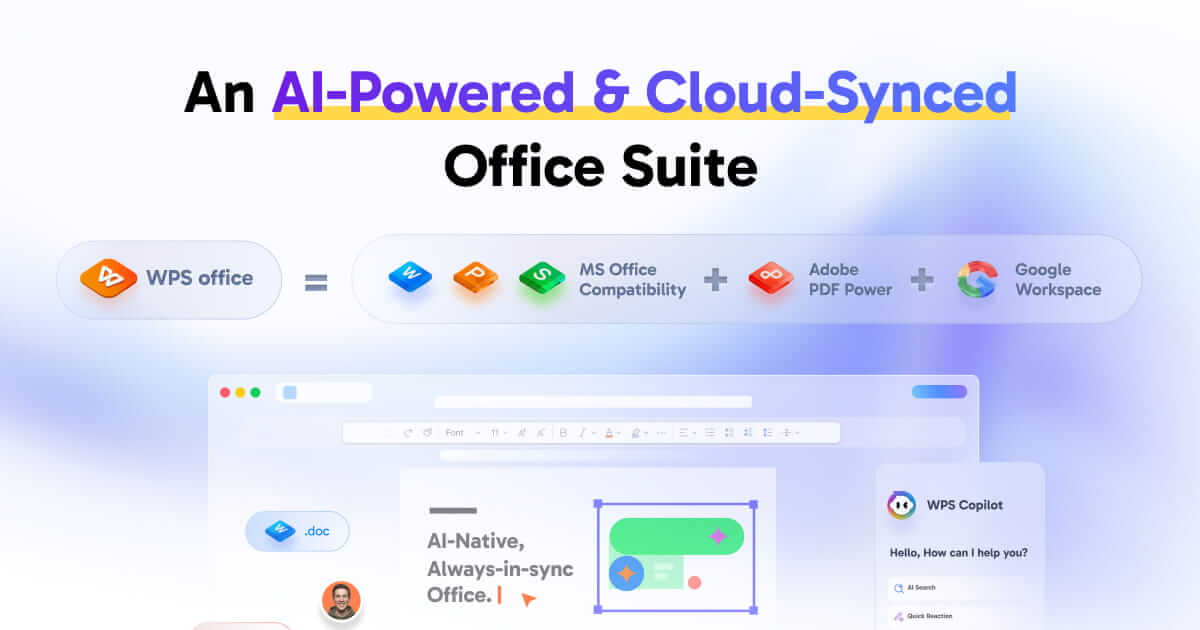
WPS Office is a cross-platform productivity suite that bundles a word processor, spreadsheet editor, presentation tool, and PDF features into a single download. This balanced review, published on the WPS website, is designed to help readers compare WPS Office with alternatives and decide which workflow fits them best before installing it or switching from another suite. Throughout, we match strengths with the limitations that matter and point readers toward Microsoft 365 or Google Docs where those tools fit better.
Quick Verdict — Should You Use WPS Office?
If you want a capable office suite with a free plan, familiar Microsoft-style editing, and PDF workflows in the same suite, WPS Office may be worth considering. It is especially appealing if you are cost-conscious and your day revolves around everyday documents, spreadsheets, slides, and PDFs rather than specialized, power-user features.
That said, WPS Office is not the right pick for everyone. People who live inside advanced Excel models, Microsoft enterprise environments, or browser-first collaborative workflows will likely be better served elsewhere. The honest answer is "it depends on your work," and the sections below explain exactly when it does and does not make sense. Specific features can vary by device, plan, region, and account status.
Best For
Students and everyday users who mostly write documents, build simple spreadsheets, and make slides.
Freelancers and small teams who want a low-cost suite with built-in PDF editing instead of buying a separate PDF app.
People who use more than one operating system — including Linux — and want a consistent desktop experience.
Anyone who needs to open, edit, and save common Microsoft Office files without paying for a subscription up front.
Not Ideal For
Heavy spreadsheet users who depend on advanced Excel features and complex data workflows.
Organizations standardized on the Microsoft ecosystem, including Teams, Outlook, and OneDrive.
Teams whose core workflow is real-time, browser-first collaboration inside Google Workspace.
Anyone who needs guaranteed, identical feature coverage across every platform — availability can differ by device.
WPS Office at a Glance
WPS Office is an all-in-one suite: a Writer for documents, a Spreadsheet tool, a Presentation app, and a set of PDF tools, all in one package. WPS publishes a free plan called WPS Standard, which includes cloud storage and sync options, support for a broad list of file formats, dozens of interface languages, a free PDF reader, and basic PDF features. For people who need more, paid plans are available, with pricing and availability varying by region and platform. Check the official pricing page for current details.
The suite is available on Windows, Mac, Linux, iOS, Android, and iPad, with some web-based tools as well. One important caveat to keep in mind throughout this review: the exact feature set can differ from one platform to another. The desktop apps tend to be the most complete, and some capabilities available on one operating system may not appear — or may behave differently — on another. Treat the suite as "available on" these platforms rather than "identical across" them, and confirm the current feature list for your specific device.
Compared with Microsoft 365 and Google Docs, WPS Office occupies a distinct position. Microsoft 365 is primarily a subscription suite with deep desktop applications; Google Docs is a free-to-start, browser-first set of editors with paid Google Workspace tiers for organizations; and WPS Office pairs a free desktop-and-mobile suite with optional paid upgrades and integrated PDF tools.
Key Features That Matter in Daily Use
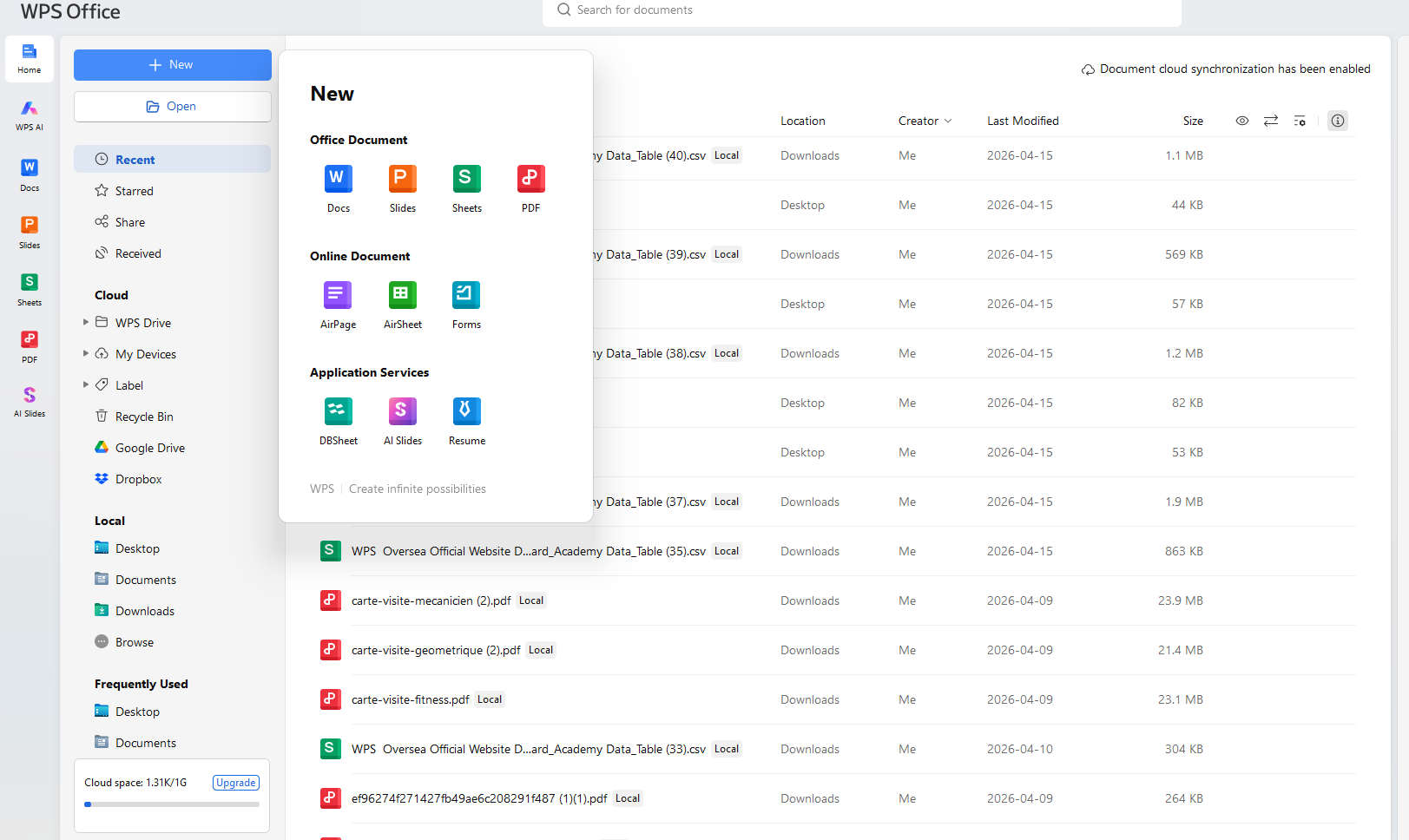
Rather than list every menu, this section focuses on what you are likely to touch on a normal day: writing, numbers, slides, PDFs, and collaboration.
Writer for Documents, Resumes, and School Papers
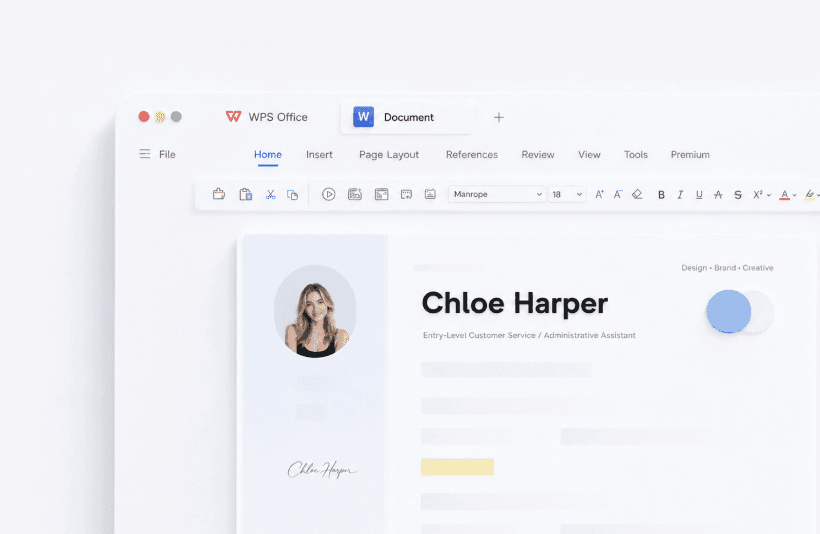
Writer is WPS Office's word processor, and it covers the everyday writing most people do — essays, reports, resumes, cover letters, and general documents. The interface will feel familiar to anyone who has used Microsoft Word, which lowers the learning curve for students and everyday users switching over. WPS states that it can open, edit, and save common Microsoft Office file formats, including .docx, so you can typically exchange documents with people who use Word.
The practical limitation worth noting is fidelity. WPS describes its file handling in its own marketing terms, so for complex or business-critical files, test a representative document before switching workflows. For routine school and work documents this is rarely a problem; for highly formatted, template-heavy files, review the result before sending.
Spreadsheet for Budgets, Grades, and Basic Data Work
The Spreadsheet app handles the kind of work most people actually need: budgets, expense tracking, grade sheets, simple charts, and basic formulas. It can open and save .xlsx files, which matters if you trade spreadsheets with Excel users. For students tracking assignments or a freelancer managing invoices, it is generally more than enough.
Where it is less of a sure thing is at the advanced end. If your work depends on heavy data models, sophisticated analysis, or specialized Excel capabilities, you should not assume parity with Microsoft Excel. This is one of the clearest cases where another tool may serve you better, and we return to it in the comparison section.
Presentation for Class and Work Slides
The Presentation app lets you build slide decks for class projects, meetings, and pitches, and it works with .pptx files so you can collaborate with PowerPoint users. With templates and standard design tools, it is well suited to the presentations students and small teams put together regularly.
As with the other components, keep the platform caveat in mind: the available tools can vary by device, so if you switch between, say, a Windows laptop and a Mac, confirm that the specific features you rely on are present on both.
Built-in PDF Tools
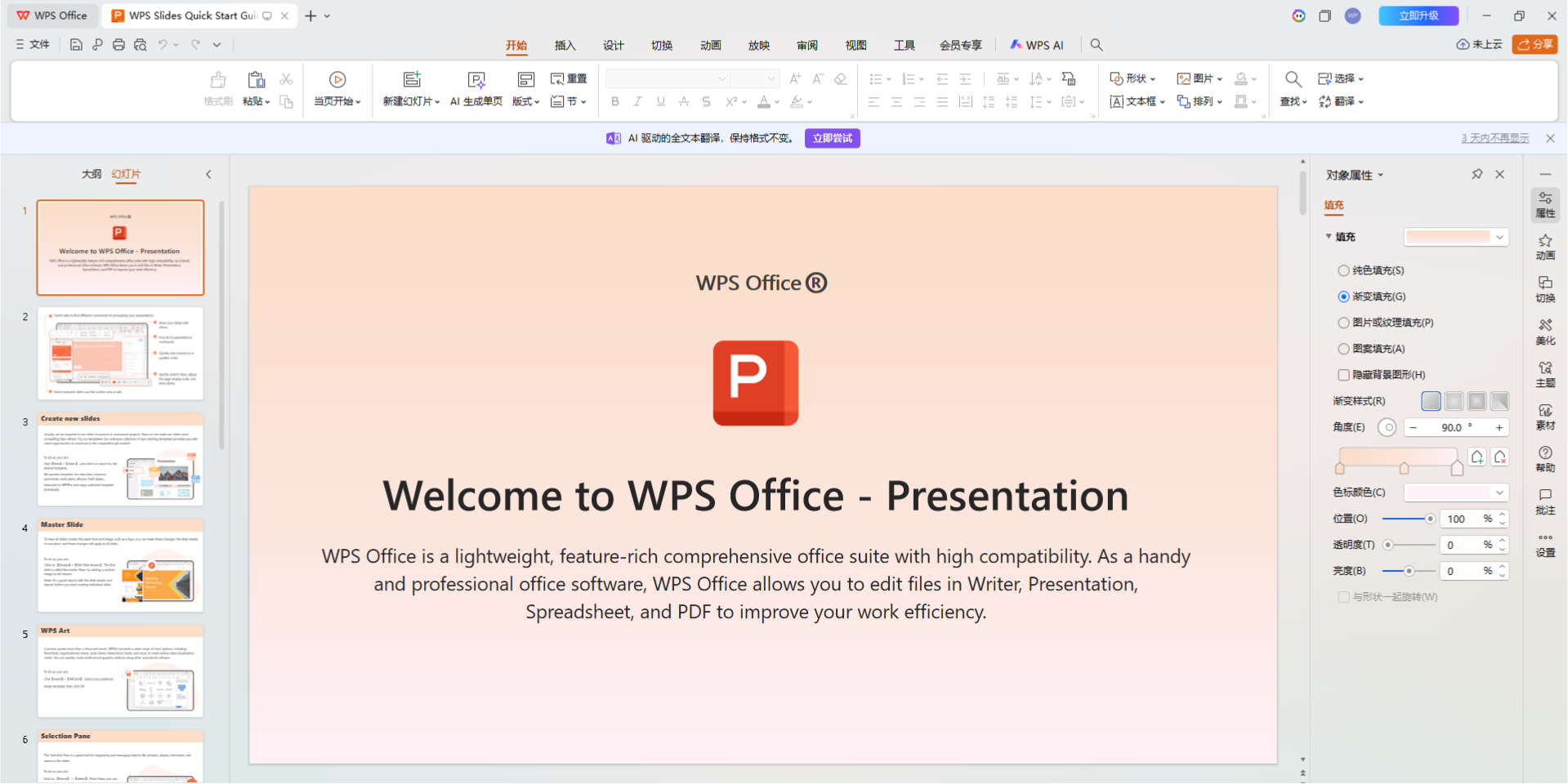
PDF workflows are a practical part of the WPS Office suite. WPS brings PDF workflows into the same suite. Depending on platform, plan, region, and account status, available options may include reading, editing, conversion, compression, signing, and OCR. For people who would otherwise install a separate PDF editor, having these tools inside the same suite is a real convenience.
The limitation is the free/paid boundary. Basic PDF reading is available for free, but advanced PDF editing and conversion may require a paid plan, depending on the platform and region. If PDF editing is central to your work, look closely at which specific PDF features sit behind the paywall on your plan and platform.
Cloud, Sync, Permissions, and Collaboration
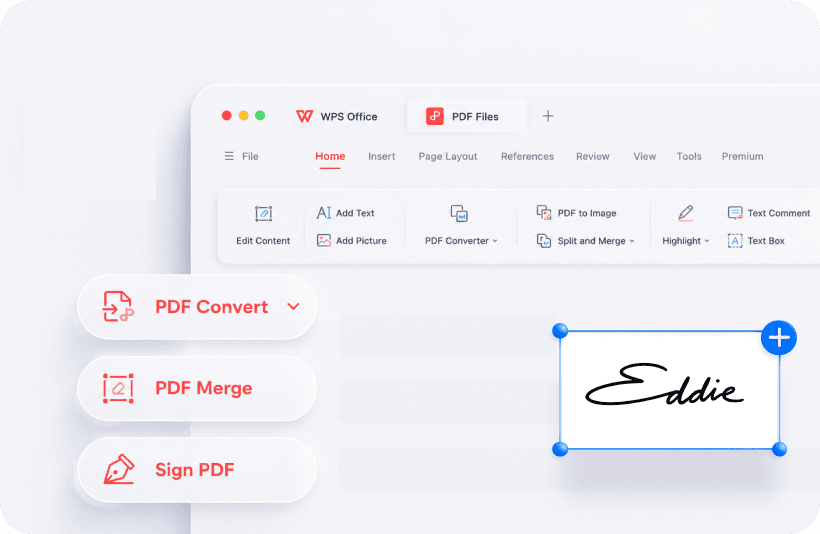
WPS Office includes cloud storage and sync options across devices. For collaboration, it supports real-time co-editing, comments, and sharing permissions, so a small team can work on a shared document together.
Google Docs may be a better fit for browser-first, collaboration-heavy Google Workspace workflows, so if shared, simultaneous editing is the center of your workflow, weigh WPS against Google Docs directly rather than assuming equivalence.
WPS AI Features
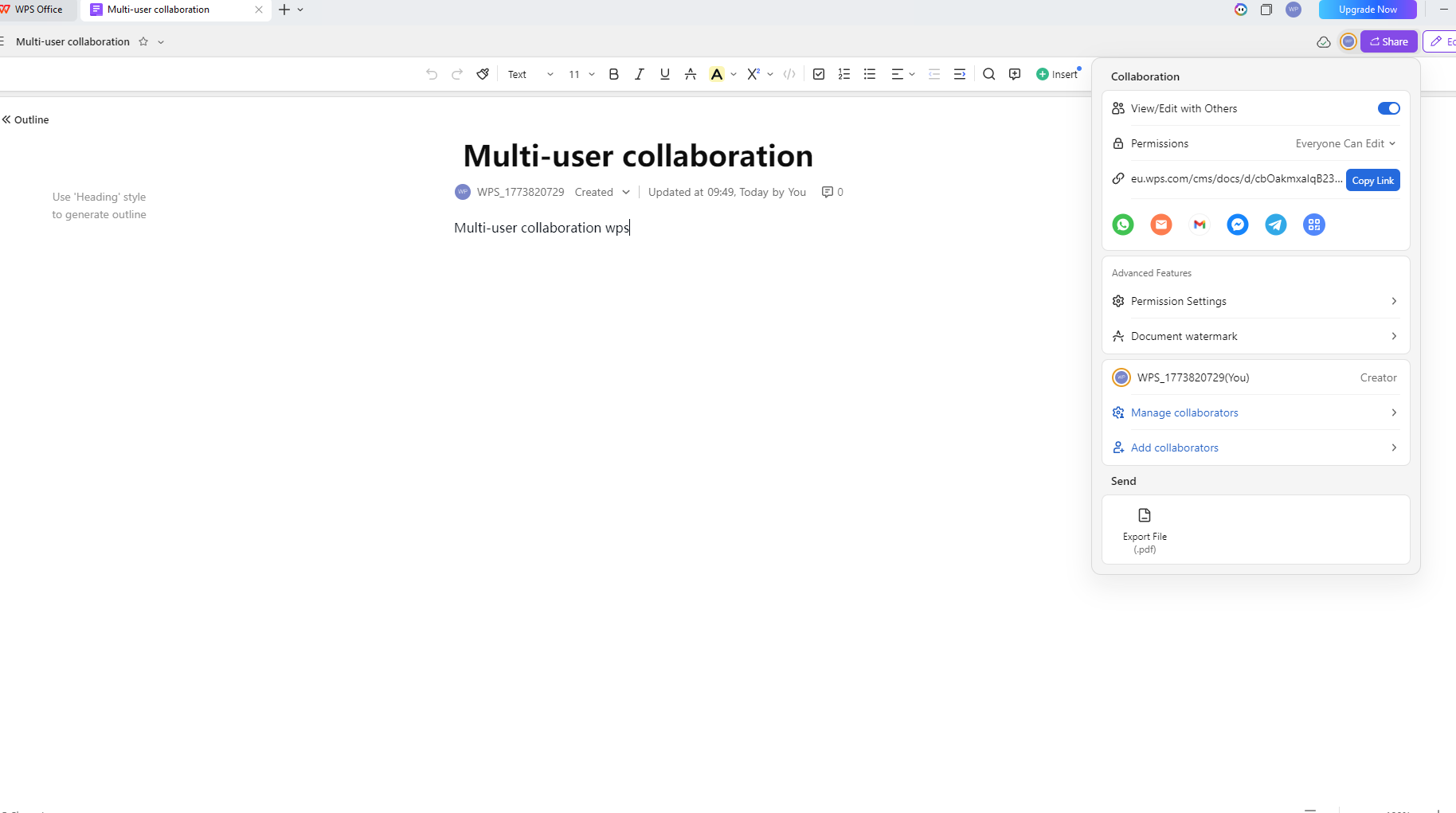
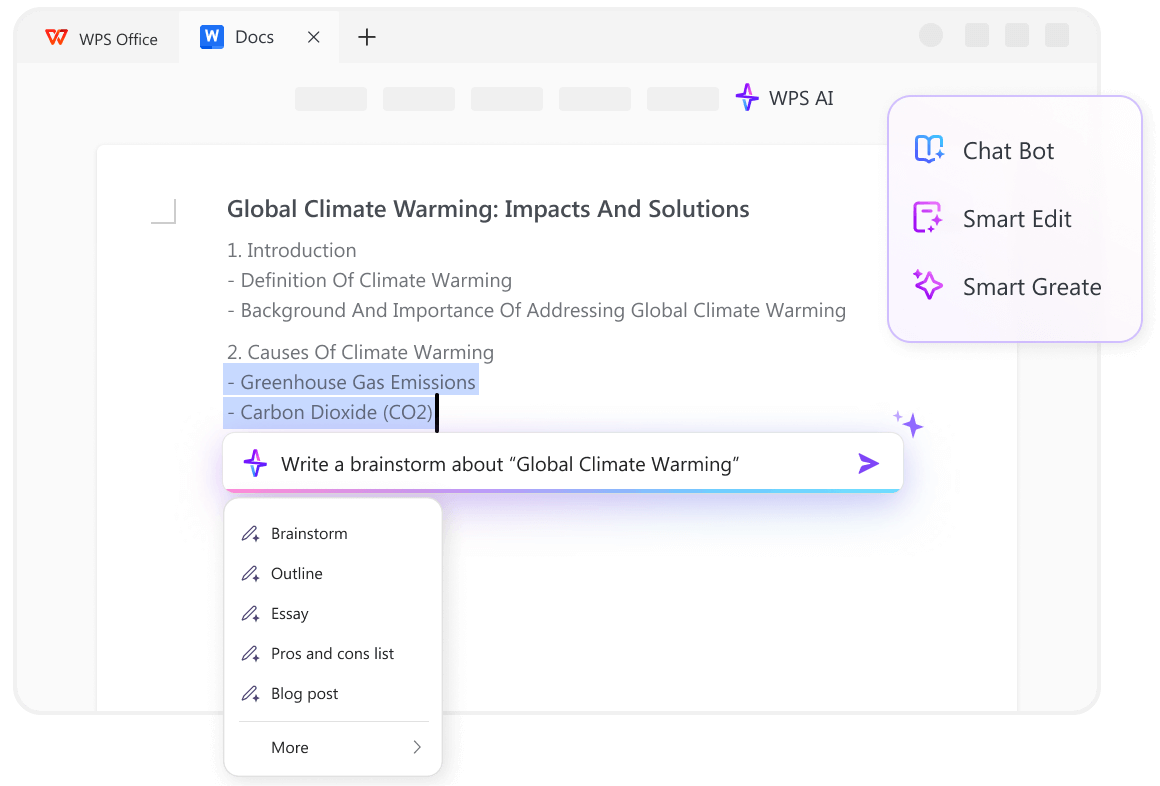
WPS Office includes AI capabilities, marketed as WPS AI / Copilot. WPS AI features can support tasks such as drafting, rewriting, document summaries, and translation. AI access and usage limits can vary by plan, platform, region, and account status, so check what is available on your device and plan.
WPS Office Pros and Cons
The table below summarizes the trade-offs. As a rule, treat each strength alongside its matching limitation rather than in isolation.
Pros | Cons |
|---|---|
Free plan with cloud storage and sync options, plus broad format support | Some advanced PDF, AI, and storage features may require a paid plan, depending on the platform and region |
PDF workflows in the same suite, with options such as editing, conversion, compression, signing, and OCR depending on platform, plan, region, and account status | AI is tiered — AI access and usage limits can vary by plan, platform, region, and account status |
Available on Windows, Mac, Linux, iOS, Android, and iPad | Feature coverage can differ by platform; parity is not guaranteed |
Opens, edits, and saves common Microsoft Office formats (per WPS) | For complex or business-critical files, test a representative document before switching workflows. Users who rely on advanced Excel features or enterprise Microsoft workflows may prefer Microsoft 365. |
Real-time co-editing, comments, and permission controls | Google Docs may be a better fit for browser-first, collaboration-heavy Google Workspace workflows |
Feature availability can vary by platform, so readers should check the current feature list for their device before choosing a plan.
Is WPS Office Good for Students?
For many students, WPS Office is a sensible, budget-friendly choice — but it depends on what your courses and school require.
Schoolwork Scenarios That May Work Well
WPS Office fits common academic tasks: writing essays and reports in Writer, building a resume, tracking assignments or simple data in Spreadsheet, and creating slide decks for class presentations. Because it works with common Microsoft Office formats, it can be practical for routine file sharing. Test formatting-sensitive assignments before submission. The free plan and available PDF workflow options can be useful for reading course materials and preparing work for PDF submission. And because WPS desktop apps can be used offline after installation, you can keep working on a laptop without a reliable connection — just note that this offline capability applies to the desktop apps, not necessarily the web or mobile versions.
When Students May Prefer Microsoft 365 Education
If your school or program is built around Microsoft tools, Microsoft 365 may fit better — particularly if your institution already provides it to students. Check with your school: some provide Microsoft 365 as part of enrollment, which can change the cost equation entirely. Microsoft 365 is also the stronger choice if your coursework depends on advanced Excel features, specific Office add-ins, or assignment platforms that assume the Microsoft ecosystem. In those cases, choosing Microsoft 365 over WPS Office is a perfectly valid decision.
WPS Office vs. Microsoft 365 vs. Google Docs
No single suite wins for everyone. The comparison below uses the same criteria for all three so you can match the tool to your workflow.
Comparison at a Glance
Criteria | WPS Office | Microsoft 365 | Google Docs / Workspace |
|---|---|---|---|
Pricing model | Free plan + paid upgrades (pricing varies by region and platform) | Subscription plans; one-time purchase options may be available by market | Free for personal use; paid Workspace tiers |
Free-plan availability | Yes (WPS Standard) | Free web apps available; paid plans add desktop and premium features | Yes, with a Google Account |
Offline use | Desktop apps can be used offline after install | Desktop apps work offline once installed | Offline editing available when set up |
File compatibility | Opens/edits/saves common MS formats (per WPS) | Native Microsoft formats | Imports and edits Word files |
Collaboration | Real-time co-editing, comments, permissions | Real-time collaboration; Microsoft ecosystem integrations may vary by plan and market | Real-time co-editing, comments, revision history |
PDF tools | PDF workflows in the same suite; available tools can vary by platform, plan, region, and account status | Open PDF as editable Word; export/save to PDF | Export/download documents to PDF |
AI features | WPS AI features; availability and usage limits can vary by plan, platform, region, and account status | Copilot features are available with eligible plans; availability can vary by plan and market | Gemini features are available with eligible Google Workspace plans; availability can vary by plan and market |
Platform availability | Windows, Mac, Linux, iOS, Android, iPad, + web tools | PC, Mac, Android, iOS, + web | Browser-first; iOS/Android apps; web |
Pricing, plan, and feature availability — including specific PDF and AI features — can vary by platform, region, and account status; confirm current details on each provider's official pricing page.
Choose WPS Office If…
You want a free desktop suite with familiar editing, value built-in PDF tools, work across several operating systems (including Linux), and prefer to avoid a subscription for everyday documents. It is a strong fit for students, everyday users, freelancers, and small teams whose needs are broad but not highly specialized.
Choose Microsoft 365 If…
Your work depends on advanced Excel workflows, you operate inside an enterprise Microsoft environment, or your day is built around Teams, Outlook, and OneDrive. If your organization relies on tight Microsoft integrations, Microsoft 365 is likely the more suitable choice — and choosing it instead of WPS Office is entirely reasonable.
Choose Google Docs If…
You work browser-first, mostly handle lightweight documents, and your workflow is collaboration-heavy inside Google Workspace. Google Docs is free to start with a Google Account and is widely used for real-time co-editing. If that describes your work, Google Docs may serve you better than WPS Office — and that, too, is a valid reason not to choose WPS.
Is the Free Version Enough?
The free plan may be sufficient for users whose work is mostly writing, basic spreadsheets, slides, and occasional PDF reading. Whether it is "enough" for you comes down to PDF editing, AI usage, and storage.
What You Can Do for Free
The free WPS Standard plan lets you create and edit documents, spreadsheets, and presentations, open and save common Microsoft Office formats, and read PDFs with basic PDF features. You get cloud storage and sync options, broad file-format support, and access to a limited amount of AI assistance. Because the desktop apps work offline after installation, you can keep working without a connection.
What May Require a Paid Plan
Some advanced PDF, AI, and storage features may require a paid plan, depending on the platform and region. Paid plans are available, with pricing and availability varying by region and platform. Check the official pricing page for current details.
Who Should Upgrade — and Who Should Not
Upgrade if you regularly edit or convert PDFs, lean on AI tools daily, or need more cloud storage and sync across devices. The free plan may be sufficient for users whose work is mostly writing, basic spreadsheets, slides, and occasional PDF reading. As always, check which specific features are gated on your platform before paying.
How to Use WPS Office: A Quick Start
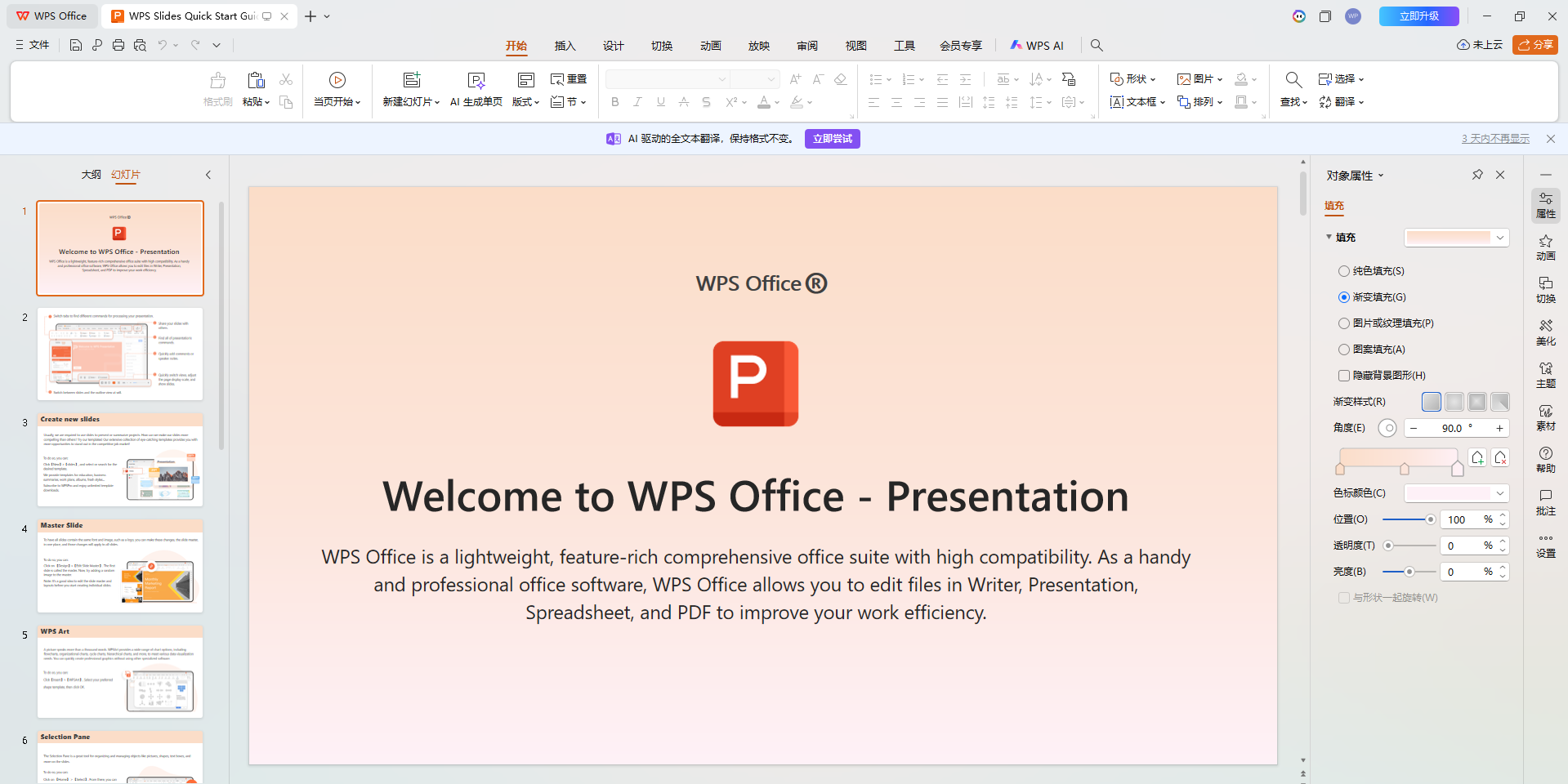
Once you have decided WPS Office may fit your needs, here is what the first session typically looks like. The aim is to get oriented quickly, not to master every tool.
Create or Open a Document
After installing WPS Office from the official download center, launch the app and either start a new blank document or open an existing file from your device or cloud storage. Starting with a document you already know is often the quickest way to see whether the workflow feels comfortable. If you are coming from another suite, opening a document you already have is usually the fastest way to see how your content looks.

Work with Spreadsheets and Presentations
Spreadsheets and presentations follow the same first-use pattern: create a new file or open an existing one, then edit. For a budget or grade sheet, enter your data and apply a few basic formulas; for a class or work deck, start with a blank presentation or open an existing deck, then adjust the slides. The basic workflow is similar: create or open a file, edit it, and save or share it when you are done.
Open and Save Microsoft Office Files
WPS states that it can open, edit, and save common Microsoft Office file formats. In practice, that means you can open a .docx, .xlsx, or .pptx file, make your changes, and save back to the same format so you can share with people who use Word, Excel, or PowerPoint. For complex or business-critical files, test a representative document before switching workflows, and review the result before sending it on.
Use PDF Tools When Needed
To work with a PDF, open it in WPS and choose the action you need, such as reading, converting, or signing. Keep in mind that the available PDF features can vary by platform, plan, region, and account status, so the exact options you see may differ from one device to another. If a feature you want is not available on your current plan, check what is offered before upgrading.
A practical first step is to download WPS Office and open one of your own documents to see whether the workflow fits your needs.
FAQs
Is WPS Office really free?
Yes — WPS publishes a free plan (WPS Standard) that includes the core apps, cloud storage and sync, broad format support, and basic PDF features. Some advanced features and higher limits require a paid upgrade.
How can I download WPS Office from an official source?
Download it from the official WPS Office Download Center at wps.com/download, which offers builds for Windows, Mac, Linux, iPhone, Android, and iPad. Avoid third-party download sites.
Can WPS Office open Microsoft Office files?
WPS states that it can open, edit, and save common Microsoft Office formats, including .docx, .xlsx, and .pptx. For complex or business-critical files, test a representative document before switching workflows.
Does WPS Office work offline?
WPS desktop apps can be used offline after installation. This applies to the desktop apps; the web and mobile versions may behave differently, so don't assume identical offline capability everywhere.
Is WPS Office a good choice for everyday use?
For everyday documents, spreadsheets, slides, and PDFs, it is a capable, budget-friendly option. If you need advanced Excel features, a Microsoft enterprise setup, or browser-first Google Workspace collaboration, another suite may fit better.
Can I use WPS Office on my device?
WPS Office is available on Windows, Mac, Linux, iOS, Android, and iPad, plus some web tools. Feature availability can vary by platform, so confirm the current feature list for your device.
Final Verdict
WPS Office is a practical, cross-platform suite with a free plan, familiar editing, and built-in PDF tools that many students, everyday users, freelancers, and small teams will find more than sufficient. Its trade-offs are honest ones: some advanced PDF, AI, and storage features may require a paid plan depending on the platform and region, AI access is tiered, and feature coverage can vary by platform. It will not be the best fit for every workflow.
If your work centers on advanced Excel, a Microsoft enterprise stack, or real-time Google Workspace collaboration, Microsoft 365 or Google Docs is the more sensible pick — and that is a perfectly valid reason not to choose WPS Office. But if you want a capable, low-cost suite that handles everyday work across your devices, it is well worth trying.

'%3e%3cpath%20d='M19.9911%204.11386V6.471H18.5894C18.0775%206.471%2017.7322%206.57814%2017.5536%206.79243C17.3751%207.00671%2017.2858%207.32814%2017.2858%207.75671V9.44421H19.9019L19.5536%2012.0871H17.2858V18.8639H14.5536V12.0871H12.2769V9.44421H14.5536V7.49779C14.5536%206.39064%2014.8632%205.53201%2015.4822%204.92189C16.1013%204.31177%2016.9257%204.00671%2017.9554%204.00671C18.8304%204.00671%2019.509%204.04243%2019.9911%204.11386Z'%20fill='%23333333'/%3e%3c/g%3e%3cdefs%3e%3cclipPath%20id='clip0_2938_8199'%3e%3crect%20width='16'%20height='16'%20fill='white'%20transform='translate(8%204.00671)'/%3e%3c/clipPath%3e%3c/defs%3e%3c/svg%3e)
'%3e%3cpath%20d='M17.5237%2010.7813L23.4811%204H22.0699L16.8949%209.88693L12.7648%204H8L14.2469%2012.9029L8%2020.0133H9.4112L14.8725%2013.7952L19.2352%2020.0133H24M9.92053%205.04213H12.0885L22.0688%2019.0224H19.9003'%20fill='%23333333'/%3e%3c/g%3e%3cdefs%3e%3cclipPath%20id='clip0_2938_8200'%3e%3crect%20width='16'%20height='16.0134'%20fill='white'%20transform='translate(8%204)'/%3e%3c/clipPath%3e%3c/defs%3e%3c/svg%3e)


