

'%3e%3cpath%20d='M8%200C12.4183%200%2016%203.58172%2016%208C16%2012.4183%2012.4183%2016%208%2016C3.58172%2016%200%2012.4183%200%208C0%203.58172%203.58172%200%208%200ZM11.6162%204.38379C11.2257%203.99337%2010.5927%203.99338%2010.2021%204.38379L8%206.58594L5.79785%204.38379C5.40732%203.99334%204.77429%203.99329%204.38379%204.38379C3.99331%204.77429%203.99335%205.40733%204.38379%205.79785L6.58594%208L4.38379%2010.2021C3.99348%2010.5927%203.99341%2011.2257%204.38379%2011.6162C4.77426%2012.0066%205.40734%2012.0065%205.79785%2011.6162L8%209.41406L10.2021%2011.6162C10.5927%2012.0066%2011.2257%2012.0067%2011.6162%2011.6162C12.0067%2011.2257%2012.0066%2010.5927%2011.6162%2010.2021L9.41406%208L11.6162%205.79785C12.0066%205.40735%2012.0066%204.77429%2011.6162%204.38379Z'%20fill='%23080E17'%20fill-opacity='0.46'/%3e%3c/g%3e%3cdefs%3e%3cclipPath%20id='clip0_3761_713'%3e%3crect%20width='16'%20height='16'%20fill='white'/%3e%3c/clipPath%3e%3c/defs%3e%3c/svg%3e)




'%3e%3cpath%20fill-rule='evenodd'%20clip-rule='evenodd'%20d='M21.4999%2010.9993C21.4999%205.20009%2016.7986%200.498901%2010.9993%200.498901C5.19994%200.498901%200.498657%205.20009%200.498657%2010.9993C0.498657%2016.2404%204.33858%2020.5844%209.35855%2021.3722V14.0346H6.69238V10.9993H9.35855V8.68594C9.35855%206.05427%2010.9262%204.60062%2013.3248%204.60062C14.4736%204.60062%2015.6753%204.80571%2015.6753%204.80571V7.38979H14.3512C13.0468%207.38979%2012.64%208.19921%2012.64%209.0296V10.9993H15.5523L15.0867%2014.0346H12.64V21.3722C17.66%2020.5844%2021.4999%2016.2404%2021.4999%2010.9993Z'%20fill='%231568EA'/%3e%3c/g%3e%3c/svg%3e)


'%3e%3cpath%20d='M2.42045%2022.1876H6.31818V12.7217L0.75%208.54553V20.5171C0.75%2021.4414%201.49892%2022.1876%202.42045%2022.1876Z'%20fill='%234285F4'/%3e%3cpath%20d='M19.682%2022.1876H23.5797C24.5041%2022.1876%2025.2502%2021.4387%2025.2502%2020.5171V8.54553L19.682%2012.7217'%20fill='%2334A853'/%3e%3cpath%20d='M19.682%205.48293V12.7216L25.2502%208.54543V6.31816C25.2502%204.25236%2022.8921%203.07469%2021.2411%204.31361'%20fill='%23FBBC04'/%3e%3cpath%20d='M6.31824%2012.7217V5.48303L13.0001%2010.4944L19.6819%205.48303V12.7217L13.0001%2017.733'%20fill='%23EA4335'/%3e%3cpath%20d='M0.75%206.31816V8.54543L6.31818%2012.7216V5.48293L4.75909%204.31361C3.10534%203.07469%200.75%204.25236%200.75%206.31816Z'%20fill='%23C5221F'/%3e%3c/g%3e%3cdefs%3e%3cclipPath%20id='clip0_2954_7305'%3e%3crect%20width='24.5'%20height='18.375'%20fill='white'%20transform='translate(0.75%203.8125)'/%3e%3c/clipPath%3e%3c/defs%3e%3c/svg%3e)


Looking for a way to convert HTML to PDF on Windows 10 for free? Whether you want to save webpages, share documents, or keep offline copies of important content, there are several easy and reliable solutions. You can use online tools like Toolsmart, built-in browser features, or desktop software to quickly convert HTML files to high-quality PDFs. This article will guide you step by step through the most effective methods to get the job done effortlessly.
Method 1 – Convert HTML to PDF Using WPS PDF Tools(Online)
WPS PDF Tools is a fast and convenient online HTML to PDF converter that works directly in your web browser, without installing any software. It’s perfect for Windows 10 users who want a simple, free solution.
Steps:
1. Open your web browser and go to the WPS PDF Tools HTML to PDF converter.
2. Upload HTML file OR import via URL, and click Convert.
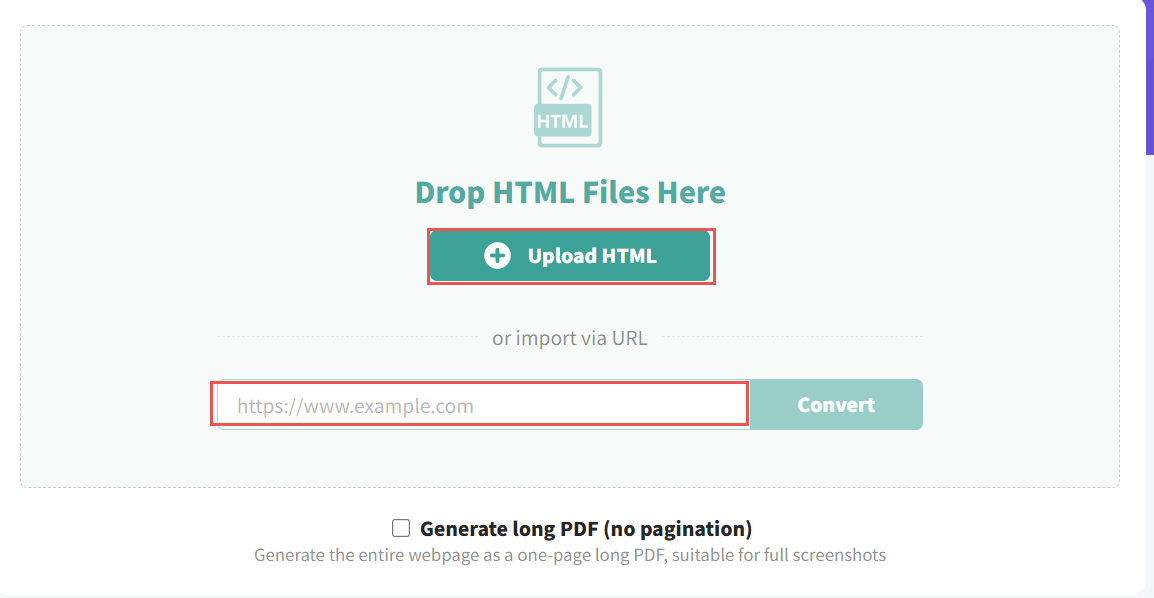
3. WPS PDF Tools will automatically process the conversion.
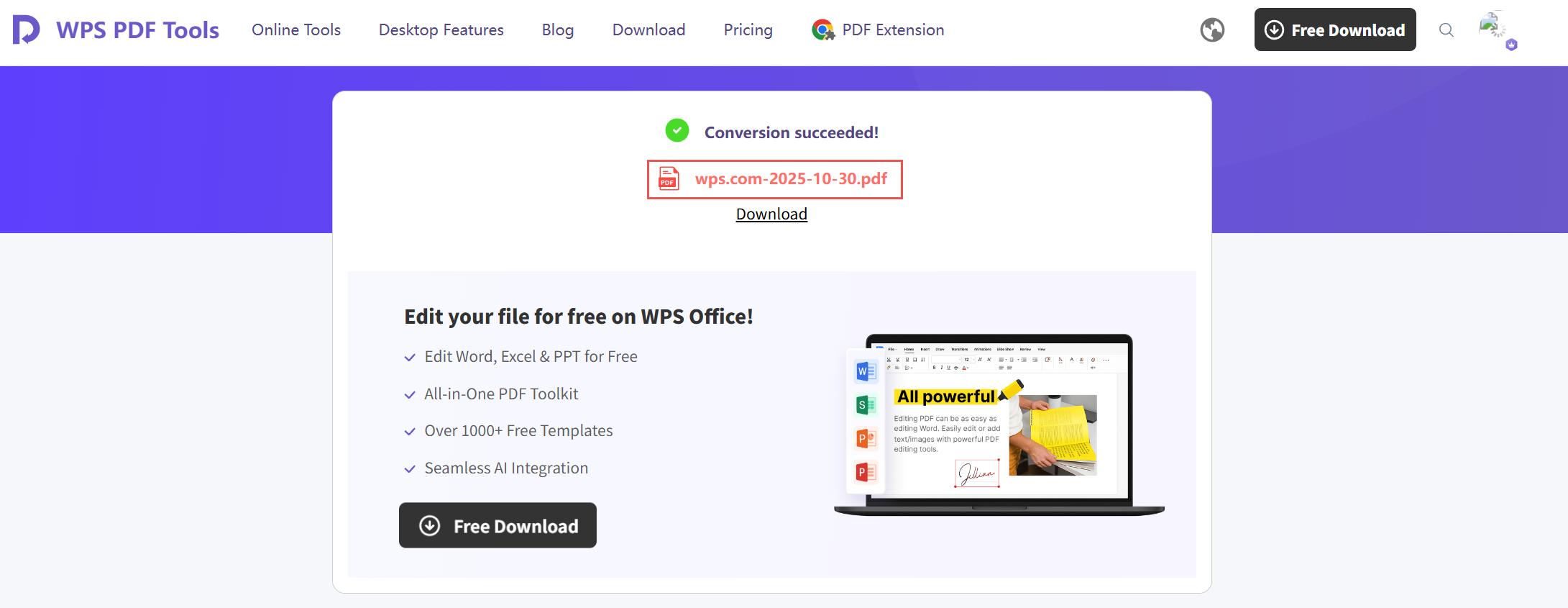
4. Once completed, click Download to save the PDF to your device.
Why use WPS PDF Tools :
Completely free and online
No installation required
Maintains original formatting and layout
Method 2 – Convert HTML to PDF Using a Web Browser
The use of a web browser, such as Chrome, Edge, or Firefox, can be the most convenient option to convert any HTML file to PDF. The basic key is the use of the “Print to PDF” option in a web browser. Follow the below step-by-step guide to convert an existing HTML file to a portable document file format.
Steps:
1.Locate the HTML file you want to convert to PDF and right-click it. On the “Open With” option, select “Microsoft Edge.”

2.In the browser window where the file has opened, click on the three-dot menu icon in the top-right corner of the browser window.
3.Select “Print” from the menu.

4.In the “Print” dialog box, select “Microsoft Print to PDF” as the printer. Select the layout and pages you want to print and hit the “Print” button.

5. The “Save Print Output As” dialog box will open, select the location where you want to save the PDF file and give it a name and hit “Save”.
Notes:
Quick and requires no extra software
Good for single-page HTML files or webpages
Limited editing features compared to expert PDF tools
Method 3 – Convert HTML to PDF Using WPS Office
WPS Office is a popular office suite with a word processor, spreadsheet, and presentation software. It also includes a built-in PDF converter, which can be used to convert HTML to PDF. Here are the steps to convert HTML to PDF using WPS Office on Windows 10:
Download and install WPS office software on your device.
Launch the software and open WPS Office Writer.
Copy the HTML code that you want to convert to PDF.
Click on the “File Menu” at the top-left corner of the screen, and select “New” to create a new document.
Copy the HTML code from the source file and then Paste the code into the new document.
Again visit the “File menu” and select “Export to PDF.”

7. Name the file and select a location to save the output file. Click the “Export to PDF” button to save the PDF file.

8. Wait for the conversion process to complete. Once it’s done, the final PDF file will automatically open the WPS office PDF viewer.
Why use WPS Office:
Desktop solution for offline use
Supports batch conversion of documents
Also converts DOC and other file types to PDF
In addition, WPS supports converting doc to pdf, making it a versatile tool for various document-related needs.
FAQs
1. Can I convert a webpage URL to PDF without downloading anything?
Yes! With WPS PDF Tool, you can paste a webpage URL and instantly get a PDF. No HTML file download needed. Perfect for saving recipes, articles, or instructions for offline use.
2. Will my PDF look exactly like the webpage?
Mostly yes! WPS PDF Tool preserves text, images, and layout. Minor differences might appear if the page has dynamic elements or pop-ups, but your main content will stay intact.
3. Is WPS PDF Tool really free to use?
Absolutely. You don’t need to pay or create an account to convert HTML files or webpages to PDF.
4. Will I lose formatting like images, fonts, or tables?
Generally, no. WPS PDF Tool keeps the original formatting intact, so tables, images, and text stay where they belong. Dynamic content like animations won’t transfer, but most webpages convert perfectly.
5. Are there any tips to make sure my PDF looks perfect?
Yes! Check your HTML file or webpage for images and formatting before converting. WPS PDF Tool does a great job, but cleaning up the source ensures the PDF looks exactly as intended.
Conclusion
Converting HTML files to PDF on Windows 10 is now quick and easy. Whether you use an online tool like WPS PDF Tool, a web browser, or WPS Office, you can preserve the formatting, create offline copies, and share documents effortlessly. Choose the method that best fits your workflow and enjoy high-quality PDFs without spending a dime.


Use Word, Excel, and PPT for FREE, No Ads.
Edit PDF files with the powerful PDF toolkit.
Microsoft-like interface. Easy to learn. 100% Compatibility.
Boost your productivity with WPS's abundant free Word, Excel, PPT, and CV templates.

'%3e%3cpath%20d='M19.9911%204.11386V6.471H18.5894C18.0775%206.471%2017.7322%206.57814%2017.5536%206.79243C17.3751%207.00671%2017.2858%207.32814%2017.2858%207.75671V9.44421H19.9019L19.5536%2012.0871H17.2858V18.8639H14.5536V12.0871H12.2769V9.44421H14.5536V7.49779C14.5536%206.39064%2014.8632%205.53201%2015.4822%204.92189C16.1013%204.31177%2016.9257%204.00671%2017.9554%204.00671C18.8304%204.00671%2019.509%204.04243%2019.9911%204.11386Z'%20fill='%23333333'/%3e%3c/g%3e%3cdefs%3e%3cclipPath%20id='clip0_2938_8199'%3e%3crect%20width='16'%20height='16'%20fill='white'%20transform='translate(8%204.00671)'/%3e%3c/clipPath%3e%3c/defs%3e%3c/svg%3e)
'%3e%3cpath%20d='M17.5237%2010.7813L23.4811%204H22.0699L16.8949%209.88693L12.7648%204H8L14.2469%2012.9029L8%2020.0133H9.4112L14.8725%2013.7952L19.2352%2020.0133H24M9.92053%205.04213H12.0885L22.0688%2019.0224H19.9003'%20fill='%23333333'/%3e%3c/g%3e%3cdefs%3e%3cclipPath%20id='clip0_2938_8200'%3e%3crect%20width='16'%20height='16.0134'%20fill='white'%20transform='translate(8%204)'/%3e%3c/clipPath%3e%3c/defs%3e%3c/svg%3e)


