

'%3e%3cpath%20d='M8%200C12.4183%200%2016%203.58172%2016%208C16%2012.4183%2012.4183%2016%208%2016C3.58172%2016%200%2012.4183%200%208C0%203.58172%203.58172%200%208%200ZM11.6162%204.38379C11.2257%203.99337%2010.5927%203.99338%2010.2021%204.38379L8%206.58594L5.79785%204.38379C5.40732%203.99334%204.77429%203.99329%204.38379%204.38379C3.99331%204.77429%203.99335%205.40733%204.38379%205.79785L6.58594%208L4.38379%2010.2021C3.99348%2010.5927%203.99341%2011.2257%204.38379%2011.6162C4.77426%2012.0066%205.40734%2012.0065%205.79785%2011.6162L8%209.41406L10.2021%2011.6162C10.5927%2012.0066%2011.2257%2012.0067%2011.6162%2011.6162C12.0067%2011.2257%2012.0066%2010.5927%2011.6162%2010.2021L9.41406%208L11.6162%205.79785C12.0066%205.40735%2012.0066%204.77429%2011.6162%204.38379Z'%20fill='%23080E17'%20fill-opacity='0.46'/%3e%3c/g%3e%3cdefs%3e%3cclipPath%20id='clip0_3761_713'%3e%3crect%20width='16'%20height='16'%20fill='white'/%3e%3c/clipPath%3e%3c/defs%3e%3c/svg%3e)




'%3e%3cpath%20fill-rule='evenodd'%20clip-rule='evenodd'%20d='M21.4999%2010.9993C21.4999%205.20009%2016.7986%200.498901%2010.9993%200.498901C5.19994%200.498901%200.498657%205.20009%200.498657%2010.9993C0.498657%2016.2404%204.33858%2020.5844%209.35855%2021.3722V14.0346H6.69238V10.9993H9.35855V8.68594C9.35855%206.05427%2010.9262%204.60062%2013.3248%204.60062C14.4736%204.60062%2015.6753%204.80571%2015.6753%204.80571V7.38979H14.3512C13.0468%207.38979%2012.64%208.19921%2012.64%209.0296V10.9993H15.5523L15.0867%2014.0346H12.64V21.3722C17.66%2020.5844%2021.4999%2016.2404%2021.4999%2010.9993Z'%20fill='%231568EA'/%3e%3c/g%3e%3c/svg%3e)


'%3e%3cpath%20d='M2.42045%2022.1876H6.31818V12.7217L0.75%208.54553V20.5171C0.75%2021.4414%201.49892%2022.1876%202.42045%2022.1876Z'%20fill='%234285F4'/%3e%3cpath%20d='M19.682%2022.1876H23.5797C24.5041%2022.1876%2025.2502%2021.4387%2025.2502%2020.5171V8.54553L19.682%2012.7217'%20fill='%2334A853'/%3e%3cpath%20d='M19.682%205.48293V12.7216L25.2502%208.54543V6.31816C25.2502%204.25236%2022.8921%203.07469%2021.2411%204.31361'%20fill='%23FBBC04'/%3e%3cpath%20d='M6.31824%2012.7217V5.48303L13.0001%2010.4944L19.6819%205.48303V12.7217L13.0001%2017.733'%20fill='%23EA4335'/%3e%3cpath%20d='M0.75%206.31816V8.54543L6.31818%2012.7216V5.48293L4.75909%204.31361C3.10534%203.07469%200.75%204.25236%200.75%206.31816Z'%20fill='%23C5221F'/%3e%3c/g%3e%3cdefs%3e%3cclipPath%20id='clip0_2954_7305'%3e%3crect%20width='24.5'%20height='18.375'%20fill='white'%20transform='translate(0.75%203.8125)'/%3e%3c/clipPath%3e%3c/defs%3e%3c/svg%3e)


Counting distinct values in Excel is a common task that many users encounter while working with spreadsheets. Whether you need to identify unique text values or find the number of distinct values based on certain criteria, Excel provides several methods to accomplish this.
In this article, we will explore three easy ways to count distinct values in Excel, allowing you to efficiently analyze your data and gain valuable insights.
What Is Distinct Count in Excel?
Distinct count in Excel refers to the number of unique values within a specified range of data, excluding any duplicates. It provides a count that focuses solely on the distinct values present.
This metric is valuable when dealing with datasets that have repetitive information, allowing for a clearer analysis of unique values. It differs from the simple COUNT function in that the COUNT function includes all values, including duplicates, while distinct count focuses solely on unique values.
How to Count Distinct Values Using Filter Option
The first method we'll discuss is using the Advanced Filter option in Excel, which allows you to identify and count unique text values within a column by copying them to another location. To understand this, let's consider the following dataset of 15 material codes:
Step 1: Select the column containing the values you want to count.

Step 2: Go to the Data tab in the Excel ribbon and click on the Advanced button in the Sort & Filter group.

Step 3: In the Advanced Filter dialog box, choose the option "Copy to another location." Then, make sure to check the box labeled "Unique records only" to copy only the distinct values. Next, specify the destination range where you want to copy the unique values. For instance, in this example, I will copy the list to column C, starting from cell C1.
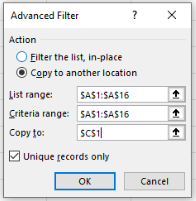
Step 4: Click OK to apply the advanced filter and copy the unique values to the specified range.
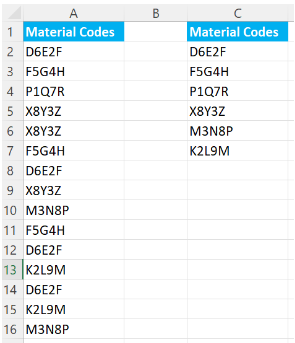
Step 5: Now you can use the ROW(range) function to count the distinct values.
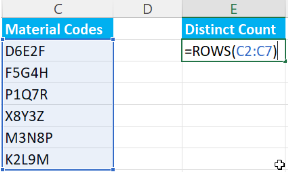
And that's how you can count the distinct values using the Filter option.

How to Count Distinct Values Using Formulas
Excel provides powerful formulas that can help you count distinct values in both text and numeric formats. Let's explore two commonly used formulas for this purpose.
Finding Distinct Text Values:
You can use the following formula to count unique text values in Excel:
=SUM(IF(ISTEXT(range),1/COUNTIF(range,range),””))
To apply this formula, follow these steps:
Step 1: Select an empty cell where you want to display the distinct count.
Step 2: Replace "range" in the formula with the actual range of cells containing the text values you want to count.

Step 3: Press Ctrl + Shift + Enter to enter the formula as an array formula. Excel will automatically calculate the distinct count based on the provided range.

Finding Distinct Numeric Values:
Similarly, if your data is numeric, you can count unique numeric values using the following formula:
=SUM(IF(ISNUMBER(range),1/COUNTIF(range,range),””))
Follow the same steps as above, replacing "range" with the range of cells containing the numeric values you want to count.
How to Count Distinct Values Using a Pivot Table
Pivot tables offer a convenient way to perform data analysis in Excel, including counting distinct values. Here's how you can achieve this using a pivot table:
Step 1: Select the range of data you want to analyze.
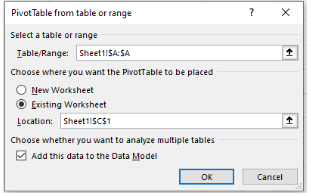
Step 2: Go to the Insert tab and click on the PivotTable button. In the dialog box, choose your data source. For example, if your data is in the form of a Table, select From Table/Range.
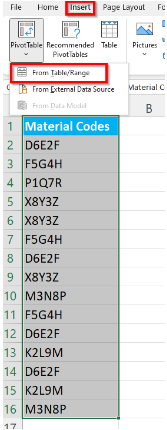
Step 3: In the following window, Excel will automatically retrieve your table if you selected it in the previous step. Now, you can specify the location for your PivotTable. If you prefer to place it in the existing worksheet, indicate the cell where you want your pivot table to be located. For instance, in my example, I have chosen to position my table at cell C1. Make sure to check “Add this data to the data model”.
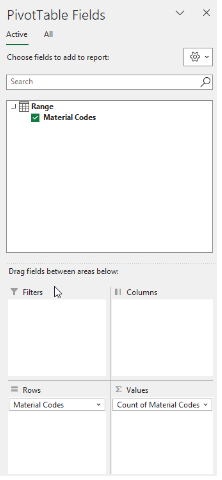
Step 4: In the PivotTable Fields pane, drag the column that contains the values you want to count into the "Values" area.
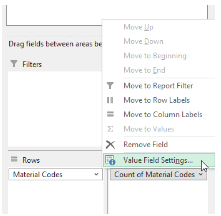
Step 5: By default, Excel will summarize the values using the "Count" function. To change the summary function, click on the drop-down arrow next to the field name in the Values area and select "Value Field Settings".
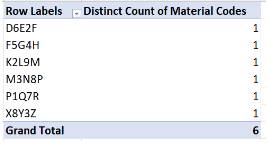
Step 6: Choose "Distinct Count" from the list.
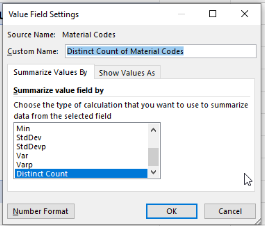
Step 7: Click OK to see the distinct values.
Best Alternative to Microsoft Excel - WPS Office
While Microsoft Excel is widely used, there are alternatives available that offer similar functionality. One such alternative is WPS Office. Following are the reasons why you should opt for the WPS office.
Compatibility: WPS Office ensures seamless compatibility with Excel's essential features, formulas, and macros, allowing for smooth transition and work continuity.
Cost-effectiveness: WPS Spreadsheet provides a free version equipped with most essential features, offering an economical solution for users. Additionally, it offers a premium version at a lower price point compared to Microsoft Excel, giving you excellent value for your money.
User-Friendly Interface: With its user-friendly features and intuitive navigation, WPS Office makes spreadsheet management a breeze. Whether you're a beginner or an experienced user, you'll find it easy to navigate and utilize the tools efficiently.


FAQs
Q1. What’s the difference between distinct and unique counts in Excel?
A: In Microsoft Excel, distinct counts represent the quantity of unique values within a dataset, regardless of whether they are duplicates or not. On the contrary, unique counts encompass only those items that do not have any duplicates.
Q2. How to count unique values in multiple columns in Excel?
A: To count unique values across multiple columns, you can use the COUNTIFS formula. Specify each column range and the corresponding criteria to ensure the count is based on the desired conditions.
Q3. Why is distinct count not working in Excel?
A: If the distinct count is not working in Excel, ensure that you are using the correct formulas or methods. Check for any hidden or filtered data that may affect the results. Additionally, confirm that your data is formatted correctly, as distinct count may not work as expected with improperly formatted data.
Learn Distinct Value Counting in Excel with Ease
Handling distinct values can sometimes be confusing, but with the convenience of Excel, this task becomes straightforward. In this article, we explored how Excel can efficiently assist in counting distinct values, making your job quicker and more manageable. WPS Spreadsheet offers a user-friendly interface, allowing you to accomplish this task effortlessly. Download WPS Office today and get the hang of excel effortlessly.

'%3e%3cpath%20d='M19.9911%204.11386V6.471H18.5894C18.0775%206.471%2017.7322%206.57814%2017.5536%206.79243C17.3751%207.00671%2017.2858%207.32814%2017.2858%207.75671V9.44421H19.9019L19.5536%2012.0871H17.2858V18.8639H14.5536V12.0871H12.2769V9.44421H14.5536V7.49779C14.5536%206.39064%2014.8632%205.53201%2015.4822%204.92189C16.1013%204.31177%2016.9257%204.00671%2017.9554%204.00671C18.8304%204.00671%2019.509%204.04243%2019.9911%204.11386Z'%20fill='%23333333'/%3e%3c/g%3e%3cdefs%3e%3cclipPath%20id='clip0_2938_8199'%3e%3crect%20width='16'%20height='16'%20fill='white'%20transform='translate(8%204.00671)'/%3e%3c/clipPath%3e%3c/defs%3e%3c/svg%3e)
'%3e%3cpath%20d='M17.5237%2010.7813L23.4811%204H22.0699L16.8949%209.88693L12.7648%204H8L14.2469%2012.9029L8%2020.0133H9.4112L14.8725%2013.7952L19.2352%2020.0133H24M9.92053%205.04213H12.0885L22.0688%2019.0224H19.9003'%20fill='%23333333'/%3e%3c/g%3e%3cdefs%3e%3cclipPath%20id='clip0_2938_8200'%3e%3crect%20width='16'%20height='16.0134'%20fill='white'%20transform='translate(8%204)'/%3e%3c/clipPath%3e%3c/defs%3e%3c/svg%3e)


