

'%3e%3cpath%20d='M8%200C12.4183%200%2016%203.58172%2016%208C16%2012.4183%2012.4183%2016%208%2016C3.58172%2016%200%2012.4183%200%208C0%203.58172%203.58172%200%208%200ZM11.6162%204.38379C11.2257%203.99337%2010.5927%203.99338%2010.2021%204.38379L8%206.58594L5.79785%204.38379C5.40732%203.99334%204.77429%203.99329%204.38379%204.38379C3.99331%204.77429%203.99335%205.40733%204.38379%205.79785L6.58594%208L4.38379%2010.2021C3.99348%2010.5927%203.99341%2011.2257%204.38379%2011.6162C4.77426%2012.0066%205.40734%2012.0065%205.79785%2011.6162L8%209.41406L10.2021%2011.6162C10.5927%2012.0066%2011.2257%2012.0067%2011.6162%2011.6162C12.0067%2011.2257%2012.0066%2010.5927%2011.6162%2010.2021L9.41406%208L11.6162%205.79785C12.0066%205.40735%2012.0066%204.77429%2011.6162%204.38379Z'%20fill='%23080E17'%20fill-opacity='0.46'/%3e%3c/g%3e%3cdefs%3e%3cclipPath%20id='clip0_3761_713'%3e%3crect%20width='16'%20height='16'%20fill='white'/%3e%3c/clipPath%3e%3c/defs%3e%3c/svg%3e)




'%3e%3cpath%20fill-rule='evenodd'%20clip-rule='evenodd'%20d='M21.4999%2010.9993C21.4999%205.20009%2016.7986%200.498901%2010.9993%200.498901C5.19994%200.498901%200.498657%205.20009%200.498657%2010.9993C0.498657%2016.2404%204.33858%2020.5844%209.35855%2021.3722V14.0346H6.69238V10.9993H9.35855V8.68594C9.35855%206.05427%2010.9262%204.60062%2013.3248%204.60062C14.4736%204.60062%2015.6753%204.80571%2015.6753%204.80571V7.38979H14.3512C13.0468%207.38979%2012.64%208.19921%2012.64%209.0296V10.9993H15.5523L15.0867%2014.0346H12.64V21.3722C17.66%2020.5844%2021.4999%2016.2404%2021.4999%2010.9993Z'%20fill='%231568EA'/%3e%3c/g%3e%3c/svg%3e)


'%3e%3cpath%20d='M2.42045%2022.1876H6.31818V12.7217L0.75%208.54553V20.5171C0.75%2021.4414%201.49892%2022.1876%202.42045%2022.1876Z'%20fill='%234285F4'/%3e%3cpath%20d='M19.682%2022.1876H23.5797C24.5041%2022.1876%2025.2502%2021.4387%2025.2502%2020.5171V8.54553L19.682%2012.7217'%20fill='%2334A853'/%3e%3cpath%20d='M19.682%205.48293V12.7216L25.2502%208.54543V6.31816C25.2502%204.25236%2022.8921%203.07469%2021.2411%204.31361'%20fill='%23FBBC04'/%3e%3cpath%20d='M6.31824%2012.7217V5.48303L13.0001%2010.4944L19.6819%205.48303V12.7217L13.0001%2017.733'%20fill='%23EA4335'/%3e%3cpath%20d='M0.75%206.31816V8.54543L6.31818%2012.7216V5.48293L4.75909%204.31361C3.10534%203.07469%200.75%204.25236%200.75%206.31816Z'%20fill='%23C5221F'/%3e%3c/g%3e%3cdefs%3e%3cclipPath%20id='clip0_2954_7305'%3e%3crect%20width='24.5'%20height='18.375'%20fill='white'%20transform='translate(0.75%203.8125)'/%3e%3c/clipPath%3e%3c/defs%3e%3c/svg%3e)


Office Apps Appear the Wrong Size or Blurry on External Monitors: A Mixed-DPI Diagnostic Guide
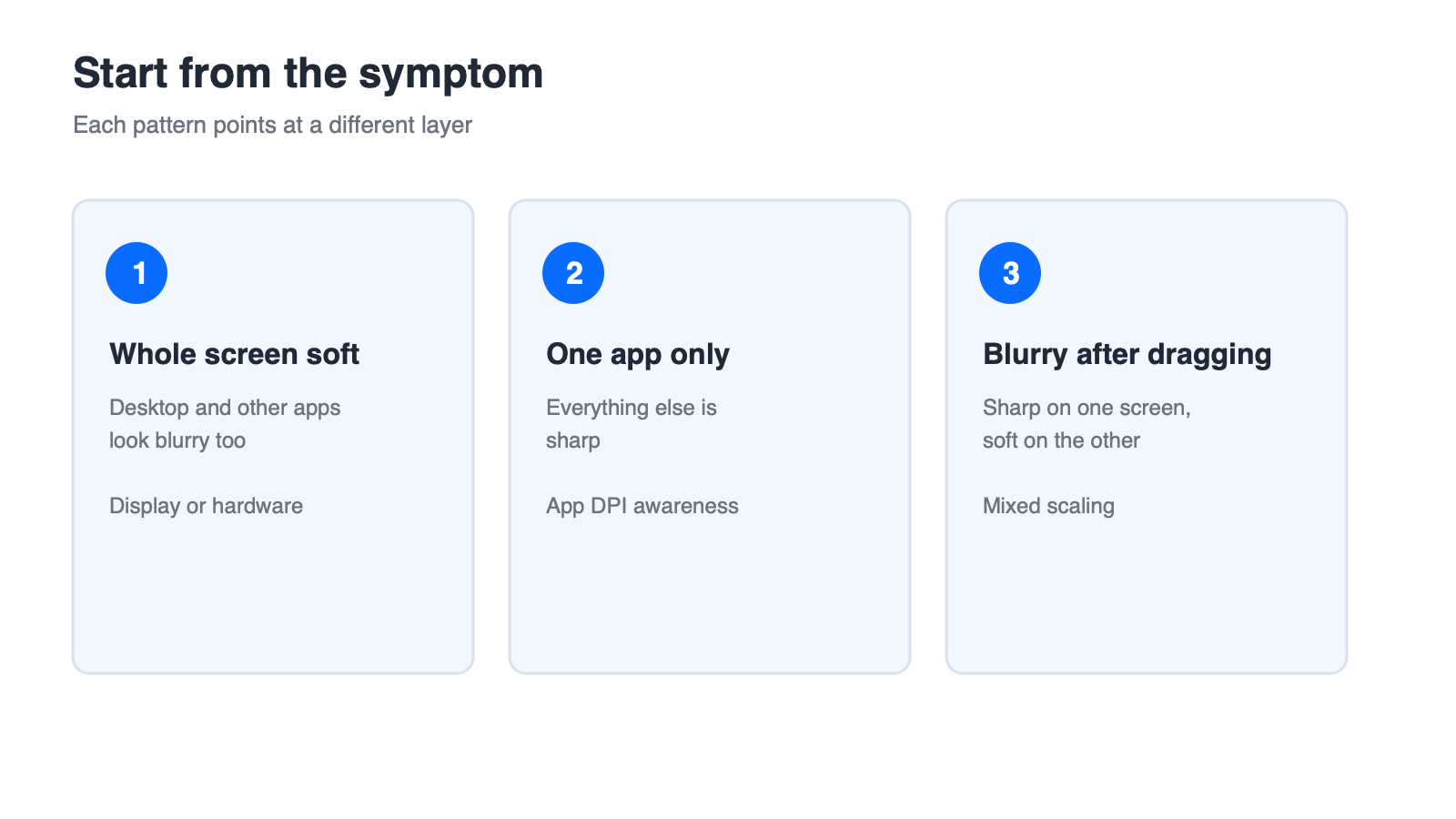
When office apps appear the wrong size or blurry on external monitors, the screen is rarely the whole story. Text that is fuzzy across the desktop, icons on the taskbar included, points at display scaling or hardware. Text that is crisp everywhere except one application points at how that application handles DPI awareness. Text that is sharp until you drag a window onto the second screen points at mixed scaling between displays.
This guide works through a diagnostic order built for that specific scene: identify which symptom you have, compare the scaling configured for each display, apply an application-level override only when it is justified, understand what happens as windows move between screens, and rule out cables, docks, and drivers. WPS Office behaviour in mixed-DPI setups is described with its limits stated, since that behaviour has not been verified here.
Office Apps Appear the Wrong Size or Blurry on External Monitors: A Mixed-DPI Diagnostic Guide
Wrong Size or Blurry on an External Monitor: Start With the Symptom
Ninety seconds of classification saves an hour of changing settings in the wrong layer. Read the three symptoms below and pick the one that matches before you open anything.
Three Symptoms, Three Different Causes
| Symptom | Most likely cause | Where to look |
|---|---|---|
| Everything on the display is soft, including the desktop | Display scaling, cabling, or drivers | Non-application factors |
| Only one office application looks wrong | How that application handles DPI awareness | Application-level override |
| Sharp on one screen, blurry after you drag the window | Mixed scaling between displays | Per-display scaling and awareness modes |
What to Note Before Changing Anything
The resolution and scale percentage configured for each display.
Which display is set as the main one.
Whether the external screen is connected directly or through a dock.
The exact wording of the problem: wrong size, blurry, or both.
Write those four items down. Every later step either confirms or eliminates one of them, and without them you are guessing.
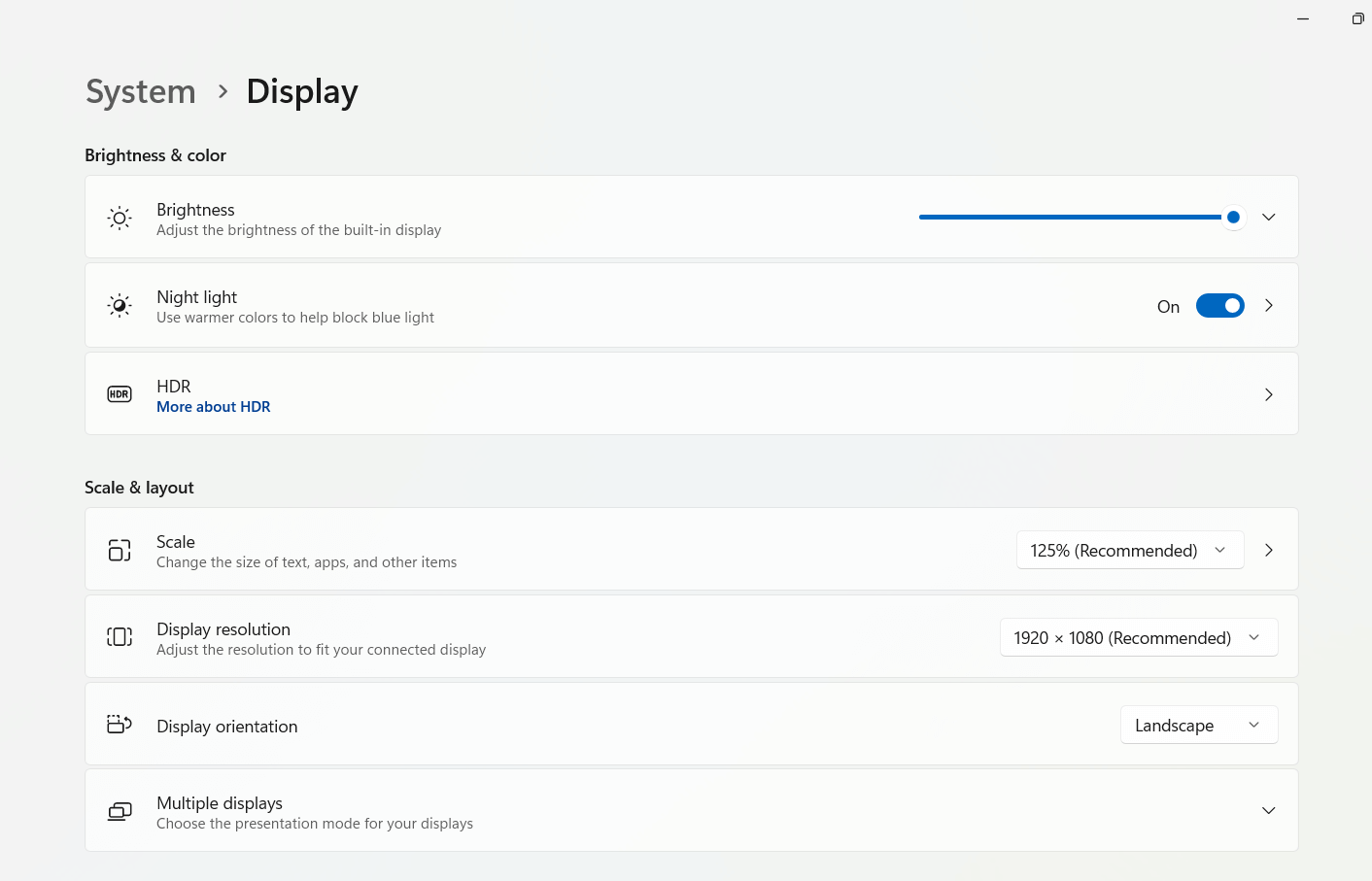
Display settings page in Windows


Check Per-Display Scaling Before You Touch App Settings
Scaling is configured per display, not per machine. A laptop at 150 percent next to a monitor at 100 percent is one of the most common sources of this problem, and it is worth verifying before you change anything inside an application.
Step 1: Record Each Display's Resolution and Scale
Open display settings and select each monitor in turn. Note the resolution and the scale percentage for both, rather than only for the one you are looking at.
Step 2: Align Scale Percentages
Where the hardware allows it, bring the two percentages closer together. Matching them removes an entire class of blur, and anything that remains is then genuinely about the application.
Step 3: Confirm the Change Took Effect
Some scaling changes only settle after you sign out and back in. If the desktop still looks the way it did, sign out and return rather than assuming the setting did not apply.
Step 4: Restart the App, Not Just the Window
Close the office application completely and open it again. A window that was created under the old scaling can keep rendering at the old size until the process is restarted.
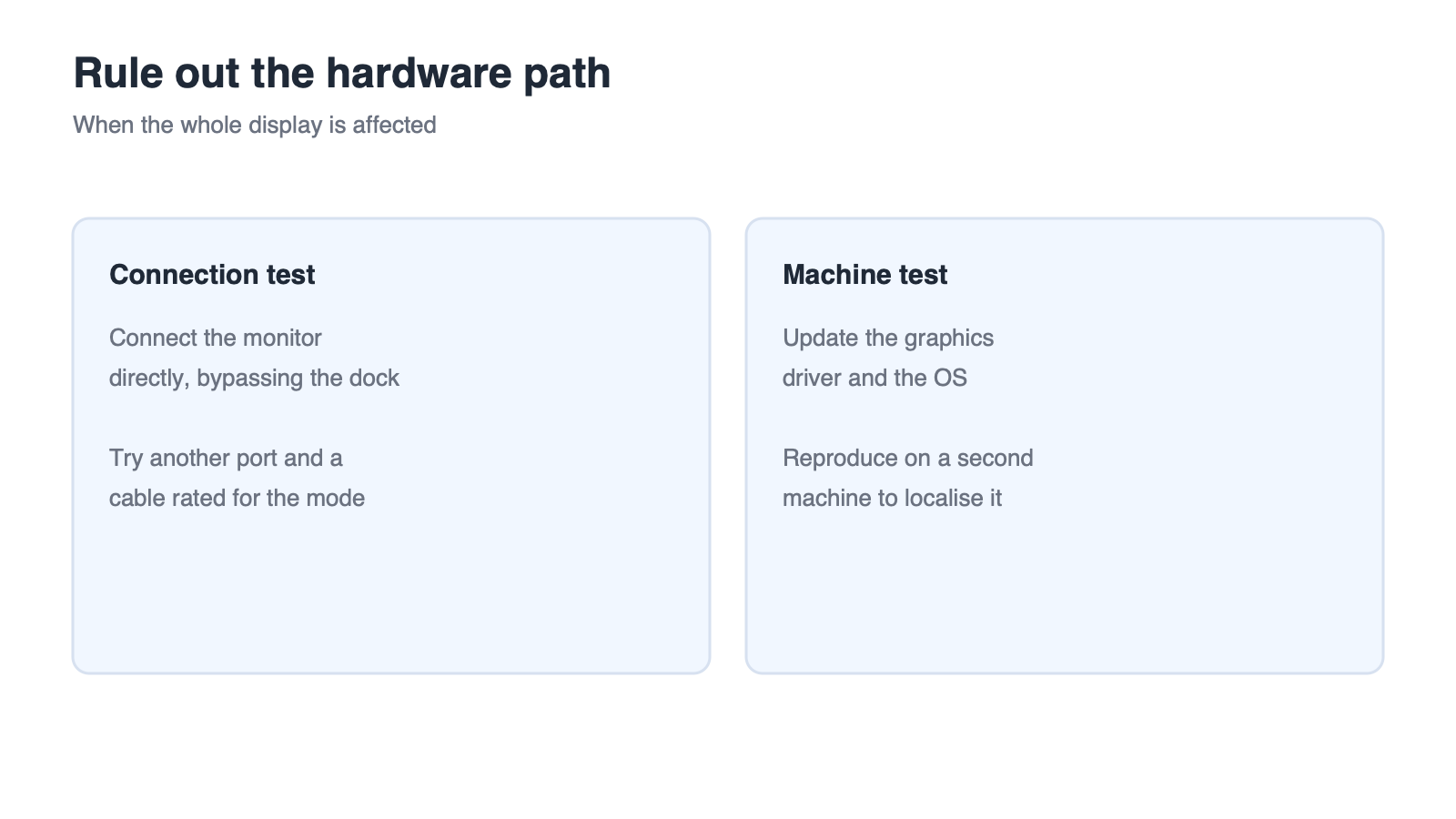
If the whole screen — desktop icons included — is still soft at this point, stop here and work through the non-application section later in this guide. Changing application settings will not fix a display-level problem.
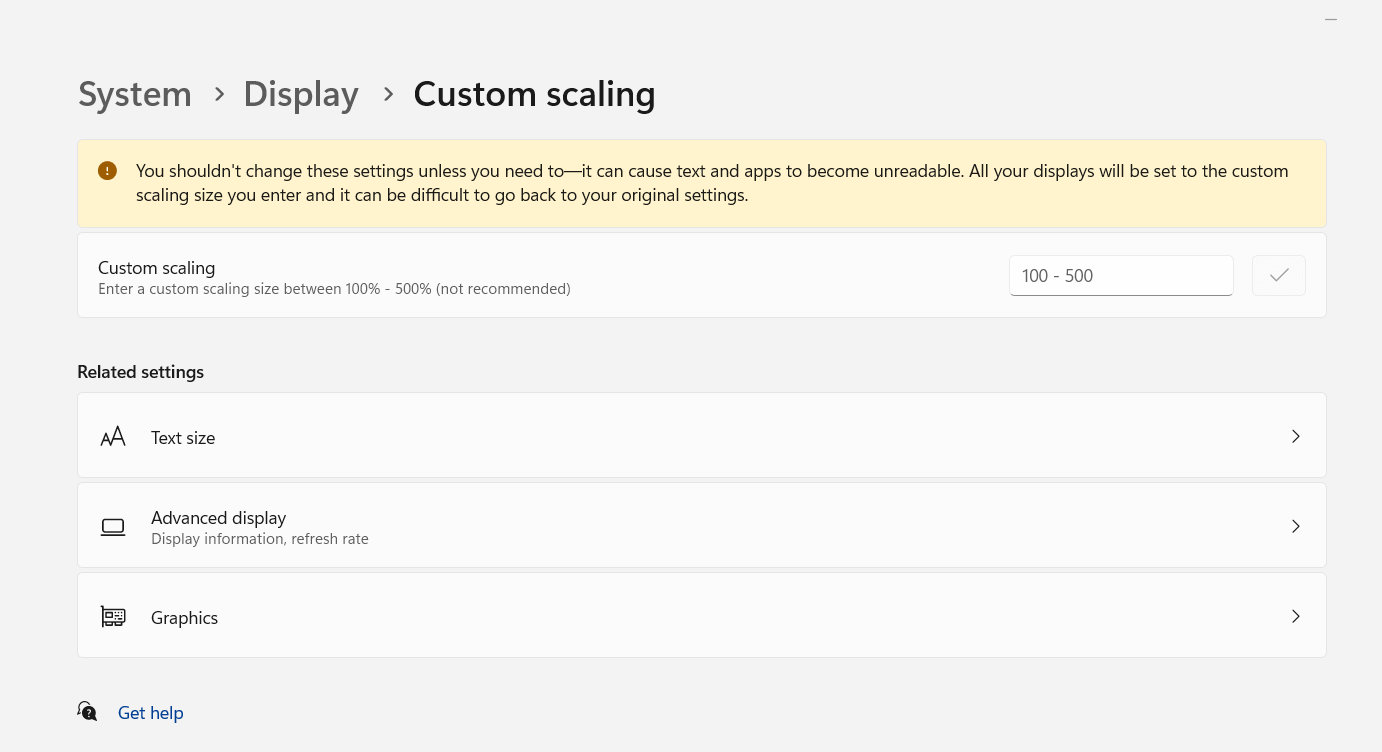
Scale and layout display options
Override DPI Scaling for the App Only
An application-level override is a targeted tool: it changes how one program is rendered and leaves everything else alone. Used in the wrong situation it makes blur worse, so apply it only when the symptom justifies it.
When an App-Only Override Is the Right Fix
Use it when the desktop and other applications are sharp, only one office application is blurry or the wrong size, and that application behaves correctly on the other display. Those three conditions together point at the application rather than the system.
The Compatibility Override Steps
Right-click the application shortcut and open its properties.
Open the compatibility tab.
Choose the option to change high DPI settings.
Enable the option to override high DPI scaling behaviour.
Set scaling to be performed by the system, or by the application, and restart the program.
This is a documented Windows compatibility workaround rather than a product-specific feature. On the desktop side, whether an equivalent high DPI entry exists for WPS Office shortcuts, and how the application responds, has not been verified here — check it on a test machine before applying it across a fleet.
Verify and Revert
After restarting, check the same window on both displays. If text becomes softer or interface elements shift out of alignment, switch the setting to the other option or remove the override entirely. Reverting is normal; the override is a test, not a permanent configuration.
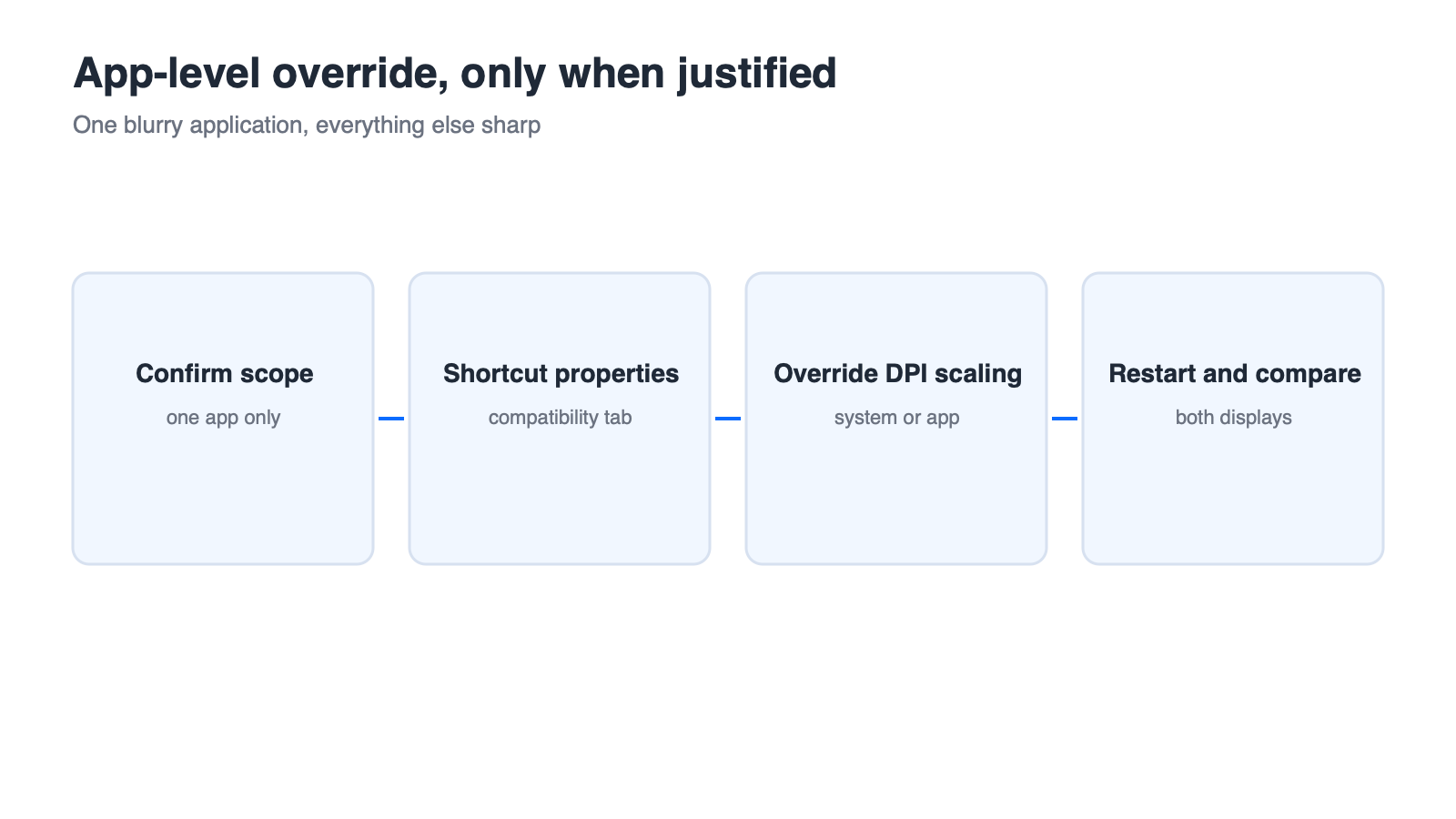
When an app-level override applies
Diagnose Mixed-DPI Problems When Windows Move Between Screens
When you move a window between displays with different scaling, the application has to decide how to redraw itself. The three awareness behaviours below explain the three different things you see.
Three DPI Awareness Modes in Plain Terms
Not aware of scaling: the system enlarges a rendered image, so the whole window looks soft.
Aware of the main display only: the window is rendered for the primary screen, so it looks wrong after it moves to a display with different scaling.
Aware of each display: the window re-renders when it moves, which is usually the sharpest result but can conflict with custom-drawn controls.
Behaviour Table: Drag a Window to the Other Display
| What you observe | What it suggests |
|---|---|
| Window stays soft after moving | The application is not re-rendering for the new display |
| Window changes size abruptly | It is rendering for the other display's scale rather than the current one |
| Window looks correct until restart | The new scaling is applied to the process, not to the existing window |
Why Restarting Sometimes Fixes It
A restart forces the application to read the current display configuration from scratch. If a restart fixes the appearance, the behaviour is about when the application samples the display settings rather than about the application being broken.
These modes are a general description of how Windows applications behave. Which mode a specific application uses is not something this guide asserts for WPS Office.
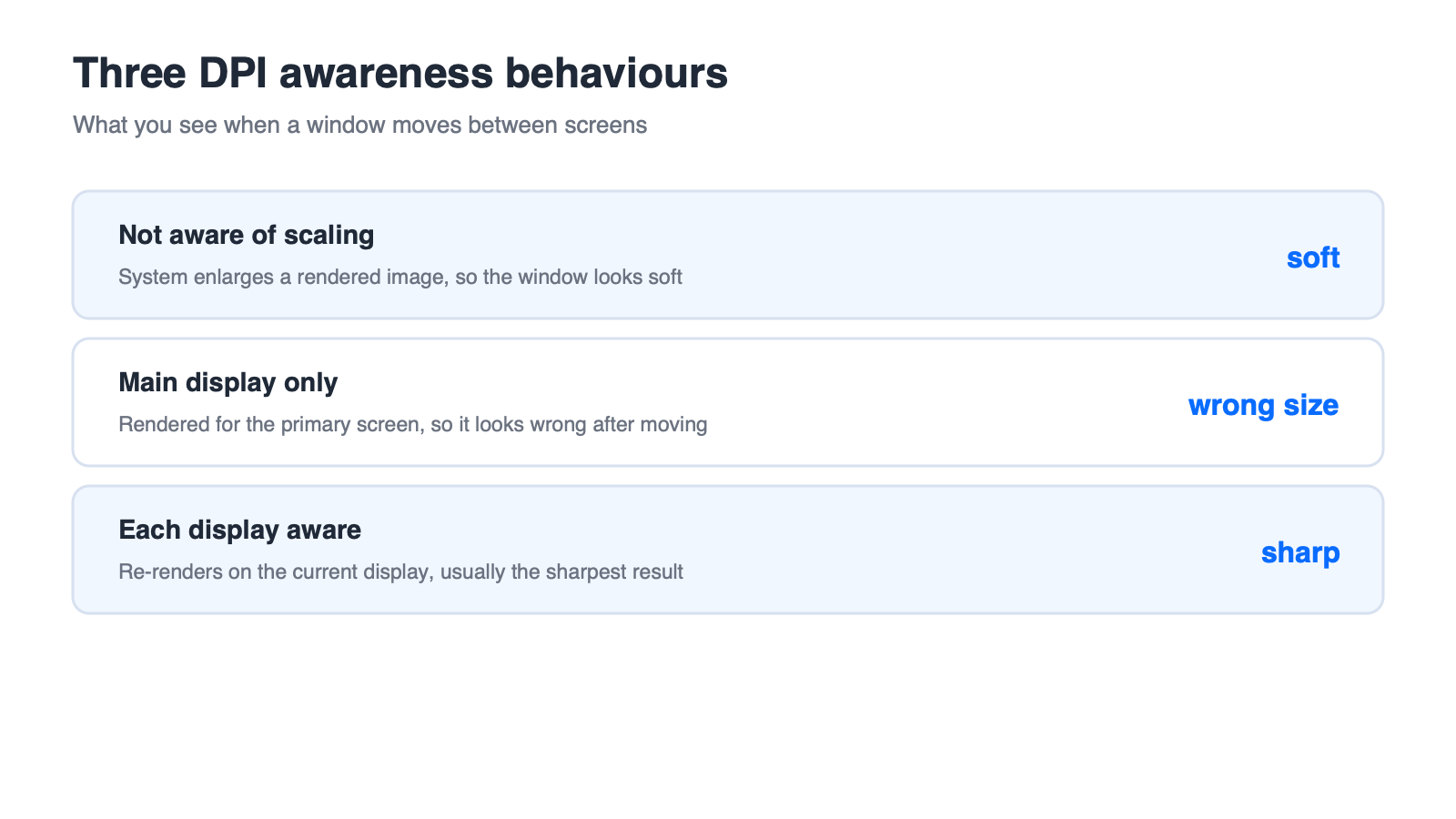
Three DPI awareness behaviours compared
WPS Office on External Monitors: What We Can and Cannot Confirm
The practical question is simple: if the problem is limited to an office suite on a second display, which steps are actually worth trying? These are, along with an honest list of what is not being claimed.
Change System Scaling First
Start with the per-display scaling covered earlier. It is the highest-value change and it applies to every application, not just one.
Use the Compatibility Override if One App Is the Only Blurry One
If WPS Office is the only application that looks wrong, try the same Windows compatibility override described above on its shortcut. Treat it as a general Windows mechanism applied to this program rather than a documented product setting, and confirm it on a machine you can revert easily.
Verification Checklist for Two Displays
Note the window size on each display before changing anything.
Check text sharpness in the document area, the ribbon, and the status bar separately.
Drag the window from one display to the other and back, and note whether it recovers on its own.
Restart the application and see whether the appearance is now correct.
Claims We Do Not Make
This guide does not claim that WPS Office uses a particular DPI awareness mode, that it guarantees a perfectly sharp result across every multi-monitor configuration, or that it provides a dedicated cross-display sharpness setting. Anyone who needs those statements confirmed should check the current official documentation. For a machine without a suite installed, WPS Office is available as a free download from wps.com.
WPS Office home screen on desktop



'%3e%3cpath%20d='M19.9911%204.11386V6.471H18.5894C18.0775%206.471%2017.7322%206.57814%2017.5536%206.79243C17.3751%207.00671%2017.2858%207.32814%2017.2858%207.75671V9.44421H19.9019L19.5536%2012.0871H17.2858V18.8639H14.5536V12.0871H12.2769V9.44421H14.5536V7.49779C14.5536%206.39064%2014.8632%205.53201%2015.4822%204.92189C16.1013%204.31177%2016.9257%204.00671%2017.9554%204.00671C18.8304%204.00671%2019.509%204.04243%2019.9911%204.11386Z'%20fill='%23333333'/%3e%3c/g%3e%3cdefs%3e%3cclipPath%20id='clip0_2938_8199'%3e%3crect%20width='16'%20height='16'%20fill='white'%20transform='translate(8%204.00671)'/%3e%3c/clipPath%3e%3c/defs%3e%3c/svg%3e)
'%3e%3cpath%20d='M17.5237%2010.7813L23.4811%204H22.0699L16.8949%209.88693L12.7648%204H8L14.2469%2012.9029L8%2020.0133H9.4112L14.8725%2013.7952L19.2352%2020.0133H24M9.92053%205.04213H12.0885L22.0688%2019.0224H19.9003'%20fill='%23333333'/%3e%3c/g%3e%3cdefs%3e%3cclipPath%20id='clip0_2938_8200'%3e%3crect%20width='16'%20height='16.0134'%20fill='white'%20transform='translate(8%204)'/%3e%3c/clipPath%3e%3c/defs%3e%3c/svg%3e)


