

'%3e%3cpath%20d='M8%200C12.4183%200%2016%203.58172%2016%208C16%2012.4183%2012.4183%2016%208%2016C3.58172%2016%200%2012.4183%200%208C0%203.58172%203.58172%200%208%200ZM11.6162%204.38379C11.2257%203.99337%2010.5927%203.99338%2010.2021%204.38379L8%206.58594L5.79785%204.38379C5.40732%203.99334%204.77429%203.99329%204.38379%204.38379C3.99331%204.77429%203.99335%205.40733%204.38379%205.79785L6.58594%208L4.38379%2010.2021C3.99348%2010.5927%203.99341%2011.2257%204.38379%2011.6162C4.77426%2012.0066%205.40734%2012.0065%205.79785%2011.6162L8%209.41406L10.2021%2011.6162C10.5927%2012.0066%2011.2257%2012.0067%2011.6162%2011.6162C12.0067%2011.2257%2012.0066%2010.5927%2011.6162%2010.2021L9.41406%208L11.6162%205.79785C12.0066%205.40735%2012.0066%204.77429%2011.6162%204.38379Z'%20fill='%23080E17'%20fill-opacity='0.46'/%3e%3c/g%3e%3cdefs%3e%3cclipPath%20id='clip0_3761_713'%3e%3crect%20width='16'%20height='16'%20fill='white'/%3e%3c/clipPath%3e%3c/defs%3e%3c/svg%3e)



'%3e%3cpath%20fill-rule='evenodd'%20clip-rule='evenodd'%20d='M21.4999%2010.9993C21.4999%205.20009%2016.7986%200.498901%2010.9993%200.498901C5.19994%200.498901%200.498657%205.20009%200.498657%2010.9993C0.498657%2016.2404%204.33858%2020.5844%209.35855%2021.3722V14.0346H6.69238V10.9993H9.35855V8.68594C9.35855%206.05427%2010.9262%204.60062%2013.3248%204.60062C14.4736%204.60062%2015.6753%204.80571%2015.6753%204.80571V7.38979H14.3512C13.0468%207.38979%2012.64%208.19921%2012.64%209.0296V10.9993H15.5523L15.0867%2014.0346H12.64V21.3722C17.66%2020.5844%2021.4999%2016.2404%2021.4999%2010.9993Z'%20fill='%231568EA'/%3e%3c/g%3e%3c/svg%3e)


'%3e%3cpath%20d='M2.42045%2022.1876H6.31818V12.7217L0.75%208.54553V20.5171C0.75%2021.4414%201.49892%2022.1876%202.42045%2022.1876Z'%20fill='%234285F4'/%3e%3cpath%20d='M19.682%2022.1876H23.5797C24.5041%2022.1876%2025.2502%2021.4387%2025.2502%2020.5171V8.54553L19.682%2012.7217'%20fill='%2334A853'/%3e%3cpath%20d='M19.682%205.48293V12.7216L25.2502%208.54543V6.31816C25.2502%204.25236%2022.8921%203.07469%2021.2411%204.31361'%20fill='%23FBBC04'/%3e%3cpath%20d='M6.31824%2012.7217V5.48303L13.0001%2010.4944L19.6819%205.48303V12.7217L13.0001%2017.733'%20fill='%23EA4335'/%3e%3cpath%20d='M0.75%206.31816V8.54543L6.31818%2012.7216V5.48293L4.75909%204.31361C3.10534%203.07469%200.75%204.25236%200.75%206.31816Z'%20fill='%23C5221F'/%3e%3c/g%3e%3cdefs%3e%3cclipPath%20id='clip0_2954_7305'%3e%3crect%20width='24.5'%20height='18.375'%20fill='white'%20transform='translate(0.75%203.8125)'/%3e%3c/clipPath%3e%3c/defs%3e%3c/svg%3e)


Meta Description: Searching “microsoft office 2016 crack” usually means users want a working installation, a valid-looking download path, and instructions for activation. This guide explains what people are actually trying to do, why crack searches spike, the most common—but risky—approaches users try, and safer ways to keep documents compatible and your PC protected.
Preface: Why “microsoft office 2016 crack” Is Such a Common Search
When people type microsoft office 2016 crack, they’re usually not looking for “theory.” They’re stuck in the moment: an assignment deadline, a work file that must open correctly, or a device that already has Office-related habits. Sometimes it’s because they lost access to an old license; sometimes it’s because their installation failed, and the computer now behaves like it’s haunted by activation pop-ups.
What makes this search so common is the combination of urgency and uncertainty. Users want a path that feels like “install + activated, done.” But real life rarely behaves that way. Activation loops, missing components, “license not verified,” macro restrictions, and weird formatting shifts are the common headaches that push people toward risky approaches.
In this article, we’ll do two things: first, decode what users actually want from that search; second, give you a step-by-step how-to workflow from 0-1 that keeps your documents usable today while you resolve licensing legitimately. The goal is practical productivity, not punishment. 😊
Part 1: Users Searching “microsoft office 2016 crack” Are Usually After These Outcomes
This part helps you “map the intent.” If you understand the outcome behind the search, you’ll stop chasing random fixes and start making decisions that actually get results. The people behind microsoft office 2016 crack searches typically fall into two urgent categories: either they need Office working now, or they need to fix a broken install that’s blocking access. This section is for new users who feel overwhelmed, and for experienced users who are tired of trial-and-error loops. Instead of judgement, we’ll focus on what you need to accomplish and why.
Think of it like triage in a clinic: first we identify the symptoms and goals, then we choose the right treatment path. The “crack” keyword is often a proxy for activation anxiety, compatibility stress, and cost pressure. Let’s translate it into concrete tasks you can verify.
Step 1: Convert the keyword into a “success checklist.” Start by writing down your real requirement in plain terms: “I need to install Office 2016 and edit today’s DOCX/XLSX/PPTX reliably.” Then add two verification points: activation stability (no repeating prompts after restart) and file fidelity (layout, fonts, charts look correct). Use this checklist before you download anything. Your result should be a clear plan: what to fix, what to test, and what “working” means on your computer. If you fail at this step, you may chase the wrong problem—like focusing on installation speed but ignoring compatibility. Common failure mode: you install but cannot open files correctly. Fix: test with 1–2 representative documents early, not after a full workflow is already started.
Path: Open a note-taking app or a document and create sections titled “Install,” “Activation,” and “Compatibility.” Result: You’ll have a decision-ready list that guides every next action. Common issue: vague goals like “make it work” without a measurable test. Attention: don’t treat “it opened once” as success; restart the program later and confirm activation again. Recommended tip: keep one sample DOCX, one XLSX, and one PPTX from your real work in a folder called “Test Pack,” so every installation attempt is evaluated consistently. ✅
Step 2: Identify your category—Install-now or Fix-now. Ask yourself which pain matches your current situation: (A) you don’t have Office installed and need it immediately; or (B) you already installed something but can’t activate, can’t open, or features are missing. This determines the safest path because the risk profile differs. Outcome: you’ll choose the correct troubleshooting route instead of blindly repeating download/install cycles. If you’re unsure, check your symptoms: are there license pop-ups, “activation required” messages, or missing toolbar items? Common issue: people jump into activation fixes without correcting broken installation components. Fix: verify that Office components exist and that the app opens without errors. Note: don’t ignore security warnings—those are often the first clue of a dangerous download or tampered package.
Path: Launch any Office app you currently have (Word, Excel, PowerPoint) and observe the initial screen and activation prompt. Result: you can label your situation as Install-now or Fix-now. Common problem: you can open files but editing buttons are disabled. Attention: try editing a sample file, not only opening it. Recommended tip: take a quick screenshot of your activation message so you can search your exact error text later—precision matters. 🔍
Step 3: Translate outcomes into “what people try to learn.” Most searches target these outcomes: a working installation, activation that sticks, compatibility with older workflows, less friction (fewer errors), and minimal cost. Convert each outcome into a test you can perform. For example, for “activation sticks,” restart Windows and re-open Word; for “compatibility,” compare formatting of charts, tables, and fonts against the expected version; for “less friction,” ensure installers complete without missing components. Outcome: you turn vague expectations into measurable checks. Common failure: people aim only for “it installed” but then discover macros or add-ins don’t behave. Fix: include a small macro-enabled test file only if you truly need macros; otherwise focus on standard edit/save/open first. Attention: don’t attempt multiple risky downloads during the same session—you’ll create a confusing software state that’s harder to clean.
Path: In your checklist document, add a “Test Result” column for each outcome. Result: you can score your installation attempt. Common issue: forgetting to test export/save after installation. Attention: verify both open and save; some installs open correctly but fail when saving in the original format. Recommended tip: record system version (Windows edition) and Office build info if available; it helps narrow down issues quickly later. 🧩
Step 4: Confirm urgency level so you choose a realistic interim workflow. If you need documents today, you may require an interim editor to keep work moving while you fix Office licensing. Decide whether you can pause editing for a short period or you must edit immediately. Outcome: you avoid “all-or-nothing” desperation that often leads to risky choices. Common failure: waiting days for a perfect installation and missing deadlines. Fix: start with a compatibility-first workflow: convert or open files in an alternative stable editor so you can finish your tasks, then fix Office afterward. Attention: don’t finalize client-ready documents until you test exports in the final format expected by recipients.
Path: Set a timeline: “Deadline,” “Today’s tasks,” and “When I will validate compatibility.” Result: you’ll know whether you need immediate interim editing. Common problem: assuming recipients can open anything. Attention: ask what format they require—DOCX, XLSX, PPTX, or PDF—before you lock changes. Recommended tip: export a PDF copy for sharing early drafts; it reduces formatting surprises during collaboration. 📄
我把这一部分当作“先救脑子再救软件”。只要你把目标变成可测试的清单,你就不会被广告式的下载承诺牵着跑。下一步,我们要把你可能遇到的那些“方法”拆开看清楚:它们在教你什么、为什么会翻车,以及你真正该学什么。
Part 2: The Main Methods People Try for “microsoft office 2016 crack” (And What They Learn)
这部分的目的,是让你看懂别人为什么反复搜索同一类内容。对 microsoft office 2016 crack 流量来说,大家并不是随机乱点,而是被“预期结果”驱动:有人想绕过激活检查,有人想下载一个看似已经激活的包,有人则希望找到更稳定的免费或试用路径。我们不会鼓励高风险做法,但会把常见方法按类别拆解,并告诉你每类方法通常会教你什么、会卡在哪、为什么你最后还是会回到“兼容性 + 激活稳定”的核心需求上。适合那些已经尝试失败、或准备再次尝试但心里没底的新手读者。
你会发现:很多“看起来像解决”的方法,其实只是把问题从激活失败推迟到更难排查的阶段,比如更新后失效、组件损坏、或格式错乱。我们接下来会用步骤告诉你:如何安全地判断风险、如何选择更可靠的路线。
Step 1: 认识 Method A(破解/Keygen 下载)通常带来的“学习结果”。 当用户搜索 microsoft office 2016 crack 并遇到这类资源时,常见预期是“文件能绕过激活”。他们学到的往往不是安装原理,而是复制/替换/运行某些组件的步骤。但你真正可能得到的“结果”经常是:Windows Defender 告警、安装后的 Office 行为不稳定、激活弹窗反复出现。Outcome:你会理解风险点不在于“能不能装”,而在于“系统是否被植入可疑组件”。如果你已经下载过类似文件,先不要继续安装下一步,先做隔离与排查。常见问题是误以为“能打开就行”,结果后来更新或重启后彻底失效。解决方式:先进行安全检查,再回到合法路径安装。
Path: 检查 Windows 安全中心是否显示“隔离/删除”的历史记录(打开“Windows 安全中心”查看防护与保护历史)。Result:你能知道系统是否已经拦截可疑行为。Common issue:看不到记录但仍弹出异常激活提示。Fix:继续用下一步做完整清理与验证。注意事项:不要为了“验证快不快”而反复运行可疑安装包或脚本;每次运行都可能加深系统污染。推荐技巧:把错误提示完整截图,后续排查会更快。⚠️
Step 2: 认识 Method B(“已激活”打包)为什么会反复失效。 这类做法通常承诺“解压就好、先装后激活”。用户会学习“下载解压后先运行哪个文件”。但问题常常出在安装包损坏、Office 组件不完整、或者授权校验在未来某次更新/重启后被重新触发。Outcome:你会明白它的“不稳定”并不罕见,而且更难排查,因为你可能以为是网络或系统问题。常见失败模式包括:安装进度卡住、Office 启动但功能缺失、或激活提示间歇性回归。处理方式:如果你已经走过这条路,优先把安装状态恢复到“干净可控”,再考虑合法安装。注意:不要在不确定来源的包上继续叠加补丁或替换文件。
Path: 打开“控制面板/设置”里应用列表,查看 Office 相关条目的安装时间与版本信息。Result:你能判断是否存在半安装状态(例如多个同名组件同时存在)。Common issue:看不到明确条目但 Office 仍有异常。Fix:进入下一步做组件级排查。注意事项:不要直接删除文件夹后就重启;先做备份和记录,以免清理过度导致更多问题。推荐技巧:把“控制面板里显示的 Office 条目名称”写下来,之后用于精准卸载。🧾
Step 3: Method C(免费/试用/合法路径)通常“最稳但不够爽”的点。 这类路线的核心学习重点是:选择正确的 Office 方案、理解订阅与功能差异、并用兼容格式保证工作不断档。很多用户一开始觉得不满足“立刻激活”的爽感,但它提供的是可验证的稳定性。Outcome:你的安装和激活会更可预期,后续也更少出现安全软件弹窗或组件错乱。常见失败不是“不能装”,而是“装了但功能不一致”,例如某些功能在不同计划中不可用,或文件格式预期不匹配。解决方式:在安装后立刻做兼容性测试(样例文档开合与导出)。注意:不要把“功能缺失”归咎于文件坏了;先检查计划与版本。
Path: 打开 Microsoft 相关的产品入口,选择“试用/订阅/正版安装”对应的版本,并在安装前确认系统要求。Result:安装文件来源明确,后续激活更容易通过。Common issue:安装后提示登录或订阅不匹配。Fix:进入“登录与激活排查步骤”(Part 5 会详细)。注意事项:安装前先关掉可能干扰的安全软件实时保护(如果你需要临时排查,务必记得恢复),但不要绕过关键安全提示。推荐技巧:选择“需要的语言版本”一致,减少字体与界面差异带来的误判。🌐
Step 4: Method D(Office 替代方案)如何保证兼容性而不是纠结激活。 如果你最终目标是打开/编辑/保存 DOCX/XLSX/PPTX 文件,那么“替代方案”其实是在用更现实的方式满足需求:通过更稳定的编辑环境与兼容格式流程,减少激活失败的反复。Outcome:你不会因为激活循环而中断工作。常见失败是“预期它和 Office 2016 一模一样”,但很多时候差异体现在 UI 位置、模板细节或字体呈现。解决方式:建立“导出与验证”习惯:先保存为通用格式,再用接收方环境测试。注意:如果文档包含特定宏或插件,先确认替代方案是否支持你要用的能力;不然你会把问题从激活变成功能缺失。
Path: 在替代编辑器中打开你的 Test Pack,依次验证编辑、保存、再用 Office 或接收方环境打开确认。Result:你会得到真实的兼容性证据。Common issue:图表或表格显示与原文件不同。Fix:尝试导出为指定版本格式或使用模板一致的字体。注意事项:不要只看打开结果,要看“保存后再打开”的一致性。推荐技巧:将常用字体与模板规范化,减少布局漂移。🎯
这一部分看完你会发现:大家反复搜索“crack”,本质是在追求“立刻可用”。但越是急,越容易踩雷。接下来我们就更进一步:用户到底更喜欢哪种“学习路线”?你会看到成本、便利、信心三条线如何把人推向不同选择。
Part 3: User Preferences—Which “microsoft office 2016 crack” Approaches They Want Most
这部分讲的是“人性地图”。你会发现同一批搜索词背后,用户的偏好并不一样,只是都被成本压力、操作难度和心理安全感牵引。早期他们最想要的是:一步到位(装上就能用、能激活)。失败之后,他们会转向:降低风险(怎么验证、怎么恢复)。当错误反复出现,他们最终会偏向:让文件继续工作(长期方案,减少激活尝试)。本部分适合那些想做对选择、又担心“哪条路最稳”的读者。我们会用可操作步骤把偏好转化为行动决策,让你每一步都更接近目标。
重要的是:你不是在“学习破解方法”,你是在选择一条能让你持续产出文档的工作流。偏好理解清楚,你就不会被短期承诺带偏。让我们开始把“喜欢什么”变成“该做什么”。
Step 1: 用“成本—便利—信心”三问,定位你现在属于哪个阶段。 先问自己三个问题:你最在意的是成本还是速度?你愿不愿意多做验证步骤?你对来源不明的安装包是否有担忧?这三个回答会直接决定你更偏好的路线:早期阶段通常喜欢“最少步骤”;失败阶段更重视“验证与恢复”;长期阶段更看重“文件连续可用”。Outcome:你会明确自己处在偏好曲线的哪一端,从而选择与阶段匹配的行动方案。常见失败是把早期阶段的“追快”逻辑硬套到失败阶段,结果越修越乱。解决方式:当你出现激活循环或安全软件告警时,立刻切换到“验证与恢复优先”。
Path: 在你的笔记里写下三个选项评分(1–5):Cost、Ease、Confidence。Result:你会得到一个偏好画像。Common issue:只写“我想省钱”但忽略“我其实很不放心”。Fix:把信心评分作为强制门槛:低信心时不要继续尝试高风险路径。注意事项:不要在同一时间段同时进行多个安装或脚本运行;混合操作会掩盖真正原因。推荐技巧:如果你已经有“license pop-ups”反复出现,把“信心”直接降到最低级别,优先走清理与合法路径。🧠
Step 2: 把“早期偏好”转为“可验证的快速安装流程”。 当你最想要的是“立刻装好”,你仍然可以走合法且快速的路线。关键不是追求捷径,而是减少步骤并快速建立验证点。Outcome:你会在最短时间内获得可用的 Office 环境,同时避免后续激活或组件损坏导致的返工。常见失败是为了快而跳过前置检查(系统要求、安装语言、必要组件),结果安装完成但功能缺失。解决方式:按清单安装并立即做 Test Pack 验证。
Path: 在合法安装前,检查 Windows 版本与系统要求;然后安装对应架构(32 位或 64 位)一致。Result:安装完成后 Word/Excel/PowerPoint 能正常启动。Common issue:启动正常但激活提示立刻出现。Fix:立刻记录激活提示并进入 Part 5 的“激活错误排查”。注意事项:不要在第一次启动后立刻强行配置插件;先完成基础文件的打开与保存测试。推荐技巧:先用默认设置安装,减少变量,后续再逐步优化。⚡
Step 3: 当出现失败时,把“风险降低”落成具体排查步骤。 一旦你看到“无法激活”“登录循环”“license not verified”之类的提示,你的偏好会自然从“快速”转向“稳妥”。这时你需要做的是:停止继续引入新组件,先把系统状态整理干净,再重新验证。Outcome:你避免把问题越积越厚,减少反复安装带来的不确定性。常见失败是继续下载更多“补丁/修复器”,导致系统出现更多冲突。解决方式:做卸载、清理与组件检查,然后再选择合法路径重装。
Path: 进入“设置 → 应用 → 已安装的应用”,卸载与 Office 相关但不完整的条目;随后重启电脑再观察激活提示是否消失。Result:系统回到更可控的状态。Common issue:卸载后仍弹出激活窗口。Fix:进行注册信息与缓存清理(Part 5 会给出路径)。注意事项:不要立即安装新包覆盖同一状态;先重启并观察。推荐技巧:每次清理后只做一次安装验证,别同时换多个变量。🧯
Step 4: 当你要长期稳定产出时,建立“兼容性优先”的工作流。 长期偏好通常不是“找到一次就不再管”,而是“让文件永远能打开并可交付”。你需要一个工作流:编辑 → 导出/保存 → 再次验证 → 分享。Outcome:即使 Office 2016 激活不稳定,你的工作也不会停。常见失败是只追求编辑界面一致,却忽略导出后的格式。解决方式:每次关键版本都用导出验证,尤其是表格、图表、字体与段落样式。
Path: 在编辑完成后,使用“文件 → 另存为”保存为 DOCX/XLSX/PPTX;再用目标环境打开检查。Result:你能确保交付文件可用。Common issue:接收方打开后出现版式漂移。Fix:先统一字体与模板;再导出 PDF 作为备用。注意事项:不要只凭感觉判断;一定要用“保存后再打开”验证。推荐技巧:维护一个“常用样式模板”,让每次新文档更少依赖复杂布局。📌
说真的,用户的偏好并不神秘:想快、想省、还想安心。你只要把“偏好”翻译成可验证的流程,就不会被焦虑牵着走。下一部分我们来排个“学习优先级”顺序,让你的阅读和操作更像导航而不是盲走。
Part 4: Rank the Learning Preferences for “microsoft office 2016 crack” (From Strongest to Weakest)
这一部分的意义,是把内容结构做得更贴合搜索意图。很多文章会把“背景知识”堆得很满,但用户真正想学的是“下一步该怎么做”。针对 microsoft office 2016 crack 的搜索人群,他们的学习偏好通常按紧急程度从强到弱排列:先是如何立即安装并让它正确工作,其次是激活错误和许可证弹窗如何修复,再然后是如何确认下载安全、避免安装器损坏,最后才是如何保持文档兼容与替代方案对比。新手读者会因为这种顺序而少走弯路,遇到失败也能更快定位。我们会把这套优先级变成可执行的学习路线。
你读完本部分后,应该能明确:该先做什么、不要先做什么。越是把顺序抓对,你越能减少重复尝试和时间浪费。让我们开始把优先级落在操作层面。
Step 1: 以“最快达到可用”为第一优先级:安装并确保能稳定启动。 既然用户排在第一位的是“如何安装并立刻工作”,你需要把“可用”定义为:应用能启动、能打开 Test Pack、能编辑并保存而不报错。Outcome:你不会在“激活之前就觉得自己成功了”的错误路径上浪费时间。常见失败是装好了但打开某些文档会报错或布局错乱,导致后续你又要重复修复。解决方式:安装完成后立刻进行 3 个最小验证:打开、编辑、保存(先不谈深层激活)。注意事项:不要在没做验证前就安装一堆插件或改一堆设置,这会让故障原因变复杂。
Path: 安装后依次打开 Word、Excel、PowerPoint,加载 Test Pack。Result:你确认 Office 基础功能可用。Common issue:只某一个应用异常(例如 Excel 打开表格出错)。Fix:只针对异常应用做组件修复,而不是全盘重装。注意事项:不要跳过错误提示;记录错误代码或完整文字。推荐技巧:把三次验证的时间点写下来,用于后续定位“是在安装后立刻发生还是过一会儿才发生”。⏱️
Step 2: 第二优先级是“修复激活错误/许可证弹窗”,但要配合日志式排查。 用户第二想学的是激活错误与许可证弹窗修复。这里关键不是盲目改注册或不停重装,而是做“原因分层”:是登录问题、版本与授权不匹配、还是安装组件损坏导致反复校验失败。Outcome:你能更快找出根因,减少反复安装次数。常见失败是每次都换一个不同的激活方案,结果系统状态越来越混乱。解决方式:固定一条合法路线,按步骤验证。对于任何激活提示,先截图再行动。
Path: 打开任意 Office 应用,找到“账户/激活”相关页面,查看提示内容,并在系统中检查网络连接(必要时重启路由器再试)。Result:激活失败的原因更清晰。Common issue:提示“需要登录”但登录循环。Fix:先清理登录缓存(Part 5 会说明路径)。注意事项:不要在同一时间段反复尝试多次激活,频繁触发校验可能导致更长的失败等待。推荐技巧:把提示的关键字(例如“license not verified”)写进搜索记录,后续比对解决方案更快。🧾
Step 3: 第三优先级是“确认下载安全并避免安装器损坏”,用证据而不是感觉。 用户在第三位想学的是如何确认下载安全与避免安装器损坏。你需要建立“安全证据链”:来源可信、安装包完整、扫描与行为受控。Outcome:你减少恶意软件和损坏安装器带来的系统不稳定。常见失败是只看下载站点的评论或看别人说“能用”,但忽略了安全警报与文件哈希变化。解决方式:当你遇到任何安全软件隔离、提示可疑行为时,立即停止继续安装并执行清理。
Path: 下载前后对比文件大小与发布说明,下载后用系统安全工具扫描。Result:你能判断文件是否值得继续。Common issue:扫描没提示但安装后仍异常。Fix:在安装失败后先做卸载与系统恢复,再进入合法路线。注意事项:不要用临时关闭防护来“强行安装”,这会让风险不可见。推荐技巧:准备一个“安装器沙盒策略”:在主要工作机之外进行测试,避免污染主系统。🛡️
Step 4: 第四与第五优先级是“保持文档兼容”与“替代方案对比”,但不要在前面就过度纠结。 最后阶段才是兼容性与替代方案。你需要在前面步骤都稳定后,再研究如何让 DOCX/XLSX/PPTX 与旧工作流保持一致;以及在 Office 2016 不稳定时,替代方案如何提供相近体验。Outcome:你不会在安装尚未成功时就投入大量时间做格式微调。常见失败是“为了兼容而折腾字体、布局”,却在激活或基础组件问题未解决时根本无法交付。解决方式:先保证能打开并保存,再优化字体和导出流程。注意:如果你的工作包含复杂图表或模板,先用最简单文档验证,再逐步升级复杂度。
Path: 安装稳定后,做一轮“导出一致性测试”:打开原 DOCX/XLSX/PPTX → 编辑一小处 → 保存 → 用目标环境再打开。Result:你能确认兼容性达标。Common issue:字体替换导致版式变化。Fix:统一字体或将最终交付转换为 PDF。注意事项:不要一次性处理所有历史文档;先挑关键样例。推荐技巧:建立“交付规范”:统一页边距、标题样式、表格边框规则。🎛️
把优先级排好,你的时间会突然变得很值。下一部分我们要直面问题:当“一切都坏了”时,最常见的失败模式是什么?你需要如何诊断,然后才是修复。我们会把痛点讲得非常具体,让你对号入座就能动手。
Part 5: “microsoft office 2016 crack” Users’ Biggest Problem—When Everything Breaks
这一部分是“急救包”。因为很多人来搜索 microsoft office 2016 crack,不是在学习,而是在崩溃现场:安装卡住、功能缺失、激活循环、杀毒软件拦截、以及最烦的文件格式问题。你可能已经试过几次安装,但每次都像在原地打转。我们会把常见故障模式拆成清晰清单,并用“先诊断再修复”的思路引导你。适合那些已经遇到失败、但不知道该从哪里下手的新手,也适合需要更系统排查的老手。我们会让你理解:先定位类别,你才不会把错误修复成更多错误。
读完这一部分,你应该能判断自己属于哪一类故障,并知道接下来去哪里做处理。别担心,我们会把步骤写得像操作说明一样明确。
Step 1: 分诊故障类型(安装失败 / 功能缺失 / 激活循环 / 安全告警 / 格式错乱)。 先不要急着继续安装或复制文件。你需要先把问题归类,因为每一类故障的修复路径不同。Outcome:你会把“无从下手”的状态变成“有方向的排查”。常见故障包括:安装进度卡住、Office 能打开但功能缺失(如宏不可用、加载项失效)、激活循环(重启又弹出)、安全软件告警(隔离或删除)、以及文件格式问题(字体不一致、表格图表错位)。常见失败:混合问题导致你难以判断根因。Fix:一次只处理一个变量:先解决安装/激活层,再做兼容性。注意事项:不要在安全告警未确认前继续尝试激活修复。
Path: 记录你看到的现象:安装是否完成、Office 是否能启动、是否有激活提示、是否有安全软件通知、以及一个样例文件保存后是否异常。Result:你得到故障类别判断。Common issue:你看到多个症状但不知哪个是主因。Fix:优先处理“会阻断编辑/保存”的问题(如激活失败、缺组件)。注意事项:别着急反复重装;先把观察写下来。推荐技巧:把每次失败的时间、错误文字、发生在哪个应用写成简表,排查速度会快很多。🧭
Step 2: 处理安装卡住:先核对系统前置条件与组件完整性。 如果安装卡在进度条或显示缺失组件,你需要优先检查系统状态,例如剩余磁盘空间、网络稳定性、以及安装包是否完整。Outcome:你避免在损坏安装状态上继续执行后续操作。常见失败是磁盘不足导致安装异常结束,但用户误以为是安装包问题。解决方式:清理临时文件并确认安装目录权限。注意:不要中途强行断电或反复立刻重启;先等待合理时间,观察是否在某个阶段长期无响应,然后再采取措施。
Path: 打开“设置 → 系统 → 存储”查看剩余空间,并清理临时文件(Windows 的磁盘清理)。Result:你为安装提供足够空间与资源。Common issue:安装仍卡住且持续报错。Fix:卸载未完成组件后再重新安装。注意事项:不要在安装进行时打开大量高占用程序;可以先关闭浏览器多标签与后台同步。推荐技巧:确保安装器以管理员权限运行(右键“以管理员身份运行”)。💾
Step 3: 处理功能缺失:检查加载项与宏安全策略是否导致“看起来像坏了”。 Office 能启动但“按钮不见了/功能灰了/宏被禁用”,很多时候不是安装破坏,而是加载项与安全策略限制导致。Outcome:你能快速判断是配置问题还是组件缺失。常见失败是用户把所有现象都归咎于安装包;于是反复重装浪费时间。解决方式:先在 Word/Excel 的选项里禁用加载项并重试 Test Pack。注意:如果你确实依赖宏,先确认文件来源可信并在安全范围内启用,而不是在不明情况下随意绕过。
Path: 打开 Word → “文件 → 选项 → 加载项”,查看“管理 COM 加载项/Excel 加载项”,先禁用全部再重启应用测试。Result:如果功能恢复,你就确认是加载项冲突。Common issue:禁用后仍异常。Fix:检查组件是否完整,必要时修复安装。注意事项:不要一次性启用多个加载项;逐个启用定位冲突。推荐技巧:用同一个 Test Pack 作为每次测试的对照样本。🧰
Step 4: 处理激活循环:用“先稳定验证再修复授权校验”的逻辑。 激活循环是最折磨人的:你装好后看似正常,一重启又弹“需要激活”。Outcome:你会知道激活循环通常与授权校验、登录缓存、或组件状态有关,而不是“你运气不好”。常见失败是不断重复激活尝试,导致校验失败更频繁。解决方式:先稳定网络与登录,再清理登录缓存和相关授权缓存,然后按合法路径重新激活。注意:如果安全软件警报存在,先处理安全风险再做激活,否则你可能一直在“修复被污染的环境”。
Path: 先检查网络连接,然后在 Office 中访问“账户”页面退出再重新登录;必要时在浏览器清除相关登录缓存。Result:激活提示可能会变化,帮助你定位问题阶段。Common issue:仍然进入登录循环。Fix:执行 Part 5 的缓存清理路径并重启。注意事项:不要频繁点击“激活/重试”按钮;给校验过程一点时间(通常几分钟内会有反馈)。推荐技巧:拍下激活提示文字用于后续精准排查。🔁
Step 5: 处理安全告警:立刻隔离与清理可疑组件,先救系统再救文件。 一旦你看到 Windows 安全中心隔离某些文件,或第三方杀毒报告可疑行为,直接继续安装会把风险扩大。Outcome:你会阻止恶意组件继续影响 Office 行为。常见失败是“忽略告警,先装完再说”,但后果可能是系统被植入持久化内容,导致未来更难恢复。解决方式:把隔离项恢复/删除由你决定前先记录日志,再卸载 Office 相关不明组件,最后重启验证。注意:不要从隔离区“手动恢复可疑文件”来追求激活成功。
Path: 打开“Windows 安全中心 → 病毒和威胁防护 → 保护历史记录”,查看隔离/删除条目的时间与名称。Result:你知道系统曾拦截了什么。Common issue:历史记录没有明确说明。Fix:进行全盘扫描并卸载可疑 Office 安装。注意事项:若安全软件持续检测同类行为,先等扫描完成,再进行系统清理。推荐技巧:把保护历史中可疑条目的名称写下来,方便你判断后续是否重复出现。🧼
Step 6: 处理格式错乱:用“保存一致性验证”而不是只看打开。 格式问题往往是最让人崩溃的,因为它不是立刻报错,而是悄悄把你的工作变样。比如字体不一致、表格边框被挤压、图表颜色或数据范围错位。Outcome:你建立一个可靠验证方法:打开→编辑→保存→再打开检查。常见失败是只看打开效果,忽略保存后才会发生的漂移。解决方式:统一字体与样式、必要时导出为兼容格式或 PDF 作为交付备份。注意:不要在格式已错的状态下继续大规模编辑,先修复原因,否则返工会翻倍。
Path: 打开文档后,进行小幅修改(例如调整一个段落样式或替换一处文本),然后“文件 → 另存为”保存为原格式,关闭再重新打开。Result:你确认格式是否在保存后保持一致。Common issue:保存后字体突然变化。Fix:检查文档是否嵌入字体;必要时使用常见字体并在交付前统一导出。注意事项:对关键交付先做 PDF 预览,避免最后一刻发现错位。推荐技巧:如果你常用模板,把模板的样式体系固定下来,减少每次新建的差异。📐
这部分你可以把它当作“把问题按箱子装起来”。一旦你分清箱子,接下来就不会只靠运气修复。好了,现在我们要进入最关键的转折点:如何走一条更安全、仍然能立刻提高生产力的 How-To 路线。你会看到我们如何用合法路径 + 兼容工作流,让你不再被激活循环拖垮。
Part 6: The Safer “How-To” Path That Still Gets Results for “microsoft office 2016 crack” Seekers
这一部分是文章的核心:给你一条从 0 到 1 的安全路径,既能满足你“马上能干活”的现实需求,又能减少激活循环、安装破坏和安全风险。尽管搜索里有 microsoft office 2016 crack 这样的词,我们会明确把目标换成:可靠编辑 Office 文档。对新手来说,最难的是不知道该先做什么、怎么避免越修越乱;对老手来说,最痛的是反复失败造成的时间成本。我们会用步骤化操作,让你每一步都有明确结果、常见排查方式、注意事项与效率技巧。你读完本部分,就能独立完成“安装 → 验证 → 激活排查 → 兼容交付 → 恢复断链”的全流程。
下面开始:你将学习一条“先让文档继续工作,再处理授权与稳定性”的策略路线。😊
Step 1: 选择合法的 Office 路径,并为“目标是可交付”设定验证点。 第一件事不是安装任何东西,而是选择合法且可验证的 Office 方案:试用、订阅或受支持的正版安装方式。Outcome:你从源头降低被植入恶意组件或安装包损坏的概率。常见失败是只看“能不能装”,忽略授权校验长期稳定性。解决方式:在安装计划中立刻写下验证点:安装完成后立刻打开 Test Pack,验证打开与编辑;再确认保存与重启后激活是否还在。注意事项:不要因为“来不及”就选择来源不明的安装包。安全风险一旦发生,后续恢复成本可能远超你节省的时间。
Path: 在产品入口选择对应方案并下载官方安装程序,安装前确认系统架构与语言设置。Result:你获得来源可靠的安装文件。Common issue:安装后提示登录或许可证不匹配。Fix:记录提示文本并跳到下一步的激活排查。注意:不要把不同语言版本混装;字体与界面差异可能导致你误判问题。推荐技巧:先准备一个“交付格式偏好”,例如默认以 DOCX/XLSX/PPTX 交付,或必要时导出 PDF 作为备用。✅
Step 2: 做干净安装前检查:释放磁盘空间、关闭冲突程序、以管理员身份安装。 很多安装失败并非 Office 本身的问题,而是系统环境不友好:磁盘不足、权限限制、后台程序占用、或安装过程被中断。Outcome:你通过环境准备提高成功率,减少后续返工。常见失败是“安装包下载了就立刻装”,完全跳过系统要求与资源检查。解决方式:在安装前做资源准备,并在安装过程中减少变量。注意事项:不要在安装时同时运行多个安装程序或频繁重启。
Path: 清理临时文件与下载缓存;打开“任务管理器”结束非必要的后台占用进程;右键安装程序选择“以管理员身份运行”。Result:安装器获得足够权限与资源。Common issue:安装仍卡住或报缺失组件。Fix:等待几分钟观察是否有进展;若长时间无响应,停止并检查日志后再重试或先卸载修复。注意:不要强行断电。推荐技巧:安装时保持网络稳定,避免下载更新失败造成组件不完整。💡
Step 3: 安装后立刻做“三步验证”,让问题早出现早修。 你要在第一时间确认基础功能,而不是等到你写到一半才发现格式或功能异常。Outcome:你会把未知风险提前暴露并定位。常见失败模式包括:安装成功但无法打开某些格式、保存后文件损坏、或特定功能按钮缺失。解决方式:严格按顺序验证:打开 → 编辑 → 保存 → 再打开。注意事项:别只试一个文件;用 Test Pack 的三个样例分别验证 Word/Excel/PowerPoint。
Path: 打开 Word,加载 Test Pack 中的 DOCX,编辑一小处并“文件 → 另存为”保持原格式;然后关闭并重新打开;对 Excel 与 PPT 同样做一遍。Result:你能明确是否存在基础兼容性问题。Common issue:只有 Excel 保存后公式丢失。Fix:检查 Excel 的兼容模式与区域设置,并先以最简单的测试数据确认。注意:遇到错误先记录,不要立刻继续大改内容。推荐技巧:给每次验证写一句“通过/未通过原因”,避免重复踩坑。🧪
Step 4: 激活稳定性排查:按“登录—组件—网络—缓存”的顺序修。 如果你遇到激活循环或许可证弹窗,本步骤就是你的救命稻草。Outcome:你能更快找到是哪一层导致反复校验失败。常见失败是乱改注册或乱装补丁,导致系统状态更复杂。解决方式:固定顺序排查:先检查登录是否正常,再检查是否存在半安装组件,然后确认网络与校验通道,再清理缓存后重新激活。注意事项:不要频繁重复激活按钮;给校验几分钟反馈时间。
Path: 在任意 Office 应用中进入“账户”,先退出登录再重新登录;若仍循环,检查系统时间是否正确并重启路由器;必要时重启电脑后再尝试。若依旧不行,进入缓存清理:清理 Office 登录缓存与相关凭据后再试。Result:激活提示通常会发生变化,从而帮助定位。Common issue:一直提示“需要登录”但无法完成。Fix:清理浏览器/系统凭据后重新登录,并保持网络不切换。注意:遇到安全软件警报时先处理安全问题。推荐技巧:把激活提示全文复制记录,关键短语决定排查方向。🔐
Step 5: 保持文档兼容:建立“导出—验证—交付”的格式流程。 当你要让文档可靠交付时,兼容性比“激活成功”更像日常生产力的核心。Outcome:你会减少版式漂移、字体替换和图表错乱的概率。常见失败是只追求能编辑,却不验证保存后的表现。解决方式:对每个关键版本执行导出验证:保存为 DOCX/XLSX/PPTX,再用接收方环境或同设备中打开确认;若对方环境未知,提前导出 PDF 作为备份。注意事项:不要在最终交付前只检查一次就直接发送。
Path: 文档完成后选择“文件 → 另存为”,确认文件格式;然后关闭并重新打开;如需分享,选择“文件 → 导出 → 创建 PDF/XPS”。Result:你得到可交付的两个版本:可编辑与不可编辑备份。Common issue:导出 PDF 后发现边距变化。Fix:回到原文档统一页边距与缩放比例,再重新导出。注意:对 Excel 图表与透视表特别要做保存后重开验证。推荐技巧:为标题、列表、表格样式建立统一模板,减少后期格式差异。📤
Step 6: 如果 Office 2016 仍不稳定,采用“替代编辑器保证不停工”的并行策略。 有些情况下,你需要承认现实:不是每个设备都适合快速解决激活问题。此时你要做的是并行:继续用稳定编辑器完成工作,同时在后台解决 Office 授权与稳定性。Outcome:你不会因为激活失败把截止日期全部拖垮。常见失败是“完全停工等 Office”,结果最后交付失败。解决方式:先把日常任务交给兼容度高的稳定编辑环境,再在解决 Office 时回填最终版本。注意:并行期间确保保存格式一致,并在交付前做最终验证。
Path: 将当日任务文档用稳定编辑环境打开并编辑,保存为 DOCX/XLSX/PPTX;完成后用目标环境再次打开检查。Result:你保持生产力不中断。Common issue:替代环境保存后样式发生轻微变化。Fix:回到原样式模板或使用导出 PDF 交付。注意事项:并行时不要频繁来回编辑同一份文档而不做版本管理,建议使用“v1/v2”标记。推荐技巧:把每次编辑生成的版本放到同一项目文件夹,命名带日期和用途(例如:2026-07-01_draft)。🗂️
这一部分的核心结论很简单:你要的是“文件可用”,不是“某个奇怪路径能不能激活”。把合法路径 + 兼容验证 + 并行不停工结合起来,你就能在焦虑最重的时候仍然保持生产力。下一部分我们用 FAQ 把你可能最常问的几个问题一次讲清楚。
Part 7: FAQs for “microsoft office 2016 crack” (Answer the Questions People Actually Ask)
Q1: Why does my Office 2016 activation keep failing after install?
Activation often fails because one of the layers in the authorization flow is unstable: login state, component integrity, network path, or cached credentials. When microsoft office 2016 crack attempts are involved, the system may also carry corrupted or tampered components, which can trigger repeated verification prompts after restart. The safest approach is to stop introducing new sources, stabilize sign-in, validate the install state by confirming Word/Excel/PowerPoint can open and save Test Pack, and then clear relevant cached credentials before re-activating through a legitimate path.
Step 1: Capture the exact activation message and compare it after each change. Write down the full activation error text (or take a screenshot) and then make only one change at a time: network restart, sign-out/sign-in, or cache clearing. Outcome: you will see which change updates the behavior. Common failure is changing multiple variables and not knowing which one helped. Fix: adopt a “one change per test” rule. Attention: do not spam the activation button; wait a few minutes for the authorization process to respond. Recommended tip: store screenshots in a folder named “Office Activation Tests” with timestamps.
Path: Open any Office app → Account → note the exact message. Result: you have evidence for targeted troubleshooting. Common issue: generic messages like “license not verified” with no detail. Fix: rely on sign-in state verification and component integrity checks next. Attention: do not proceed to unsafe “fix tools.”
Step 2: Stabilize sign-in and network before deeper troubleshooting. If activation requires sign-in, unstable networking or incorrect system time can cause repeated verification failures. Outcome: reducing connectivity and time mismatch issues improves authorization reliability. Common failure is assuming the problem is purely Office-related while the real issue is network or time drift. Fix: set correct time zone and restart the router if needed, then retry sign-in once. Attention: avoid switching networks (Wi‑Fi to mobile hotspot) mid-test. Recommended tip: try activation after a full reboot to clear transient states.
Path: Settings → Time & Language → Date and Time; then restart PC and router. Result: authorization checks receive consistent system data. Common issue: login loops. Fix: go to cache clearing in the next step. Attention: wait for network stabilization before clicking retry.
Step 3: Clear credentials and Office-related cached sign-in data. Cached credentials can lock you into an activation loop. Outcome: clearing caches forces Office to re-check authorization using fresh tokens. Common failure is repeated activation attempts without clearing stale credentials. Fix: clear credentials via Windows credential manager and sign-in cache, then sign in again once. Attention: after clearing, close all Office apps completely before retrying. Recommended tip: keep a stable internet connection and do not open multiple Office windows simultaneously during the re-check.
Path: Control Panel → Credential Manager → Windows Credentials; remove Office-related entries; then restart Office and sign in again. Result: activation prompt should progress differently. Common issue: entries aren’t obvious. Fix: restart and re-check; if still failing, you may need a legitimate reinstall with a clean state.
Step 4: Verify component integrity by running a repair and confirming Test Pack behavior. If installation components are corrupted, activation may fail repeatedly. Outcome: repair restores missing components and often resolves both activation and missing feature issues. Common failure is ignoring component integrity and only focusing on activation prompts. Fix: perform repair, then validate open/edit/save on Test Pack. Attention: repair first, then activation; don’t mix repair with random activation attempts. Recommended tip: test each Office app separately because Word, Excel, and PowerPoint may fail independently.
Path: Settings → Apps → Microsoft Office → Modify/Repair. Result: components are restored. Common issue: repair completes but activation still loops. Fix: re-check caches and sign-in stability; if necessary, do a clean reinstall using legitimate installer sources.
Q2: Will an “already activated” download keep working?
Usually it won’t be reliably stable long term. Even when something appears activated at first, future events can break it: security software intervention, automatic updates, verification re-checks after restart, or licensing mechanisms detecting tampering. Users searching microsoft office 2016 crack often report that activation “works today” but fails suddenly later, creating time-consuming loops. The safer strategy is to use a legitimate activation path and keep a compatibility workflow so your documents remain editable even during licensing changes.
Step 1: Treat “activated packages” as temporary and validate immediately with Test Pack. If you ever used such packages, do not assume permanence. Outcome: you get early evidence about stability by verifying behavior across a restart. Common failure is waiting days and only discovering breakage mid-deadline. Fix: open/edit/save Test Pack, then restart PC and re-open to confirm activation state. Attention: don’t keep working for hours without verifying after restart. Recommended tip: track activation state before and after restart in a simple log.
Path: After “activation,” open Word → verify editing works; then restart Windows and re-open Word. Result: you detect instability quickly. Common issue: activation may not revert immediately. Fix: confirm after both application restart and OS restart.
Step 2: Watch security notifications and quarantine events. “Already activated” packages are more likely to trigger security systems. Outcome: you prevent further damage by stopping work when threats are detected. Common failure is ignoring alerts because the app still opens. Fix: check protection history and stop using the suspicious state if quarantines occurred. Attention: never restore quarantined items just to keep “activation working.” Recommended tip: schedule a full scan after you stop the risky state.
Path: Windows Security → Virus & threat protection → Protection history. Result: you know whether tampered components were blocked. Common issue: alerts appear sporadically. Fix: run a full scan and do a clean reinstall from legitimate sources.
Step 3: Plan a fallback workflow so your work doesn’t stop. Even if a temporary state works, you must protect continuity. Outcome: you can continue editing while you transition to a stable legitimate Office. Common failure is relying entirely on that temporary state and losing access suddenly. Fix: maintain a compatibility-first workflow with alternate editors or document conversions for day-to-day tasks. Attention: always save in expected formats and validate after each export. Recommended tip: export PDF drafts early to reduce formatting surprises during delivery.
Path: Convert or open in a stable editor; edit and save DOCX/XLSX/PPTX; export PDF as backup. Result: your productivity remains intact regardless of Office activation instability.
Q3: What’s the best way to keep using DOCX/XLSX/PPTX safely?
The best way is compatibility-first workflow: consistent formats, verified exports, and a stable editor for day-to-day tasks if Office 2016 isn’t reliable. The safest practice is “save and re-open validation” and PDF backups for sharing. When you keep documents compatible, you stop fearing activation pop-ups because your deliverables stay consistent.
Step 1: Establish a “save format rule” for every file type. Decide: DOCX for Word, XLSX for Excel, PPTX for PowerPoint. Outcome: you minimize unexpected compatibility downgrades. Common failure is saving to older formats without realizing the recipient expects newer ones. Fix: always check the “Save as type” before closing the document. Attention: do not change formats mid-project unless you explicitly know why. Recommended tip: create a folder called “Final Deliverables” and only put validated exports there.
Path: In each Office app: File → Save As → select the default expected format. Result: your deliverable format stays consistent. Common issue: Excel saving as CSV by mistake. Fix: choose XLSX when you need formulas and formatting preserved.
Step 2: Perform “open-save-reopen validation” on every milestone. This is the single best habit for avoiding late formatting surprises. Outcome: you confirm documents behave the same after saving, not only after opening. Common failure is editing and then sending without verifying saved output. Fix: for each milestone version, save, close, reopen, and spot-check fonts, tables, and charts. Attention: don’t trust one application environment; if possible, test on another device or at least a different user profile. Recommended tip: use your Test Pack plus one real client document as the final check.
Path: Save → close app → reopen app → open file again. Result: you verify format stability. Common issue: chart data range changes. Fix: review chart data source and re-save once after adjusting.
Step 3: Use PDF as a formatting safety net. For sharing, PDF prevents recipients from seeing your formatting drift differently. Outcome: your audience receives a stable preview even if they don’t have the same fonts. Common failure is relying solely on DOCX/PPTX/PDF absent. Fix: attach both the editable file and PDF. Attention: PDF is not editable; keep the source editable separately. Recommended tip: when exporting PDF, verify page scaling and margins.
Path: File → Export → Create PDF/XPS. Result: you get a stable share version. Common issue: truncated text. Fix: adjust margins and line breaks, then re-export.
Q4: If I don’t want to pay for Microsoft 365, what can I use instead?
If cost is the main driver behind microsoft office 2016 crack searches, the safest approach is to use supported alternatives: legitimate standalone versions, trials, or free productivity workflows that maintain compatibility. Another pragmatic option is to use a compatible office suite for day-to-day editing and rely on export/PDF for sharing. The trade-off is feature parity: it may not match every advanced Office 2016 feature, but it can keep your work moving reliably. Choose what you need: basic editing and compatibility for deadlines often beats chasing unstable activation states.
Step 1: Decide what “not paying” means for your needs. Ask: do you need offline editing, collaboration, macro support, or only doc/docx style formatting? Outcome: you choose an alternative that matches your workload. Common failure is expecting “exactly the same Office 2016 features” without verifying macro and template needs. Fix: list your must-have features and test with Test Pack. Attention: don’t assume all suites support macros identically. Recommended tip: if macros are essential, test one real macro file in advance.
Path: Create a “Must-have vs Nice-to-have” list. Result: you avoid mismatched tool selection. Common issue: you realize too late that fonts or chart behaviors differ. Fix: always do export validation early.
Step 2: Pick an alternative workflow that preserves DOCX/XLSX/PPTX compatibility. Choose an editor and build a compatibility routine. Outcome: you protect deliverables even if your Office licensing situation changes later. Common failure is editing in an alternative but only checking open; saves cause drift. Fix: do save-reopen validation and ensure the file format remains expected. Attention: document versioning matters—avoid overwriting final client files. Recommended tip: keep two copies: “Working” and “Deliverable.”
Path: Open in the alternative editor, edit, save as DOCX/XLSX/PPTX, then re-open and spot-check. Result: compatibility is verified by behavior, not promise.
Step 3: Use PDFs for consistent sharing when feature parity is uncertain. Outcome: your recipients get stable formatting. Common failure is expecting recipients to have identical fonts or software. Fix: attach PDF preview. Attention: keep editable originals for future edits. Recommended tip: export PDF for every milestone, even if you also share DOCX/XLSX/PPTX.
Path: Export PDF → attach along with source document. Result: you reduce formatting disputes and rework.
Conclusion (With WPS Office Recommendation at the End): A Productivity-First Alternative to “microsoft office 2016 crack”
To wrap up, searches for microsoft office 2016 crack are driven by real urgency: people need to edit documents and keep them working reliably, but cracked paths frequently lead to broken installs, activation loops, and security concerns. The most reliable way to meet the underlying intent is to switch to a stable, compatible productivity workflow that keeps you moving while you resolve licensing legitimately.
在你把步骤跑通之后,你会发现:焦虑会明显下降,因为你不再把希望押在“某个安装包今天能不能用”。你会有清晰的验证方法(打开—编辑—保存—再打开),也有兼容性的交付流程(DOCX/XLSX/PPTX + PDF 备份),即便遇到激活波动,你的工作也不会立刻停摆。😊
Part 1: WPS——Better Office Suite for Your Computer
Costly MS Office: Microsoft Office 套件的价格对很多学生和小团队来说确实偏高,尤其当你只需要处理日常文档、表格与汇报时,订阅成本会让人望而却步。
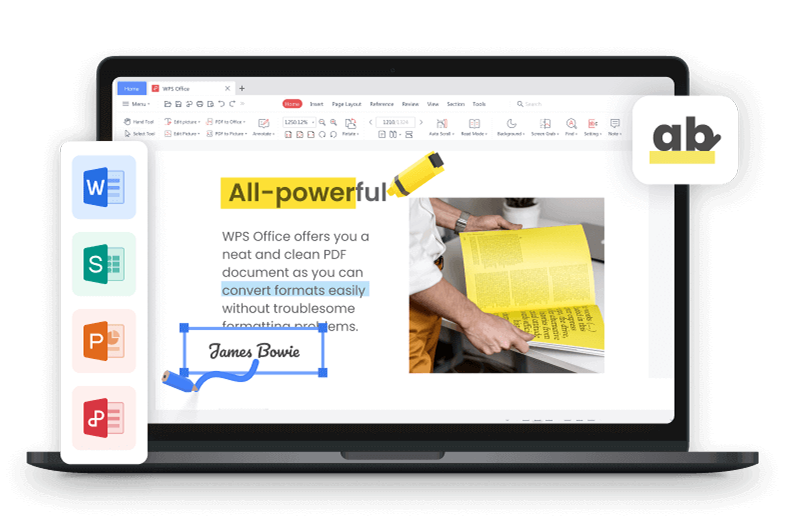
WPS Does the job: WPS 在跨平台与办公文档编辑方面表现更贴近“直接把事情做完”的需求。它能支持常见的 DOCX/XLSX/PPTX 工作流,并且在处理 PDF、模板和常用排版细节时更强调效率。对那些被激活问题折磨过、又仍然想保持文档兼容与产出节奏的人来说,它能让你把精力放回到内容本身,而不是反复解决“能不能激活”的循环。

'%3e%3cpath%20d='M19.9911%204.11386V6.471H18.5894C18.0775%206.471%2017.7322%206.57814%2017.5536%206.79243C17.3751%207.00671%2017.2858%207.32814%2017.2858%207.75671V9.44421H19.9019L19.5536%2012.0871H17.2858V18.8639H14.5536V12.0871H12.2769V9.44421H14.5536V7.49779C14.5536%206.39064%2014.8632%205.53201%2015.4822%204.92189C16.1013%204.31177%2016.9257%204.00671%2017.9554%204.00671C18.8304%204.00671%2019.509%204.04243%2019.9911%204.11386Z'%20fill='%23333333'/%3e%3c/g%3e%3cdefs%3e%3cclipPath%20id='clip0_2938_8199'%3e%3crect%20width='16'%20height='16'%20fill='white'%20transform='translate(8%204.00671)'/%3e%3c/clipPath%3e%3c/defs%3e%3c/svg%3e)
'%3e%3cpath%20d='M17.5237%2010.7813L23.4811%204H22.0699L16.8949%209.88693L12.7648%204H8L14.2469%2012.9029L8%2020.0133H9.4112L14.8725%2013.7952L19.2352%2020.0133H24M9.92053%205.04213H12.0885L22.0688%2019.0224H19.9003'%20fill='%23333333'/%3e%3c/g%3e%3cdefs%3e%3cclipPath%20id='clip0_2938_8200'%3e%3crect%20width='16'%20height='16.0134'%20fill='white'%20transform='translate(8%204)'/%3e%3c/clipPath%3e%3c/defs%3e%3c/svg%3e)


