Chrome Screen Recorder

Record a screen, app window, or browser tab with a Chrome-compatible workflow and optional microphone or system audio.

00:00:00
Recording…
Recording: Entire Screen
Duration: 0:00Size: 0.0 MB
Free and Unlimited
No Signup Required
Save Time
No Ads
Free to Use
No Sign-Up
No Ads
Any Browser

How to Use Chrome Screen Recorder

  1. Step 1: Choose the Share Source

    Choose the entire screen, an application window, or a browser tab in the share picker.

  2. Step 2: Set Audio Controls

    Set microphone or system audio before you start when Chrome makes those sources available.

  3. Step 3: Record and Download

    Start the recording, stop it when finished, then preview and download the video.

Chrome Screen Recorder for Browser-Based Capture

Chrome Screen Recorder for Browser-Based Capture

When you need to demonstrate a web task, a recording can show the full sequence without extra explanation. This chrome screen recorder lets you select a screen, application window, or browser tab. It is useful for online demos, tutorials, and feedback videos.

Start Recording
Capture One Tab or the Whole Screen

Capture One Tab or the Whole Screen

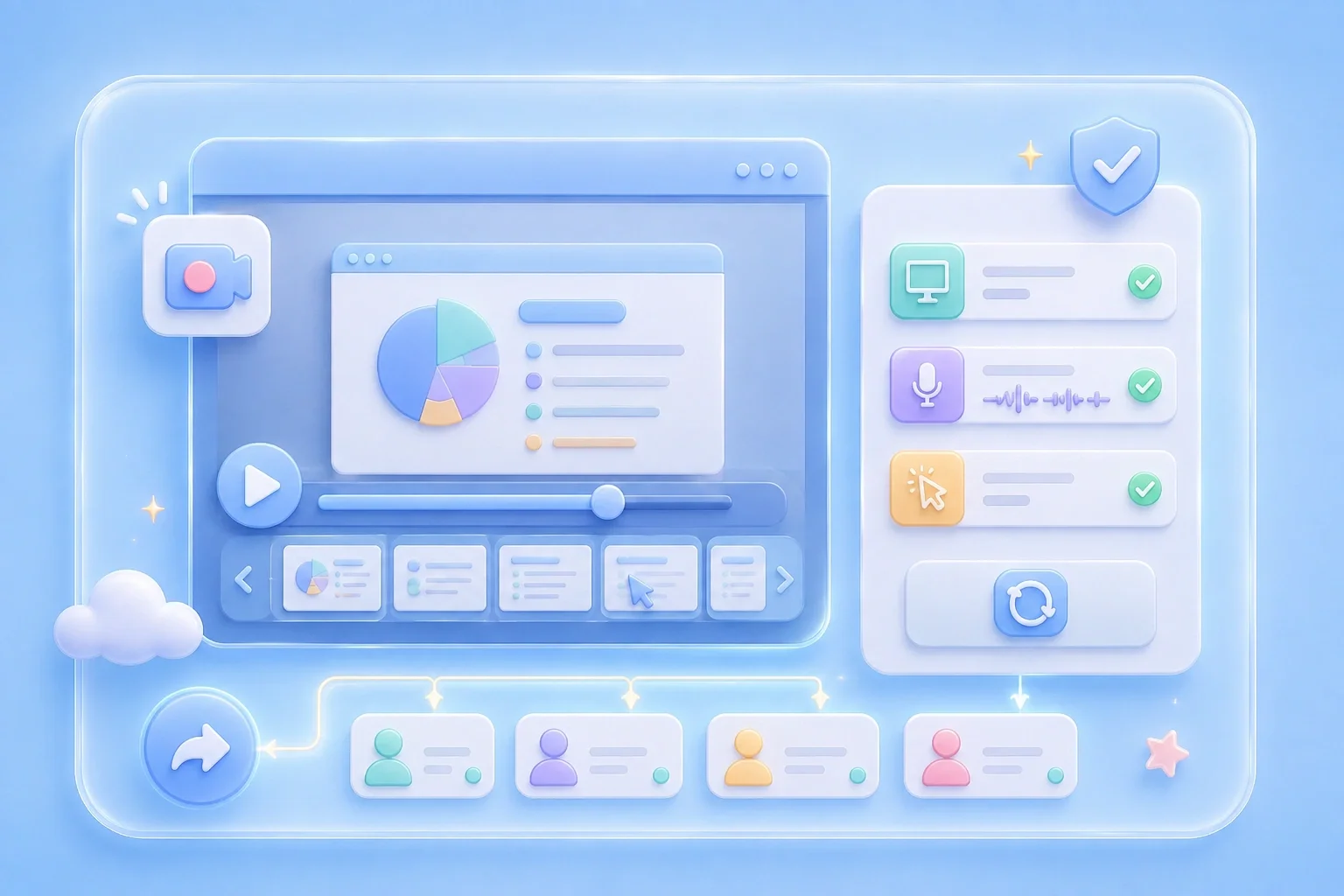
A browser tab recording can keep a web demonstration focused on the page your viewer needs to see. Choose Browser Tab for web content, or select a window or full screen for broader tasks. Chrome presents the final sharing choices before capture begins.

Choose Capture Area
Set Audio for a More Complete Demo

Set Audio for a More Complete Demo

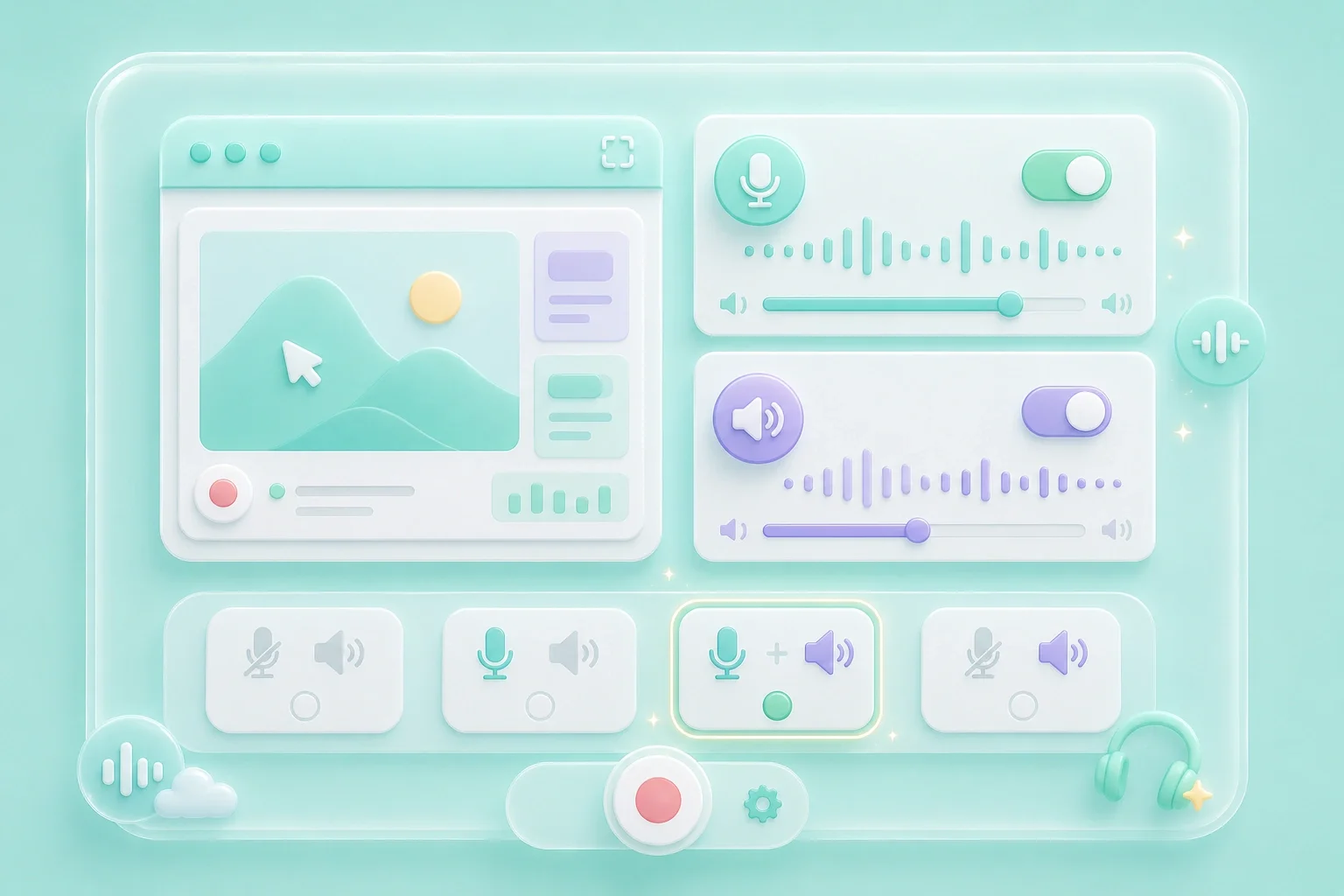
A chrome screen recorder with audio can pair a visible workflow with narration or available system sound. The setup screen includes controls for microphone and system audio. Browser and operating system support determine what Chrome can share.

Set Audio
Review the Recording Before You Send It

Review the Recording Before You Send It

A free chrome screen recorder is useful only when the finished video contains the intended content. Preview your clip and confirm that the selected tab, window, or screen is correct. Record again if you need a cleaner explanation.

Review Video

Chrome Screen Recorder Use Cases

First-person examples of common recording needs.

Web Demos

I record one Chrome tab so viewers can focus on the site I am explaining.

Web Demos

Use case

Team Feedback

I capture the browser behavior and narrate the issue instead of writing a long report.

Team Feedback

Use case

Training Clips

I show each on-screen step so learners can replay the exact workflow.

Training Clips

Use case

Chrome Screen Recorder Questions, Answered

01

How do I use this chrome screen recorder?

Choose a capture source in Chrome, set available audio controls, and start recording.

02

Is this a free chrome screen recorder?

The recorder is displayed without a sign-up step. Review your clip before saving it.

03

Can I use a chrome screen recorder with audio?

Turn on microphone or system audio before recording when Chrome and your device offer those sources.

04

Can I use a chrome screen recorder online free?

The recording workflow begins in the browser and uses Chrome's sharing choices.

05

Is this a chrome screen recorder extension free?

This page is a browser-based recorder interface. It does not require you to install a separate extension to reach the setup controls.

06

Can I record a Chrome browser tab?

Yes. Select Browser Tab and choose the tab you intend to record in Chrome's share picker.