chromebook screen recorder

Use this chromebook screen recorder to capture an approved screen, window, or browser tab, then preview the video before saving it for class notes, tutorials, or team follow-up.

00:00:00
Recording…
Recording: Entire Screen
Duration: 0:00Size: 0.0 MB
Browser-Based Setup
No Signup Step
Preview Before Saving
Audio Source Options
Free to Use
No Sign-Up
No Ads
Any Browser

How to Record a Chromebook Screen

  1. Step 1: Choose Screen, Window, or Tab

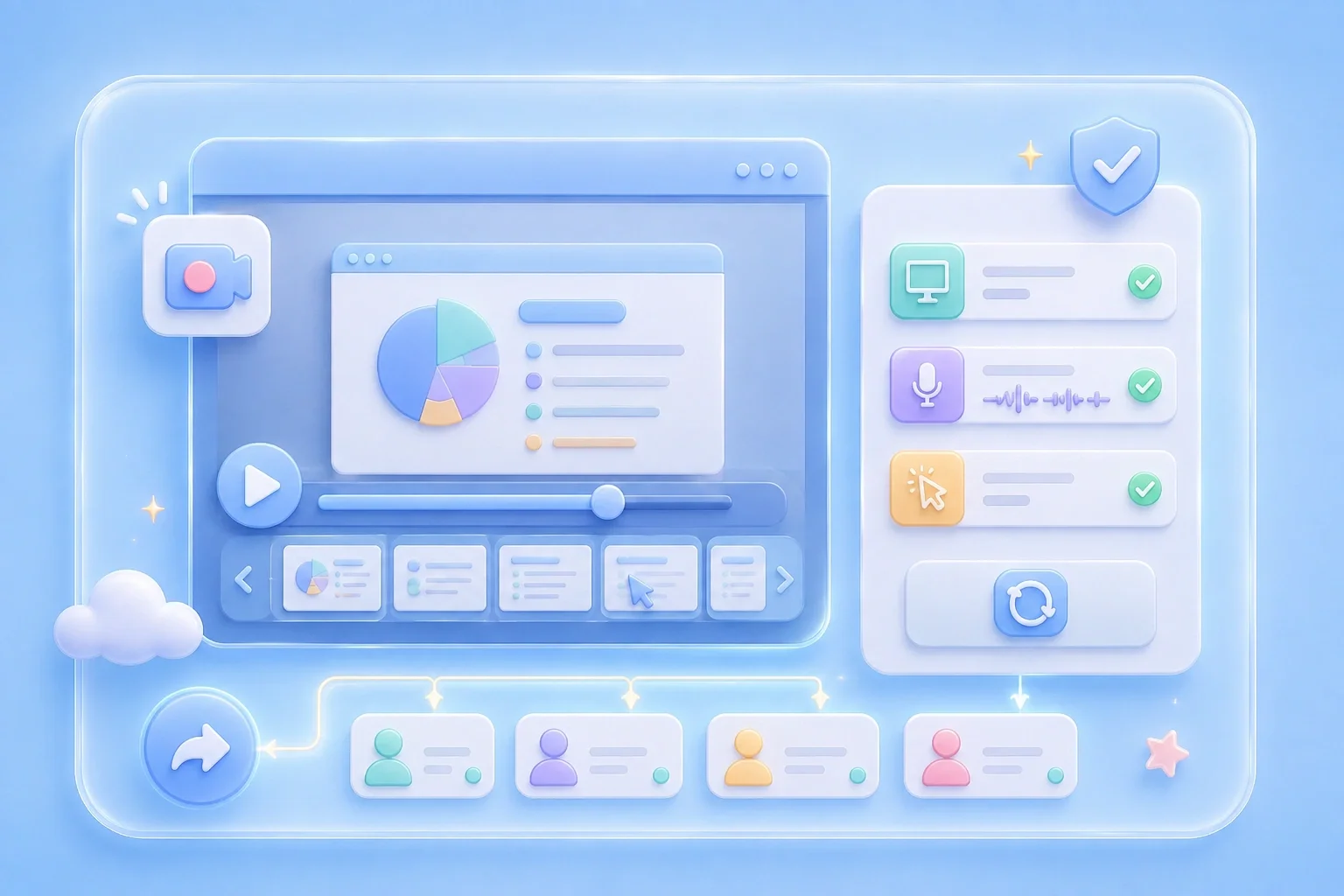
    Select the Chromebook display, app window, or browser tab you want to capture.

  2. Step 2: Set Allowed Audio

    Turn on microphone or system audio only when the source is available and you have permission to record it.

  3. Step 3: Record, Preview, and Save

    Stop when the useful section is finished, review the preview, and download the recording if it is ready.

Chromebook Screen Recorder for Classes and Work

Chromebook Screen Recorder for Classes and Work

Notes can miss the detail in a fast lesson, product demo, or process walkthrough. This browser recorder lets you choose whether to capture the whole display, a single window, or one tab before you start. After recording, you can preview the video and decide whether it is ready to download.

Start Recording
Focused Capture Area Selection

Focused Capture Area Selection

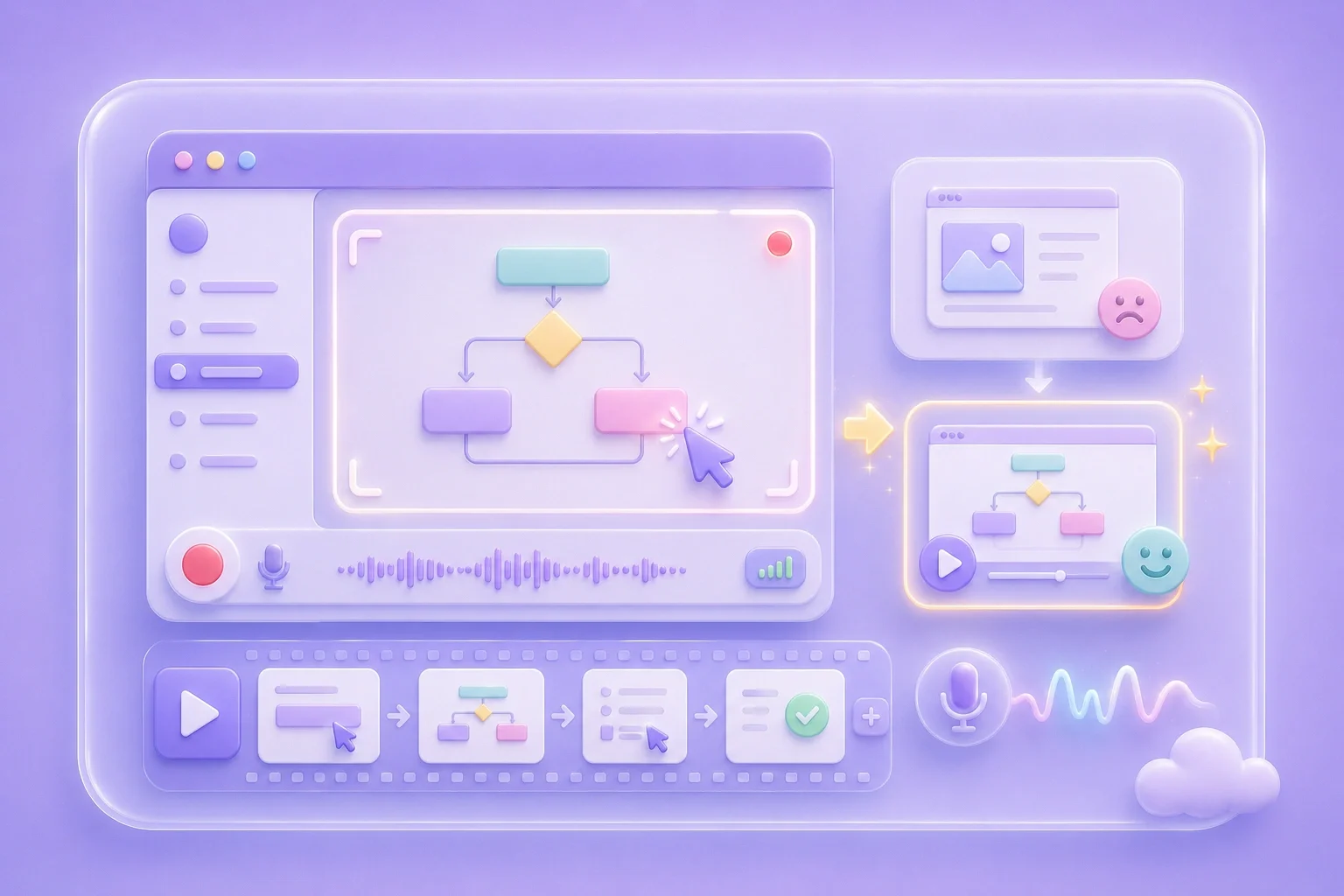
A full desktop capture can expose email, tabs, or private files you never meant to show. Choose a window or browser tab when the task only needs one source, or choose the entire screen when the surrounding context matters. Check the browser share prompt before you start so the selected area matches your goal.

Choose Capture Area
Audio Choices for Chromebook Recordings

Audio Choices for Chromebook Recordings

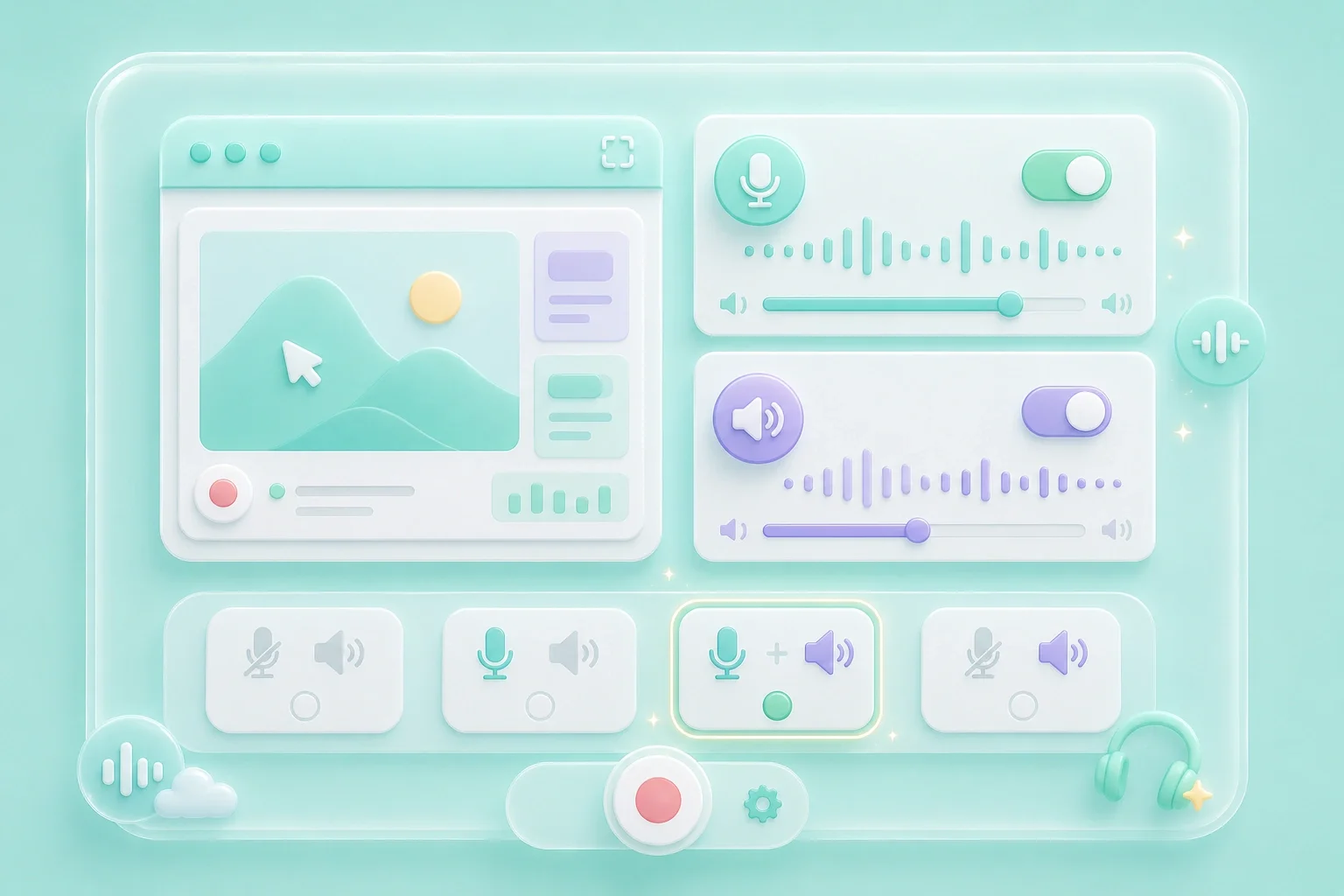
Some recordings need narration, and others need only the screen. The tool includes microphone and system-audio controls, so you can set up a chromebook screen recorder with audio when your browser and source allow it. Use audio only when you have permission, then run a short test if the recording is important.

Set Audio
Preview Before You Share or Download

Preview Before You Share or Download

A screen recording can capture names, messages, notifications, or the wrong tab. Review the finished video before downloading, especially for school submissions, training clips, or client follow-up. If the content is not clean enough to share, record again with a narrower source or different audio choice.

Review Video

Screen Recording Use Cases on Chromebook

First-person examples for school, tutorials, and work reviews.

Class Notes

I miss details when a teacher moves quickly, so I record the approved lesson view and replay the part I need for notes.

Class Notes

Student use case

Tutorial Recording

I need a simple browser tool for short tutorial clips, and I want to capture only the tab that shows the workflow.

Tutorial Recording

Creator use case

Team Follow-Up

I review the preview before I send anything, because notifications and private tabs can slip into a recording if I choose the wrong source.

Team Follow-Up

Work use case

Chromebook Recording Questions, Answered

01

How do I record my Chromebook screen with this tool?

Choose the screen, window, or browser tab, set permitted audio, start recording, and review the preview before downloading.

02

Can I use a free chromebook screen recorder?

The visible workflow starts without a sign-up step, and the page lets you record and preview before downloading. Any browser, storage, school, or company rules still apply.

03

Can I use a chromebook screen recorder online?

Yes. The recording flow starts in the browser and uses the source you select in the browser share prompt.

04

Can this be a chromebook screen recorder with audio?

Use the microphone or system-audio option when your browser exposes that source and you have permission to record it. A short test helps confirm whether the audio source is included.

05

Is there a chromebook screen recorder online free workflow?

The browser-based setup is accessible from the page without a sign-up step, then you can review the result before saving.

06

What should I check before sharing a Chromebook recording?

Confirm that recording is allowed, look for unintended private content, and review both the chosen screen area and audio before sending the file.