Image to PPT Converter

Use image to ppt converter online to turn a image screenshot, graphic, or visual draft into a PowerPoint file you can review before presenting.

or drag and drop an image here

0%

Processing...

PPTX

Upload an Image
Create a PPTX Draft
Review Before Use
Presentation Workflow
Free to Use
No Sign-Up
No Ads
Any Browser

How to Use image to ppt converter in 3 Steps

  1. Step 1: Upload Your Image

    Choose the image or slide screenshot you want to place in a presentation. Clear source images make text, charts, and visual details easier to check after conversion.

  2. Step 2: Create Your PowerPoint File

    Start the conversion, then review the generated slide. Because a flat image is different from a native presentation, results can vary with image clarity and layout complexity.

  3. Step 3: Download and Review the PPTX

    Download the PPTX and open it in your presentation app. Check text, images, spacing, and slide size before you present or share the file.

Move Visual Content into a Presentation Draft

Move Visual Content into a Presentation Draft

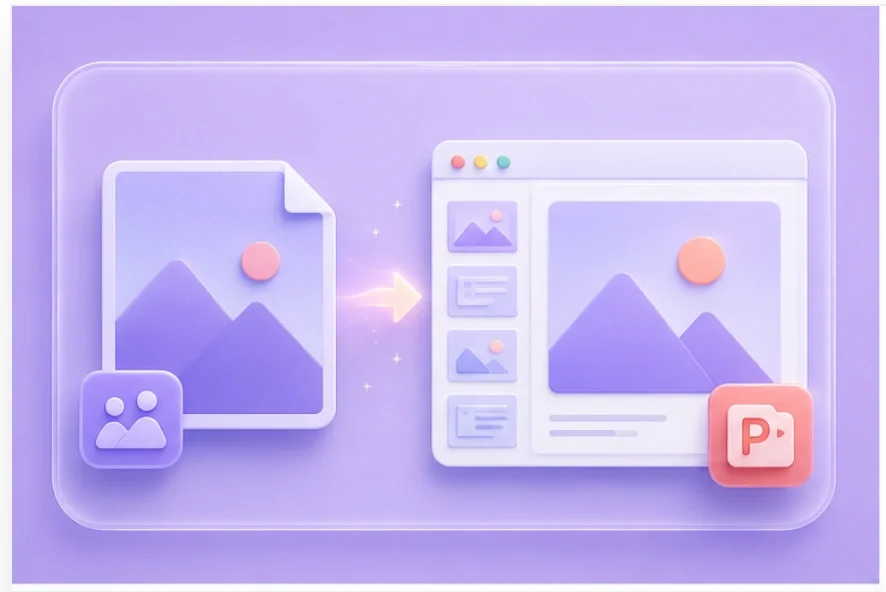
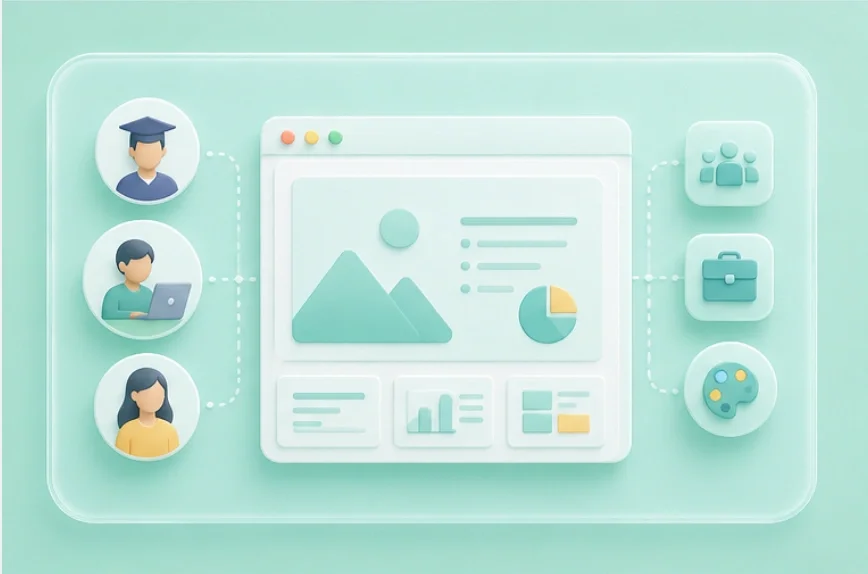
A flat image can hold important slide content but be difficult to reuse in a deck. Use an image to ppt converter when you want a PowerPoint draft from a screenshot, scan, or visual reference. Download the result and review it in your presentation app before sharing it.
Create PPTX Draft
Review Your Presentation Before It Goes Live

Review Your Presentation Before It Goes Live

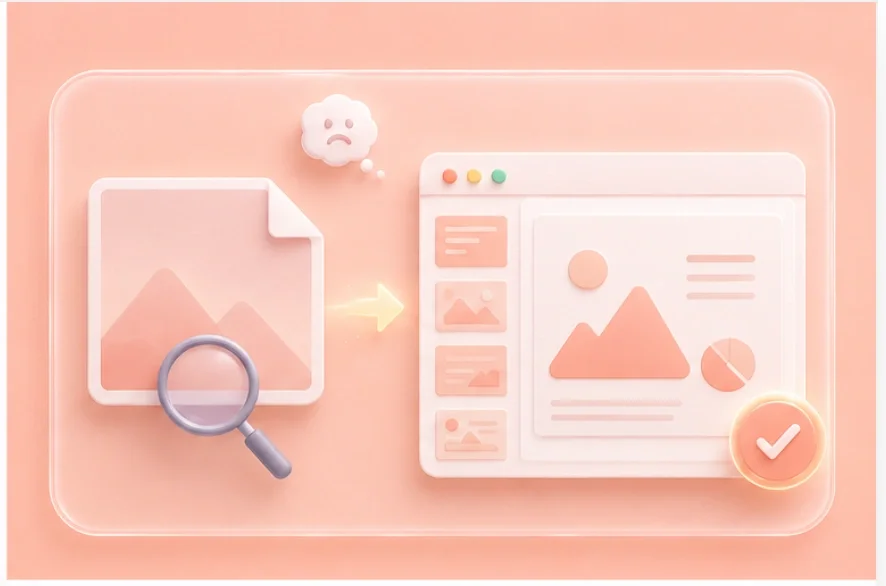
A flat image does not carry the same structure as a native slide. After you convert images to PowerPoint free, inspect the text, spacing, and visual placement in the downloaded file. Make any needed edits before you use the deck in a meeting or class.

Review Your Slide
Create Slide Drafts for Real Workflows

Create Slide Drafts for Real Workflows

Students can bring a reference image into a class presentation. Teams can prepare a discussion draft from a slide screenshot or visual concept. Creators can organize image-based ideas in a deck before a review session.

Prepare a Deck
Check the Details That Matter on Screen

Check the Details That Matter on Screen

Open the PPTX before you present it. Check that text is accurate, images sit where you expect, and the slide is readable on the target screen. This final review helps you catch details that an image-only workflow can hide.

Download Your PPTX

Presentation-Ready Image Workflows

Practical reasons to move visual content into a PowerPoint file

Class Presentation

Illustrative user perspective: I had only a slide screenshot before class, so I used the PPTX draft as a starting point and checked the wording before presenting.

Class Presentation

Illustrative scenario

Work Presentation

Illustrative user perspective: I needed to reuse an old visual in a new deck, and a PowerPoint draft gave me a place to review the content instead of rebuilding the slide from scratch.

Work Presentation

Illustrative scenario

Design Review

Illustrative user perspective: I wanted my mockups in a slide deck for discussion, so I turned the images into a draft and reviewed each slide with my team.

Design Review

Illustrative scenario

Image To Ppt Converter Questions, Answered

01

What does an image to ppt converter do?

It turns a image into a PowerPoint presentation file that you can open, review, organize, and use in a slide workflow.

02

How do I use an image to ppt converter online?

Upload your image, start the conversion, download the PPTX, and open it to review the slide content before you use it.

03

Will I need to edit the converted PowerPoint file?

Review the converted file before using it. A flat image may not become a perfectly structured native deck, so adjust text, alignment, or formatting where needed.

04

Is there a free image to ppt converter?

Use the tool to create a PowerPoint draft from your image, then review the generated PPTX before you use it. Check the current page experience for any availability details.

05

What kind of image works best?

Choose a clear image with readable text, strong contrast, and minimal blur. Lower-quality screenshots can need more manual correction after conversion.

06

What should I review in the PPTX?

Check text accuracy, object placement, image clarity, slide size, and spacing. Make sure no important content needs an update before you use the presentation.