Mac Screen Recorder

Record a screen, app window, or browser tab from a compatible browser on your Mac, with optional audio controls.

00:00:00
Recording…
Recording: Entire Screen
Duration: 0:00Size: 0.0 MB
Free and Unlimited
No Signup Required
Save Time
No Ads
Free to Use
No Sign-Up
No Ads
Any Browser

How to Use Mac Screen Recorder

  1. Step 1: Choose a Capture Area

    Choose the screen, application window, or browser tab you want to capture.

  2. Step 2: Set Available Audio

    Set microphone and system-audio options before starting when they are available.

  3. Step 3: Record and Review

    Record the task, stop when finished, then preview the video before downloading.

Mac Screen Recorder for Visual Explanations

Mac Screen Recorder for Visual Explanations

A short video can show a Mac workflow more clearly than a long written message. This mac screen recorder lets you choose a screen, window, or tab in a compatible browser. Use it to prepare walkthroughs, demos, and visual feedback.

Start Recording
Keep the Recording Focused

Keep the Recording Focused

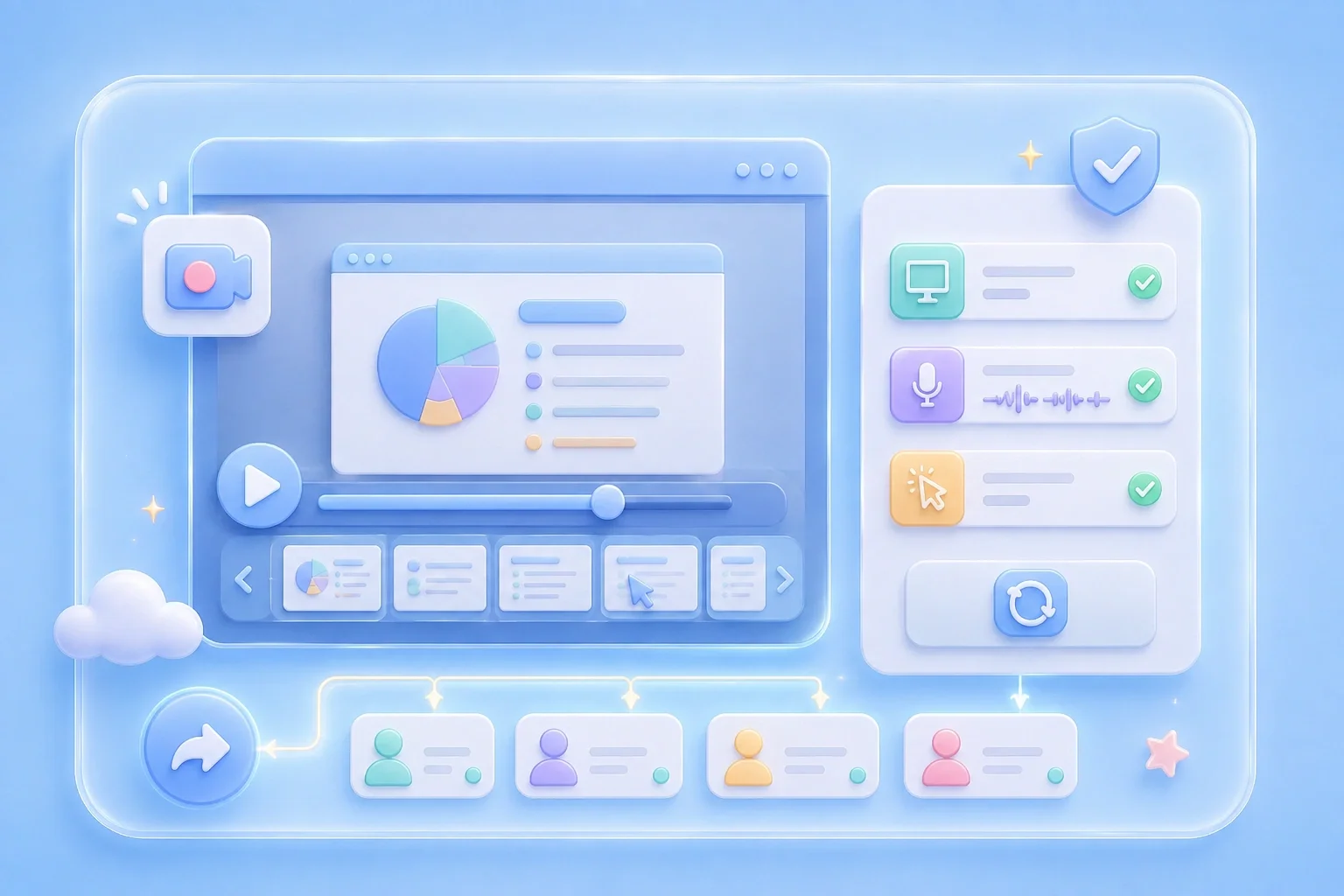
Showing only the relevant app or tab can make a demonstration easier to watch. Select the full display for a broad walkthrough, or narrow the capture to one window or browser tab. The browser will present the available sharing choices when you begin.

Choose Capture Area
Set Audio Before You Start

Set Audio Before You Start

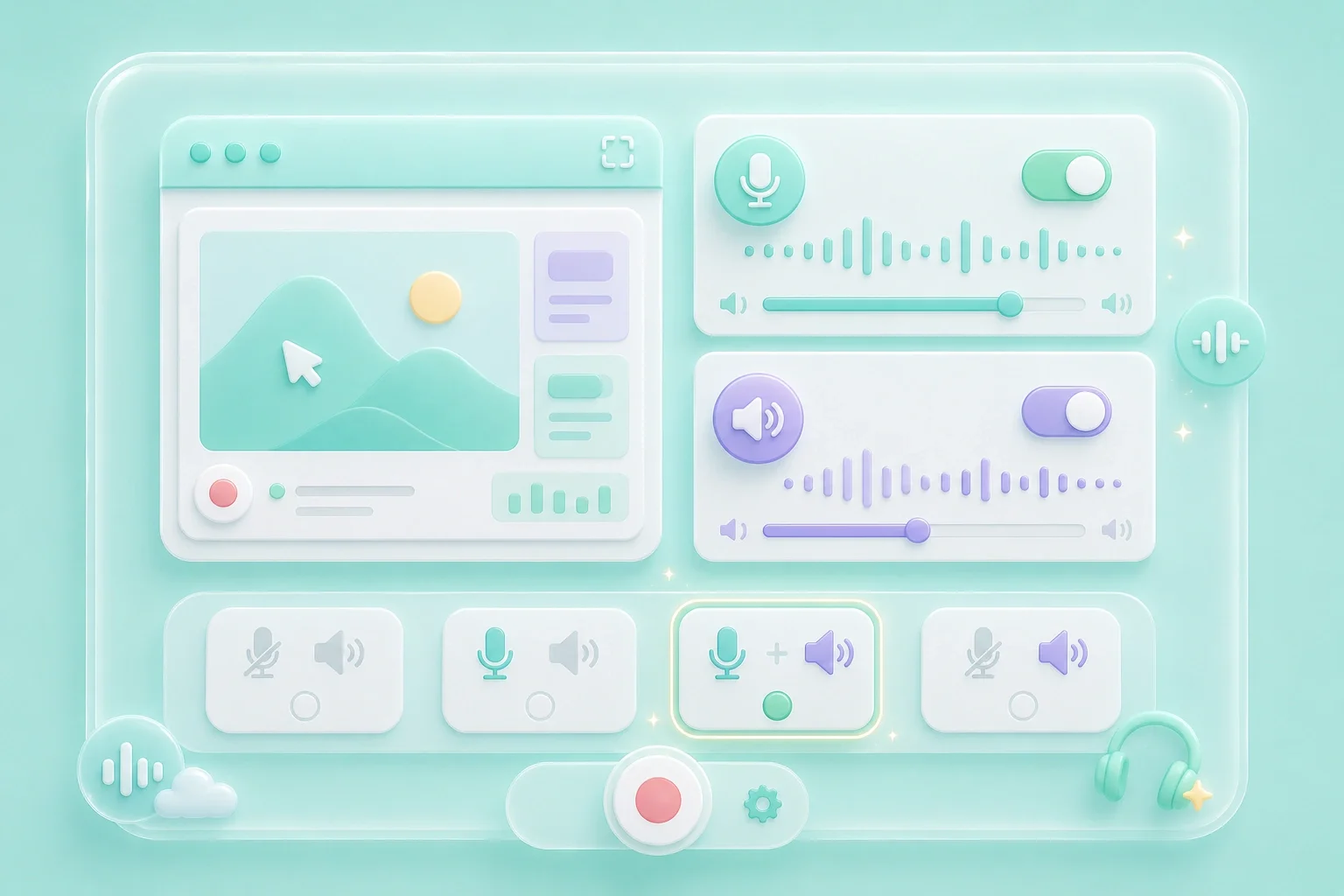
A free mac screen recorder can be useful when you need to explain what viewers see on screen. The recorder provides microphone and system-audio controls as part of the setup view. Audio capture depends on browser support and the permissions you grant on your Mac.

Set Audio
Preview the Result Before Downloading

Preview the Result Before Downloading

A mac screen recorder with audio gives you a chance to check the visual and sound choices together. Review the completed clip to confirm that it contains the right content. If it needs a correction, start another recording from the same page.

Review Video

Mac Screen Recorder Use Cases

First-person examples of common recording needs.

Design Feedback

I record the page on my Mac so I can point out the exact part that needs attention.

Design Feedback

Use case

Course Notes

I capture a lesson segment and add my explanation when it helps classmates follow along.

Course Notes

Use case

App Walkthroughs

I record one application window to keep my demonstration focused on the task.

App Walkthroughs

Use case

Mac Screen Recorder Questions, Answered

01

How do I use this mac screen recorder?

Open it in a compatible browser, select a screen area, choose available audio sources, and start recording.

02

Is this a free mac screen recorder?

The recorder is shown without a sign-up step. Preview the completed video and save it if it fits your needs.

03

Can I use a mac screen recorder with audio?

Use the microphone and system-audio controls before recording. Availability depends on your browser and Mac permissions.

04

Can I use a mac screen recorder online free?

The workflow begins in the browser and uses its screen-sharing prompt to select content.

05

Can I record mac screen recorder with system audio?

The system-audio option is visible in the setup controls, but availability varies by browser and operating system.

06

What should I review before sharing?

Check the selected area, sound, and any private information that may be visible in the video.