MP4 to GIF High Quality

Turn a MP4 clip into a GIF by uploading its MP4 file and reviewing the result before download.

or drag and drop a file here

MP4
0%

Processing...

Free and Unlimited
No Signup Required
Save Time
No Ads
Free to Use
No Sign-Up
No Ads
Any Browser

How to Convert MP4 to GIF in 3 Steps

  1. Step 1: Upload a Clip

    Choose the MP4 clip you want to turn into a GIF. Use a short, focused moment so the animation is easier to review and share.

  2. Step 2: Review Motion and Size Settings

    Review the available frame rate and output width settings before conversion. These settings affect visible motion, image dimensions, and the amount of data in the GIF.

  3. Step 3: Preview and Download the GIF

    Create the GIF and watch it loop before downloading. Check the crop, timing, and any on-screen text so the selected moment remains clear.

Turn Key Moments into Clear GIFs

Turn Key Moments into Clear GIFs

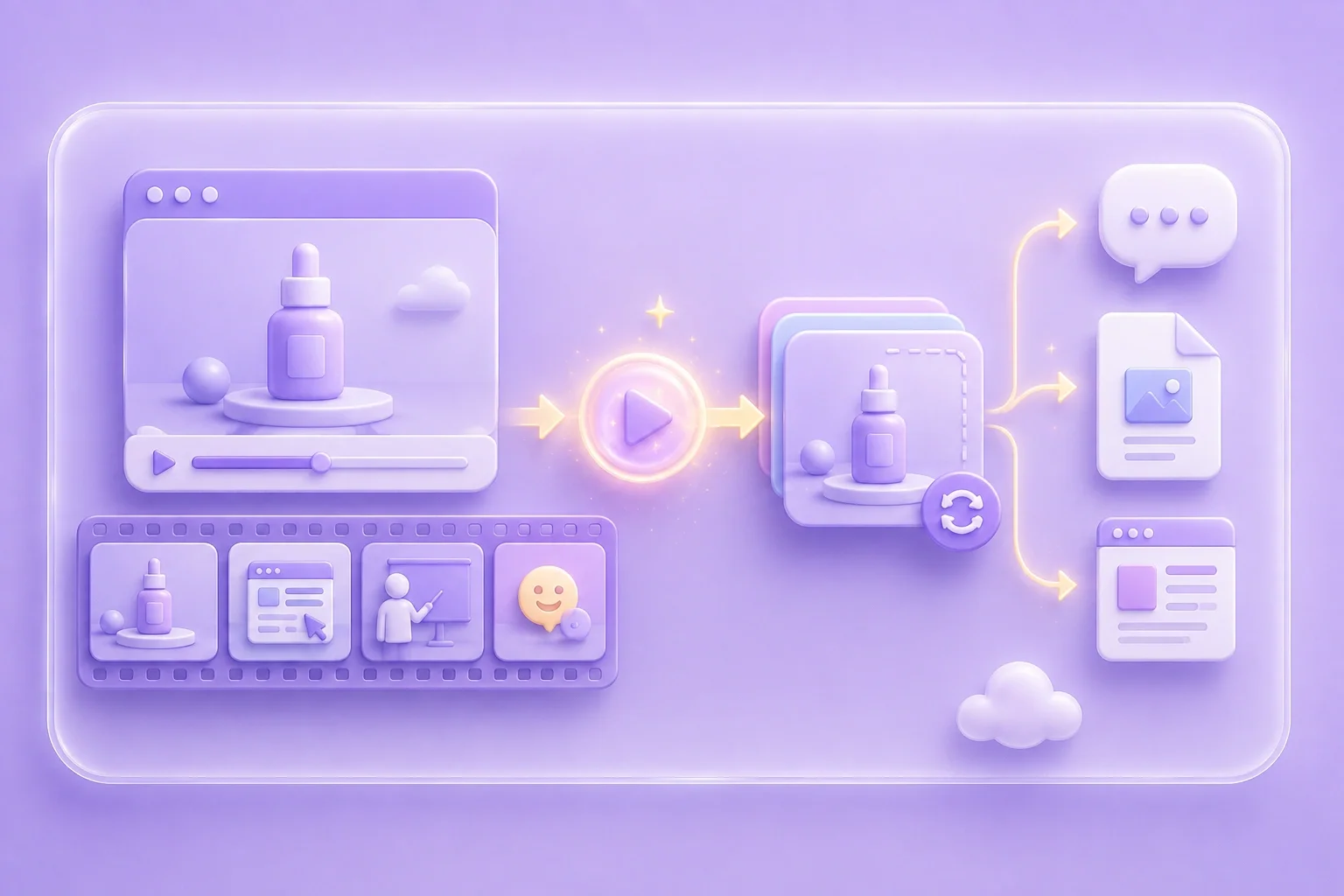
A long video can hide the one moment I need to show. I start with a short MP4 clip when I want an action, reaction, or screen detail to loop. For a mp4 to gif high quality workflow, this keeps the visual message focused.


Create GIF
Keep Attention on the Essential Moment

Keep Attention on the Essential Moment

Extra seconds can make a loop feel slow and distract from the main action. I select the section that shows the gesture, transition, or response I want people to notice. This makes the animation easier to understand in a message, presentation, or draft page.

Choose Clip
Review Motion and Dimensions Before Conversion

Review Motion and Dimensions Before Conversion

I consider where the GIF will appear after conversion. The available frame rate and output width settings let me review motion and dimensions before I create the file. I use the preview to decide whether the result is suitable for the planned context.

Adjust Settings
Inspect the Loop Before Sharing

Inspect the Loop Before Sharing

A loop can expose a jump between the final and first frame. I check that jump, along with the crop and readable captions, before I download. This final review helps me share a GIF that reflects the moment I selected.

Preview GIF

MP4 GIF Scenarios

Illustrative first-person scenarios for permissioned video clips

Presentation Clip

“I had approval to use a MP4 clip, but I only needed one moment for my presentation. I made a GIF so the important action could repeat while I explained it.”

Presentation Clip

Use case

Reaction Moment

“I wanted to show my team a reaction without asking them to find a timestamp in a long video. I created a short loop so the visual point was immediately clear.”

Reaction Moment

Use case

Visual Guide

“I was documenting a visual step, and screenshots missed the movement on screen. I used a GIF from my approved MP4 clip so the action stayed visible in the guide.”

Visual Guide

Use case

MP4 to GIF High Quality Questions, Answered

01

Can I make a mp4 to gif high quality online?

This page converts a locally uploaded MP4 file. Upload a short MP4 clip, select the available frame rate and output width, then preview the GIF before downloading.

02

Is there a mp4 to gif high quality free workflow?

The converter is identified on the page as free to use. Upload the MP4, choose the available settings, and review the GIF before downloading.

03

How do I convert MP4 video to GIF?

Prepare a permitted MP4 clip, upload it, review the available frame rate and output width, then convert and preview the GIF. Download it after checking the loop and framing.

04

Does this converter accept a video link?

No video link input is shown. The tool uses a local MP4 upload field.

05

Why should I use a short clip?

Short clips keep the animation focused and make the loop easier to review. They can also reduce the number of frames in the final GIF.

06

What should I check before sharing?

Review source-use rights, loop timing, framing, and text readability. Share the result only where you are authorized to use the underlying video content.