Record Google Meet

Use a screen-recording workflow to capture the screen area and permitted audio needed for your Google Meet notes or follow-up.

00:00:00
Recording…
Recording: Entire Screen
Duration: 0:00Size: 0.0 MB
Free and Unlimited
No Signup Required
Save Time
No Ads
Free to Use
No Sign-Up
No Ads
Any Browser

How to Use Record Google Meet

  1. Step 1: Choose the Meeting View

    Choose the browser tab, window, or screen that contains the meeting view you want to capture.

  2. Step 2: Set Permitted Audio

    Select microphone or system audio only when available and appropriate for the meeting.

  3. Step 3: Record and Review

    Record, stop, and review the video before saving or sharing it.

Record Google Meet for Clear Follow-Up

Record Google Meet for Clear Follow-Up

Important meeting details can be difficult to recreate from memory alone. This record google meet workflow lets you choose the browser tab, window, or screen you need to capture. Get permission from participants and follow your organization's recording rules before you start.

Start Recording
Keep the Meeting View Focused

Keep the Meeting View Focused

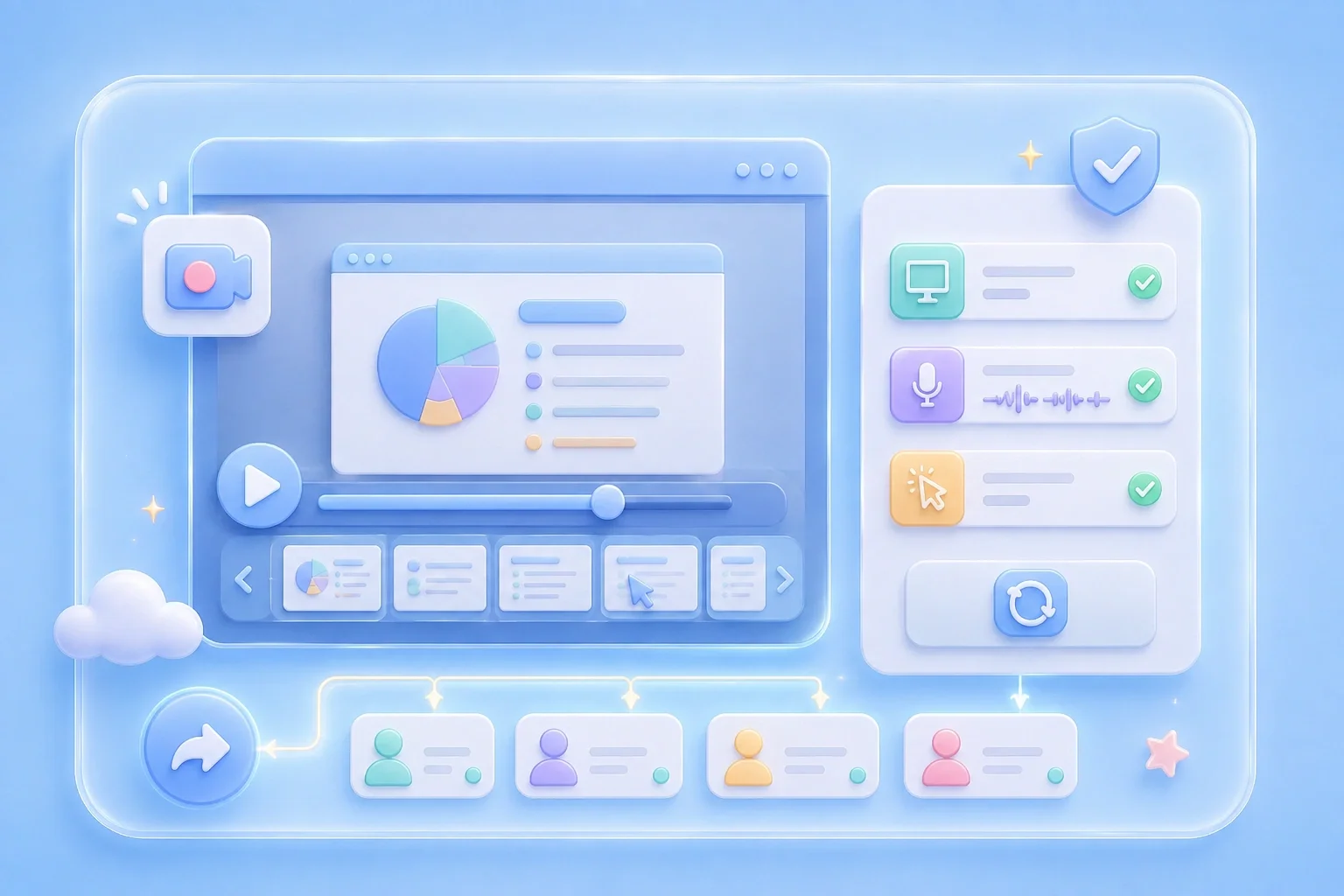
Capturing only the relevant meeting view can make your follow-up easier to review. Select a browser tab for Google Meet, or choose a window or full screen when the meeting requires it. Confirm the chosen share source in the browser prompt before recording.

Choose Capture Area
Set Audio With Consent

Set Audio With Consent

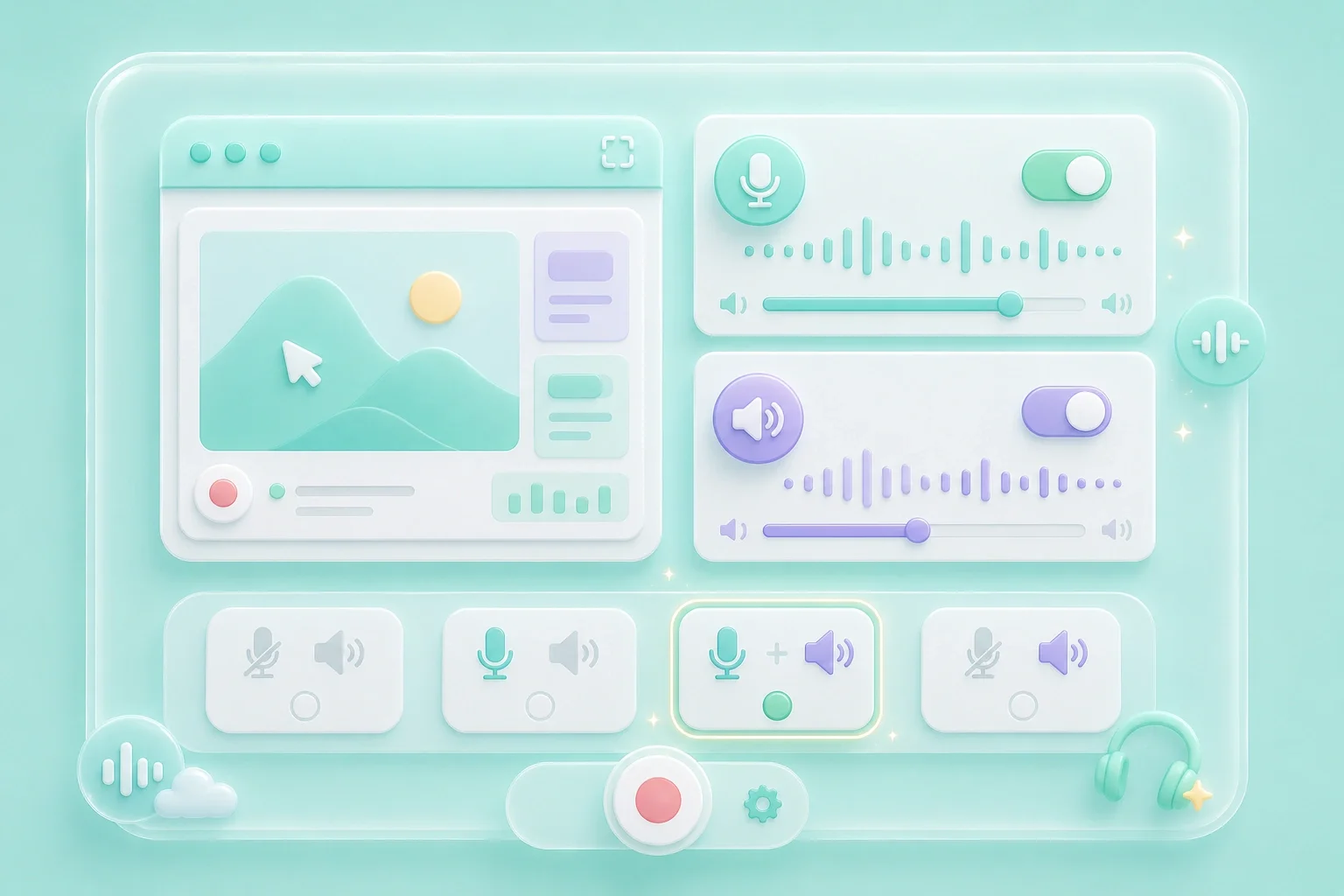
A record google meet with audio workflow requires more than toggling a visible control. The recorder shows microphone and system-audio options before capture begins. You must make sure the available audio source and the recording itself are permitted by all applicable rules.

Set Audio
Review Notes Before Sharing

Review Notes Before Sharing

A meeting recording can contain private conversations, names, or shared materials. Preview the completed video before you download or distribute it. Remove the need to re-record by checking that the selected view and permitted audio are correct.

Review Video

Record Google Meet Use Cases

First-person examples of common recording needs.

Project Notes

I record the approved meeting segment so I can revisit the decisions after the call.

Project Notes

Use case

Training Sessions

I capture the permitted walkthrough so I can review the process at my own pace.

Training Sessions

Use case

Team Follow-Up

I check the recording before sharing because I want to protect participant and project information.

Team Follow-Up

Use case

Record Google Meet Questions, Answered

01

How do I record Google Meet with this tool?

Choose the relevant meeting tab, window, or screen, set permitted audio, and start recording after obtaining consent.

02

Can I record Google Meet free?

The recorder is displayed without a sign-up step, but you remain responsible for meeting consent and organizational policies.

03

Can I record Google Meet online?

The screen-recording workflow starts in the browser. Select the share source offered by your browser.

04

Can I record Google Meet with audio?

Choose an available audio source only after confirming that recording it is permitted.

05

Can I record Google Meet without permission?

No. Get consent from participants and comply with your organization's rules and applicable law before recording.

06

What should I check before sharing?

Review the recording for sensitive information, participant privacy, the intended screen area, and permitted audio.