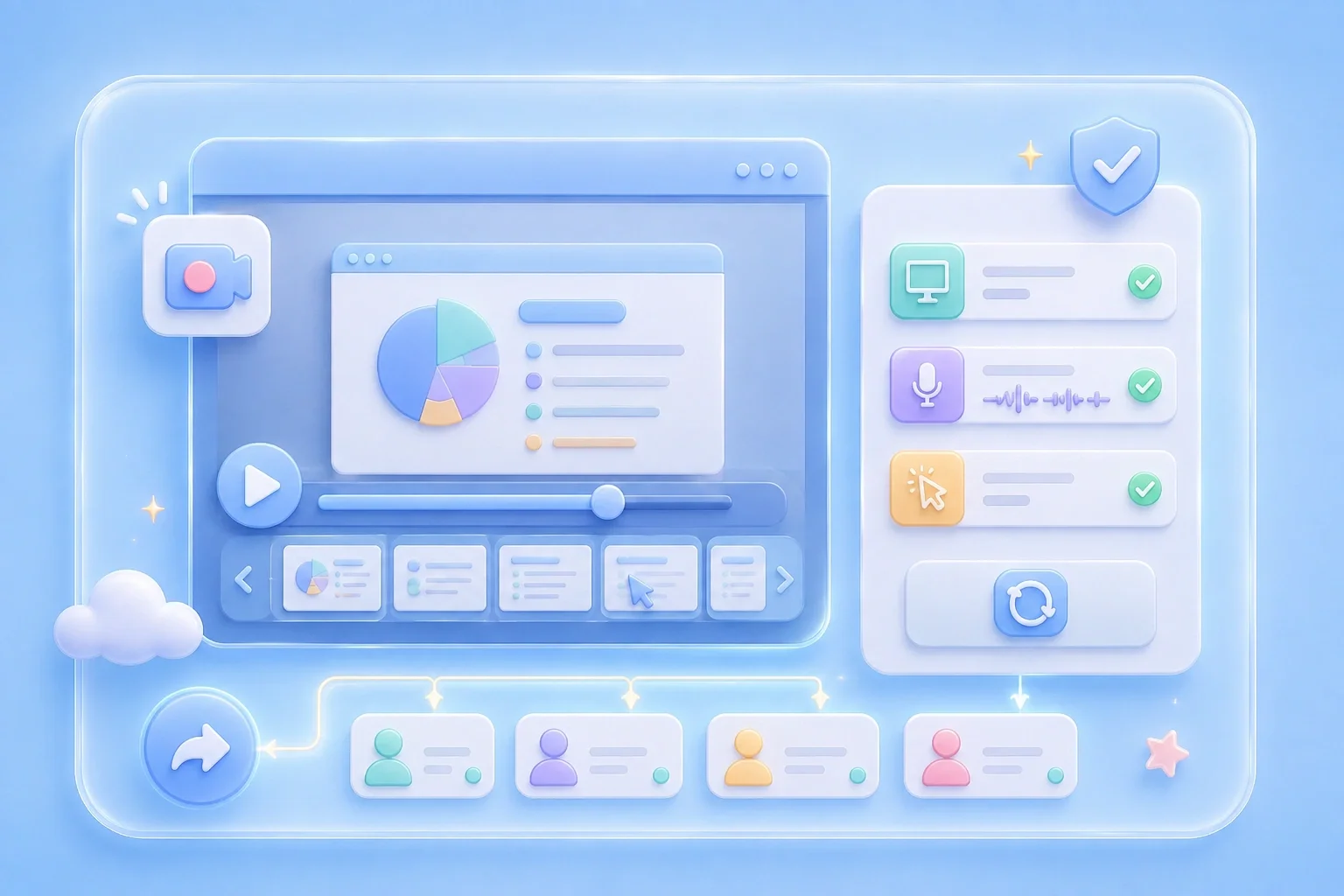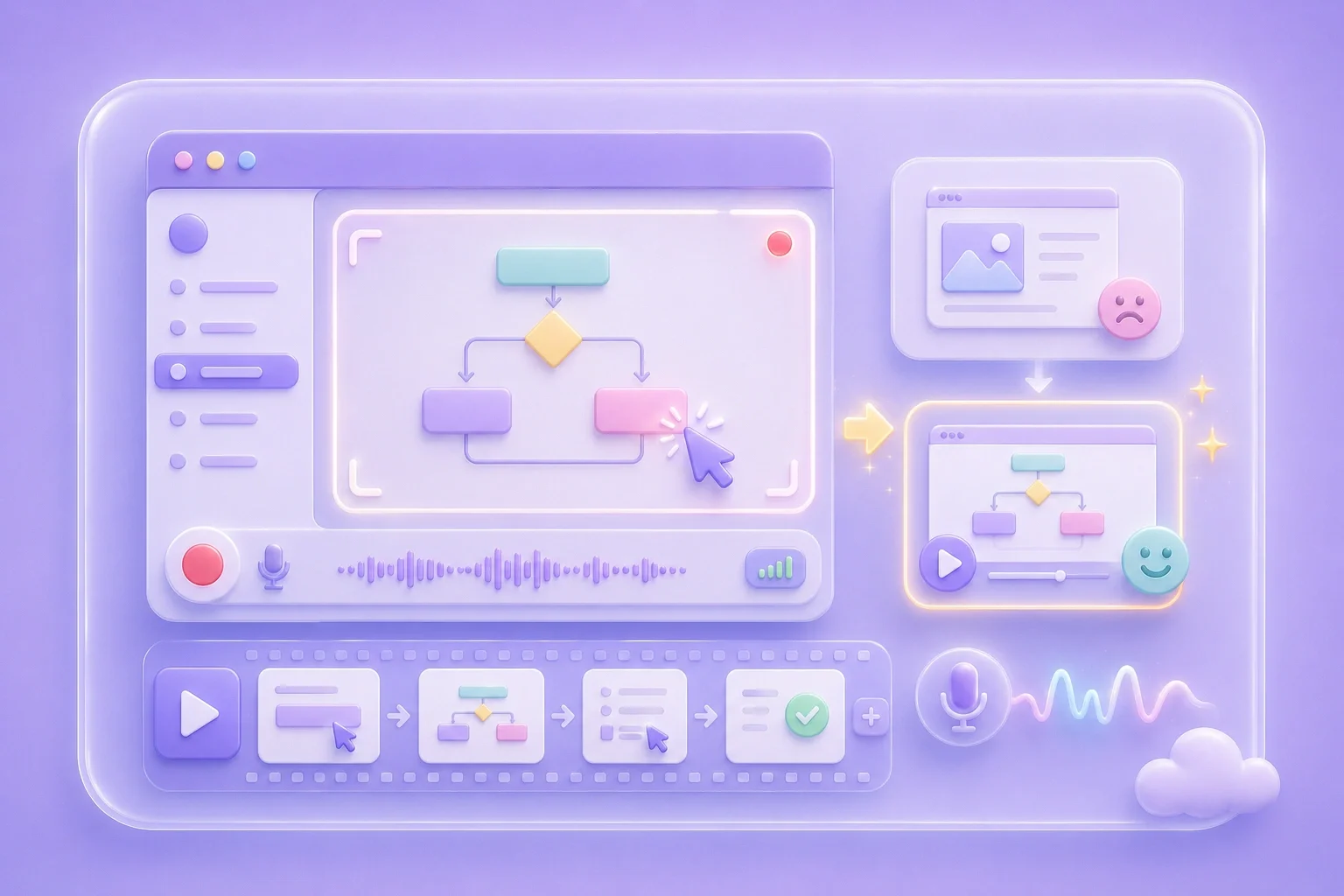
Screen Recorder for iPhone

Explore a browser-based recording workflow and choose the screen area and audio options your iPhone browser makes available.

00:00:00
Recording…
Recording: Entire Screen
Duration: 0:00Size: 0.0 MB
Free and Unlimited
No Signup Required
Save Time
No Ads
Free to Use
No Sign-Up
No Ads
Any Browser

How to Use Screen Recorder for iPhone

  1. Step 1: Open the Recorder

    Open the tool in your browser and use the available capture choices.

  2. Step 2: Choose Available Audio

    Choose microphone or system audio only when your device and browser offer the option.

  3. Step 3: Review the Video

    Stop the recording, preview the result, and download it if it is suitable.

Screen Recorder for iPhone for Simple Video Notes

Screen Recorder for iPhone for Simple Video Notes

A quick video is often easier to understand than a thread of screenshots and messages. This screen recorder for iphone provides a browser-based setup with visible capture and audio controls. The exact options available depend on the iPhone browser and permissions.
Start Recording
Start with the Available Capture Choices

Start with the Available Capture Choices

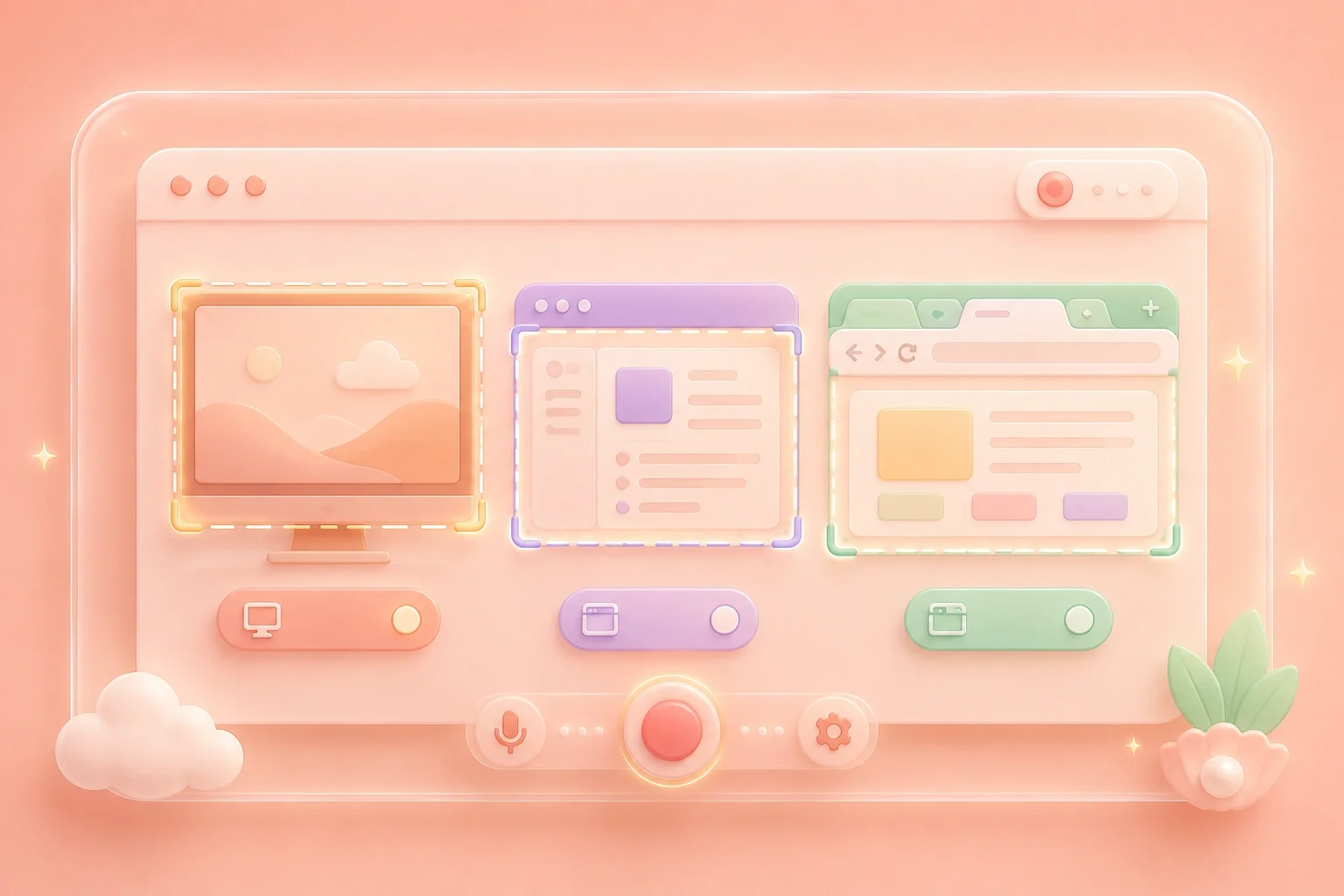
Mobile recording behavior can differ from desktop recording behavior. Open the recorder and use the screen-sharing options your browser presents. Choose only the content you intend to include before you confirm the prompt.

Choose Capture Area
Prepare Audio for Your Explanation

Prepare Audio for Your Explanation

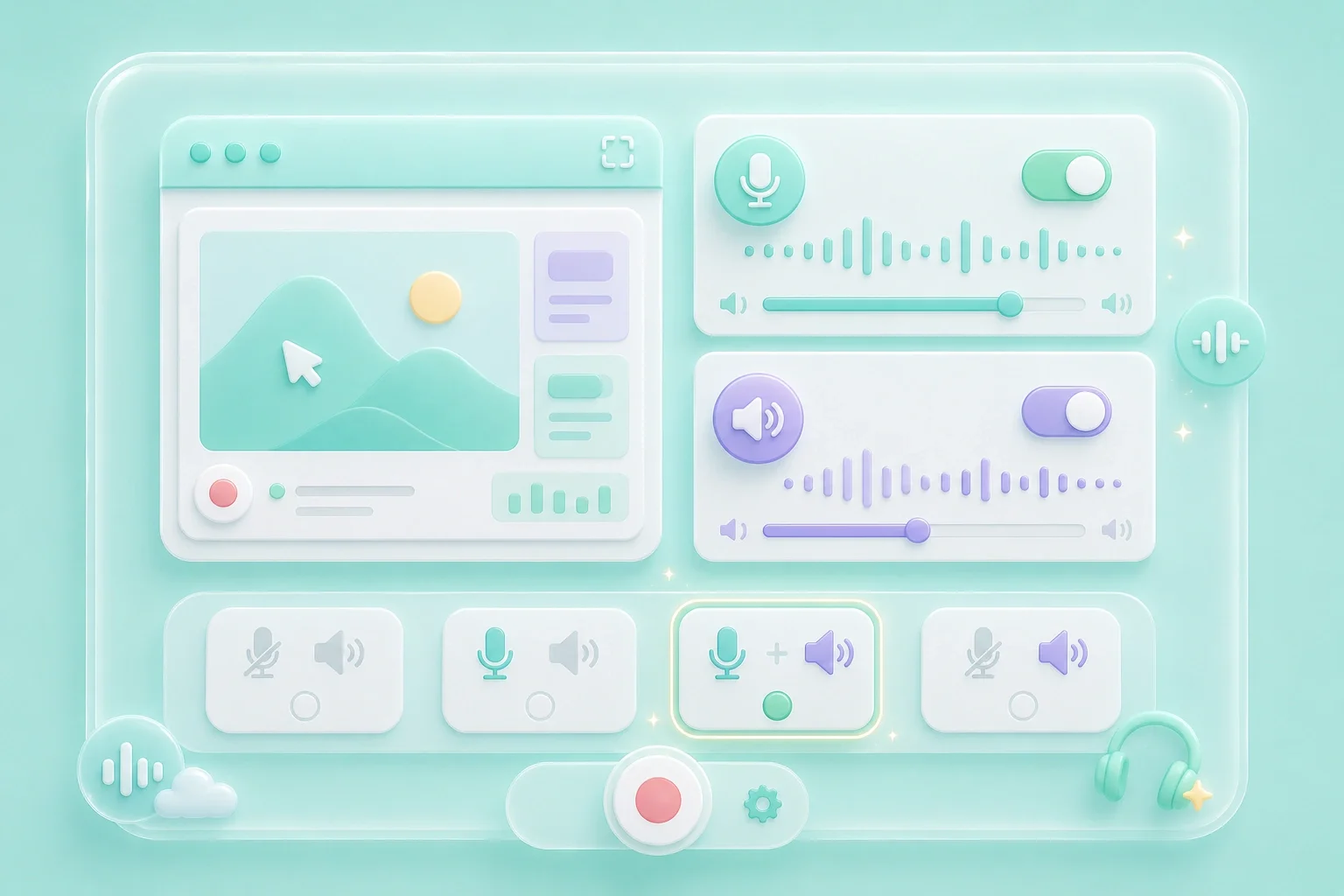
A screen recorder for iphone with audio can be useful when a voice explanation adds context to a visual walkthrough. The setup view displays microphone and system-audio controls. Your iPhone and browser determine whether each source can be shared.

Set Audio
Review Sensitive Details Before Sharing

Review Sensitive Details Before Sharing

A mobile recording may include notifications, personal tabs, or other information you did not plan to show. Watch the completed video before sending or downloading it. Start again if the selected content or audio is not what you expected.

Review Video

Screen Recorder for iPhone Use Cases

First-person examples of common recording needs.

Mobile Support

I record the issue on my phone so I can show exactly what happens after I tap a button.

Mobile Support

Use case

Quick Feedback

I use a short video when a screenshot does not show the timing of the problem.

Quick Feedback

Use case

App Demos

I review the clip before sharing because I want to avoid exposing personal details.

App Demos

Use case

Screen Recorder for iPhone Questions, Answered

01

How do I use a screen recorder for iphone?

Open the tool in your iPhone browser and follow the available screen-sharing prompts.

02

Is this a free screen recorder for iphone?

The page displays the recorder without a sign-up step. Check your video before saving it.

03

Can I use a screen recorder for iphone with audio?

Select the microphone or system-audio option only when it is available on your device and browser.

04

Does it work as a screen recorder for iphone free no watermark?

Review the completed recording before you download or share it, especially when a specific delivery requirement matters.

05

Why do I see permission prompts?

Browsers request permission before sharing screen or audio sources. Select only the content you mean to record.

06

What should I check before sharing?

Check the visible screen area, sound, and any notifications or personal information in the recording.