Screen Recorder Windows 11

Use this browser-based recorder on a Windows 11 device to capture a screen, window, or tab with optional audio.

00:00:00
Recording…
Recording: Entire Screen
Duration: 0:00Size: 0.0 MB
Free and Unlimited
No Signup Required
Save Time
No Ads
Free to Use
No Sign-Up
No Ads
Any Browser

How to Use Screen Recorder Windows 11

  1. Step 1: Select What to Record

    Choose the full screen, an application window, or a browser tab from the recorder.

  2. Step 2: Set Audio Options

    Choose microphone or system audio when those options are available.

  3. Step 3: Start, Review, and Save

    Record your walkthrough, review the result, and download the video when ready.

Screen Recorder Windows 11 for Everyday Walkthroughs

Screen Recorder Windows 11 for Everyday Walkthroughs

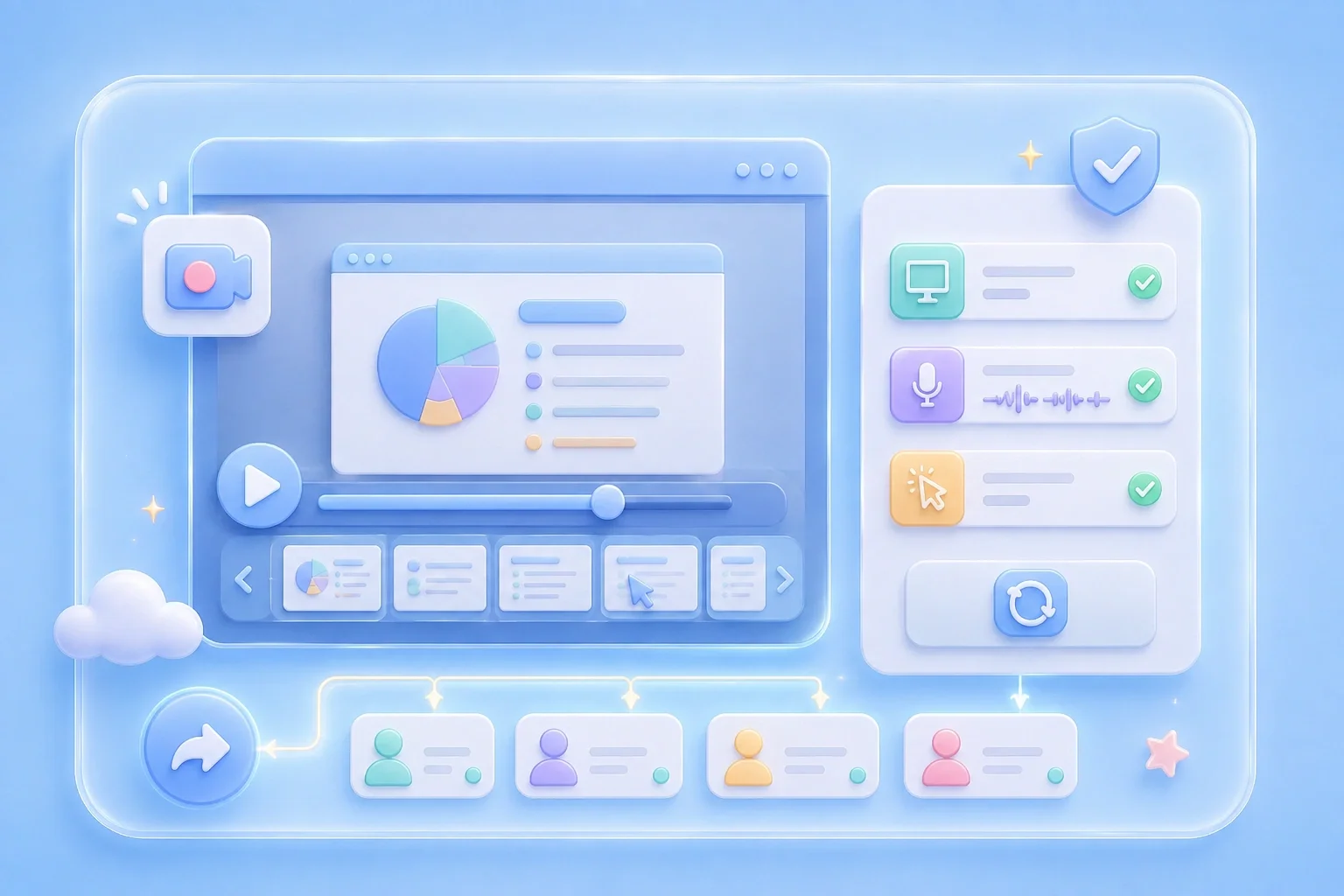
A Windows 11 screen recording can make a setup guide or issue report much easier to understand. This browser-based screen recorder Windows 11 workflow lets you select a capture area before you start. Use it for lessons, product demonstrations, and step-by-step feedback.

Start Recording
Capture a Desktop, Window, or Tab

Capture a Desktop, Window, or Tab

When you need to show one task, recording the whole desktop can create unnecessary distractions. Select the entire display, one application window, or a browser tab from the visible options. This gives your recording a clear scope before the browser asks you to share.

Choose Capture Area
Add Audio When the Explanation Needs It

Add Audio When the Explanation Needs It

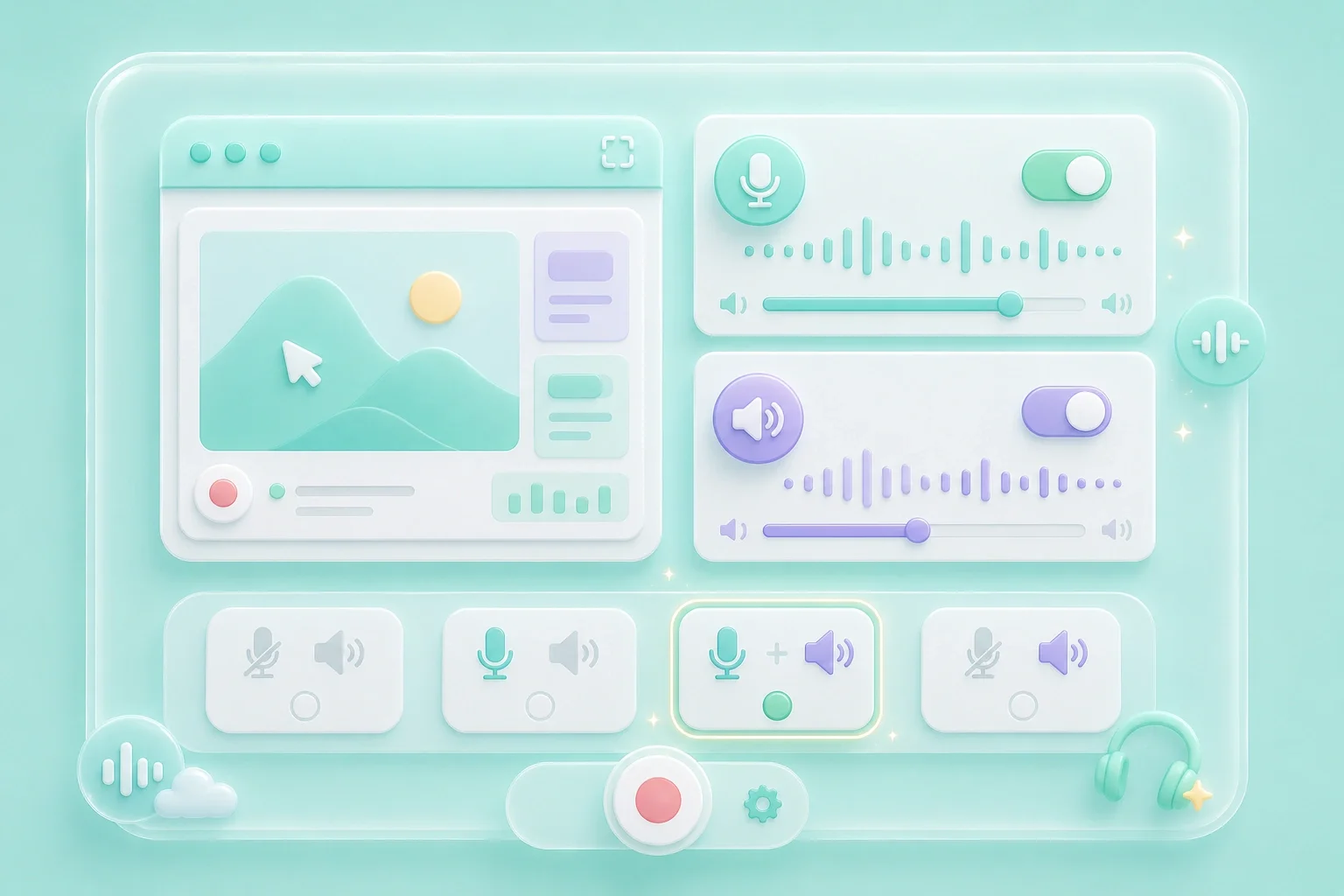
A screen recorder for Windows 11 with audio can help you combine a visual demonstration with narration or available system sound. The controls show microphone and system-audio choices before recording. What your device can share depends on browser and Windows permissions.

Set Audio
Check the Video Before Sending It

Check the Video Before Sending It

People asking how to screen record on Windows 11 often need a quick way to verify the result. Preview the completed video and check that the correct content and audio were captured. Record it again if the result does not show what you meant to share.

Review Video

Screen Recorder Windows 11 Use Cases

First-person examples of common recording needs.

Work Instructions

I record the exact Windows steps so my teammate can see where the setting is.

Work Instructions

Use case

Class Demonstrations

I capture my browser tab and explain the assignment in my own voice.

Class Demonstrations

Use case

Issue Reports

I show the error on screen so I do not have to describe every click in a message.

Issue Reports

Use case

Screen Recorder Windows 11 Questions, Answered

01

How do I use this screen recorder on Windows 11?

Open the tool in a compatible browser, choose the screen area, select available audio options, and start recording.

02

Is this a free screen recorder Windows 11 users can try?

The page presents the recorder without a sign-up step. Review the video before saving it.

03

Can I record a Windows 11 screen with audio?

Turn on the microphone or system-audio control before recording when your browser and device make that source available.

04

Can I use a screen recorder Windows 11 online?

Yes, the tool starts from the browser. Screen-sharing choices are provided by your browser.

05

Does this screen recorder Windows 11 free no watermark?

Check the preview of your completed recording before downloading it. Do not share a file until it looks right for your use.

06

Can I record one app instead of my full desktop?

Yes. Select Application Window, then choose the window you intend to capture in the browser share picker.