Screen Recorder with Audio

Record a screen, window, or browser tab and choose microphone or system sound before you begin.

00:00:00
Recording…
Recording: Entire Screen
Duration: 0:00Size: 0.0 MB
Free and Unlimited
No Signup Required
Save Time
No Ads
Free to Use
No Sign-Up
No Ads
Any Browser

How to Use Screen Recorder with Audio

  1. Step 1: Choose a Screen Area

    Choose your full screen, an application window, or one browser tab for the recording.

  2. Step 2: Select Audio Sources

    Turn on microphone audio, system audio, or both when those sources are available in your browser.

  3. Step 3: Record and Download

    Start recording, stop when you are done, then review the video before downloading it.

Screen Recorder with Audio for Clear Walkthroughs

Screen Recorder with Audio for Clear Walkthroughs

Explaining a workflow with screenshots can leave important actions and sound out of view. This screen recorder with audio lets you select a screen area and choose microphone or system audio before recording. It is a practical starting point for tutorials, demos, presentations, and feedback clips.

Start Recording
Capture the Right Screen Area

Capture the Right Screen Area

A focused recording is easier for viewers to follow than a crowded desktop. Choose the entire screen, a single application window, or a browser tab from the visible capture options. That choice helps you keep the walkthrough centered on the task you want to show.

Choose Capture Area
Choose Voice and System Sound

Choose Voice and System Sound

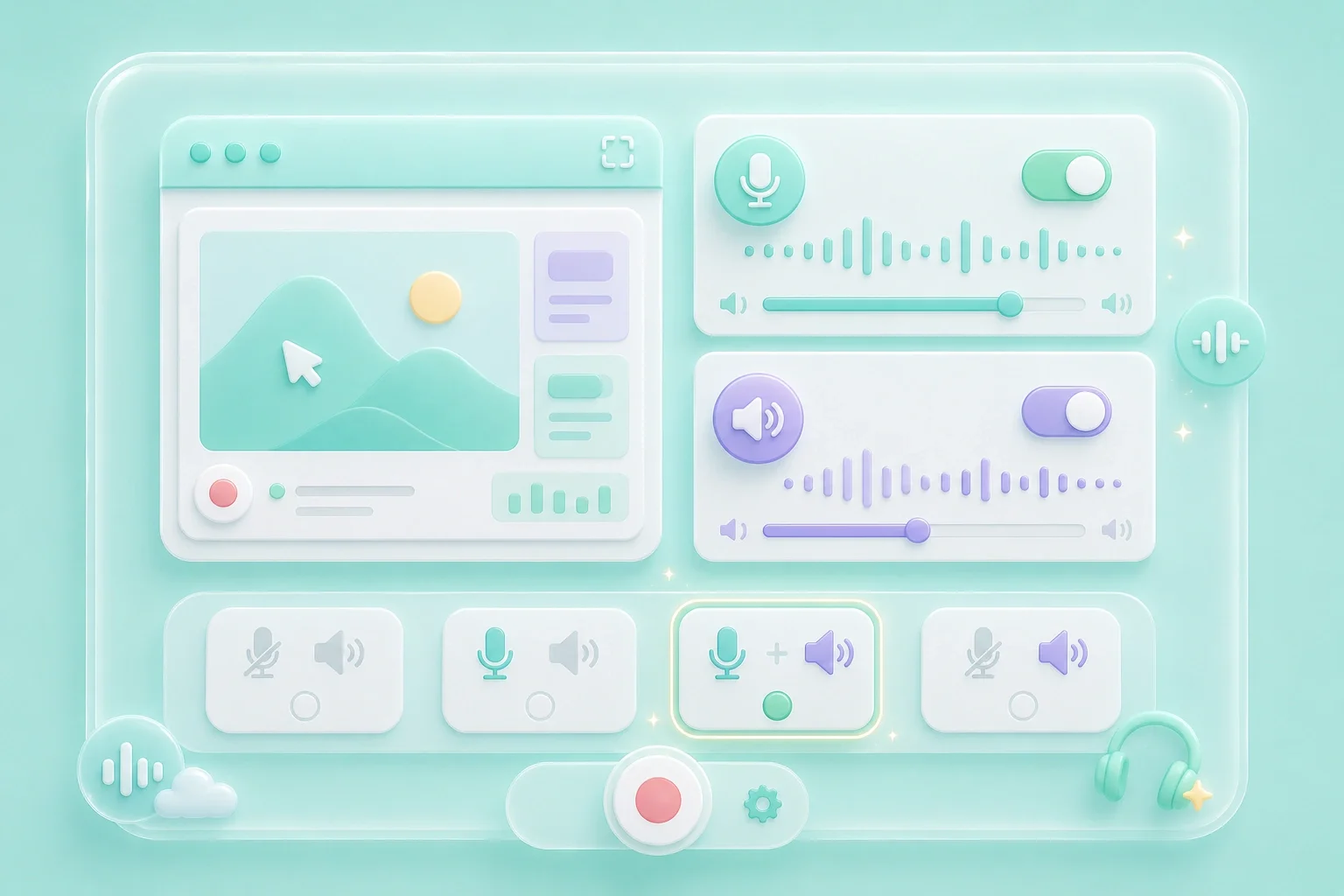
A free screen recorder with audio is useful when a video needs spoken guidance, on-screen sound, or both. The tool displays separate microphone and system audio controls before recording starts. Audio availability depends on the browser and operating system permissions you allow.

Set Audio
Review Before You Share

Review Before You Share

A screen recorder with system audio can be helpful for product demos, lessons, and playback-based explanations. Preview the completed video to check the selected area and the sound you intended to capture. If something is missing, use Record Again before you download.

Review Video

Screen Recorder with Audio Use Cases

First-person examples of common recording needs.

Tutorial Walkthroughs

I record each click and spoken instruction so viewers can follow the workflow without guessing.

Tutorial Walkthroughs

Use case

Product Demonstrations

I capture the screen and the relevant audio when I need to show how a feature behaves.

Product Demonstrations

Use case

Feedback Videos

I show the issue as it happens and add my voice when a written description is not enough.

Feedback Videos

Use case

Screen Recorder with Audio Questions, Answered

01

What is a screen recorder with audio?

It records a selected screen area as video and offers microphone and system audio controls before you begin.

02

Can I use this as a screen recorder with audio online?

The recording workflow runs in the browser. Available capture and audio choices depend on your browser, device, and permissions.

03

How do I record microphone audio?

Turn on Record Microphone before you start, then approve microphone access if your browser asks.

04

Can I use a screen recorder with system audio?

Turn on Record System Audio and select an available share source. System-audio support can vary by browser and operating system.

05

Is this a free screen recorder with audio?

The page shows the recording controls without a sign-up step. Review the completed video and save it when it meets your needs.

06

What should I check before sharing?

Confirm the selected screen area, audio, and visible information before you send the recording to anyone.