

'%3e%3cpath%20d='M8%200C12.4183%200%2016%203.58172%2016%208C16%2012.4183%2012.4183%2016%208%2016C3.58172%2016%200%2012.4183%200%208C0%203.58172%203.58172%200%208%200ZM11.6162%204.38379C11.2257%203.99337%2010.5927%203.99338%2010.2021%204.38379L8%206.58594L5.79785%204.38379C5.40732%203.99334%204.77429%203.99329%204.38379%204.38379C3.99331%204.77429%203.99335%205.40733%204.38379%205.79785L6.58594%208L4.38379%2010.2021C3.99348%2010.5927%203.99341%2011.2257%204.38379%2011.6162C4.77426%2012.0066%205.40734%2012.0065%205.79785%2011.6162L8%209.41406L10.2021%2011.6162C10.5927%2012.0066%2011.2257%2012.0067%2011.6162%2011.6162C12.0067%2011.2257%2012.0066%2010.5927%2011.6162%2010.2021L9.41406%208L11.6162%205.79785C12.0066%205.40735%2012.0066%204.77429%2011.6162%204.38379Z'%20fill='%23080E17'%20fill-opacity='0.46'/%3e%3c/g%3e%3cdefs%3e%3cclipPath%20id='clip0_3761_713'%3e%3crect%20width='16'%20height='16'%20fill='white'/%3e%3c/clipPath%3e%3c/defs%3e%3c/svg%3e)




'%3e%3cpath%20fill-rule='evenodd'%20clip-rule='evenodd'%20d='M21.4999%2010.9993C21.4999%205.20009%2016.7986%200.498901%2010.9993%200.498901C5.19994%200.498901%200.498657%205.20009%200.498657%2010.9993C0.498657%2016.2404%204.33858%2020.5844%209.35855%2021.3722V14.0346H6.69238V10.9993H9.35855V8.68594C9.35855%206.05427%2010.9262%204.60062%2013.3248%204.60062C14.4736%204.60062%2015.6753%204.80571%2015.6753%204.80571V7.38979H14.3512C13.0468%207.38979%2012.64%208.19921%2012.64%209.0296V10.9993H15.5523L15.0867%2014.0346H12.64V21.3722C17.66%2020.5844%2021.4999%2016.2404%2021.4999%2010.9993Z'%20fill='%231568EA'/%3e%3c/g%3e%3c/svg%3e)


'%3e%3cpath%20d='M2.42045%2022.1876H6.31818V12.7217L0.75%208.54553V20.5171C0.75%2021.4414%201.49892%2022.1876%202.42045%2022.1876Z'%20fill='%234285F4'/%3e%3cpath%20d='M19.682%2022.1876H23.5797C24.5041%2022.1876%2025.2502%2021.4387%2025.2502%2020.5171V8.54553L19.682%2012.7217'%20fill='%2334A853'/%3e%3cpath%20d='M19.682%205.48293V12.7216L25.2502%208.54543V6.31816C25.2502%204.25236%2022.8921%203.07469%2021.2411%204.31361'%20fill='%23FBBC04'/%3e%3cpath%20d='M6.31824%2012.7217V5.48303L13.0001%2010.4944L19.6819%205.48303V12.7217L13.0001%2017.733'%20fill='%23EA4335'/%3e%3cpath%20d='M0.75%206.31816V8.54543L6.31818%2012.7216V5.48293L4.75909%204.31361C3.10534%203.07469%200.75%204.25236%200.75%206.31816Z'%20fill='%23C5221F'/%3e%3c/g%3e%3cdefs%3e%3cclipPath%20id='clip0_2954_7305'%3e%3crect%20width='24.5'%20height='18.375'%20fill='white'%20transform='translate(0.75%203.8125)'/%3e%3c/clipPath%3e%3c/defs%3e%3c/svg%3e)


You've likely faced that moment when a scanned receipt, screenshot, or photo needs to turn into an editable Word doc fast, for work, school, or sharing. Spotty OCR, wrecked layouts, file limits, and upload privacy scares make reliable image to word converters tough to find. This guide compares the best, delivering sharp text, intact tables, and no-signup ease.
Popular Image to Word Converters Overview
When you're racing to turn JPGs, PNGs, or scans into workable Word files, these image to word converters tackle the everyday headaches head-on, from speedy one-offs to bulk jobs. They differ in batch power, how well they hold onto original designs, and data safety nets, so you can match the right one to your flow, be it cramming for exams, sorting business archives, or tweaking on your phone. Dive into the breakdowns and steps below to see what fits your real-world grind.
WPS Office Image to Word Converter
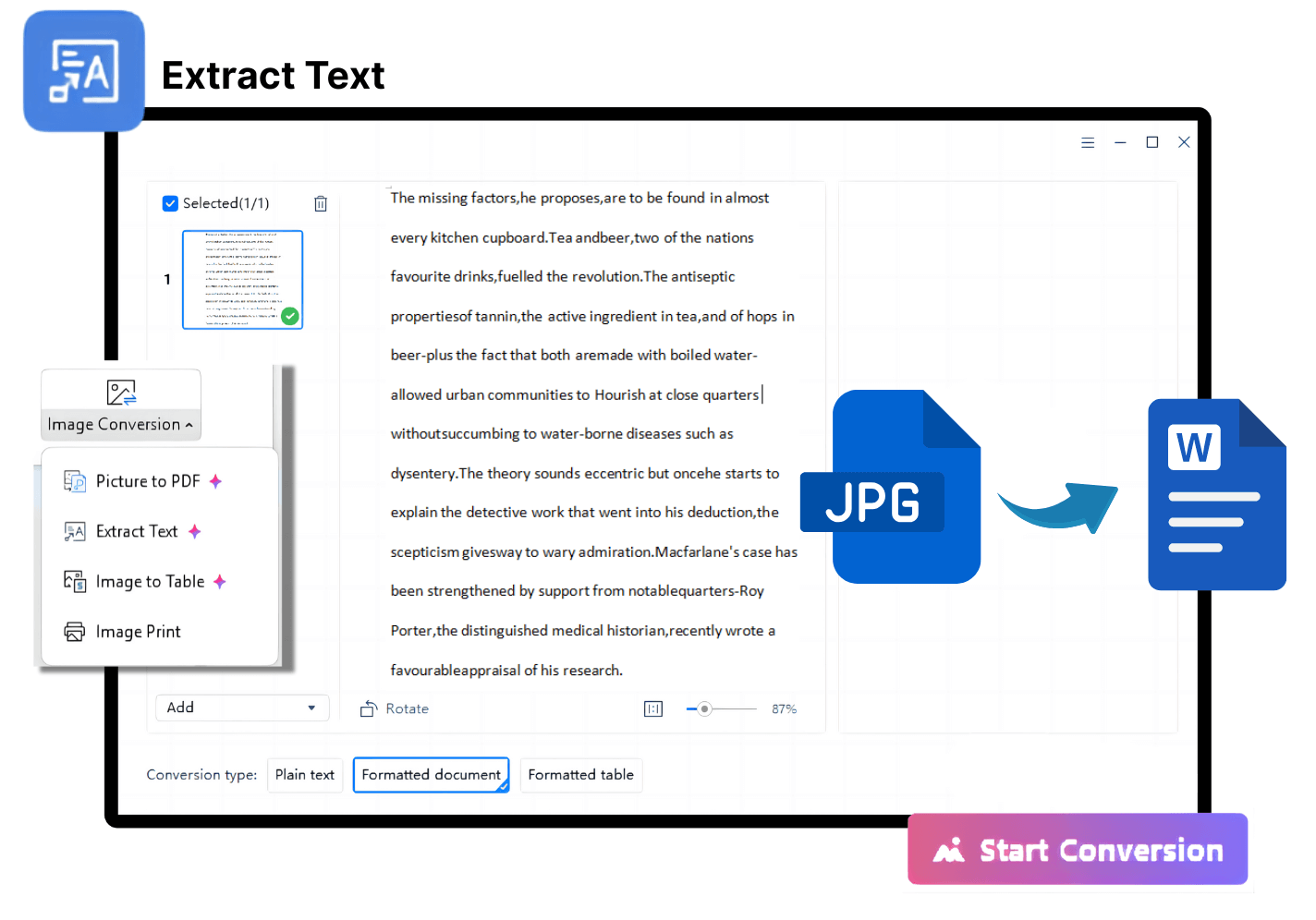
WPS Office slips a powerhouse image to word converter right into its everyday suite, flipping JPGs, PNGs, even rough scans into Word docs that hold their shape, complete with fonts, tables, and spacing just like the source. Folks rave about its smart OCR that chews through pristine scans or casual phone pics alike, perfect for polishing student essays, client briefs, or hasty meeting scribbles where every detail counts. Throw in batch handling for multiples and support for 20+ tongues from English to Spanish or Chinese, and it streamlines pro-level output without forcing you to juggle extra software.
How to Use:
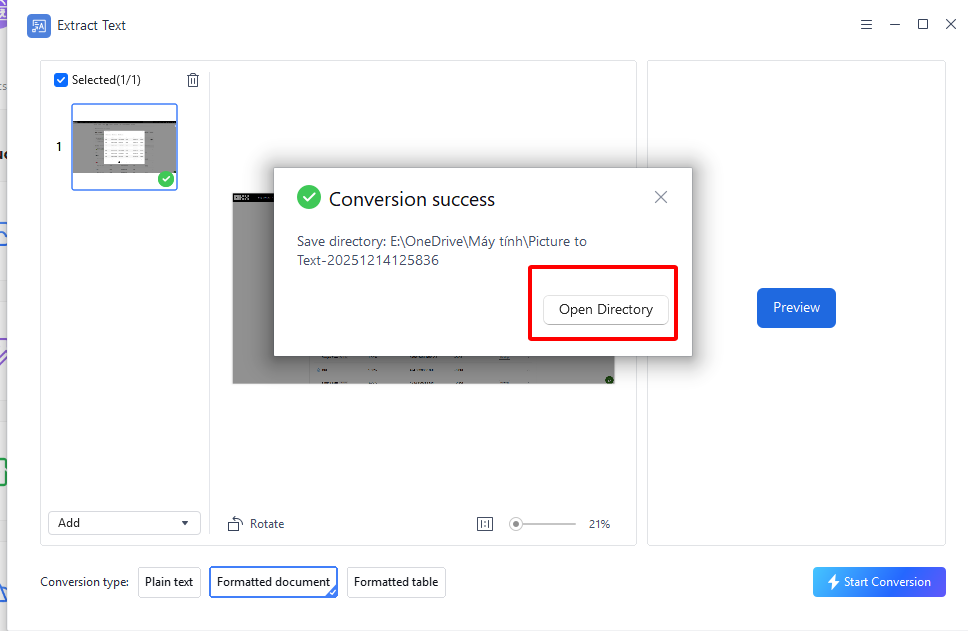
Step 1: Fire up WPS Office and grab "Extract Text" under the Tools menu.
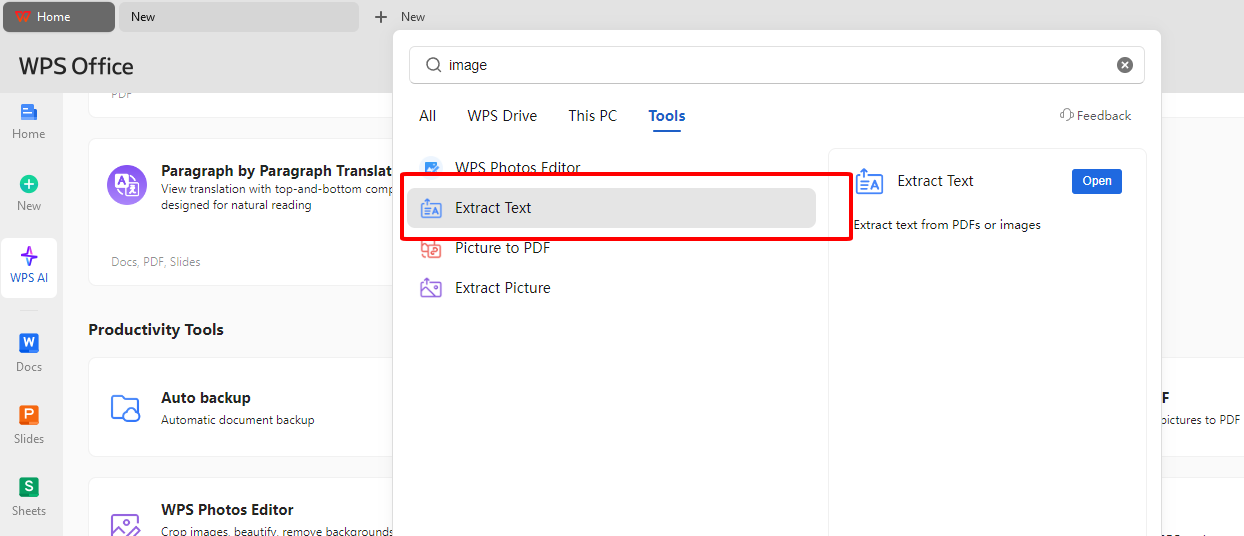
Step 2: Drop in one or a stack of JPG/PNG files, tweak the language if it's not English.
Step 3: Hit "Preview" and let the OCR do its thing, locking in the layout.
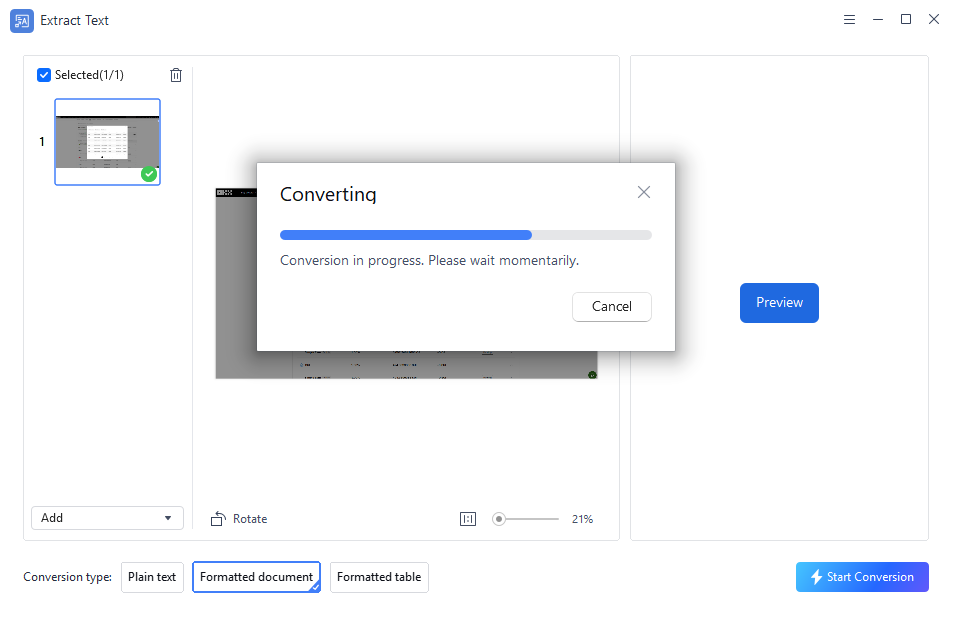
Step 4: Snag your ready-to-edit Word file and run with it.
Handling client scans in my routine, WPS nailed a 20-image receipt batch overnight, tables stayed perfect while web tools botched them. That said, on older rigs, it chugs a bit longer per file than super-lightweight rivals.
ImageToText.info
ImageToText.info offers a simple online image to doc converter focused on quick text extraction from common formats like JPG, PNG, and JPEG, delivering basic Word outputs without any signup process. Readers value its drag-and-drop ease for one-off tasks such as pulling quotes from screenshots or memes into documents, though it lacks advanced layout handling for complex files. This tool suits users prioritizing speed over perfection, especially when dealing with straightforward text-heavy images.
How to Use:
Step 1: Visit JPG to Word Converter (Accurate & Fast)
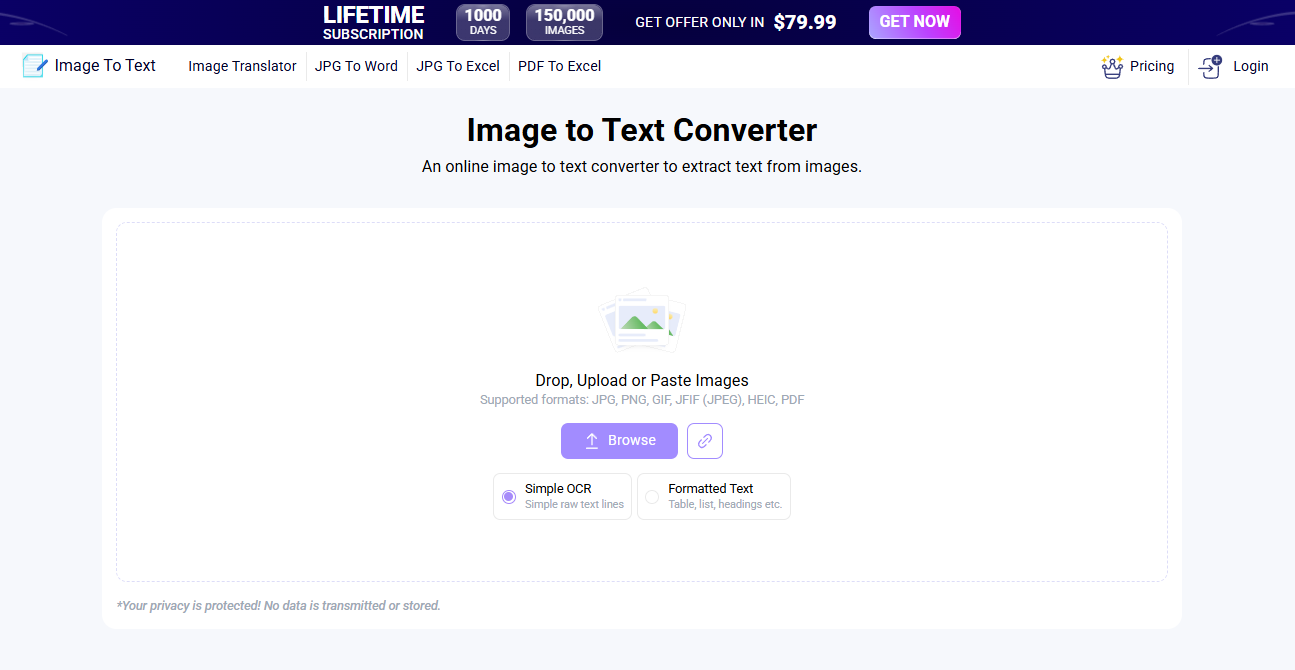
Step 2: Upload your image file via drag-and-drop.
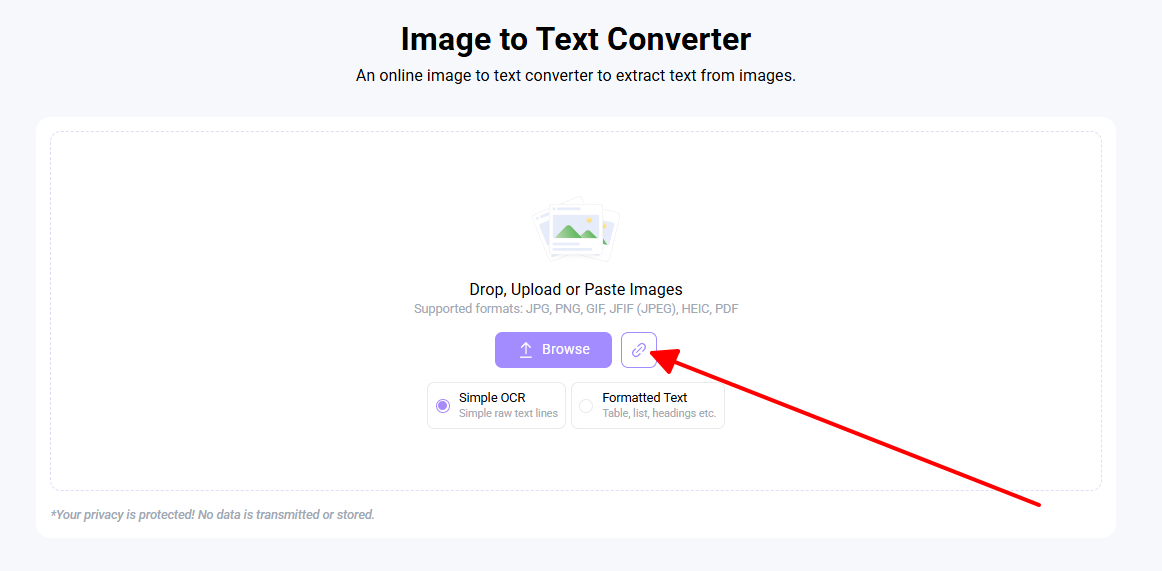
Step 3: Click "Convert" button.
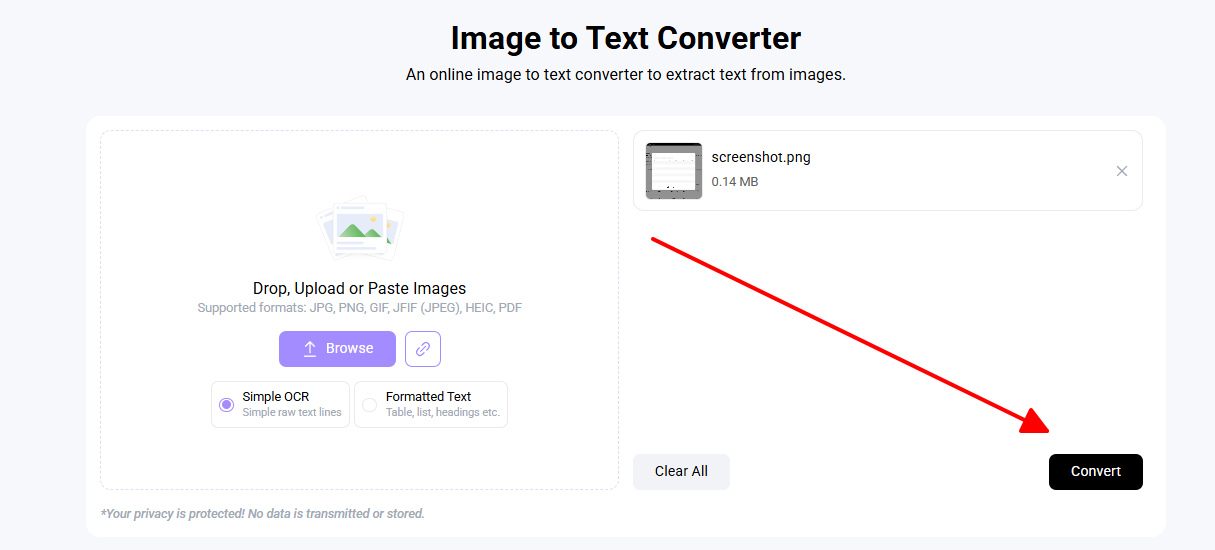
Step 4: Download the resulting Word document.
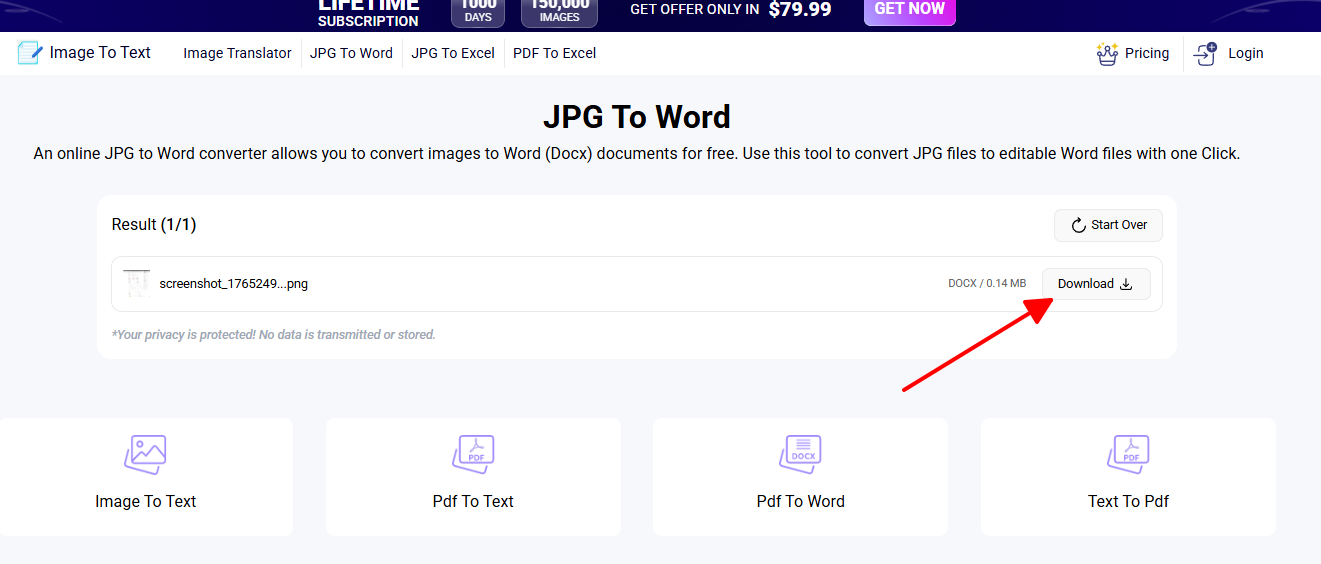
I used it for quick meme text pulls during social media reports, and it worked in seconds with no fuss. However, tables from scanned forms turned into jumbled paragraphs, needing heavy manual fixes afterward.
JPGtoText.com
JPGtoText.com specializes as a jpg to word converter optimized for photographic images, extracting text reliably even from slightly blurry snapshots while maintaining basic formatting in the output. It appeals to mobile users needing photo to word converter functionality on the go, like digitizing handwritten signs or event flyers into editable docs. Free for limited daily use, it provides a mobile-friendly interface that balances simplicity with decent recognition for non-scanned visuals.
How to Use:
Step 1: Go to JPG To Word Converter - Convert JPG to Word Online
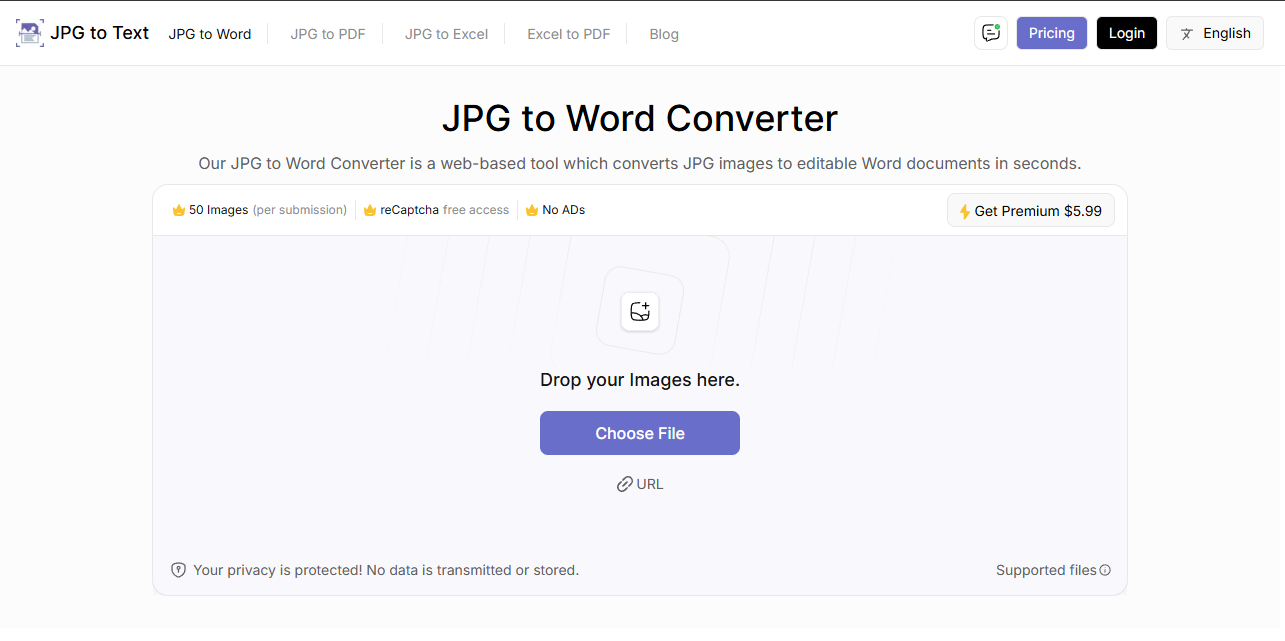
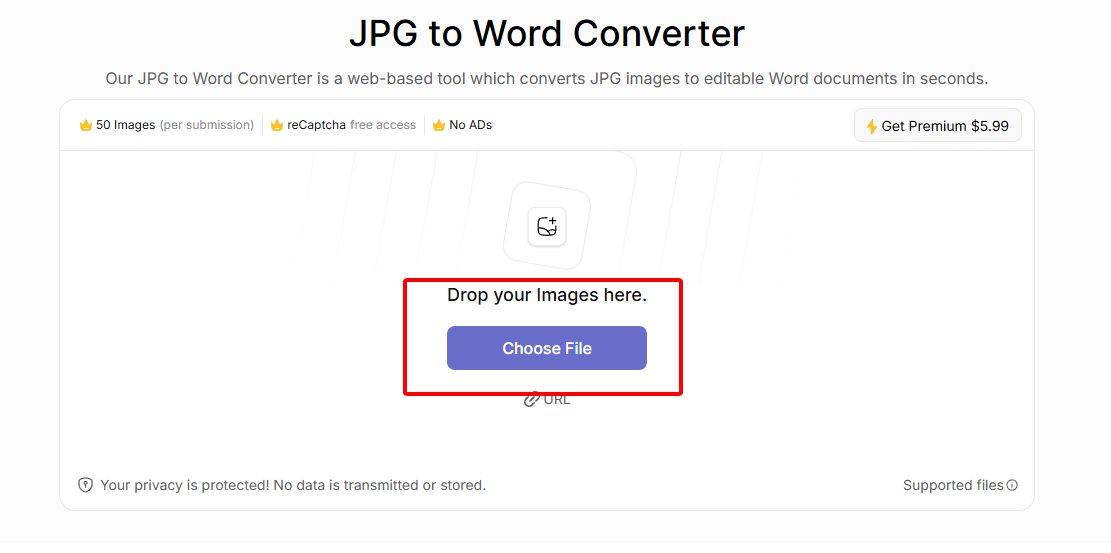
Step 2: Select and upload your JPG file.
Step 3: Process the conversion.
Step 4: Download the Word file.
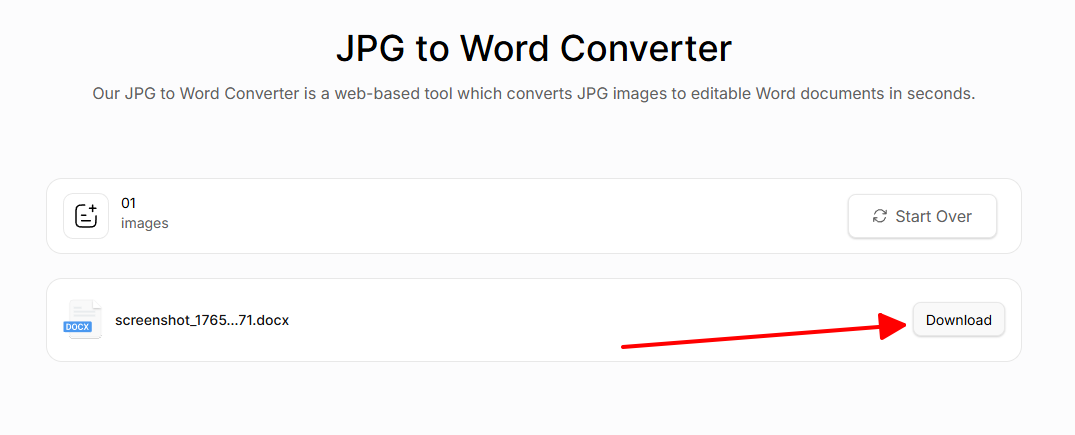
Perfect for on-site event flyers during conferences; it grabbed text from phone snaps reliably. Limits hit quick though, forcing me to spread jobs over days unlike unlimited batch options.
FreeConvert.com
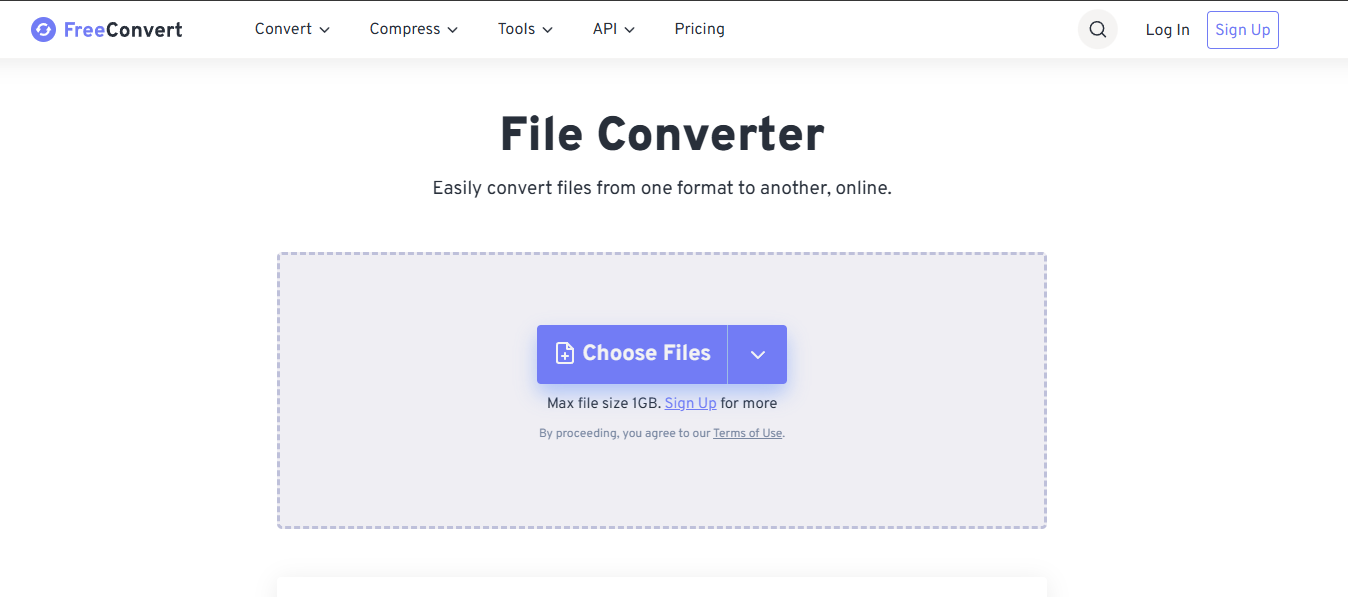
FreeConvert.com serves as a versatile image to word converter platform supporting batch uploads across multiple input formats, with options to tweak output quality for better results. Users turn to it for handling large volumes of images to doc converter tasks, such as archiving photo collections into organized Word files, thanks to its cloud integration and customizable settings. While powerful for bulk work, it requires internet access, which some prefer for its broad format compatibility.
How to Use:
Step 1: Navigate to Image Converter - FreeConvert.com
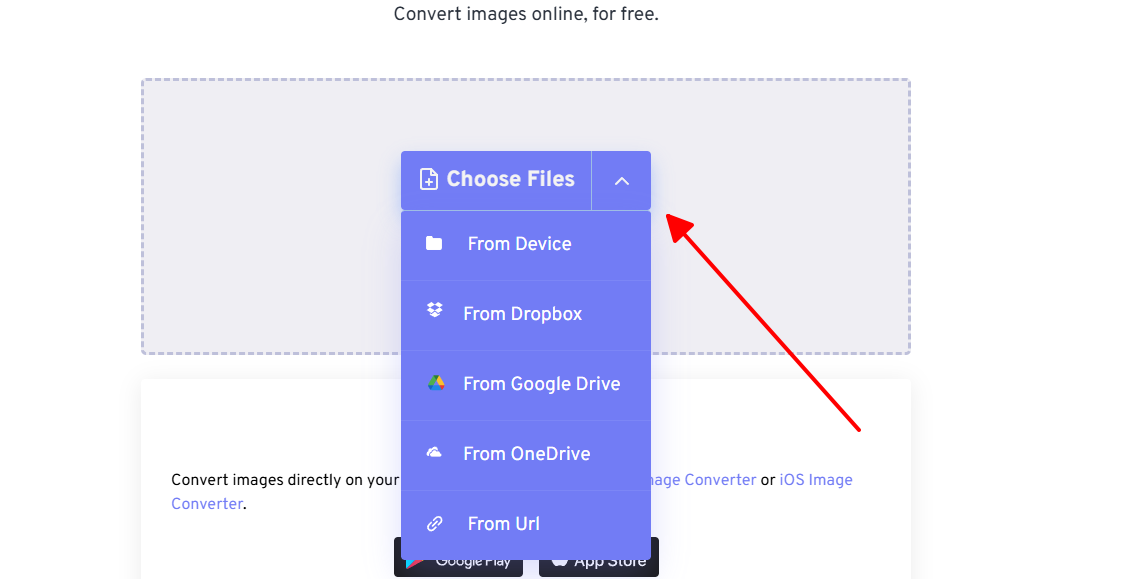
Step 2: Upload one or multiple images.
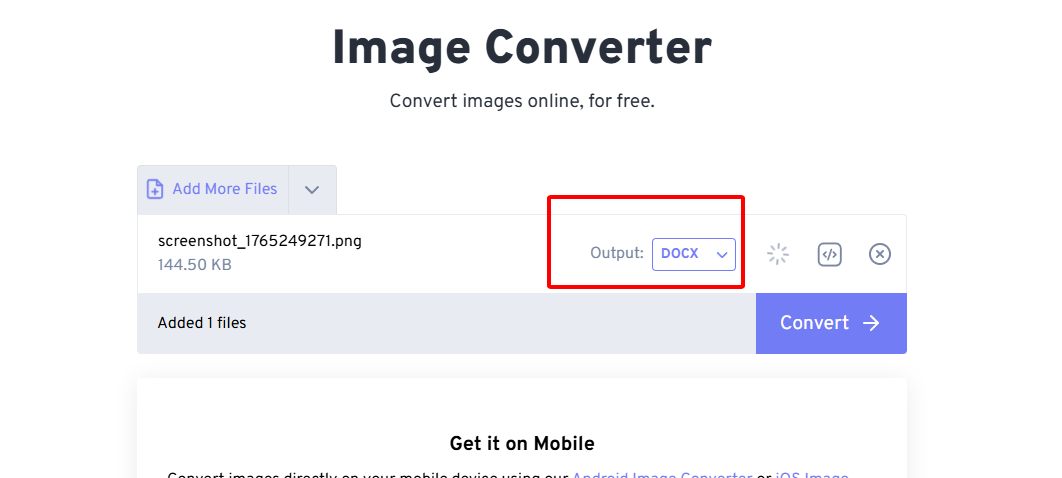
Step 3: Adjust conversion settings if needed.
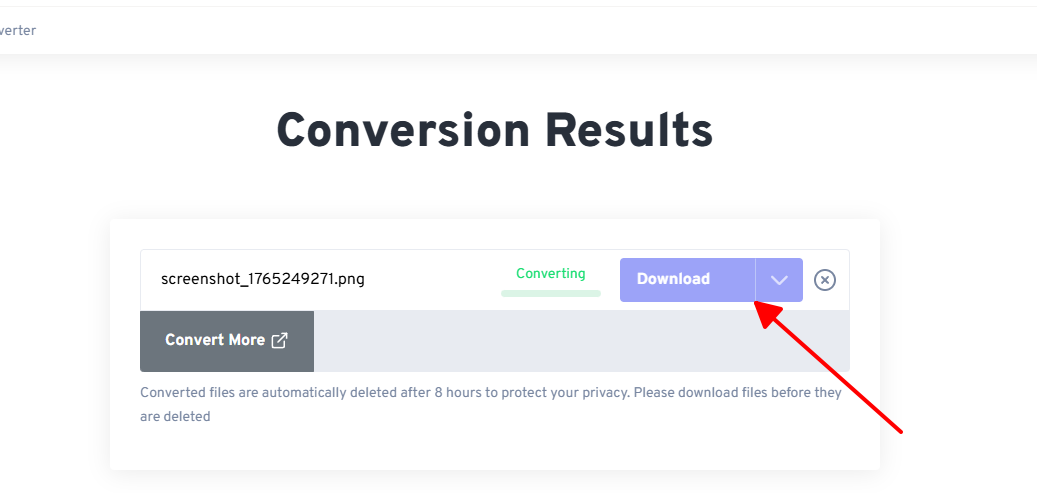
Step 4: Download converted Word files.
Handled my 50-image archive batch smoothly with quality tweaks, saving hours. Upload speeds lagged on spotty WiFi though, and privacy nagged for sensitive client files.
CardScanner.co
CardScanner.co excels as a niche photo to word converter tailored for business cards and structured documents, automatically extracting contact details into formatted Word outputs. It meets the needs of professionals scanning networking photos or ID cards, preserving layout elements like logos and fields for seamless integration into CRM or reports. Mobile optimization makes it a go-to for on-site captures, focusing on structured data over general text.
How to Use:
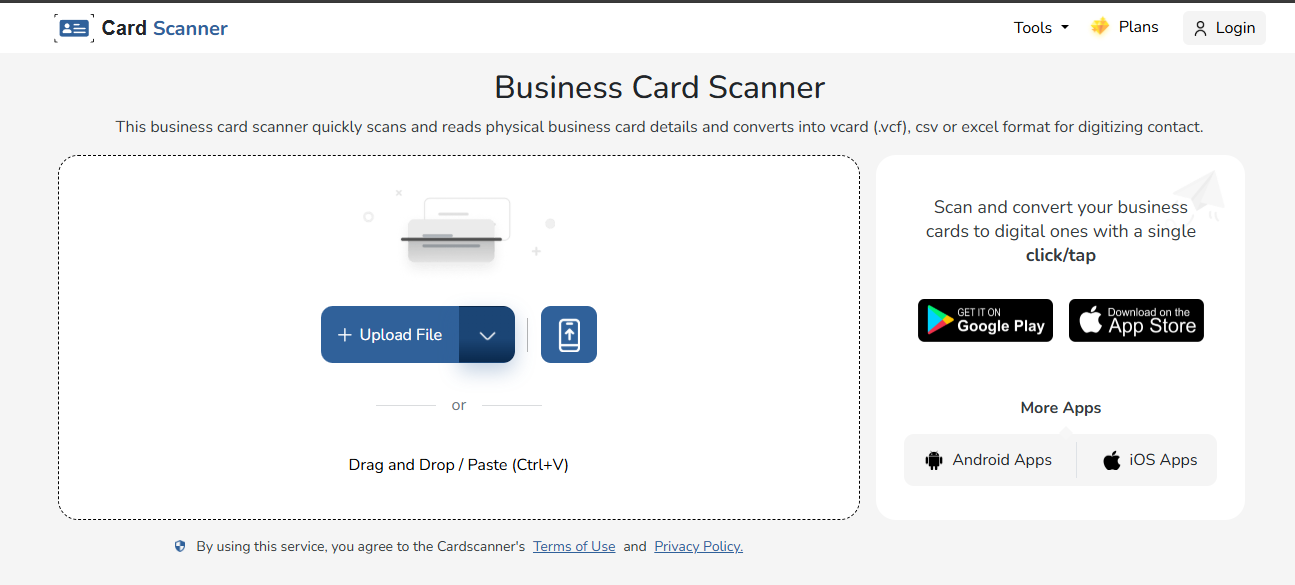
Step 1: Access Business Card Scanner - OCR Card Organizer & Reader Online
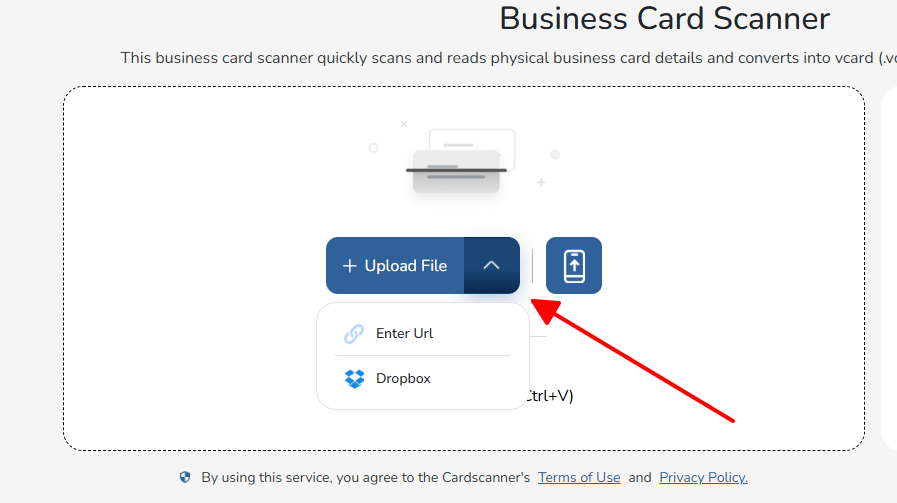
Step 2: Upload your card image.
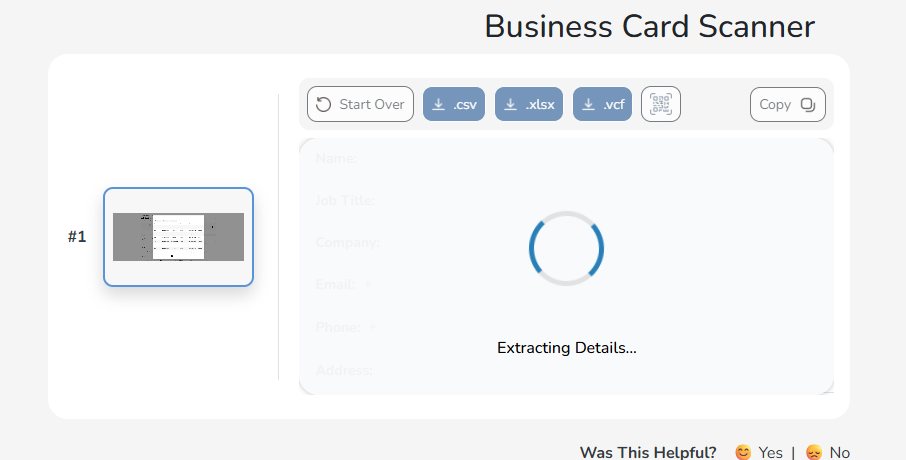
Step 3: Review extracted information.
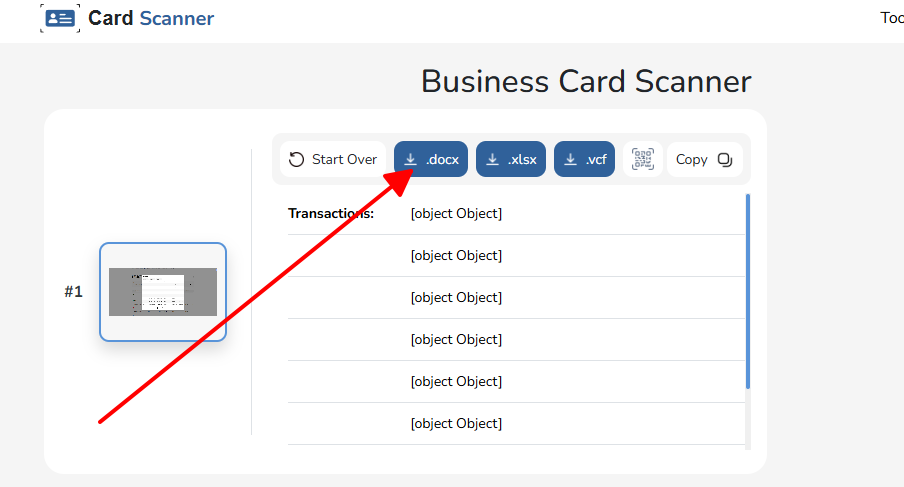
Step 4: Download the formatted Word document.
Scanned dozens of business cards at a networking event, pulling clean contacts into Word fast. Struggles with non-card docs though, like full reports, making it too narrow for mixed use.
Image to Word Converters Comparison Table
This comparison table breaks down key features across the top image to word converters, letting you quickly spot differences in OCR accuracy, batch handling, and security to match your specific needs like high-volume work or offline use.
| Feature | WPS Office | ImageToText.info | JPGtoText.com | FreeConvert.com | CardScanner.co |
| OCR Accuracy | Excellent (AI) | Basic | Good | Good | Specialized |
| Format Preservation | Excellent | Poor | Fair | Good | Structured |
| Batch Conversion | Yes | No | No | Yes | Limited |
| Ease of Use | Very Easy | Very Easy | Easy | Moderate | Easy |
| Cost | Freemium | Free | Freemium | Freemium | Freemium |
| Mobile Support | Excellent | Basic | Good | Good | Excellent |
| Security | Offline option | Files uploaded | Files uploaded | Files uploaded | Files uploaded |
WPS leads in most categories for balanced performance, especially format preservation and security, making it the go-to for professional workflows over niche or basic online alternatives.
Why Choose WPS as Your Image to Word Converter
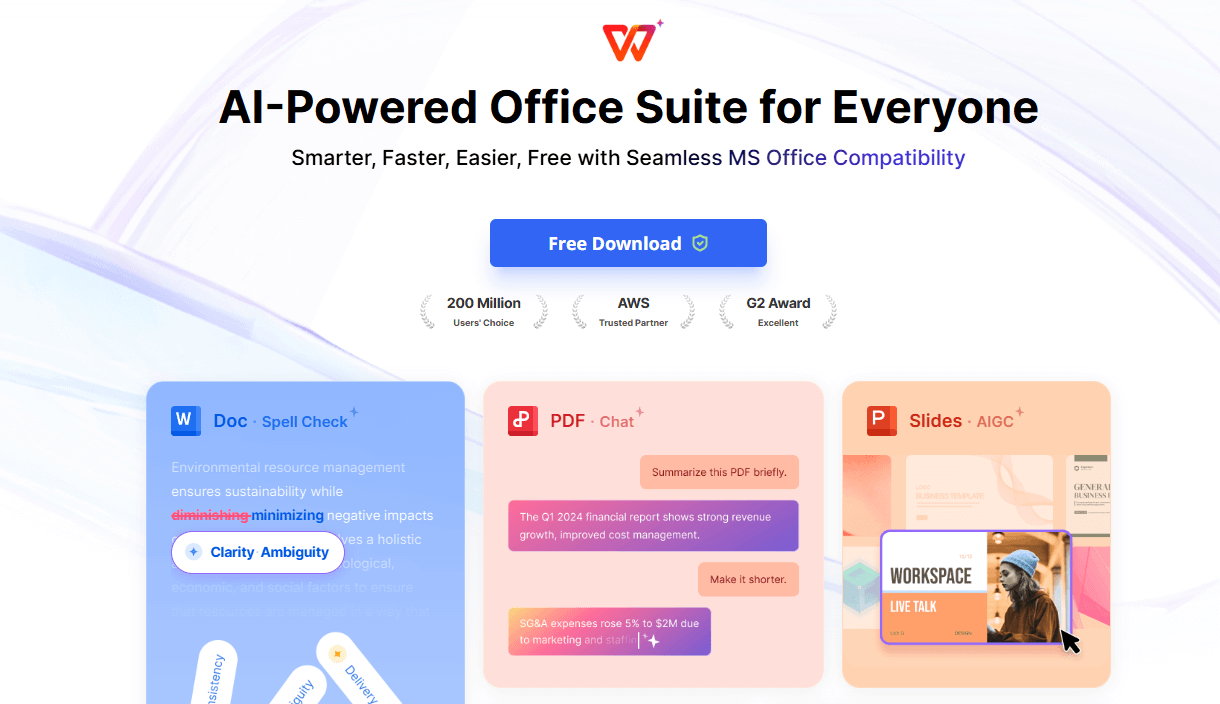
WPS stands out among image to word converters by tackling key user pain points like OCR precision, format retention, and data security through its AI-driven tools and offline capabilities. It provides professional-grade accuracy that understands document context, turning images into editable Word files complete with tables and layouts, unlike basic extractors that produce plain text dumps. As a complete workflow solution, it integrates conversion with editing and management in one app, boosting efficiency for daily tasks while offering enterprise-level privacy without mandatory uploads.
FAQs
What's the difference between basic text extraction and proper image to Word conversion?
Basic text extraction pulls raw recognized text into a file, often losing structure and requiring manual fixes. Proper image to word conversion, like in WPS, preserves full formatting, tables, fonts, and images for instantly usable Word documents that match the original. This saves hours of reformatting for professional outputs.
Can I convert handwritten text from images to Word documents?
Most image to doc converter tools perform best on printed text, with handwriting recognition being less reliable across options. WPS and similar tools may handle simple cursive but often need manual corrections for clarity in professional outputs. For heavy handwriting, dedicated apps outperform general converters.
How many images can I convert at once using free converters?
Free tiers in jpg to word converter tools typically cap batch sizes, with WPS allowing small groups and premium unlocking unlimited. Others enforce daily limits or file size restrictions to encourage upgrades. Check tool dashboards for exact quotas to plan large jobs.
Does WPS support multi-column or complex layouts in image to word conversion?
Yes, WPS excels at retaining multi-column designs, tables, and intricate layouts during photo to word converter processes. This makes it superior for scanned magazines or reports compared to simpler online alternatives. Users report near-perfect fidelity on standard scans.
Are there file size limits in these image to word converters?
Many free image to word tools limit uploads to 10-50MB per file, with WPS free handling moderate sizes offline. Premium versions across tools remove these for larger scans or high-res photos. Always verify limits before processing big files.
Summary
This guide covers top image to word converter options, from WPS Office's AI-powered accuracy and offline security to specialized tools like CardScanner for niche needs. WPS emerges as the best overall for preserving formats, batch processing, and seamless editing in editable Word docs. Choose it for reliable jpg to word converter results that meet everyday demands without compromises.

'%3e%3cpath%20d='M19.9911%204.11386V6.471H18.5894C18.0775%206.471%2017.7322%206.57814%2017.5536%206.79243C17.3751%207.00671%2017.2858%207.32814%2017.2858%207.75671V9.44421H19.9019L19.5536%2012.0871H17.2858V18.8639H14.5536V12.0871H12.2769V9.44421H14.5536V7.49779C14.5536%206.39064%2014.8632%205.53201%2015.4822%204.92189C16.1013%204.31177%2016.9257%204.00671%2017.9554%204.00671C18.8304%204.00671%2019.509%204.04243%2019.9911%204.11386Z'%20fill='%23333333'/%3e%3c/g%3e%3cdefs%3e%3cclipPath%20id='clip0_2938_8199'%3e%3crect%20width='16'%20height='16'%20fill='white'%20transform='translate(8%204.00671)'/%3e%3c/clipPath%3e%3c/defs%3e%3c/svg%3e)
'%3e%3cpath%20d='M17.5237%2010.7813L23.4811%204H22.0699L16.8949%209.88693L12.7648%204H8L14.2469%2012.9029L8%2020.0133H9.4112L14.8725%2013.7952L19.2352%2020.0133H24M9.92053%205.04213H12.0885L22.0688%2019.0224H19.9003'%20fill='%23333333'/%3e%3c/g%3e%3cdefs%3e%3cclipPath%20id='clip0_2938_8200'%3e%3crect%20width='16'%20height='16.0134'%20fill='white'%20transform='translate(8%204)'/%3e%3c/clipPath%3e%3c/defs%3e%3c/svg%3e)


