

'%3e%3cpath%20d='M8%200C12.4183%200%2016%203.58172%2016%208C16%2012.4183%2012.4183%2016%208%2016C3.58172%2016%200%2012.4183%200%208C0%203.58172%203.58172%200%208%200ZM11.6162%204.38379C11.2257%203.99337%2010.5927%203.99338%2010.2021%204.38379L8%206.58594L5.79785%204.38379C5.40732%203.99334%204.77429%203.99329%204.38379%204.38379C3.99331%204.77429%203.99335%205.40733%204.38379%205.79785L6.58594%208L4.38379%2010.2021C3.99348%2010.5927%203.99341%2011.2257%204.38379%2011.6162C4.77426%2012.0066%205.40734%2012.0065%205.79785%2011.6162L8%209.41406L10.2021%2011.6162C10.5927%2012.0066%2011.2257%2012.0067%2011.6162%2011.6162C12.0067%2011.2257%2012.0066%2010.5927%2011.6162%2010.2021L9.41406%208L11.6162%205.79785C12.0066%205.40735%2012.0066%204.77429%2011.6162%204.38379Z'%20fill='%23080E17'%20fill-opacity='0.46'/%3e%3c/g%3e%3cdefs%3e%3cclipPath%20id='clip0_3761_713'%3e%3crect%20width='16'%20height='16'%20fill='white'/%3e%3c/clipPath%3e%3c/defs%3e%3c/svg%3e)




'%3e%3cpath%20fill-rule='evenodd'%20clip-rule='evenodd'%20d='M21.4999%2010.9993C21.4999%205.20009%2016.7986%200.498901%2010.9993%200.498901C5.19994%200.498901%200.498657%205.20009%200.498657%2010.9993C0.498657%2016.2404%204.33858%2020.5844%209.35855%2021.3722V14.0346H6.69238V10.9993H9.35855V8.68594C9.35855%206.05427%2010.9262%204.60062%2013.3248%204.60062C14.4736%204.60062%2015.6753%204.80571%2015.6753%204.80571V7.38979H14.3512C13.0468%207.38979%2012.64%208.19921%2012.64%209.0296V10.9993H15.5523L15.0867%2014.0346H12.64V21.3722C17.66%2020.5844%2021.4999%2016.2404%2021.4999%2010.9993Z'%20fill='%231568EA'/%3e%3c/g%3e%3c/svg%3e)


'%3e%3cpath%20d='M2.42045%2022.1876H6.31818V12.7217L0.75%208.54553V20.5171C0.75%2021.4414%201.49892%2022.1876%202.42045%2022.1876Z'%20fill='%234285F4'/%3e%3cpath%20d='M19.682%2022.1876H23.5797C24.5041%2022.1876%2025.2502%2021.4387%2025.2502%2020.5171V8.54553L19.682%2012.7217'%20fill='%2334A853'/%3e%3cpath%20d='M19.682%205.48293V12.7216L25.2502%208.54543V6.31816C25.2502%204.25236%2022.8921%203.07469%2021.2411%204.31361'%20fill='%23FBBC04'/%3e%3cpath%20d='M6.31824%2012.7217V5.48303L13.0001%2010.4944L19.6819%205.48303V12.7217L13.0001%2017.733'%20fill='%23EA4335'/%3e%3cpath%20d='M0.75%206.31816V8.54543L6.31818%2012.7216V5.48293L4.75909%204.31361C3.10534%203.07469%200.75%204.25236%200.75%206.31816Z'%20fill='%23C5221F'/%3e%3c/g%3e%3cdefs%3e%3cclipPath%20id='clip0_2954_7305'%3e%3crect%20width='24.5'%20height='18.375'%20fill='white'%20transform='translate(0.75%203.8125)'/%3e%3c/clipPath%3e%3c/defs%3e%3c/svg%3e)


Blurring photos is one of the most common photo editing needs, especially when you need to censor graphic content or draw attention to specific focal points. However, the blur tool Photoshop can be a bit difficult to figure out how to use if you’re a beginner with no experience, especially when you need to manually brush over intricate details. So, how can you use the blur tool on Photoshop easily? In this guide, I’ll be covering the detailed step-by-step method and walk you through how to blur photo on Photoshop effectively.

Overview of Photoshop
Photoshop is the industry standard when it comes to professional editing solutions, equipping its users with advanced tools to polish any image easily. With features like advanced layermanagement and smart objects, it’s one of the most powerful assets you can add to your workflow as a professional. While its user interface can be a bit tricky to figure out if you’re just starting to use it, Photoshop is one of the best tools out there to master your photo editing skills once you have its basics down.

Features
Advanced Selection Tools: Quick Mask, Select, and Mask for precise editing.
Color & Tone Management Tools: Allows for detailed color grading for raw images.
AI-Powered Assistance: Skin Smoothing, Style Transfer, and Colorize.
Pros
Precise local control
High customizability
Versatile filters
Layer and mask support
Cons
Time-consuming
Confusing interface
High subscription prices
Pricing: $23/month
How to Use the Blur Tool in Photoshop
Blurringyour photos can be a great way to bring focus to the subject of your images, or to censor confidential information accidentally captured in a photo. If you’re trying to figure out how to use the blur tool in Photoshop, it can seem frustrating, and it’s easy to feel lost. But there’s nothing to worry about, as long as you know the right steps to follow, it’s incredibly straightforward. In this section, I’ll highlight every single step of the process to help you simplify the process.
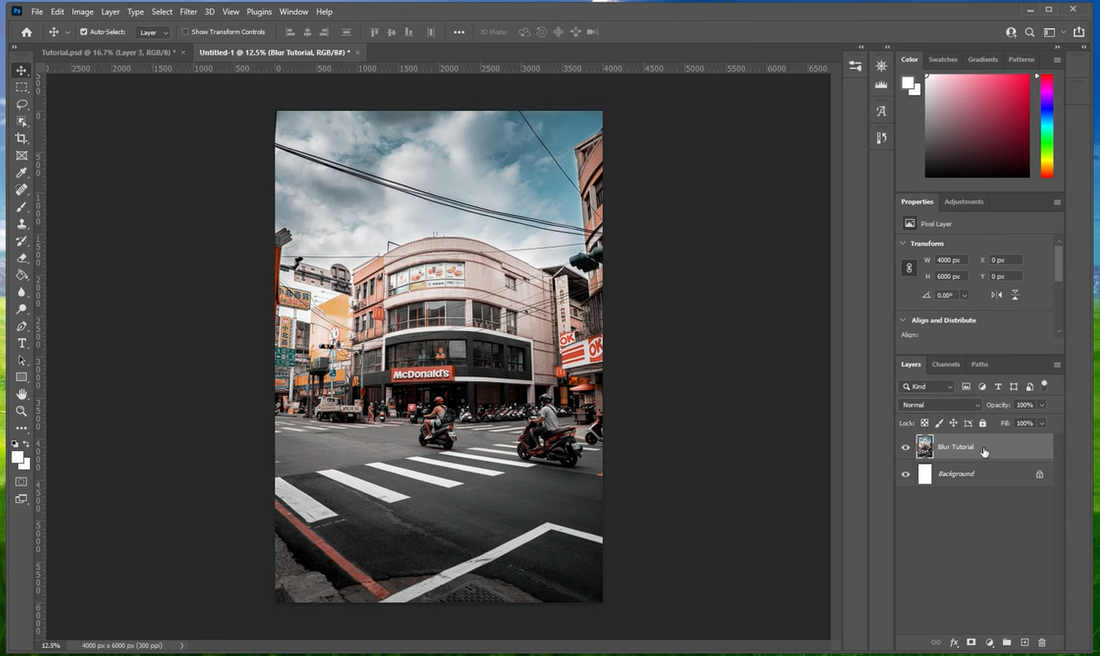
Step 1: Open Photoshop and import the image you want to blur onto your canvas to get started.
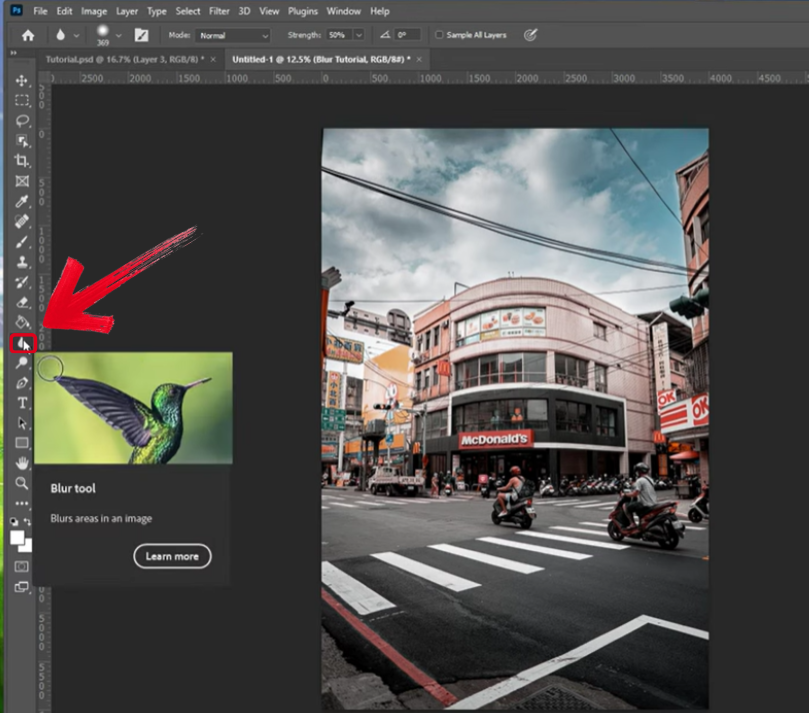
Step 2: Select the Blur Tool from the sidebar on your Photoshop window.
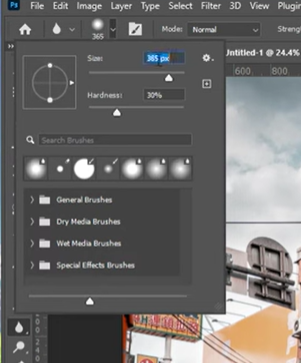
Step 3: Adjust the size and hardness of your brush using the dropdown window given.
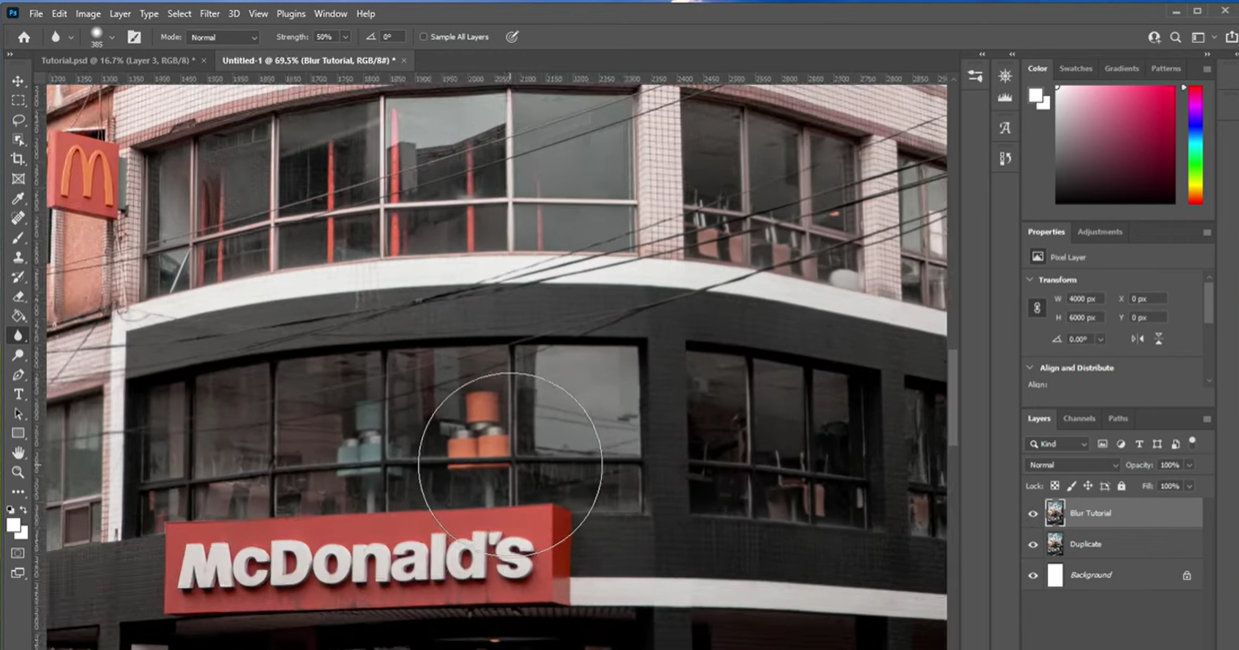
Step 4: Zoom in to the part you want to blur and use the tool to apply the effect.
WPS Photo Editor: Best Alternative to Photoshop for Blurring Images
Photoshop is a great tool to use if you’re a professional without budget constraints, but if you’re looking for something that isn’t too heavy on your wallet, it is not a viable option. This is why I personally use WPS Photofor all my image blurring needs. It’s a completely free, all-in-one solution that equips me with all the tools I need to create polished and clean images without going through any hassle. Moreover, the smart AI features provided help me be more efficient and productive in my workflow, making it one of the most useful assets in my workflow.

Unique Advantages
Completely free
Compatible with all Office formats
No installation or registration requirement
All-in-one solution
Features
AI Image Enhancer: Improve the quality of your image using AI enhancement.
AI Upscaler: Bring life back into old photos by restoring them through the AI upscaler.
AI Watermark Removal: If there are any watermarks on your template, you can elevate the visual appeal with the watermark removal tool.
AI Background Blur: Emphasize focus on the main subjects of your photo by blurring the background.
If you want to use WPS Photo to blur your photos, the process is incredibly simple, and I’ll highlight each step down below to help you along the way.
Step 1: Open your photo in WPS Photo to get started on the blurring process.
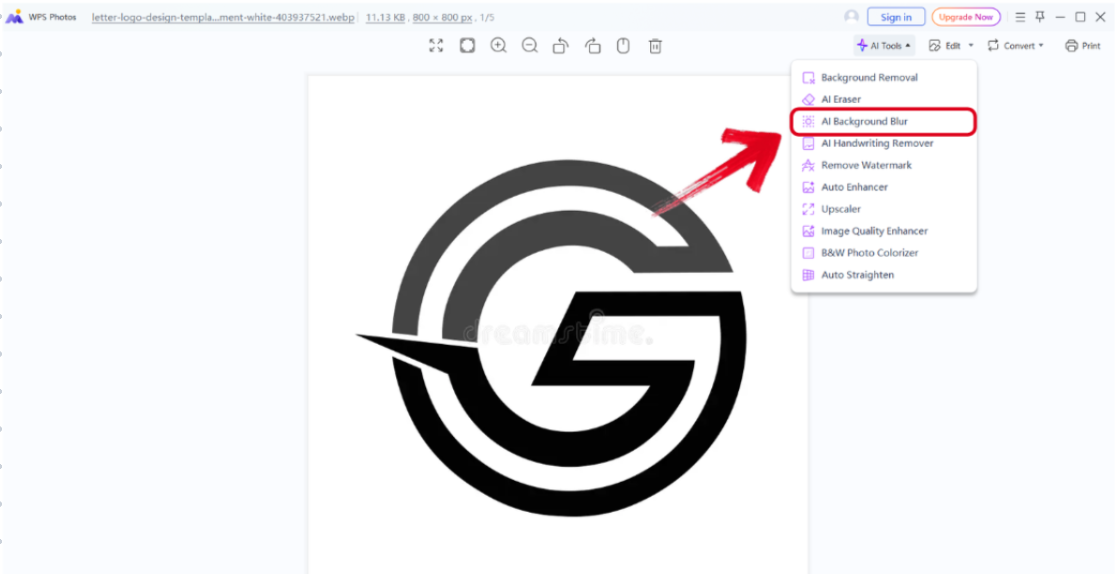
Step 2: Once your photo is open, go into theAI Tools menu and select AI Background Blur.
Step 3: After your image has completed its processing, press Save to download the final result to your computer.

WPS Photo V.S. Photoshop
WPS Photo and Photoshopare both industry-grade photo editing tools, packed with powerful features to help you polish your images easily. However, if you’re having trouble choosing the right option for yourself, there’s nothing to worry about. In this section, I’ll be comparing both of these tools side by side and helping you evaluate which tool is worth using based on your work requirements.
| Feature | WPS Photos (AI/Online) | Adobe Photoshop |
|---|---|---|
| Blurring Method | AI-Automated: Smart Background Blur | Manual + AI: Blur Tool, Gaussian/Lens Blur, Neural Filters |
| Ease of Use | High: One-click, beginner-friendly | Low: Steep learning curve, layers & masking required |
| Speed | Fast ( | Slow: Minutes to hours, depending on precision |
| Precision Control | Basic: Single slider, limited brush options | Professional: Pixel-level, custom edges, depth maps |
| Main Use Case | Quick social media visuals, marketing | High-end retouching, magazine covers, composite art |
FAQs
Q1. How do I adjust the intensity of the blur?
You can control the blur intensity using the Strength slider in the Options bar (0-100%). Lower values (10-30%) offer subtle softening, while higher values provide a stronger effect.
Q2. Is WPS Photos a good free alternative to Photoshop for blurring?
Yes, for most users. WPS Photos offers an AI-powered "Smart Background Blur" that automatically detects the subject and blurs the background in one click, which is much faster than manual masking in Photoshop.
Q3. Can WPS Office blur specific faces or license plates for privacy?
Yes, WPS Photos includes tools to quickly obscure sensitive details like faces or text, often with simpler, more direct controls than setting up masks in Photoshop.
Q4. Can I preview the blur effect before applying it?
Yes, WPS Photos allows you to preview the blur in real-time, so you can adjust the strength or area of the blur until you get the desired result.
Q5. Does WPS Photos support blurring multiple images at once?
Yes, WPS Photos includes batch editing options that let you apply background blur to multiple photos simultaneously, saving time for large projects.
Blurring Photos With Photoshop
Figuring out how to use blur tool Photoshop can be a challenge for first-time users and beginners, especially when dealing with the different brush presets and adjustments. In this guide, I’ve covered a detailed step-by-step guide on how to blur your photos using Photoshop, along with giving you a bonus alternative to simplify the process. WPS Photogives you all the features you need to polish your photos for completely free, providing a reliable and all-in-one solution for users on a tight budget.

'%3e%3cpath%20d='M19.9911%204.11386V6.471H18.5894C18.0775%206.471%2017.7322%206.57814%2017.5536%206.79243C17.3751%207.00671%2017.2858%207.32814%2017.2858%207.75671V9.44421H19.9019L19.5536%2012.0871H17.2858V18.8639H14.5536V12.0871H12.2769V9.44421H14.5536V7.49779C14.5536%206.39064%2014.8632%205.53201%2015.4822%204.92189C16.1013%204.31177%2016.9257%204.00671%2017.9554%204.00671C18.8304%204.00671%2019.509%204.04243%2019.9911%204.11386Z'%20fill='%23333333'/%3e%3c/g%3e%3cdefs%3e%3cclipPath%20id='clip0_2938_8199'%3e%3crect%20width='16'%20height='16'%20fill='white'%20transform='translate(8%204.00671)'/%3e%3c/clipPath%3e%3c/defs%3e%3c/svg%3e)
'%3e%3cpath%20d='M17.5237%2010.7813L23.4811%204H22.0699L16.8949%209.88693L12.7648%204H8L14.2469%2012.9029L8%2020.0133H9.4112L14.8725%2013.7952L19.2352%2020.0133H24M9.92053%205.04213H12.0885L22.0688%2019.0224H19.9003'%20fill='%23333333'/%3e%3c/g%3e%3cdefs%3e%3cclipPath%20id='clip0_2938_8200'%3e%3crect%20width='16'%20height='16.0134'%20fill='white'%20transform='translate(8%204)'/%3e%3c/clipPath%3e%3c/defs%3e%3c/svg%3e)


