Choosing the right presentation tool is no longer a simple decision.
Today’s users are split between design-first, cloud-based platforms like
Canva and feature-rich desktop software like Microsoft PowerPoint.
So, the real question is not Canva or PowerPoint, but which tool
actually supports how you work today. This guide breaks down Canva vs
PowerPoint across features, pricing, templates, fonts, and professional
use cases, and then introduces a powerful AI-driven option designed to
bridge the gap.
Part 1. Canva vs.
PowerPoint: Key Features
1. Canva
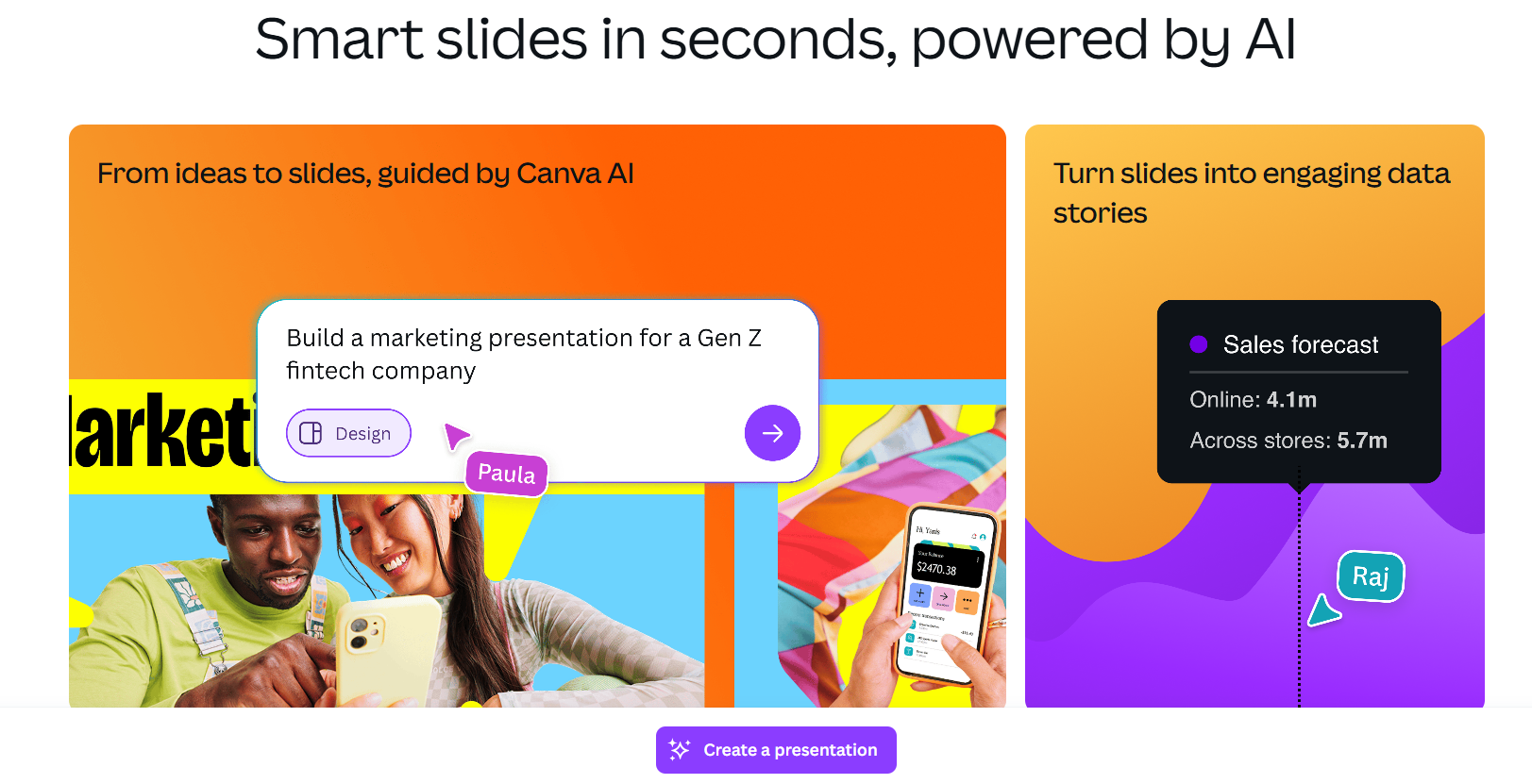
Canva is a cloud-based design platform built around simplicity and
speed. It positions itself as a modern, visual-first solution for users
who want attractive presentations without dealing with complex software
settings. For many people comparing Canva vs PowerPoint, Canva feels
approachable from the first click.
Canva
Key Features
Massive library of professionally designed presentation
templates
Intuitive drag-and-drop editor with a very low learning
curve
Real-time collaboration with multiple users editing
simultaneously
Easy sharing through links, comments, and export options
Brand Kit tools for consistent fonts, colors, and logos across
slides
Strengths in Real Use
From hands-on use, Canva shines when speed matters. Creating a clean,
modern slide deck can take minutes rather than hours. Templates are
visually balanced, and spacing, alignment, and color harmony are handled
well by default. This is why many users who ask PowerPoint vs Canva for
presentations lean toward Canva for marketing decks, internal updates,
and social-media-friendly slides.
Collaboration is another strong point. Team members can jump into the
same file instantly, leave comments, and make changes without worrying
about file versions. This workflow is especially appealing to remote
teams and non-technical users.
Limitations to Consider
However, Canva’s simplicity comes with trade-offs. Advanced
animations, detailed slide logic, and complex data visualization are
limited compared to PowerPoint. Offline access is also restricted, which
can be frustrating when working in unstable network conditions.
Discussions like Canva vs PowerPoint Reddit often highlight formatting
issues when exporting complex files to PPTX.
Personal Take
In practice, Canva works best when visual impact and speed matter
more than technical depth. I find it ideal for short presentations,
pitch previews, and collaborative brainstorming. But once slides need
advanced animations, structured data, or strict formatting control,
Canva starts to feel restrictive rather than empowering.
2. Microsoft PowerPoint
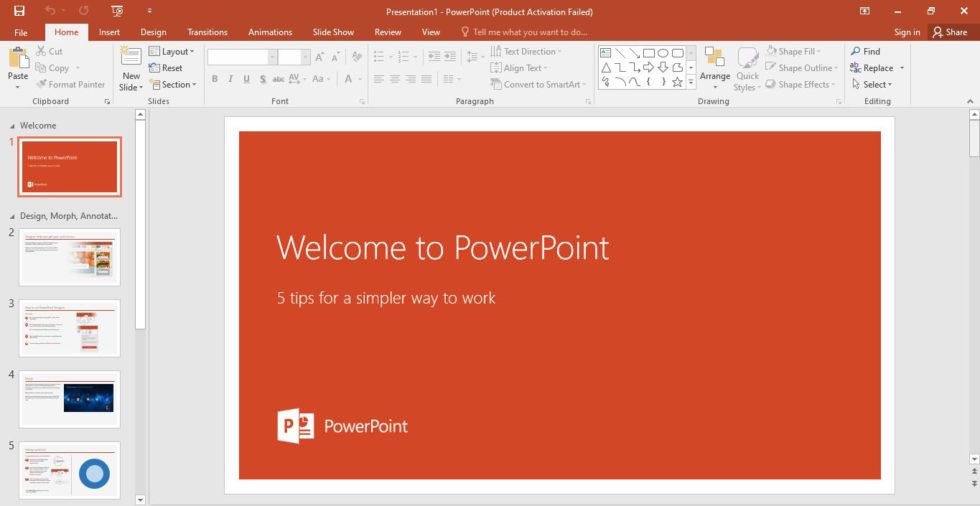
Microsoft PowerPoint is the long-standing industry standard for
presentations. As part of the Microsoft Office ecosystem, it is designed
for users who need precision, flexibility, and full control over every
slide element. In the ongoing Canva vs PowerPoint debate, PowerPoint
represents depth and reliability rather than speed-first design.
Microsoft PowerPoint
Key Features
Advanced animation paths, transitions, and timing
controls
Powerful charting tools with deep Excel integration
Slide Master for granular layout, font, and brand
control
Extensive add-in ecosystem, including AI-powered
extensions
Full offline access with stable desktop performance
Strengths in Real Use
PowerPoint excels when presentations move beyond visuals into
structured storytelling. Financial reports, academic lectures, technical
briefings, and executive decks benefit from its precision. Charts remain
editable and accurate, animations behave consistently, and formatting
stays intact across devices.
When comparing PowerPoint vs Canva for presentations, PowerPoint is
clearly stronger for complex content. It handles large files, embedded
media, and long slide decks without compromising performance. Offline
access is another advantage, especially in corporate or classroom
environments where connectivity is unreliable.
Limitations to Consider
That said, PowerPoint can feel heavy for quick design tasks. Creating
modern-looking slides often takes more manual effort, especially for
users without design experience. Collaboration has improved through
cloud syncing, but it still feels less fluid than Canva’s real-time
editing. This is why many users who weigh Canva or PowerPoint describe
PowerPoint as powerful but slower to iterate.
Personal Take
From my experience, PowerPoint is unmatched when accuracy and control
matter. I rely on it for data-heavy or client-facing presentations where
formatting errors are not acceptable. However, for fast ideation or
visually driven slides, it can feel like more tool than necessary.
Part 2.
Canva vs. PowerPoint: Pricing and Highlights
Pricing is often the deciding factor when users compare Canva
vs PowerPoint, especially for students, freelancers, and small
teams. While both tools offer free entry points, their long-term value
differs depending on how often and how deeply you use presentations.
Canva Pricing Overview
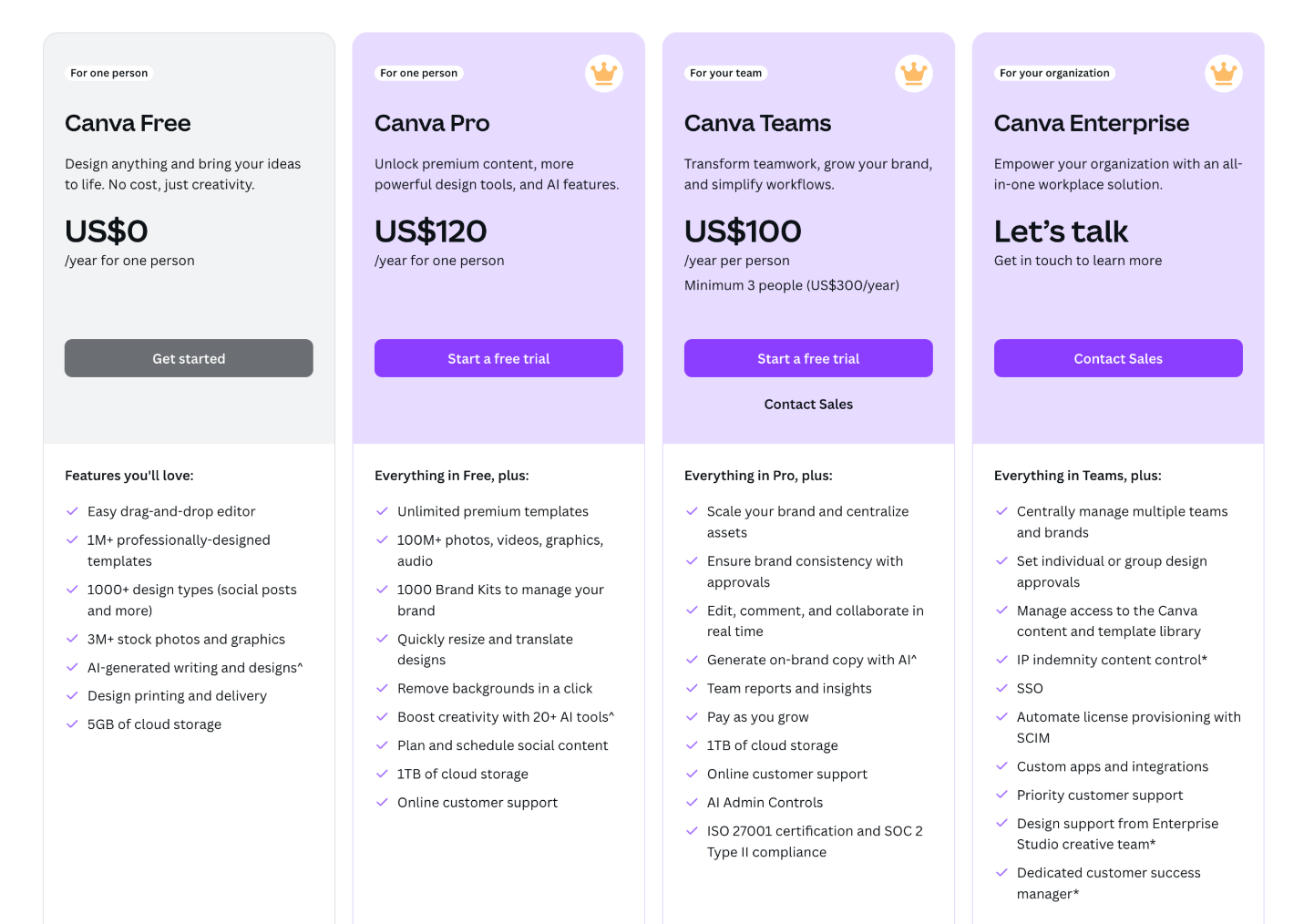
Canva follows a freemium model. The free plan gives access to basic
templates, limited stock assets, and online collaboration. For many
casual users, this is enough to get started quickly.
Canva pricing
Canva Pro unlocks premium templates, brand kits, background remover,
advanced collaboration tools, and expanded export options. This plan is
attractive for marketers and content creators who prioritize design
speed and consistency. However, costs scale with team size, and
long-term subscriptions can add up.
Microsoft PowerPoint Pricing Overview
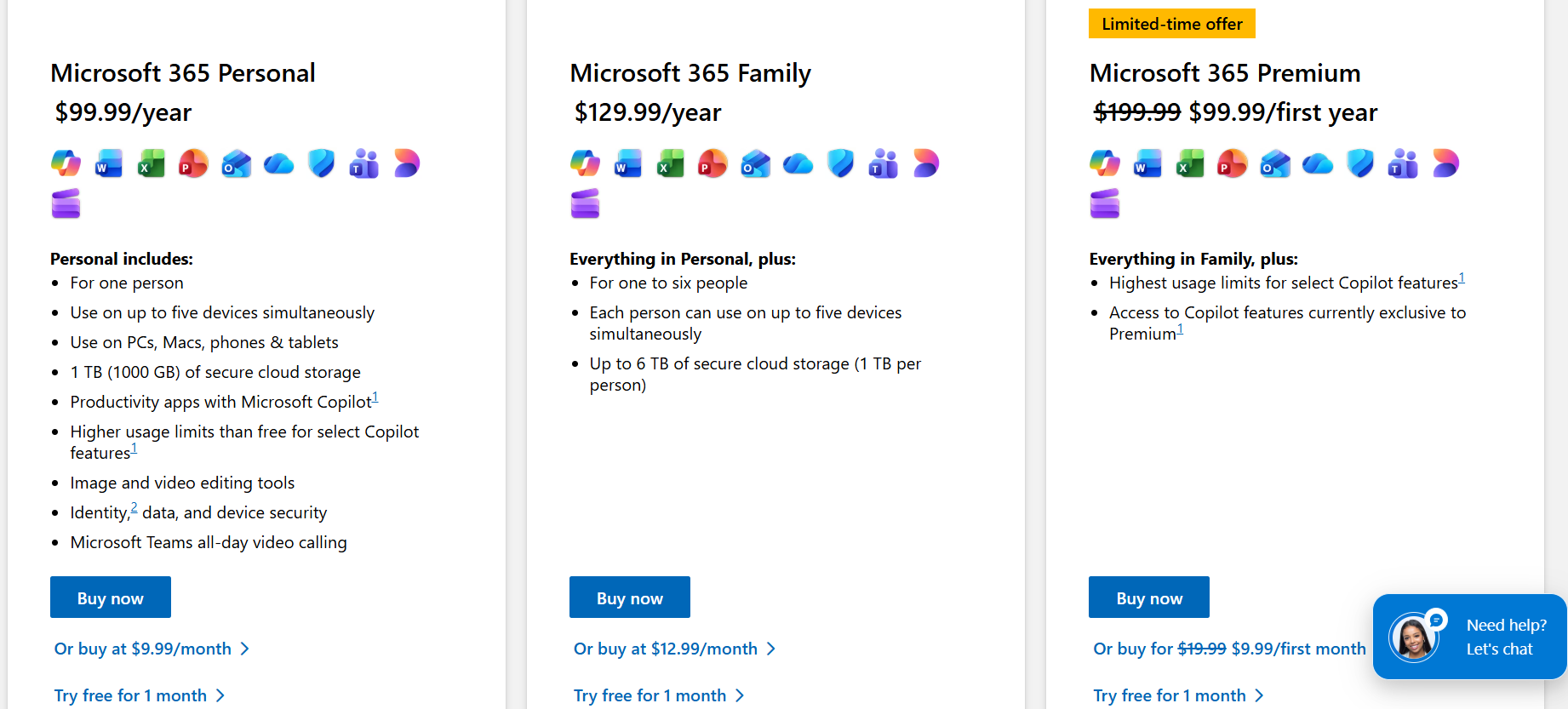
PowerPoint is primarily available through Microsoft 365
subscriptions. While this includes Word, Excel, Outlook, and cloud
storage, users who only need presentation software may find the bundle
excessive.
Microsoft PowerPoint pricing
The upside is feature depth and reliability. PowerPoint’s pricing
reflects its role as a professional-grade tool rather than a lightweight
design platform. For businesses already invested in Microsoft 365, the
cost is easier to justify.
Highlights Comparison
Canva is more accessible upfront, especially for beginners and
small teams
PowerPoint offers stronger value for users who rely on advanced
features across Office apps
Canva Pro focuses on visual productivity, while PowerPoint
focuses on functional completeness
Personal Take
In real-world use, Canva feels cost-effective for short-term or
design-focused needs. But over time, especially when presentations
become more complex, PowerPoint’s bundled value makes more sense. This
cost-versus-depth tradeoff is a recurring theme in PowerPoint vs Canva
for presentations, and it often pushes experienced users to look for
alternatives that balance both.
Part 3. Canva
vs. PowerPoint: Template Repository
Templates are often the first thing users evaluate when comparingCanva vs PowerPoint, because they directly affect how
fast a presentation can be built and how polished it looks without heavy
customization.
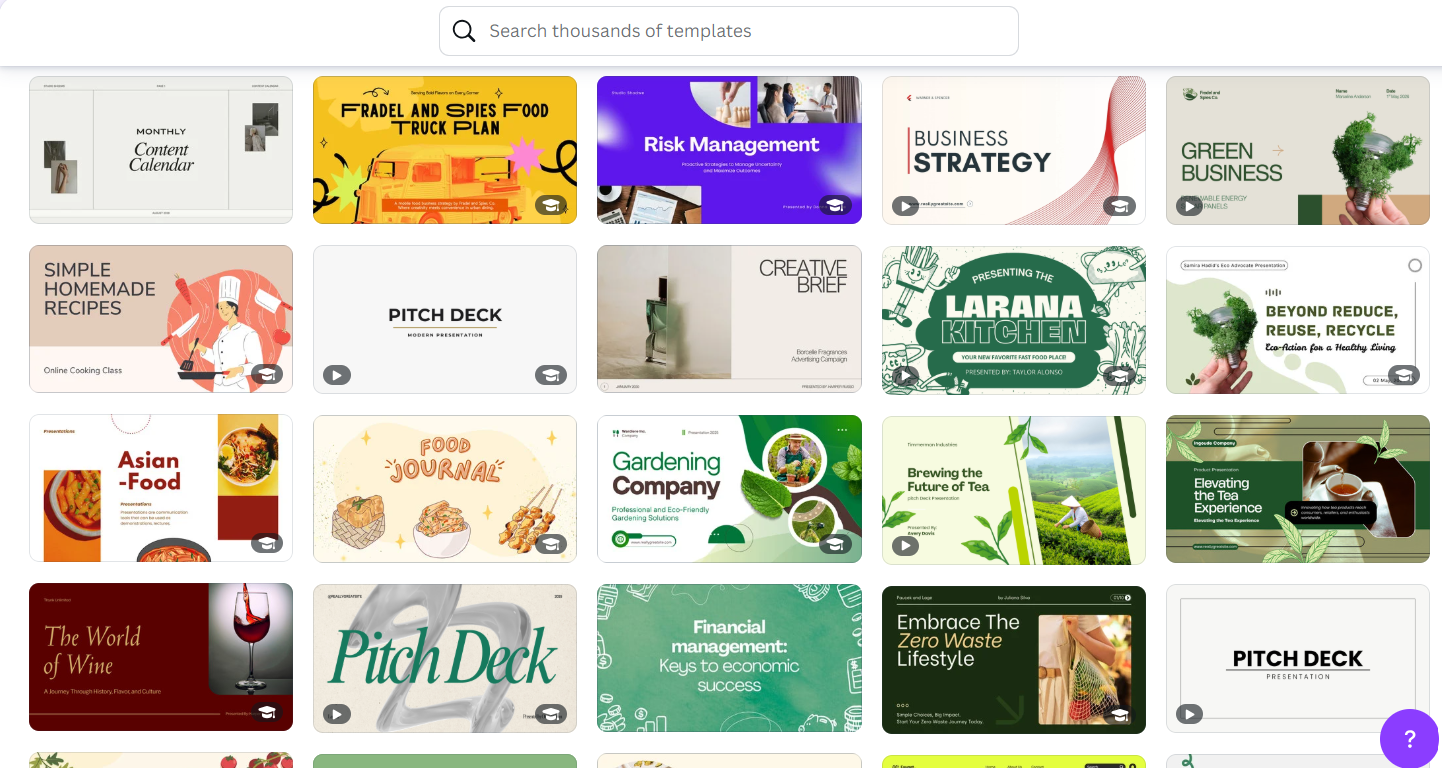
Canva Template Library
Canva’s template repository is one of its strongest advantages. It
offers thousands of modern, visually striking templates designed for
marketing decks, social media presentations, pitch slides, and internal
reports. Layouts are trend-aware, color-balanced, and optimized for
quick editing.
Canva Templates library
For users deciding between Canva and PowerPoint, Canva’s templates
feel immediately usable. Fonts, spacing, and visuals are already
aligned, which reduces design decisions. This makes Canva especially
appealing to non-designers and teams that need consistent visual output
under time pressure.
However, templates often prioritize aesthetics over structure. For
longer or more formal presentations, maintaining consistency across
dozens of slides may require manual adjustments.
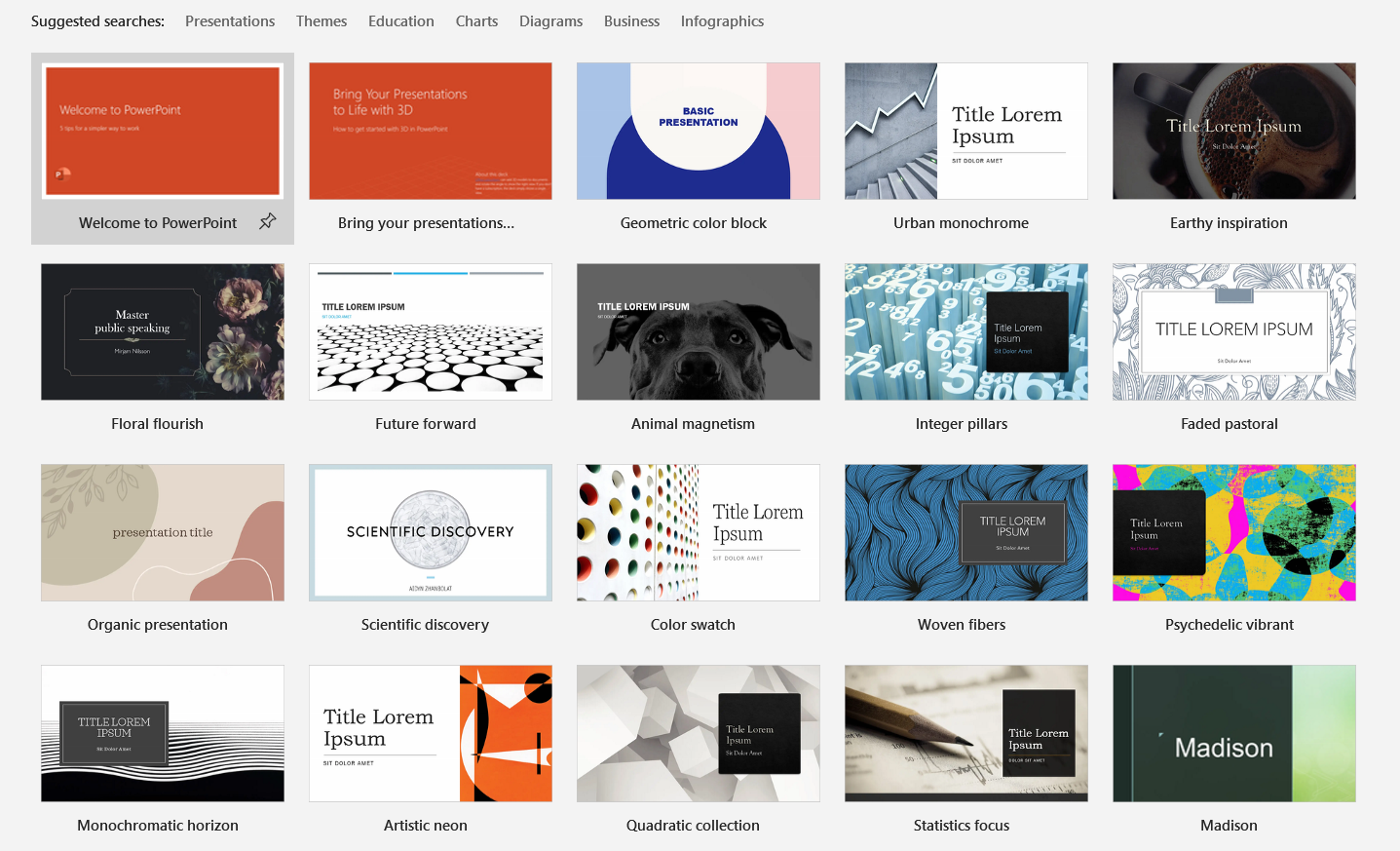
PowerPoint Template Library
PowerPoint’s built-in templates are more conservative. They focus on
clarity, hierarchy, and content structure rather than bold visuals.
While this can feel outdated at first glance, these templates are
designed to scale well for long presentations and complex
narratives.
PowerPoint Templates library
PowerPoint also supports extensive third-party template marketplaces,
allowing users to download industry-specific decks for business,
education, and consulting. This flexibility is often overlooked in
PowerPoint vs Canva for presentations, but it matters when presentations
need to follow strict branding or formatting rules.
Personal Take
From experience, Canva templates are excellent for short, visually
driven decks that need quick impact. PowerPoint templates perform better
for structured storytelling and repeatable formats, especially when
slides need to be reused or adapted over time. This difference explains
why many users start with Canva but later return to PowerPoint as
presentation demands grow.
Part 4. Canva vs.
PowerPoint: Fonts
Fonts play a bigger role in presentations than many users expect.
Typography affects readability, tone, and how professional a slide deck
feels. This is another area where the Canva vs
PowerPoint comparison highlights clear differences in
philosophy.
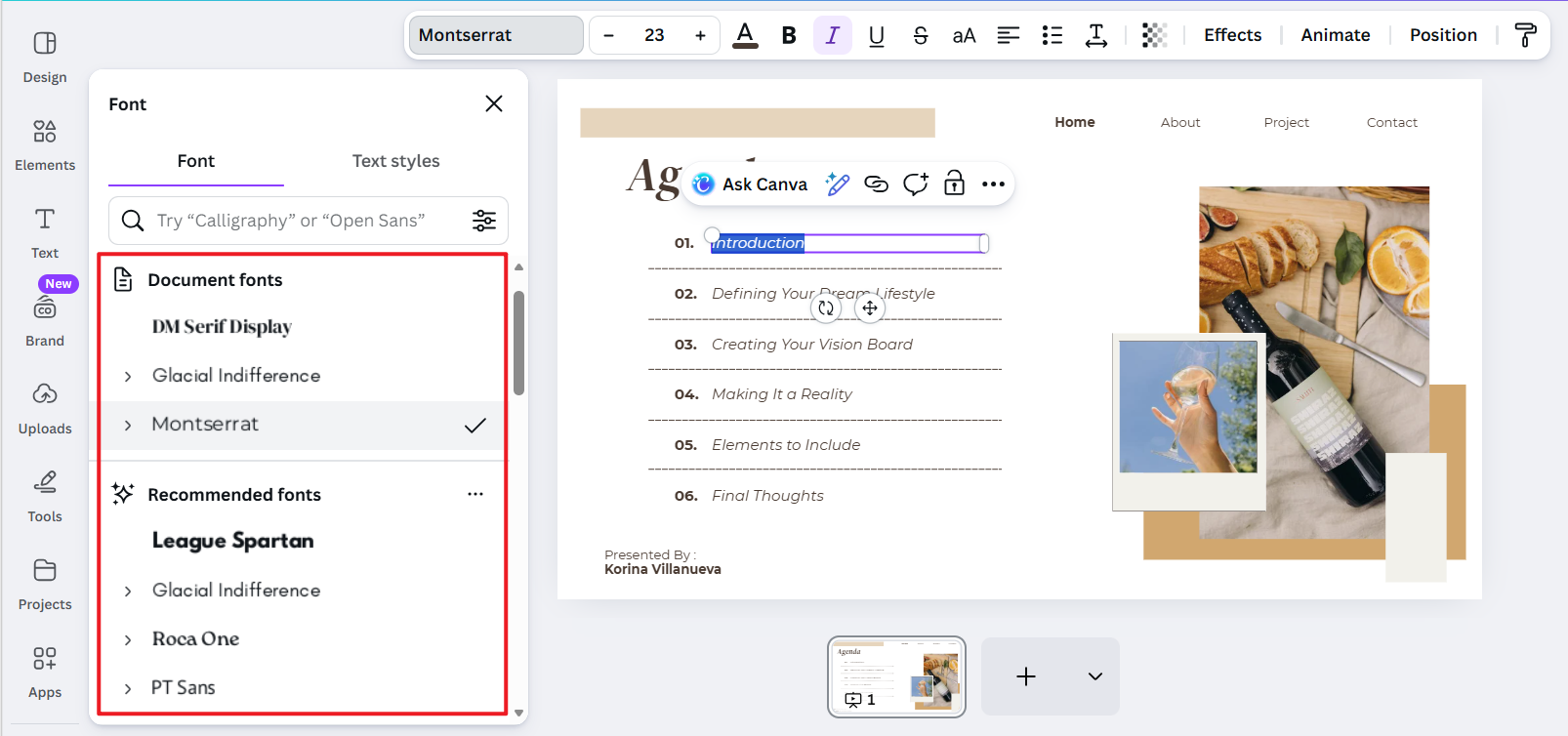
Canva Fonts
Canva offers a wide range of modern, web-friendly fonts that are easy
to apply and visually appealing by default. Many templates come with
carefully paired font combinations, which reduces the risk of poor
typography choices.
Canva fonts
With Canva Pro, users can upload custom fonts and apply them through
Brand Kits, making it easier for teams to stay consistent. This
simplicity is one reason people exploring Canva or PowerPoint often feel
more confident designing slides in Canva, even without design
experience.
The limitation is control. Advanced typographic adjustments such as
precise kerning, baseline shifts, or complex text effects are
restricted. Online discussions comparing Canva vs PowerPoint vs Google
Slides frequently note that Canva prioritizes ease over precision.
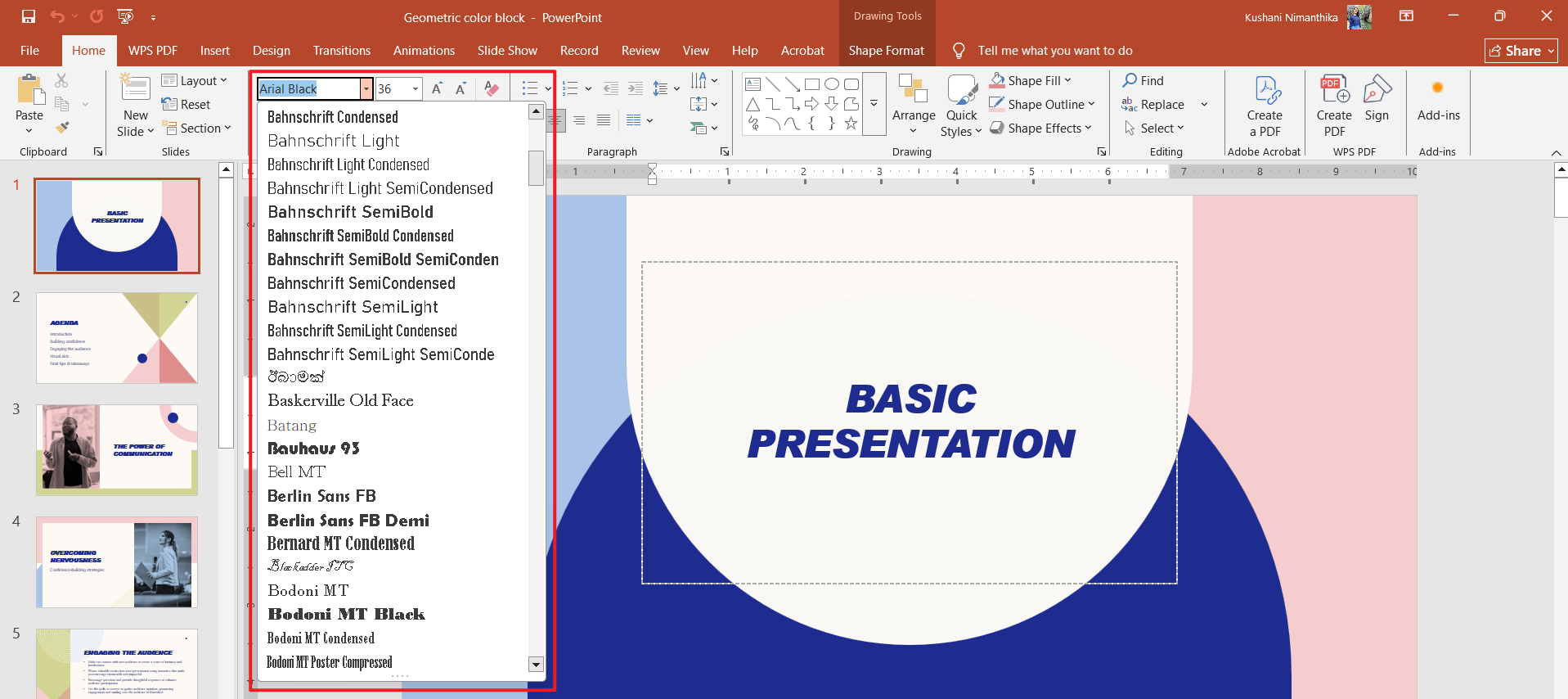
PowerPoint Fonts
PowerPoint provides deeper typographic control. Users can fine-tune
spacing, alignment, text hierarchy, and slide-wide font behavior through
the Slide Master. This level of control matters in formal reports,
academic presentations, and corporate decks where typography consistency
is critical.
PowerPoint fonts
PowerPoint also supports system fonts and enterprise font standards
more reliably. However, this flexibility can overwhelm beginners, which
is why PowerPoint is sometimes perceived as harder to use when compared
with Canva.
Personal Take
In practice, Canva fonts are excellent for fast, clean visuals with
minimal effort. PowerPoint fonts are better when typography must follow
strict branding or accessibility rules. The choice depends on whether
speed or precision matters more in your workflow.
Part
5. Best AI Helper to Generate Slide Decks: WPS AI Slides
After comparing design, pricing, templates, and fonts, a clear gap
appears between Canva’s simplicity and PowerPoint’s depth. This is whereWPS AI
Slides stands out as a practical bridge.
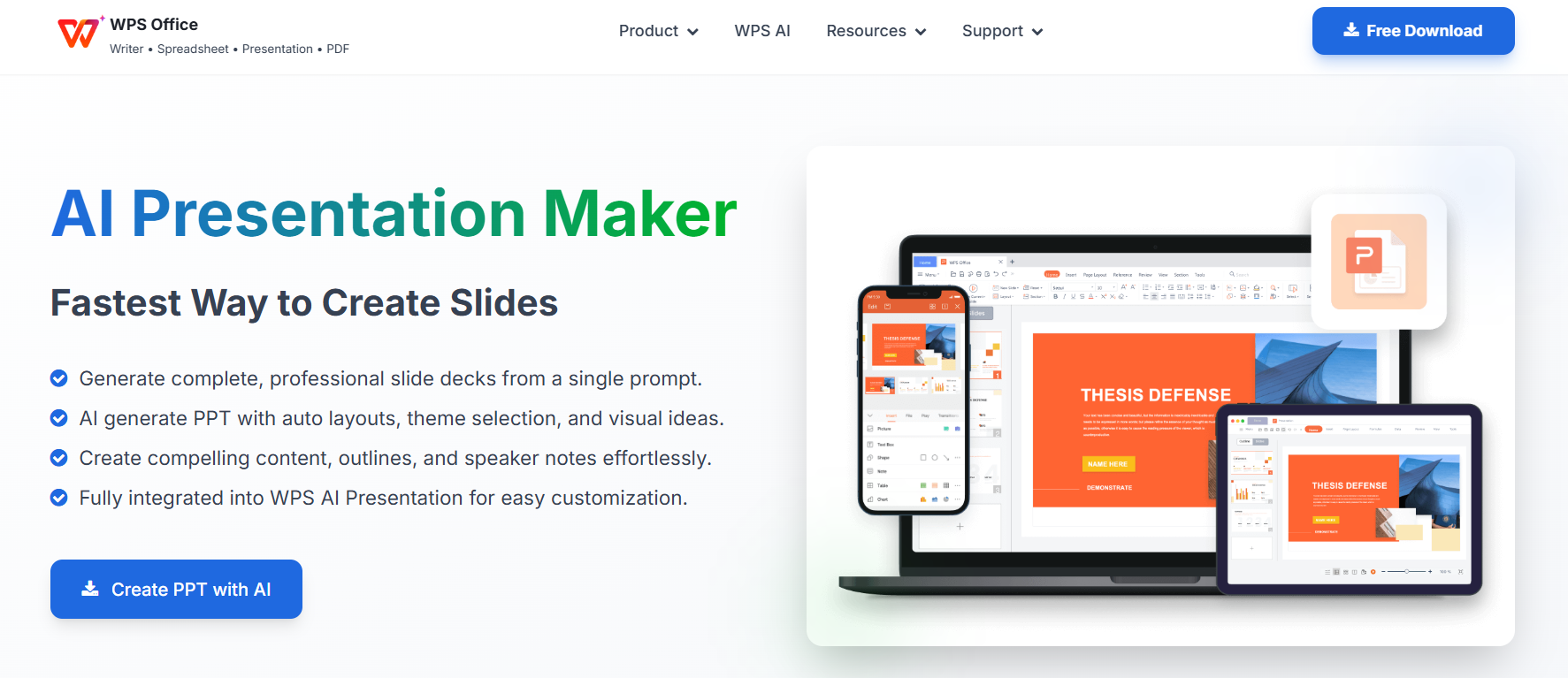
WPS AI Slides
Canva excels at fast design and collaboration. PowerPoint dominates
advanced features and offline reliability. However, neither fully solves
the problem of creating high-quality presentations quickly without
sacrificing compatibility or control.
Why WPS AI Slides Is
Recommended
WPS AI Slides combines intelligent automation with a familiar
presentation environment. Instead of relying only on templates, it helps
generate content structure, slide layouts, and design suggestions based
on your input.
Key Advantages
Seamless Workflow Integration
Full compatibility with PowerPoint and Google Slides formats ensures
no formatting loss when importing or exporting files.
AI-Powered Creation & Efficiency
Slides can be generated from prompts, outlines, or documents, with
design suggestions adapting as you edit.
Cost-Effective Value
AI features are included within the WPS Office suite, reducing the
need for multiple subscriptions.
Professional-Grade Output
Results remain suitable for client-facing and executive
presentations, not just drafts.
How to Create Slides
with WPS AI Slides
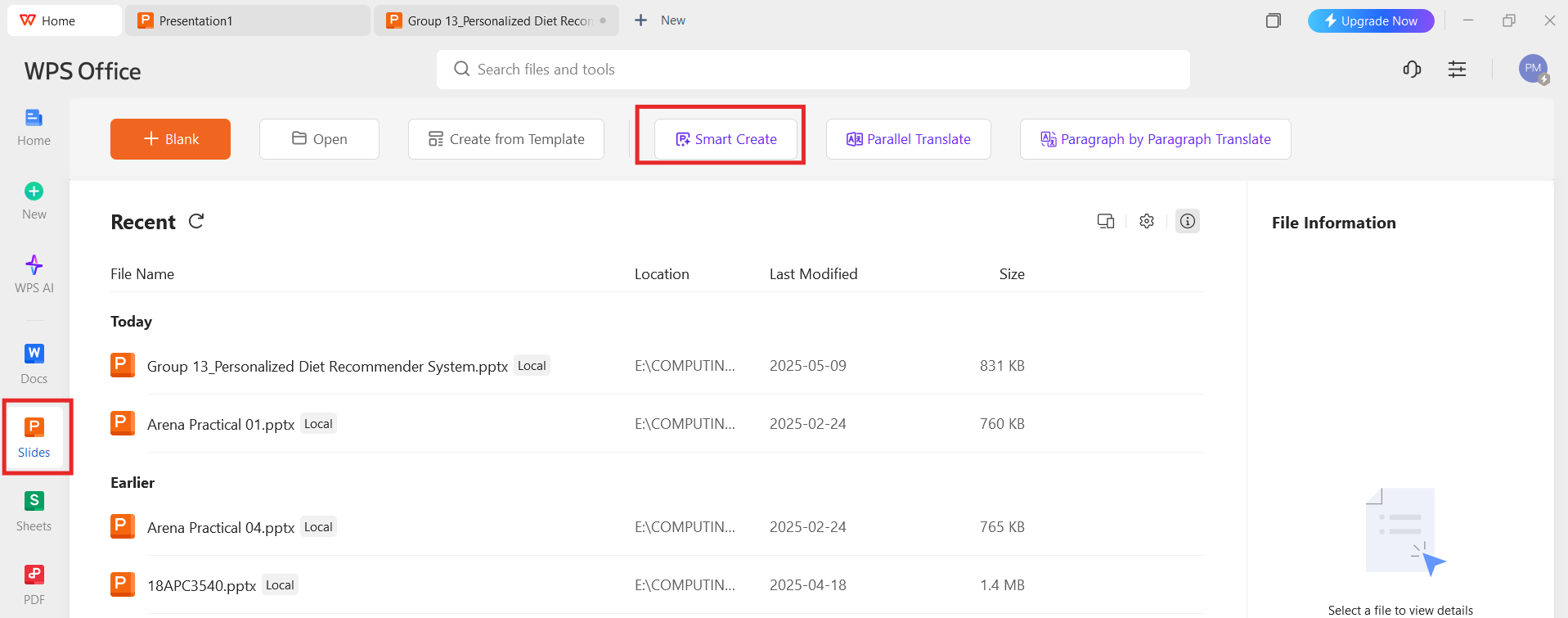
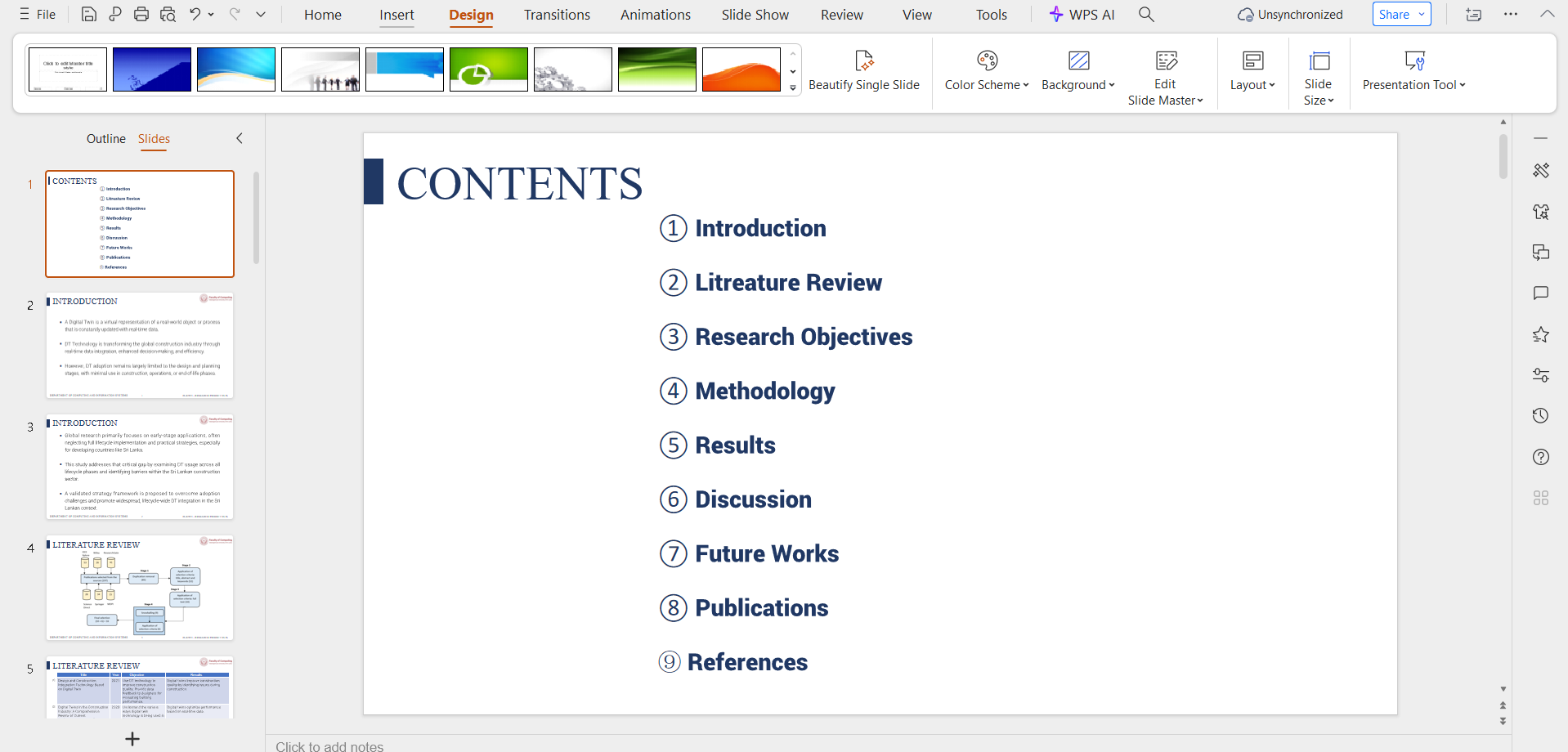
Step 1: Open WPS Presentation, select Slides and
Smart Create.
Open WPS Slides
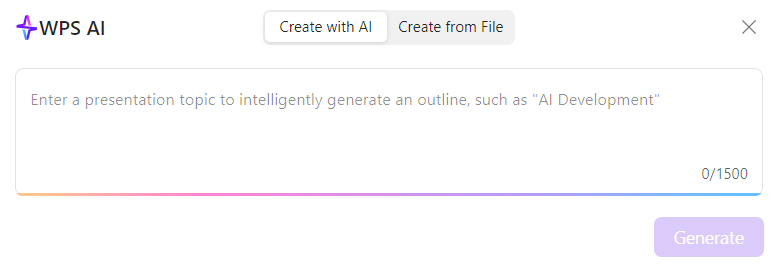
Step 2: Enter a topic, outline, or paste
existing content.
AI in WPS Slides
Step 3: Let the AI generate a structured slide
deck with suggested layouts.
AI generates a structured slide deck
Step 4: Edit text, visuals, and design elements
as needed.
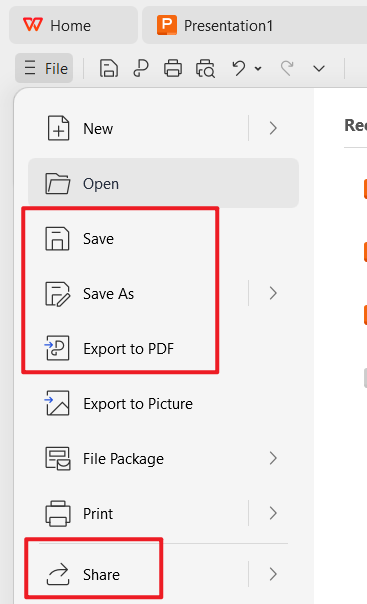
Step 5: Export in PPTX or share via cloud
collaboration.
Save the slide deck
Personal Experience Note
What stands out in real use is how little rework is needed after
generation. Unlike basic template tools, WPS AI Slides produces a
logical slide flow that feels presentation-ready, not just visually
acceptable. It significantly reduces setup time while keeping full
control when deeper edits are required.
Part
6. Canva vs PowerPoint vs WPS AI Slides: Comparison Table
Aspect
Canva
Microsoft PowerPoint
WPS AI Slides
Core Strength
Ease of use & template design
Advanced features & total control
AI integration & format harmony
Learning Curve
Very low
Moderate to high
Low to moderate
Best For
Quick visual decks, team
brainstorming
Data-heavy, complex presentations
AI-assisted creation with full
compatibility
Collaboration
Excellent
Good
Excellent
File Compatibility
PPTX/PDF (may shift)
Native PPTX
PPTX & Google Slides
Offline Access
Limited
Full
Full
AI Features
Basic
Growing
Core feature
Cost
Freemium; Pro plans
Subscription
Affordable suite pricing
FAQs
1. Is Canva really better than PowerPoint?
It depends on your needs. Canva is better for fast, visually driven
collaboration. PowerPoint is better for complex, structured
presentations. For users who want both speed and control, WPS AI Slides
offers a balanced alternative.
2. Can I use Canva to edit a PowerPoint file?
Yes, but formatting issues can occur with animations and fonts. For
more reliable PPTX editing without layout loss, WPS AI Slides provides a
smoother experience.
3. Which tool is best for professional business
proposals?
Canva suits visually focused proposals. PowerPoint suits data-heavy
reports. WPS AI Slides works best when proposals require both strong
visuals and structured data.
4. How does Canva compare with Adobe presentation
tools?
When evaluating Canva vs Adobe, Canva is simpler and more accessible,
while Adobe tools offer deeper design control but require more expertise
and time.
5. Is Canva Pro worth it for presentations?
Canva Pro is useful for teams needing consistent branding and premium
assets, but it may feel limited for complex or long-form
presentations.
Summary
This Canva vs PowerPoint comparison shows that each tool serves a
distinct audience. Canva prioritizes speed and visual ease. PowerPoint
delivers precision and depth. WPS AI Slides combines AI-powered creation
with full compatibility, making it a strong choice for users who want
efficiency without compromise.
If your goal is to produce professional presentations faster while
staying flexible across platforms, WPS AI
Slides stands out as the most practical solution.
Office software expert with 15+ years of experience since 2009. I specialize in tech tutorials, productivity tools, and digital solutions for everyday users. Passionate about making technology simple and accessible for everyone.


'%3e%3cpath%20d='M8%200C12.4183%200%2016%203.58172%2016%208C16%2012.4183%2012.4183%2016%208%2016C3.58172%2016%200%2012.4183%200%208C0%203.58172%203.58172%200%208%200ZM11.6162%204.38379C11.2257%203.99337%2010.5927%203.99338%2010.2021%204.38379L8%206.58594L5.79785%204.38379C5.40732%203.99334%204.77429%203.99329%204.38379%204.38379C3.99331%204.77429%203.99335%205.40733%204.38379%205.79785L6.58594%208L4.38379%2010.2021C3.99348%2010.5927%203.99341%2011.2257%204.38379%2011.6162C4.77426%2012.0066%205.40734%2012.0065%205.79785%2011.6162L8%209.41406L10.2021%2011.6162C10.5927%2012.0066%2011.2257%2012.0067%2011.6162%2011.6162C12.0067%2011.2257%2012.0066%2010.5927%2011.6162%2010.2021L9.41406%208L11.6162%205.79785C12.0066%205.40735%2012.0066%204.77429%2011.6162%204.38379Z'%20fill='%23080E17'%20fill-opacity='0.46'/%3e%3c/g%3e%3cdefs%3e%3cclipPath%20id='clip0_3761_713'%3e%3crect%20width='16'%20height='16'%20fill='white'/%3e%3c/clipPath%3e%3c/defs%3e%3c/svg%3e)




'%3e%3cpath%20fill-rule='evenodd'%20clip-rule='evenodd'%20d='M21.4999%2010.9993C21.4999%205.20009%2016.7986%200.498901%2010.9993%200.498901C5.19994%200.498901%200.498657%205.20009%200.498657%2010.9993C0.498657%2016.2404%204.33858%2020.5844%209.35855%2021.3722V14.0346H6.69238V10.9993H9.35855V8.68594C9.35855%206.05427%2010.9262%204.60062%2013.3248%204.60062C14.4736%204.60062%2015.6753%204.80571%2015.6753%204.80571V7.38979H14.3512C13.0468%207.38979%2012.64%208.19921%2012.64%209.0296V10.9993H15.5523L15.0867%2014.0346H12.64V21.3722C17.66%2020.5844%2021.4999%2016.2404%2021.4999%2010.9993Z'%20fill='%231568EA'/%3e%3c/g%3e%3c/svg%3e)


'%3e%3cpath%20d='M2.42045%2022.1876H6.31818V12.7217L0.75%208.54553V20.5171C0.75%2021.4414%201.49892%2022.1876%202.42045%2022.1876Z'%20fill='%234285F4'/%3e%3cpath%20d='M19.682%2022.1876H23.5797C24.5041%2022.1876%2025.2502%2021.4387%2025.2502%2020.5171V8.54553L19.682%2012.7217'%20fill='%2334A853'/%3e%3cpath%20d='M19.682%205.48293V12.7216L25.2502%208.54543V6.31816C25.2502%204.25236%2022.8921%203.07469%2021.2411%204.31361'%20fill='%23FBBC04'/%3e%3cpath%20d='M6.31824%2012.7217V5.48303L13.0001%2010.4944L19.6819%205.48303V12.7217L13.0001%2017.733'%20fill='%23EA4335'/%3e%3cpath%20d='M0.75%206.31816V8.54543L6.31818%2012.7216V5.48293L4.75909%204.31361C3.10534%203.07469%200.75%204.25236%200.75%206.31816Z'%20fill='%23C5221F'/%3e%3c/g%3e%3cdefs%3e%3cclipPath%20id='clip0_2954_7305'%3e%3crect%20width='24.5'%20height='18.375'%20fill='white'%20transform='translate(0.75%203.8125)'/%3e%3c/clipPath%3e%3c/defs%3e%3c/svg%3e)



'%3e%3cpath%20d='M19.9911%204.11386V6.471H18.5894C18.0775%206.471%2017.7322%206.57814%2017.5536%206.79243C17.3751%207.00671%2017.2858%207.32814%2017.2858%207.75671V9.44421H19.9019L19.5536%2012.0871H17.2858V18.8639H14.5536V12.0871H12.2769V9.44421H14.5536V7.49779C14.5536%206.39064%2014.8632%205.53201%2015.4822%204.92189C16.1013%204.31177%2016.9257%204.00671%2017.9554%204.00671C18.8304%204.00671%2019.509%204.04243%2019.9911%204.11386Z'%20fill='%23333333'/%3e%3c/g%3e%3cdefs%3e%3cclipPath%20id='clip0_2938_8199'%3e%3crect%20width='16'%20height='16'%20fill='white'%20transform='translate(8%204.00671)'/%3e%3c/clipPath%3e%3c/defs%3e%3c/svg%3e)
'%3e%3cpath%20d='M17.5237%2010.7813L23.4811%204H22.0699L16.8949%209.88693L12.7648%204H8L14.2469%2012.9029L8%2020.0133H9.4112L14.8725%2013.7952L19.2352%2020.0133H24M9.92053%205.04213H12.0885L22.0688%2019.0224H19.9003'%20fill='%23333333'/%3e%3c/g%3e%3cdefs%3e%3cclipPath%20id='clip0_2938_8200'%3e%3crect%20width='16'%20height='16.0134'%20fill='white'%20transform='translate(8%204)'/%3e%3c/clipPath%3e%3c/defs%3e%3c/svg%3e)


