

'%3e%3cpath%20d='M8%200C12.4183%200%2016%203.58172%2016%208C16%2012.4183%2012.4183%2016%208%2016C3.58172%2016%200%2012.4183%200%208C0%203.58172%203.58172%200%208%200ZM11.6162%204.38379C11.2257%203.99337%2010.5927%203.99338%2010.2021%204.38379L8%206.58594L5.79785%204.38379C5.40732%203.99334%204.77429%203.99329%204.38379%204.38379C3.99331%204.77429%203.99335%205.40733%204.38379%205.79785L6.58594%208L4.38379%2010.2021C3.99348%2010.5927%203.99341%2011.2257%204.38379%2011.6162C4.77426%2012.0066%205.40734%2012.0065%205.79785%2011.6162L8%209.41406L10.2021%2011.6162C10.5927%2012.0066%2011.2257%2012.0067%2011.6162%2011.6162C12.0067%2011.2257%2012.0066%2010.5927%2011.6162%2010.2021L9.41406%208L11.6162%205.79785C12.0066%205.40735%2012.0066%204.77429%2011.6162%204.38379Z'%20fill='%23080E17'%20fill-opacity='0.46'/%3e%3c/g%3e%3cdefs%3e%3cclipPath%20id='clip0_3761_713'%3e%3crect%20width='16'%20height='16'%20fill='white'/%3e%3c/clipPath%3e%3c/defs%3e%3c/svg%3e)




'%3e%3cpath%20fill-rule='evenodd'%20clip-rule='evenodd'%20d='M21.4999%2010.9993C21.4999%205.20009%2016.7986%200.498901%2010.9993%200.498901C5.19994%200.498901%200.498657%205.20009%200.498657%2010.9993C0.498657%2016.2404%204.33858%2020.5844%209.35855%2021.3722V14.0346H6.69238V10.9993H9.35855V8.68594C9.35855%206.05427%2010.9262%204.60062%2013.3248%204.60062C14.4736%204.60062%2015.6753%204.80571%2015.6753%204.80571V7.38979H14.3512C13.0468%207.38979%2012.64%208.19921%2012.64%209.0296V10.9993H15.5523L15.0867%2014.0346H12.64V21.3722C17.66%2020.5844%2021.4999%2016.2404%2021.4999%2010.9993Z'%20fill='%231568EA'/%3e%3c/g%3e%3c/svg%3e)


'%3e%3cpath%20d='M2.42045%2022.1876H6.31818V12.7217L0.75%208.54553V20.5171C0.75%2021.4414%201.49892%2022.1876%202.42045%2022.1876Z'%20fill='%234285F4'/%3e%3cpath%20d='M19.682%2022.1876H23.5797C24.5041%2022.1876%2025.2502%2021.4387%2025.2502%2020.5171V8.54553L19.682%2012.7217'%20fill='%2334A853'/%3e%3cpath%20d='M19.682%205.48293V12.7216L25.2502%208.54543V6.31816C25.2502%204.25236%2022.8921%203.07469%2021.2411%204.31361'%20fill='%23FBBC04'/%3e%3cpath%20d='M6.31824%2012.7217V5.48303L13.0001%2010.4944L19.6819%205.48303V12.7217L13.0001%2017.733'%20fill='%23EA4335'/%3e%3cpath%20d='M0.75%206.31816V8.54543L6.31818%2012.7216V5.48293L4.75909%204.31361C3.10534%203.07469%200.75%204.25236%200.75%206.31816Z'%20fill='%23C5221F'/%3e%3c/g%3e%3cdefs%3e%3cclipPath%20id='clip0_2954_7305'%3e%3crect%20width='24.5'%20height='18.375'%20fill='white'%20transform='translate(0.75%203.8125)'/%3e%3c/clipPath%3e%3c/defs%3e%3c/svg%3e)


Running errands with a sticky-note list works until the paper falls out of your pocket — a solid checklist maker keeps your recurring tasks tickable, printable, and always at hand. This guide shows why an online-only maker can hold you back and how to build a reusable checklist for free in WPS Office.
Checklist Maker: How to Build a Free Checklist That Works Every Time
What a Checklist Maker Needs to Do
A useful checklist maker is about removing friction, not adding features. Before you pick one, decide what your list has to survive:
- Reuse — you should update the same checklist next week instead of retyping it.
- Check off items — a tap or a click should tick a box, not delete the line.
- Print and export — a checklist you can print or save as PDF travels beyond one app.
- Work offline — you still need your list when the coffee-shop Wi-Fi drops.
- Cost nothing — the core workflow should stay free.
Most tools cover one or two of these. The catch appears when they push you toward sign-up walls, cloud-only storage, or a paywall right when you need to share a printed list.
Think about who actually leans on a checklist: the cook who repeats the same shopping round every week, the student packing for a move, the team running the same launch steps, or a parent who does not want to retype the morning routine. For all of them, a checklist maker that works the same way every time saves far more than a fancy animation ever will.
Why an Online Checklist Maker Isn't Always the Answer
A browser-based checklist maker is convenient until you hit its limits. Sign-up friction blocks you in a busy moment, and some services keep your list only in their cloud — which fails when you are offline, on a plane, or switching devices.
There is also the privacy angle: packing your daily routine into a third-party account you do not control is rarely necessary. A free desktop alternative keeps the file on your own disk, opens instantly, and never throttles your most-used list behind a premium tier.
Print is the quiet win. Online lists are awkward to pin to the fridge or slide into a work folder; a checklist you can print once and keep visible beats scrolling through a phone app mid-task. The moment your maker can turn the list into a clean PDF, you get the best of both worlds.

Avoid sign-up, cloud, and paywall friction
How to Make a Checklist in WPS Office (Step-by-Step)
WPS Office gives you a real checklist maker for free: build the list in WPS Writer, add boxes, then print or export it. Here is the quick path.
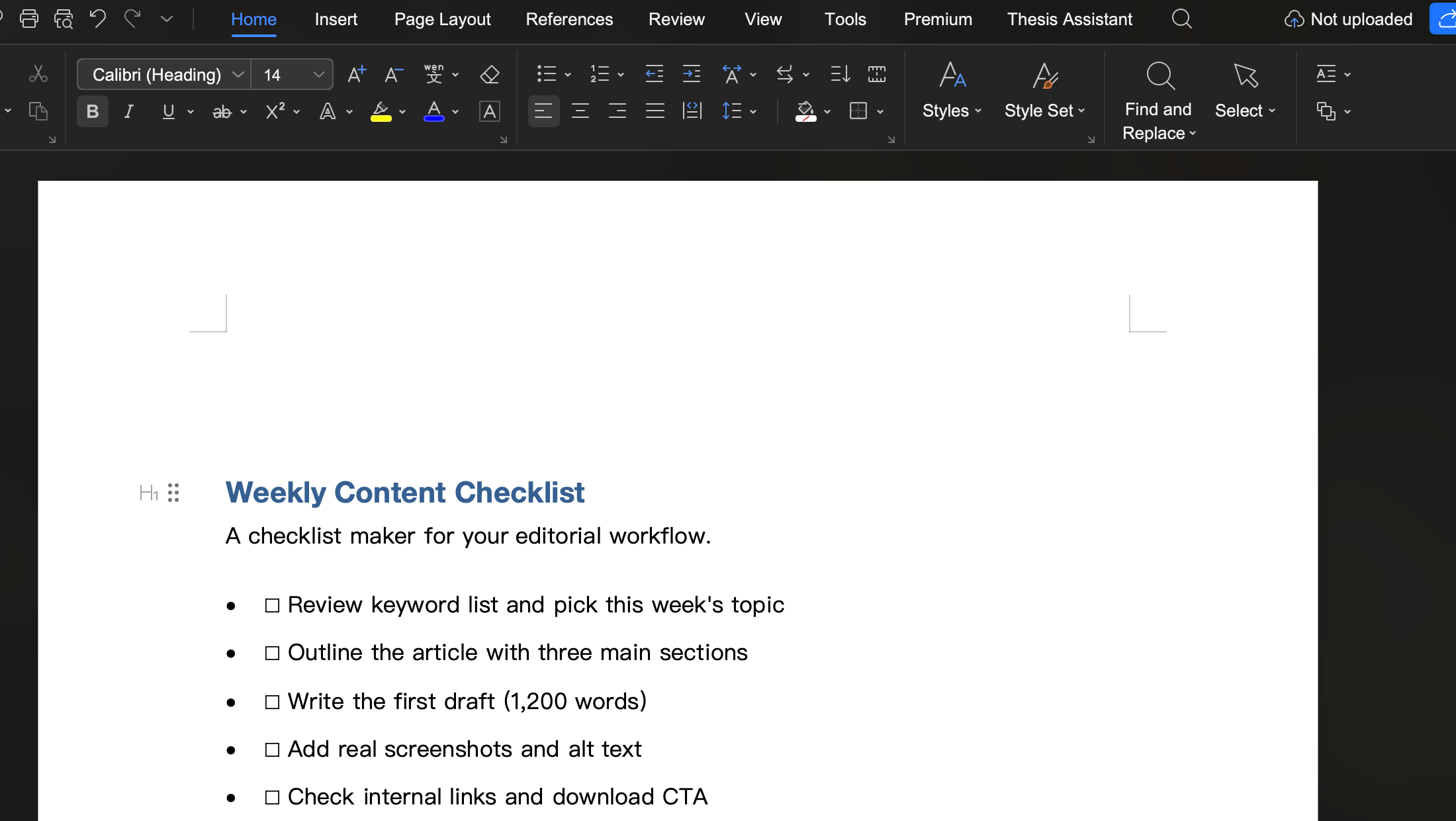
Step 1: Start a new document. Open WPS Office, click + New, and choose a blank Writer document.
Step 2: Type your tasks as a list. Select Home, then Bullets or Numbering, and type each step on its own line — from pack the bag to book the train.
Step 3: Add the interactive boxes. Position the cursor where you want a tick box and insert a checkbox symbol (see the next section) so every task becomes checkable.
Step 4: Style it. Use Home to bold the title, space the rows, and keep the list readable at a glance.
Create and edit a checklist in WPS Writer


Because the file lives on your machine, you can reopen it tomorrow, change one line, and reprint — no account, no upload, no waiting.
Add Checkboxes So You Can Tick Items Off
A checklist maker only helps if you can actually tick the boxes. In WPS Writer, add a checkable box before each task so a click marks it done:
- Place the cursor before the first task, open Insert, and insert a Symbol — the empty box character (☐) is the standard choice.
- Repeat it at the start of every line, or copy the box and paste it down the list to keep spacing even.
- When you finish a task, replace the empty box with a checked box (☑) — or simply mark it with a bold tick.

Tick interactive boxes in a WPS checklist
For a clickable, form-style checklist, use WPS's built-in checklist control: select Insert, pick Checkbox in the interactive list, and each box becomes a live check you can toggle in the document.
Both styles have their place. The simple symbol box is perfect for printed lists you hand to someone else, because it works on paper. The interactive checkbox suits a digital list you keep filling in on screen all week. Mix them freely: use symbols for a one-off paper list and the live control for a routine you tick off every day.
The Best Free Checklist Maker Alternative: WPS Office
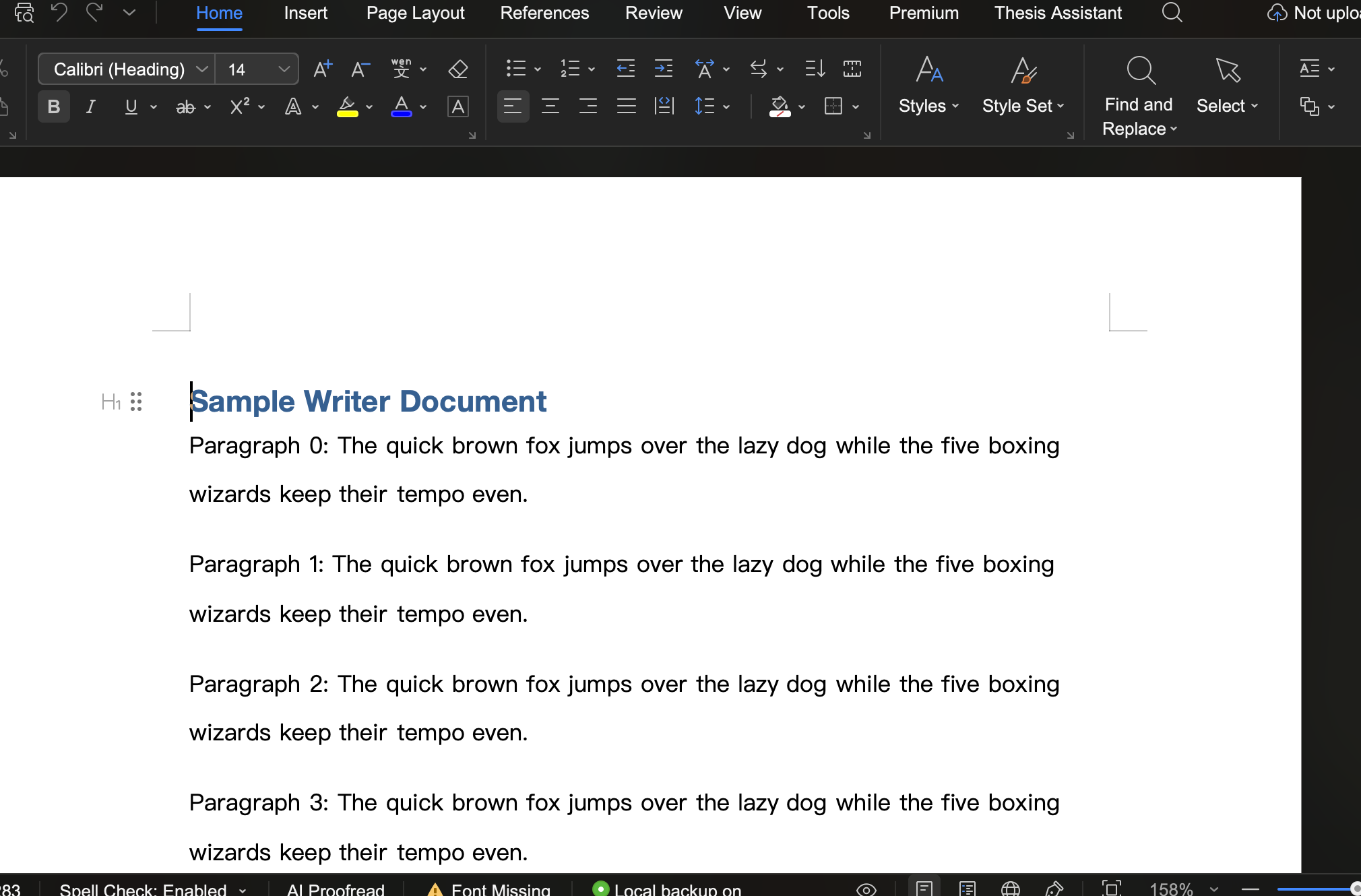
WPS Office is a genuinely free checklist maker that also reads and writes Microsoft Word files, so a checklist built here opens anywhere. The Writer editor keeps formatting clean, prints to crisp PDFs, and stays free for personal and small-team use — no trial clock, no watermark on a three-item shopping list.
Where online makers lock you to a subscription, WPS gives you the full editing surface: real fonts, spacing, tables, and the same checkbox controls you would expect from a desktop word processor. Share the finished list as a PDF or a Word file, and the person on the other end never needs to sign up for the tool you used.
Combine it with WPS's cloud to reach the list from another device when you want to, while always keeping a local copy you control. That mix — desktop-first, cloud-when-useful, free at the core — is what most online-only makers cannot offer.
WPS Writer editing interface, free to use
FAQs
Can I use WPS Office as a free checklist maker?
Yes. Open WPS Writer, type your tasks as a list, add checkbox symbols, and print or export the checklist as PDF — all in the free version.
Does a WPS checklist work with Microsoft Word?
It does. WPS Writer reads and saves .docx files, so a checklist you build in WPS opens and edits in Microsoft Word without conversion steps.
How do I add a tick box to a checklist in WPS Writer?
Place the cursor before the task, open Insert and choose Symbol, then insert the empty-box (☐) or checked-box (☑) character. For a live control, insert a Checkbox from the interactive list.
Can I print my WPS checklist or turn it into a PDF?
Yes. Choose File, then Print, and select the Save as PDF printer to produce a shareable PDF copy of your checklist.
Is my checklist stored online?
Only if you choose to save it to WPS Cloud. By default the file stays on your local disk, so it works offline and stays private.

'%3e%3cpath%20d='M19.9911%204.11386V6.471H18.5894C18.0775%206.471%2017.7322%206.57814%2017.5536%206.79243C17.3751%207.00671%2017.2858%207.32814%2017.2858%207.75671V9.44421H19.9019L19.5536%2012.0871H17.2858V18.8639H14.5536V12.0871H12.2769V9.44421H14.5536V7.49779C14.5536%206.39064%2014.8632%205.53201%2015.4822%204.92189C16.1013%204.31177%2016.9257%204.00671%2017.9554%204.00671C18.8304%204.00671%2019.509%204.04243%2019.9911%204.11386Z'%20fill='%23333333'/%3e%3c/g%3e%3cdefs%3e%3cclipPath%20id='clip0_2938_8199'%3e%3crect%20width='16'%20height='16'%20fill='white'%20transform='translate(8%204.00671)'/%3e%3c/clipPath%3e%3c/defs%3e%3c/svg%3e)
'%3e%3cpath%20d='M17.5237%2010.7813L23.4811%204H22.0699L16.8949%209.88693L12.7648%204H8L14.2469%2012.9029L8%2020.0133H9.4112L14.8725%2013.7952L19.2352%2020.0133H24M9.92053%205.04213H12.0885L22.0688%2019.0224H19.9003'%20fill='%23333333'/%3e%3c/g%3e%3cdefs%3e%3cclipPath%20id='clip0_2938_8200'%3e%3crect%20width='16'%20height='16.0134'%20fill='white'%20transform='translate(8%204)'/%3e%3c/clipPath%3e%3c/defs%3e%3c/svg%3e)


