

'%3e%3cpath%20d='M8%200C12.4183%200%2016%203.58172%2016%208C16%2012.4183%2012.4183%2016%208%2016C3.58172%2016%200%2012.4183%200%208C0%203.58172%203.58172%200%208%200ZM11.6162%204.38379C11.2257%203.99337%2010.5927%203.99338%2010.2021%204.38379L8%206.58594L5.79785%204.38379C5.40732%203.99334%204.77429%203.99329%204.38379%204.38379C3.99331%204.77429%203.99335%205.40733%204.38379%205.79785L6.58594%208L4.38379%2010.2021C3.99348%2010.5927%203.99341%2011.2257%204.38379%2011.6162C4.77426%2012.0066%205.40734%2012.0065%205.79785%2011.6162L8%209.41406L10.2021%2011.6162C10.5927%2012.0066%2011.2257%2012.0067%2011.6162%2011.6162C12.0067%2011.2257%2012.0066%2010.5927%2011.6162%2010.2021L9.41406%208L11.6162%205.79785C12.0066%205.40735%2012.0066%204.77429%2011.6162%204.38379Z'%20fill='%23080E17'%20fill-opacity='0.46'/%3e%3c/g%3e%3cdefs%3e%3cclipPath%20id='clip0_3761_713'%3e%3crect%20width='16'%20height='16'%20fill='white'/%3e%3c/clipPath%3e%3c/defs%3e%3c/svg%3e)




'%3e%3cpath%20fill-rule='evenodd'%20clip-rule='evenodd'%20d='M21.4999%2010.9993C21.4999%205.20009%2016.7986%200.498901%2010.9993%200.498901C5.19994%200.498901%200.498657%205.20009%200.498657%2010.9993C0.498657%2016.2404%204.33858%2020.5844%209.35855%2021.3722V14.0346H6.69238V10.9993H9.35855V8.68594C9.35855%206.05427%2010.9262%204.60062%2013.3248%204.60062C14.4736%204.60062%2015.6753%204.80571%2015.6753%204.80571V7.38979H14.3512C13.0468%207.38979%2012.64%208.19921%2012.64%209.0296V10.9993H15.5523L15.0867%2014.0346H12.64V21.3722C17.66%2020.5844%2021.4999%2016.2404%2021.4999%2010.9993Z'%20fill='%231568EA'/%3e%3c/g%3e%3c/svg%3e)


'%3e%3cpath%20d='M2.42045%2022.1876H6.31818V12.7217L0.75%208.54553V20.5171C0.75%2021.4414%201.49892%2022.1876%202.42045%2022.1876Z'%20fill='%234285F4'/%3e%3cpath%20d='M19.682%2022.1876H23.5797C24.5041%2022.1876%2025.2502%2021.4387%2025.2502%2020.5171V8.54553L19.682%2012.7217'%20fill='%2334A853'/%3e%3cpath%20d='M19.682%205.48293V12.7216L25.2502%208.54543V6.31816C25.2502%204.25236%2022.8921%203.07469%2021.2411%204.31361'%20fill='%23FBBC04'/%3e%3cpath%20d='M6.31824%2012.7217V5.48303L13.0001%2010.4944L19.6819%205.48303V12.7217L13.0001%2017.733'%20fill='%23EA4335'/%3e%3cpath%20d='M0.75%206.31816V8.54543L6.31818%2012.7216V5.48293L4.75909%204.31361C3.10534%203.07469%200.75%204.25236%200.75%206.31816Z'%20fill='%23C5221F'/%3e%3c/g%3e%3cdefs%3e%3cclipPath%20id='clip0_2954_7305'%3e%3crect%20width='24.5'%20height='18.375'%20fill='white'%20transform='translate(0.75%203.8125)'/%3e%3c/clipPath%3e%3c/defs%3e%3c/svg%3e)


Holiday preparations often spark a search for free, editable Christmas Google Slides themes to create professional-looking presentations for parties, school projects, or work events without starting from scratch. Users frequently face challenges locating high-quality Christmas slides templates that load quickly, support easy customization, and avoid subscription fees or complex design tools. This guide addresses those needs by curating 10+ downloadable themes and providing clear steps to personalize them in WPS Presentation, ensuring festive slideshows ready in minutes.
Part 1: 10 Free Christmas Google Slides Themes to Download
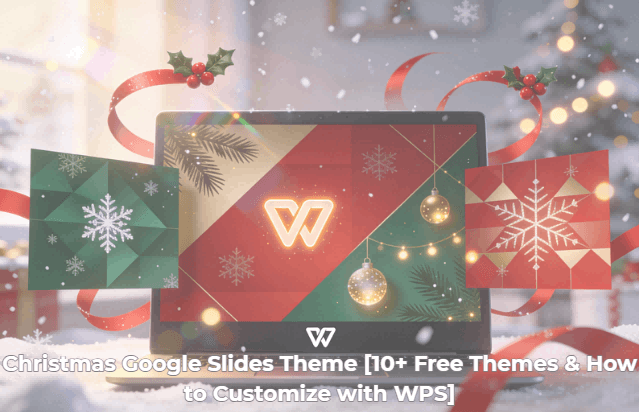
Users seek versatile Christmas presentation themes that import smoothly into various tools, offering festive designs for diverse uses like event invites, reports, or educational content. These curated options provide editable Christmas slideshow templates sourced from Google Slides, compatible with WPS for seamless adaptation to specific holiday needs.
Template 1
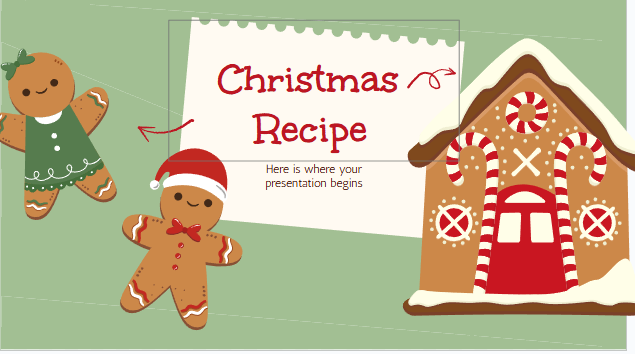
This minimal snowy Christmas Google Slides theme delivers clean winter landscapes with subtle red and green accents, catering to users desiring understated elegance for corporate year-end summaries or academic overviews. Its spacious layout and refined fonts allow effortless content integration, aligning with preferences for professional yet seasonal visuals.
Template 2
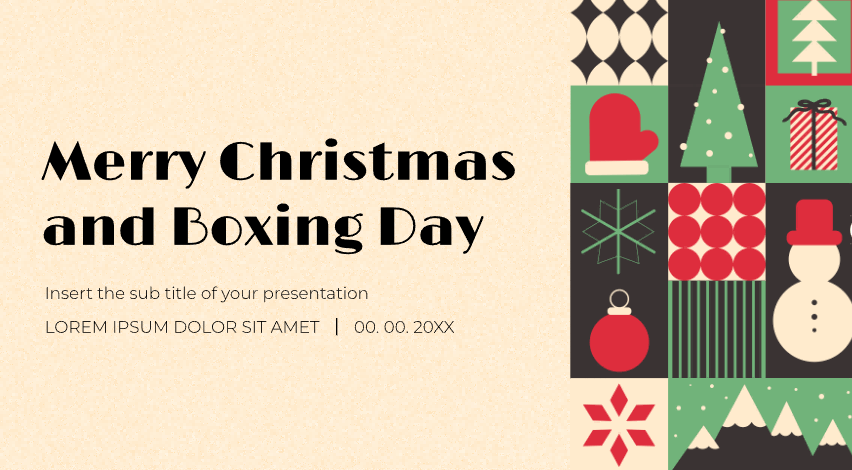
Merry Christmas and Boxing Day template bursts with vivid holiday colors and gift motifs, ideal for marketers crafting promotional Christmas slideshows featuring sales highlights or event teasers. Pre-designed sections for discounts and timelines streamline assembly, meeting demands for eye-catching, ready-to-populate festive designs.
Template 3
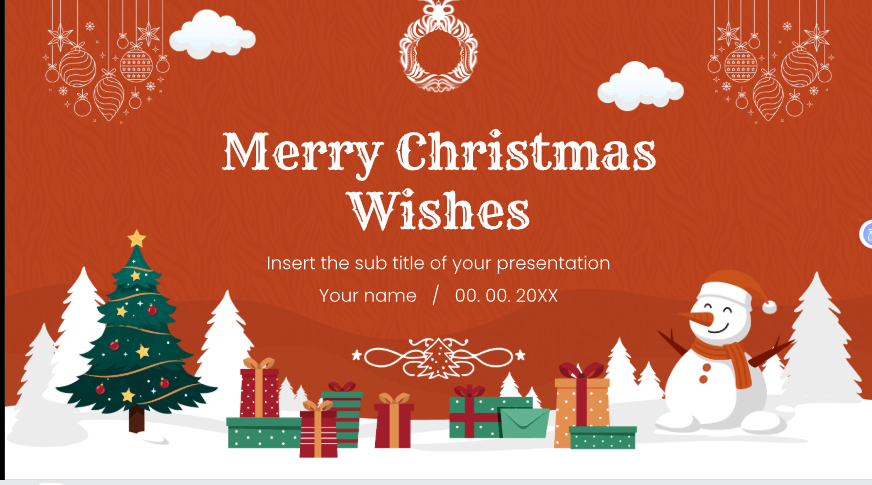
The classic Merry Christmas theme employs elegant red-gold elements like ornaments and borders, suiting formal occasions such as community meetings or family recaps where photo framing enhances emotional impact. It balances tradition with flexibility, fulfilling searches for timeless Christmas slides templates.
Template 4
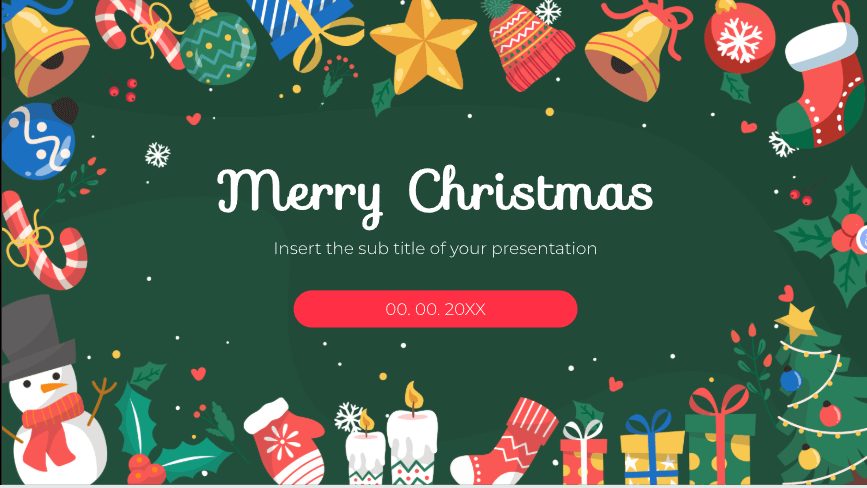
Merry Christmas Wishes prioritizes inspirational messaging through ornate typography and subtle illustrations, perfect for gratitude-focused decks like team appreciations or seasonal newsletters. This approach supports quick personalization, resonating with users prioritizing heartfelt over data-heavy content.
Template 5
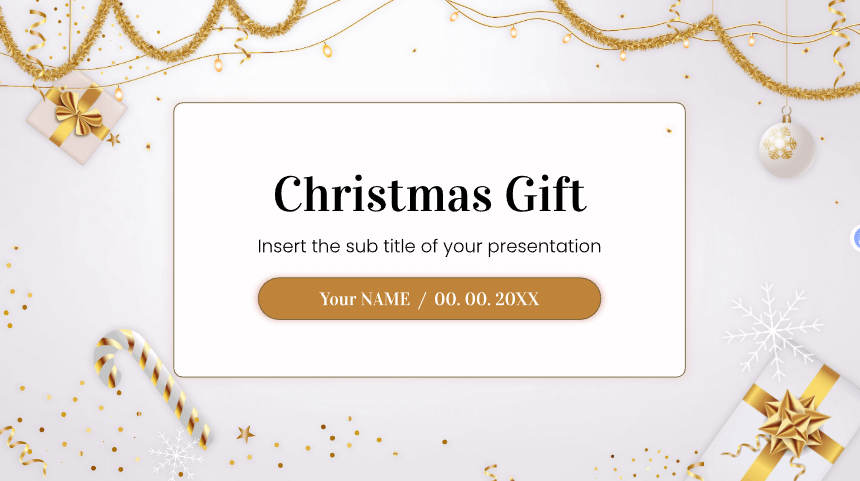
Christmas Gift theme overflows with whimsical wrapped boxes and playful icons, targeting educators or event planners creating engaging materials for youth groups or interactive gatherings. Its vibrant, icon-rich structure encourages creativity, directly addressing needs for fun, audience-captivating Christmas slideshows.
Template 6
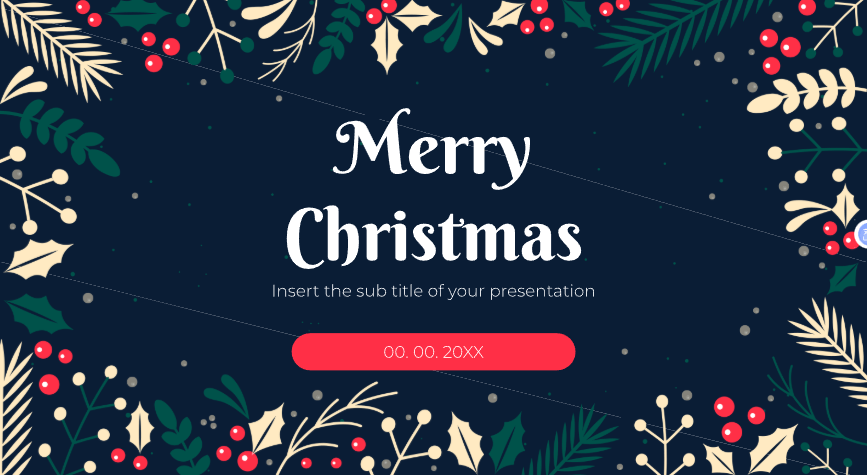
Bold Merry Christmas stands out with striking typography and color contrasts, optimized for concise announcements like party kickoffs or quick updates requiring immediate visual attention. Minimalist yet powerful, it caters to time-pressed users seeking high-impact without excess details.
Template 7

Christmas Illustration theme captivates with detailed snowy vignettes and characters, appealing to storytellers building narrative-driven presentations for fundraisers or classroom sessions. The artistic depth provides a cozy backdrop, matching intents for immersive holiday storytelling.
Template 8
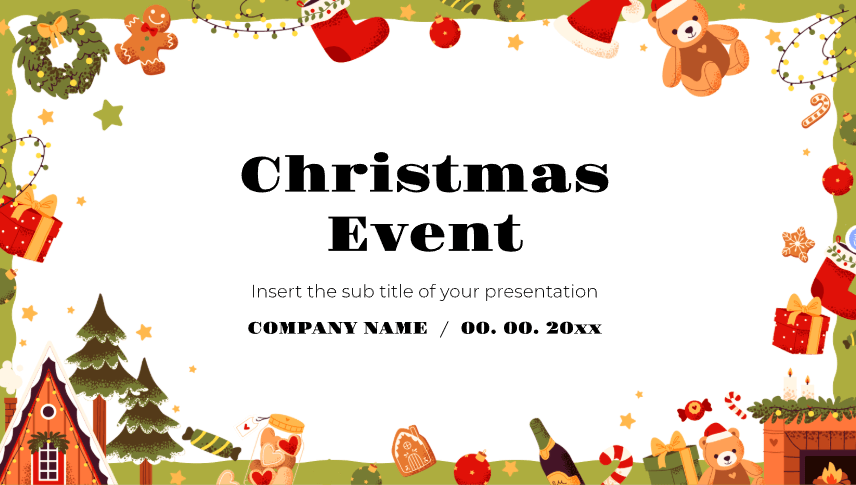
Christmas Event template organizes agendas, speakers, and schedules with structured layouts, essential for coordinators planning corporate bashes or neighborhood festivities. Clear hierarchies ensure readability, fulfilling expectations for practical, event-ready Christmas Google Slides themes.
Template 9
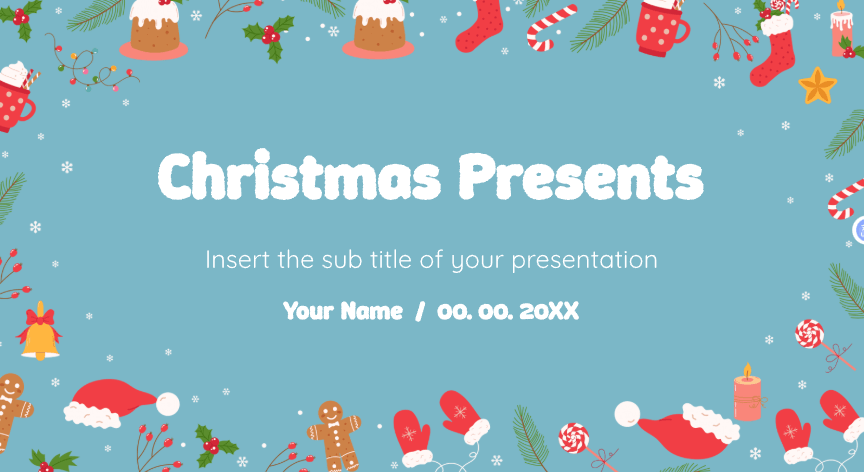
Christmas Presents theme leverages dynamic backgrounds for showcasing items or ideas, such as gift lists or product rundowns in promotional contexts. Versatile placeholders adapt to visuals, serving users focused on catalog-style holiday displays.
Template 10

Christmas Carnival theme energizes with bold hues and motion-inspired shapes, designed for high-spirited promotions of fairs, markets, or family carnivals. Its lively aesthetic boosts engagement, ideal for mixed demographics seeking vibrant Christmas slideshow templates.
Part 2: How to Use & Edit Christmas Themes in WPS Presentation
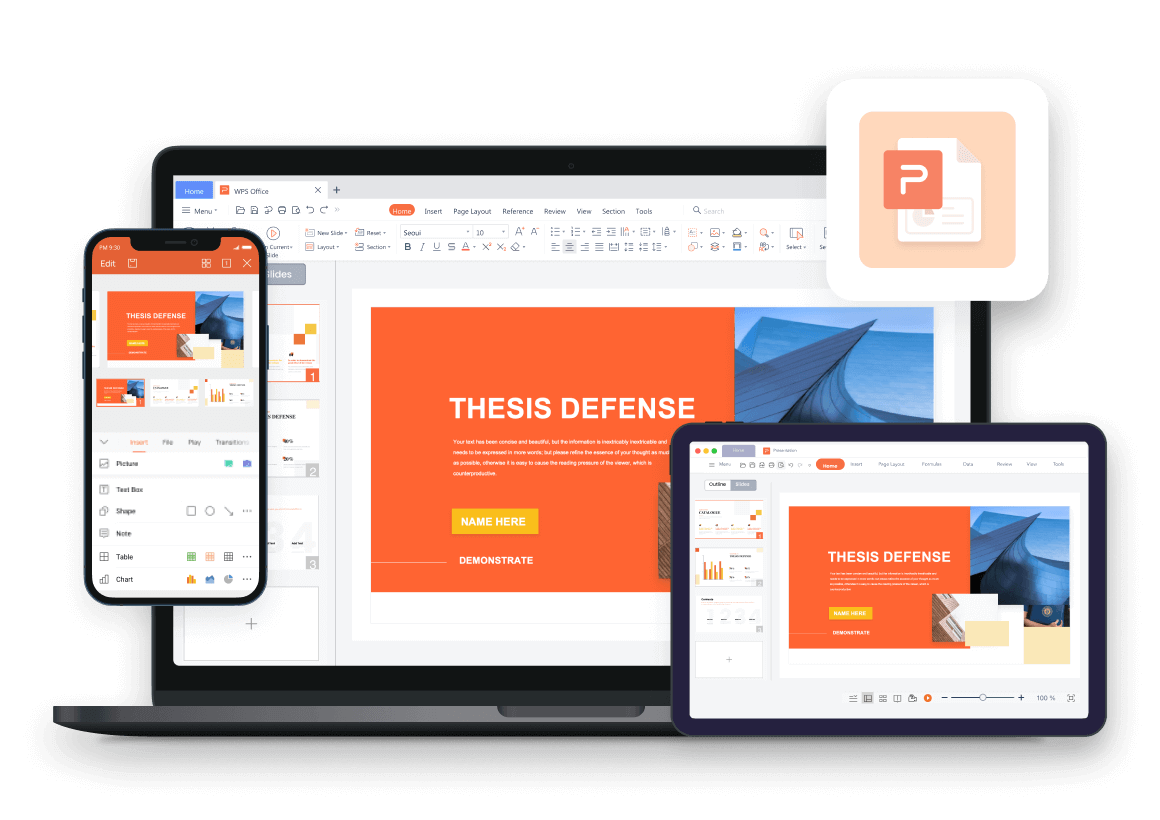
WPS Presentation emerges as a user-favored free tool for handling Christmas Google Slides themes, praised for its compatibility and intuitive features that eliminate common editing frustrations. This section outlines precise methods to transform generic downloads into tailored masterpieces, responding to desires for straightforward, skill-free enhancements.
Step 1: Open the Theme in WPS Presentation
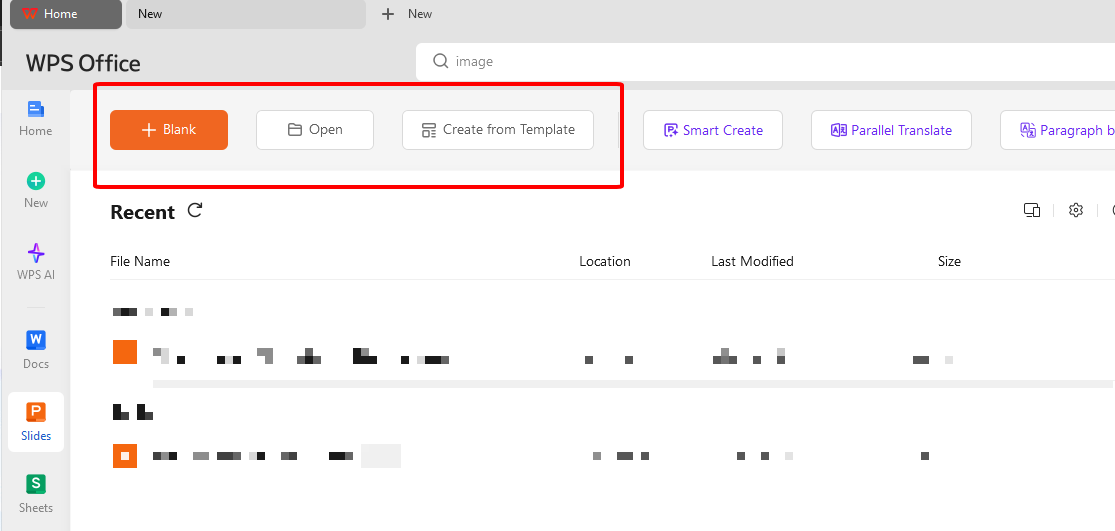
Begin by launching WPS Office and navigating to the Presentation module, then select your saved PPTX file from the Open dialog to instantly access all original slides with intact elements. This initial import preserves design fidelity, allowing immediate dives into modifications without reformatting hurdles.
Step 2: Customize Text, Fonts, and Colors
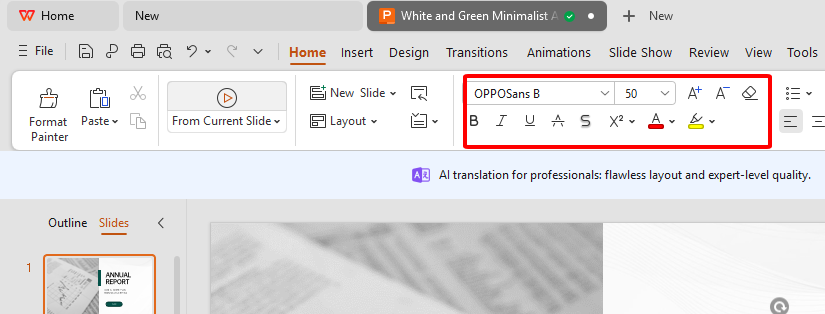
Highlight text elements for direct editing, then leverage the Home ribbon for precise font selections, sizing, and hue shifts, or apply Design tab schemes for uniform theme refreshes across slides. Such controls ensure branding alignment, vital for users adapting Christmas slideshow templates to personal or professional palettes.
Step 3: Insert Images, Icons, or Graphics
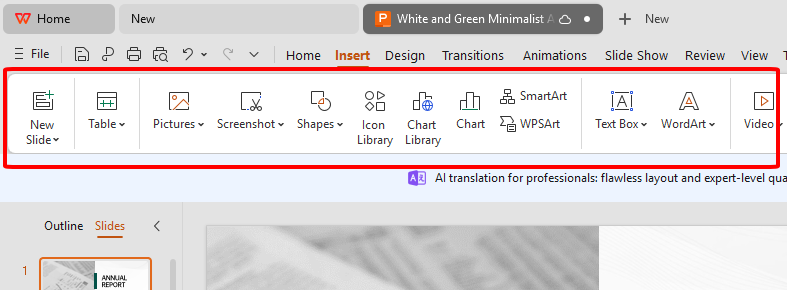
Utilize the Insert ribbon to embed custom photos, vector icons, or decorative shapes, followed by intuitive dragging and snapping to alignment aids for polished positioning. This flexibility empowers replacement of placeholders with relevant holiday imagery, elevating generic themes to bespoke levels.
Step 4: Adjust Layout and Slide Design
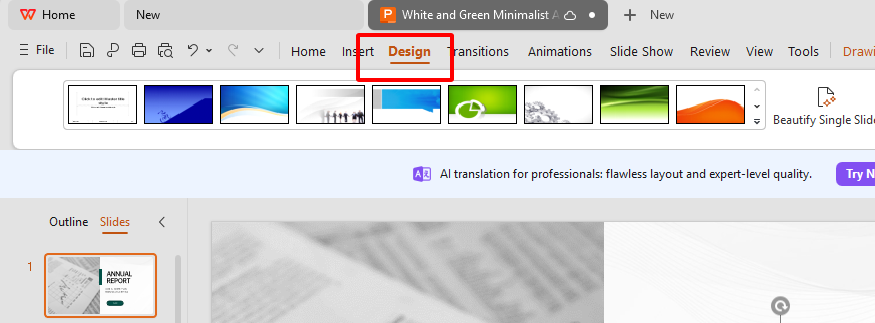
Access thumbnail pane options via right-click to swap layouts, replicate favored slides, or reorder sequences through simple drags, fostering logical flows like intros to conclusions. These adjustments refine pacing, addressing needs for cohesive Christmas slides templates without redesign efforts.
Step 5: Save & Export as PDF or PPT
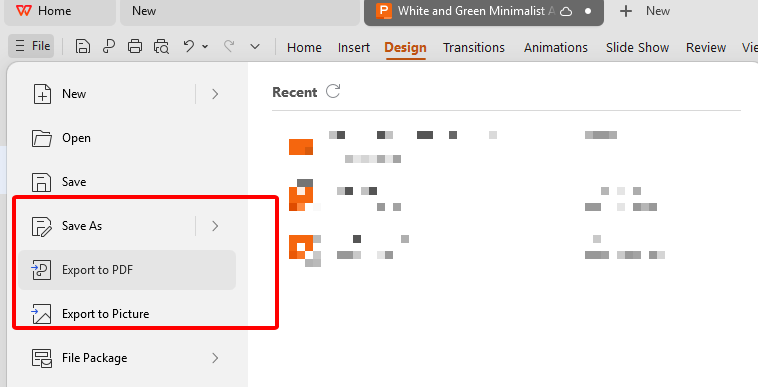
Finalize via the Menu's Save As for native formats or targeted Exports to PDF for distribution and images for web sharing, verifying dimensions in Design settings beforehand. Versatile outputs accommodate varied sharing scenarios, from prints to digital posts.
Why Use WPS for Christmas Themes?
WPS excels in Google Slides compatibility, drag-and-drop simplicity, abundant free templates, beginner accessibility, and hybrid online-desktop operation, streamlining holiday workflows comprehensively.
Part 3: How to Share or Present Your Slides
Sharing demands reliable, multi-format options to reach audiences via email, social channels, or live sessions, precisely what users expect post-customization of their Christmas slideshow. WPS integrates these seamlessly, minimizing last-minute technical snags.
Step 1: Exporting
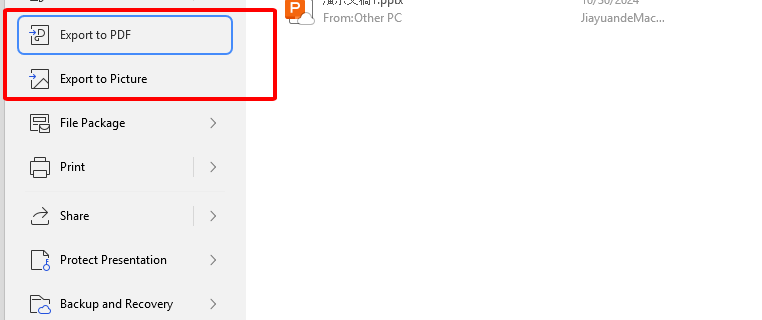
Opt for Menu-driven PDF or PPTX saves to secure files against edits, or Picture exports yielding JPG/PNG variants optimized for platforms, with size tweaks ensuring cross-device perfection. These choices safeguard quality during dissemination of polished Christmas Google Slides themes.
Step 2: Sharing
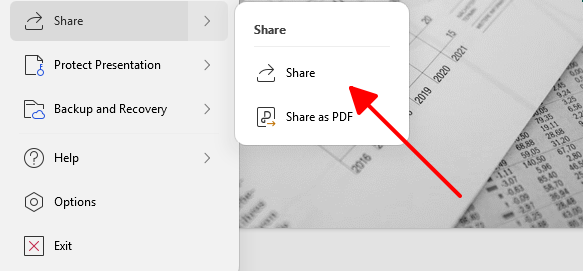
Employ direct email attachments of exports, WPS Cloud uploads generating controlled links, or instant social uploads, facilitating broad or targeted distribution effortlessly. Permission tiers support collaborative tweaks, enhancing team-based holiday projects.
Step 3: Present Online
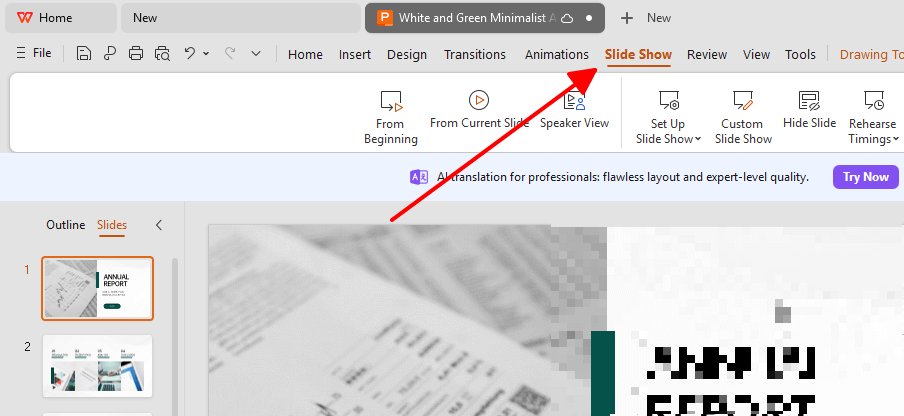
Activate Slide Show mode for immersive full-screen delivery, suitable for in-person or remote via screen share, with offline reliability trumping web dependencies. This native feature delivers pro-grade experiences matching user expectations for flawless unveilings.
Part 4: Free Office Suite: Design Stunning Themes with WPS
WPS Office stands as a comprehensive free alternative, bundling slide tools with document and data handling for end-to-end holiday productivity without premium costs. It directly tackles intents for accessible, format-agnostic creation beyond Google Slides limitations.
WPS Office Overview
Lightweight yet robust, WPS spans Writer, Spreadsheets, and Presentation across devices, importing PPTX flawlessly while supplying seasonal starters for zero-setup beginnings. Cross-platform versatility frees users from tool silos.
Switch to WPS Office today to unlock unlimited potential in your Christmas Google Slides themes, transforming basic templates into standout holiday presentations with ease and zero cost.
FAQs
Q1: Can I customize everything on the Google Slides theme using WPS?
WPS Presentation unlocks complete control over text, visuals, arrangements, palettes, and effects upon PPTX import, rivaling native Google tools without glitches. Users gain pro customization matching original intents seamlessly.
Q2: Are all these Christmas themes free?
Listed themes offer free personal access, supplemented by WPS's no-charge library, though commercial ventures warrant source verification for restrictions. This abundance satisfies budget-conscious holiday prep needs.
Q3: Can I use WPS if I don’t have Google Slides?
WPS operates independently as a full-featured free suite, enabling offline/online slide work sans Google dependency, with built-ins covering all creation facets. Independence appeals to standalone tool seekers.
Q4: Can I present directly from WPS?
Slide Show functionality provides fluid live playback, exportable for alternatives, ensuring dependable delivery across scenarios without external software. Reliability fulfills presentation-focused user goals.
Q5: How do I collaborate on Christmas slideshows in WPS?
Cloud uploads yield shareable links with granular permissions for joint editing or review, streamlining feedback loops on festive content in real time. Team dynamics thrive effortlessly.
Q6: Does WPS support animations from Google Slides themes?
Imported animations largely retain, with Animation tab additions for further flair, preserving dynamic elements in Christmas Google Slides themes. Enhanced motion meets engagement desires.

'%3e%3cpath%20d='M19.9911%204.11386V6.471H18.5894C18.0775%206.471%2017.7322%206.57814%2017.5536%206.79243C17.3751%207.00671%2017.2858%207.32814%2017.2858%207.75671V9.44421H19.9019L19.5536%2012.0871H17.2858V18.8639H14.5536V12.0871H12.2769V9.44421H14.5536V7.49779C14.5536%206.39064%2014.8632%205.53201%2015.4822%204.92189C16.1013%204.31177%2016.9257%204.00671%2017.9554%204.00671C18.8304%204.00671%2019.509%204.04243%2019.9911%204.11386Z'%20fill='%23333333'/%3e%3c/g%3e%3cdefs%3e%3cclipPath%20id='clip0_2938_8199'%3e%3crect%20width='16'%20height='16'%20fill='white'%20transform='translate(8%204.00671)'/%3e%3c/clipPath%3e%3c/defs%3e%3c/svg%3e)
'%3e%3cpath%20d='M17.5237%2010.7813L23.4811%204H22.0699L16.8949%209.88693L12.7648%204H8L14.2469%2012.9029L8%2020.0133H9.4112L14.8725%2013.7952L19.2352%2020.0133H24M9.92053%205.04213H12.0885L22.0688%2019.0224H19.9003'%20fill='%23333333'/%3e%3c/g%3e%3cdefs%3e%3cclipPath%20id='clip0_2938_8200'%3e%3crect%20width='16'%20height='16.0134'%20fill='white'%20transform='translate(8%204)'/%3e%3c/clipPath%3e%3c/defs%3e%3c/svg%3e)


