

'%3e%3cpath%20d='M8%200C12.4183%200%2016%203.58172%2016%208C16%2012.4183%2012.4183%2016%208%2016C3.58172%2016%200%2012.4183%200%208C0%203.58172%203.58172%200%208%200ZM11.6162%204.38379C11.2257%203.99337%2010.5927%203.99338%2010.2021%204.38379L8%206.58594L5.79785%204.38379C5.40732%203.99334%204.77429%203.99329%204.38379%204.38379C3.99331%204.77429%203.99335%205.40733%204.38379%205.79785L6.58594%208L4.38379%2010.2021C3.99348%2010.5927%203.99341%2011.2257%204.38379%2011.6162C4.77426%2012.0066%205.40734%2012.0065%205.79785%2011.6162L8%209.41406L10.2021%2011.6162C10.5927%2012.0066%2011.2257%2012.0067%2011.6162%2011.6162C12.0067%2011.2257%2012.0066%2010.5927%2011.6162%2010.2021L9.41406%208L11.6162%205.79785C12.0066%205.40735%2012.0066%204.77429%2011.6162%204.38379Z'%20fill='%23080E17'%20fill-opacity='0.46'/%3e%3c/g%3e%3cdefs%3e%3cclipPath%20id='clip0_3761_713'%3e%3crect%20width='16'%20height='16'%20fill='white'/%3e%3c/clipPath%3e%3c/defs%3e%3c/svg%3e)




'%3e%3cpath%20fill-rule='evenodd'%20clip-rule='evenodd'%20d='M21.4999%2010.9993C21.4999%205.20009%2016.7986%200.498901%2010.9993%200.498901C5.19994%200.498901%200.498657%205.20009%200.498657%2010.9993C0.498657%2016.2404%204.33858%2020.5844%209.35855%2021.3722V14.0346H6.69238V10.9993H9.35855V8.68594C9.35855%206.05427%2010.9262%204.60062%2013.3248%204.60062C14.4736%204.60062%2015.6753%204.80571%2015.6753%204.80571V7.38979H14.3512C13.0468%207.38979%2012.64%208.19921%2012.64%209.0296V10.9993H15.5523L15.0867%2014.0346H12.64V21.3722C17.66%2020.5844%2021.4999%2016.2404%2021.4999%2010.9993Z'%20fill='%231568EA'/%3e%3c/g%3e%3c/svg%3e)


'%3e%3cpath%20d='M2.42045%2022.1876H6.31818V12.7217L0.75%208.54553V20.5171C0.75%2021.4414%201.49892%2022.1876%202.42045%2022.1876Z'%20fill='%234285F4'/%3e%3cpath%20d='M19.682%2022.1876H23.5797C24.5041%2022.1876%2025.2502%2021.4387%2025.2502%2020.5171V8.54553L19.682%2012.7217'%20fill='%2334A853'/%3e%3cpath%20d='M19.682%205.48293V12.7216L25.2502%208.54543V6.31816C25.2502%204.25236%2022.8921%203.07469%2021.2411%204.31361'%20fill='%23FBBC04'/%3e%3cpath%20d='M6.31824%2012.7217V5.48303L13.0001%2010.4944L19.6819%205.48303V12.7217L13.0001%2017.733'%20fill='%23EA4335'/%3e%3cpath%20d='M0.75%206.31816V8.54543L6.31818%2012.7216V5.48293L4.75909%204.31361C3.10534%203.07469%200.75%204.25236%200.75%206.31816Z'%20fill='%23C5221F'/%3e%3c/g%3e%3cdefs%3e%3cclipPath%20id='clip0_2954_7305'%3e%3crect%20width='24.5'%20height='18.375'%20fill='white'%20transform='translate(0.75%203.8125)'/%3e%3c/clipPath%3e%3c/defs%3e%3c/svg%3e)


Many users today want a powerful image editor without the cost or installation requirements of traditional software. Whether you are a designer, student, marketer, or casual creator, browser-based tools have become increasingly appealing. Photopea stands out because it mirrors the Photoshop layout, supports advanced file formats, and works entirely online.
But as convenient as it sounds, a key question remains: can an online editor truly compete with professional desktop software? In this Photopea Review, I will walk you through its usability, performance, feature set, pricing, and overall editing experience.
Part 1: Overview of Photopea
Photopea is built to replicate the Photoshop workflow, and it succeeds in offering a familiar interface with tools such as layers, masks, blend modes, smart objects, and vector editing. It is compatible with PSD, XD, Sketch, RAW, and common image formats, which makes it appealing for cross-platform design work. The fact that it runs smoothly on mid-range devices is a major reason it has become widely used among budget-conscious creators and students.
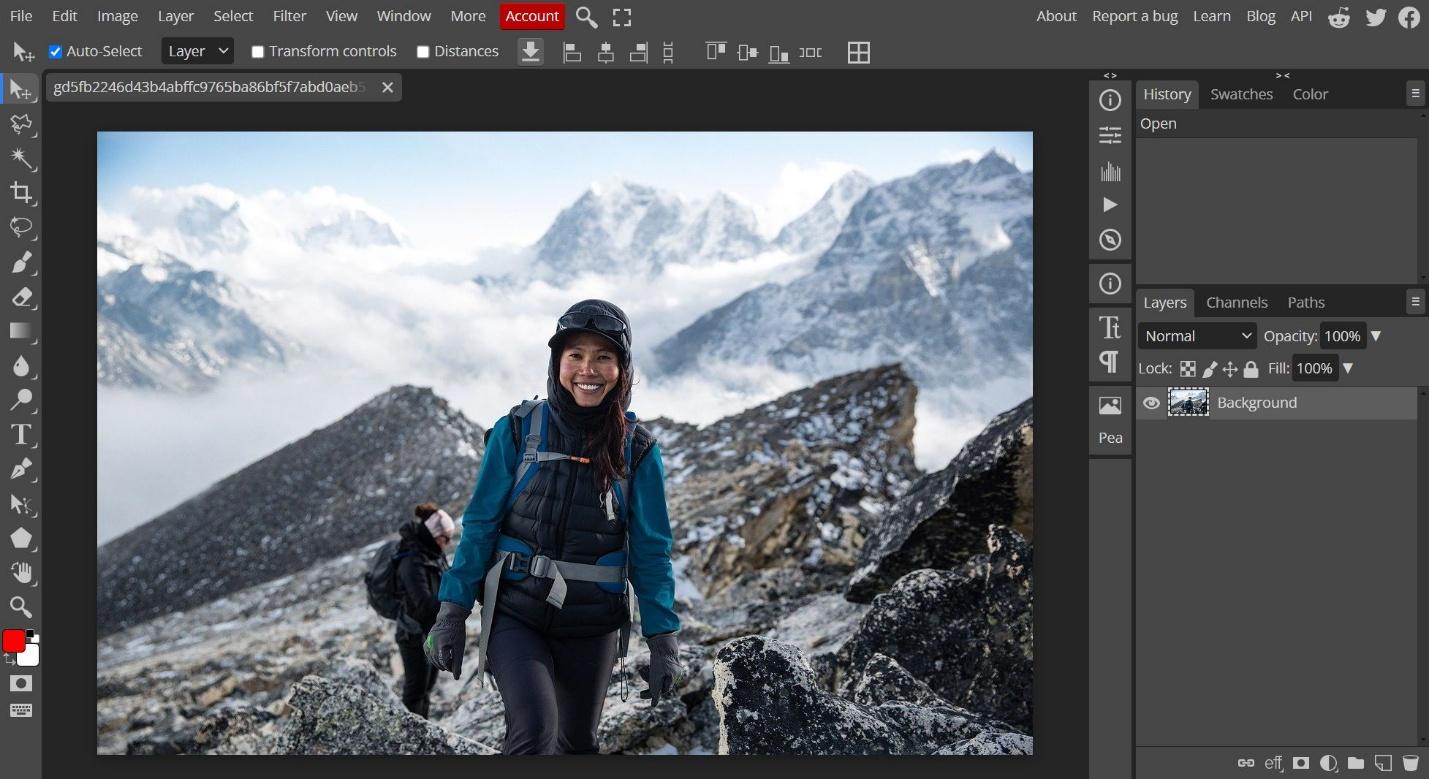
From my experience, the tool feels surprisingly robust for something that runs in a tab. While it cannot fully match the performance of desktop software, the usability and convenience make it a strong choice for everyday editing tasks.
Photopea Features
Key Photopea features that stand out include:
Full support for PSD, AI, XD, and Sketch files
Layer-based editing with masks and adjustment layers
Vector editing tools for shapes, paths, and illustrations
Smart object support and non-destructive editing
Filters, text tools, and blending capabilities similar to Photoshop
Works offline once loaded in the browser
No installation required, unlike photopea download workflows, which are often searched by users
What I appreciate most is the balance between accessibility and professional tooling. It is rare for an online editor to support both raster and vector workflows effectively.
Photopea Pricing
Many users search specifically for Photopea pricing, expecting a paid subscription model due to its advanced features. However, Photopea is completely free to use with ads. The premium plan available for 15 Euros only removes ads and offers a few additional conveniences, but the editing capabilities remain the same for all users. This pricing approach makes it ideal for students or anyone working on a tight budget.
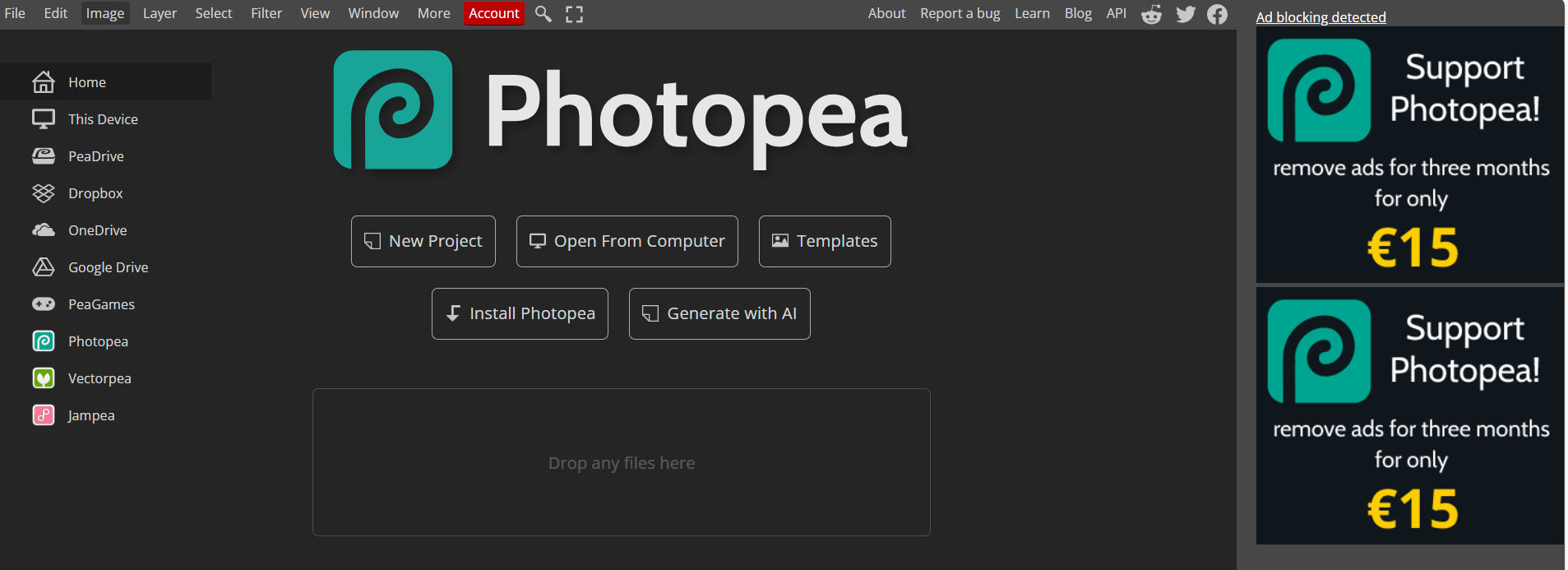
From a practical standpoint, the free version performs well enough for most tasks. The ads can feel distracting during longer editing sessions, but they do not restrict functionality.
Pros
100 percent browser-based; no installation required
Strong compatibility with PSD and vector formats
Familiar Photoshop-like workspace
Fast loading and stable performance on most devices
Free version includes full editing capability
Works as a photopea online photo editor across Windows, macOS, Android, and Linux
Cons
Large files may lag depending on the browser
Fewer automated tools compared to advanced desktop suites
No dedicated mobile app; workflow depends on browser stability
Cannot fully match Photoshop for intensive professional work
Limited AI automation compared to modern editors and Lightroom alternatives
(This also aligns with what users often compare under Photopea vs Lightroom.)
Part 2: How to Use Photopea - A Step-by-Step Guide
Photopea offers a familiar editing workflow, especially for users who have worked with Photoshop before. Even if you are new to advanced editing tools, the interface is straightforward enough to learn gradually. Below is a simple guide to help you begin using the Photopea online photo editor for your first project.
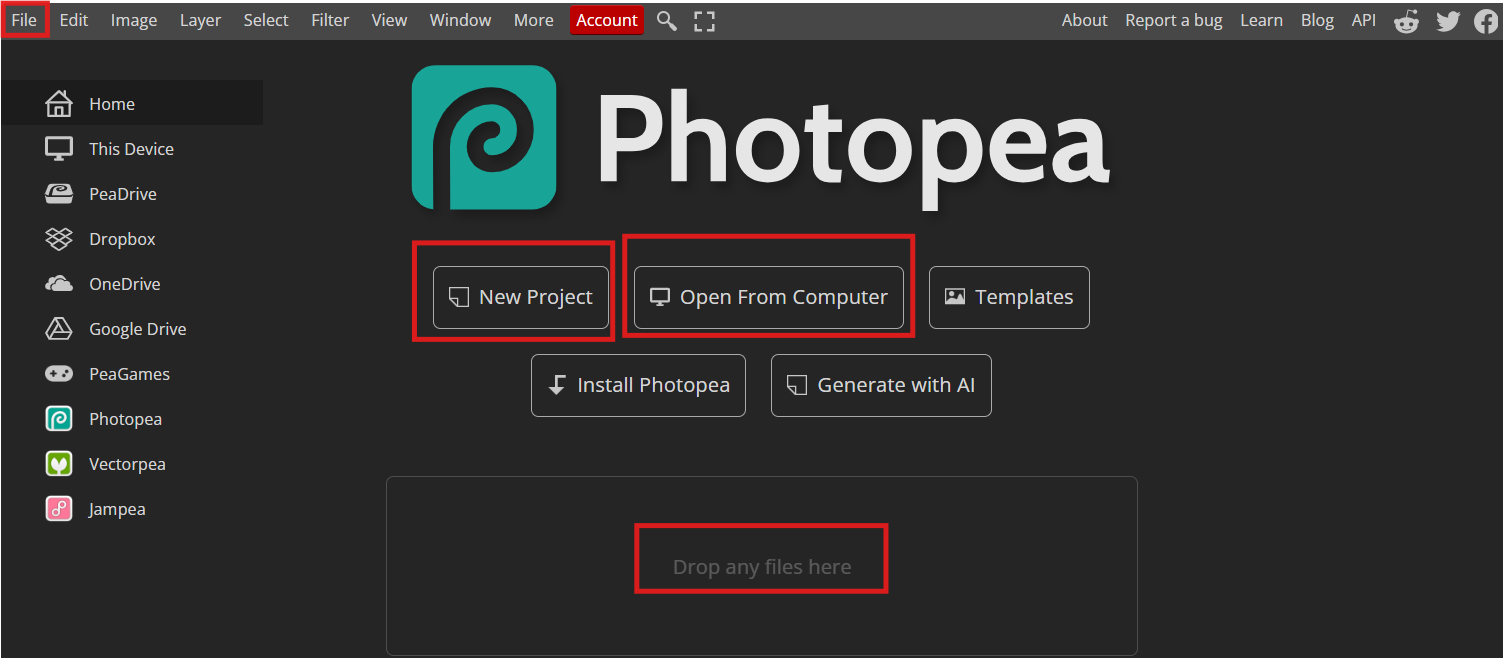
Step 1: Open Photopea in Your Browser
Go to https://www.photopea.com/.
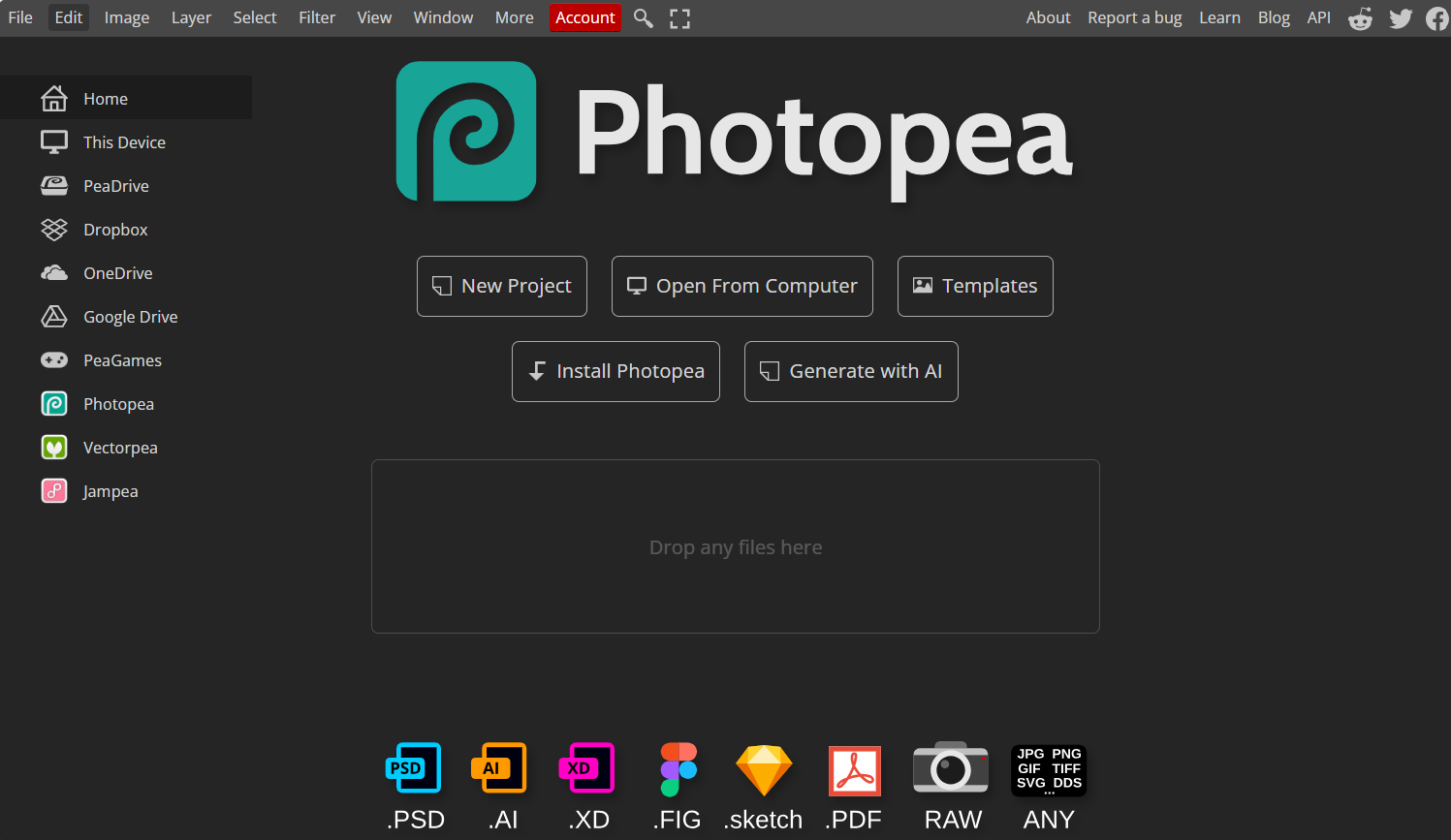
The editor loads immediately without requiring installation or account registration. Once it opens, you will see a workspace similar to Photoshop, complete with toolbars, layers, and a canvas area.
Alt: Photopea homepage and editing interface displayed in the browser.
From my experience, the quick loading time is one of Photopea’s biggest advantages. It makes experimentation easy, especially when you need to edit something quickly on a shared or low-spec device.
Step 2: Upload or Create a New Project
You can start by clicking File > Open to upload a PSD, PNG, JPG, RAW, or Sketch file. Alternatively, choose File > New Project to create a blank canvas. The software also supports drag-and-drop, which is convenient when working with multiple assets.
Most users appreciate that Photopea handles complex PSD files well. In my workflow, it has opened multi-layered documents with surprising accuracy, though very large files may take a few seconds to load.
Step 3: Edit Using Layers, Tools, and Adjustments
Use the toolbar on the left to access tools like selection, brush, eraser, gradient, and vector shapes. The right panel contains layers, channels, and adjustment tools. Since the workflow resembles desktop Photoshop, you can perform tasks such as masking, retouching, color grading, and vector editing with ease.
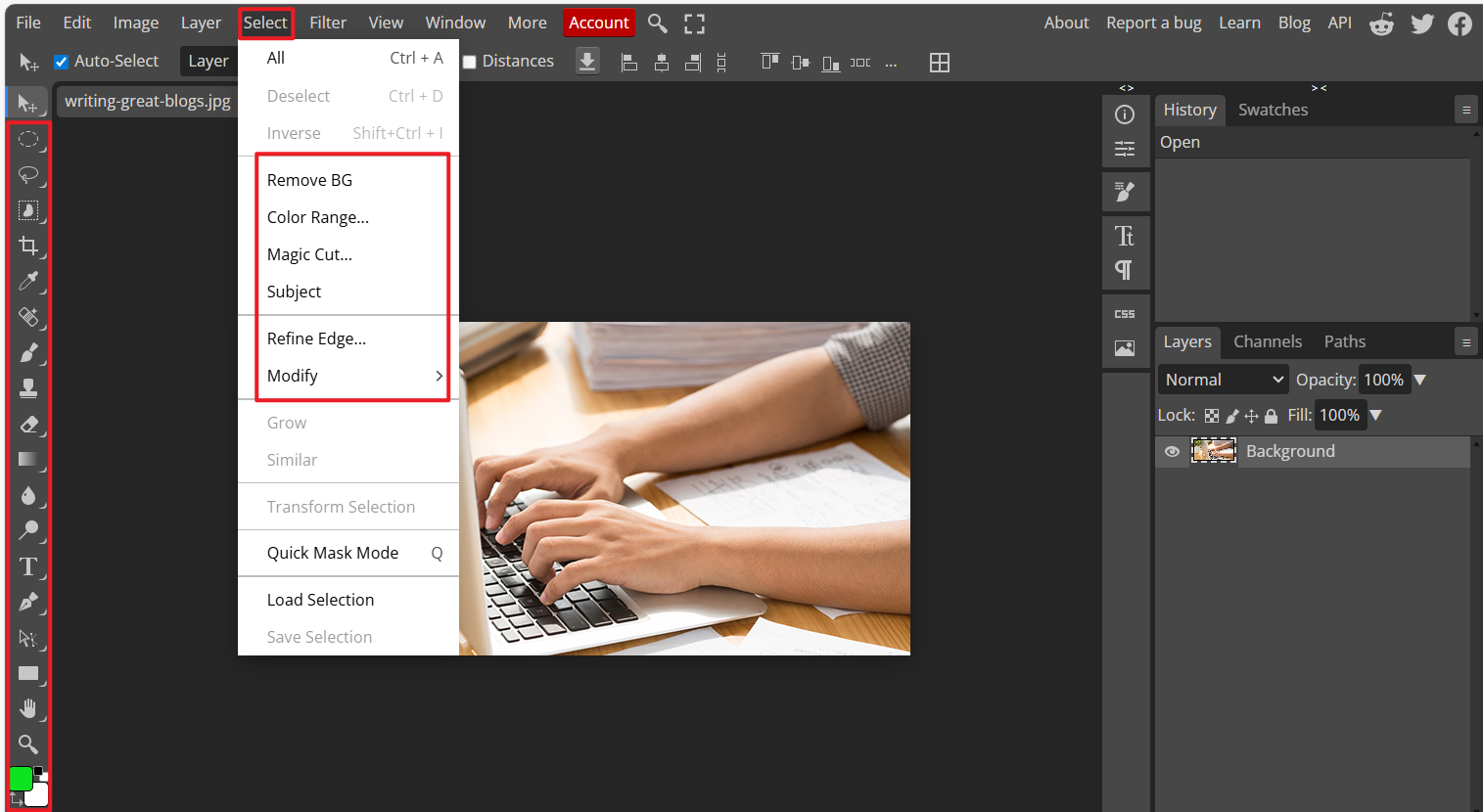
New users often ask whether it can match desktop performance. Based on my experience, Photopea handles everyday editing tasks well. However, if your project involves very large RAW files or complex compositions, you may notice some browser-related slowdowns.
My Experience Using These Steps
After following the steps above, I found that Photopea delivers a smooth editing experience for most tasks. The interface is intuitive, and compatibility with PSD and vector files is impressive. While it cannot fully replace Photoshop for high-end workflows, it works reliably for social media graphics, light retouching, banners, and academic projects. This usability is one of the reasons it remains a popular Photopea Review search topic among new creators.
Part 3: Another AI Photo Solution – WPS Photos
While Photopea excels at manual editing and offers a workflow similar to Photoshop, many users still want a simpler tool for quick enhancement. In cases where you only need to improve image clarity, retouch portraits, or remove backgrounds automatically, a lightweight AI solution can save significant time. That is where WPS Photos becomes a useful companion tool.
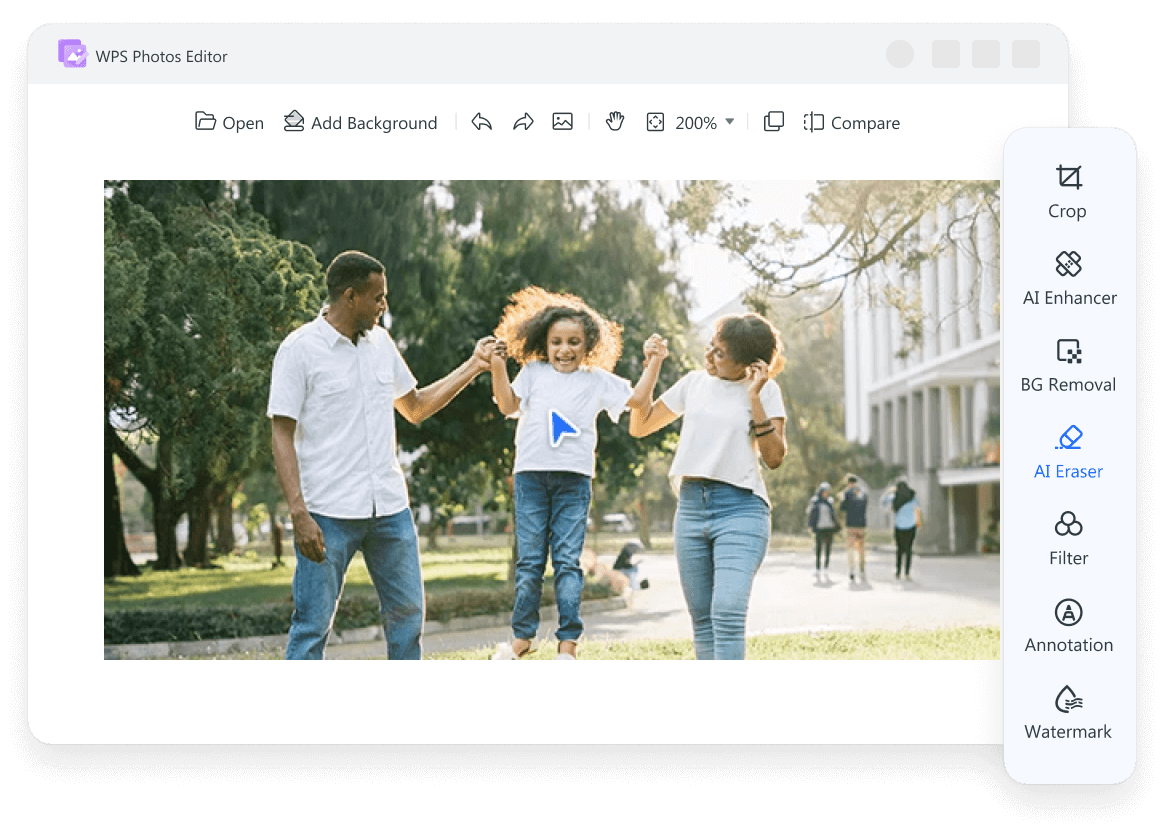
WPS Photos is an AI-driven photo editor designed for users who prefer automatic enhancement rather than manual adjustments. It focuses on speed, simplicity, and clean output quality, making it ideal for beginners or creators who do not want to learn complex editing tools. Unlike Photopea, which requires some familiarity with layers and masks, WPS Photos handles improvements in a single click.
From my experience, the tool performs impressively well on low-light images, portraits, and blurred photos. It offers a straightforward workflow that helps users get a polished result without spending too much time adjusting sliders or layers.
Features
AI-Based Photo Enhancement
WPS Photos analyzes lighting, contrast, and noise levels to automatically improve overall image quality. This works particularly well for travel photos, product shots, and casual mobile photography.
One-Click Background Removal
The background removal tool isolates subjects with strong accuracy and delivers clean cutouts suitable for presentations, social media, and design tasks.
AI Upscaling for Clarity Restoration
If you are dealing with old or low-resolution images, the AI upscaling feature helps restore detail while preserving natural textures. In my experience, this tool performs better than many free web-based upscalers.
How to Use WPS Photos
Below is a simple guide on how to enhance a photo using WPS Photos.
Step 1: Open Your Image
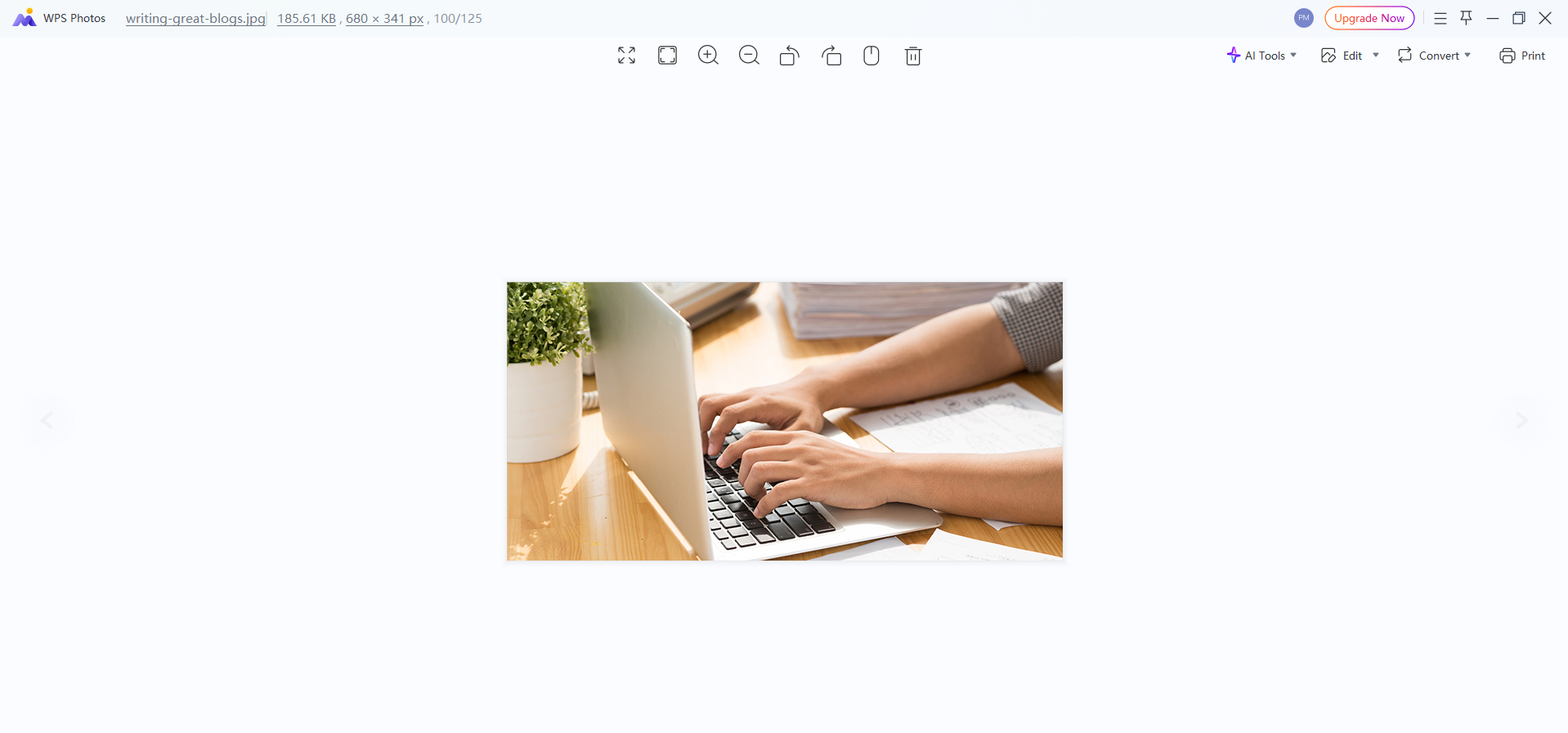
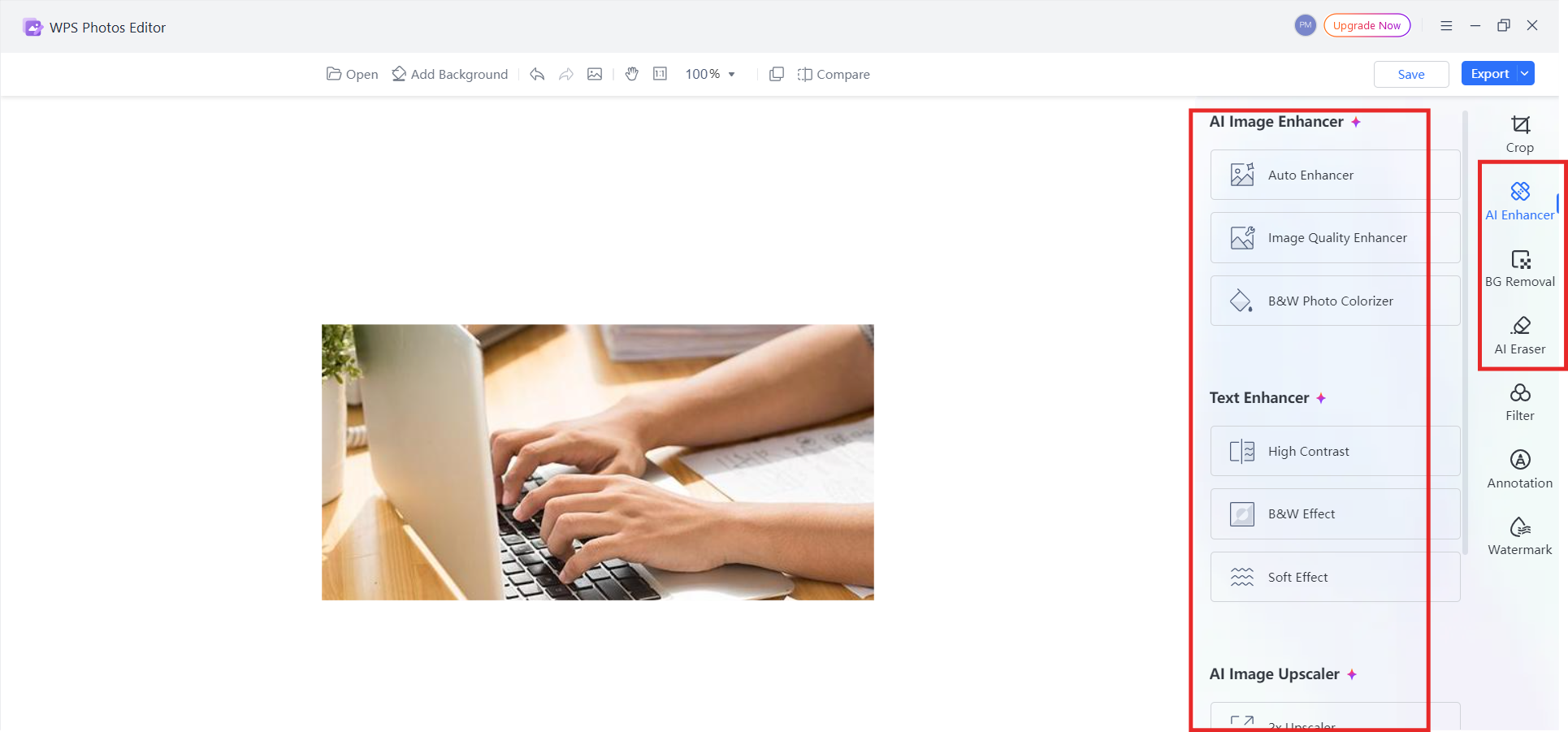
Open the photo you want to enhance with WPS Photos.
Step 2: Edit with WPS Photos
Click Edit and apply WPS AI photo enhancement tools.
Step 3: Export or Save
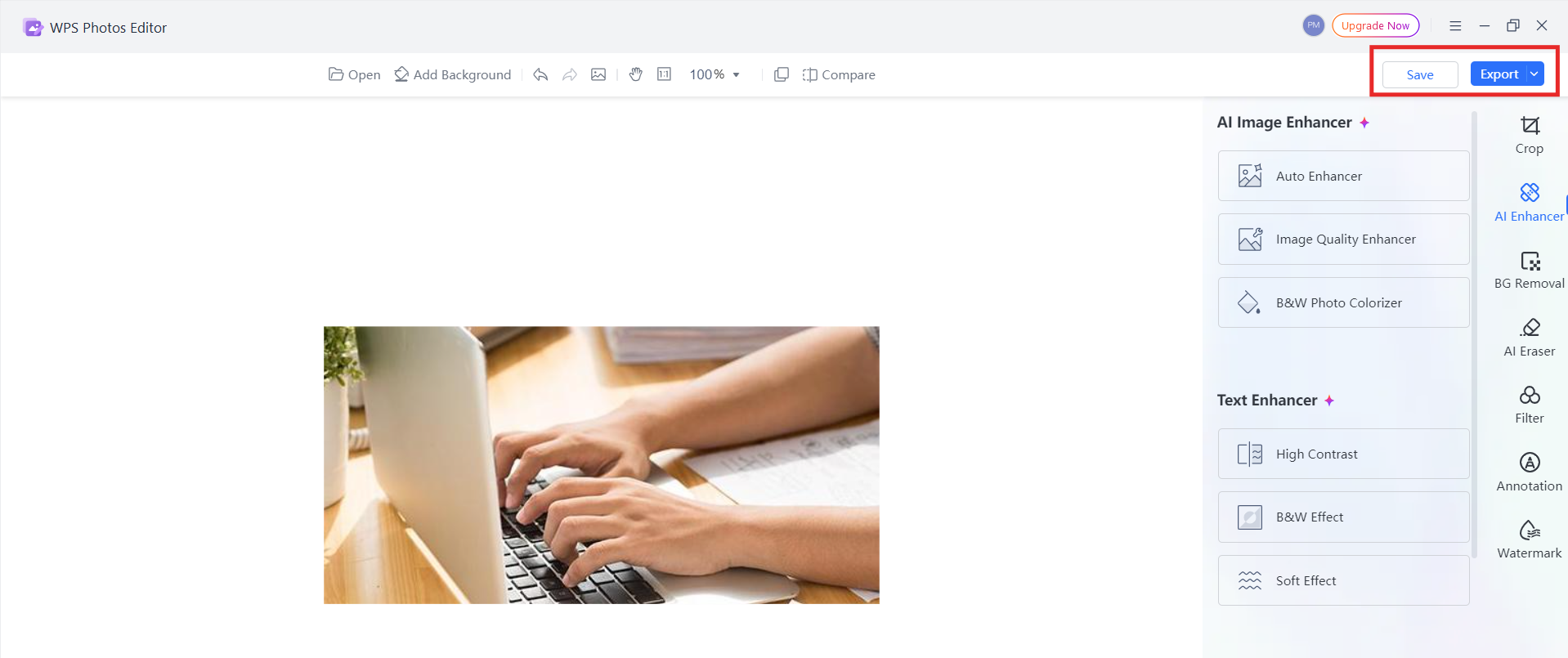
The preview updates automatically. Select the export type once you’re satisfied.
My Experience Using WPS Photos
Using WPS Photos feels refreshingly simple. Even when working with low-quality mobile images, the AI enhancement produces a noticeable improvement in brightness and detail. Compared with photo editors that require manual retouching, this tool offers an efficient workflow for beginners or those who need quick, consistent results.
For users comparing manual tools like Photopea against AI-driven options, WPS Photos stands out as a fast and accessible solution.
Part 4: Comparison Between Photopea and WPS Photos
Photopea and WPS Photos serve different types of users, but many creators use them together depending on their workflow. Photopea is ideal for manual control and advanced editing, while WPS Photos focuses on fast AI enhancements. The table below highlights their differences in terms of usability, automation, performance, and overall editing experience.
Comparison Table
| Feature / Criteria | Photopea | WPS Photos |
|---|---|---|
| Ease of Use | Requires some learning; similar to Photoshop with layers, masks, and manual tools. | Very easy; one-click AI tools designed for beginners. |
| Type of Editing | Manual, layer-based, professional-style editing. | AI-driven automatic enhancement and retouching. |
| Automation | Minimal automation; users control every detail. | Strong automation with AI enhancement, background removal, and upscaling. |
| File Support | Wide support including PSD, XD, Sketch, RAW, and vector files. | Supports standard image formats; optimized for consumer photography. |
| Performance | Browser-based; can lag with very large files. | Fast and stable with lightweight AI processing. |
| Batch Support | Limited; editing is primarily individual files. | Supports quick repeated enhancements but not full batch processing. |
| Output Quality | High-quality manual results; ideal for design work. | Clean output for portraits, mobile images, and general improvement. |
| Pricing | Free with ads; optional premium plan to remove ads. | Free for basic tools; additional AI features are in paid versions. |
| Best For | Designers, students, and marketers need control and complex edits. | Beginners, mobile creators, and users needing quick improvements. |
From my experience using both tools, they do not compete as much as users expect. Photopea is excellent for design tasks, multi-layer compositions, and advanced projects. WPS Photos fills the gap for quick enhancements where manual editing is unnecessary. Together, they create a flexible workflow for users who want both precision and speed.
If your priority is full editing control, Photopea remains the stronger choice. However, if you prefer simple automatic improvement without learning complex tools, WPS Photos provides a more efficient path.
FAQs
Q1: Is Photopea free to use?
Yes. Photopea is completely free and supported by ads, which allows users to access all editing features without limitations. There is also a premium plan that removes ads, but the editing capabilities remain the same for all users.
Q2: Can Photopea replace Photoshop?
For many users, especially students, beginners, and creators working on lightweight professional tasks, Photopea can function as a practical alternative. However, when comparing Photopea vs Photoshop, the desktop version still offers more advanced AI tools, smoother performance for large files, and broader integration with Adobe’s ecosystem.
Q3: What is the difference between Photopea and WPS Photos?
Photopea is a manual editor built for detailed control over layers, masks, and vector elements. It mirrors a traditional desktop editing workflow. WPS Photos, on the other hand, focuses on AI-based automatic enhancement, background removal, and quick clarity restoration. One is suited for creative control; the other is designed for speed and convenience.
Q4: Which tool is better for beginners?
WPS Photos is more suitable for beginners because it relies on AI-driven enhancements that require no technical learning. Photopea provides deeper editing tools, which makes it better for users who want precision and are comfortable with manual adjustments.
Summary
In this Photopea Review, we explored why Photopea has become a widely adopted browser-based editor for designers, students, marketers, and everyday content creators. Its ability to replicate Photoshop’s workflow, support PSD and vector formats, and run directly online makes it a practical choice for users who want professional tools without installation or subscription costs.
For beginners or users who prefer streamlined editing, WPS Photos provides an effective alternative. Its AI-driven enhancement, background removal, and upscaling features simplify the editing process and deliver polished results with minimal effort. While Photopea excels in manual control, WPS Photos stands out as a convenient companion tool for quick adjustments and automatic improvements.

'%3e%3cpath%20d='M19.9911%204.11386V6.471H18.5894C18.0775%206.471%2017.7322%206.57814%2017.5536%206.79243C17.3751%207.00671%2017.2858%207.32814%2017.2858%207.75671V9.44421H19.9019L19.5536%2012.0871H17.2858V18.8639H14.5536V12.0871H12.2769V9.44421H14.5536V7.49779C14.5536%206.39064%2014.8632%205.53201%2015.4822%204.92189C16.1013%204.31177%2016.9257%204.00671%2017.9554%204.00671C18.8304%204.00671%2019.509%204.04243%2019.9911%204.11386Z'%20fill='%23333333'/%3e%3c/g%3e%3cdefs%3e%3cclipPath%20id='clip0_2938_8199'%3e%3crect%20width='16'%20height='16'%20fill='white'%20transform='translate(8%204.00671)'/%3e%3c/clipPath%3e%3c/defs%3e%3c/svg%3e)
'%3e%3cpath%20d='M17.5237%2010.7813L23.4811%204H22.0699L16.8949%209.88693L12.7648%204H8L14.2469%2012.9029L8%2020.0133H9.4112L14.8725%2013.7952L19.2352%2020.0133H24M9.92053%205.04213H12.0885L22.0688%2019.0224H19.9003'%20fill='%23333333'/%3e%3c/g%3e%3cdefs%3e%3cclipPath%20id='clip0_2938_8200'%3e%3crect%20width='16'%20height='16.0134'%20fill='white'%20transform='translate(8%204)'/%3e%3c/clipPath%3e%3c/defs%3e%3c/svg%3e)


