

'%3e%3cpath%20d='M8%200C12.4183%200%2016%203.58172%2016%208C16%2012.4183%2012.4183%2016%208%2016C3.58172%2016%200%2012.4183%200%208C0%203.58172%203.58172%200%208%200ZM11.6162%204.38379C11.2257%203.99337%2010.5927%203.99338%2010.2021%204.38379L8%206.58594L5.79785%204.38379C5.40732%203.99334%204.77429%203.99329%204.38379%204.38379C3.99331%204.77429%203.99335%205.40733%204.38379%205.79785L6.58594%208L4.38379%2010.2021C3.99348%2010.5927%203.99341%2011.2257%204.38379%2011.6162C4.77426%2012.0066%205.40734%2012.0065%205.79785%2011.6162L8%209.41406L10.2021%2011.6162C10.5927%2012.0066%2011.2257%2012.0067%2011.6162%2011.6162C12.0067%2011.2257%2012.0066%2010.5927%2011.6162%2010.2021L9.41406%208L11.6162%205.79785C12.0066%205.40735%2012.0066%204.77429%2011.6162%204.38379Z'%20fill='%23080E17'%20fill-opacity='0.46'/%3e%3c/g%3e%3cdefs%3e%3cclipPath%20id='clip0_3761_713'%3e%3crect%20width='16'%20height='16'%20fill='white'/%3e%3c/clipPath%3e%3c/defs%3e%3c/svg%3e)




'%3e%3cpath%20fill-rule='evenodd'%20clip-rule='evenodd'%20d='M21.4999%2010.9993C21.4999%205.20009%2016.7986%200.498901%2010.9993%200.498901C5.19994%200.498901%200.498657%205.20009%200.498657%2010.9993C0.498657%2016.2404%204.33858%2020.5844%209.35855%2021.3722V14.0346H6.69238V10.9993H9.35855V8.68594C9.35855%206.05427%2010.9262%204.60062%2013.3248%204.60062C14.4736%204.60062%2015.6753%204.80571%2015.6753%204.80571V7.38979H14.3512C13.0468%207.38979%2012.64%208.19921%2012.64%209.0296V10.9993H15.5523L15.0867%2014.0346H12.64V21.3722C17.66%2020.5844%2021.4999%2016.2404%2021.4999%2010.9993Z'%20fill='%231568EA'/%3e%3c/g%3e%3c/svg%3e)


'%3e%3cpath%20d='M2.42045%2022.1876H6.31818V12.7217L0.75%208.54553V20.5171C0.75%2021.4414%201.49892%2022.1876%202.42045%2022.1876Z'%20fill='%234285F4'/%3e%3cpath%20d='M19.682%2022.1876H23.5797C24.5041%2022.1876%2025.2502%2021.4387%2025.2502%2020.5171V8.54553L19.682%2012.7217'%20fill='%2334A853'/%3e%3cpath%20d='M19.682%205.48293V12.7216L25.2502%208.54543V6.31816C25.2502%204.25236%2022.8921%203.07469%2021.2411%204.31361'%20fill='%23FBBC04'/%3e%3cpath%20d='M6.31824%2012.7217V5.48303L13.0001%2010.4944L19.6819%205.48303V12.7217L13.0001%2017.733'%20fill='%23EA4335'/%3e%3cpath%20d='M0.75%206.31816V8.54543L6.31818%2012.7216V5.48293L4.75909%204.31361C3.10534%203.07469%200.75%204.25236%200.75%206.31816Z'%20fill='%23C5221F'/%3e%3c/g%3e%3cdefs%3e%3cclipPath%20id='clip0_2954_7305'%3e%3crect%20width='24.5'%20height='18.375'%20fill='white'%20transform='translate(0.75%203.8125)'/%3e%3c/clipPath%3e%3c/defs%3e%3c/svg%3e)


When you need to present dates, milestones, or project phases, a clear timeline matters more than flashy design. Many users search for a PowerPoint timeline template because they want something practical, editable, and ready to use. The challenge is finding a template that looks professional without spending hours adjusting shapes and spacing. That’s why ready-made timeline templates remain one of the most efficient tools for project planning and reporting.


Part 1. Top 10 PowerPoint Timeline Template
Below are practical PowerPoint timeline template options that cover common use cases, from simple project planning to business roadmaps and marketing schedules. Each template is easy to adapt, making it suitable for users who want a simple PowerPoint timeline template without complex design work.
PowerPoint Basic Timeline Template
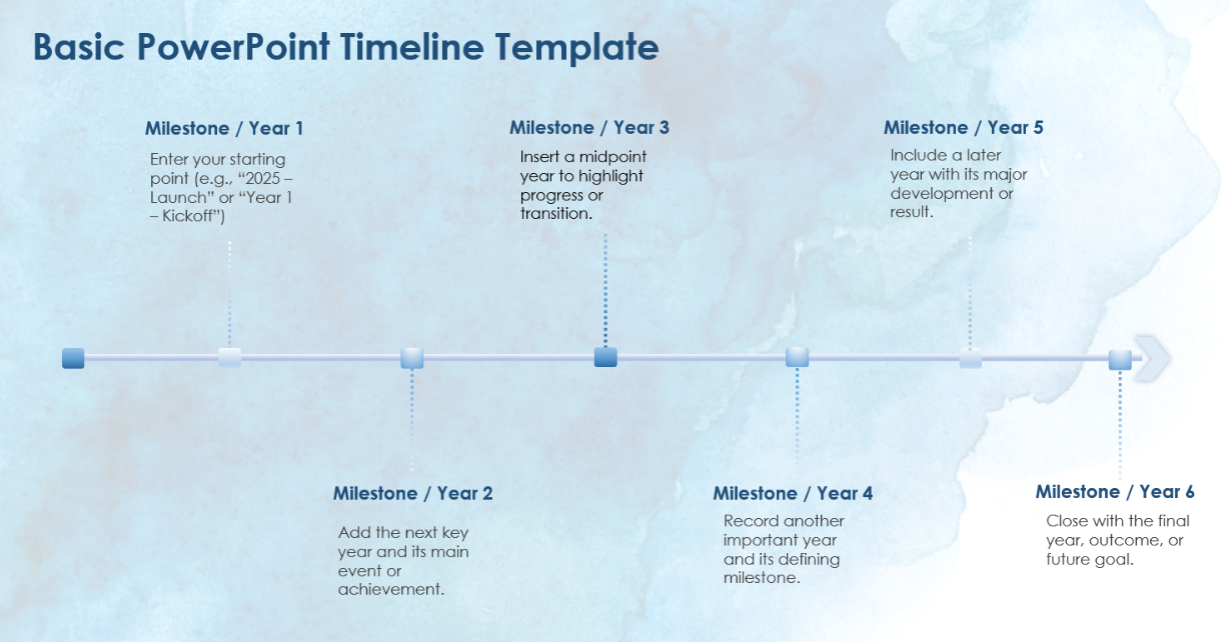
This basic layout is ideal if you want a clean and minimal timeline. It presents milestones in a straight horizontal flow, making dates easy to read at a glance. I find this type of editable PowerPoint timeline template works best for internal reports and quick status updates where clarity matters more than visuals.
PowerPoint Arrow Timeline Template
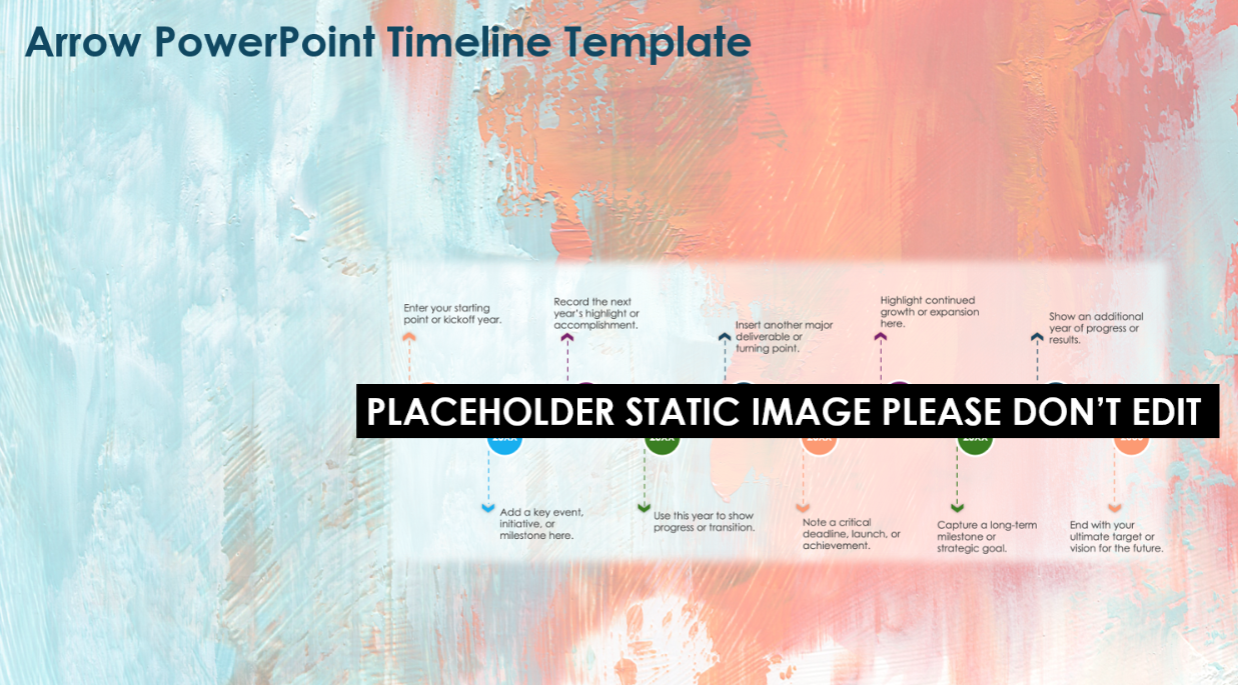
The arrow-style timeline emphasizes direction and progress. It is especially useful for strategic plans or phased projects where each step leads clearly to the next. Compared to basic layouts, this design adds visual momentum without becoming distracting, which helps when presenting to stakeholders.
Circular PowerPoint Timeline Template
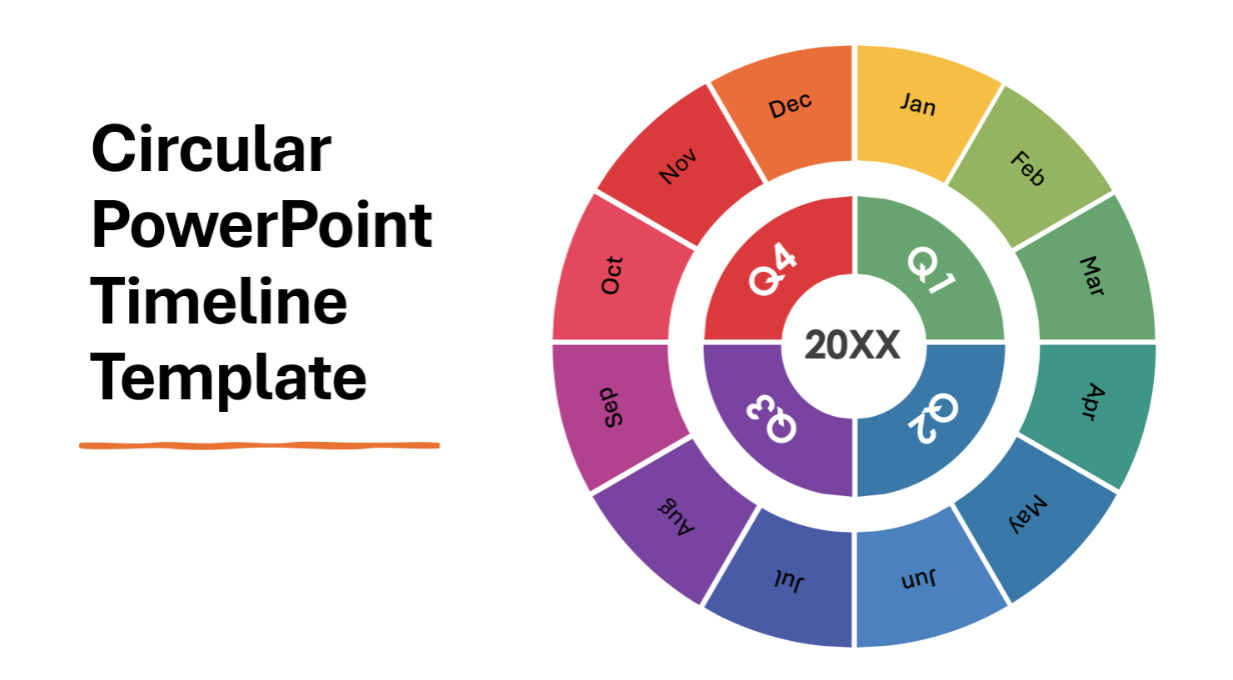
A circular timeline is effective for recurring processes, product cycles, or yearly planning. Instead of a linear flow, it highlights continuity. From my experience, this format works well when you want to show that a project or process does not have a fixed endpoint.
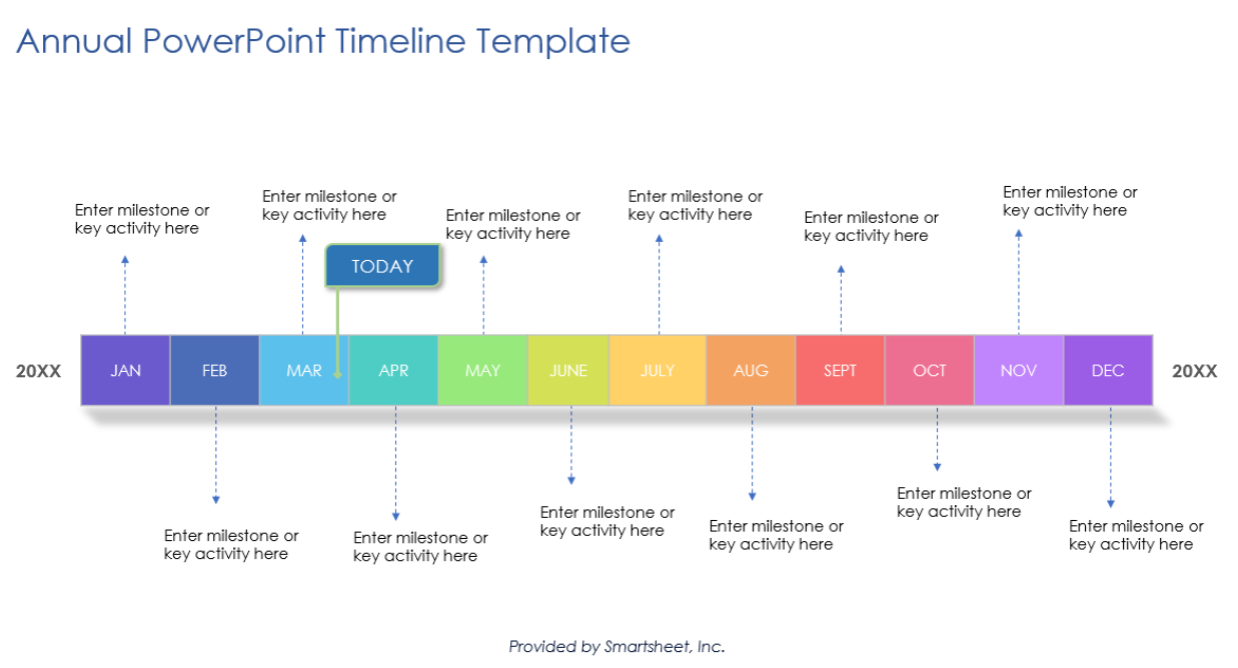
PowerPoint Annual Timeline Template
This template is designed for year-based planning and is often used as a 12-month timeline PowerPoint template. It breaks the year into clear segments, making it easier to assign milestones to specific months. It’s a strong choice for annual goals, roadmaps, and performance planning.
PowerPoint Agile Timeline Template
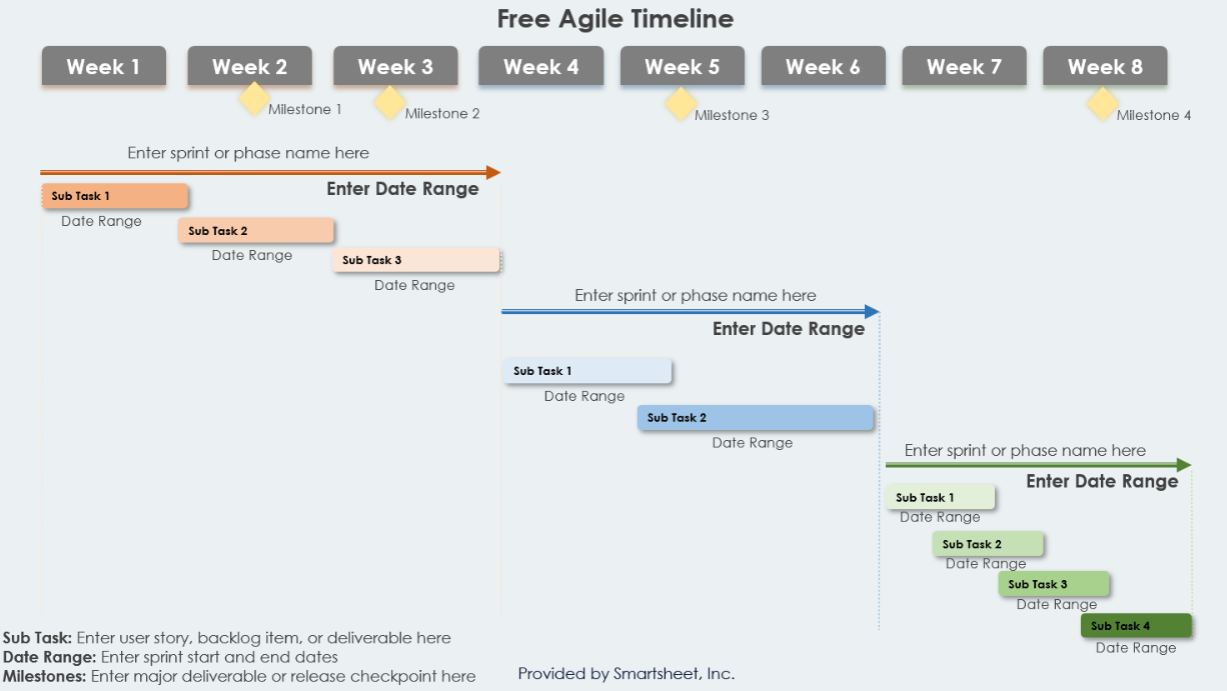
The agile timeline template is structured around short phases and iterations rather than long-term milestones. This makes it suitable for development teams and fast-moving projects. I find it helpful when updates change frequently, and the timeline needs regular adjustments.
PowerPoint Business Plan Timeline Template
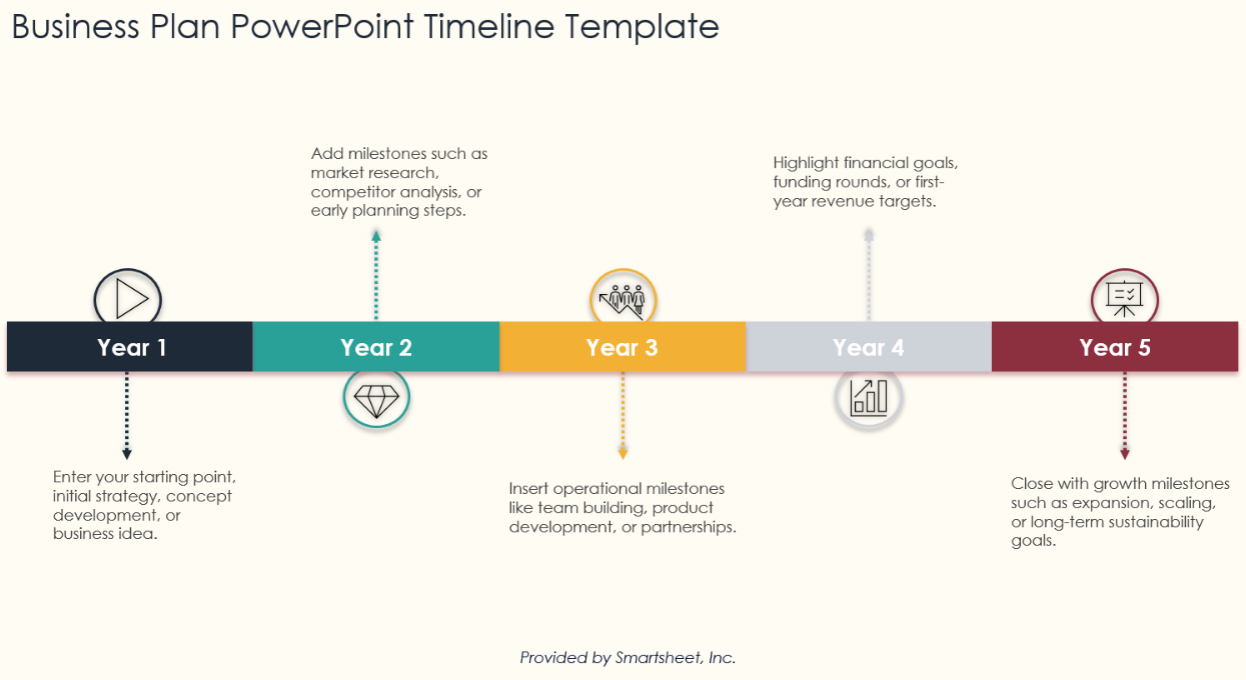
This template focuses on business phases such as research, launch, and growth. It is structured and formal, which makes it suitable for presentations to investors or management teams. The layout supports clear sequencing without overwhelming the slide.
PowerPoint Roadmap Timeline Template
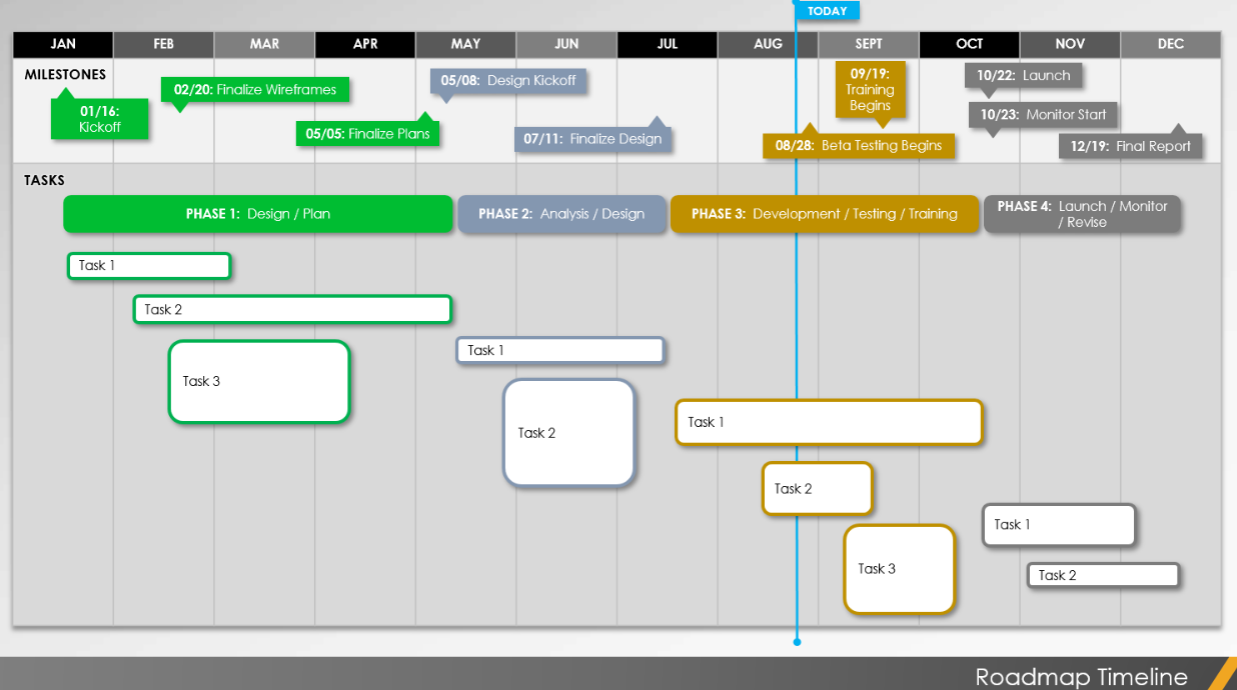
Roadmap timelines are commonly used for product development and long-term planning. This format clearly shows how milestones connect over time. In practice, it works well as a PowerPoint project timeline template when aligning teams around future goals.
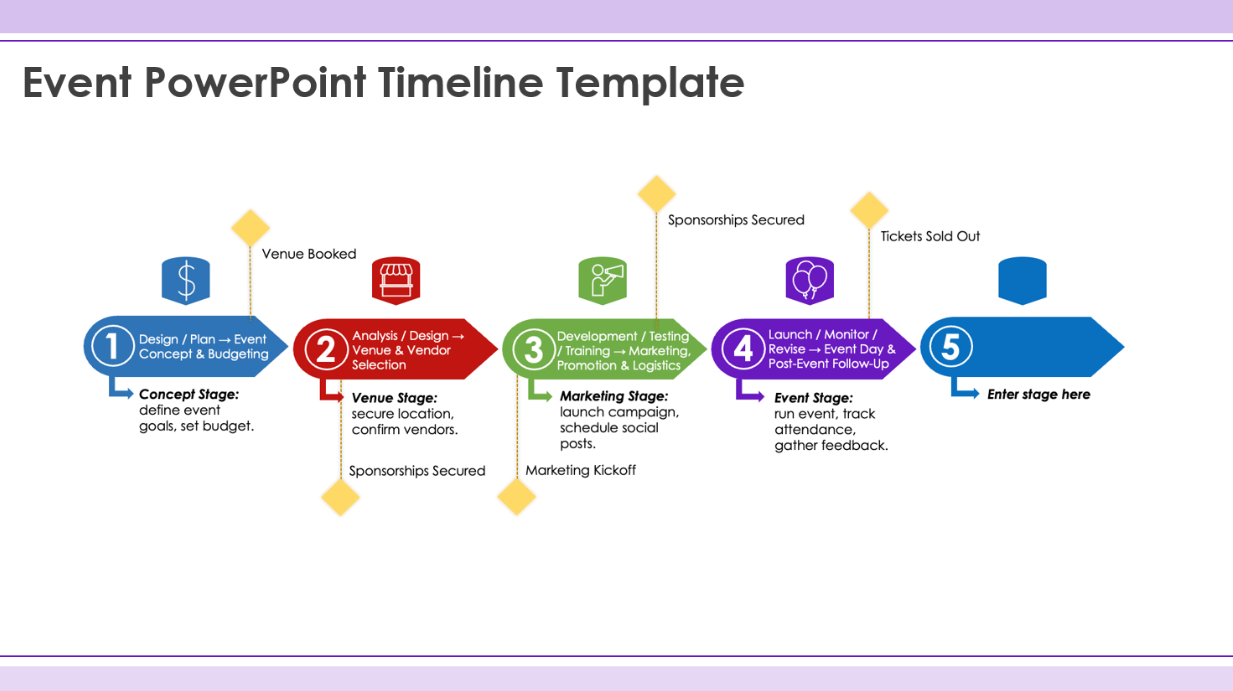
PowerPoint Event Timeline Template
Event timelines help map preparation stages, key dates, and follow-up tasks. This template keeps everything organized on a single slide, which is useful when coordinating multiple deadlines leading up to an event.
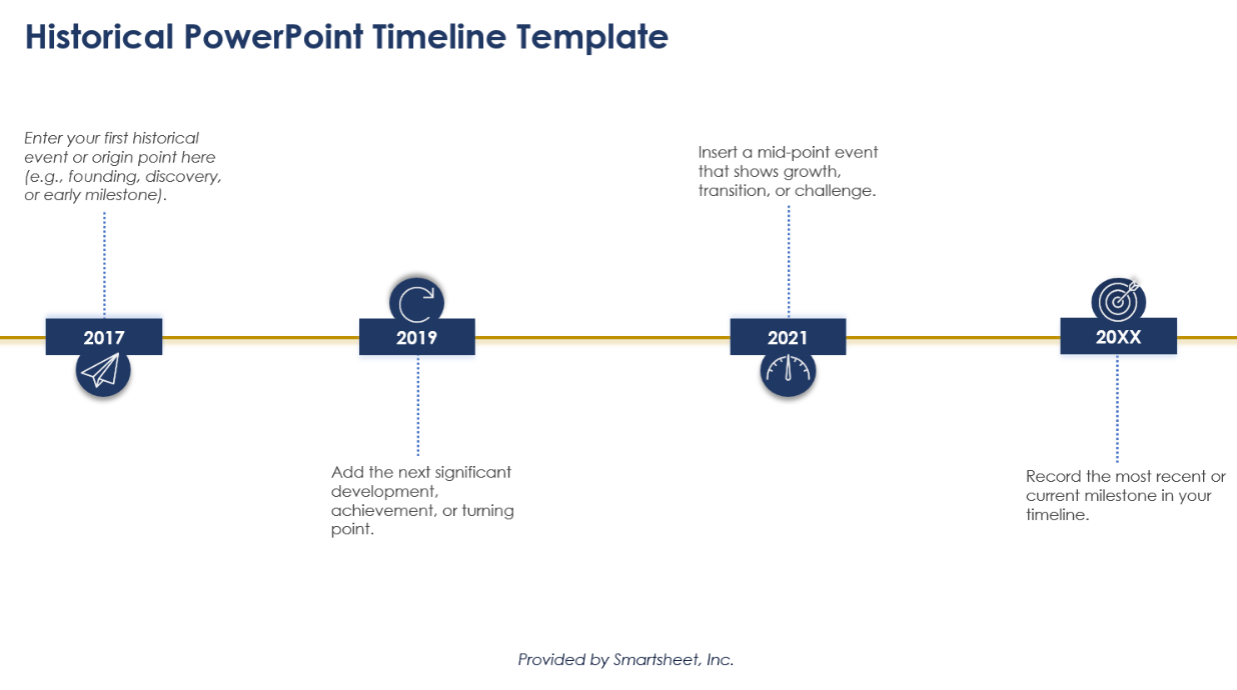
PowerPoint Historical Timeline Template
Historical timelines are designed to display events in chronological order. This layout works well for educational content, company history slides, or case studies where dates and context need to be clearly connected.
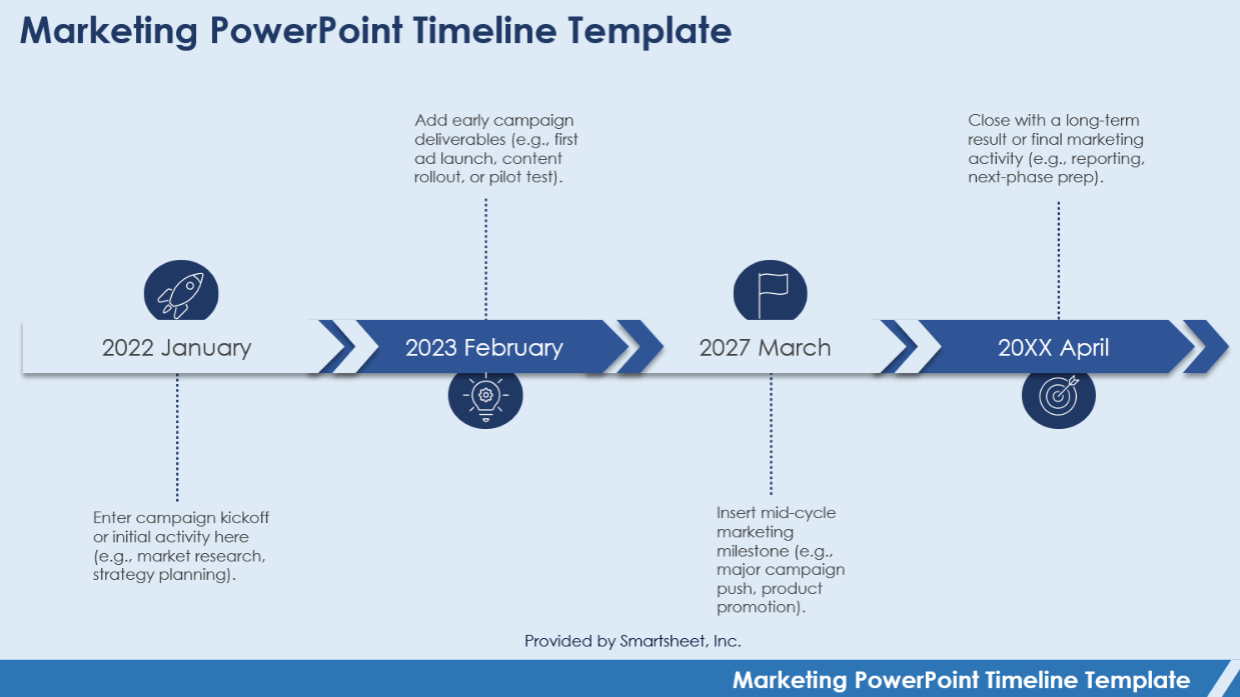
PowerPoint Marketing Timeline Template
Marketing timelines focus on campaigns, channels, and launch phases. This template makes it easier to visualize overlapping activities and deadlines. I’ve found it useful when coordinating content, ads, and promotions across different periods.
Part 2. How to Further Edit and Print an Optimized Timeline PowerPoint
The templates recommended above provide ready-made structures for different timeline needs, such as projects, events, and business planning. After downloading a suitable PowerPoint timeline template, users can further refine it to match their content, branding, and output format. For efficient editing and exporting, WPS tools offer a practical and beginner-friendly solution.
How to Edit a PowerPoint Timeline Template in WPS Office
Step 1: Open the template in WPS Presentation
Download the selected template and open it using WPS Presentation. The layout, shapes, and text elements remain fully editable.
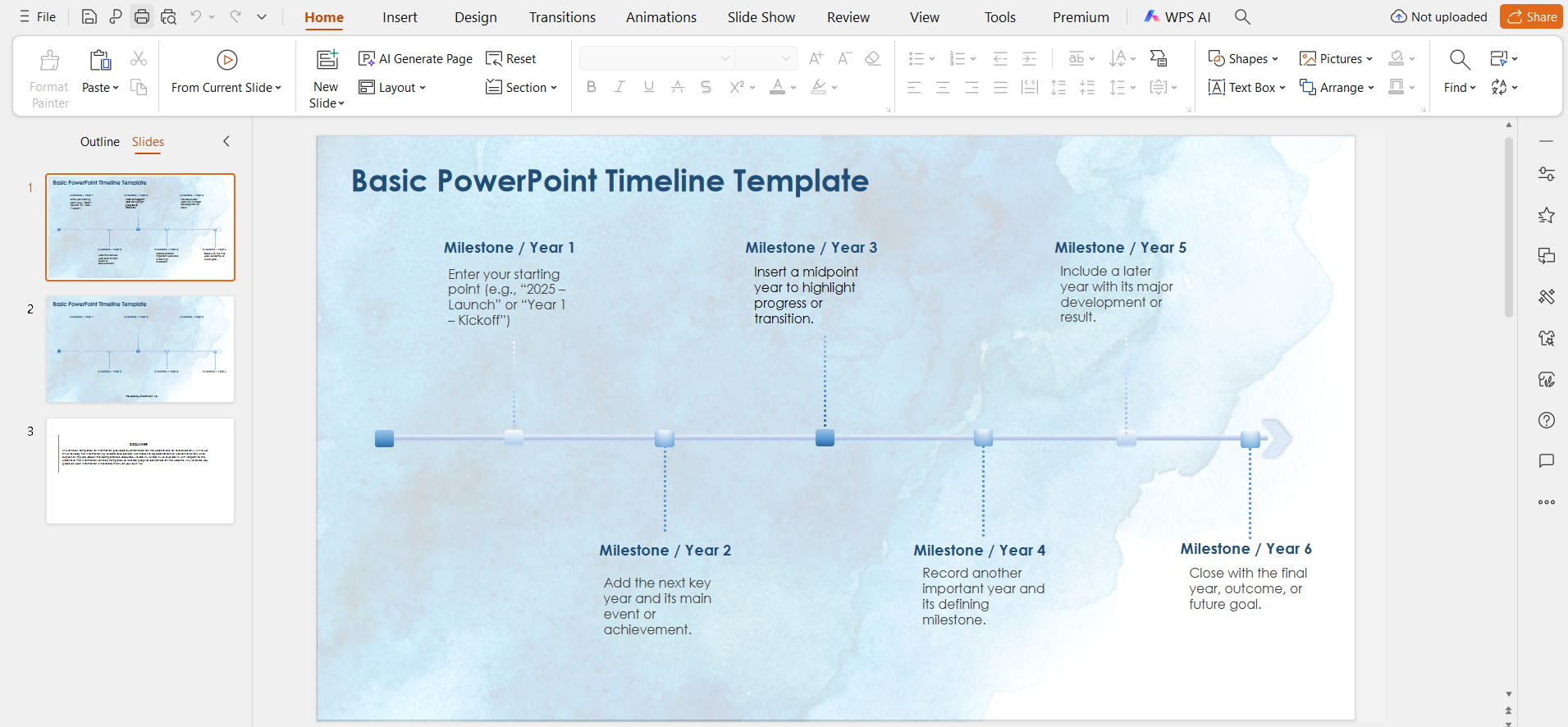
Step 2: Edit dates and milestones
Click on any text box to update dates, titles, or descriptions. This makes it easy to create a PowerPoint timeline template with dates without rebuilding the slide from scratch.
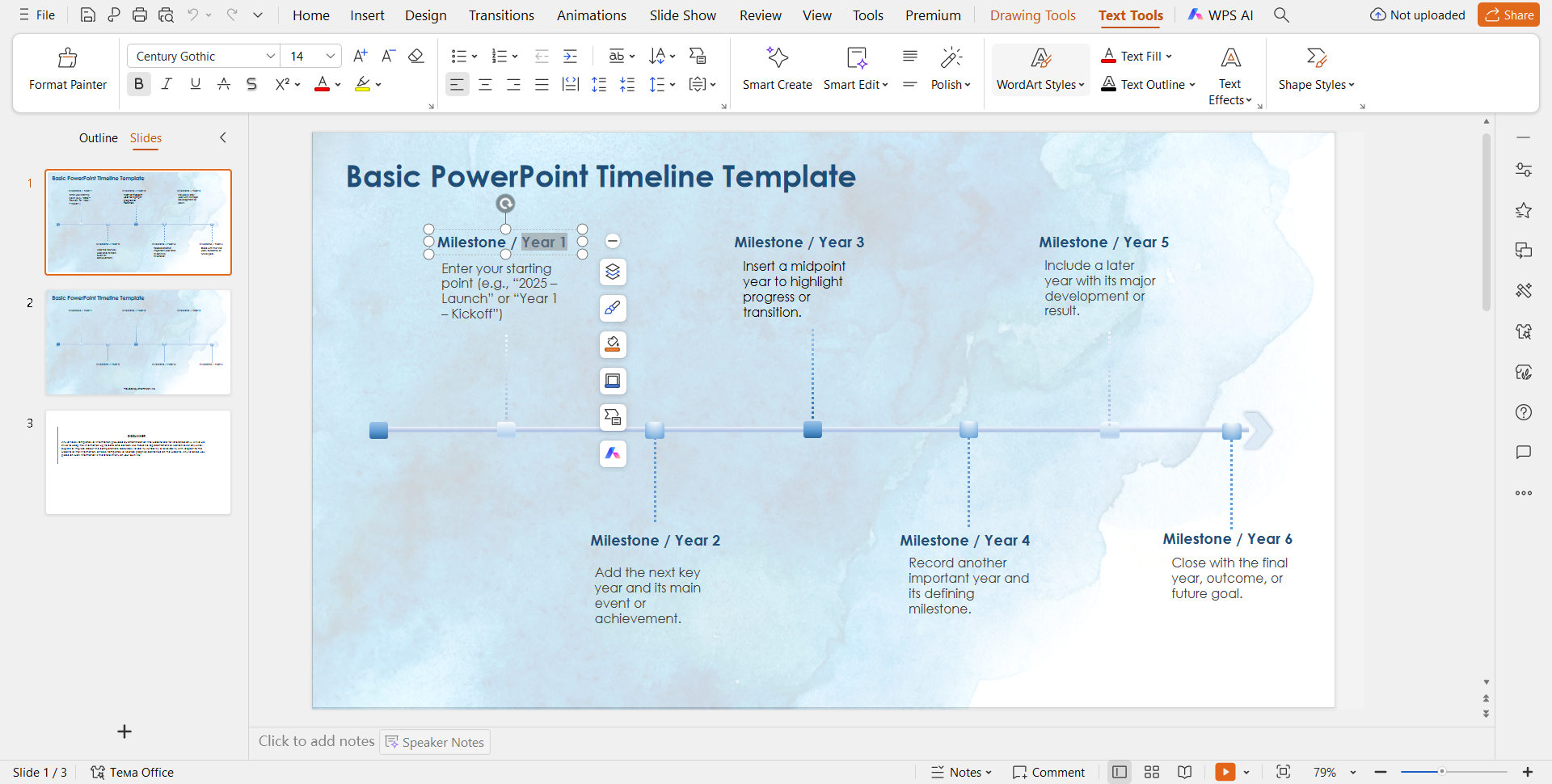
Step 3: Adjust layout and orientation
Resize or reposition shapes to improve spacing. If you are working with a PowerPoint timeline template with vertical layout, alignment tools help keep the design clean and balanced.
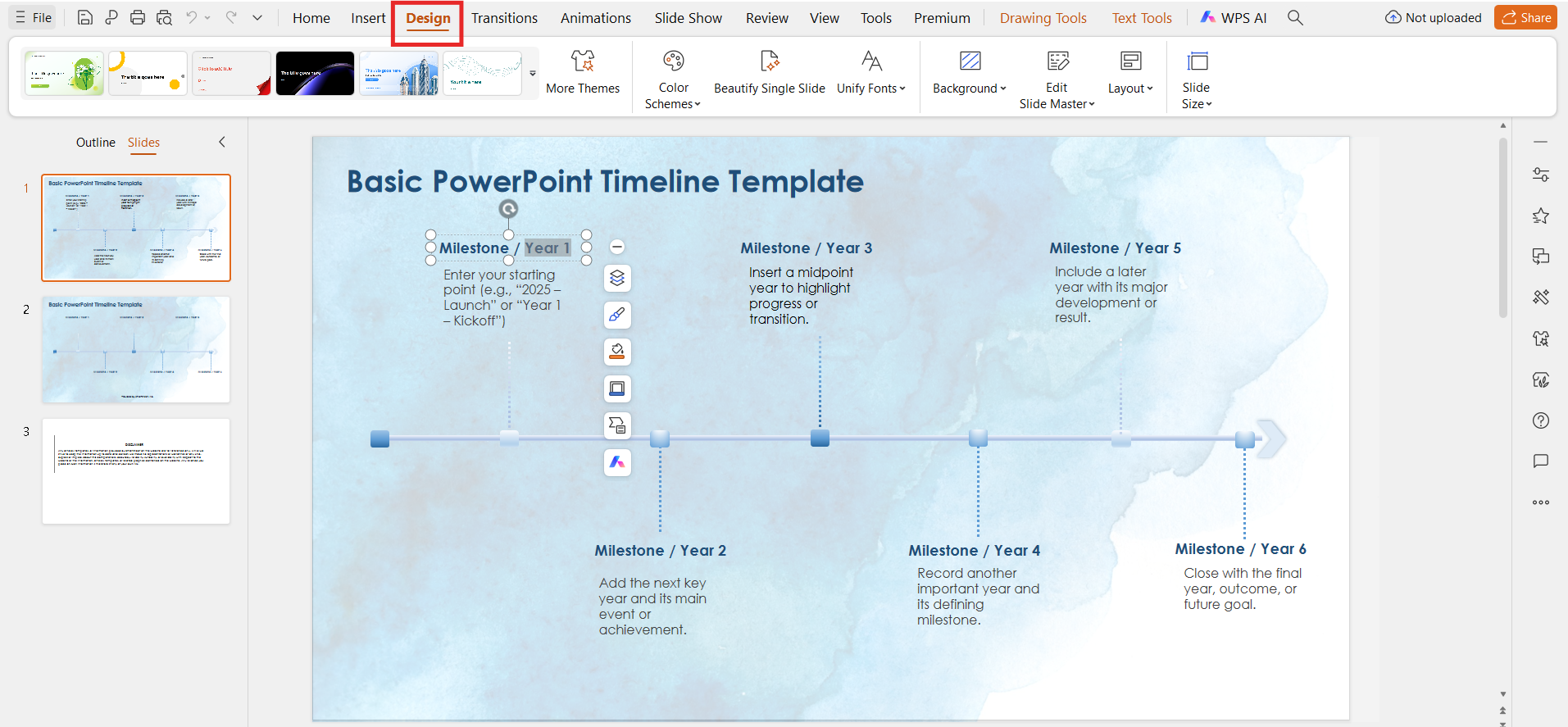
Step 4: Customize colors and fonts
Apply brand colors or presentation themes through the design panel. This step turns a generic slide into a polished, editable PowerPoint timeline template.
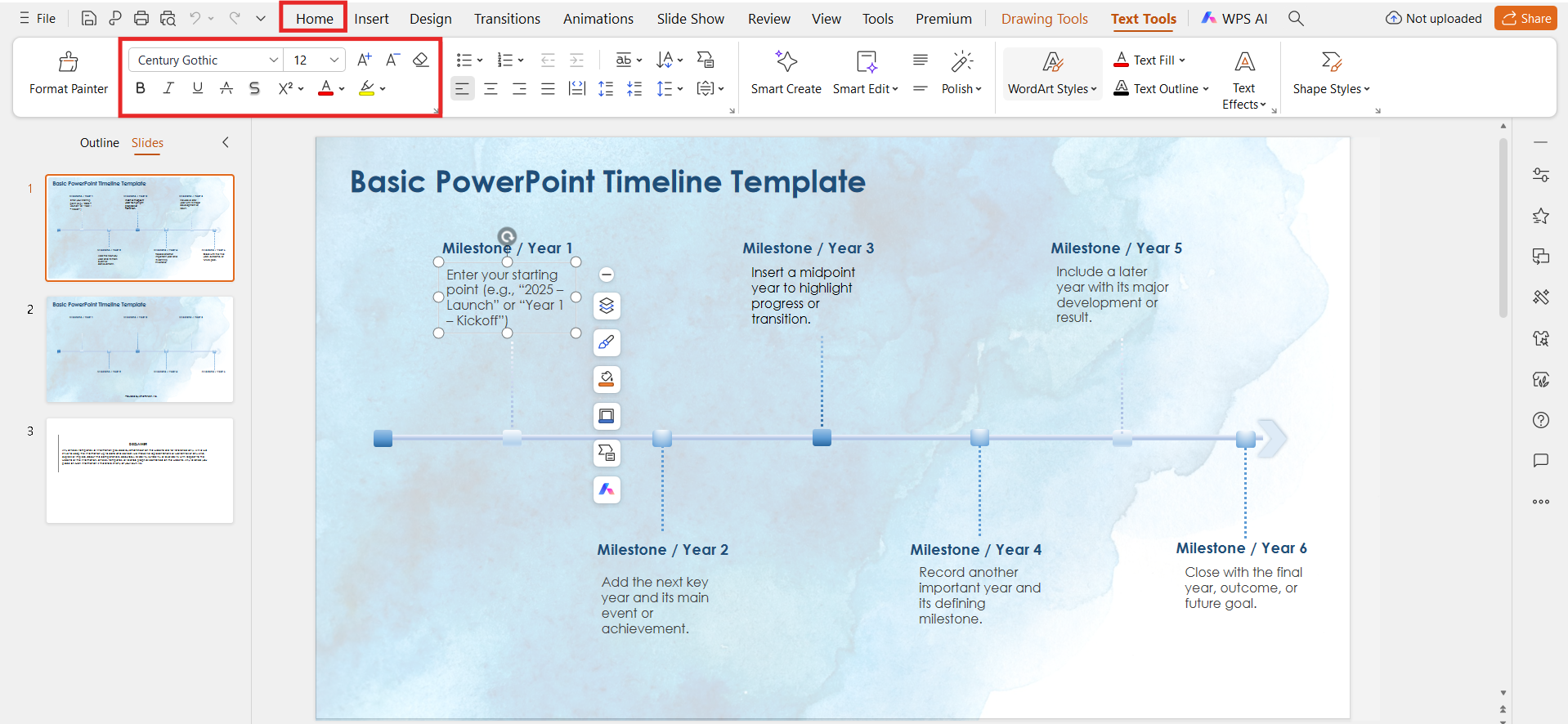
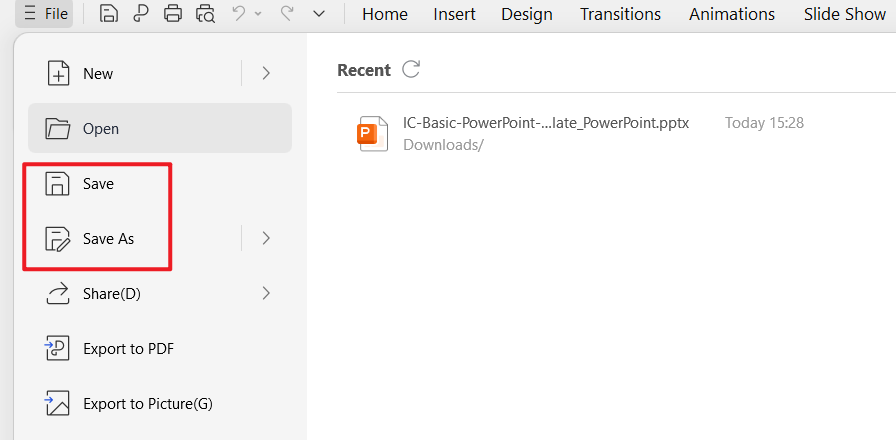
Step 5: Save the presentation
Save the edited file in PPTX format for further revisions or collaboration.
Editing Timeline Templates in PDF Format with WPS PDF
If the timeline needs to be reviewed or shared as a document:
Export the presentation as a PDF.
Open the file in WPS PDF.
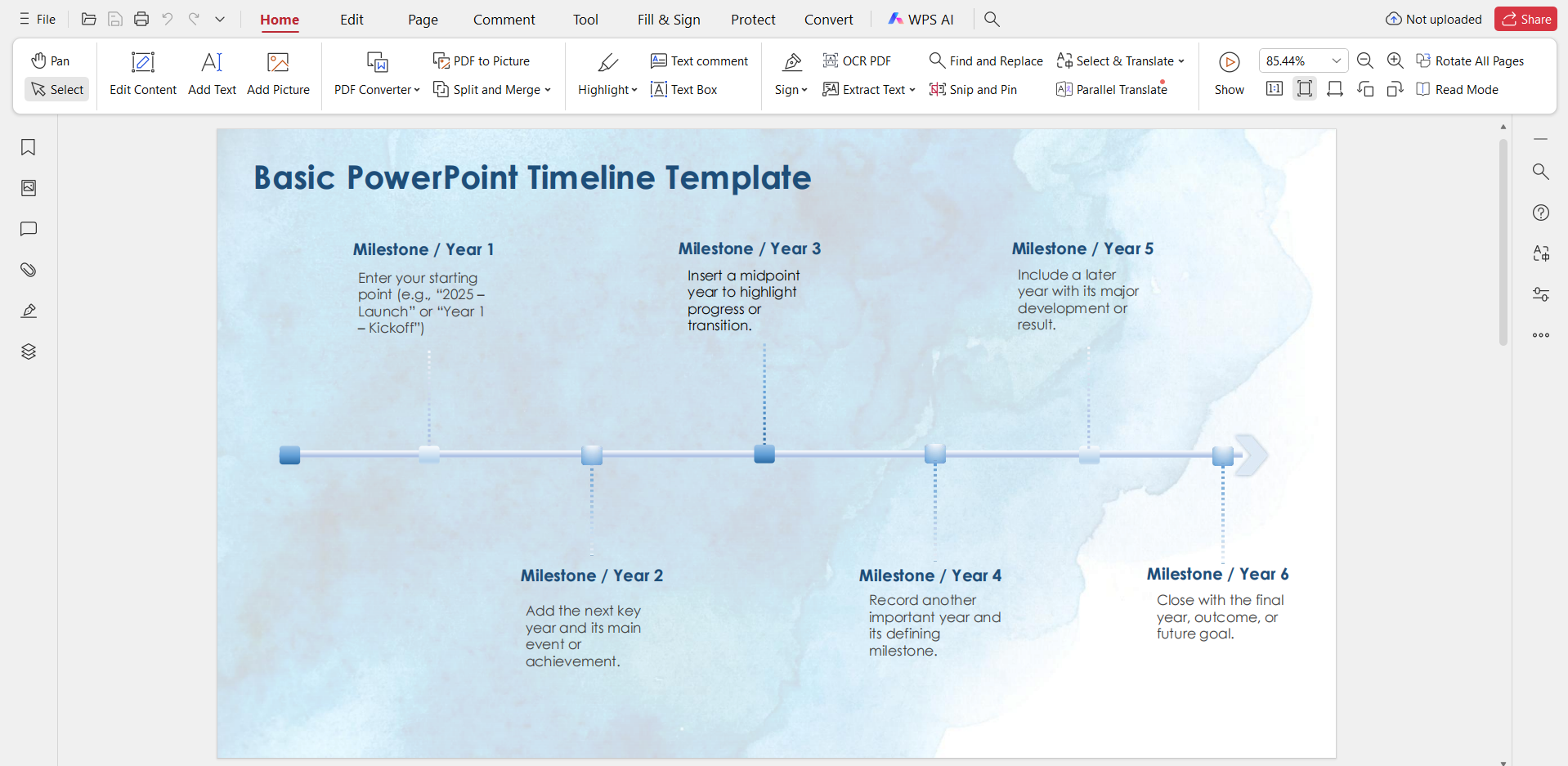
Use text and annotation tools for final edits.
This workflow is useful when teams only need to make light adjustments or comments.
Editing Timeline Images with WPS Photo
For timelines saved as JPG or PNG:
Open the image in WPS Photo.
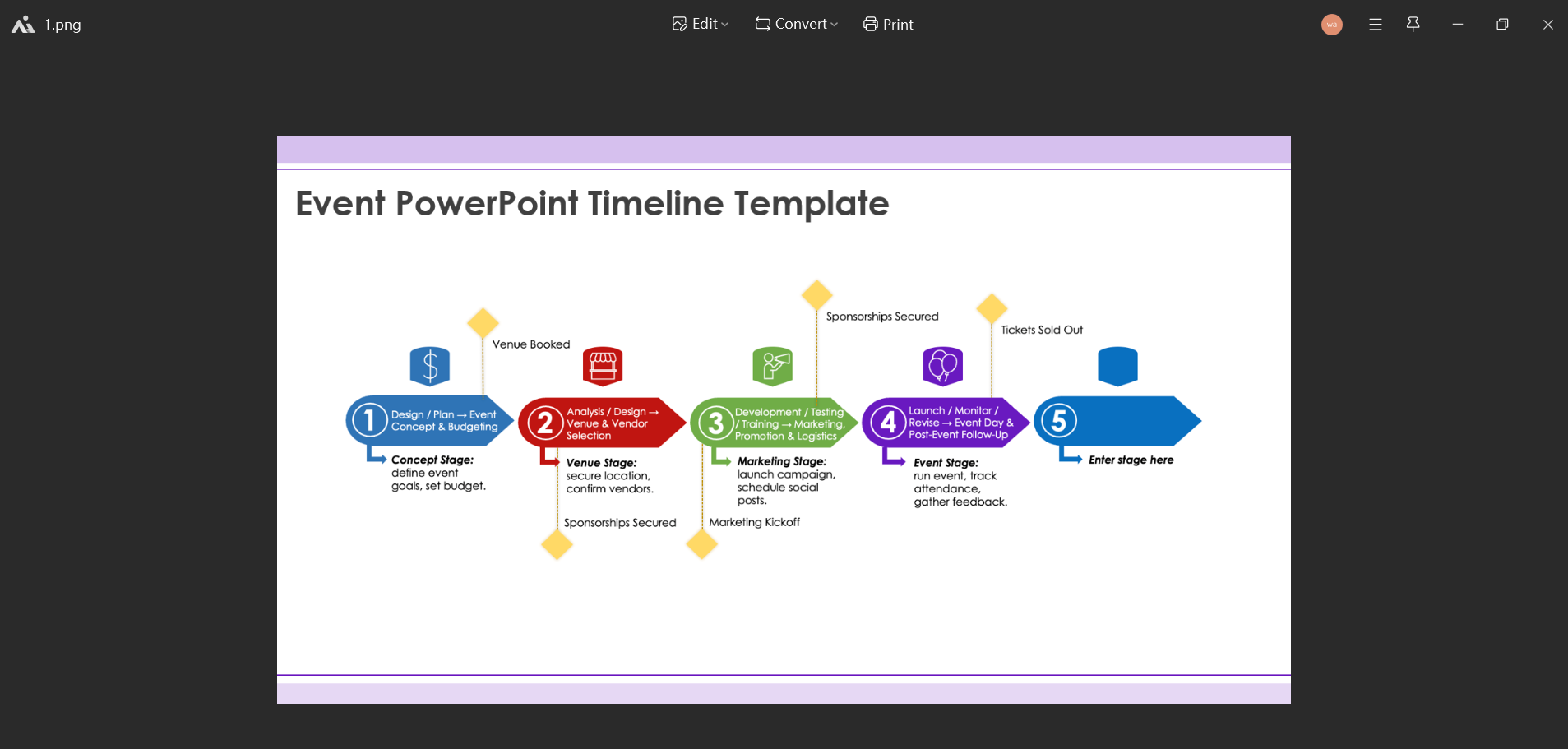
Add labels, highlights, or visual emphasis.
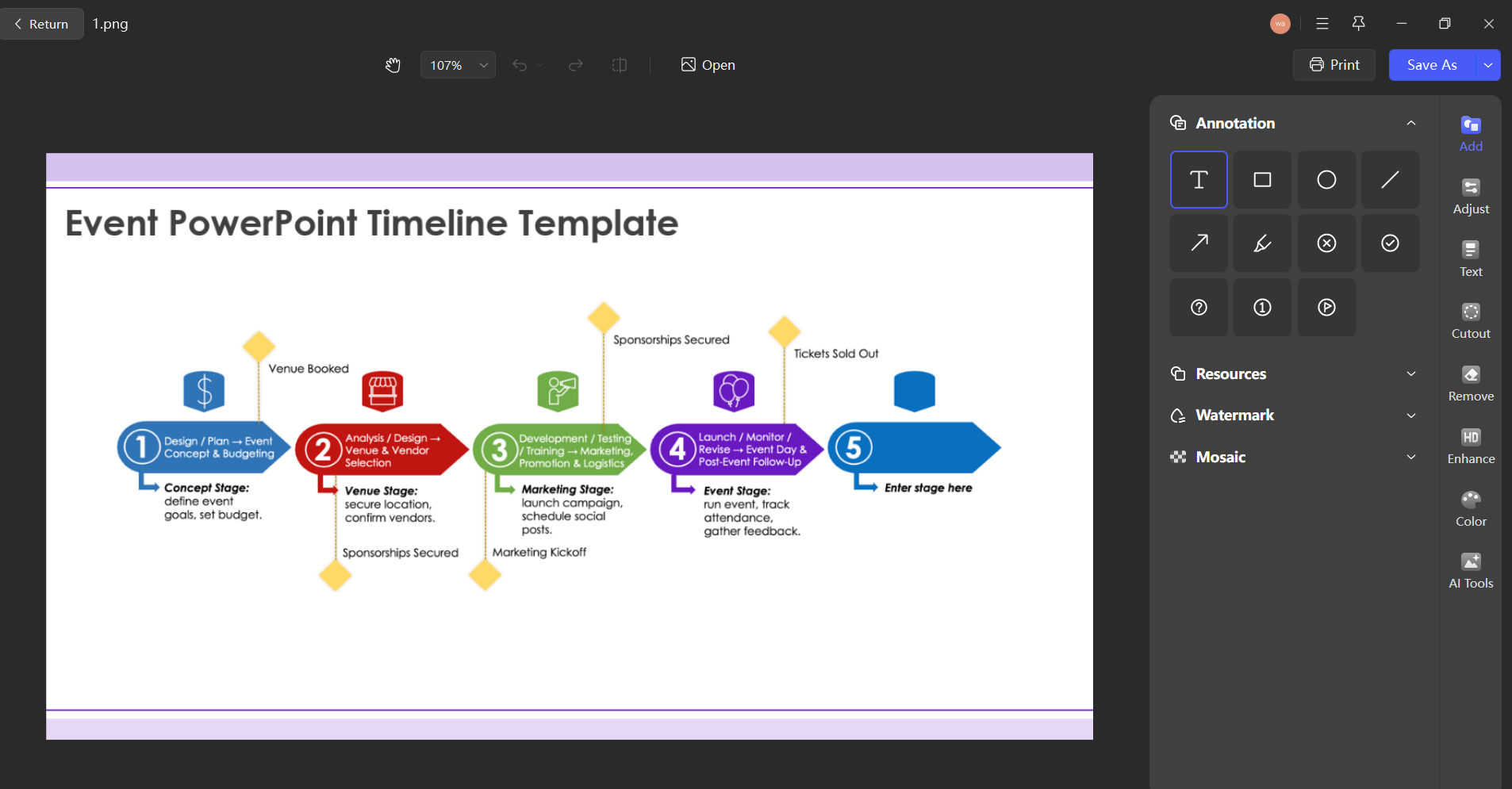
Export the final image for use in reports or dashboards.
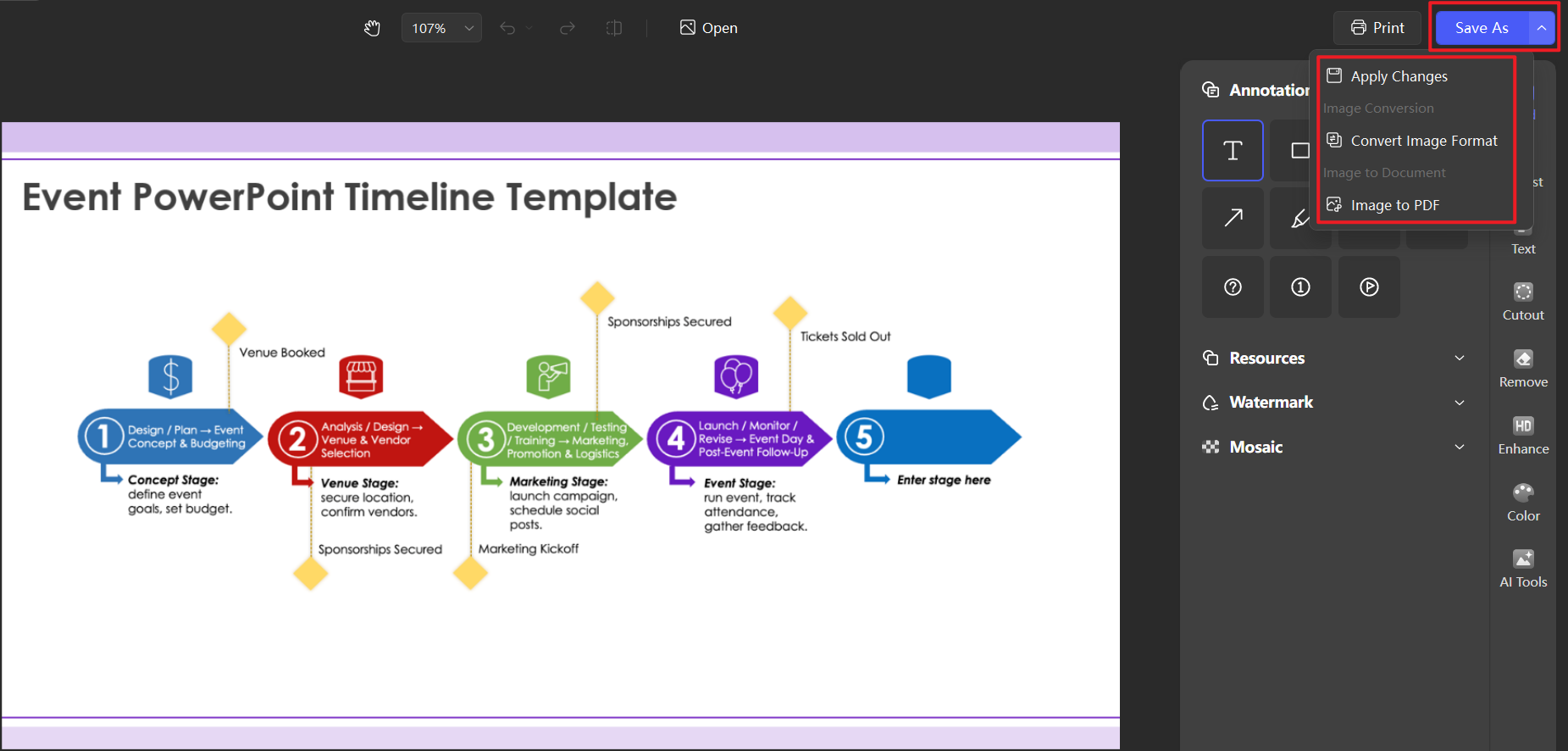
This method works well for visual summaries and static presentations.
How to Save an Edited Timeline as a PDF
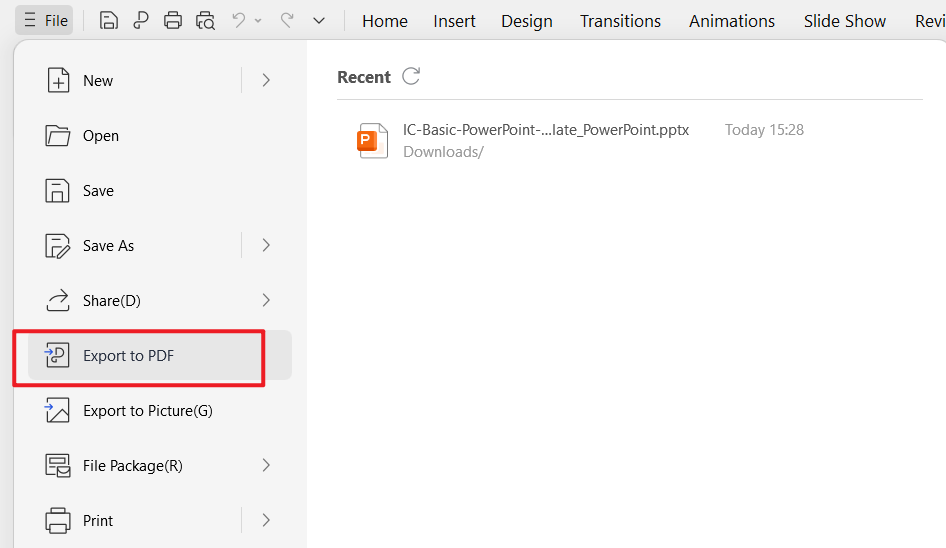
In WPS Presentation, click File > Export to PDF.
Choose the appropriate page size and quality settings.
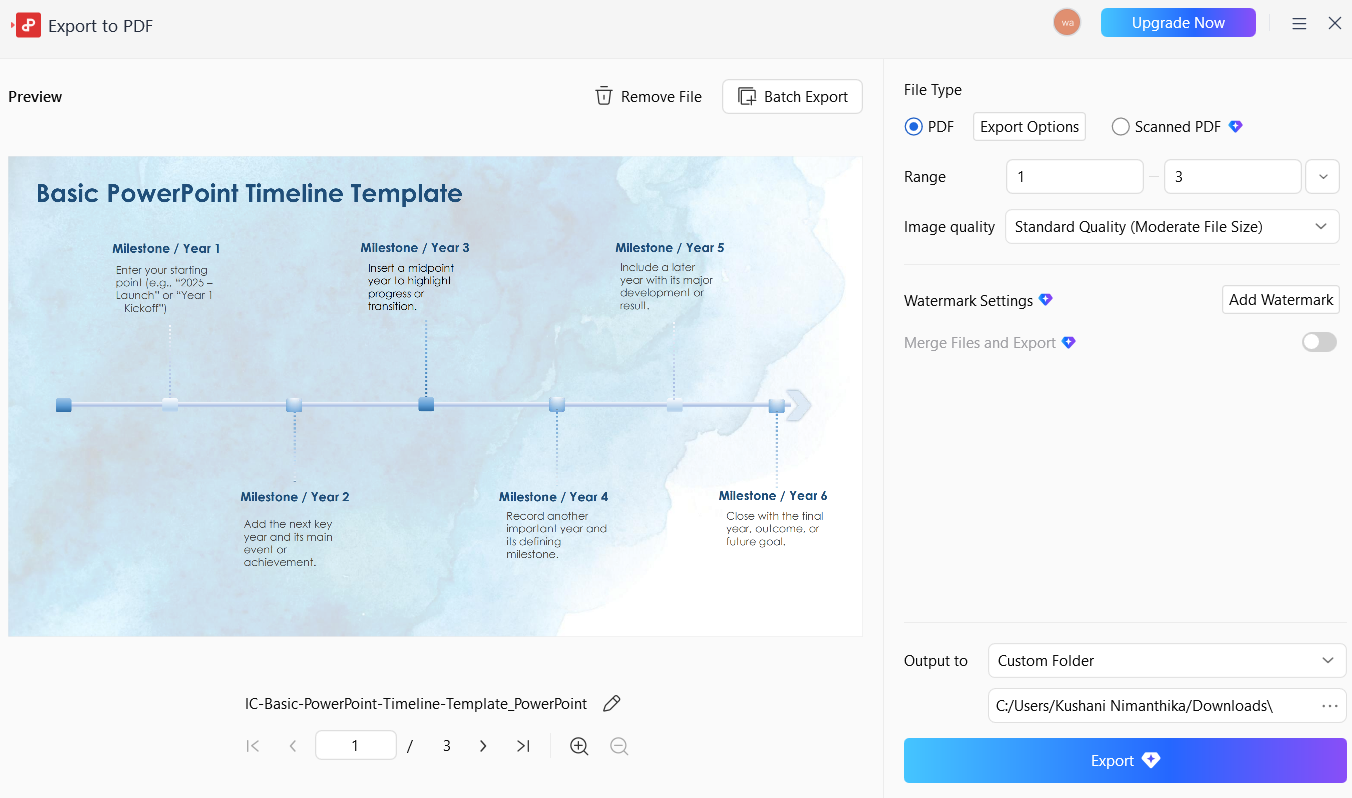
Save the file for printing or sharing.
This ensures your PowerPoint timeline template free download displays consistently across different devices.
Part 3. Free Office Suite with Editable Templates
When working with timeline slides regularly, having a flexible office suite matters just as much as the template itself. During my own testing, I edited several PowerPoint timeline template files using WPS Office and found the experience smooth, especially for quick adjustments and exports. It handled layouts, fonts, and shapes reliably, even with more complex timeline designs.

WPS Office is a free office suite that supports presentations, documents, spreadsheets, PDFs, and images. It is fully compatible with PowerPoint files, which makes it a practical option for users looking for an editable PowerPoint timeline template without relying on paid software.
Price
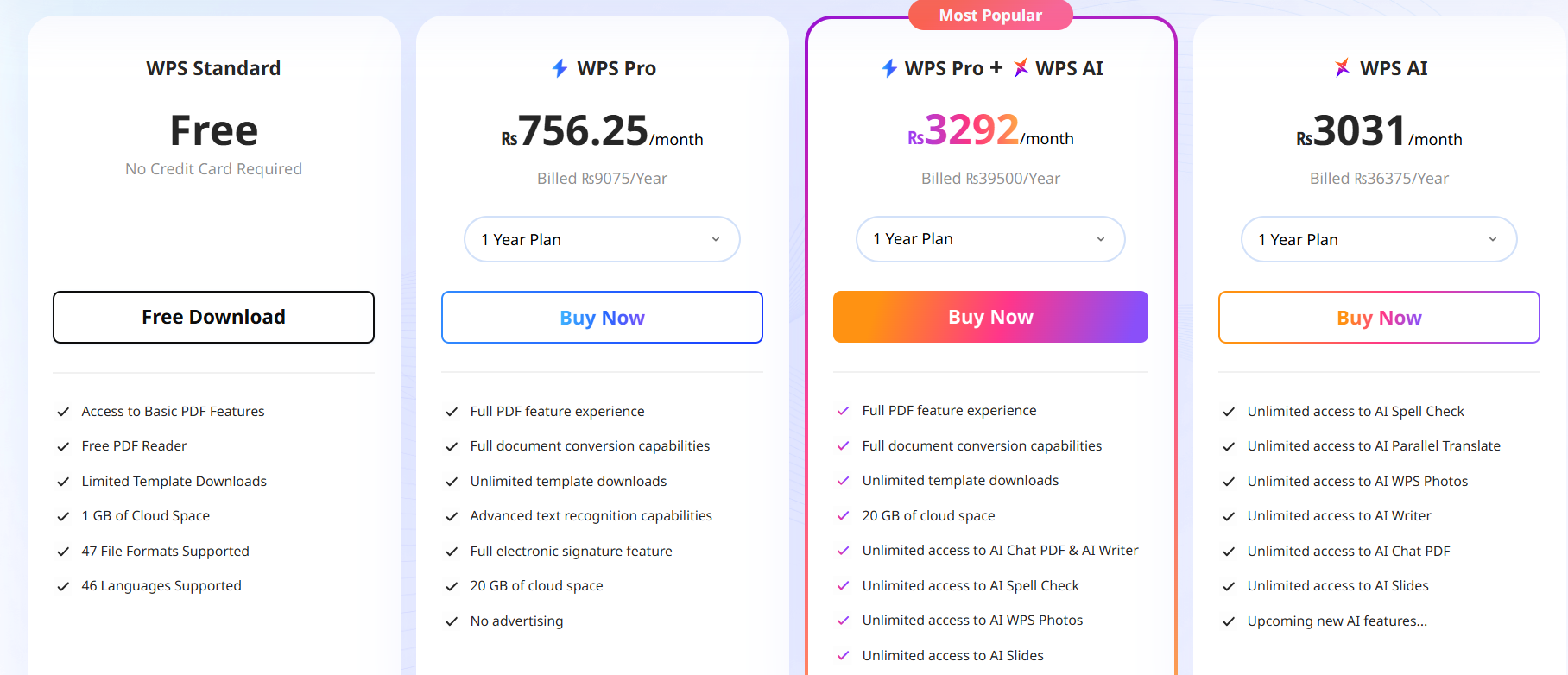
WPS Office offers a free version with core features. A premium version is available for users who need advanced tools, but basic timeline editing works well in the free plan.
These resources are useful for users working with a simple PowerPoint timeline template or more detailed project layouts.
FAQs
Q1: What is a PowerPoint timeline template?
It’s a pre-designed slide used to display dates, milestones, or project phases in a clear visual timeline format.
Q2: Can I edit dates and content in a timeline template?
Yes. Most templates are fully editable, including text, colors, shapes, and dates. Personally, I recommend WPS for editing your timeline template because it is easy to use, free, and compatible with most systems.
Q3: Can I use a timeline template for project planning?
Absolutely. Many teams use a PowerPoint project timeline template for planning, roadmaps, and schedules.
Q4: Do I need design skills to use a timeline template?
No. Templates are built to simplify design, so users can focus on content rather than layout.
Q5: What are common mistakes in making timelines?
Not evaluating project requirements
Inadequate resource planning
Missing dependencies
Lack of contingency planning
Missing milestones
Failing to update timelines regularly
Excluding team input
Providing unrealistic deadlines
Q6: What does a good timeline look like?
A good timeline follows a predictable visual and chronological flow. Even readers quickly scanning the slide should understand the sequence of events.
Q7: Do animations, transitions, and timeline design work in WPS?
Basic animations, slide transitions, and click-to-reveal elements usually work well. Very complex macros may not.

'%3e%3cpath%20d='M19.9911%204.11386V6.471H18.5894C18.0775%206.471%2017.7322%206.57814%2017.5536%206.79243C17.3751%207.00671%2017.2858%207.32814%2017.2858%207.75671V9.44421H19.9019L19.5536%2012.0871H17.2858V18.8639H14.5536V12.0871H12.2769V9.44421H14.5536V7.49779C14.5536%206.39064%2014.8632%205.53201%2015.4822%204.92189C16.1013%204.31177%2016.9257%204.00671%2017.9554%204.00671C18.8304%204.00671%2019.509%204.04243%2019.9911%204.11386Z'%20fill='%23333333'/%3e%3c/g%3e%3cdefs%3e%3cclipPath%20id='clip0_2938_8199'%3e%3crect%20width='16'%20height='16'%20fill='white'%20transform='translate(8%204.00671)'/%3e%3c/clipPath%3e%3c/defs%3e%3c/svg%3e)
'%3e%3cpath%20d='M17.5237%2010.7813L23.4811%204H22.0699L16.8949%209.88693L12.7648%204H8L14.2469%2012.9029L8%2020.0133H9.4112L14.8725%2013.7952L19.2352%2020.0133H24M9.92053%205.04213H12.0885L22.0688%2019.0224H19.9003'%20fill='%23333333'/%3e%3c/g%3e%3cdefs%3e%3cclipPath%20id='clip0_2938_8200'%3e%3crect%20width='16'%20height='16.0134'%20fill='white'%20transform='translate(8%204)'/%3e%3c/clipPath%3e%3c/defs%3e%3c/svg%3e)


