



'%3e%3cpath%20fill-rule='evenodd'%20clip-rule='evenodd'%20d='M21.4999%2010.9993C21.4999%205.20009%2016.7986%200.498901%2010.9993%200.498901C5.19994%200.498901%200.498657%205.20009%200.498657%2010.9993C0.498657%2016.2404%204.33858%2020.5844%209.35855%2021.3722V14.0346H6.69238V10.9993H9.35855V8.68594C9.35855%206.05427%2010.9262%204.60062%2013.3248%204.60062C14.4736%204.60062%2015.6753%204.80571%2015.6753%204.80571V7.38979H14.3512C13.0468%207.38979%2012.64%208.19921%2012.64%209.0296V10.9993H15.5523L15.0867%2014.0346H12.64V21.3722C17.66%2020.5844%2021.4999%2016.2404%2021.4999%2010.9993Z'%20fill='%231568EA'/%3e%3c/g%3e%3c/svg%3e)


'%3e%3cpath%20d='M2.42045%2022.1876H6.31818V12.7217L0.75%208.54553V20.5171C0.75%2021.4414%201.49892%2022.1876%202.42045%2022.1876Z'%20fill='%234285F4'/%3e%3cpath%20d='M19.682%2022.1876H23.5797C24.5041%2022.1876%2025.2502%2021.4387%2025.2502%2020.5171V8.54553L19.682%2012.7217'%20fill='%2334A853'/%3e%3cpath%20d='M19.682%205.48293V12.7216L25.2502%208.54543V6.31816C25.2502%204.25236%2022.8921%203.07469%2021.2411%204.31361'%20fill='%23FBBC04'/%3e%3cpath%20d='M6.31824%2012.7217V5.48303L13.0001%2010.4944L19.6819%205.48303V12.7217L13.0001%2017.733'%20fill='%23EA4335'/%3e%3cpath%20d='M0.75%206.31816V8.54543L6.31818%2012.7216V5.48293L4.75909%204.31361C3.10534%203.07469%200.75%204.25236%200.75%206.31816Z'%20fill='%23C5221F'/%3e%3c/g%3e%3cdefs%3e%3cclipPath%20id='clip0_2954_7305'%3e%3crect%20width='24.5'%20height='18.375'%20fill='white'%20transform='translate(0.75%203.8125)'/%3e%3c/clipPath%3e%3c/defs%3e%3c/svg%3e)


To check word count in Google Docs, open your document, click Tools → Word count, or press Ctrl+Shift+C on Windows/ChromeOS and Cmd+Shift+C on Mac. The dialog shows pages, words, characters, and characters excluding spaces. If you want a live counter, enable Display word count while typing from the same dialog.
Key Takeaways
Use Tools → Word count for the standard Google Docs word count dialog.
Use Ctrl+Shift+C on Windows/ChromeOS or Cmd+Shift+C on Mac as the fastest shortcut.
Turn on Display word count while typing to keep a live count in the lower-left corner.
Select a paragraph or section first when you only need the word count for part of a document.
On mobile, open the Google Docs app and tap ⋮ → Word count.
For offline .docx editing, WPS Writer provides Review → Word Count and a status-bar counter.
What Google Docs Word Count Includes
Google Docs counts words by reading the text in your document and separating terms by spaces and punctuation. A hyphenated term such as well-known, a contraction such as don’t, a number such as 2026, and many URLs or email addresses usually count as one word each.
The Word count dialog also reports Pages, Characters, and Characters excluding spaces. This matters when your assignment, blog brief, or client guideline asks for a character limit instead of a word limit.
| Content type | Usually counted? | Notes |
|---|---|---|
| Body text | Yes | Main document paragraphs are included. |
| Text inside tables | Yes | Useful for reports, rubrics, and comparison tables. |
| Headers, footers, and footnotes | Usually yes | Check your final app if the count is being graded strictly. |
| Comments and suggestions | Usually no | They are collaboration notes, not body text. |
| Images and charts | No | Captions count if they are typed as document text. |
If the word count is for a school submission, publication brief, or translation quote, confirm which content types should be included before finalizing the document.
How to Check Word Count in Google Docs on Desktop
Method 1: Use Tools → Word count
Open your document at docs.google.com.
Click Tools in the top menu.
Select Word count.
Read the Words field in the dialog. You can also review pages and character counts.
This is the safest method when you need the full document total for an essay, report, article draft, or shared team document.
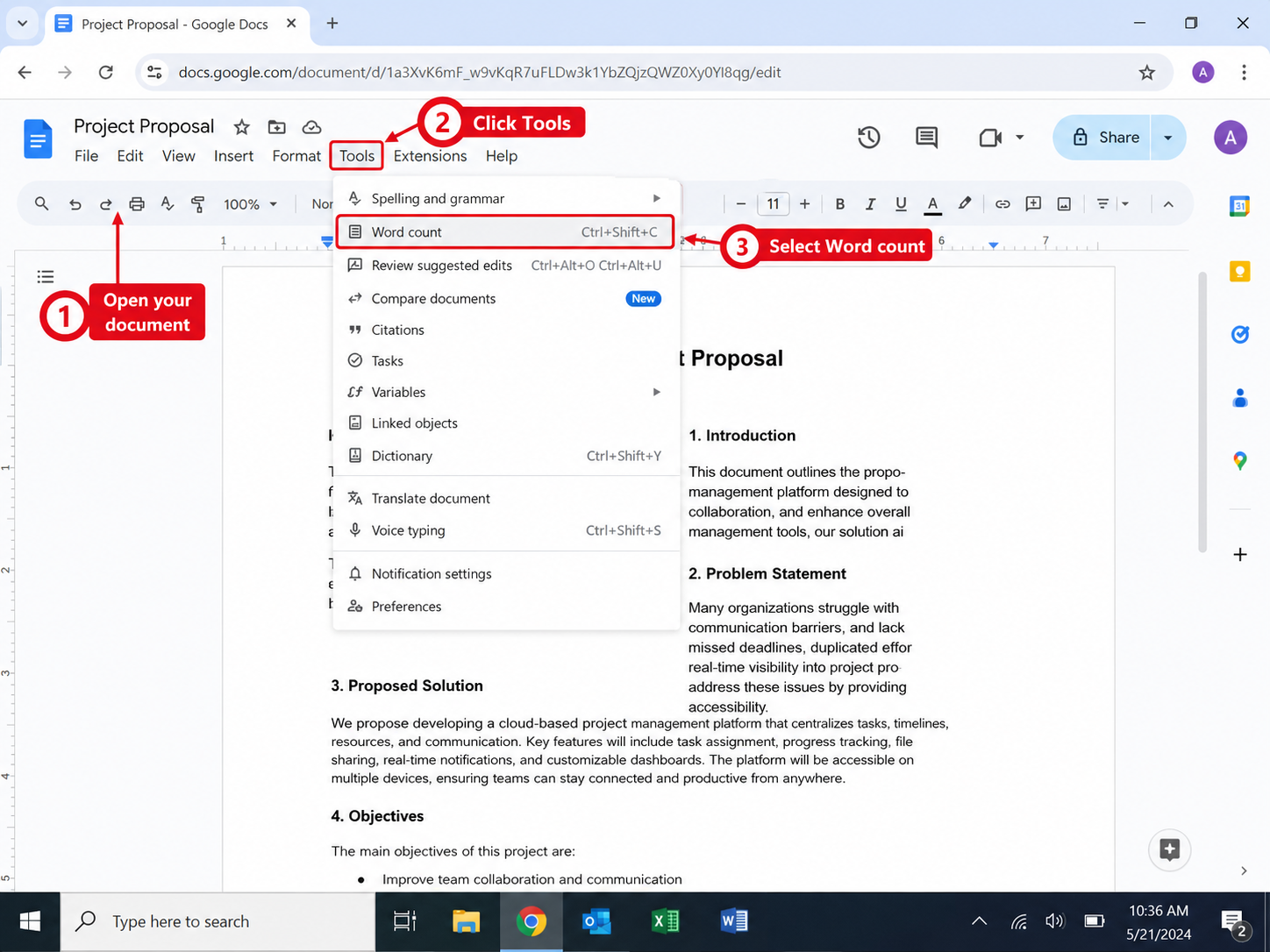
Method 2: Use the word count shortcut
For a faster check, press Ctrl+Shift+C on Windows or ChromeOS. On Mac, press Cmd+Shift+C. The same Word count dialog opens instantly, so you do not need to use the Tools menu every time.
Method 3: Display word count while typing
Click Tools → Word count.
Check Display word count while typing.
Click OK.
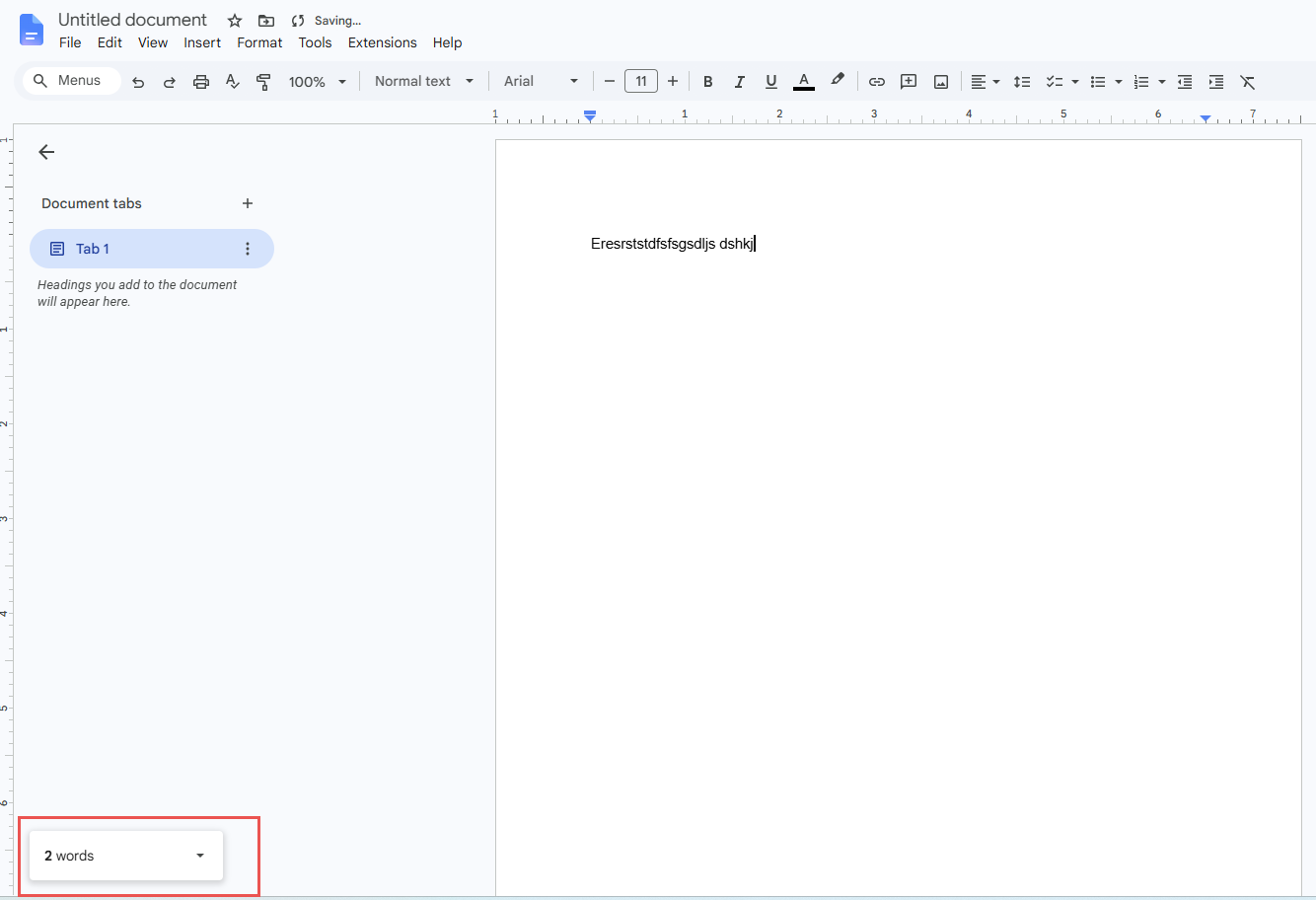
Look for the live counter in the lower-left area of the document.
The live counter is best when you are drafting against a fixed limit, such as a 500-word reflection, a 1,000-word blog post, or a 2,000-word essay. Click the counter to switch between words, pages, and characters.
Method 4: Count words in selected text only
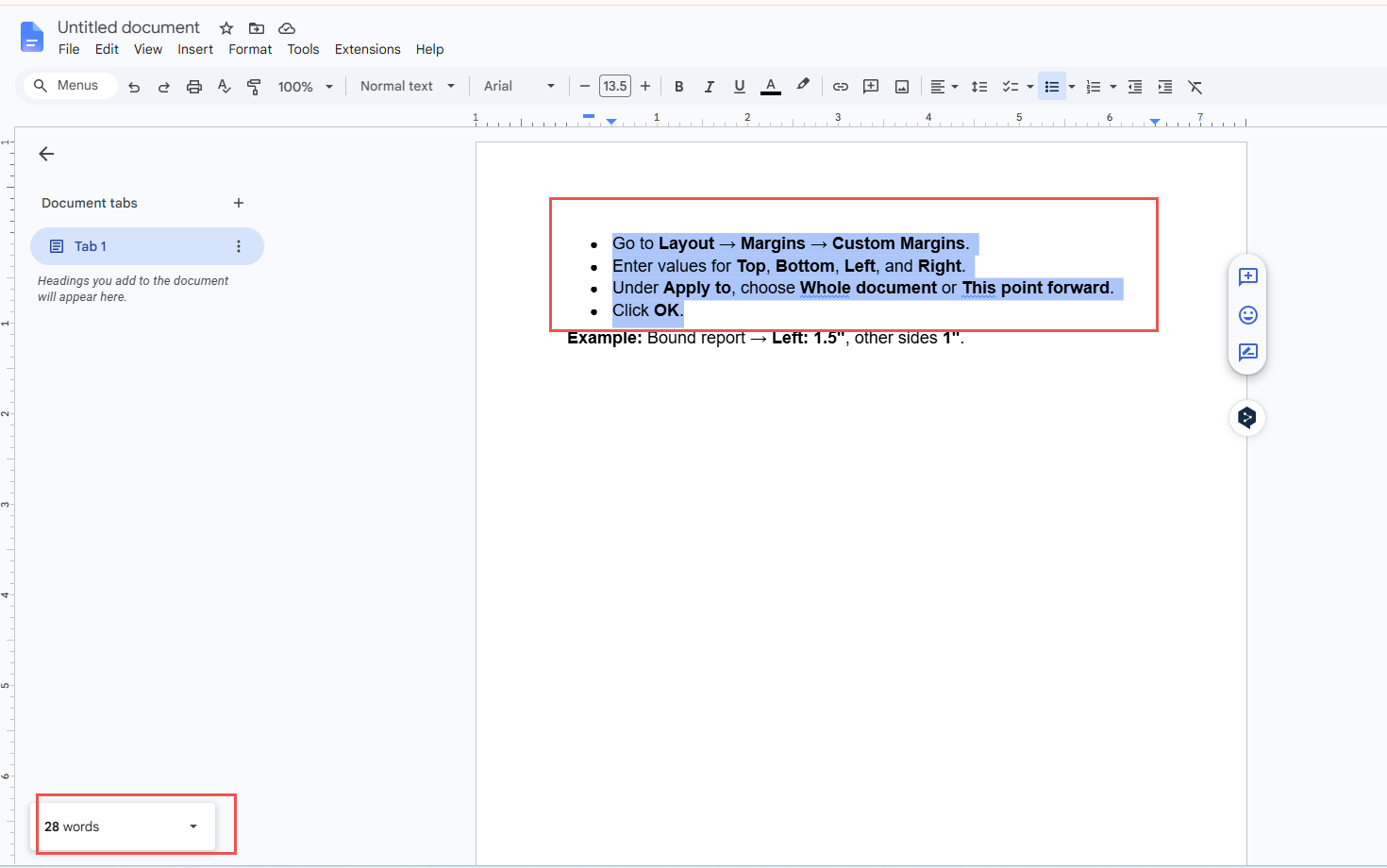
Highlight the paragraph, section, heading block, or chapter you want to measure.
Open Tools → Word count or use the shortcut.
Check the selection line in the dialog. It shows the selected words and characters separately from the full document total.
Use this method when you need to balance section length, check an abstract, count only one paragraph, or keep a conclusion within a strict limit.
How to Check Word Count in Google Docs on Mobile
On Android, iPhone, or iPad, the Google Docs app also includes a word count option:
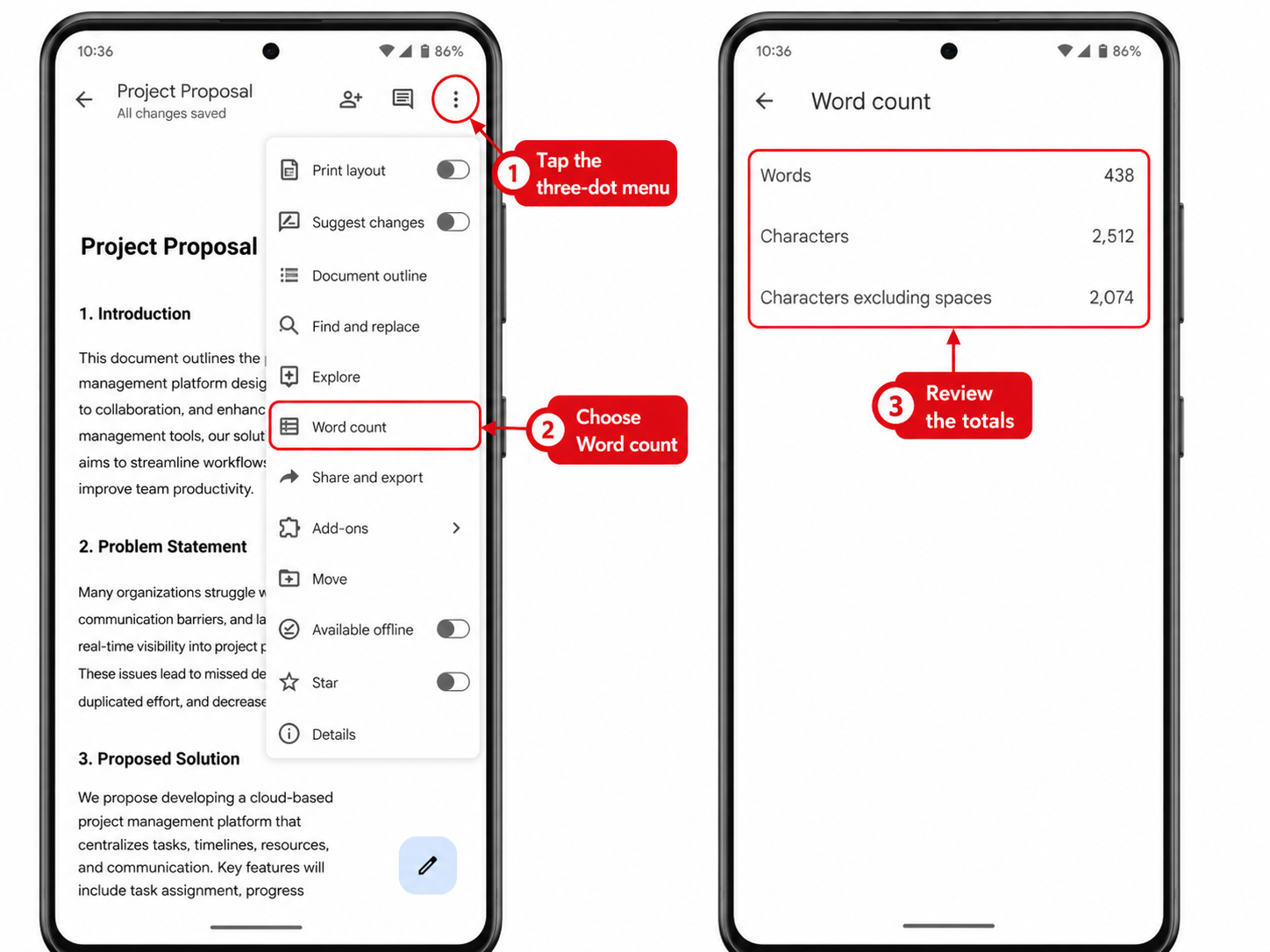
Open the document in the Google Docs app.
Tap the ⋮ menu in the top-right corner.
Tap Word count.
Review total words and characters for the document.
The mobile word count view is useful for quick checks. For more precise selected-text counting, formatting review, or final submission checks, the desktop version is easier to control.
Google Docs Word Count: Desktop vs Mobile vs WPS Writer
| Feature | Google Docs desktop | Google Docs mobile | WPS Writer |
|---|---|---|---|
| Menu path | Tools → Word count | ⋮ → Word count | Review → Word Count |
| Keyboard shortcut | Ctrl+Shift+C / Cmd+Shift+C | No standard shortcut | Depends on device and version |
| Live counter | Optional toggle | Limited | Status-bar counter available |
| Selected text count | Yes | Limited | Yes |
| Offline editing | Limited without sync | Limited without sync | Full desktop editing |
| .docx compatibility | Export required | Export required | Native .docx editing |
Small differences may appear between Google Docs, Microsoft Word, and WPS Writer because each app handles elements such as headers, footnotes, comments, text boxes, and embedded objects differently.


Troubleshooting: Why Word Count Looks Wrong
If your Google Docs word count seems too high, too low, or different from another app, check these common causes before you rewrite the document.
You selected text first: the dialog may show both selected text and full document statistics. Make sure you are reading the correct line.
Comments are not counted: editor notes and comment threads usually do not add to the body word total.
Suggested edits may behave differently: accepted text and suggested text can affect perceived length, especially in collaborative drafts.
Footnotes and headers matter: if your school or editor excludes them, manually confirm the final policy.
Different apps count differently: Word, Google Docs, and WPS Writer may handle fields, text boxes, and imported formatting in slightly different ways.
Copied text may include hidden spacing: paste as plain text when the count seems inconsistent after copying from a website or PDF.
For strict submissions, the best practice is simple: check the count in the same app or file format required by the receiver.
When to Use WPS Writer Instead
Google Docs is convenient for online collaboration, but WPS Writer is useful when you need a Word-compatible editor that works offline. It can open exported Google Docs files in .docx format and show document statistics from the Review → Word Count menu.
Use WPS Writer when you need:
Offline access during travel, classes, or low-connectivity work.
Final checks on a Word-compatible .docx file.
Selection-level word counts while editing long reports or essays.
Additional document statistics such as characters, pages, paragraphs, and lines.
A free office suite for editing Word, Excel, PowerPoint, and PDF files in one place.
Tips for Meeting a Word Count Target
Turn on the live counter early: do this before drafting so you can adjust length gradually.
Track section limits: select your introduction, body, or conclusion to avoid over-expanding one part.
Use character count for platform limits: some forms, bios, abstracts, and ads care more about characters than words.
Leave a small buffer: stop 2–5% below the maximum if the final count will be checked in another app.
Clean pasted text: use plain-text paste when importing from web pages, PDFs, or AI drafts.
Check again after export: if you submit a .docx or PDF, verify the final file after conversion.
Check Word Count with WPS Writer (Alternative)
If you export or sync Google Docs to .docx, you can verify the count in WPS Writer:
Open WPS Writer and load your document.
For a quick check, look at the status bar at the bottom of the window.
For full statistics, go to Review → Word Count.
Review words, characters, pages, paragraphs, and lines.
If only one section matters, select that text first and then open Word Count.
This is especially helpful when your final requirement is based on a Word-compatible file instead of the live Google Docs draft.
Whether you write in Google Docs or finalize offline, WPS Writer gives you a familiar way to verify word count before you submit, export, or share the file.
FAQs
How do I check word count in Google Docs?
Open your document, click Tools → Word count, or press Ctrl+Shift+C on Windows/ChromeOS and Cmd+Shift+C on Mac. The dialog shows pages, words, and character counts.
How do I show word count while typing in Google Docs?
Go to Tools → Word count, check Display word count while typing, and click OK. A live counter appears in the lower-left corner while you edit.
What is the Google Docs word count shortcut?
Use Ctrl+Shift+C on Windows or ChromeOS. Use Cmd+Shift+C on Mac.
Can I check the word count of selected text only?
Yes. Highlight the paragraph, section, or chapter first, then open Tools → Word count. Google Docs shows selected text statistics separately from the full document total.
Can I check word count in the Google Docs mobile app?
Yes. Open the document in the Google Docs app, tap the ⋮ menu, and choose Word count. Mobile is good for quick totals, while desktop is better for selected sections.
Does Google Docs count tables, footnotes, headers, and comments?
Google Docs generally includes body text, tables, headers, and footnotes in the main total. Comments and suggested edits are usually not included in the body word count.
Why is my Google Docs word count different from Microsoft Word?
Different apps handle footnotes, headers, text boxes, embedded objects, and formatting differently. For final submission, verify the count in the app required by your school, editor, or client.
How do I check word count after downloading a Google Doc as a Word file?
Download the file as .docx, open it in Microsoft Word or WPS Writer, and use Review → Word Count. This helps confirm the final count in a Word-compatible format.
Summary
How to check word count in Google Docs: use Tools → Word count, press Ctrl+Shift+C or Cmd+Shift+C, or enable Display word count while typing for a live counter. Select text first for section-level counts, and use the mobile ⋮ → Word count menu for quick checks on your phone. For offline or final .docx workflows, WPS Writer offers Review → Word Count and a status-bar counter to help you confirm the final document length.

'%3e%3cpath%20d='M19.9911%204.11386V6.471H18.5894C18.0775%206.471%2017.7322%206.57814%2017.5536%206.79243C17.3751%207.00671%2017.2858%207.32814%2017.2858%207.75671V9.44421H19.9019L19.5536%2012.0871H17.2858V18.8639H14.5536V12.0871H12.2769V9.44421H14.5536V7.49779C14.5536%206.39064%2014.8632%205.53201%2015.4822%204.92189C16.1013%204.31177%2016.9257%204.00671%2017.9554%204.00671C18.8304%204.00671%2019.509%204.04243%2019.9911%204.11386Z'%20fill='%23333333'/%3e%3c/g%3e%3cdefs%3e%3cclipPath%20id='clip0_2938_8199'%3e%3crect%20width='16'%20height='16'%20fill='white'%20transform='translate(8%204.00671)'/%3e%3c/clipPath%3e%3c/defs%3e%3c/svg%3e)
'%3e%3cpath%20d='M17.5237%2010.7813L23.4811%204H22.0699L16.8949%209.88693L12.7648%204H8L14.2469%2012.9029L8%2020.0133H9.4112L14.8725%2013.7952L19.2352%2020.0133H24M9.92053%205.04213H12.0885L22.0688%2019.0224H19.9003'%20fill='%23333333'/%3e%3c/g%3e%3cdefs%3e%3cclipPath%20id='clip0_2938_8200'%3e%3crect%20width='16'%20height='16.0134'%20fill='white'%20transform='translate(8%204)'/%3e%3c/clipPath%3e%3c/defs%3e%3c/svg%3e)


