



'%3e%3cpath%20fill-rule='evenodd'%20clip-rule='evenodd'%20d='M21.4999%2010.9993C21.4999%205.20009%2016.7986%200.498901%2010.9993%200.498901C5.19994%200.498901%200.498657%205.20009%200.498657%2010.9993C0.498657%2016.2404%204.33858%2020.5844%209.35855%2021.3722V14.0346H6.69238V10.9993H9.35855V8.68594C9.35855%206.05427%2010.9262%204.60062%2013.3248%204.60062C14.4736%204.60062%2015.6753%204.80571%2015.6753%204.80571V7.38979H14.3512C13.0468%207.38979%2012.64%208.19921%2012.64%209.0296V10.9993H15.5523L15.0867%2014.0346H12.64V21.3722C17.66%2020.5844%2021.4999%2016.2404%2021.4999%2010.9993Z'%20fill='%231568EA'/%3e%3c/g%3e%3c/svg%3e)


'%3e%3cpath%20d='M2.42045%2022.1876H6.31818V12.7217L0.75%208.54553V20.5171C0.75%2021.4414%201.49892%2022.1876%202.42045%2022.1876Z'%20fill='%234285F4'/%3e%3cpath%20d='M19.682%2022.1876H23.5797C24.5041%2022.1876%2025.2502%2021.4387%2025.2502%2020.5171V8.54553L19.682%2012.7217'%20fill='%2334A853'/%3e%3cpath%20d='M19.682%205.48293V12.7216L25.2502%208.54543V6.31816C25.2502%204.25236%2022.8921%203.07469%2021.2411%204.31361'%20fill='%23FBBC04'/%3e%3cpath%20d='M6.31824%2012.7217V5.48303L13.0001%2010.4944L19.6819%205.48303V12.7217L13.0001%2017.733'%20fill='%23EA4335'/%3e%3cpath%20d='M0.75%206.31816V8.54543L6.31818%2012.7216V5.48293L4.75909%204.31361C3.10534%203.07469%200.75%204.25236%200.75%206.31816Z'%20fill='%23C5221F'/%3e%3c/g%3e%3cdefs%3e%3cclipPath%20id='clip0_2954_7305'%3e%3crect%20width='24.5'%20height='18.375'%20fill='white'%20transform='translate(0.75%203.8125)'/%3e%3c/clipPath%3e%3c/defs%3e%3c/svg%3e)


If you are searching for how to use Word, you usually need the same basics: open a blank page, type and format text, then save a .docx file you can share. Most beginners start with Microsoft Word. Many then look for a free path that still opens the same files.
This guide covers two practical methods. First, walk through Microsoft Office. Then meet a strong free alternative—WPS Office—and learn how to create, edit, and save Word documents inside WPS Writer.
How to Use Word in Microsoft Office
Microsoft Word is the classic answer when people ask how to use Word for school, work, or resumes. The steps below match Word for Microsoft 365 and recent desktop versions on Windows.
Step 1. Open Word and start a blank document
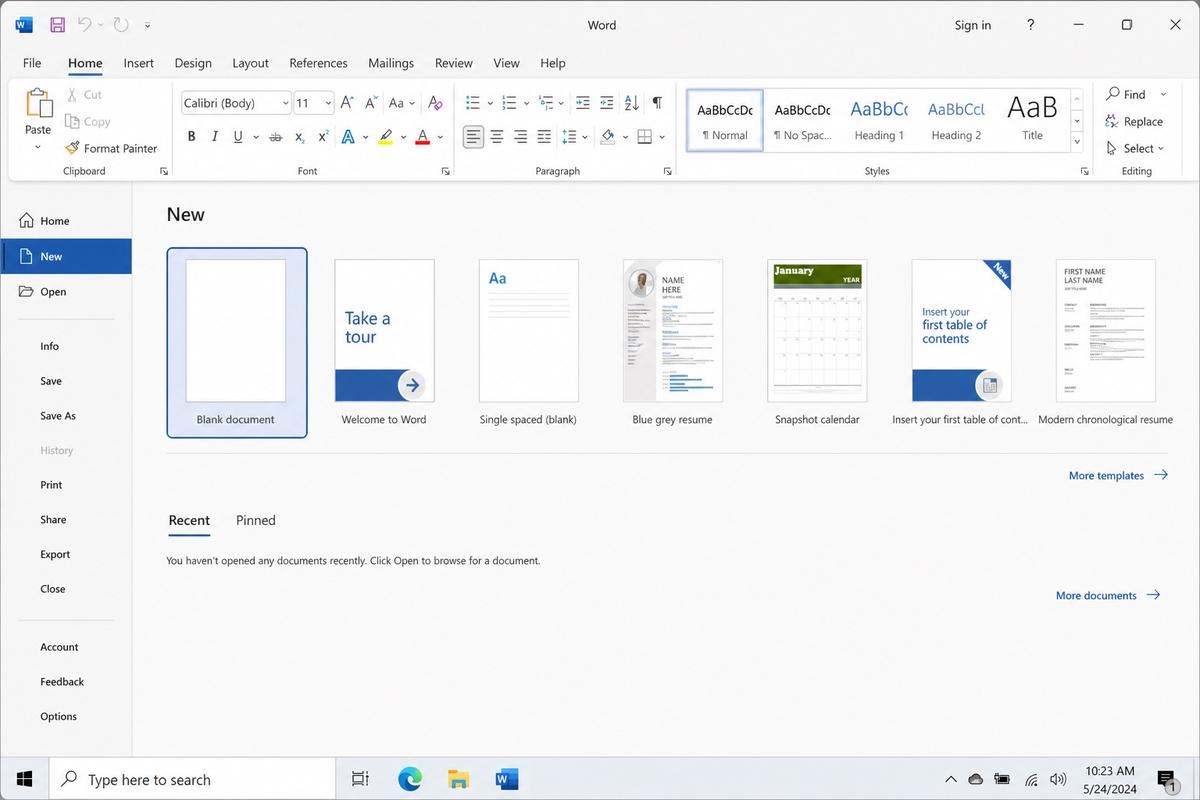
Launch Microsoft Word. On the start screen, choose Blank document, or go to File > New > Blank document. Templates are fine later; a blank page is the fastest way to learn the ribbon.
Step 2. Type and format with the Home tab
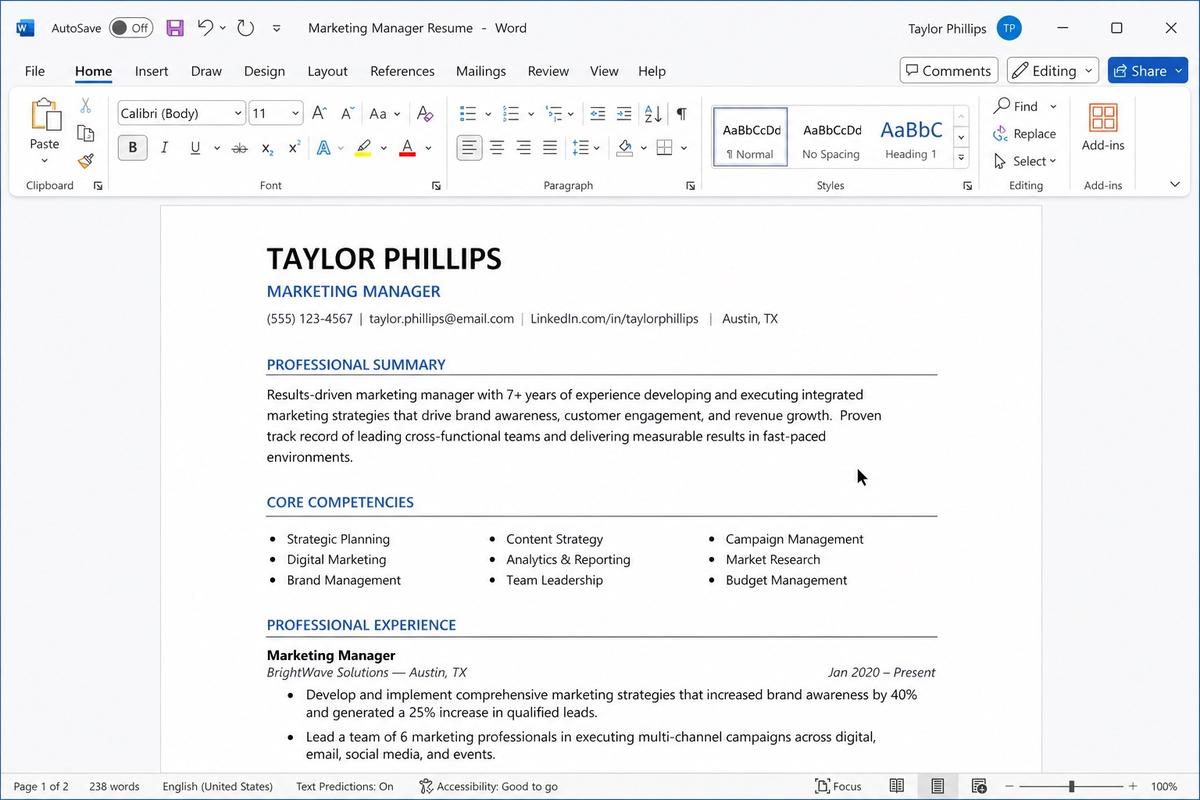
Click the page and start typing. Select text, then use the Home tab for font, size, bold, italics, alignment, and lists. Styles such as Heading 1 help you build longer reports without manual formatting.
Step 3. Save as a Word (.docx) file
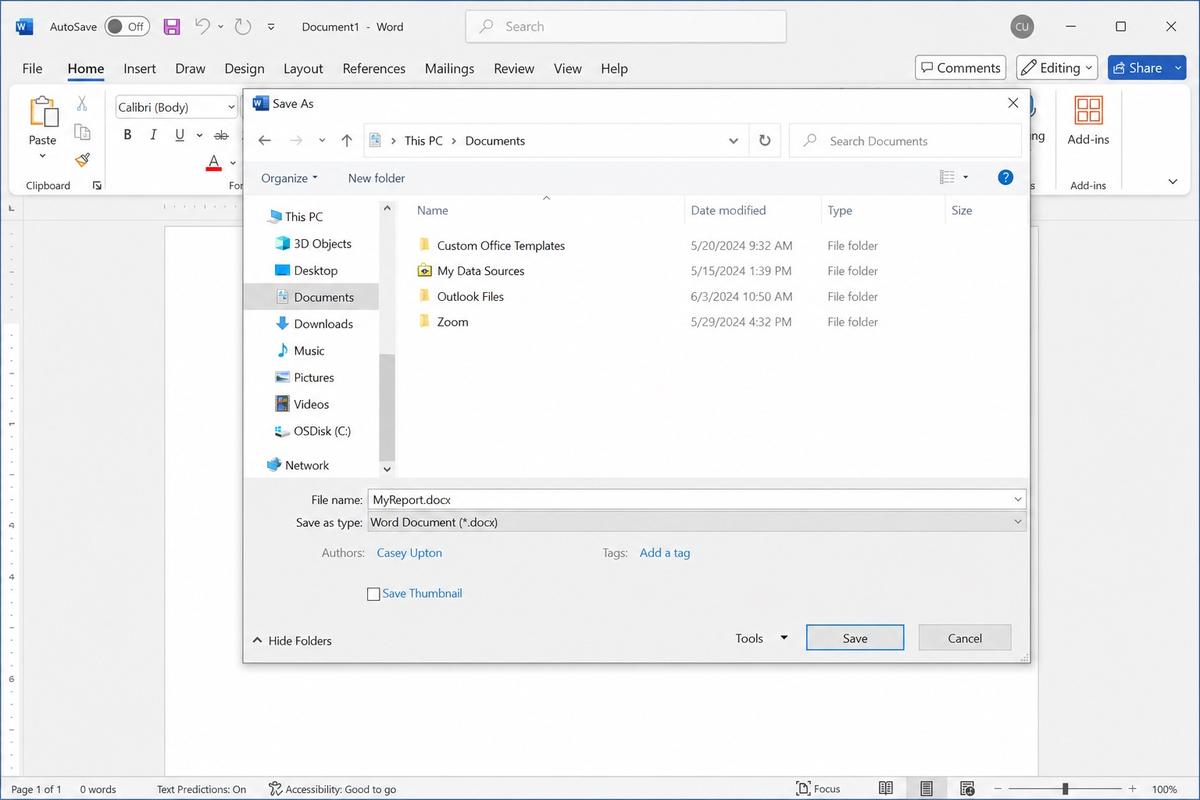
Press Ctrl + S (or Cmd + S on Mac), or choose File > Save. Name the file, pick a folder, and keep the default .docx format so others can open it in Word or compatible apps. Save again as you write so you do not lose edits.
Step 4. Add extras when you need them
Use Insert for pictures and tables, Layout for margins, and Review for spelling or Track Changes. These tabs matter once the basics feel comfortable—not on day one.
Microsoft Word works well if you already pay for Microsoft 365 or your school/workplace provides a license. If cost or cross-device access is the blocker, keep reading for a free-friendly path.


Best Alternative to Microsoft Office
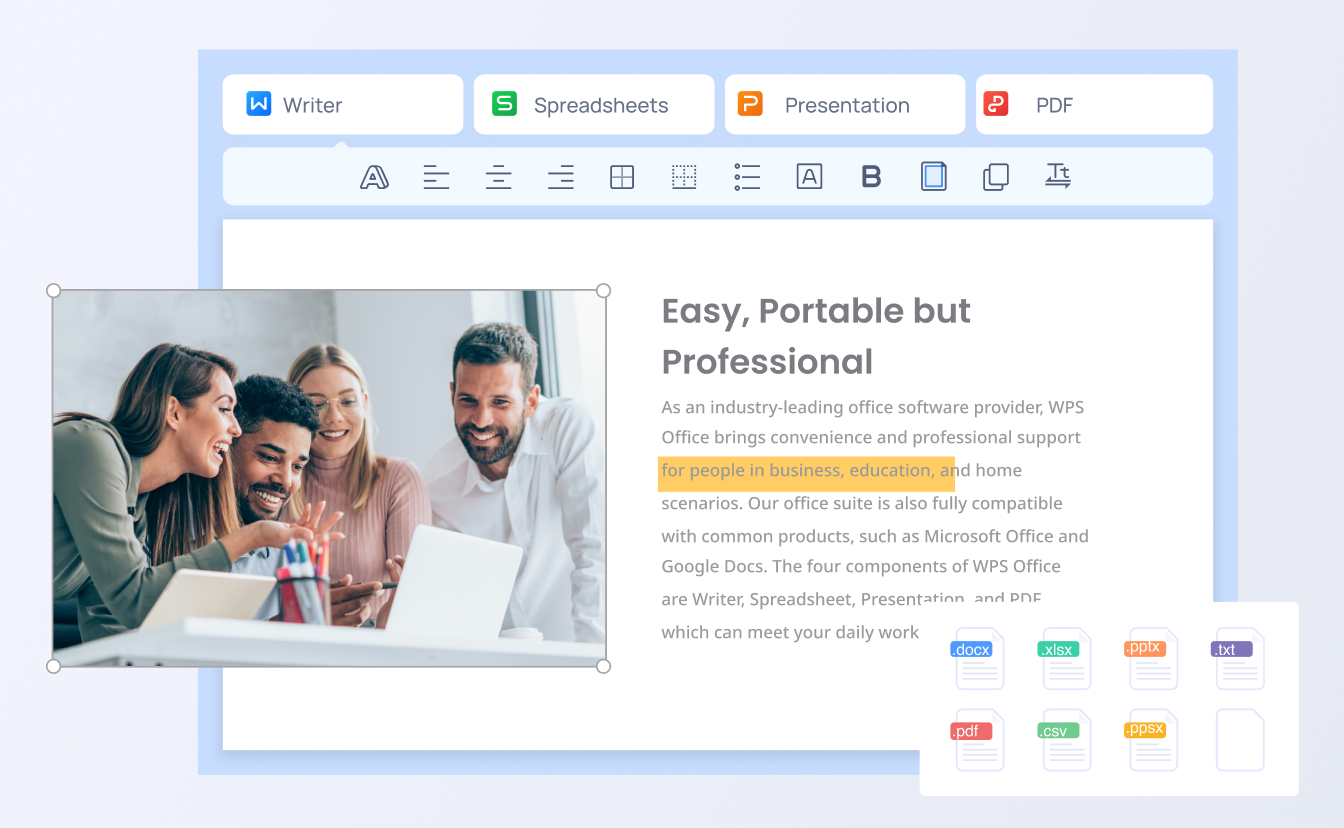
When learners search how to use Word without a paid subscription, they often need a suite that still speaks .docx. WPS Office is a practical best alternative to Microsoft Office for everyday writing: Writer for documents, Spreadsheets, Presentation, plus PDF tools in one install.
Why WPS fits this keyword intent:
Familiar layout — a ribbon-style Writer window feels close to Microsoft Word, so the learning curve stays short.
.docx compatibility — open, edit, and save Microsoft Word formats for sharing with classmates or coworkers.
Free-first workflow — create letters, essays, and reports without buying Microsoft 365 just to draft text.
Cross-platform — desktop and mobile apps help you continue a draft on another device.
In short: keep Microsoft Word if your organization already standardizes on it. Choose WPS when you want a free-friendly best alternative to Microsoft Office and still need solid Word-compatible files.
How to Use Word Documents Inside WPS Writer
Here is Method 2—the WPS path for how to use Word files day to day. Install WPS Office, then follow these steps.
Step 1. Create a new Word-style document
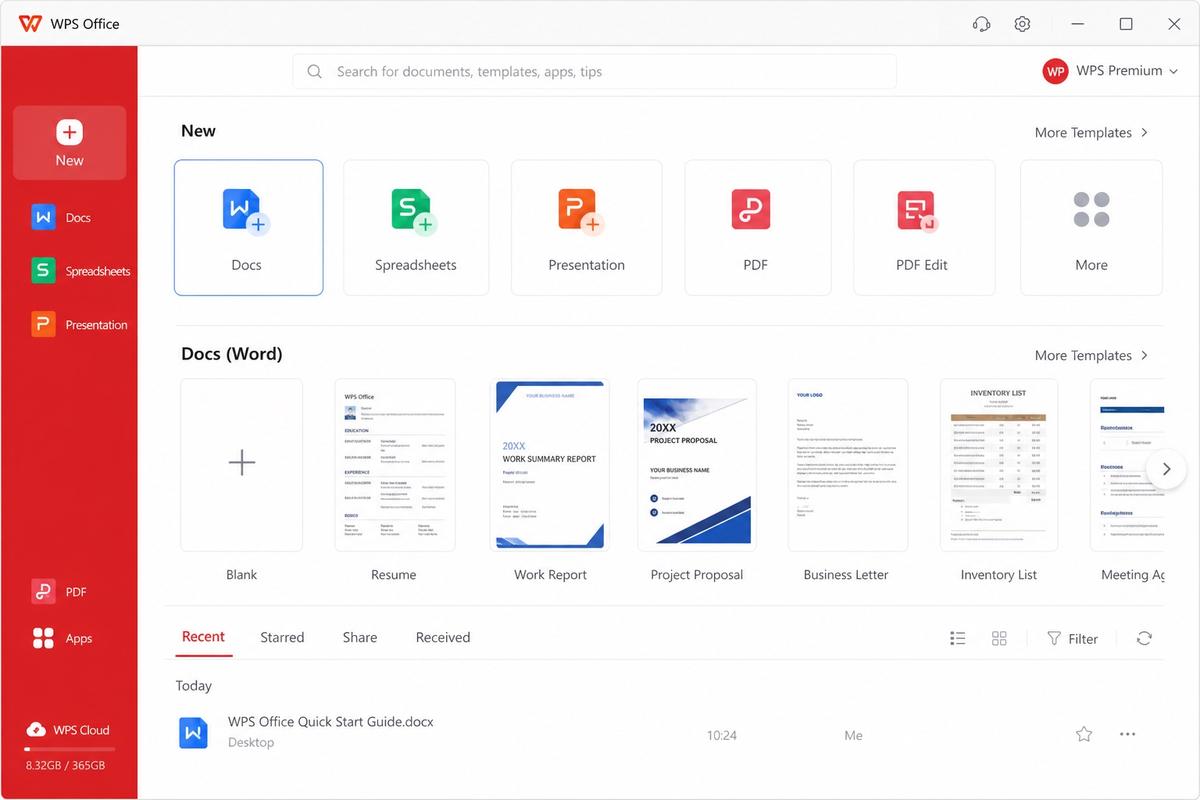
Open WPS Office. On the home dashboard, go to New and choose Docs (or a blank document card). WPS Writer opens with a blank page ready for typing—similar to starting a Word file.
Step 2. Open an existing .docx from Microsoft Word
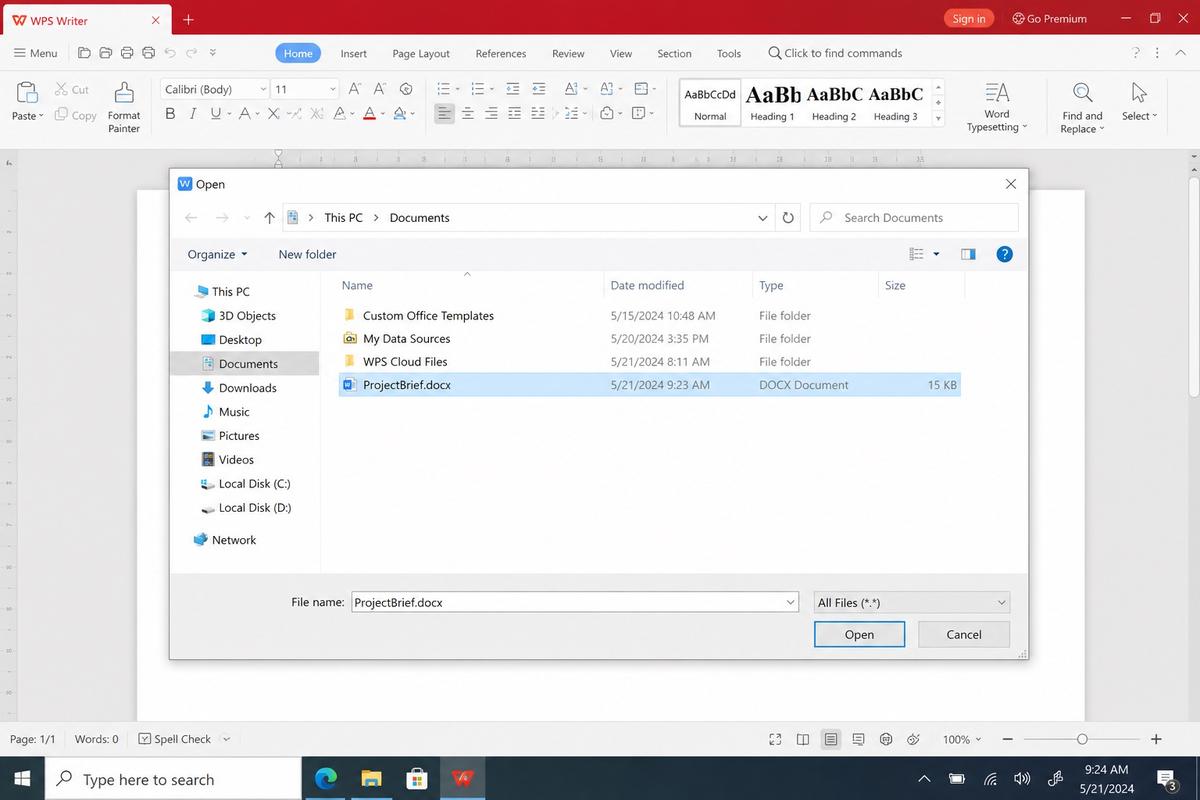
Choose File > Open (or drag the file onto WPS). Select your .docx. Layout and styles usually stay intact for everyday reports and letters, so you can continue editing without converting first.
Step 3. Format text with the WPS Home ribbon
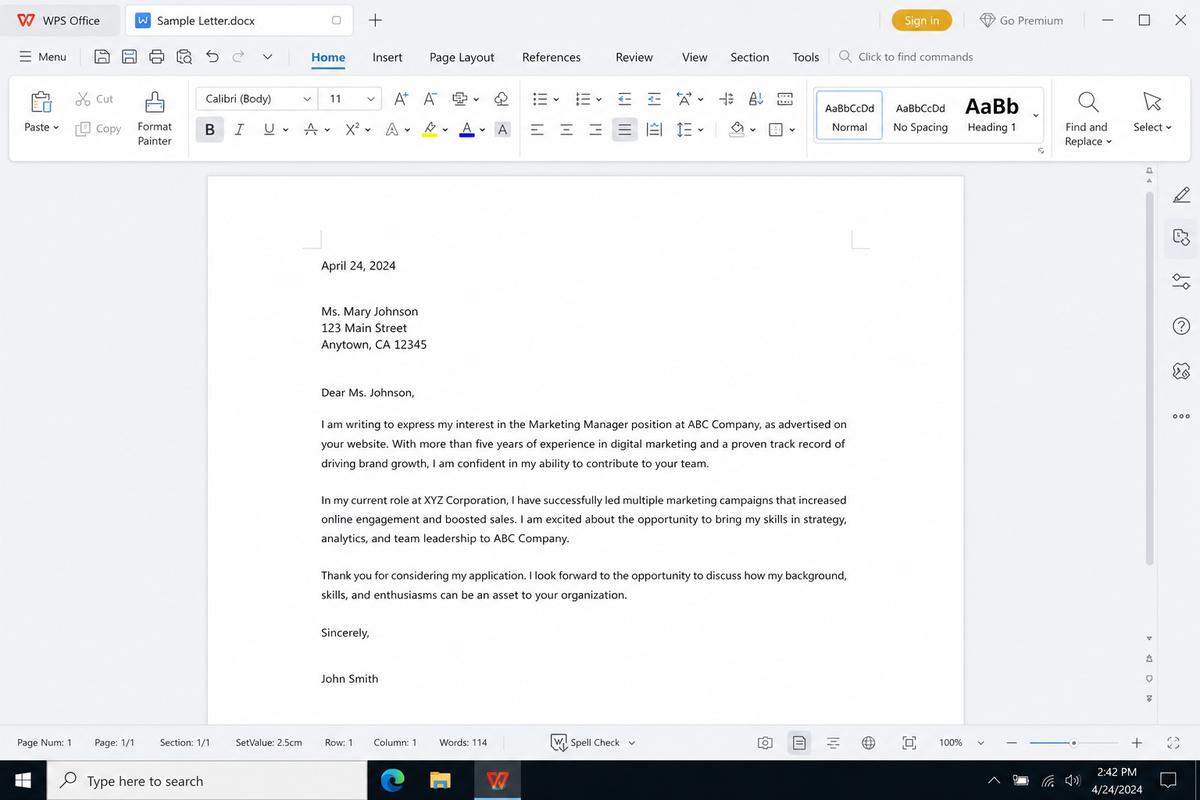
Highlight text and use Home tools for font, size, bold, color, bullets, and alignment. Insert covers tables and pictures. The controls sit in familiar groups, which makes switching from Microsoft Word smoother.
Step 4. Save back as a Microsoft Word document
Use File > Save or Save As. Pick Microsoft Word Document (.docx) so recipients using Microsoft Word can open the file without extra steps. You can also export to PDF when you need a fixed layout for sharing.
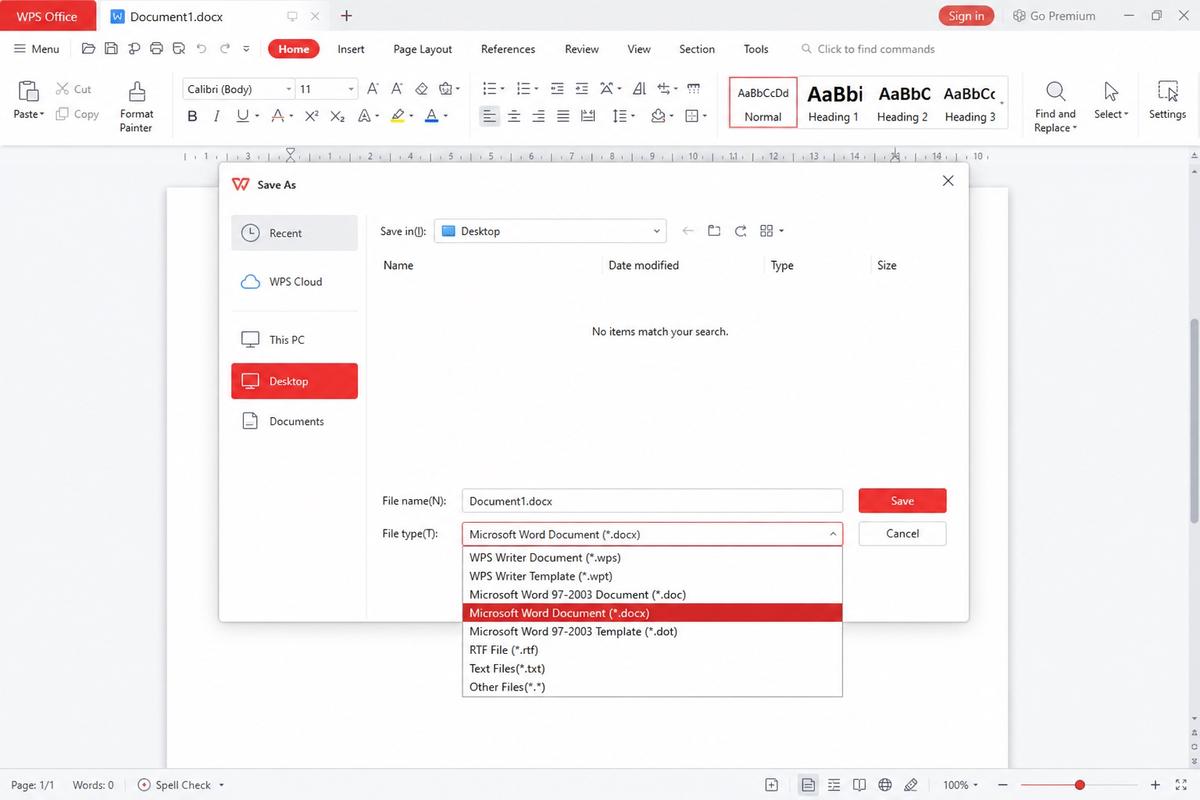
Tip: save a local copy before major edits on shared templates, and confirm complex files (heavy macros or Track Changes) with your teammates after the first round-trip.
FAQ
Is Microsoft Word free if I only need how to use Word basics?
Microsoft offers limited free options (such as Word for the web with a Microsoft account), but full desktop features usually sit behind Microsoft 365. For offline drafting without that subscription, WPS Writer is a common free-first choice.
Can WPS open Microsoft Word .docx files?
Yes. WPS Writer opens and saves .doc/.docx for typical documents. Always spot-check fonts and layout before submitting final school or client work.
What should beginners practice first when learning how to use Word?
Focus on blank document → type → Home formatting → Save as .docx. Add pictures, headers, and Track Changes only after those four habits feel automatic.
Do I need both Microsoft Word and WPS?
Not always. Use Microsoft Word when your workplace requires it. Use WPS alone when you need a best alternative to Microsoft Office for personal writing and still exchange .docx files.


'%3e%3cpath%20d='M19.9911%204.11386V6.471H18.5894C18.0775%206.471%2017.7322%206.57814%2017.5536%206.79243C17.3751%207.00671%2017.2858%207.32814%2017.2858%207.75671V9.44421H19.9019L19.5536%2012.0871H17.2858V18.8639H14.5536V12.0871H12.2769V9.44421H14.5536V7.49779C14.5536%206.39064%2014.8632%205.53201%2015.4822%204.92189C16.1013%204.31177%2016.9257%204.00671%2017.9554%204.00671C18.8304%204.00671%2019.509%204.04243%2019.9911%204.11386Z'%20fill='%23333333'/%3e%3c/g%3e%3cdefs%3e%3cclipPath%20id='clip0_2938_8199'%3e%3crect%20width='16'%20height='16'%20fill='white'%20transform='translate(8%204.00671)'/%3e%3c/clipPath%3e%3c/defs%3e%3c/svg%3e)
'%3e%3cpath%20d='M17.5237%2010.7813L23.4811%204H22.0699L16.8949%209.88693L12.7648%204H8L14.2469%2012.9029L8%2020.0133H9.4112L14.8725%2013.7952L19.2352%2020.0133H24M9.92053%205.04213H12.0885L22.0688%2019.0224H19.9003'%20fill='%23333333'/%3e%3c/g%3e%3cdefs%3e%3cclipPath%20id='clip0_2938_8200'%3e%3crect%20width='16'%20height='16.0134'%20fill='white'%20transform='translate(8%204)'/%3e%3c/clipPath%3e%3c/defs%3e%3c/svg%3e)


