



'%3e%3cpath%20fill-rule='evenodd'%20clip-rule='evenodd'%20d='M21.4999%2010.9993C21.4999%205.20009%2016.7986%200.498901%2010.9993%200.498901C5.19994%200.498901%200.498657%205.20009%200.498657%2010.9993C0.498657%2016.2404%204.33858%2020.5844%209.35855%2021.3722V14.0346H6.69238V10.9993H9.35855V8.68594C9.35855%206.05427%2010.9262%204.60062%2013.3248%204.60062C14.4736%204.60062%2015.6753%204.80571%2015.6753%204.80571V7.38979H14.3512C13.0468%207.38979%2012.64%208.19921%2012.64%209.0296V10.9993H15.5523L15.0867%2014.0346H12.64V21.3722C17.66%2020.5844%2021.4999%2016.2404%2021.4999%2010.9993Z'%20fill='%231568EA'/%3e%3c/g%3e%3c/svg%3e)


'%3e%3cpath%20d='M2.42045%2022.1876H6.31818V12.7217L0.75%208.54553V20.5171C0.75%2021.4414%201.49892%2022.1876%202.42045%2022.1876Z'%20fill='%234285F4'/%3e%3cpath%20d='M19.682%2022.1876H23.5797C24.5041%2022.1876%2025.2502%2021.4387%2025.2502%2020.5171V8.54553L19.682%2012.7217'%20fill='%2334A853'/%3e%3cpath%20d='M19.682%205.48293V12.7216L25.2502%208.54543V6.31816C25.2502%204.25236%2022.8921%203.07469%2021.2411%204.31361'%20fill='%23FBBC04'/%3e%3cpath%20d='M6.31824%2012.7217V5.48303L13.0001%2010.4944L19.6819%205.48303V12.7217L13.0001%2017.733'%20fill='%23EA4335'/%3e%3cpath%20d='M0.75%206.31816V8.54543L6.31818%2012.7216V5.48293L4.75909%204.31361C3.10534%203.07469%200.75%204.25236%200.75%206.31816Z'%20fill='%23C5221F'/%3e%3c/g%3e%3cdefs%3e%3cclipPath%20id='clip0_2954_7305'%3e%3crect%20width='24.5'%20height='18.375'%20fill='white'%20transform='translate(0.75%203.8125)'/%3e%3c/clipPath%3e%3c/defs%3e%3c/svg%3e)


To uninstall Windows Subsystem for Linux, first list distros with wsl -l -v, back up anything you need, then remove each distribution with wsl --unregister DistroName (this deletes that distro’s data). Uninstall the Linux apps from Settings if they remain, optionally remove the WSL package, and disable the related Windows features if you want WSL gone completely. Success means wsl -l -v shows no distributions (or WSL is unavailable) and you no longer launch Ubuntu/Arch from Start.
Shortest safe path: export if needed → wsl --shutdown → wsl --unregister for each distro → uninstall Store apps → disable features → reboot → verify. Platform basics: Windows Subsystem for Linux overview. To set WSL up again later, use how to install Windows Subsystem for Linux.
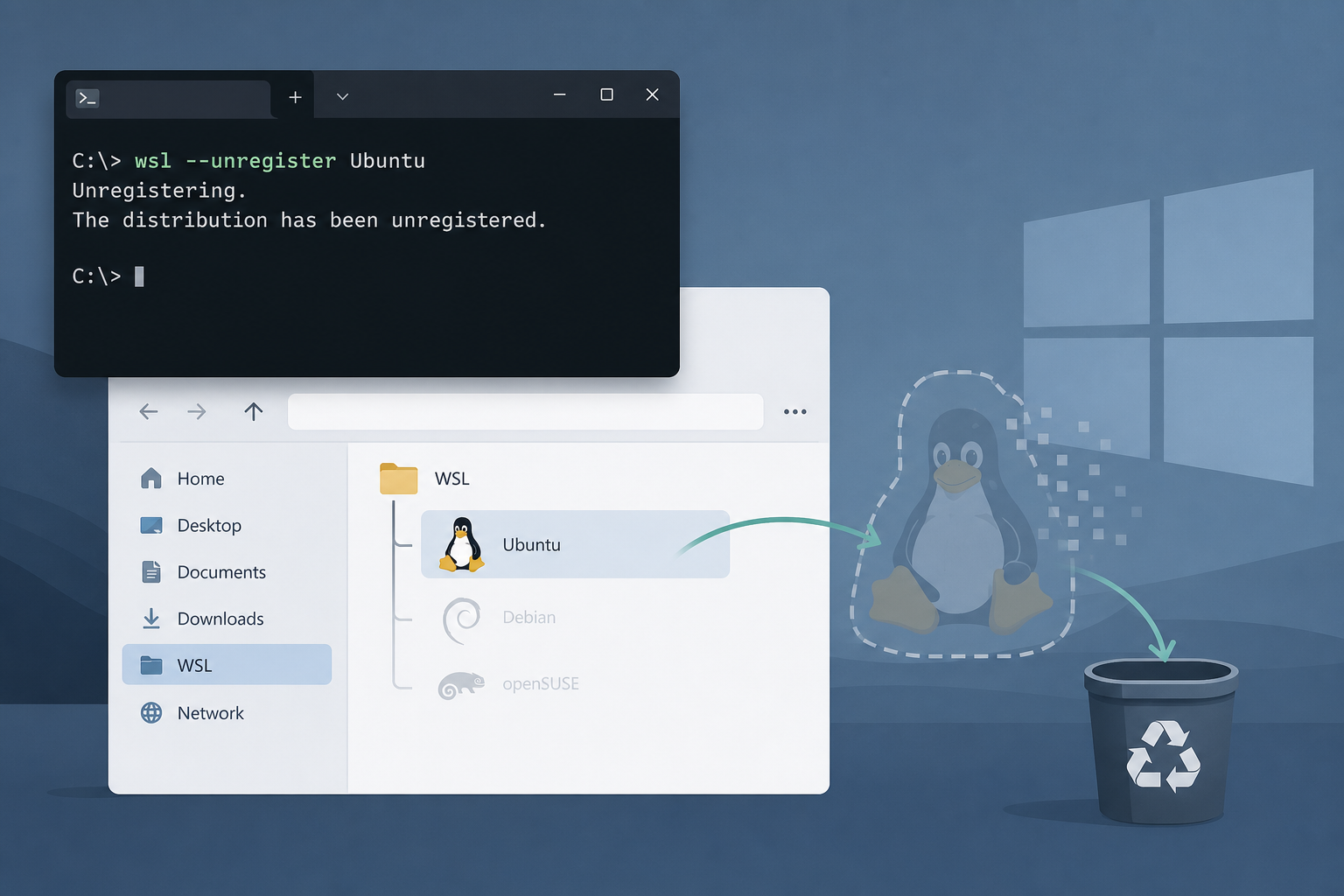
What “Uninstall WSL” Can Mean
People use the same phrase for three different goals:
Remove one distro (for example Ubuntu) but keep WSL available for another.
Remove all distros and reclaim disk, but leave optional features enabled.
Fully disable WSL on the PC (distros + optional components / Store WSL package).
Microsoft’s documented destructive step for a distribution is wsl --unregister: it unregisters the distro and permanently deletes associated data. Ask Ubuntu’s highest-voted “uninstall Ubuntu from WSL” answers also land on unregister when Settings uninstall alone left leftovers.
Decide your goal before typing anything. If you only hate one broken Ubuntu instance, unregister that name—do not disable Virtual Machine Platform yet. If you are wiping a spare laptop, plan the full path including feature disable and reboot.
Back Up Before You Destroy Data
wsl --unregister is not a soft “remove shortcut.” Per Microsoft, data, settings, and software inside that distro are permanently lost. Reinstalling from the Store gives a clean distro, not your old home directory.
wsl -l -v
wsl --shutdown
wsl --export Ubuntu D:\backups\ubuntu-backup.tar
Export to a Windows drive you control (D:\backups\), not only inside the distro you are about to delete. Confirm the tar exists and is non-trivial in size before unregistering. If you only need a few project folders, copy them to C:\Users\You\Documents\from-wsl\ instead of a full export.
Before you wipe a distro, copy any DOCX, XLSX, PPTX, or PDF files you still need out of Linux home folders into a Windows path you control. After uninstall, those Linux paths are gone—office files should already live on the Windows side if you still need to edit them.
Optional: compact or locate large VHDX usage after shutdown if disk pressure is why you are uninstalling—but never delete VHDX files by hand while a distro is still registered. Prefer official unregister so Windows cleans registration metadata too.
Unregister Every Linux Distribution
List exact names first. Names are case-sensitive enough to mistype—copy from the list output:
wsl -l -v
wsl --shutdown
wsl --unregister Ubuntu
# repeat for Debian, Arch, etc.
wsl -l -v
After each unregister, the name should disappear from wsl -l. If a distro is stuck “Running,” shut WSL down first. Do not skip the list step—community threads are full of people who unregistered the wrong name because they guessed Ubuntu-20.04 vs Ubuntu.
Removing Ubuntu on WSL or Arch on WSL this way is the same command pattern; only the distribution name changes. If the list is already empty, you may be looking at no installed distributions rather than an uninstall problem—confirm before disabling features.
Uninstall the Distro Apps from Windows
Ask Ubuntu answers note that Start Menu → Uninstall on the Ubuntu app is the familiar GUI path. After unregister, also remove leftover apps:
Open Settings → Apps → Installed apps (Windows 11) or Apps & features (Windows 10).
Search for Ubuntu, Debian, openSUSE, Arch, or other distro names you installed.
Uninstall each Linux distribution app.
GUI uninstall alone sometimes left the distro registered historically—that is why unregister remains the reliable cleanup. Doing both (unregister + app uninstall) matches how careful users finish the job.
Remove the WSL App Package (Optional Completeness)
Modern Windows may ship WSL as a Store/system component. On some builds you can remove the package from an elevated PowerShell session:
Get-AppxPackage *WindowsSubsystemForLinux* | Format-List Name, PackageFullName
Get-AppxPackage MicrosoftCorporationII.WindowsSubsystemForLinux | Remove-AppxPackage
If Get-AppxPackage returns nothing, your WSL may be inbox/optional-feature based—continue with feature disable below. Do not invent package names; use what your system lists. After removal, reboot before judging success.
Disable Windows Features for a Full Removal
To stop WSL from being available as a platform feature:
Press Start, search Turn Windows features on or off.
Clear Windows Subsystem for Linux.
Clear Virtual Machine Platform if you do not need it for other tools (Hyper-V workloads may depend on related virtualization features—know your machine’s other uses).
OK → reboot when prompted.
PowerShell alternative (Administrator), feature names as exposed on your build:
Disable-WindowsOptionalFeature -Online -FeatureName Microsoft-Windows-Subsystem-Linux
# Only if you intentionally remove VMP too:
Disable-WindowsOptionalFeature -Online -FeatureName VirtualMachinePlatform
Disabling features without unregistering first is the wrong order for data hygiene: unregister (and back up) while wsl still works, then disable features. Community “clean reinstall” write-ups follow the same sequence: destroy distros → remove apps → untick features → reboot.
Verify Removal and Reclaim Space
wsl -l -v
wsl --status
Get-WindowsOptionalFeature -Online -FeatureName Microsoft-Windows-Subsystem-Linux
Expectations after a full uninstall:
wsl -l -verrors or shows no distributions.No Ubuntu/Debian/Arch entries under Installed apps.
Optional feature state shows Disabled after reboot.
Disk space returns after unregister (VHDX data gone)—File Explorer “empty recycle bin” myths do not replace unregister.
WSL Linux GUI / WSLg pieces go away with the platform; you do not uninstall GUI support as a separate product once distros and WSL are removed.
Common Failures
Unregister says invalid distribution name: re-run
wsl -l -vand copy the exact name.Settings uninstall left distro listed: run
wsl --unregister—this is the Ask Ubuntu pattern that fixed stubborn Ubuntu leftovers.Access denied: use an elevated terminal for feature disable / some package removals.
Still see WSL after reboot: confirm both distro apps and optional features; some Store WSL packages need the Appx removal step.
Need WSL again: reinstall with the install guide, then add Ubuntu or Arch.
wsl --shutdown
wsl -l --all
# then unregister exact names again
When You Should Not Fully Uninstall
If Docker Desktop, Android emulation, or other tools depend on Virtual Machine Platform, clearing every virtualization-related box can break those workflows. Prefer unregistering unused Linux distros and leaving the platform enabled when you only need disk space from Ubuntu’s VHDX.
If your real problem is “WSL has no installed distributions,” uninstalling the platform is usually the wrong fix—install a distro instead via the empty-distro troubleshooting guide or install WSL.
Corporate images may re-enable features through policy. If WSL returns after every reboot, check with IT before fighting Group Policy with manual toggles.
Related guides while you clean up or rebuild: WSL overview, install WSL, Ubuntu on WSL, Arch on WSL, WSL GUI, and no installed distributions.
Practice the mental model: list → backup → unregister → remove apps → disable features → reboot → verify. Skipping backup is how semester projects disappear. Skipping unregister is how “I uninstalled Ubuntu” still shows a distro in wsl -l.
On shared family PCs, say out loud which distro name you are unregistering. One extra second of confirmation beats restoring from an incomplete export. Keep exports on a different physical disk when the uninstall is motivated by a failing system drive.
After a clean removal, Windows itself is unchanged for everyday browsing and office work. You only removed the Linux compatibility layer and its virtual disks. That clarity helps non-technical stakeholders who hear “uninstall Linux” and fear wiping Windows.
If you plan to reinstall immediately for a clean slate (common after broken upgrades), finish verification first so the new install does not collide with half-disabled features. Reboot once between full uninstall and full reinstall when the machine behaved oddly.
Document what you removed in a short note: distro names, whether VMP was disabled, and where backups live. Future you—or a teammate—will need that when something still references \\wsl$\ paths in scripts.
Finally, treat Microsoft’s wording as authoritative for data loss: unregister deletes the distro’s data. Blog posts that call unregister “just detach” are wrong. Read Microsoft’s WSL FAQ uninstall notes if you need the official one-line confirmation before you press Enter.
Uninstalling Windows Subsystem for Linux is straightforward when you separate distro deletion from platform disable—and dangerous when you reverse the warnings. Move carefully, verify twice, and only then reclaim the disk space you came for.
Before You Unregister: Save Office Files Outside the Distro
wsl --unregister permanently deletes that distro’s Linux filesystem. Any DOCX, XLSX, PPTX, or PDF still sitting only under your Linux home folder will disappear with it.
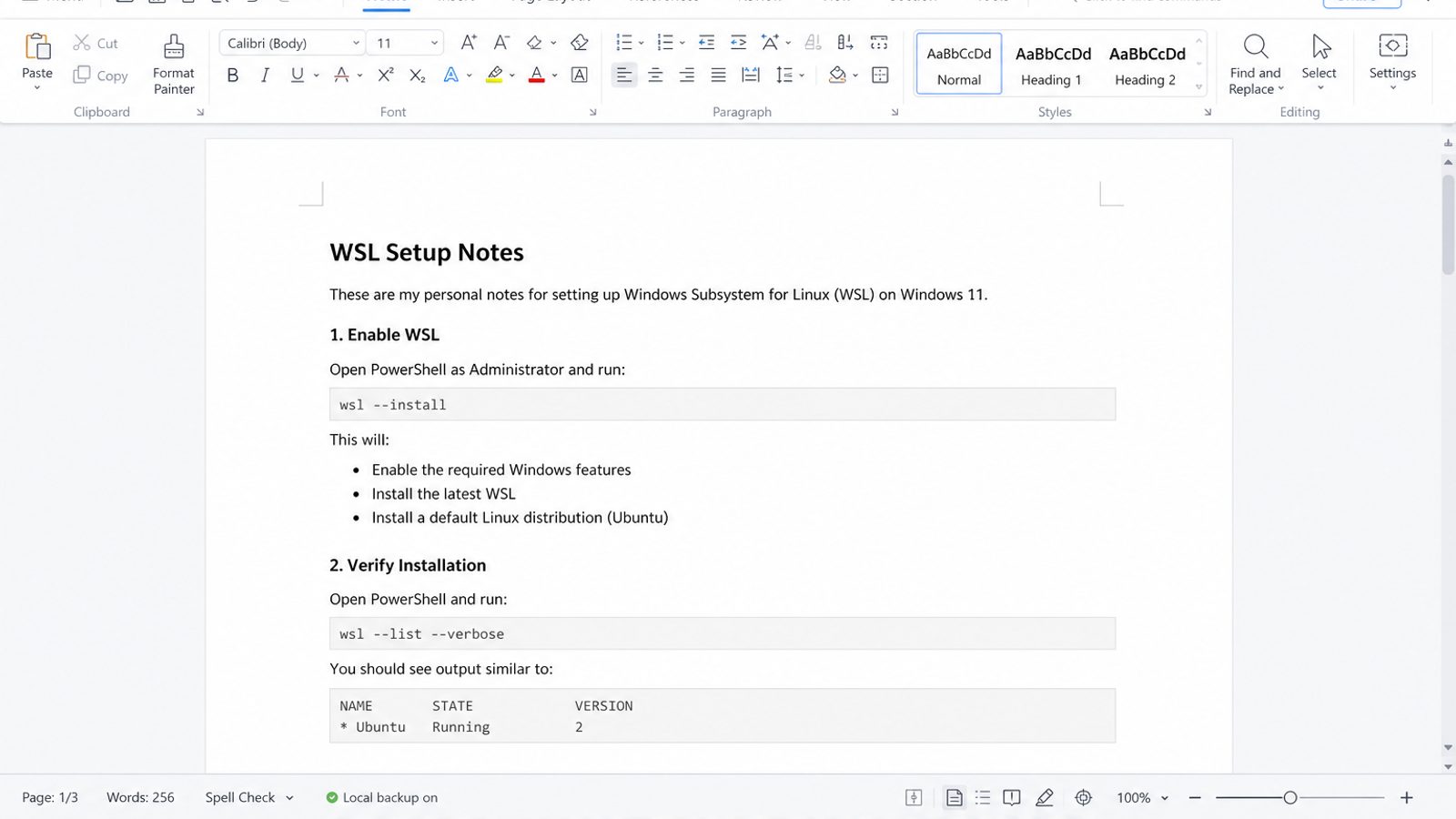
WPS Office on Windows is the practical place to keep those files after you copy them out: Writer, Spreadsheet, Presentation, and PDF tools with familiar Office formats.
| What you need next | What WPS gives you |
|---|---|
| Move important documents to Windows before wiping a distro | Strong .docx / .xlsx / .pptx layout fidelity when files move between Windows, Linux, and macOS |
| One place for notes, sheets, slides, and PDFs | Free core suite: Writer, Spreadsheet, Presentation, plus PDF view/edit/convert tools |
| A familiar desktop UI | Ribbon-style apps that feel close to everyday Office workflows |
| A trusted install path | Official Windows installer from wps.com, with Free Download available on this page |
Copy critical office files to a Windows path you control, open them in WPS from the official WPS Office download, then unregister only after you confirm the copies open correctly.
FAQ
Does wsl --unregister delete my files?
Yes. Microsoft documents that unregistering permanently removes the distribution’s data, settings, and software. Export or copy files out first.
Is uninstalling the Ubuntu app enough?
Not always. Ask Ubuntu users often still needed wsl --unregister when the distro remained listed. Do both for a clean removal.
How do I remove WSL completely?
Unregister all distros, uninstall distro apps, remove the WSL package if present, disable Windows Subsystem for Linux (and VMP if appropriate), then reboot and verify.
Will this delete my Windows files?
No—unregister targets the Linux distro filesystem managed by WSL, not your normal C:\Users Windows profile. Still, never delete unknown folders under AppData without a guide.
Can I reinstall later?
Yes. Follow how to install Windows Subsystem for Linux, then install Ubuntu or another distro.
Should I disable Virtual Machine Platform?
Only if nothing else on the PC needs it. If unsure, unregister distros and disable just Windows Subsystem for Linux first.
What if wsl -l is already empty?
You may only need to disable features or install a distro—not unregister. See no installed distributions if you still wanted Linux.
Remove distributions with unregister when you intend permanent deletion; finish with app removal and feature disable only when you want WSL gone from the machine. That ordered path matches Microsoft’s commands and the fixes Ask Ubuntu users actually marked as working.



'%3e%3cpath%20d='M19.9911%204.11386V6.471H18.5894C18.0775%206.471%2017.7322%206.57814%2017.5536%206.79243C17.3751%207.00671%2017.2858%207.32814%2017.2858%207.75671V9.44421H19.9019L19.5536%2012.0871H17.2858V18.8639H14.5536V12.0871H12.2769V9.44421H14.5536V7.49779C14.5536%206.39064%2014.8632%205.53201%2015.4822%204.92189C16.1013%204.31177%2016.9257%204.00671%2017.9554%204.00671C18.8304%204.00671%2019.509%204.04243%2019.9911%204.11386Z'%20fill='%23333333'/%3e%3c/g%3e%3cdefs%3e%3cclipPath%20id='clip0_2938_8199'%3e%3crect%20width='16'%20height='16'%20fill='white'%20transform='translate(8%204.00671)'/%3e%3c/clipPath%3e%3c/defs%3e%3c/svg%3e)
'%3e%3cpath%20d='M17.5237%2010.7813L23.4811%204H22.0699L16.8949%209.88693L12.7648%204H8L14.2469%2012.9029L8%2020.0133H9.4112L14.8725%2013.7952L19.2352%2020.0133H24M9.92053%205.04213H12.0885L22.0688%2019.0224H19.9003'%20fill='%23333333'/%3e%3c/g%3e%3cdefs%3e%3cclipPath%20id='clip0_2938_8200'%3e%3crect%20width='16'%20height='16.0134'%20fill='white'%20transform='translate(8%204)'/%3e%3c/clipPath%3e%3c/defs%3e%3c/svg%3e)


