



'%3e%3cpath%20fill-rule='evenodd'%20clip-rule='evenodd'%20d='M21.4999%2010.9993C21.4999%205.20009%2016.7986%200.498901%2010.9993%200.498901C5.19994%200.498901%200.498657%205.20009%200.498657%2010.9993C0.498657%2016.2404%204.33858%2020.5844%209.35855%2021.3722V14.0346H6.69238V10.9993H9.35855V8.68594C9.35855%206.05427%2010.9262%204.60062%2013.3248%204.60062C14.4736%204.60062%2015.6753%204.80571%2015.6753%204.80571V7.38979H14.3512C13.0468%207.38979%2012.64%208.19921%2012.64%209.0296V10.9993H15.5523L15.0867%2014.0346H12.64V21.3722C17.66%2020.5844%2021.4999%2016.2404%2021.4999%2010.9993Z'%20fill='%231568EA'/%3e%3c/g%3e%3c/svg%3e)


'%3e%3cpath%20d='M2.42045%2022.1876H6.31818V12.7217L0.75%208.54553V20.5171C0.75%2021.4414%201.49892%2022.1876%202.42045%2022.1876Z'%20fill='%234285F4'/%3e%3cpath%20d='M19.682%2022.1876H23.5797C24.5041%2022.1876%2025.2502%2021.4387%2025.2502%2020.5171V8.54553L19.682%2012.7217'%20fill='%2334A853'/%3e%3cpath%20d='M19.682%205.48293V12.7216L25.2502%208.54543V6.31816C25.2502%204.25236%2022.8921%203.07469%2021.2411%204.31361'%20fill='%23FBBC04'/%3e%3cpath%20d='M6.31824%2012.7217V5.48303L13.0001%2010.4944L19.6819%205.48303V12.7217L13.0001%2017.733'%20fill='%23EA4335'/%3e%3cpath%20d='M0.75%206.31816V8.54543L6.31818%2012.7216V5.48293L4.75909%204.31361C3.10534%203.07469%200.75%204.25236%200.75%206.31816Z'%20fill='%23C5221F'/%3e%3c/g%3e%3cdefs%3e%3cclipPath%20id='clip0_2954_7305'%3e%3crect%20width='24.5'%20height='18.375'%20fill='white'%20transform='translate(0.75%203.8125)'/%3e%3c/clipPath%3e%3c/defs%3e%3c/svg%3e)


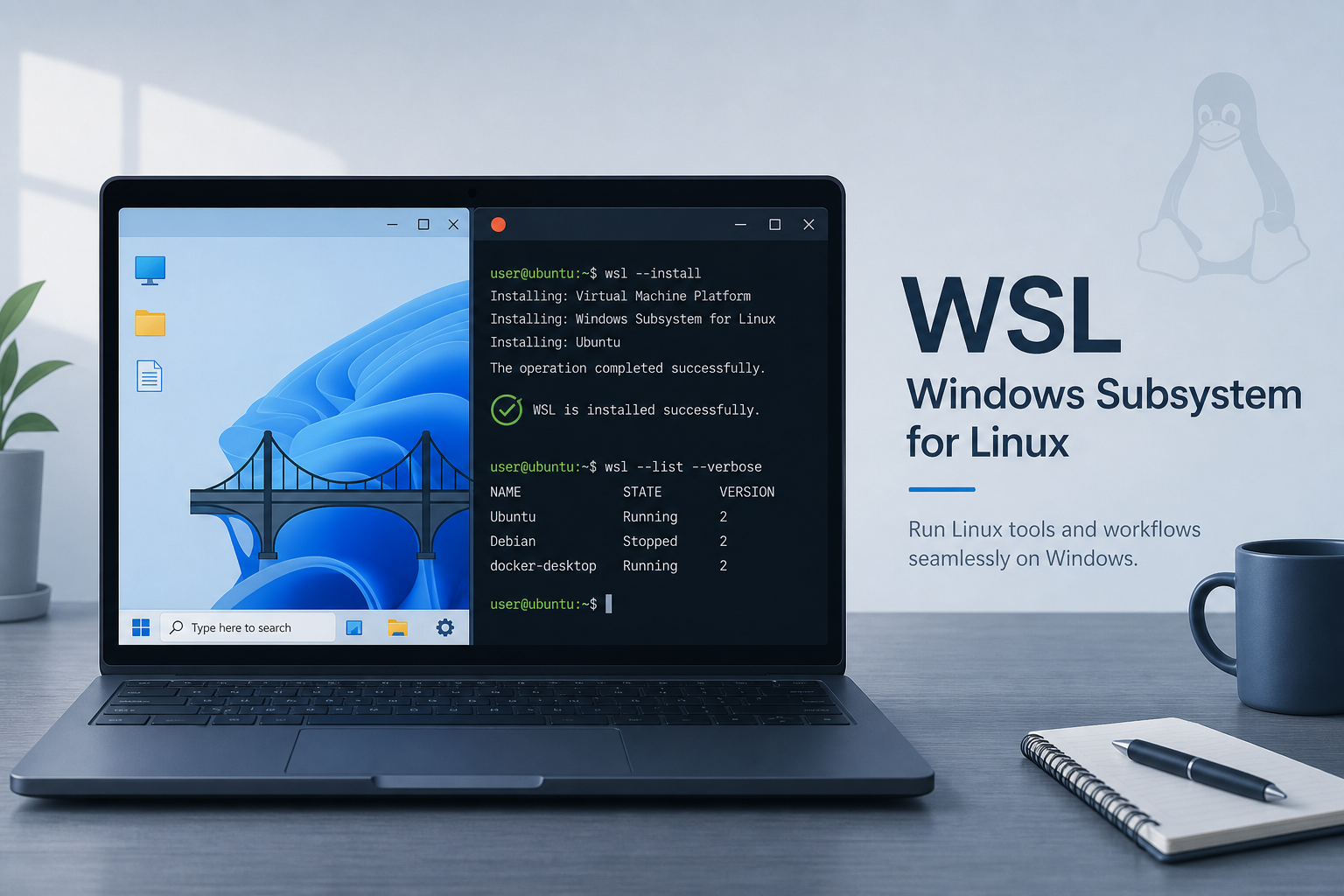
Windows Subsystem for Linux (WSL) lets you run a real Linux distribution—commonly Ubuntu—directly on Windows without a full dual-boot setup. On Windows 11, or Windows 10 version 2004 and higher (Build 19041+), the shortest path is an elevated PowerShell command: wsl --install, then restart, then create your Linux username when Ubuntu first launches.
For a full setup path, follow how to install Windows Subsystem for Linux; for a first distro choose Windows Subsystem for Linux Ubuntu or WSL Arch Linux. If wsl -l -v is empty, see WSL has no installed distributions; for GUI apps, use WSL Linux GUI.
Success looks like this: after reboot, Ubuntu opens, you set a UNIX username and password, and wsl --list --verbose shows your distro with VERSION set to 2. If WSL reports that no distributions are installed, virtualization is disabled, Virtual Machine Platform is off, or install hangs near 0%, use the troubleshooting section below before any unregister or reset steps.
What WSL Does—and What It Does Not
WSL gives Windows developers and power users Linux shells, package tools, and many Linux utilities beside Windows apps. Microsoft documents that you can install distributions such as Ubuntu, Debian, openSUSE, and others, then run Linux commands without the overhead of a traditional full virtual machine workflow for everyday CLI work.
WSL is not a complete replacement for every Linux desktop scenario. Some workloads still need a native Linux install, dual boot, or a conventional VM. Treat WSL as a Linux environment on Windows, not as “Linux replacing Windows.”
Check Prerequisites Before You Install
Confirm your Windows build:
Press Win + R, type
winver, and press Enter.Confirm Windows 11, or Windows 10 version 2004 / Build 19041 or newer for the modern
wsl --installflow.
On older Windows 10 builds, Microsoft directs you to the manual WSL installation steps instead of relying on the one-command installer alone.
Also plan for administrator rights, a restart during setup, and CPU virtualization available in firmware (often labeled Intel VT-x, AMD-V, or SVM).
Install WSL With the Official One-Command Path
Right-click Start → open Windows PowerShell (Admin) or Terminal (Admin).
Run:
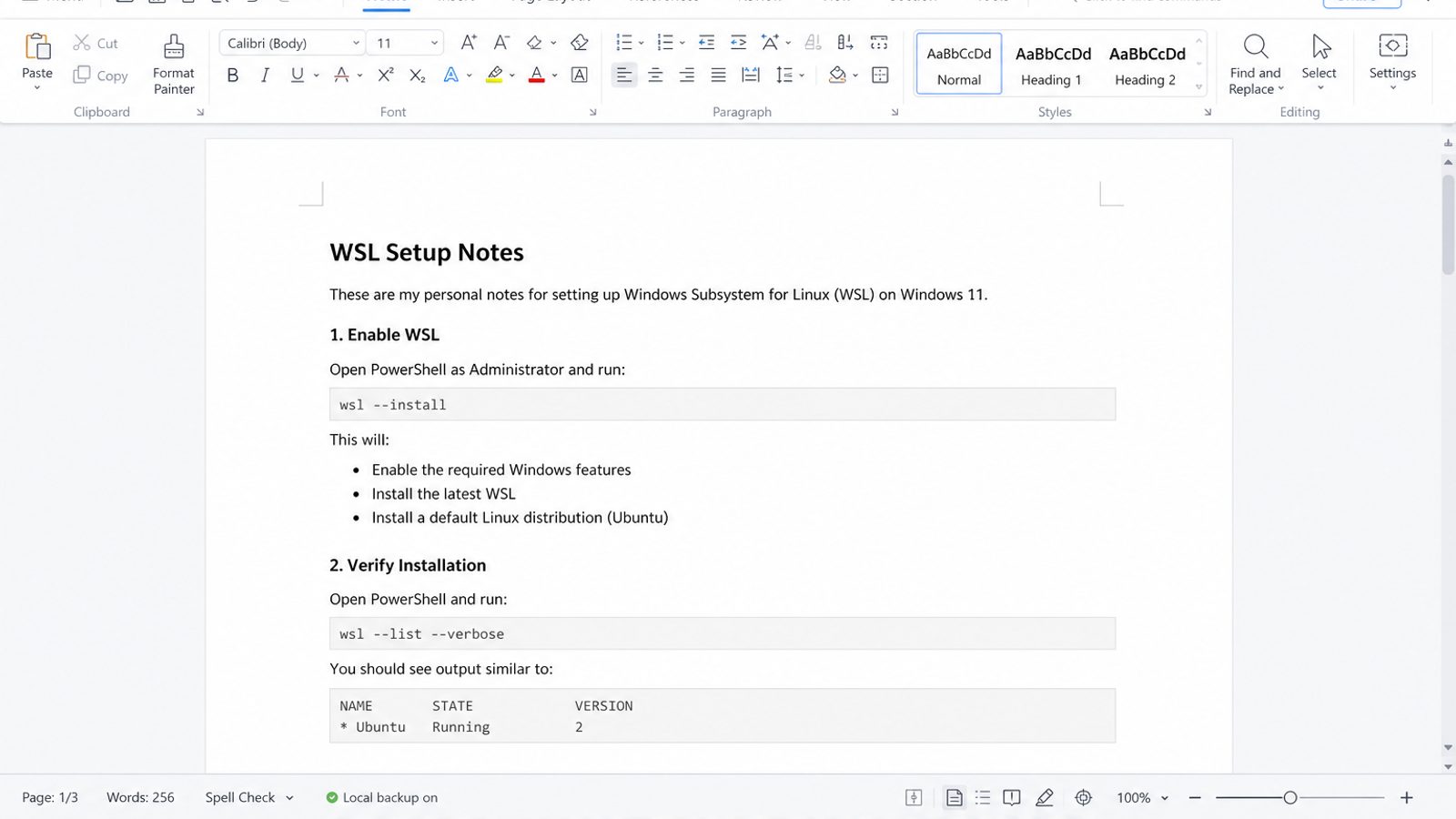
wsl --install
According to Microsoft Learn, this enables the required Windows features, installs the latest WSL Linux kernel support path used by current installs, sets WSL 2 as the default for new distros, and installs Ubuntu by default (unless you choose another distribution).
Restart Windows when prompted.
After reboot, open Ubuntu from the Start menu and wait while the distro finishes first-run setup.
Create a Linux username and password when asked. The password will not echo as you type; that is normal.
Expected result: an Ubuntu shell prompt appears under your new Linux user.
If wsl --install only prints WSL help text, WSL is already present. Install a distribution explicitly:
wsl --list --online
wsl --install -d Ubuntu
Use an exact name from the online list. Do not invent distro names.
Verify WSL 2 and Your Distro Status
wsl --list --verbose
Expected result: at least one distribution is listed, STATE is Running or Stopped, and VERSION is 2 for a current default install.
wsl --status
wsl --version
To open your default distro:
wsl
Inside Linux:
uname -a
lsb_release -a
Choose a Different Distro When You Need One
wsl --list --online
wsl --install -d Debian
Replace Debian with an exact name from the list. If install progress sticks near 0.0%, Microsoft’s guidance includes:
wsl --install --web-download -d Ubuntu



'%3e%3cpath%20d='M19.9911%204.11386V6.471H18.5894C18.0775%206.471%2017.7322%206.57814%2017.5536%206.79243C17.3751%207.00671%2017.2858%207.32814%2017.2858%207.75671V9.44421H19.9019L19.5536%2012.0871H17.2858V18.8639H14.5536V12.0871H12.2769V9.44421H14.5536V7.49779C14.5536%206.39064%2014.8632%205.53201%2015.4822%204.92189C16.1013%204.31177%2016.9257%204.00671%2017.9554%204.00671C18.8304%204.00671%2019.509%204.04243%2019.9911%204.11386Z'%20fill='%23333333'/%3e%3c/g%3e%3cdefs%3e%3cclipPath%20id='clip0_2938_8199'%3e%3crect%20width='16'%20height='16'%20fill='white'%20transform='translate(8%204.00671)'/%3e%3c/clipPath%3e%3c/defs%3e%3c/svg%3e)
'%3e%3cpath%20d='M17.5237%2010.7813L23.4811%204H22.0699L16.8949%209.88693L12.7648%204H8L14.2469%2012.9029L8%2020.0133H9.4112L14.8725%2013.7952L19.2352%2020.0133H24M9.92053%205.04213H12.0885L22.0688%2019.0224H19.9003'%20fill='%23333333'/%3e%3c/g%3e%3cdefs%3e%3cclipPath%20id='clip0_2938_8200'%3e%3crect%20width='16'%20height='16.0134'%20fill='white'%20transform='translate(8%204)'/%3e%3c/clipPath%3e%3c/defs%3e%3c/svg%3e)


