



'%3e%3cpath%20fill-rule='evenodd'%20clip-rule='evenodd'%20d='M21.4999%2010.9993C21.4999%205.20009%2016.7986%200.498901%2010.9993%200.498901C5.19994%200.498901%200.498657%205.20009%200.498657%2010.9993C0.498657%2016.2404%204.33858%2020.5844%209.35855%2021.3722V14.0346H6.69238V10.9993H9.35855V8.68594C9.35855%206.05427%2010.9262%204.60062%2013.3248%204.60062C14.4736%204.60062%2015.6753%204.80571%2015.6753%204.80571V7.38979H14.3512C13.0468%207.38979%2012.64%208.19921%2012.64%209.0296V10.9993H15.5523L15.0867%2014.0346H12.64V21.3722C17.66%2020.5844%2021.4999%2016.2404%2021.4999%2010.9993Z'%20fill='%231568EA'/%3e%3c/g%3e%3c/svg%3e)


'%3e%3cpath%20d='M2.42045%2022.1876H6.31818V12.7217L0.75%208.54553V20.5171C0.75%2021.4414%201.49892%2022.1876%202.42045%2022.1876Z'%20fill='%234285F4'/%3e%3cpath%20d='M19.682%2022.1876H23.5797C24.5041%2022.1876%2025.2502%2021.4387%2025.2502%2020.5171V8.54553L19.682%2012.7217'%20fill='%2334A853'/%3e%3cpath%20d='M19.682%205.48293V12.7216L25.2502%208.54543V6.31816C25.2502%204.25236%2022.8921%203.07469%2021.2411%204.31361'%20fill='%23FBBC04'/%3e%3cpath%20d='M6.31824%2012.7217V5.48303L13.0001%2010.4944L19.6819%205.48303V12.7217L13.0001%2017.733'%20fill='%23EA4335'/%3e%3cpath%20d='M0.75%206.31816V8.54543L6.31818%2012.7216V5.48293L4.75909%204.31361C3.10534%203.07469%200.75%204.25236%200.75%206.31816Z'%20fill='%23C5221F'/%3e%3c/g%3e%3cdefs%3e%3cclipPath%20id='clip0_2954_7305'%3e%3crect%20width='24.5'%20height='18.375'%20fill='white'%20transform='translate(0.75%203.8125)'/%3e%3c/clipPath%3e%3c/defs%3e%3c/svg%3e)


To use a Linux GUI on WSL, run individual Linux GUI apps through WSLg on WSL 2—not a full third-party Linux desktop as the default Microsoft path. On Windows 11 and Windows 10 Build 19044+, install or update WSL, keep your distro on VERSION 2, install a GPU driver for vGPU acceleration, then install GUI packages inside Linux and launch them from the terminal or Start menu.
WSLg needs a working distro—install via how to install Windows Subsystem for Linux, then use Windows Subsystem for Linux Ubuntu or WSL Arch Linux. If nothing is registered, fix WSL has no installed distributions first. Background: Windows Subsystem for Linux overview.
Shortest path: wsl --update → wsl --shutdown → verify wsl -l -v shows VERSION 2 → install GPU driver → sudo apt install a test app → launch it. Success means a Linux window appears on the Windows desktop and Alt+Tab switches between Linux and Windows apps.
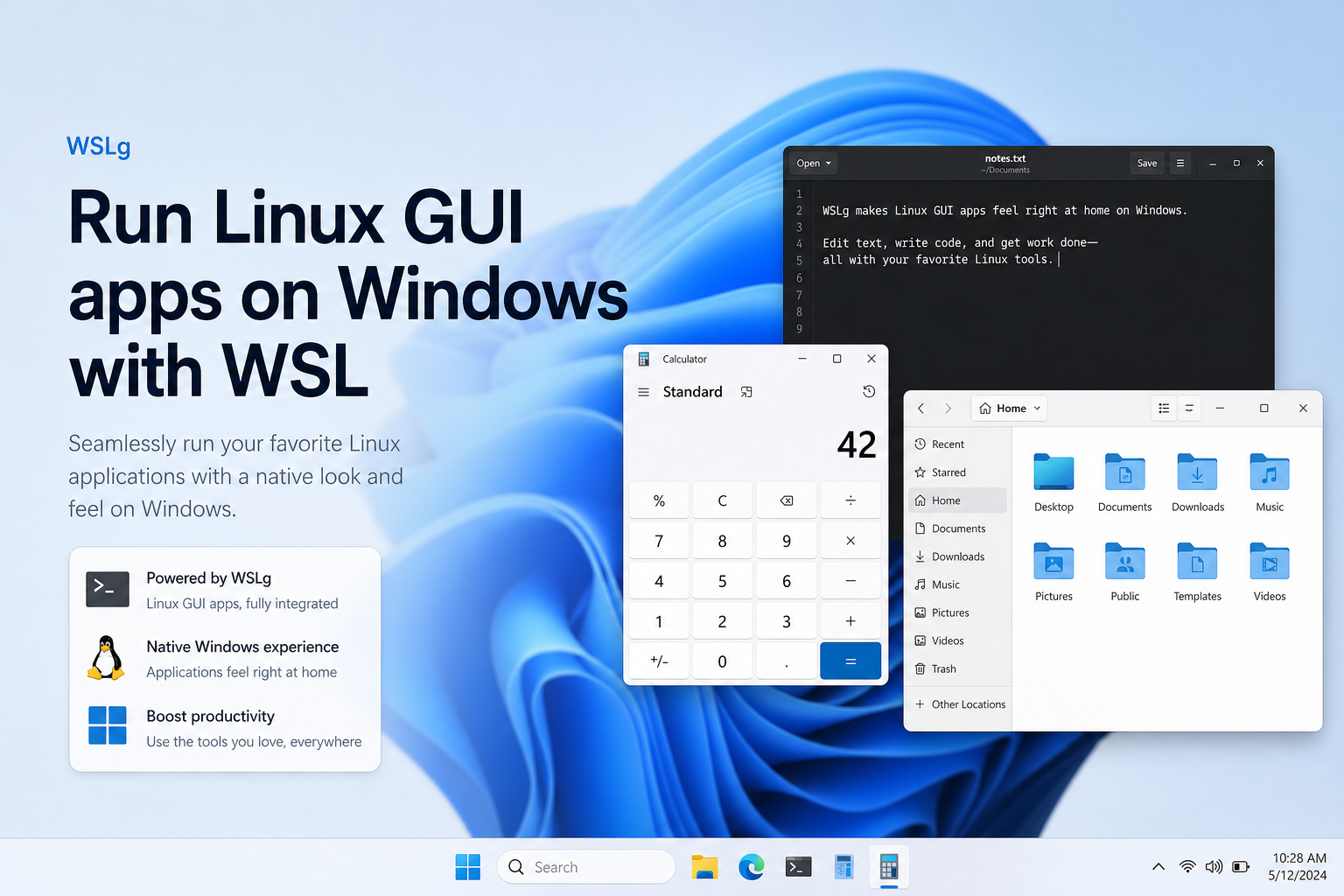
What “WSL Linux GUI” Means (and Does Not Mean)
Microsoft’s GUI tutorial describes running Linux GUI applications with X11 and Wayland support inside the Windows desktop: Start menu entries, taskbar pinning, Alt+Tab, and clipboard integration. It does not promise a full GNOME/KDE session replacing the Windows shell. Ask Ubuntu threads about launching full Kubuntu/GNOME sessions inside WSL are experimenting beyond that supported app-oriented model—treat full desktop environments as unsupported extras.
Prerequisites
- Windows 10 Build 19044+ or Windows 11
- WSL 2 distro (WSLg does not work for WSL 1)
- Matching GPU driver for vGPU (Intel / AMD / NVIDIA as listed by Microsoft)
- Updated WSL that includes WSLg
winver
wsl --status
wsl -l -v
Enable or Refresh GUI Support
Fresh machines can install WSL with GUI support via:
wsl --installExisting WSL installs should update, then shut down WSL:
wsl --update
wsl --shutdown
Confirm every distro you care about is VERSION 2:
wsl --set-version Ubuntu 2
wsl -l -v
Install the GPU driver package Microsoft links for your hardware before expecting accelerated OpenGL.
Install and Launch Test GUI Apps (Ubuntu/Debian Example)
Inside your distro:
sudo apt update
sudo apt install x11-apps -y
xclock
xeyes
xcalc
Expected result: small X11 demo windows on the Windows desktop. Then try a real app:
sudo apt install gnome-text-editor -y
gnome-text-editor
Other Microsoft examples include GIMP, Nautilus, and VLC via apt. Non-Debian distros use their own package managers—same idea, different commands.
Always smoke-test with xclock or xeyes before debugging a large application stack. If demos fail, the problem is WSLg/platform—not GIMP plugins. Microsoft’s tutorial also walks through Nautilus, VLC, and browser packages after the demos succeed.
Start Menu and Daily Workflow
After installing GUI packages, Windows may show entries under the distribution name in Start. Launch from Start or from the Linux terminal. Cut and paste should work across Windows and Linux apps when WSLg is healthy. Pin frequently used Linux apps to the taskbar like native Windows programs. Windows Terminal remains excellent for shells, while GUI apps should appear as separate windows on the Windows desktop.
Cannot Open Display and Other GUI Failures
If apps exit with display errors:
- Confirm WSL 2, not WSL 1.
- Rerun
wsl --updateandwsl --shutdown. - Verify GPU drivers from Microsoft’s GUI prerequisites.
- Follow Microsoft/WSLg guidance for diagnosing “cannot open display” issues before inventing manual
DISPLAYexports from outdated WSL1 blog posts.
Legacy advice to install third-party X servers on Windows was for older WSL1 workflows. On modern WSLg-capable systems, prefer the built-in path in Run Linux GUI apps on WSL. Mixing VcXsrv with WSLg can create confusing duplicate display configurations—pick one approach. Also confirm you are launching locally in WSL rather than over a plain SSH session without a display path.
Full Desktop Environments vs App Windows
Installing ubuntu-desktop or attempting to start GNOME/Kubuntu sessions may pull huge dependency sets and still fail to behave like a normal Linux PC. Microsoft states GUI support relies on the Windows desktop and that desktop-focused tools may not be supported. If your goal is a few Linux GUIs (browsers, editors, engineering tools), install those packages individually. If you experiment with full desktops, export a backup first.
Optional: Check guiApplications in .wslconfig
WSLg is enabled by default. ArchWiki notes you can disable it with guiApplications=false under [wsl2] in .wslconfig. If someone disabled it, re-enable and restart WSL:
wsl --shutdownThe user-level .wslconfig file lives in your Windows user profile (%UserProfile%\.wslconfig). After edits, shutdown is required for changes to apply.
Verify Success
xclockor another demo app opens on Windows.- A larger app such as a text editor opens from terminal and Start.
- Alt+Tab includes the Linux window.
wsl -l -vstill shows VERSION 2.
Optional: copy text from a Linux GUI app into Notepad to confirm clipboard bridging.
Run a quick end-to-end check after updates:
wsl --update
wsl --shutdown
wsl -l -v
wsl
sudo apt update
sudo apt install -y x11-apps gnome-text-editor
xclock &
gnome-text-editor
Run the Windows commands in PowerShell first, then the Linux commands inside the distro. If xclock appears, WSLg is working. If it does not, stop and fix platform prerequisites before installing heavier apps. This order prevents “GIMP won’t start” tickets that are actually “WSLg never started.” When you later install browsers or IDEs, keep using the same verification habit: one small windowed app, then the large app.
Clipboard, DPI, and Multi-Monitor Notes
WSLg aims to make Linux GUI apps feel native: clipboard, Alt+Tab, and Start menu integration. If clipboard paste fails intermittently, update WSL and restart it. DPI scaling usually follows Windows; odd fractional scaling issues are better reported upstream than “fixed” with random X resources from old WSL1 posts.
On multi-monitor setups, move a Linux window across displays as you would a Windows app. If a window opens off-screen, use Windows snap shortcuts to bring it back. These are Windows shell behaviors because WSLg renders onto the Windows desktop.
GPU Drivers and Acceleration Expectations
Microsoft requires a matching Intel, AMD, or NVIDIA driver package so WSL can use a vGPU for accelerated OpenGL. Without it, some apps still open but render slowly or fall back to software paths. Install the driver on Windows, then restart WSL. Inside Linux, advanced users may inspect GL with distro tools, but driver installation itself is a Windows-side prerequisite from the GUI tutorial.
If demos work and only one GPU-heavy app fails, update that app’s packages before blaming WSLg. Conversely, if even xeyes fails after a Windows GPU driver change, reboot Windows once and rerun wsl --shutdown.
Recommended First GUI Apps by Job
- Editors: GNOME Text Editor or your preferred IDE UI packages
- Files: Nautilus for a Linux file manager window
- Images: GIMP
- Media: VLC
- Sanity checks:
x11-appsdemos
Install only what you will use. Each GUI stack pulls libraries; a minimal set keeps the distro lighter and makes WSLg failures easier to attribute. After installs, reboot WSL with wsl --shutdown if Start menu shortcuts do not appear yet.
Remember Microsoft’s boundary: WSLg integrates apps into Windows; it is not a promise that every Linux desktop tutorial will work unchanged. When a guide starts with “install a full desktop and VNC,” you are leaving the supported WSLg path.
Document which GPU driver version you installed on Windows so you can correlate regressions after driver updates. Keep WSLg troubleshooting focused on WSL 2 + driver + update/shutdown before you add third-party X servers. If you write internal IT documentation, record Windows build, WSL status, GPU driver branch, and distro VERSION—those four fields solve most “Linux GUI on WSL doesn’t work here” tickets.
WSL Linux GUI is also a useful teaching bridge: students can run Linux editors and browsers without dual-booting. Pair WSLg with a maintained WSL 2 distro, keep Windows GPU drivers current, and treat full-desktop tutorials as optional advanced work—not the default install path for wsl linux gui searches.
When you search for wsl linux gui, the practical answer is WSLg: update WSL, stay on WSL 2, install the Windows-side GPU driver Microsoft lists, then install Linux GUI packages and launch them as normal Windows windows. That sequence beats hunting for VcXsrv configs on modern builds. Keep a short personal checklist—update, shutdown, list versions, demo app, real app—so every machine you touch follows the same path.
After GUI Apps Work: Keep Docs in WPS on Windows
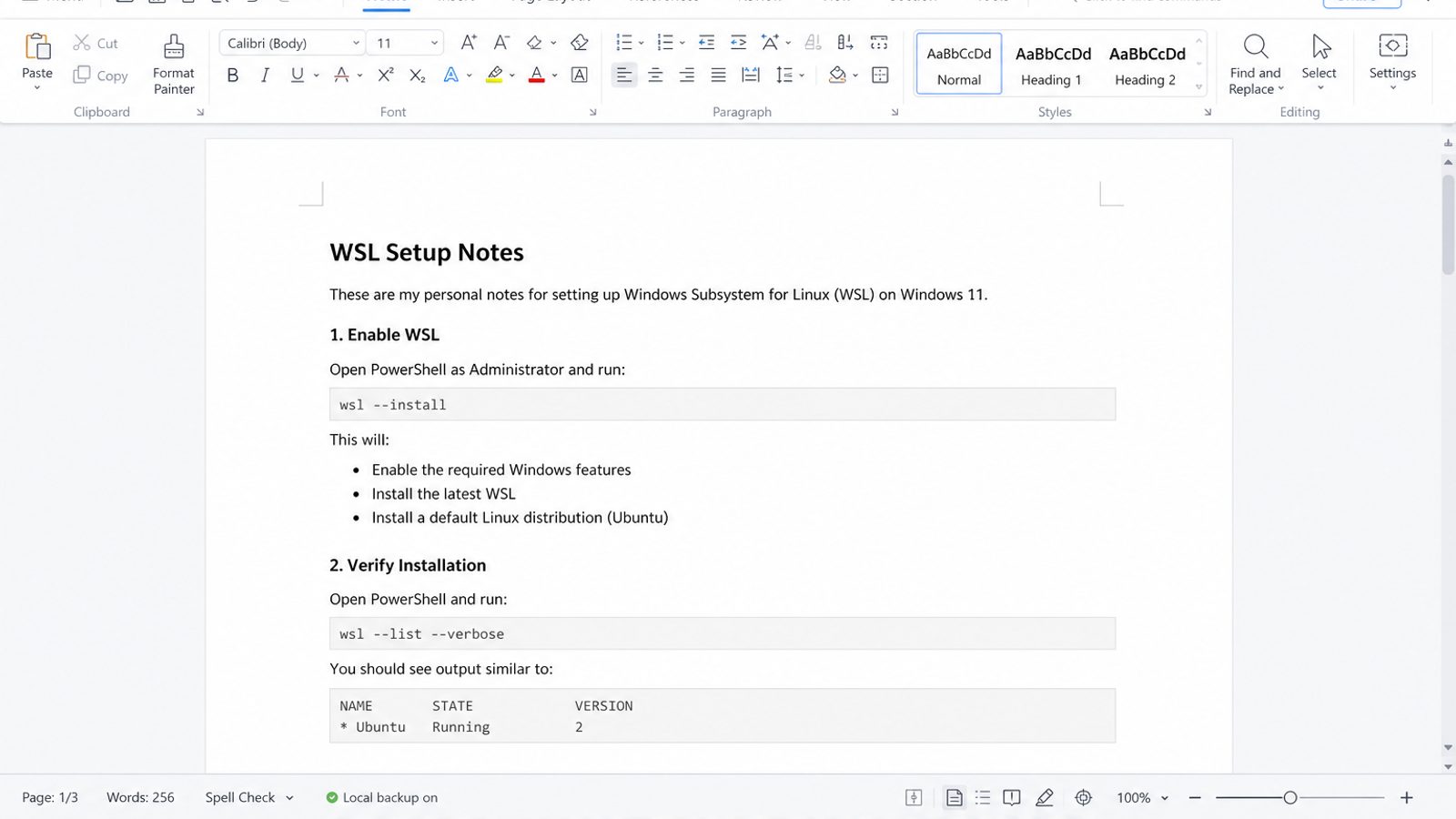
WSLg is great for Linux GUI tools on the Windows desktop. Most school and work documents still belong in Writer/Spreadsheet/Presentation files that open the same way for Windows teammates.
WPS Office on Windows covers that document layer while Linux GUI apps handle specialized tools: familiar ribbon apps for DOCX, XLSX, PPTX, and PDF.
| What you need next | What WPS gives you |
|---|---|
| Separate Linux GUI apps from everyday Office file editing | Strong .docx / .xlsx / .pptx layout fidelity when files move between Windows, Linux, and macOS |
| One place for notes, sheets, slides, and PDFs | Free core suite: Writer, Spreadsheet, Presentation, plus PDF view/edit/convert tools |
| A familiar desktop UI | Ribbon-style apps that feel close to everyday Office workflows |
| A trusted install path | Official Windows installer from wps.com, with Free Download available on this page |
Use the official WPS Office download on Windows for deliverables, and keep WSLg for the Linux apps that actually need a GUI window.


Related WSL guides: how to install Windows Subsystem for Linux, Windows Subsystem for Linux Ubuntu, WSL Arch Linux, WSL has no installed distributions, and Windows Subsystem for Linux overview, and uninstall Windows Subsystem for Linux.
FAQ
Does WSLg work on WSL 1?
No. Convert the distro to WSL 2 with wsl --set-version DistroName 2, then retest.
Do I need a separate X server like VcXsrv?
Not for the modern Microsoft WSLg path on supported Windows builds. Prefer built-in WSLg unless you have a documented reason to use a third-party X server.
Can I run a full Linux desktop?
Not as the supported default experience—WSLg targets integrated apps on the Windows desktop rather than replacing the Windows shell.
GPU driver is required?
Microsoft lists a matching vGPU driver for accelerated OpenGL; install the vendor package linked from the GUI tutorial on the Windows host.
Why is audio missing?
WSLg includes audio support in current builds—update WSL and restart it before troubleshooting PulseAudio inside the distro.
Do demo X apps work but GIMP does not?
Then WSLg is fine—debug the application package, missing libraries, or GPU acceleration next.
Is a full GNOME session supported?
Microsoft’s supported model is app windows on the Windows desktop, not replacing the Windows shell with a full Linux desktop.
Where do I read official GUI steps?
Use Microsoft Learn’s “Run Linux GUI apps on WSL” tutorial and the WSLg GitHub diagnostics for display errors.
Can I use Wayland apps?
WSLg supports X11 and Wayland app integration on supported Windows builds—keep WSL updated so the bundled WSLg components stay current.

'%3e%3cpath%20d='M19.9911%204.11386V6.471H18.5894C18.0775%206.471%2017.7322%206.57814%2017.5536%206.79243C17.3751%207.00671%2017.2858%207.32814%2017.2858%207.75671V9.44421H19.9019L19.5536%2012.0871H17.2858V18.8639H14.5536V12.0871H12.2769V9.44421H14.5536V7.49779C14.5536%206.39064%2014.8632%205.53201%2015.4822%204.92189C16.1013%204.31177%2016.9257%204.00671%2017.9554%204.00671C18.8304%204.00671%2019.509%204.04243%2019.9911%204.11386Z'%20fill='%23333333'/%3e%3c/g%3e%3cdefs%3e%3cclipPath%20id='clip0_2938_8199'%3e%3crect%20width='16'%20height='16'%20fill='white'%20transform='translate(8%204.00671)'/%3e%3c/clipPath%3e%3c/defs%3e%3c/svg%3e)
'%3e%3cpath%20d='M17.5237%2010.7813L23.4811%204H22.0699L16.8949%209.88693L12.7648%204H8L14.2469%2012.9029L8%2020.0133H9.4112L14.8725%2013.7952L19.2352%2020.0133H24M9.92053%205.04213H12.0885L22.0688%2019.0224H19.9003'%20fill='%23333333'/%3e%3c/g%3e%3cdefs%3e%3cclipPath%20id='clip0_2938_8200'%3e%3crect%20width='16'%20height='16.0134'%20fill='white'%20transform='translate(8%204)'/%3e%3c/clipPath%3e%3c/defs%3e%3c/svg%3e)


