



'%3e%3cpath%20fill-rule='evenodd'%20clip-rule='evenodd'%20d='M21.4999%2010.9993C21.4999%205.20009%2016.7986%200.498901%2010.9993%200.498901C5.19994%200.498901%200.498657%205.20009%200.498657%2010.9993C0.498657%2016.2404%204.33858%2020.5844%209.35855%2021.3722V14.0346H6.69238V10.9993H9.35855V8.68594C9.35855%206.05427%2010.9262%204.60062%2013.3248%204.60062C14.4736%204.60062%2015.6753%204.80571%2015.6753%204.80571V7.38979H14.3512C13.0468%207.38979%2012.64%208.19921%2012.64%209.0296V10.9993H15.5523L15.0867%2014.0346H12.64V21.3722C17.66%2020.5844%2021.4999%2016.2404%2021.4999%2010.9993Z'%20fill='%231568EA'/%3e%3c/g%3e%3c/svg%3e)


'%3e%3cpath%20d='M2.42045%2022.1876H6.31818V12.7217L0.75%208.54553V20.5171C0.75%2021.4414%201.49892%2022.1876%202.42045%2022.1876Z'%20fill='%234285F4'/%3e%3cpath%20d='M19.682%2022.1876H23.5797C24.5041%2022.1876%2025.2502%2021.4387%2025.2502%2020.5171V8.54553L19.682%2012.7217'%20fill='%2334A853'/%3e%3cpath%20d='M19.682%205.48293V12.7216L25.2502%208.54543V6.31816C25.2502%204.25236%2022.8921%203.07469%2021.2411%204.31361'%20fill='%23FBBC04'/%3e%3cpath%20d='M6.31824%2012.7217V5.48303L13.0001%2010.4944L19.6819%205.48303V12.7217L13.0001%2017.733'%20fill='%23EA4335'/%3e%3cpath%20d='M0.75%206.31816V8.54543L6.31818%2012.7216V5.48293L4.75909%204.31361C3.10534%203.07469%200.75%204.25236%200.75%206.31816Z'%20fill='%23C5221F'/%3e%3c/g%3e%3cdefs%3e%3cclipPath%20id='clip0_2954_7305'%3e%3crect%20width='24.5'%20height='18.375'%20fill='white'%20transform='translate(0.75%203.8125)'/%3e%3c/clipPath%3e%3c/defs%3e%3c/svg%3e)


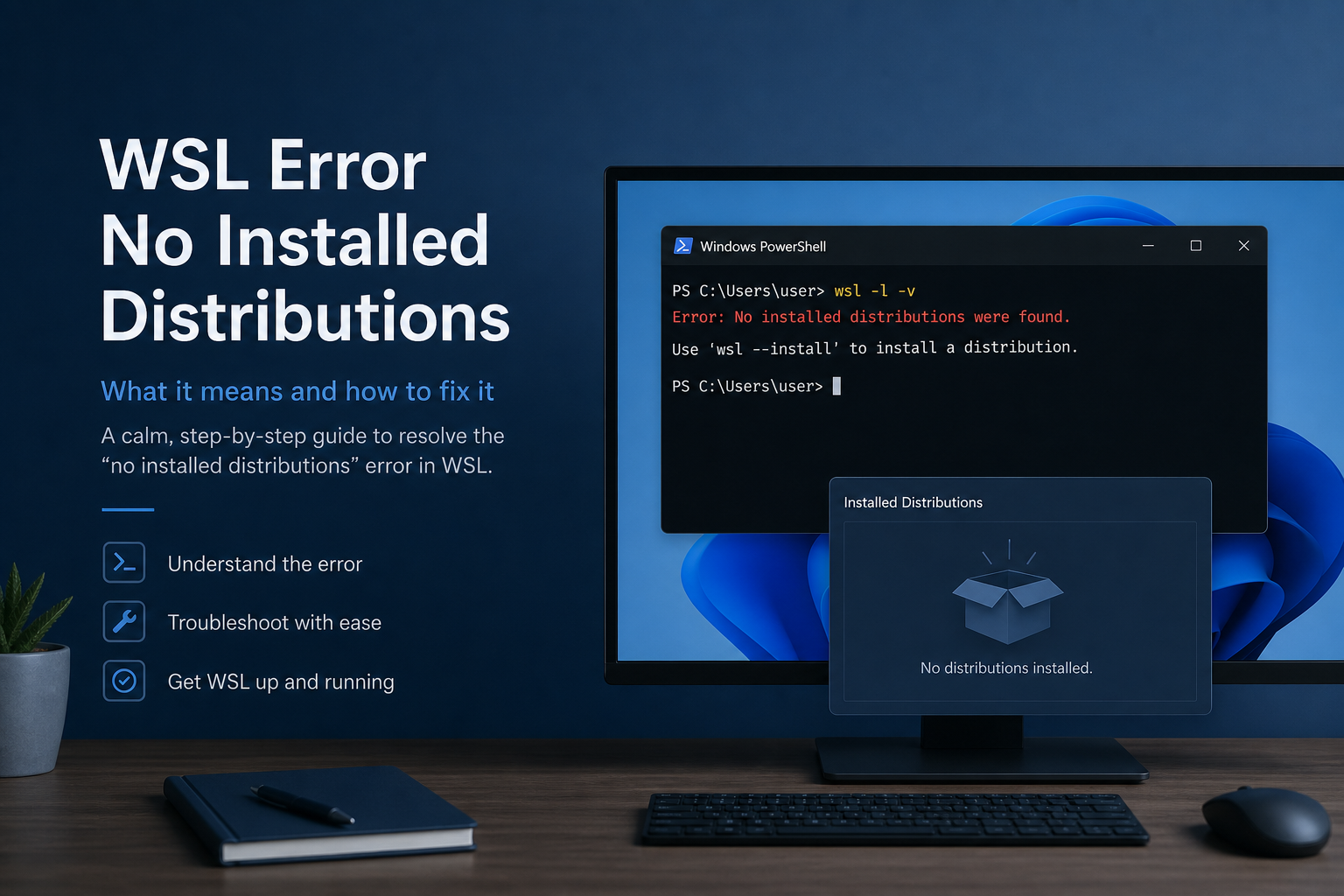
When Windows Subsystem for Linux reports it has no installed distributions, triage whether you truly have zero distros, you are querying the wrong Windows user, or a distro exists but has no usable default. The message can appear as plain text or with codes such as related default-distro errors after you deleted the previous default. Do not unregister everything first—inspect with non-destructive list commands.
Re-check setup with how to install Windows Subsystem for Linux, then install a distro such as Windows Subsystem for Linux Ubuntu or WSL Arch Linux. Platform basics are in the Windows Subsystem for Linux overview; GUI steps come after a distro exists (WSL Linux GUI).
Shortest path: run wsl -l -v in your normal user PowerShell → compare with an elevated window only if needed → install or repair a distro → set a default → launch it once from Start. Success means wsl -l -v lists at least one distribution and wsl opens a shell.
If the list is empty for your normal user → install a distro.
If Admin PowerShell is empty but normal PowerShell is not → you are in the wrong account context.
If a distro exists but wsl still errors → set default / finish first launch.
If files were moved off C: or compressed → follow Microsoft location/compression checks.
Confirm the Exact Error and the User Context
Microsoft’s troubleshooting guide documents: “Windows Subsystem for Linux has no installed distributions.” Community Super User reports add two high-frequency twists: (1) distros installed under a standard user do not appear when you use the separate built-in Administrator account, and (2) deleting the default distro can leave other distros installed while wsl still fails until a new default is set.
whoami
wsl --status
wsl --list --verbose
wsl --list --online
Run these first in a normal (non-built-in-Administrator) PowerShell window. Elevating your everyday admin-capable user is different from logging into the built-in Administrator account—Microsoft calls out that the built-in Administrator will not show your user-installed distributions by design.
Branch A: Truly No Distributions
If wsl -l -v shows none, install one with the official command (WSL features must already be present):
wsl --install -d Ubuntu
# or pick another name from:
wsl --list --online
If install hangs at 0.0%:
wsl --install --web-download -d UbuntuAfter install, open Ubuntu once from the Start menu so first-run decompression completes before you rely on wsl from PowerShell. Microsoft explicitly lists “run the distribution at least once” among causes of this error after an install.
Branch B: Wrong Windows Account / Built-in Administrator
Super User threads describe empty lists in “Run as Administrator” scenarios that were actually the built-in Administrator profile, while the ordinary user profile still had Ubuntu. Fix: sign in as your regular user, open PowerShell there, and rerun wsl -l -v. Distro state is per user profile for Store-installed distributions.
If you must use elevation, elevate from the same everyday account (UAC yes) rather than switching to a different Administrator profile that never installed WSL apps. Microsoft’s troubleshooting page distinguishes elevating your primary account from using the separate built-in Administrator account that will not show installed distributions by design.
Quick check: compare whoami in the failing window versus a Start Menu → Ubuntu launch. If Ubuntu opens from Start for your daily user but admin PowerShell claims no distributions, you have an account-context problem—not a missing install.
Branch C: Distro Exists but Default Is Missing
After deleting unused distributions, users report errors about a missing default even though another distro remains—including Super User cases tied to default-distro not found style failures. List what is left, then set default explicitly:
wsl --list --verbose
wsl --set-default Ubuntu-24.04
Use the exact name from the list. Then:
wslExpected result: a shell in that distribution. If set-default fails because the name is wrong, reinstall a clean distro with wsl --install -d ... rather than guessing. Installing a new distro often makes that new distro the default automatically—useful after you wiped the previous default.
Branch D: Location, Compression, and System-Drive Rules
Microsoft notes WSL distributions must live on the system drive (usually C:). If you moved package data to another drive, move it back. Also check the distribution profile folder under %LocalAppData%\Packages\ for “Compress contents” / Encrypt attributes and disable compression on that profile tree when troubleshooting this error family.
echo %LocalAppData%\Packages\Look for folders such as Canonical Ubuntu packages. Inside the profile, the LocalState data is where the Linux filesystem lives. Do not delete LocalState to “fix” the error unless you accept losing that distro’s Linux files—back up first with wsl --export when the distro still starts.
Branch E: Broken Registration After Partial Uninstall
If Apps & features still shows a distro but WSL cannot see it—or the reverse—users sometimes uninstall the Store app cleanly, confirm the package folder is gone, then reinstall:
wsl --install -d Ubuntu-24.04Only use wsl --unregister DistroName when you intend to destroy that distro’s Linux filesystem. Prefer export/backup guidance if you need files back. Super User recovery threads warn that “both installed and not installed” states usually need a clean uninstall of the Store package plus a fresh wsl --install -d, not random registry edits.
Non-Destructive Order of Operations
- List distros as your normal user.
- Install or first-launch a distro if the list is empty.
- Set default if a distro exists but startup fails.
- Check account context and system-drive/compression constraints.
- Unregister/reinstall last, after backups.
Write down the exact error text and the output of wsl -l -v before destructive steps. That record prevents chasing the wrong branch after a reboot.
Verify Success
wsl -l -v
wsl whoami
wsl uname -a
Expected result: a listed distro, a Linux username, and a kernel string. If GUI tools are your next goal, confirm VERSION is 2 before installing Linux desktop apps. If the error returns only in one PowerShell profile, revisit Branch B before reinstalling again.
Export Before You Unregister
wsl --export Ubuntu-24.04 D:\Backups\ubuntu-backup.tar
wsl --unregister Ubuntu-24.04
wsl --import Ubuntu-24.04 D:\WSL\Ubuntu24 D:\Backups\ubuntu-backup.tar
Only use import/unregister when you understand the install path and name. Export is the non-destructive insurance policy when a distro still starts but registration looks weird. If the distro will not start at all, you may be limited to copying files from \\wsl$\ while it is partially available, or recovering from Windows File History backups of the package folder—both are last resorts.
Never delete %LocalAppData%\Packages\...\LocalState as your first move. That directory is the Linux disk. Deleting it is equivalent to discarding the VM’s hard drive.
Decision Tree Recap
- Empty list + normal user → install distro and first-launch it.
- Empty list + built-in Administrator → switch to the everyday user.
- Named distro present + startup error → set default.
- Moved/compressed package folder → restore system-drive + clear compression.
- Corrupt Store registration → uninstall app, then
wsl --install -dafter backup.
Work top to bottom. Most people waste time on registry tips before trying wsl -l -v as the correct user. Microsoft’s published guidance already covers the empty-distribution message; community threads mainly illuminate the Administrator-account and deleted-default edge cases.
Copy/Paste Diagnostic Block
When you ask for help or file a ticket, capture this block from the same Windows user who needs WSL:
whoami
wsl --status
wsl -l -v
wsl --list --online
Get-Command wsl | Format-List *
Add whether Ubuntu appears in Start, whether you used the built-in Administrator, and whether the distro folder exists under %LocalAppData%\Packages. That information maps directly to the branches above and matches Microsoft’s troubleshooting themes: empty installs, wrong account, missing first launch, compression/location, and missing default.
If a distro launches from Start but wsl fails, focus on default selection and command-line registration rather than downloading a second Ubuntu from random websites. If neither Start nor wsl -l -v shows anything, install with wsl --install -d and complete first-run before anything else.
Related Microsoft troubleshooting also mentions keeping distributions on the system drive and avoiding NTFS compression on the package profile. Those checks sound obscure until you hit them once—then they explain “impossible” empty lists after disk cleanup tools “optimized” your profile folders.
After Distros Are Listed: Document the Fix for Next Time
Empty-distro errors often take a few branches to resolve—wrong account, missing default, or a partial uninstall. Once wsl -l -v looks healthy again, a short note saves the next debugging loop.
WPS Office on Windows fits that follow-up: Writer for the fix log, Spreadsheet for command checklists, and PDF when you want a fixed review copy for a teammate.
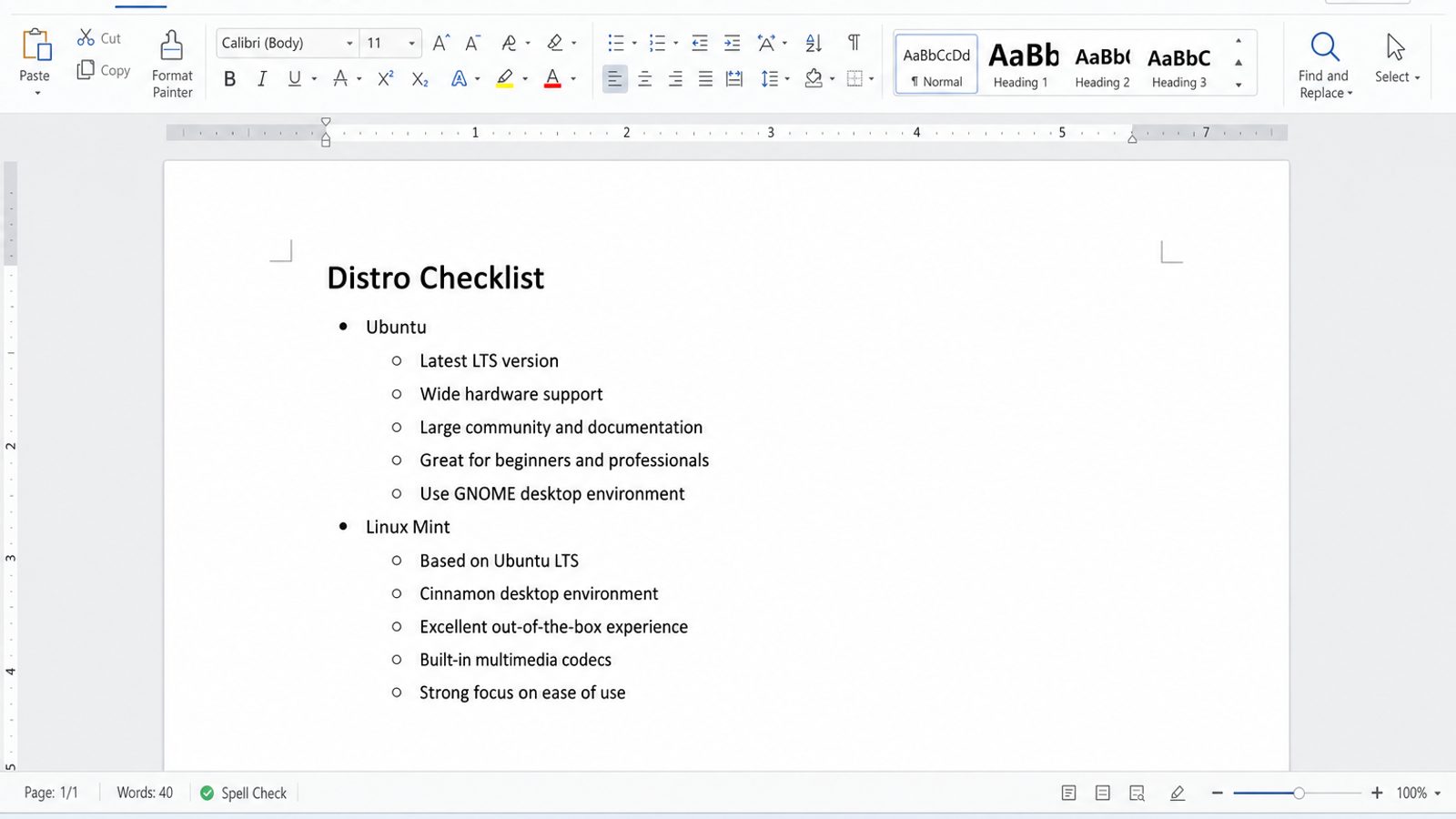
| What you need next | What WPS gives you |
|---|---|
| Turn WSL troubleshooting steps into a shareable note | Strong .docx / .xlsx / .pptx layout fidelity when files move between Windows, Linux, and macOS |
| One place for notes, sheets, slides, and PDFs | Free core suite: Writer, Spreadsheet, Presentation, plus PDF view/edit/convert tools |
| A familiar desktop UI | Ribbon-style apps that feel close to everyday Office workflows |
| A trusted install path | Official Windows installer from wps.com, with Free Download available on this page |
Install WPS from the official WPS Office download, paste the commands that worked, and keep the DOCX on Windows—not only inside a fragile distro path.


Related WSL guides: how to install Windows Subsystem for Linux, Windows Subsystem for Linux Ubuntu, WSL Arch Linux, Windows Subsystem for Linux overview, and WSL Linux GUI, and uninstall Windows Subsystem for Linux.
FAQ
Why does Admin PowerShell show no distros?
You may be on a different Windows account than the one that installed the Store distro—especially the built-in Administrator.
Does this mean WSL itself is uninstalled?
Not necessarily. WSL can be present while zero distributions are registered for that user.
Can I fix it by enabling the old optional component again?
Usually no for this specific message—focus on installing/selecting a distro and account context. See Microsoft’s WSL troubleshooting.
Will unregister delete my Linux files?
Yes, for that distribution. Back up or export first if you need data.
Should I reinstall Windows?
Almost never for this error. Account context, first launch, and default selection fix most cases.
Does wsl --install fix an empty list when WSL is already present?
Often you need wsl --install -d DistroName instead, because plain wsl --install may only show help when WSL already exists.

'%3e%3cpath%20d='M19.9911%204.11386V6.471H18.5894C18.0775%206.471%2017.7322%206.57814%2017.5536%206.79243C17.3751%207.00671%2017.2858%207.32814%2017.2858%207.75671V9.44421H19.9019L19.5536%2012.0871H17.2858V18.8639H14.5536V12.0871H12.2769V9.44421H14.5536V7.49779C14.5536%206.39064%2014.8632%205.53201%2015.4822%204.92189C16.1013%204.31177%2016.9257%204.00671%2017.9554%204.00671C18.8304%204.00671%2019.509%204.04243%2019.9911%204.11386Z'%20fill='%23333333'/%3e%3c/g%3e%3cdefs%3e%3cclipPath%20id='clip0_2938_8199'%3e%3crect%20width='16'%20height='16'%20fill='white'%20transform='translate(8%204.00671)'/%3e%3c/clipPath%3e%3c/defs%3e%3c/svg%3e)
'%3e%3cpath%20d='M17.5237%2010.7813L23.4811%204H22.0699L16.8949%209.88693L12.7648%204H8L14.2469%2012.9029L8%2020.0133H9.4112L14.8725%2013.7952L19.2352%2020.0133H24M9.92053%205.04213H12.0885L22.0688%2019.0224H19.9003'%20fill='%23333333'/%3e%3c/g%3e%3cdefs%3e%3cclipPath%20id='clip0_2938_8200'%3e%3crect%20width='16'%20height='16.0134'%20fill='white'%20transform='translate(8%204)'/%3e%3c/clipPath%3e%3c/defs%3e%3c/svg%3e)


