

'%3e%3cpath%20d='M8%200C12.4183%200%2016%203.58172%2016%208C16%2012.4183%2012.4183%2016%208%2016C3.58172%2016%200%2012.4183%200%208C0%203.58172%203.58172%200%208%200ZM11.6162%204.38379C11.2257%203.99337%2010.5927%203.99338%2010.2021%204.38379L8%206.58594L5.79785%204.38379C5.40732%203.99334%204.77429%203.99329%204.38379%204.38379C3.99331%204.77429%203.99335%205.40733%204.38379%205.79785L6.58594%208L4.38379%2010.2021C3.99348%2010.5927%203.99341%2011.2257%204.38379%2011.6162C4.77426%2012.0066%205.40734%2012.0065%205.79785%2011.6162L8%209.41406L10.2021%2011.6162C10.5927%2012.0066%2011.2257%2012.0067%2011.6162%2011.6162C12.0067%2011.2257%2012.0066%2010.5927%2011.6162%2010.2021L9.41406%208L11.6162%205.79785C12.0066%205.40735%2012.0066%204.77429%2011.6162%204.38379Z'%20fill='%23080E17'%20fill-opacity='0.46'/%3e%3c/g%3e%3cdefs%3e%3cclipPath%20id='clip0_3761_713'%3e%3crect%20width='16'%20height='16'%20fill='white'/%3e%3c/clipPath%3e%3c/defs%3e%3c/svg%3e)




'%3e%3cpath%20fill-rule='evenodd'%20clip-rule='evenodd'%20d='M21.4999%2010.9993C21.4999%205.20009%2016.7986%200.498901%2010.9993%200.498901C5.19994%200.498901%200.498657%205.20009%200.498657%2010.9993C0.498657%2016.2404%204.33858%2020.5844%209.35855%2021.3722V14.0346H6.69238V10.9993H9.35855V8.68594C9.35855%206.05427%2010.9262%204.60062%2013.3248%204.60062C14.4736%204.60062%2015.6753%204.80571%2015.6753%204.80571V7.38979H14.3512C13.0468%207.38979%2012.64%208.19921%2012.64%209.0296V10.9993H15.5523L15.0867%2014.0346H12.64V21.3722C17.66%2020.5844%2021.4999%2016.2404%2021.4999%2010.9993Z'%20fill='%231568EA'/%3e%3c/g%3e%3c/svg%3e)


'%3e%3cpath%20d='M2.42045%2022.1876H6.31818V12.7217L0.75%208.54553V20.5171C0.75%2021.4414%201.49892%2022.1876%202.42045%2022.1876Z'%20fill='%234285F4'/%3e%3cpath%20d='M19.682%2022.1876H23.5797C24.5041%2022.1876%2025.2502%2021.4387%2025.2502%2020.5171V8.54553L19.682%2012.7217'%20fill='%2334A853'/%3e%3cpath%20d='M19.682%205.48293V12.7216L25.2502%208.54543V6.31816C25.2502%204.25236%2022.8921%203.07469%2021.2411%204.31361'%20fill='%23FBBC04'/%3e%3cpath%20d='M6.31824%2012.7217V5.48303L13.0001%2010.4944L19.6819%205.48303V12.7217L13.0001%2017.733'%20fill='%23EA4335'/%3e%3cpath%20d='M0.75%206.31816V8.54543L6.31818%2012.7216V5.48293L4.75909%204.31361C3.10534%203.07469%200.75%204.25236%200.75%206.31816Z'%20fill='%23C5221F'/%3e%3c/g%3e%3cdefs%3e%3cclipPath%20id='clip0_2954_7305'%3e%3crect%20width='24.5'%20height='18.375'%20fill='white'%20transform='translate(0.75%203.8125)'/%3e%3c/clipPath%3e%3c/defs%3e%3c/svg%3e)


Safari has no "clear cookies" button with that exact name, so people hunt through menus and give up. The command lives inside website data: four clicks in Safari > Settings > Privacy remove every cookie, and the same panel can delete data for a single site when you only want to sign out of one account.
How to Clear Cookies in Safari on a Mac (and What Gets Logged Out)
Clear All Cookies in Safari on a Mac
Use this when you want a clean browser — for example before handing the Mac to someone else or after a tracking-heavy shopping session.
Open Safari and choose Safari > Settings from the menu bar. On macOS Monterey and earlier the item is called Preferences.
Click the Privacy tab.
Click Manage Website Data… and wait for the list of domains to load.
Click Remove All, confirm, then quit Safari completely and reopen it so the change takes effect.
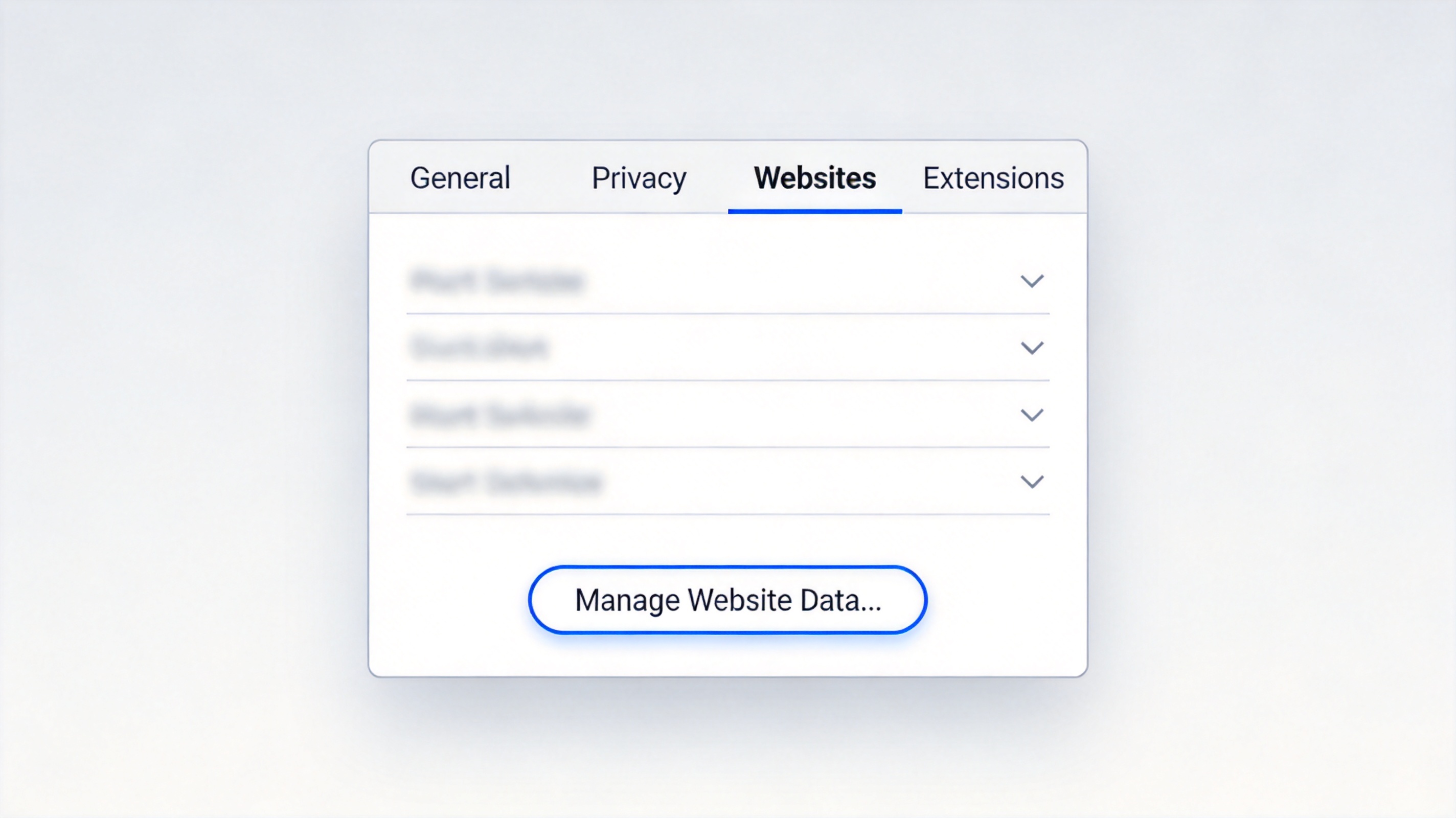
Open Safari Privacy settings to clear cookies
In a hurry? History > Clear History… with the range set to all history also removes cookies and other browsing data, though it takes your history and cache with it.


Remove Cookies for One Website Only
A single site that keeps logging you into the wrong account, or a checkout that shows a stale basket, usually needs only that one domain cleared.
Go to Safari > Settings > Privacy and click Manage Website Data… again.
Type the site's domain into the Search field — for example example.com, not the full page address.
Select the matching row and click Remove.
Reload the page. That one site asks you to sign in again while everything else stays logged in.
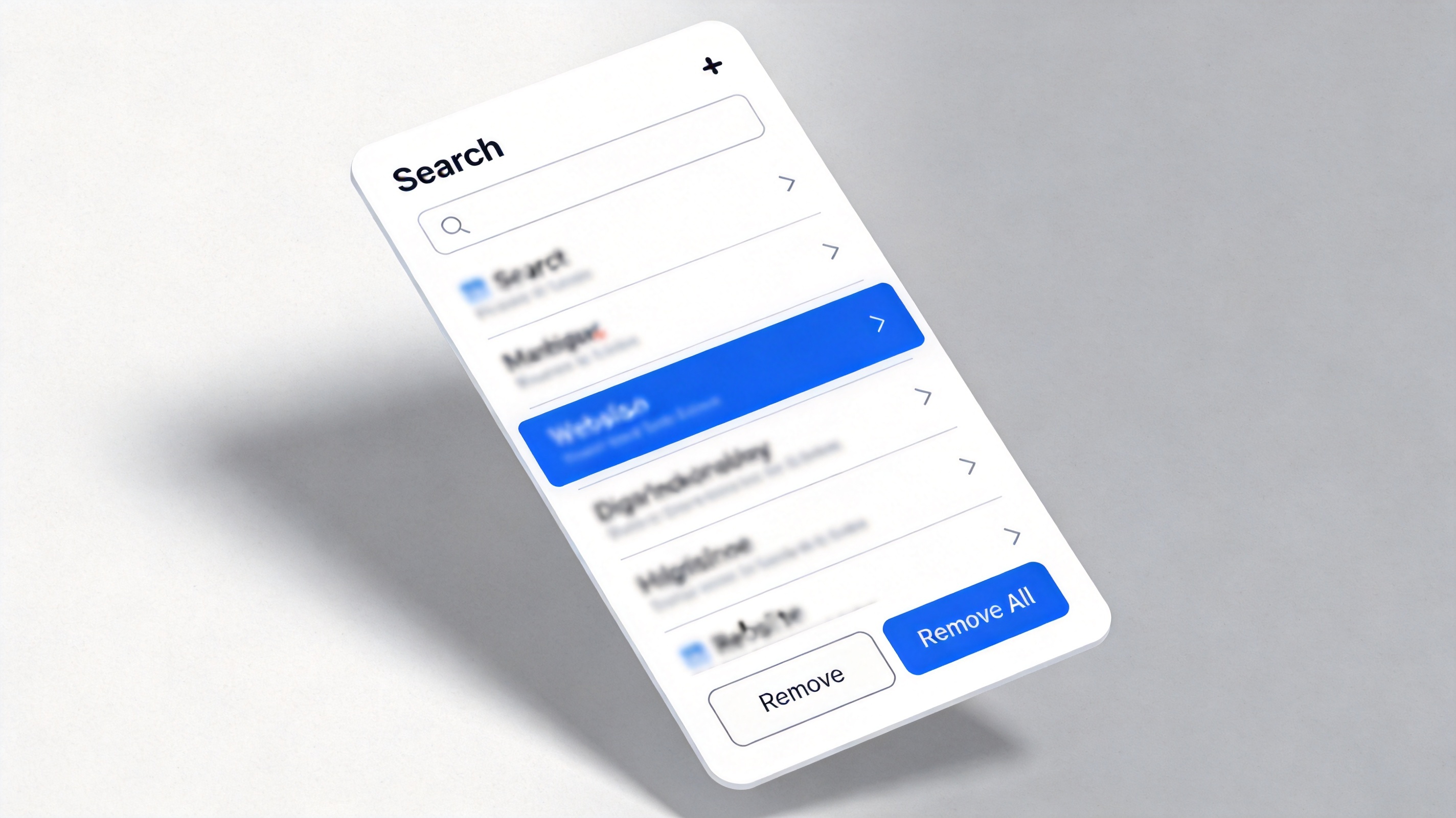
Remove cookies for one website in Safari
What Else to Clear and What Breaks Afterwards
Cookies, cache, and history are three different things, and Safari mixes them in different places.
Cookies hold your login session and preferences for a site. Clearing them signs you out and resets cookie banners.
Cache is stored copies of images and scripts. To clear it separately, turn on Settings > Advanced > Show features for web developers, then use Develop > Empty Caches.
History is the list of pages you visited; History > Clear History… removes it without touching saved passwords.
Passwords survive. Safari keeps logins in iCloud Keychain, not in cookies, so you will still see the username prefilled — you just have to sign in again.
Expect a second factor. Banks and work accounts that had you trusted for weeks will ask for a code or an email confirmation on the next sign-in.
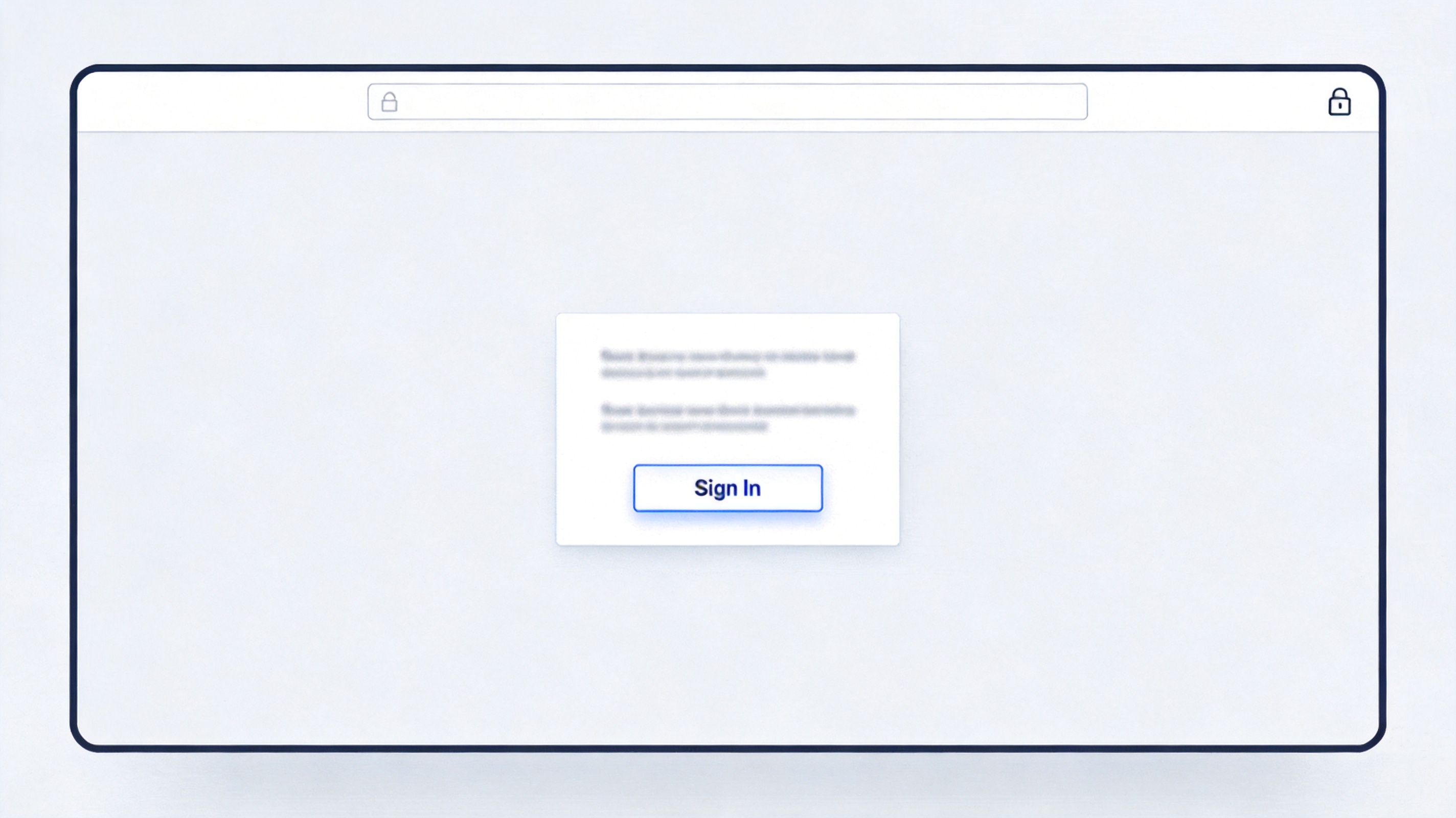
Signing back in after clearing Safari cookies
On a Mac, Keep the Work Out of the Browser: WPS Office
Clearing cookies is a browser job, and it is a reminder that documents should not live behind a login. WPS Office opens your files as files on the Mac, so wiping a session never locks you out of work in progress.
| What you need | WPS Office | Browser-only web apps |
|---|---|---|
| Open documents without signing in | Local files, no session needed | Cookie required |
| Works with the network off | Yes | No |
| Formats | Word, Excel, PPT, PDF on Mac | Limited |
| Cost | Free for everyday use | Varies |
Nothing to re-authenticate: the spreadsheet, contract, or slide deck opens straight from Finder.
Apple silicon native: runs natively on both Intel and M-series Macs.
Four tools, one download: Writer, Spreadsheet, Presentation, and PDF tools, free.
Cloud optional: sync only the files you choose instead of depending on it.
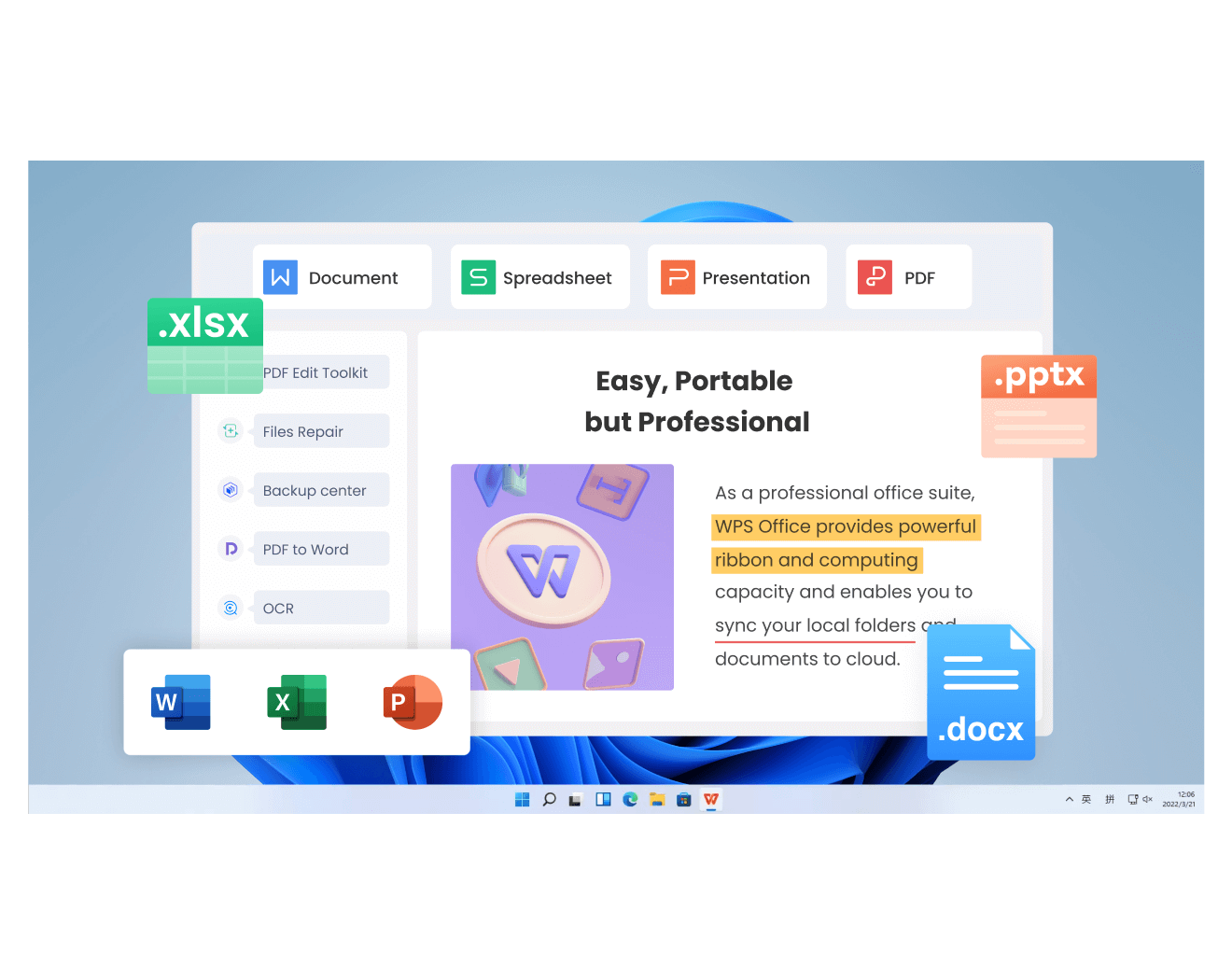
WPS Office suite on a Mac
FAQs
Does clearing history in Safari delete cookies?
Yes. When you choose Clear History…, Safari also removes cookies and other browsing data for the range you pick, so you will be signed out of sites you visited in that period.
Why are my Safari cookies still there after I removed them?
Usually Safari was still open in another window, or the site was pinned. Quit Safari with Cmd + Q, reopen it, and check Manage Website Data… again.
Where does Safari store cookies on a Mac?
They sit in a protected container inside your user Library folder. Apple expects you to clear them from the app rather than deleting files in Finder, and clearing them in the app is the safe route.
Will clearing cookies delete my saved passwords?
No. Passwords live in iCloud Keychain. You keep the saved login and only need to re-enter it on the site once.
Do I need to clear cookies to speed up my Mac?
Not really. Cookies are tiny; clearing them is about privacy and fixing a stale login, not about performance. Clearing the cache helps more when pages render oddly.


'%3e%3cpath%20d='M19.9911%204.11386V6.471H18.5894C18.0775%206.471%2017.7322%206.57814%2017.5536%206.79243C17.3751%207.00671%2017.2858%207.32814%2017.2858%207.75671V9.44421H19.9019L19.5536%2012.0871H17.2858V18.8639H14.5536V12.0871H12.2769V9.44421H14.5536V7.49779C14.5536%206.39064%2014.8632%205.53201%2015.4822%204.92189C16.1013%204.31177%2016.9257%204.00671%2017.9554%204.00671C18.8304%204.00671%2019.509%204.04243%2019.9911%204.11386Z'%20fill='%23333333'/%3e%3c/g%3e%3cdefs%3e%3cclipPath%20id='clip0_2938_8199'%3e%3crect%20width='16'%20height='16'%20fill='white'%20transform='translate(8%204.00671)'/%3e%3c/clipPath%3e%3c/defs%3e%3c/svg%3e)
'%3e%3cpath%20d='M17.5237%2010.7813L23.4811%204H22.0699L16.8949%209.88693L12.7648%204H8L14.2469%2012.9029L8%2020.0133H9.4112L14.8725%2013.7952L19.2352%2020.0133H24M9.92053%205.04213H12.0885L22.0688%2019.0224H19.9003'%20fill='%23333333'/%3e%3c/g%3e%3cdefs%3e%3cclipPath%20id='clip0_2938_8200'%3e%3crect%20width='16'%20height='16.0134'%20fill='white'%20transform='translate(8%204)'/%3e%3c/clipPath%3e%3c/defs%3e%3c/svg%3e)


