

'%3e%3cpath%20d='M8%200C12.4183%200%2016%203.58172%2016%208C16%2012.4183%2012.4183%2016%208%2016C3.58172%2016%200%2012.4183%200%208C0%203.58172%203.58172%200%208%200ZM11.6162%204.38379C11.2257%203.99337%2010.5927%203.99338%2010.2021%204.38379L8%206.58594L5.79785%204.38379C5.40732%203.99334%204.77429%203.99329%204.38379%204.38379C3.99331%204.77429%203.99335%205.40733%204.38379%205.79785L6.58594%208L4.38379%2010.2021C3.99348%2010.5927%203.99341%2011.2257%204.38379%2011.6162C4.77426%2012.0066%205.40734%2012.0065%205.79785%2011.6162L8%209.41406L10.2021%2011.6162C10.5927%2012.0066%2011.2257%2012.0067%2011.6162%2011.6162C12.0067%2011.2257%2012.0066%2010.5927%2011.6162%2010.2021L9.41406%208L11.6162%205.79785C12.0066%205.40735%2012.0066%204.77429%2011.6162%204.38379Z'%20fill='%23080E17'%20fill-opacity='0.46'/%3e%3c/g%3e%3cdefs%3e%3cclipPath%20id='clip0_3761_713'%3e%3crect%20width='16'%20height='16'%20fill='white'/%3e%3c/clipPath%3e%3c/defs%3e%3c/svg%3e)



'%3e%3cpath%20fill-rule='evenodd'%20clip-rule='evenodd'%20d='M21.4999%2010.9993C21.4999%205.20009%2016.7986%200.498901%2010.9993%200.498901C5.19994%200.498901%200.498657%205.20009%200.498657%2010.9993C0.498657%2016.2404%204.33858%2020.5844%209.35855%2021.3722V14.0346H6.69238V10.9993H9.35855V8.68594C9.35855%206.05427%2010.9262%204.60062%2013.3248%204.60062C14.4736%204.60062%2015.6753%204.80571%2015.6753%204.80571V7.38979H14.3512C13.0468%207.38979%2012.64%208.19921%2012.64%209.0296V10.9993H15.5523L15.0867%2014.0346H12.64V21.3722C17.66%2020.5844%2021.4999%2016.2404%2021.4999%2010.9993Z'%20fill='%231568EA'/%3e%3c/g%3e%3c/svg%3e)


'%3e%3cpath%20d='M2.42045%2022.1876H6.31818V12.7217L0.75%208.54553V20.5171C0.75%2021.4414%201.49892%2022.1876%202.42045%2022.1876Z'%20fill='%234285F4'/%3e%3cpath%20d='M19.682%2022.1876H23.5797C24.5041%2022.1876%2025.2502%2021.4387%2025.2502%2020.5171V8.54553L19.682%2012.7217'%20fill='%2334A853'/%3e%3cpath%20d='M19.682%205.48293V12.7216L25.2502%208.54543V6.31816C25.2502%204.25236%2022.8921%203.07469%2021.2411%204.31361'%20fill='%23FBBC04'/%3e%3cpath%20d='M6.31824%2012.7217V5.48303L13.0001%2010.4944L19.6819%205.48303V12.7217L13.0001%2017.733'%20fill='%23EA4335'/%3e%3cpath%20d='M0.75%206.31816V8.54543L6.31818%2012.7216V5.48293L4.75909%204.31361C3.10534%203.07469%200.75%204.25236%200.75%206.31816Z'%20fill='%23C5221F'/%3e%3c/g%3e%3cdefs%3e%3cclipPath%20id='clip0_2954_7305'%3e%3crect%20width='24.5'%20height='18.375'%20fill='white'%20transform='translate(0.75%203.8125)'/%3e%3c/clipPath%3e%3c/defs%3e%3c/svg%3e)


macOS 11 Big Sur brought the biggest design change to the Mac in years: a refreshed interface, a redesigned Safari, Control Center, and better battery management on laptops. If your Mac is a few years older than Apple’s official support list, the updater simply refuses to offer the upgrade, even though the hardware can still run it well.
The good news is that you can still install macOS 11 on an unsupported Mac using a community patcher, a full Big Sur installer, and a few Terminal commands. This guide walks through the whole process: checking whether your Mac qualifies, backing up your data, running the patched installer, and finishing the job safely. It is a safe method when you follow each step, but it does involve modifying system files, so read the whole guide once before you begin.
How to Install macOS 11 on an Unsupported Mac
Which Macs Can Install macOS 11
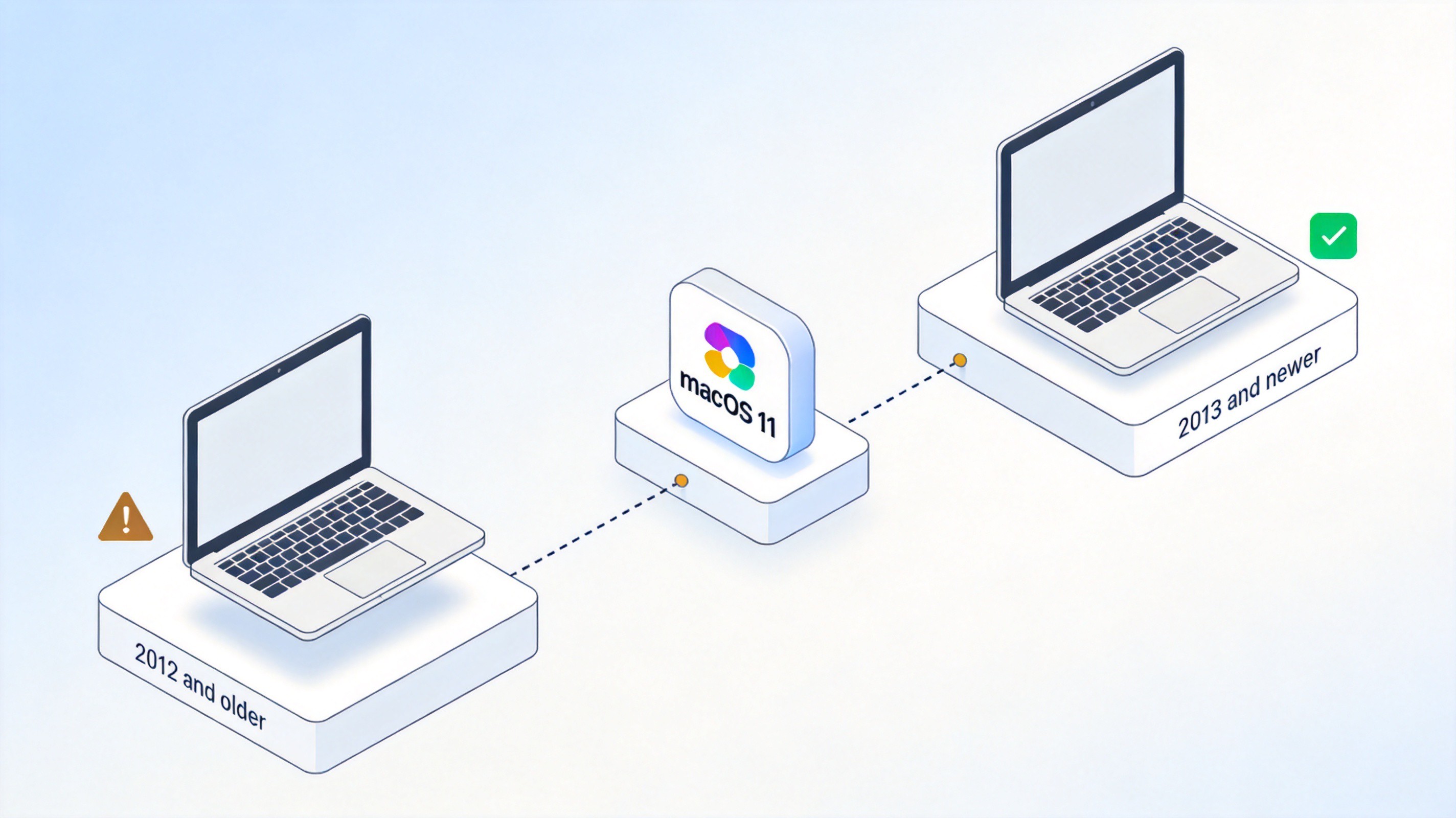
Apple publishes an official compatibility list, and the first thing to know is which models were left out. If your Mac appears on the official list, you can upgrade normally from System Preferences > Software Update and you do not need a patcher at all.
Macs officially supported by macOS 11 Big Sur include:
MacBook models from 2015 and later
MacBook Air models from 2013 and later
MacBook Pro models from Late 2013 and later
Mac mini models from 2014 and later
iMac models from 2014 and later
iMac Pro (2017)
Mac Pro models from 2013 and later
Machines that missed the cut include the 2012 MacBook Air, the 2012 Mac mini, 2012 and 2013 iMacs, and MacBook Pro models from 2012 and early 2013. These are the “unsupported Macs” this guide is about. Most of them use the same Intel architecture as supported models, which is why community patchers such as OpenCore Legacy Patcher and Patched Sur can safely unlock the upgrade. To confirm your exact model, click the Apple menu and choose About This Mac, then compare the year shown there with the lists above.
Mac compatibility check for macOS 11


Back Up Your Mac Before You Install macOS 11
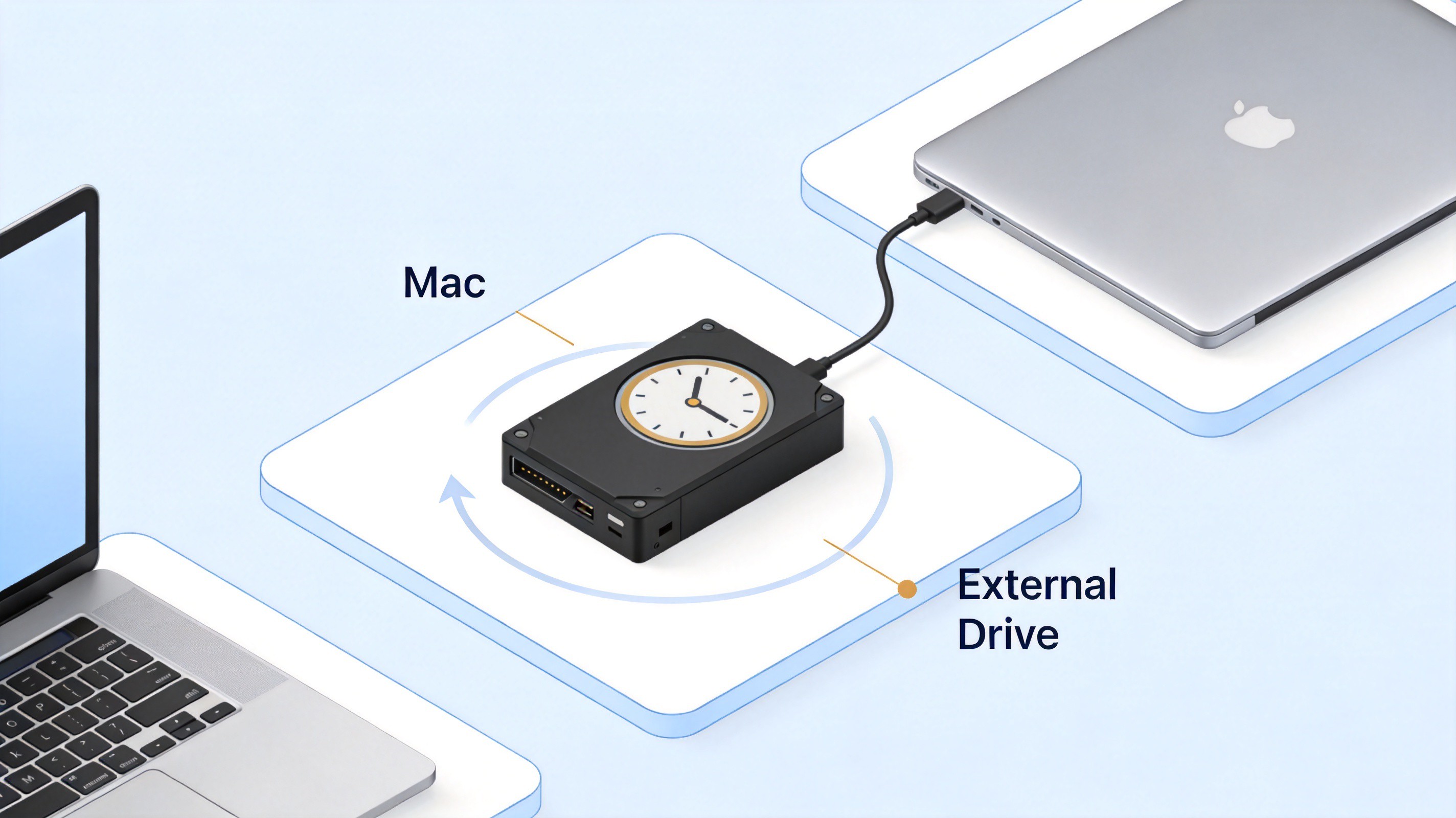
Patching an older Mac changes boot files and system kexts. If anything goes wrong mid-install, the fastest recovery is a full backup, so do not skip this section. Time Machine is built into macOS and works with any external drive.
Connect an external drive with enough free space to hold your entire disk.
Open System Preferences > Time Machine.
Click Select Backup Disk, choose the drive, and turn Time Machine on.
Click Back Up Now and wait for the first full backup to finish.
When the backup completes, keep the drive disconnected until the installation is running. That way an installer mistake can never touch your backup. If you use cloud sync for documents, let it finish uploading before you restart as well.
Time Machine backup to external drive
How to Install macOS 11 on an Unsupported Mac
With a verified model and a fresh backup, you are ready to install macOS 11 Big Sur with a patcher. The steps below use the standard patcher workflow that the OpenCore Legacy Patcher and Patched Sur communities follow: get the full installer, prepare a patched boot drive, relax SIP for the install, then restore protection afterwards.
Download the full macOS Big Sur installer. On a supported Mac you can get it from the App Store; on your unsupported Mac, use the direct download link on Apple’s official macOS Big Sur support page to fetch the complete Install macOS Big Sur app.
Download a patcher tool. Get the latest release of OpenCore Legacy Patcher from its official GitHub page, and prepare a USB drive of at least 16 GB that can be erased.
Create the patched boot drive. Run the patcher, choose to build and install OpenCore to the USB drive, and let it copy the Big Sur installer and required kexts onto it.
Boot from the USB drive. Restart your Mac and hold the Option key, then select the EFI Boot entry created by the patcher, followed by the macOS installer.
Disable SIP in Recovery. Open Utilities > Terminal from the Recovery menu, type
csrutil disable, and press Return. Reboot after the confirmation message appears.
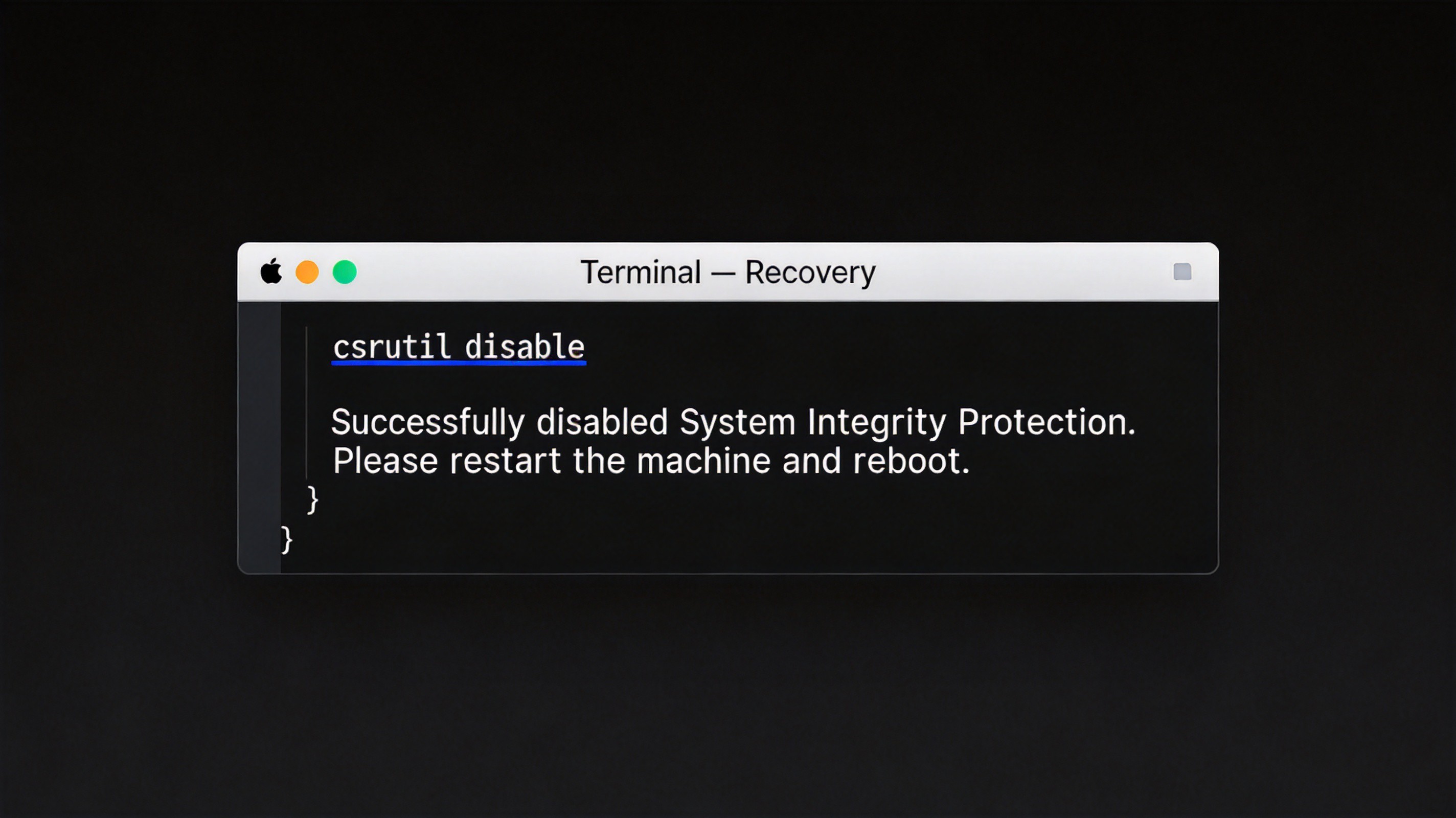
Disable SIP with csrutil in Recovery Terminal
Run the Big Sur installer. Launch Install macOS Big Sur, click Continue, select your startup disk, and enter your password when asked.
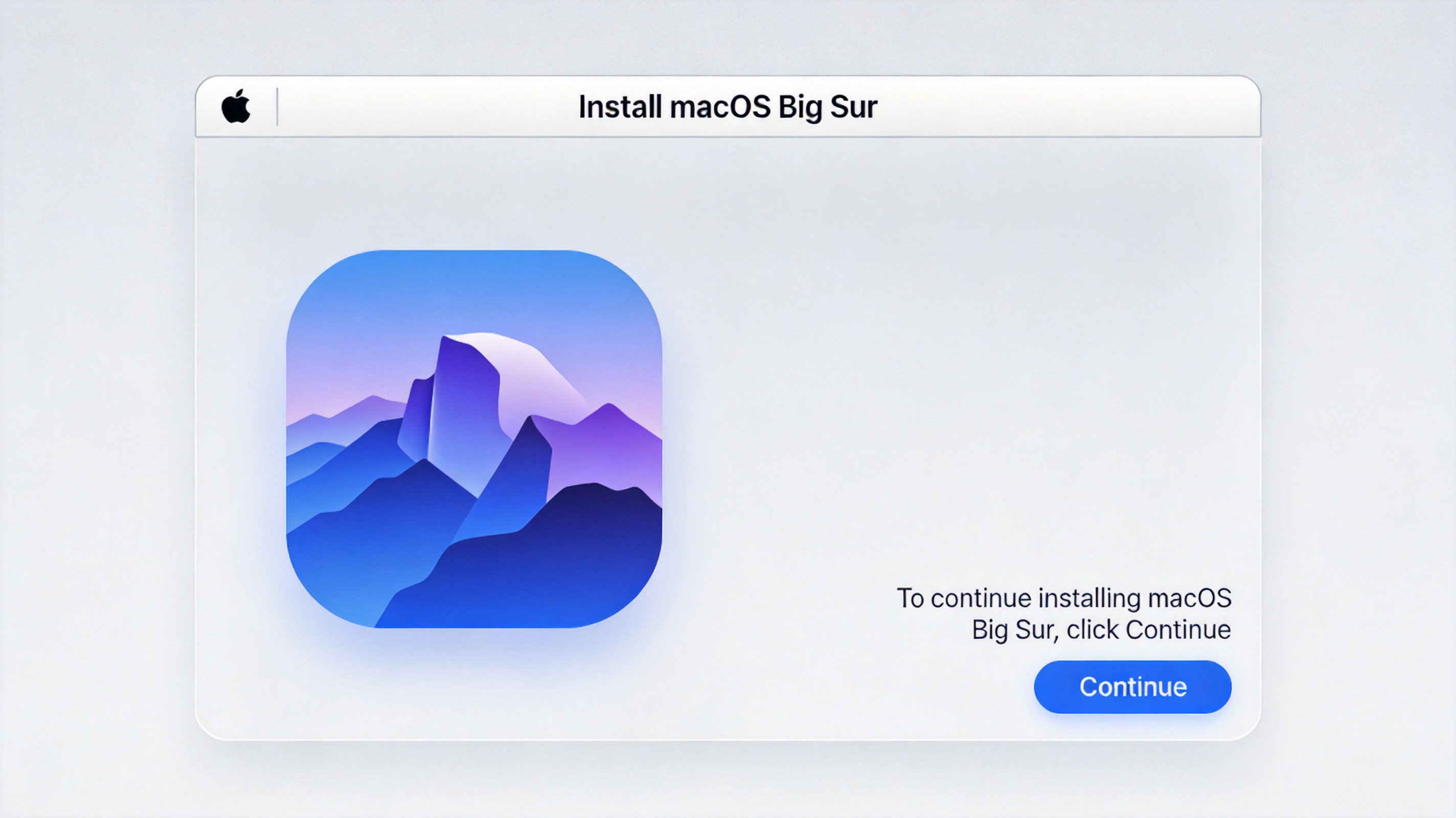
Run the macOS Big Sur installer
Wait for the installation to finish. The Mac restarts several times; the whole process can take an hour or more. When you reach the Big Sur setup assistant, sign in and complete the on-screen steps.
Apply post-install patches and re-enable SIP. Open the patcher again and install the recommended root patches for your model. Finally, run
csrutil enablein Recovery Terminal to turn System Integrity Protection back on.
If the installer says your disk cannot be used, check that the disk is formatted as APFS in Disk Utility, and make sure you booted through the patcher’s EFI entry rather than straight from the internal disk. Keeping the USB drive until your Mac runs stably for a few days gives you an easy rollback path.
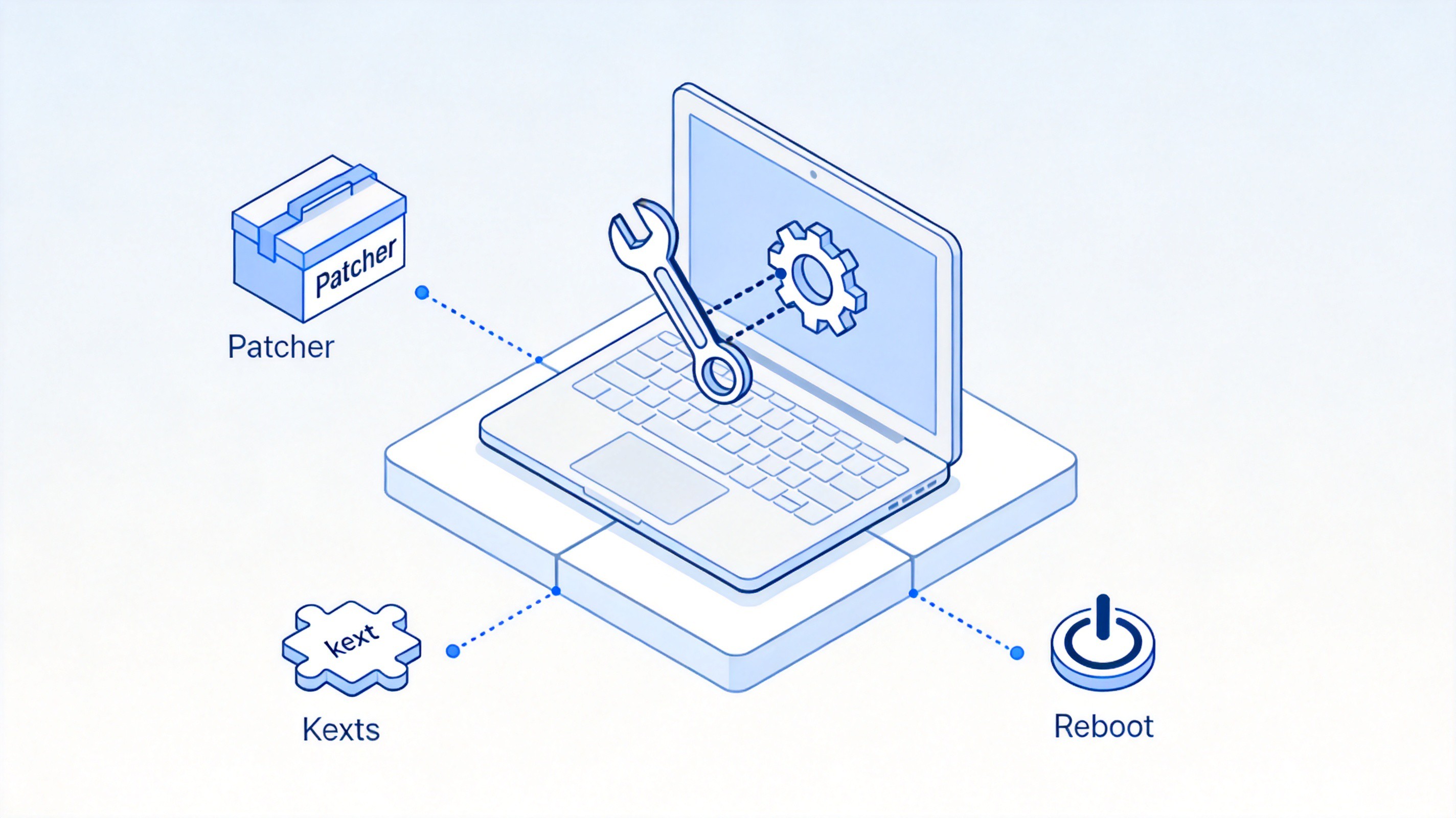
Apply post-install patches on Big Sur
What to Do After You Install macOS 11
The first boot is not the finish line. A patched Mac needs a short check-up so that graphics acceleration, audio, and power management behave properly, and so your data is back where it belongs.
Install system updates carefully. Minor Big Sur updates usually install normally, but always re-apply the patcher’s post-install patches after a major update, or features like accelerated graphics may stop working.
Restore your files from Time Machine. Use Migration Assistant or reattach your backup drive and copy your user data back.
Check Battery and Sound. If sound or battery status is missing, the patcher’s kexts for your model are not fully installed yet; run the patcher and install the recommended patches again.
Re-enable security. Confirm
csrutil enablehas been run, and turn on FileVault only after confirming your patched Mac supports it stably.
Keep the patcher app on your disk. Whenever macOS prompts you for a new Big Sur point update, run the patcher’s update flow first, then install the system update. This habit prevents most “my Mac broke after updating” situations.
The Best Free Alternative: WPS Office for macOS 11
Big Sur changes how your Mac looks and feels, but your everyday work still happens in documents, spreadsheets, and presentations. If you upgraded an older Mac to extend its life, you probably do not want to pay again for Microsoft 365 — and that is where WPS Office fits in. It is a free office suite for macOS that opens and saves Word, Excel, and PowerPoint files with high fidelity, and it runs comfortably on the same hardware you just patched.
WPS Office gives Mac users a familiar Microsoft-like ribbon interface, a built-in PDF toolkit for reading, converting, and annotating, and thousands of free templates for resumes, reports, and invoices. Because it is much lighter than a full Microsoft 365 installation, it is a practical pairing for a revived 2012 or 2013 MacBook that now runs Big Sur.
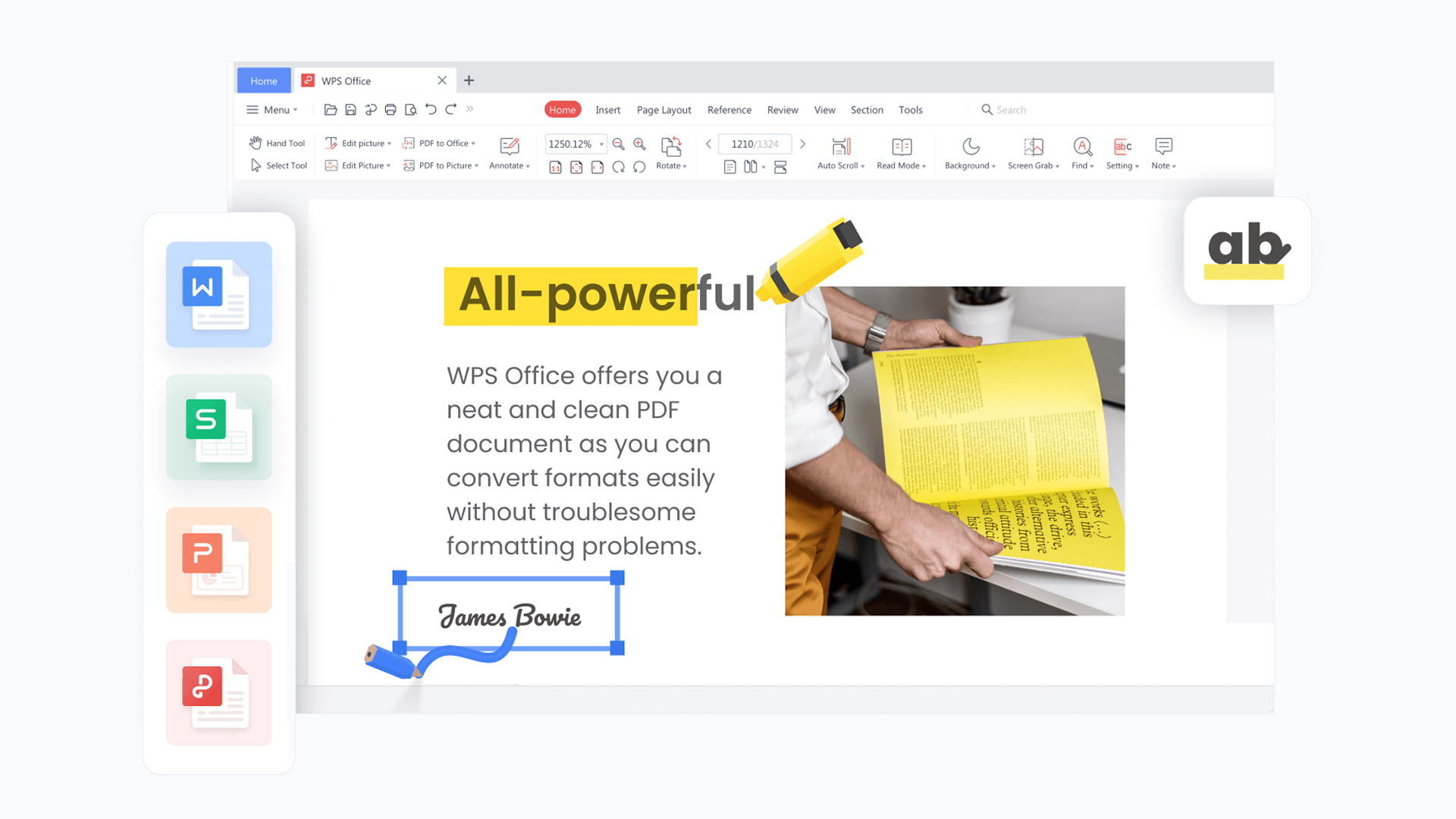
WPS Office for Mac document editing
FAQs
Can I install macOS 11 on any old Mac?
No. Patchers support Intel Macs from roughly 2008 onward, but experience is best on 2012 and later models. Older machines, especially those with non-Metal graphics, may lose graphics acceleration or need extra patches, and some features simply will not work.
Is it safe to install macOS 11 on an unsupported Mac?
It is reasonably safe if you back up first, use a reputable patcher, and follow the steps exactly. The main risks are a failed install (recoverable from your Time Machine backup) and missing hardware features such as accelerated graphics on older models.
Why can I not install macOS 11 from Software Update?
Because your Mac model is not on Apple’s official compatibility list, Software Update will never offer Big Sur. That is why the unsupported route needs a full installer plus a community patcher to bypass the model check.
Do I need to disable SIP permanently?
No. SIP is disabled only during installation so the patched boot files can be written. After post-install patches are applied, run csrutil enable in Recovery Terminal to turn System Integrity Protection back on.
Will my apps still work after installing macOS 11 on an unsupported Mac?
Most 64-bit apps run normally, including browsers, office suites, and creative tools. Very old 32-bit apps will not run, since Big Sur dropped 32-bit support. If an app is critical, test it after patching before you migrate your daily work over.


'%3e%3cpath%20d='M19.9911%204.11386V6.471H18.5894C18.0775%206.471%2017.7322%206.57814%2017.5536%206.79243C17.3751%207.00671%2017.2858%207.32814%2017.2858%207.75671V9.44421H19.9019L19.5536%2012.0871H17.2858V18.8639H14.5536V12.0871H12.2769V9.44421H14.5536V7.49779C14.5536%206.39064%2014.8632%205.53201%2015.4822%204.92189C16.1013%204.31177%2016.9257%204.00671%2017.9554%204.00671C18.8304%204.00671%2019.509%204.04243%2019.9911%204.11386Z'%20fill='%23333333'/%3e%3c/g%3e%3cdefs%3e%3cclipPath%20id='clip0_2938_8199'%3e%3crect%20width='16'%20height='16'%20fill='white'%20transform='translate(8%204.00671)'/%3e%3c/clipPath%3e%3c/defs%3e%3c/svg%3e)
'%3e%3cpath%20d='M17.5237%2010.7813L23.4811%204H22.0699L16.8949%209.88693L12.7648%204H8L14.2469%2012.9029L8%2020.0133H9.4112L14.8725%2013.7952L19.2352%2020.0133H24M9.92053%205.04213H12.0885L22.0688%2019.0224H19.9003'%20fill='%23333333'/%3e%3c/g%3e%3cdefs%3e%3cclipPath%20id='clip0_2938_8200'%3e%3crect%20width='16'%20height='16.0134'%20fill='white'%20transform='translate(8%204)'/%3e%3c/clipPath%3e%3c/defs%3e%3c/svg%3e)


