

'%3e%3cpath%20d='M8%200C12.4183%200%2016%203.58172%2016%208C16%2012.4183%2012.4183%2016%208%2016C3.58172%2016%200%2012.4183%200%208C0%203.58172%203.58172%200%208%200ZM11.6162%204.38379C11.2257%203.99337%2010.5927%203.99338%2010.2021%204.38379L8%206.58594L5.79785%204.38379C5.40732%203.99334%204.77429%203.99329%204.38379%204.38379C3.99331%204.77429%203.99335%205.40733%204.38379%205.79785L6.58594%208L4.38379%2010.2021C3.99348%2010.5927%203.99341%2011.2257%204.38379%2011.6162C4.77426%2012.0066%205.40734%2012.0065%205.79785%2011.6162L8%209.41406L10.2021%2011.6162C10.5927%2012.0066%2011.2257%2012.0067%2011.6162%2011.6162C12.0067%2011.2257%2012.0066%2010.5927%2011.6162%2010.2021L9.41406%208L11.6162%205.79785C12.0066%205.40735%2012.0066%204.77429%2011.6162%204.38379Z'%20fill='%23080E17'%20fill-opacity='0.46'/%3e%3c/g%3e%3cdefs%3e%3cclipPath%20id='clip0_3761_713'%3e%3crect%20width='16'%20height='16'%20fill='white'/%3e%3c/clipPath%3e%3c/defs%3e%3c/svg%3e)



'%3e%3cpath%20fill-rule='evenodd'%20clip-rule='evenodd'%20d='M21.4999%2010.9993C21.4999%205.20009%2016.7986%200.498901%2010.9993%200.498901C5.19994%200.498901%200.498657%205.20009%200.498657%2010.9993C0.498657%2016.2404%204.33858%2020.5844%209.35855%2021.3722V14.0346H6.69238V10.9993H9.35855V8.68594C9.35855%206.05427%2010.9262%204.60062%2013.3248%204.60062C14.4736%204.60062%2015.6753%204.80571%2015.6753%204.80571V7.38979H14.3512C13.0468%207.38979%2012.64%208.19921%2012.64%209.0296V10.9993H15.5523L15.0867%2014.0346H12.64V21.3722C17.66%2020.5844%2021.4999%2016.2404%2021.4999%2010.9993Z'%20fill='%231568EA'/%3e%3c/g%3e%3c/svg%3e)


'%3e%3cpath%20d='M2.42045%2022.1876H6.31818V12.7217L0.75%208.54553V20.5171C0.75%2021.4414%201.49892%2022.1876%202.42045%2022.1876Z'%20fill='%234285F4'/%3e%3cpath%20d='M19.682%2022.1876H23.5797C24.5041%2022.1876%2025.2502%2021.4387%2025.2502%2020.5171V8.54553L19.682%2012.7217'%20fill='%2334A853'/%3e%3cpath%20d='M19.682%205.48293V12.7216L25.2502%208.54543V6.31816C25.2502%204.25236%2022.8921%203.07469%2021.2411%204.31361'%20fill='%23FBBC04'/%3e%3cpath%20d='M6.31824%2012.7217V5.48303L13.0001%2010.4944L19.6819%205.48303V12.7217L13.0001%2017.733'%20fill='%23EA4335'/%3e%3cpath%20d='M0.75%206.31816V8.54543L6.31818%2012.7216V5.48293L4.75909%204.31361C3.10534%203.07469%200.75%204.25236%200.75%206.31816Z'%20fill='%23C5221F'/%3e%3c/g%3e%3cdefs%3e%3cclipPath%20id='clip0_2954_7305'%3e%3crect%20width='24.5'%20height='18.375'%20fill='white'%20transform='translate(0.75%203.8125)'/%3e%3c/clipPath%3e%3c/defs%3e%3c/svg%3e)


To rotate a compatible external screen on your Mac, open Apple menu > System Settings > Displays, select the monitor, and choose an angle from Rotation. Confirm the change when prompted. If Rotation is missing, check which display is selected before trying a different method.
A portrait monitor can make a long report easier to read, but rotating the desktop will not change a document's page layout. This guide covers the current settings, the older System Preferences interface, and what to check when the option is unavailable.
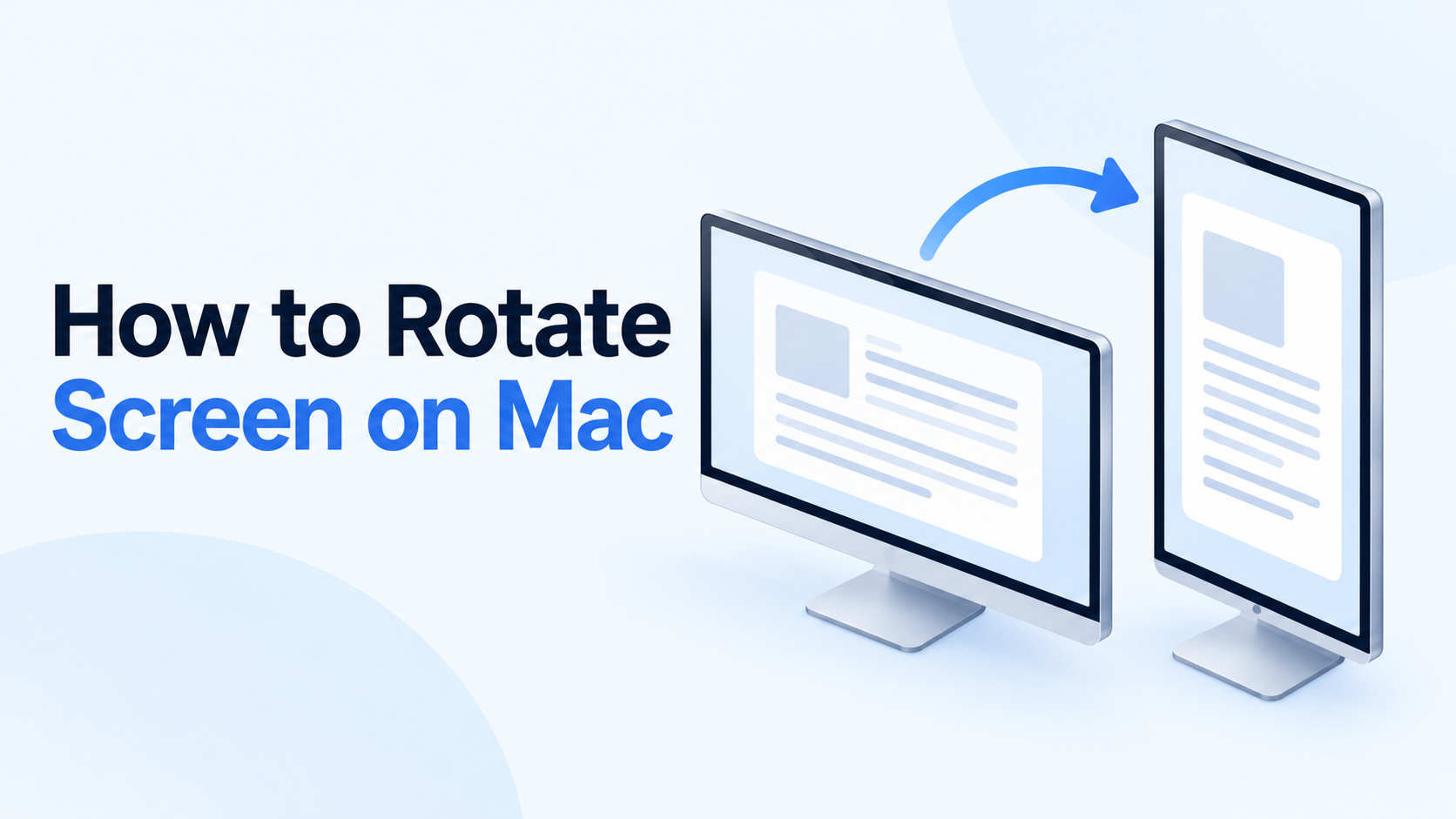
How to Rotate Screen on Mac
How to Rotate Screen on Mac in System Settings
Start with a connected external monitor that supports rotation. Check its manual before turning the panel: the stand, cable clearance, and permitted operating position matter as much as the software setting.
Step 1: Select the external monitor
Open Apple menu > System Settings > Displays. If multiple displays appear, select the monitor you want to turn. Make sure you are adjusting that screen rather than the laptop's built-in display.
Step 2: Choose the rotation angle
Open Rotation and choose the angle that matches your monitor's physical position. A quarter-turn produces a portrait workspace. Use the available menu choices rather than assuming every connected display exposes the same controls.
Step 3: Confirm and check readability
Click Confirm when the image is correctly oriented. Open a familiar document and check that its text is upright. To undo the change, return to the same menu and select Standard. These are the controls described in Apple's screen rotation guide.
If Rotation is missing
Apple's current Displays documentation limits this control to compatible external displays. A missing menu on the built-in screen is therefore not a reason to repeatedly restart the Mac or force hidden settings.
Check the selected screen. If you have a MacBook and an external monitor, select the external monitor first.
Check recognition. If the monitor does not appear, hold Option in Displays settings to reveal Detect Displays. This detects a connection; it does not add rotation support.
Check the hardware instructions. If you use a dock, adapter, or display-management software, consult that manufacturer's documentation for your configuration.
Check the actual goal. If only one PDF or image is sideways, change that file's orientation in its application instead of turning the entire desktop.
Before troubleshooting further, record your macOS version, monitor model, and connection type. That gives support a specific setup to investigate. The illustration below shows the intended orientation change, not a screenshot of System Settings.
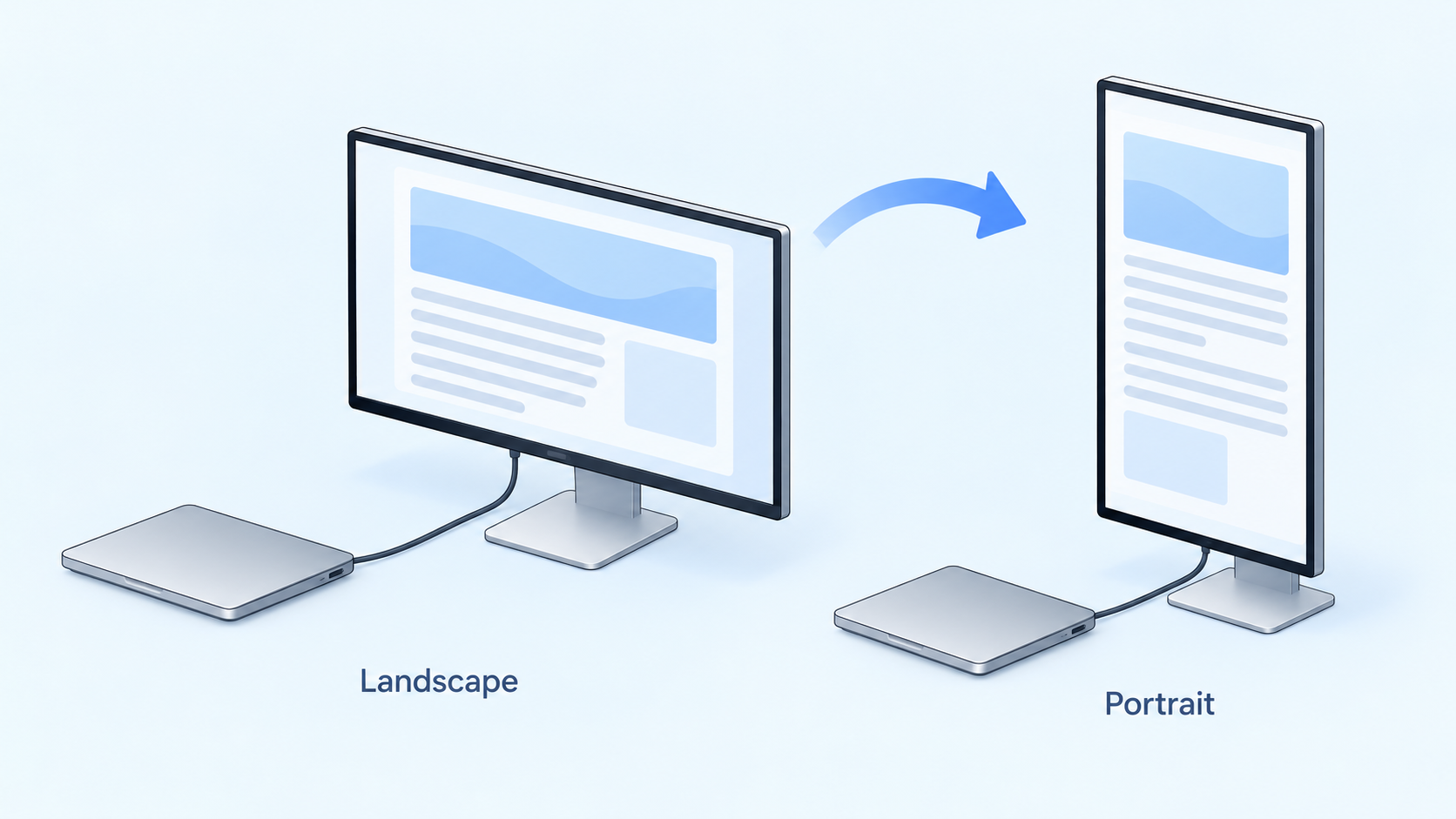
Mac external monitor rotation concept illustration


How to Rotate a Mac Screen in System Preferences
Older macOS releases, including Catalina, use System Preferences. If your Mac has that interface, use this route:
Open Apple menu > System Preferences > Displays.
Select the relevant display and open its Display pane where applicable.
Look for Rotation. If it is available, choose the angle you need.
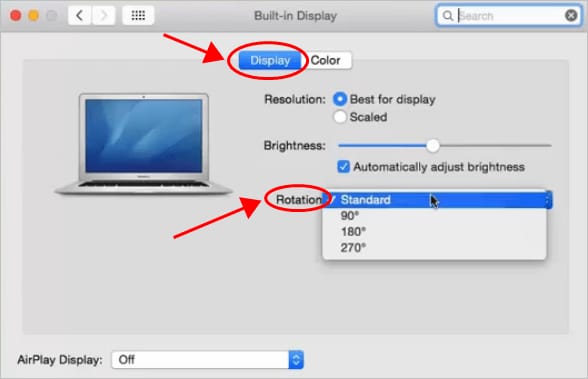
Rotation menu in older macOS settings
Confirm the result. Choose Standard to restore the original orientation.
Older tutorials sometimes suggest holding Option and Command while opening Displays. Treat that as a legacy workaround, not a universal shortcut. It is not part of Apple's current documented rotation procedure, and this guide does not rely on it.
WPS Office for Working on a Rotated Mac Display
Once your screen is upright, WPS Office for Mac brings documents, spreadsheets, presentations, and PDFs into one workspace. It is an option for working with files after you configure the monitor; the display orientation remains a macOS setting.
Choose your layout around the file you are using:
Long documents: Try the portrait monitor for reviewing a page from top to bottom.
Wide spreadsheets: Compare portrait and landscape before committing. Seeing more rows is less useful if essential columns move out of view.
Presentations: Check the actual slide proportions. A tall desktop does not convert a widescreen slide into a portrait slide.
Adjust the application's zoom until the content is comfortable to read. Screen orientation, zoom, and the file's page setup solve different problems. Keep the original page setup when your goal is simply a more comfortable workspace, and check print or export previews before sharing a file.
WPS Office website showing productivity tools
FAQs
Can I rotate my MacBook's built-in screen?
Apple's current Displays settings documentation says the rotation control appears for a compatible external display. Do not assume that a MacBook's built-in panel supports the same setting.
Why is there no Rotation option on my Mac?
You may have selected the built-in screen, or the external display configuration may not support the control. Select the correct monitor and consult the display or dock manufacturer's instructions.
How do I rotate my Mac screen back to normal?
Open Displays settings, select the affected monitor, and set Rotation to Standard. Check that the physical monitor position matches the restored image.
Is there a keyboard shortcut to rotate the screen on Mac?
Apple's documented procedure uses Displays settings. The Option-Command technique found in older tutorials is not a dependable shortcut across current Macs and macOS versions.
Does rotating the screen rotate my Word document or PDF?
No. Display rotation changes how the desktop is shown. To change the saved page orientation, use the document or PDF application's page controls and check the saved result separately.


'%3e%3cpath%20d='M19.9911%204.11386V6.471H18.5894C18.0775%206.471%2017.7322%206.57814%2017.5536%206.79243C17.3751%207.00671%2017.2858%207.32814%2017.2858%207.75671V9.44421H19.9019L19.5536%2012.0871H17.2858V18.8639H14.5536V12.0871H12.2769V9.44421H14.5536V7.49779C14.5536%206.39064%2014.8632%205.53201%2015.4822%204.92189C16.1013%204.31177%2016.9257%204.00671%2017.9554%204.00671C18.8304%204.00671%2019.509%204.04243%2019.9911%204.11386Z'%20fill='%23333333'/%3e%3c/g%3e%3cdefs%3e%3cclipPath%20id='clip0_2938_8199'%3e%3crect%20width='16'%20height='16'%20fill='white'%20transform='translate(8%204.00671)'/%3e%3c/clipPath%3e%3c/defs%3e%3c/svg%3e)
'%3e%3cpath%20d='M17.5237%2010.7813L23.4811%204H22.0699L16.8949%209.88693L12.7648%204H8L14.2469%2012.9029L8%2020.0133H9.4112L14.8725%2013.7952L19.2352%2020.0133H24M9.92053%205.04213H12.0885L22.0688%2019.0224H19.9003'%20fill='%23333333'/%3e%3c/g%3e%3cdefs%3e%3cclipPath%20id='clip0_2938_8200'%3e%3crect%20width='16'%20height='16.0134'%20fill='white'%20transform='translate(8%204)'/%3e%3c/clipPath%3e%3c/defs%3e%3c/svg%3e)


