

'%3e%3cpath%20d='M8%200C12.4183%200%2016%203.58172%2016%208C16%2012.4183%2012.4183%2016%208%2016C3.58172%2016%200%2012.4183%200%208C0%203.58172%203.58172%200%208%200ZM11.6162%204.38379C11.2257%203.99337%2010.5927%203.99338%2010.2021%204.38379L8%206.58594L5.79785%204.38379C5.40732%203.99334%204.77429%203.99329%204.38379%204.38379C3.99331%204.77429%203.99335%205.40733%204.38379%205.79785L6.58594%208L4.38379%2010.2021C3.99348%2010.5927%203.99341%2011.2257%204.38379%2011.6162C4.77426%2012.0066%205.40734%2012.0065%205.79785%2011.6162L8%209.41406L10.2021%2011.6162C10.5927%2012.0066%2011.2257%2012.0067%2011.6162%2011.6162C12.0067%2011.2257%2012.0066%2010.5927%2011.6162%2010.2021L9.41406%208L11.6162%205.79785C12.0066%205.40735%2012.0066%204.77429%2011.6162%204.38379Z'%20fill='%23080E17'%20fill-opacity='0.46'/%3e%3c/g%3e%3cdefs%3e%3cclipPath%20id='clip0_3761_713'%3e%3crect%20width='16'%20height='16'%20fill='white'/%3e%3c/clipPath%3e%3c/defs%3e%3c/svg%3e)




'%3e%3cpath%20fill-rule='evenodd'%20clip-rule='evenodd'%20d='M21.4999%2010.9993C21.4999%205.20009%2016.7986%200.498901%2010.9993%200.498901C5.19994%200.498901%200.498657%205.20009%200.498657%2010.9993C0.498657%2016.2404%204.33858%2020.5844%209.35855%2021.3722V14.0346H6.69238V10.9993H9.35855V8.68594C9.35855%206.05427%2010.9262%204.60062%2013.3248%204.60062C14.4736%204.60062%2015.6753%204.80571%2015.6753%204.80571V7.38979H14.3512C13.0468%207.38979%2012.64%208.19921%2012.64%209.0296V10.9993H15.5523L15.0867%2014.0346H12.64V21.3722C17.66%2020.5844%2021.4999%2016.2404%2021.4999%2010.9993Z'%20fill='%231568EA'/%3e%3c/g%3e%3c/svg%3e)


'%3e%3cpath%20d='M2.42045%2022.1876H6.31818V12.7217L0.75%208.54553V20.5171C0.75%2021.4414%201.49892%2022.1876%202.42045%2022.1876Z'%20fill='%234285F4'/%3e%3cpath%20d='M19.682%2022.1876H23.5797C24.5041%2022.1876%2025.2502%2021.4387%2025.2502%2020.5171V8.54553L19.682%2012.7217'%20fill='%2334A853'/%3e%3cpath%20d='M19.682%205.48293V12.7216L25.2502%208.54543V6.31816C25.2502%204.25236%2022.8921%203.07469%2021.2411%204.31361'%20fill='%23FBBC04'/%3e%3cpath%20d='M6.31824%2012.7217V5.48303L13.0001%2010.4944L19.6819%205.48303V12.7217L13.0001%2017.733'%20fill='%23EA4335'/%3e%3cpath%20d='M0.75%206.31816V8.54543L6.31818%2012.7216V5.48293L4.75909%204.31361C3.10534%203.07469%200.75%204.25236%200.75%206.31816Z'%20fill='%23C5221F'/%3e%3c/g%3e%3cdefs%3e%3cclipPath%20id='clip0_2954_7305'%3e%3crect%20width='24.5'%20height='18.375'%20fill='white'%20transform='translate(0.75%203.8125)'/%3e%3c/clipPath%3e%3c/defs%3e%3c/svg%3e)


Preface
If you’ve designed a presentation in Canva but need to edit or present it in Google Slides, you’re not alone. Many educators, professionals, and students rely on Canva for visuals, then switch to Google Slides for collaboration and easy sharing.
So how can you convert a Canva presentation to Google Slides while keeping the layout, visuals, and structure intact? This article explains why conversion is often necessary, walks through step-by-step methods, and highlights what to expect during the process.
Part 1: Why Convert Canva to Google Slides
Canva and Google Slides both help users create presentations, but they are built for slightly different purposes. Canva focuses heavily on visual design and templates, while Google Slides is designed for collaboration, accessibility, and seamless sharing within Google Workspace.
Because of this difference, many users design first in Canva and later look for a reliable way to handle Canva to Google Slides conversion so they can continue editing, sharing, or presenting in a more collaborative environment.
Common Use Cases
There are several practical situations where users need to convert Canva designs to Google Slides:
Educators are preparing lesson slides in Canva but delivering them through Google Classroom
Business professionals collaborating with teams that rely on Google Drive and Google Slides
Students submitting presentations that must be editable in Google Slides
Content creators who need cloud-based access across devices
In these cases, the Canva download for Google Slides becomes necessary to ensure compatibility and smooth collaboration.
Benefits of Conversion
Converting a Canva presentation to Google Slides allows users to:
Edit slides collaboratively in real time
Share presentations easily using Google Drive links
Present directly from a browser without downloading files
Maintain version control and access history
A proper Canva Google Slides conversion also helps users avoid recreating slides from scratch, saving both time and effort.
Part 2: How to Convert Canva to Google Slides
This section covers the most reliable ways to complete a Canva to Google Slides conversion. Each method works for different needs, depending on whether you prioritize design accuracy, speed, or flexibility.
Method 1: Export From Canva as PowerPoint and Import to Google Slides
This is the most widely used and reliable approach. It offers the best balance between design retention and ease of use.
Steps
Step 1: Open your presentation in Canva
Log in to Canva and open the design you want to convert.
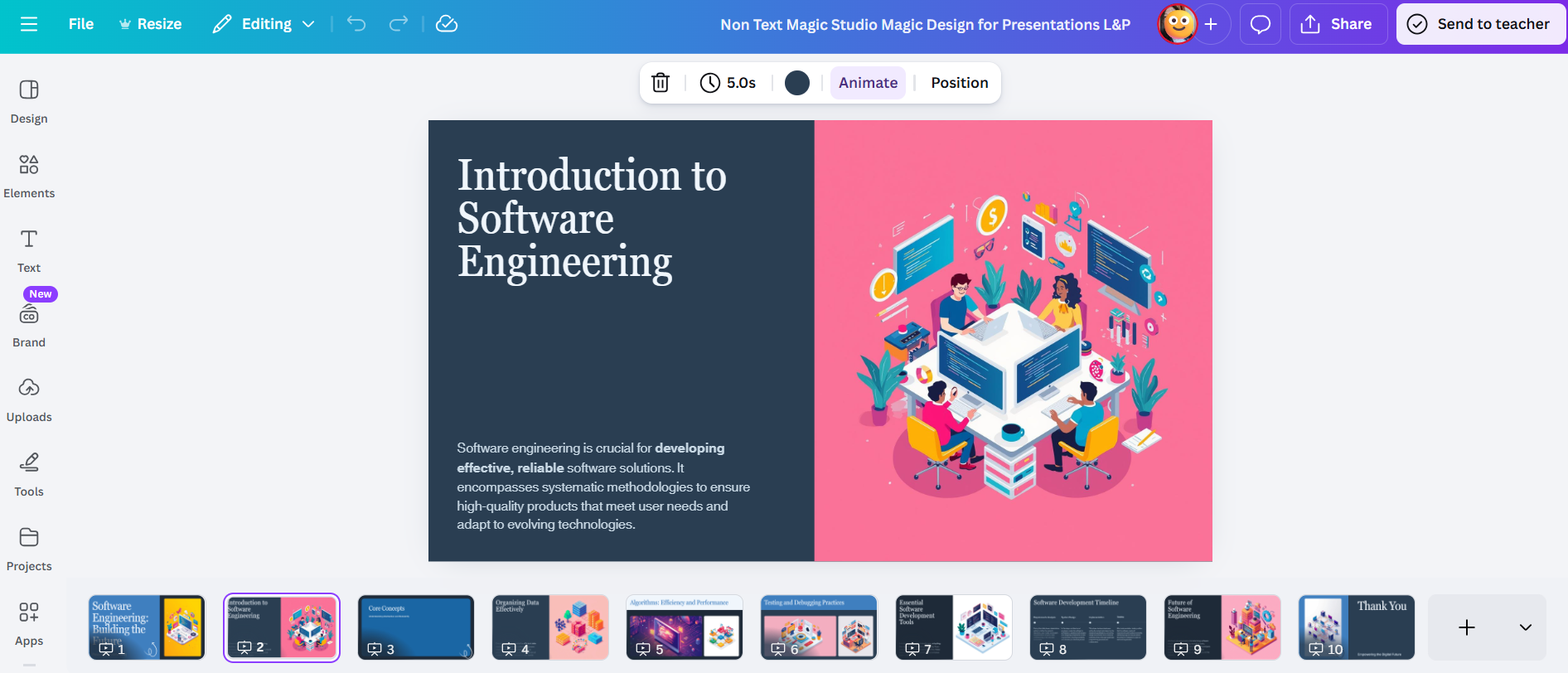
Step 2: Download the file as a PowerPoint
Click Share → Download, then chooseMicrosoft PowerPoint (.pptx). This option is the most compatible Canva download for Google Slides.

Step 3: Upload the file to Google Slides
Go to Google Slides, click Blank presentation, then select File → Import slides. Upload the PPTX file you exported from Canva.
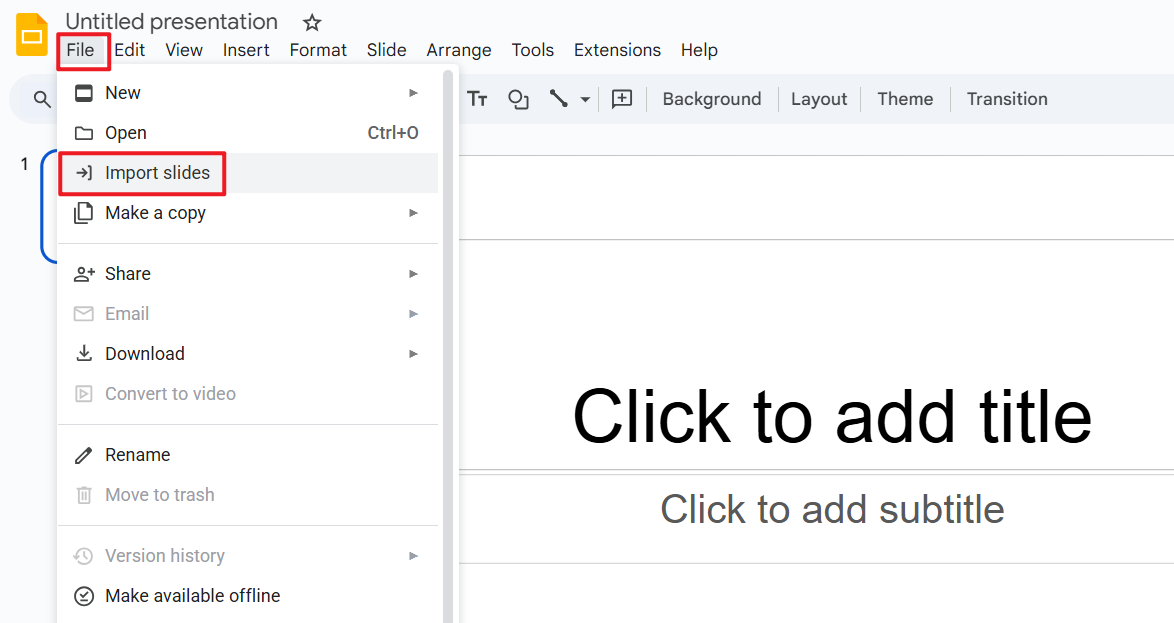
Step 4: Review and adjust formatting
Once imported, check fonts, spacing, and image alignment. This step is important if you want to know how to convert Canva to Google Slides without losing formatting.
Pros
Best option for structured layouts
Works well for most Canva templates
Supports text, images, and slide structure
Cons
Some animations may not transfer
Custom fonts may be replaced if not supported
This method is ideal if you’re converting a Canva presentation to Google Slides for professional or educational use.
Method 2: Use Canva Share Link and Rebuild in Google Slides
This approach works best for users who want full control over the final design or need to avoid formatting conflicts.
Steps
Step 1: Share your Canva design
Click Share → Anyone with the link → View only, then copy the link.
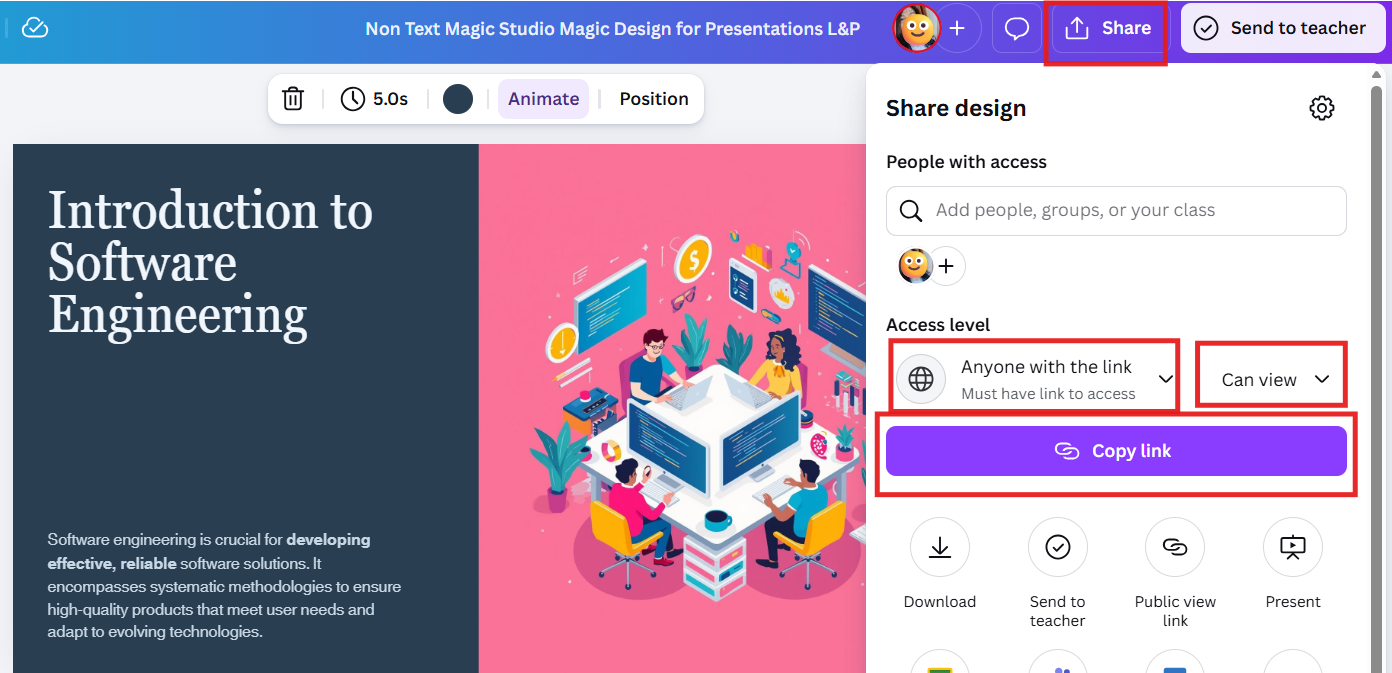
Step 2: Download slide images from Canva
Export slides as PNG or JPG files.
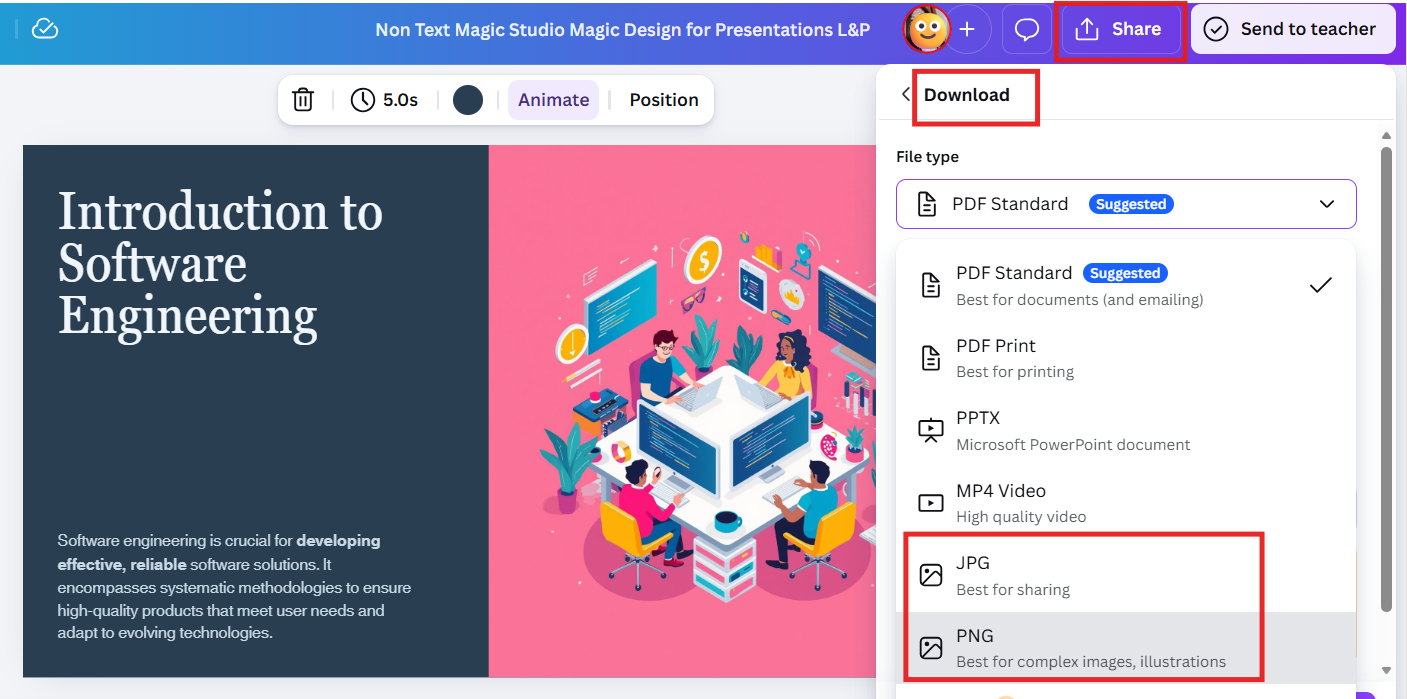
Step 3: Insert images into Google Slides
Open Google Slides and insert each image manually. This method is helpful when users want to know how to convert a Canva template to Google Slides while preserving visuals.
Step 4: Recreate editable text and elements
Add text boxes, animations, and transitions directly in Google Slides.
Pros
Preserves visual appearance
No font compatibility issues
Useful for static presentations
Cons
Not fully editable at first
Time-consuming for large decks
This method is often chosen when users want to convert Canva designs to Google Slides without losing animation control, but don’t mind manual edits.
Formatting Notes
No method guarantees a perfect transfer. If you’re wondering how to convert Canva to Google Slides without sling font or layout issues, always double-check fonts, transitions, and spacing after import. Minor adjustments are normal, especially when doing a Canva presentation to Google Slides conversion.
Part 3: Recommended Alternative - WPS AI Slides
While converting a Canva presentation to Google Slides works for many users, it can become repetitive if you frequently move between tools or manage multiple presentations. In those cases, an alternative solution can simplify the workflow.
Why Recommend WPS AI Slides
WPS AI Slides is designed for users who want to create and edit presentations efficiently without dealing with repeated Canva-to-Google Slides conversion steps. Instead of exporting, importing, and fixing layouts, users can generate structured slide decks directly with AI assistance.
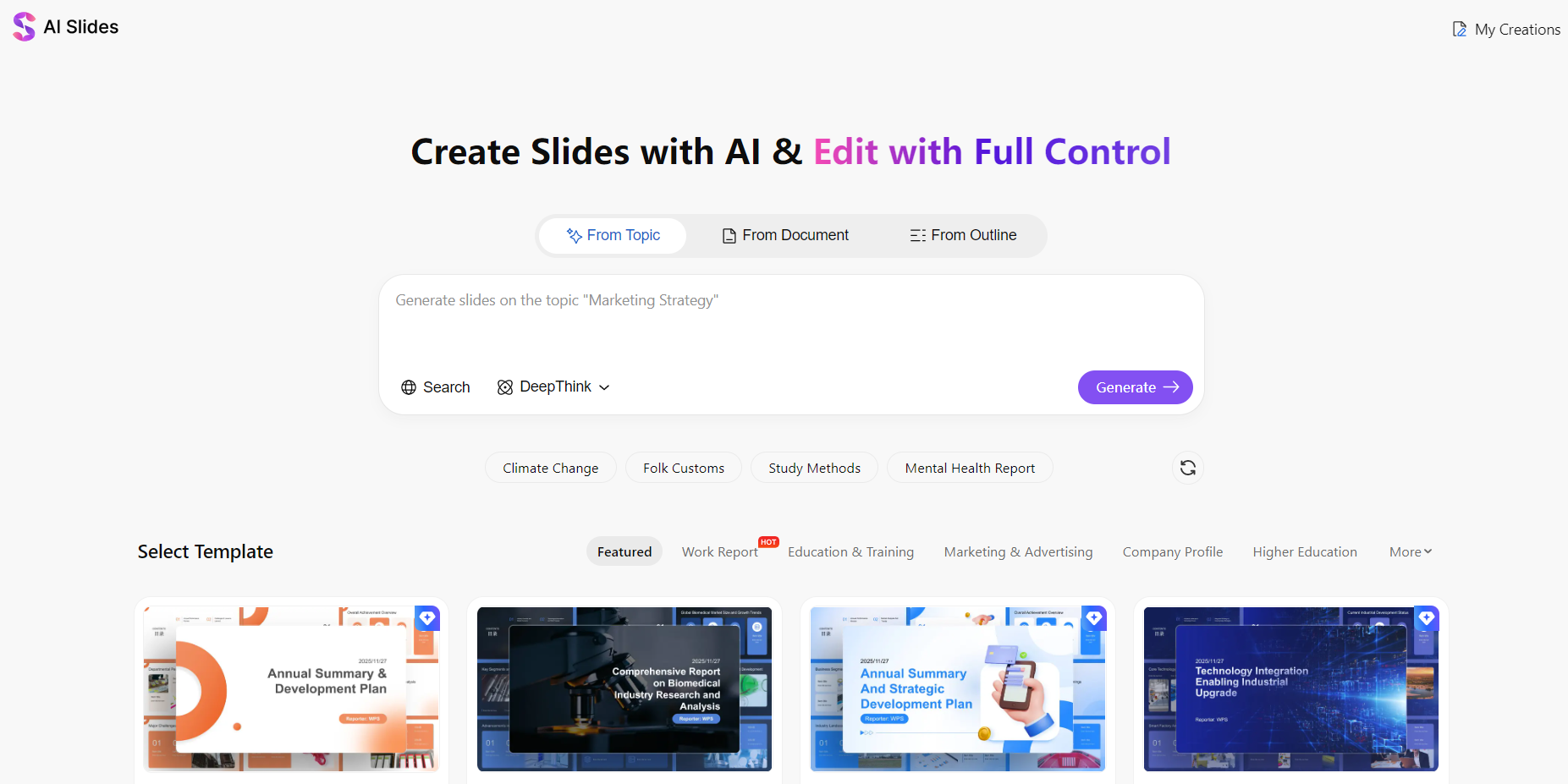
This approach is especially helpful for educators, professionals, and content creators who need consistent formatting and quick turnaround.
Features
AI-assisted presentation creation based on prompts or outlines
Editable slide decks with professionally designed templates
Export options compatible with PPT and PDF formats
Simple editing interface that reduces manual formatting work
For users who often ask how to convert Canva ppt to Google Slides without losing formatting or animation, WPS AI Slides offers a way to skip conversion entirely and start with a flexible presentation format from the beginning.
FAQs
Q1: Can you directly convert a Canva presentation into Google Slides?
No. Canva does not offer a direct Canva to Google Slides export option. You need to download the file in a supported format, such as PPTX, and then import it into Google Slides.
Q2: What format should I export from Canva?
For best results, export your presentation as Microsoft PowerPoint (.pptx). This format provides the smoothest Canva Google Slides conversion and preserves most layouts.
Q3: Do designs always transfer perfectly?
Not always. Some fonts, spacing, or animations may shift during import. It’s important to review the slides carefully if you want to know how to convert Canva to Google Slides without losing formatting.
Q4: Are there any limitations or formatting changes when transferring from Canva to Google Slides?
Yes. When doing a Canva presentation to Google Slides conversion, certain advanced design elements or fonts may not be preserved exactly. Always double-check animations and text styles, especially if you’re trying to convert Canva designs to Google Slides for professional use.
Summary
Converting a Canva presentation to Google Slides is a practical solution when collaboration, sharing, and cloud-based editing are required. By exporting your design as a PPTX file and importing it correctly, you can complete a smooth Canva to Google Slides conversion with minimal adjustments.
However, if you frequently deal with presentation creation or want to avoid repeated conversions, WPS AI Slides provides a streamlined alternative. It allows users to create polished presentations quickly while staying compatible with common presentation formats.

'%3e%3cpath%20d='M19.9911%204.11386V6.471H18.5894C18.0775%206.471%2017.7322%206.57814%2017.5536%206.79243C17.3751%207.00671%2017.2858%207.32814%2017.2858%207.75671V9.44421H19.9019L19.5536%2012.0871H17.2858V18.8639H14.5536V12.0871H12.2769V9.44421H14.5536V7.49779C14.5536%206.39064%2014.8632%205.53201%2015.4822%204.92189C16.1013%204.31177%2016.9257%204.00671%2017.9554%204.00671C18.8304%204.00671%2019.509%204.04243%2019.9911%204.11386Z'%20fill='%23333333'/%3e%3c/g%3e%3cdefs%3e%3cclipPath%20id='clip0_2938_8199'%3e%3crect%20width='16'%20height='16'%20fill='white'%20transform='translate(8%204.00671)'/%3e%3c/clipPath%3e%3c/defs%3e%3c/svg%3e)
'%3e%3cpath%20d='M17.5237%2010.7813L23.4811%204H22.0699L16.8949%209.88693L12.7648%204H8L14.2469%2012.9029L8%2020.0133H9.4112L14.8725%2013.7952L19.2352%2020.0133H24M9.92053%205.04213H12.0885L22.0688%2019.0224H19.9003'%20fill='%23333333'/%3e%3c/g%3e%3cdefs%3e%3cclipPath%20id='clip0_2938_8200'%3e%3crect%20width='16'%20height='16.0134'%20fill='white'%20transform='translate(8%204)'/%3e%3c/clipPath%3e%3c/defs%3e%3c/svg%3e)


