

'%3e%3cpath%20d='M8%200C12.4183%200%2016%203.58172%2016%208C16%2012.4183%2012.4183%2016%208%2016C3.58172%2016%200%2012.4183%200%208C0%203.58172%203.58172%200%208%200ZM11.6162%204.38379C11.2257%203.99337%2010.5927%203.99338%2010.2021%204.38379L8%206.58594L5.79785%204.38379C5.40732%203.99334%204.77429%203.99329%204.38379%204.38379C3.99331%204.77429%203.99335%205.40733%204.38379%205.79785L6.58594%208L4.38379%2010.2021C3.99348%2010.5927%203.99341%2011.2257%204.38379%2011.6162C4.77426%2012.0066%205.40734%2012.0065%205.79785%2011.6162L8%209.41406L10.2021%2011.6162C10.5927%2012.0066%2011.2257%2012.0067%2011.6162%2011.6162C12.0067%2011.2257%2012.0066%2010.5927%2011.6162%2010.2021L9.41406%208L11.6162%205.79785C12.0066%205.40735%2012.0066%204.77429%2011.6162%204.38379Z'%20fill='%23080E17'%20fill-opacity='0.46'/%3e%3c/g%3e%3cdefs%3e%3cclipPath%20id='clip0_3761_713'%3e%3crect%20width='16'%20height='16'%20fill='white'/%3e%3c/clipPath%3e%3c/defs%3e%3c/svg%3e)




'%3e%3cpath%20fill-rule='evenodd'%20clip-rule='evenodd'%20d='M21.4999%2010.9993C21.4999%205.20009%2016.7986%200.498901%2010.9993%200.498901C5.19994%200.498901%200.498657%205.20009%200.498657%2010.9993C0.498657%2016.2404%204.33858%2020.5844%209.35855%2021.3722V14.0346H6.69238V10.9993H9.35855V8.68594C9.35855%206.05427%2010.9262%204.60062%2013.3248%204.60062C14.4736%204.60062%2015.6753%204.80571%2015.6753%204.80571V7.38979H14.3512C13.0468%207.38979%2012.64%208.19921%2012.64%209.0296V10.9993H15.5523L15.0867%2014.0346H12.64V21.3722C17.66%2020.5844%2021.4999%2016.2404%2021.4999%2010.9993Z'%20fill='%231568EA'/%3e%3c/g%3e%3c/svg%3e)


'%3e%3cpath%20d='M2.42045%2022.1876H6.31818V12.7217L0.75%208.54553V20.5171C0.75%2021.4414%201.49892%2022.1876%202.42045%2022.1876Z'%20fill='%234285F4'/%3e%3cpath%20d='M19.682%2022.1876H23.5797C24.5041%2022.1876%2025.2502%2021.4387%2025.2502%2020.5171V8.54553L19.682%2012.7217'%20fill='%2334A853'/%3e%3cpath%20d='M19.682%205.48293V12.7216L25.2502%208.54543V6.31816C25.2502%204.25236%2022.8921%203.07469%2021.2411%204.31361'%20fill='%23FBBC04'/%3e%3cpath%20d='M6.31824%2012.7217V5.48303L13.0001%2010.4944L19.6819%205.48303V12.7217L13.0001%2017.733'%20fill='%23EA4335'/%3e%3cpath%20d='M0.75%206.31816V8.54543L6.31818%2012.7216V5.48293L4.75909%204.31361C3.10534%203.07469%200.75%204.25236%200.75%206.31816Z'%20fill='%23C5221F'/%3e%3c/g%3e%3cdefs%3e%3cclipPath%20id='clip0_2954_7305'%3e%3crect%20width='24.5'%20height='18.375'%20fill='white'%20transform='translate(0.75%203.8125)'/%3e%3c/clipPath%3e%3c/defs%3e%3c/svg%3e)


In professional and personal tasks, you often need to combine multiple image files like JPGs, PNGs, or scans into one PDF for contracts, portfolios, or sharing. Yet, common struggles include merging images into a cohesive document, bloated file sizes that fail email limits, and degraded quality in outputs. You search for how to create PDF from images with reliable free jpg to pdf converters that deliver professional results quickly. This guide covers top methods and tools to solve these pain points step by step.


Method 1: Free Online Converters
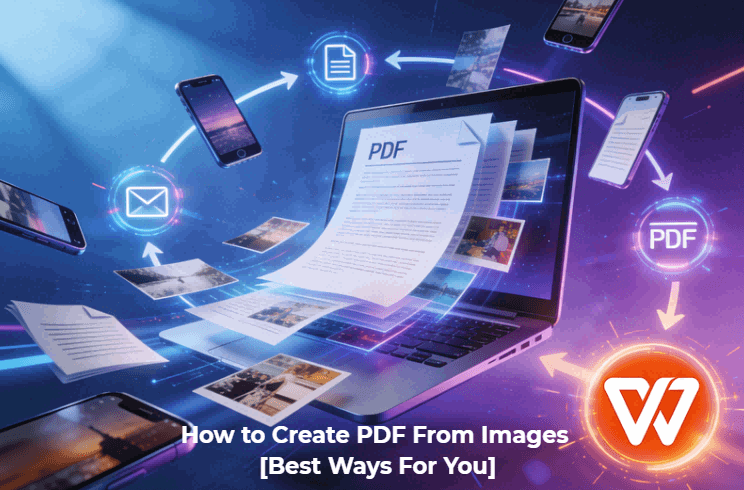
Online converters offer instant access for how to create PDF from images without downloads, ideal for quick tasks or large batches on any device. These create PDF from images free tools handle JPG, PNG, and more, often with customization to preserve quality and optimize sizes. Users seeking pdf to images converters will find reverse options too, but focus here stays on image-to-PDF efficiency.
Converter 1: WPS Online Converter
WPS Online Converter stands out as a robust free tool for converting JPG to PDF online, supporting batch uploads and high-fidelity outputs perfect for documents or albums. It processes multiple images swiftly while allowing layout tweaks, making it a go-to for professionals handling scans or photos daily.
Features: Custom page size, orientation, margins; batch merge; no watermarks; secure file deletion.
How to convert:
Step 1: Visit the WPS site.
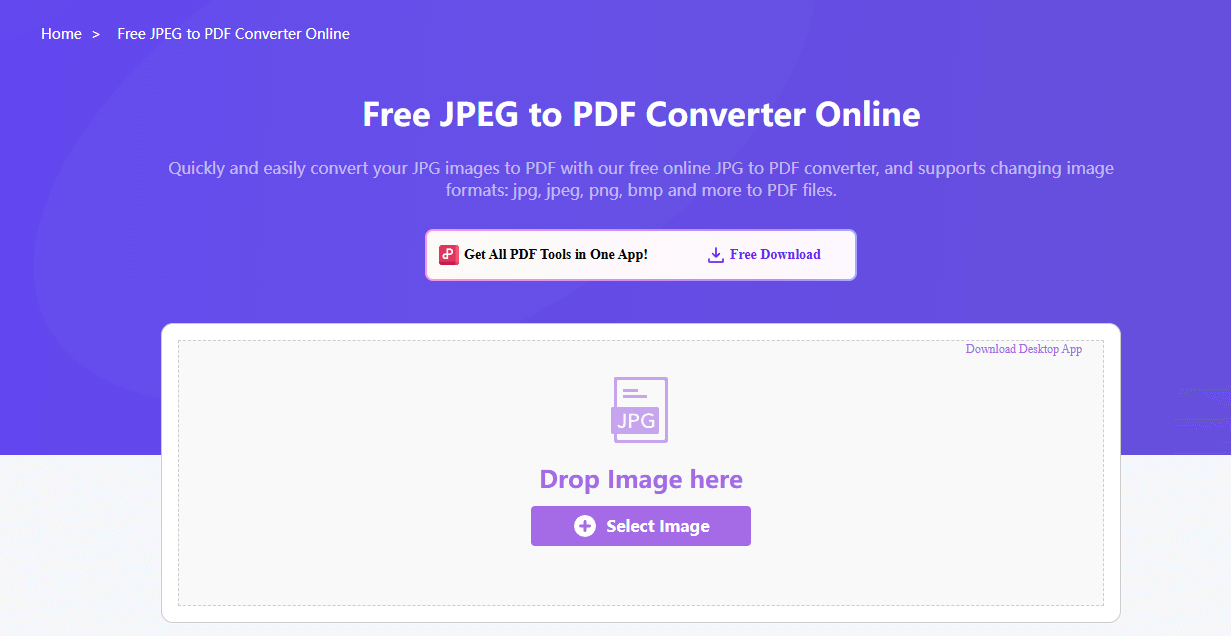
Step 2: Select or drag images.
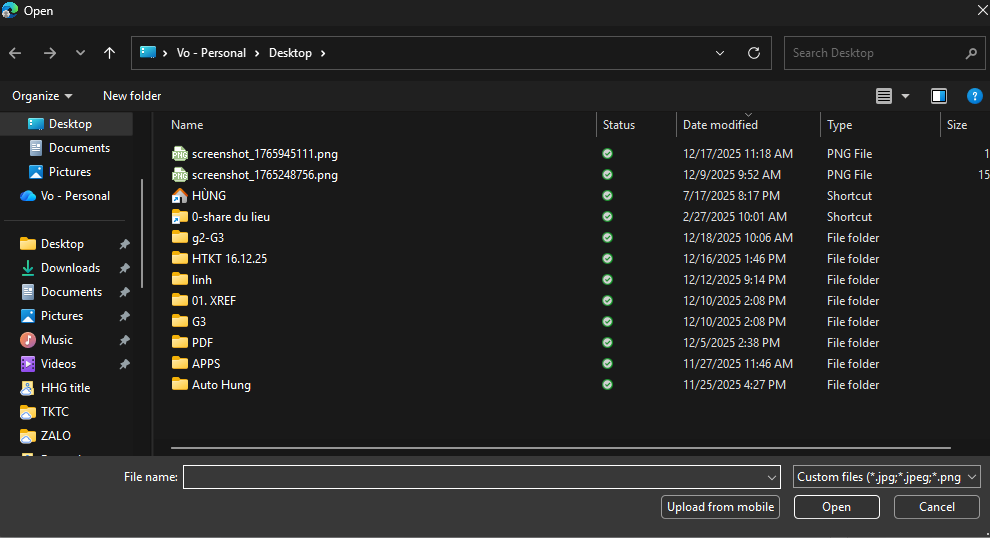
Step 3: Adjust settings like portrait mode or margins.
Step 4: Convert and download.
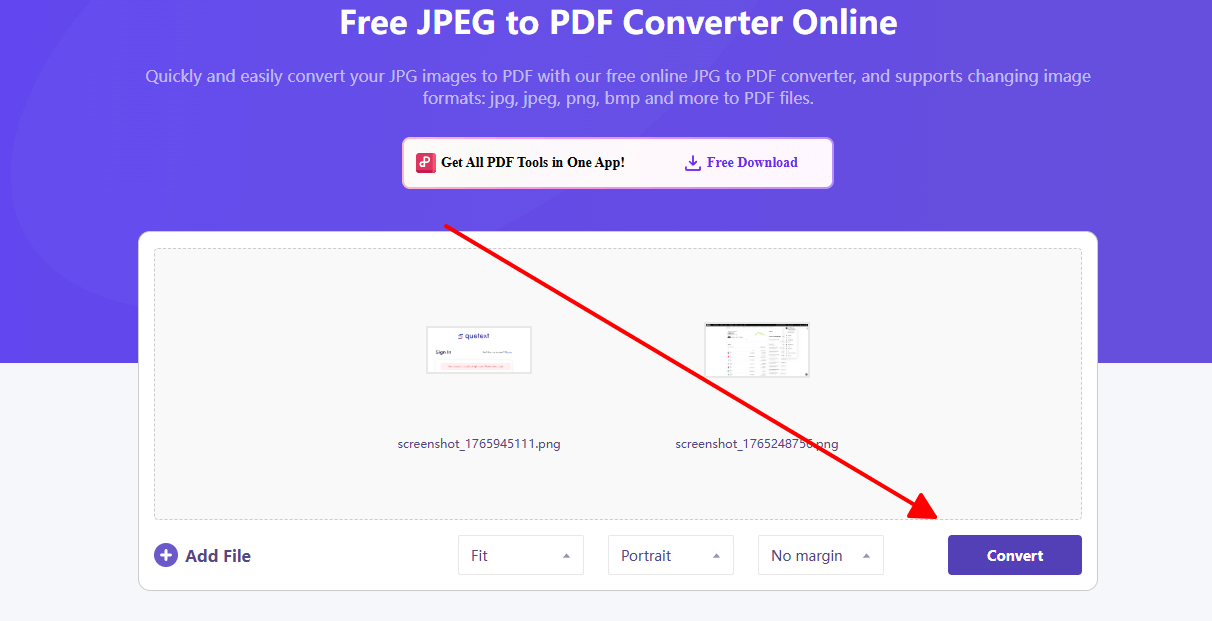
In my experience using WPS Online Converter for client reports with dozens of scans, it delivered perfect quality every time without bloating file sizes. I batched 30 images into a crisp portfolio PDF in under a minute, far outperforming others on speed and reliability. No watermarks or limits disrupted my workflow, making it my default choice.
Converter 2: iLovePDF Converter
iLovePDF provides a user-friendly platform to create PDF from images free, excelling in speed for bulk conversions and integrations with cloud storage for seamless workflows. It caters to users juggling photos or graphics who want simple merging without quality drops or size issues.
Features: Margin and orientation controls; merge files; cloud support; mobile optimized.
How to convert:
Step 1: Open the iLovePDF page.
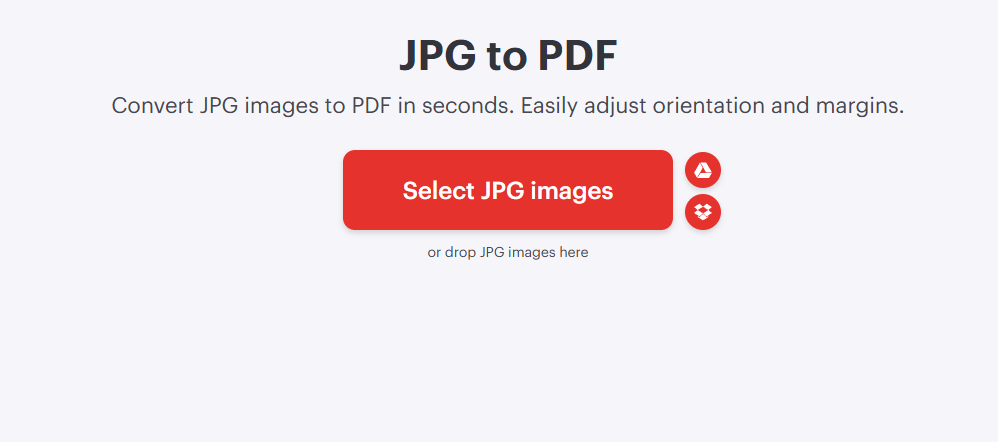
Step 2: Upload JPG images.
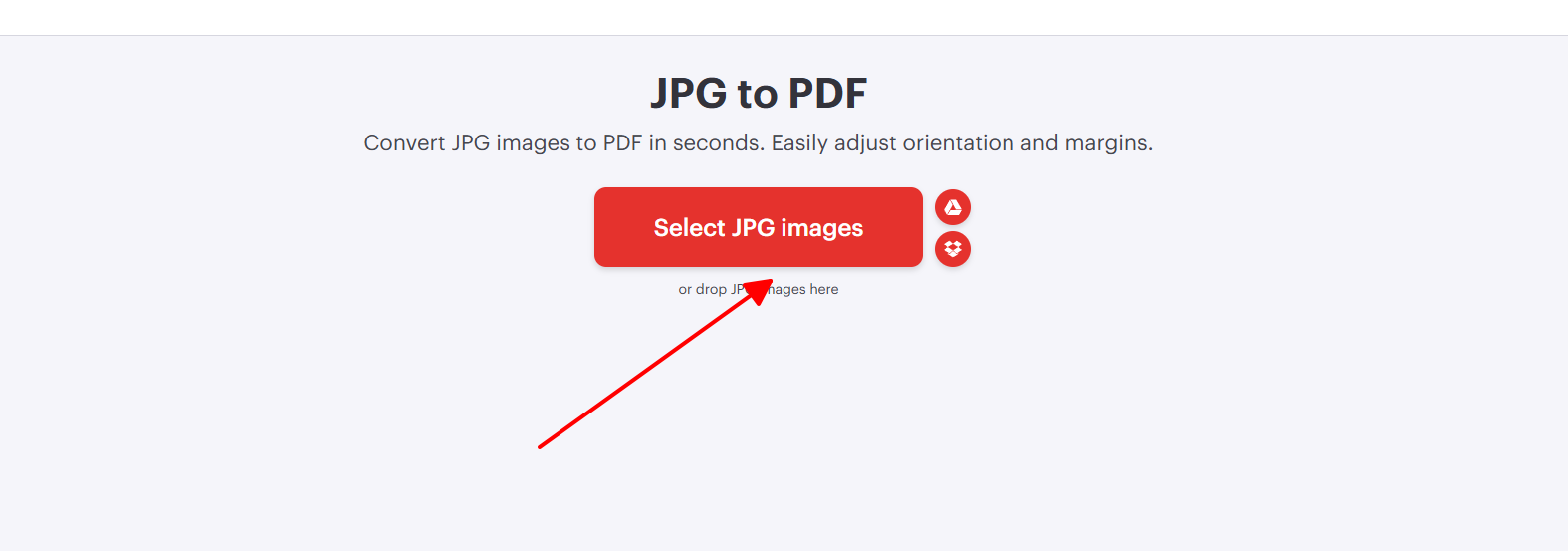
Step 3: Set page options and merge.
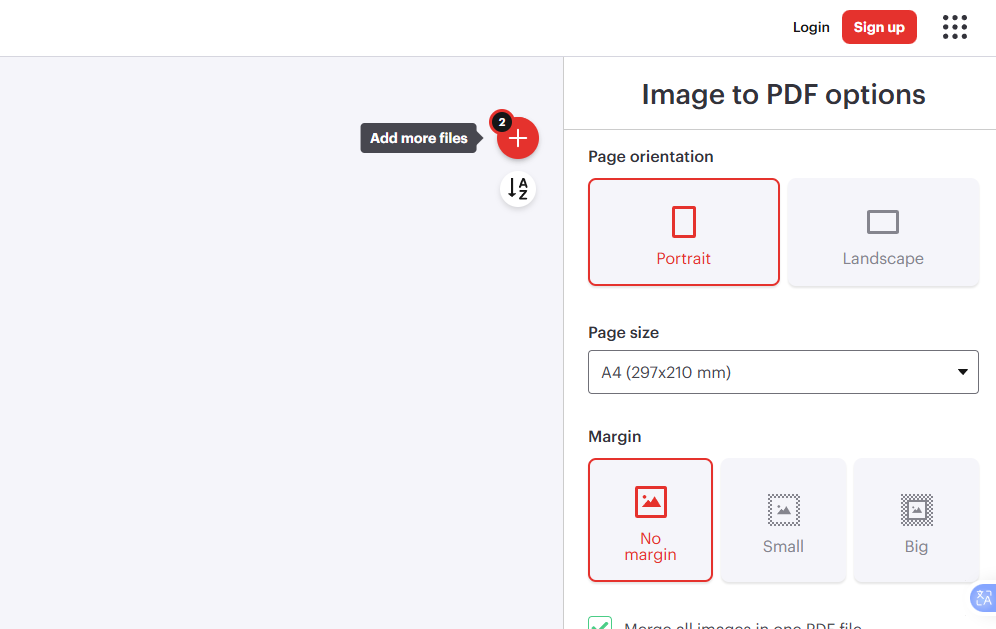
Step 4: Convert to PDF.
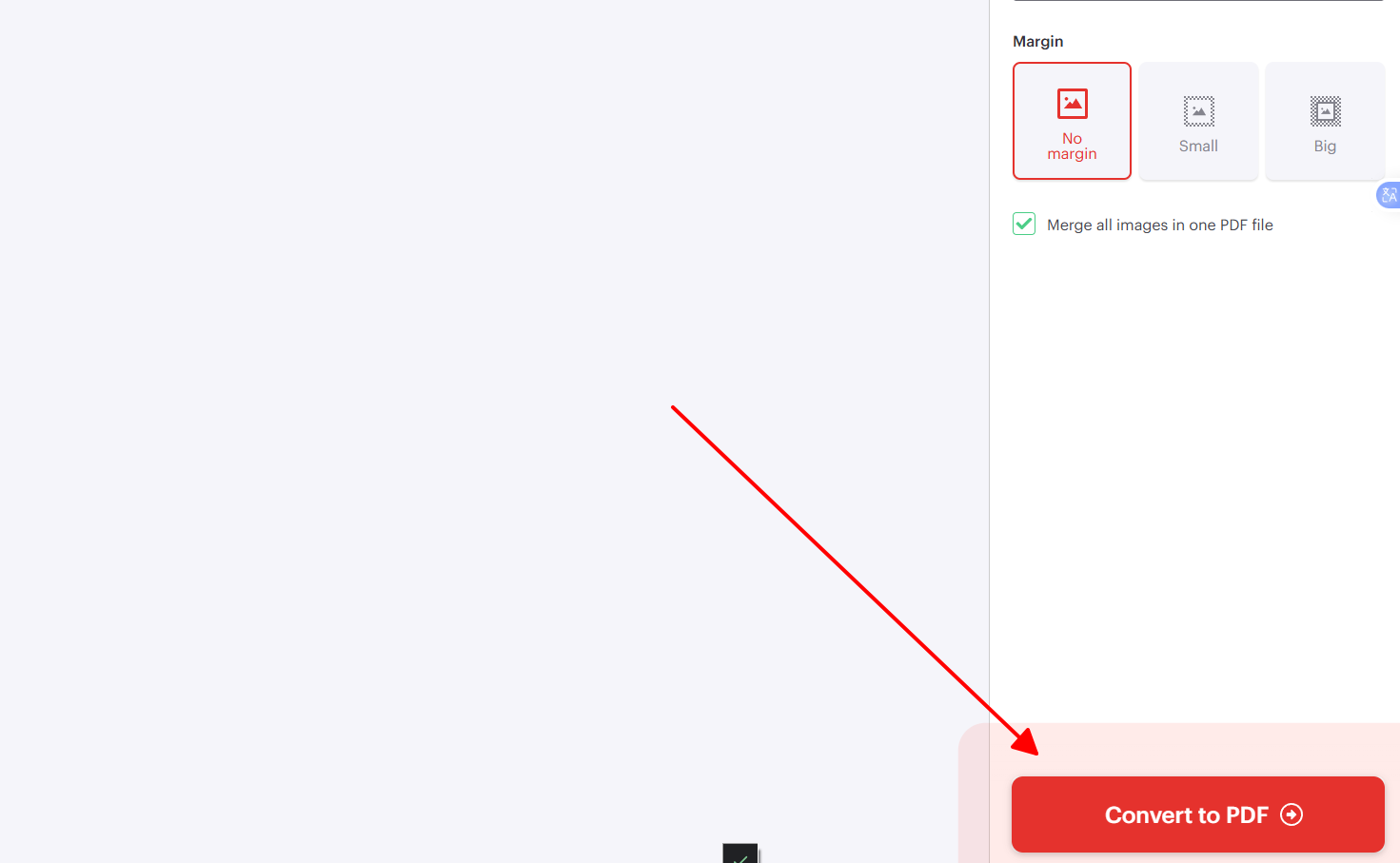
I've turned event photos into client portfolios with iLovePDF multiple times, loving its cloud sync for quick access across devices. It handled 15 images flawlessly but hit free limits on bigger jobs, pushing me to upgrade occasionally. Still, the interface feels intuitive for fast everyday use.
Converter 3: FreeConvert
FreeConvert delivers reliable JPG to PDF conversion with emphasis on privacy and customization, suiting users converting images for emails or archives where file size matters. It handles various formats beyond JPG, ensuring versatile use for diverse needs.
Features: Size and layout adjustments; multi-file support; auto-delete security.
How to convert:
Step 1: Go to FreeConvert.
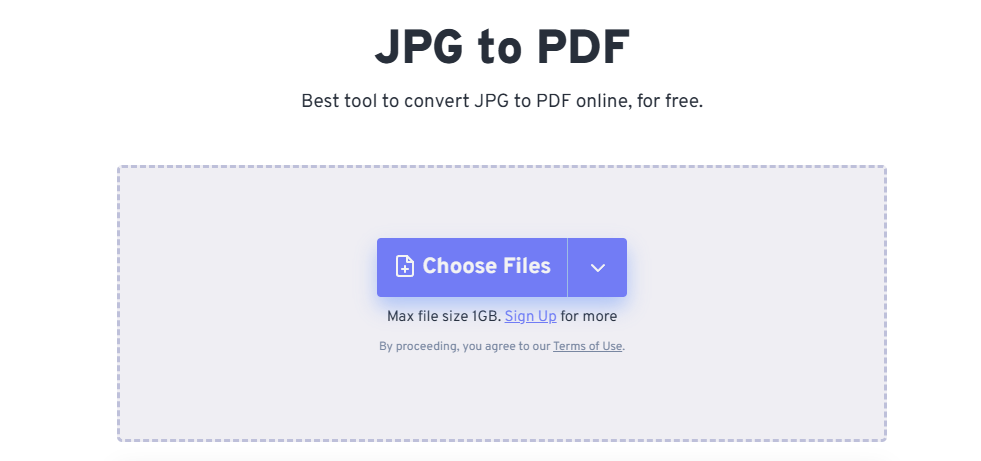
Step 2: Add images.
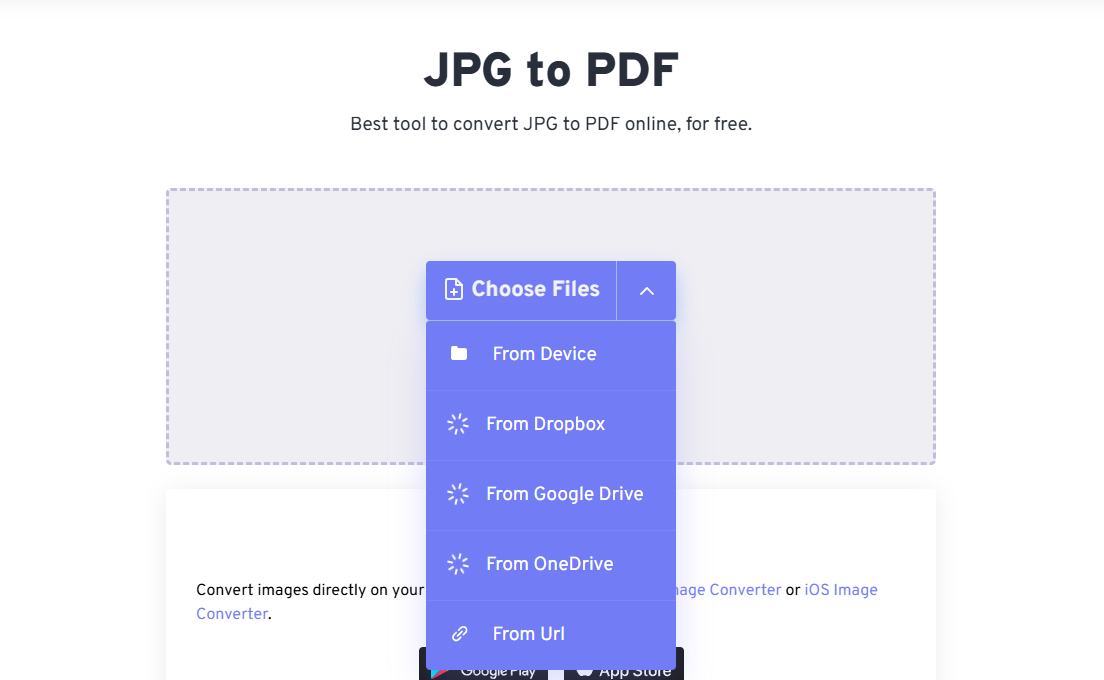
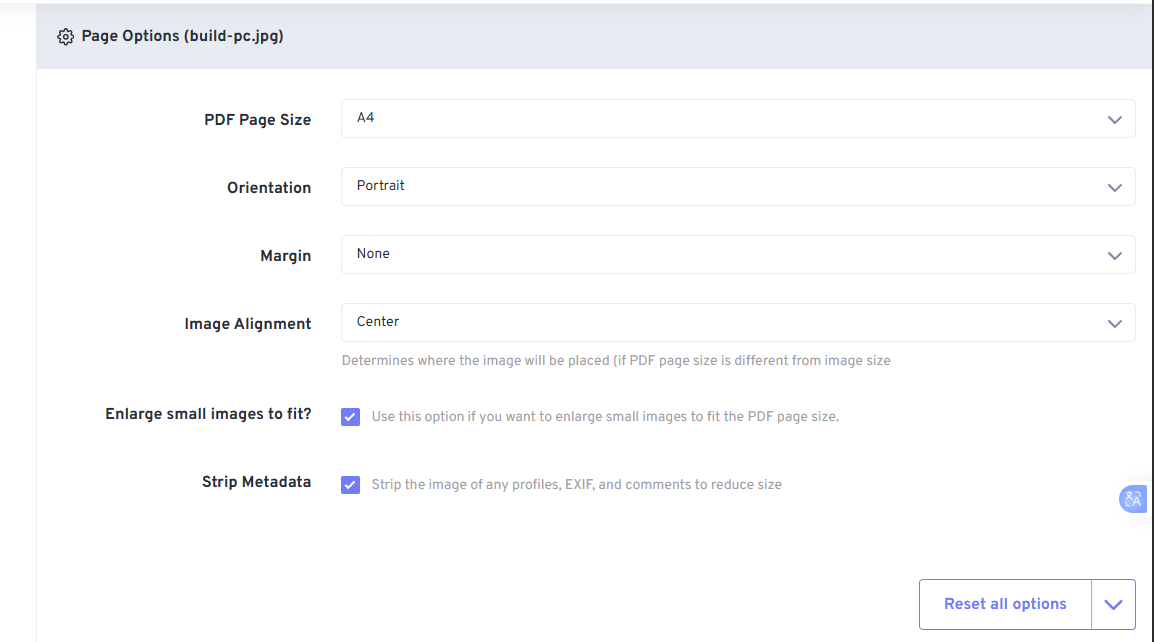
Step 3: Customize orientation and margins.
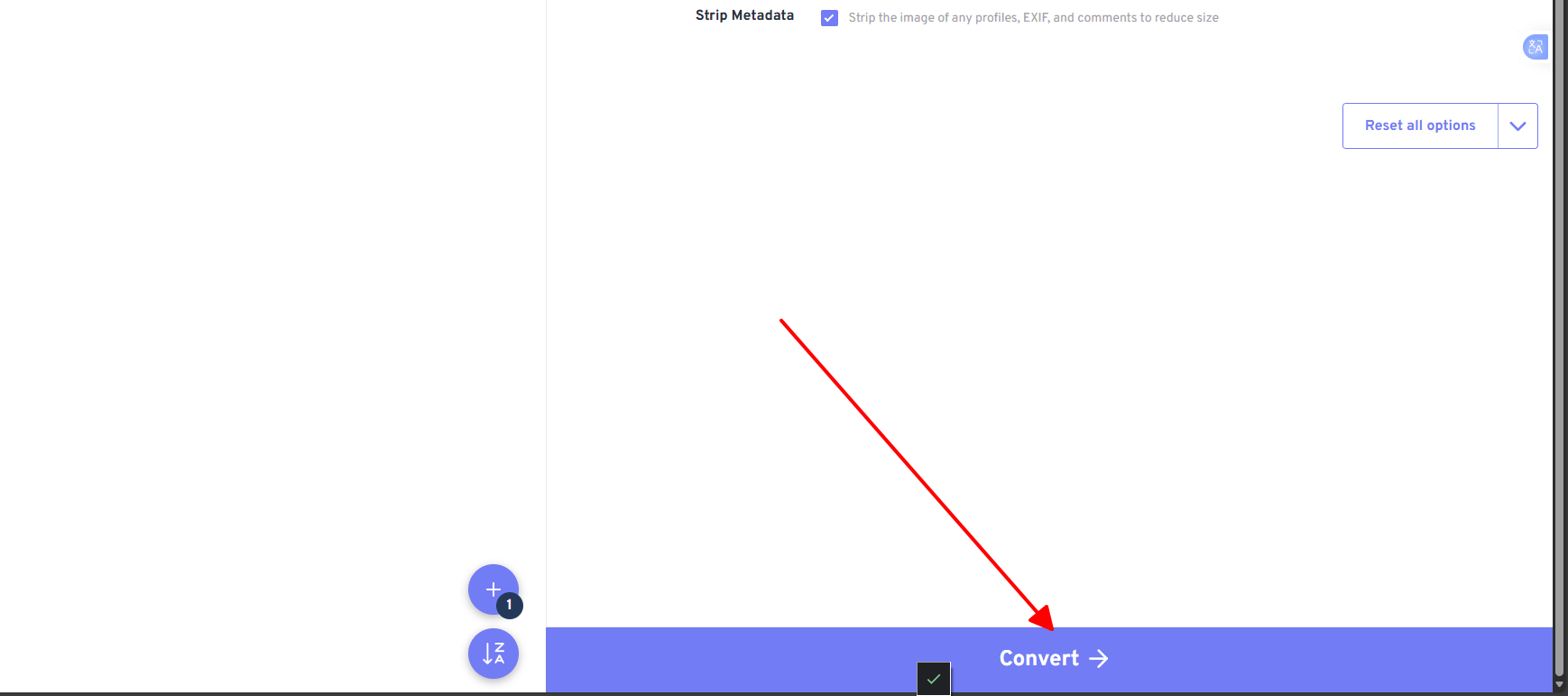
Step 4: Process and save.
FreeConvert proved solid for my receipt-to-PDF tasks, compressing 10 files securely without quality loss. Privacy auto-delete gave peace of mind for sensitive docs, though it lagged on larger batches compared to WPS. Great for occasional secure conversions in my routine.
| Feature/Tool | WPS Online | iLovePDF | FreeConvert |
|---|---|---|---|
| Batch Merge | Yes | Yes | Yes |
| Custom Margins | Yes | Yes | Yes |
| Free Limits | Unlimited | 100MB/day | 1GB/file |
| Quality Retention | Excellent | Good | Good |
| Speed (10 images) | Fastest | Fast | Medium |
Method 2: Computer Software
Desktop software provides offline reliability for repeated how to create PDF from images tasks, with advanced editing not found in web tools. These options appeal to users wanting full control over quality, layout, and batch processing without internet dependence. You benefit from integrated features that streamline workflows.
1. WPS Office
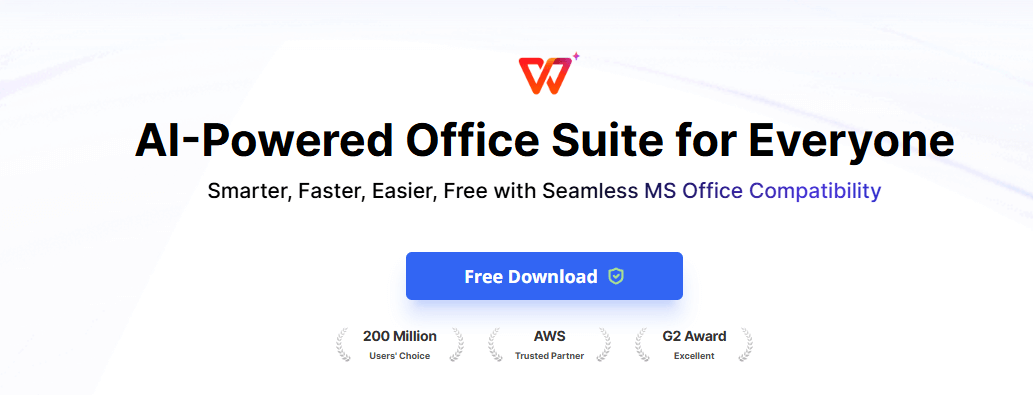
WPS Office integrates image-to-PDF conversion directly into its suite, offering a free, lightweight alternative for Windows and Mac users handling documents professionally. It combines conversion with OCR for editable text from scans, addressing common needs for versatile office tools.
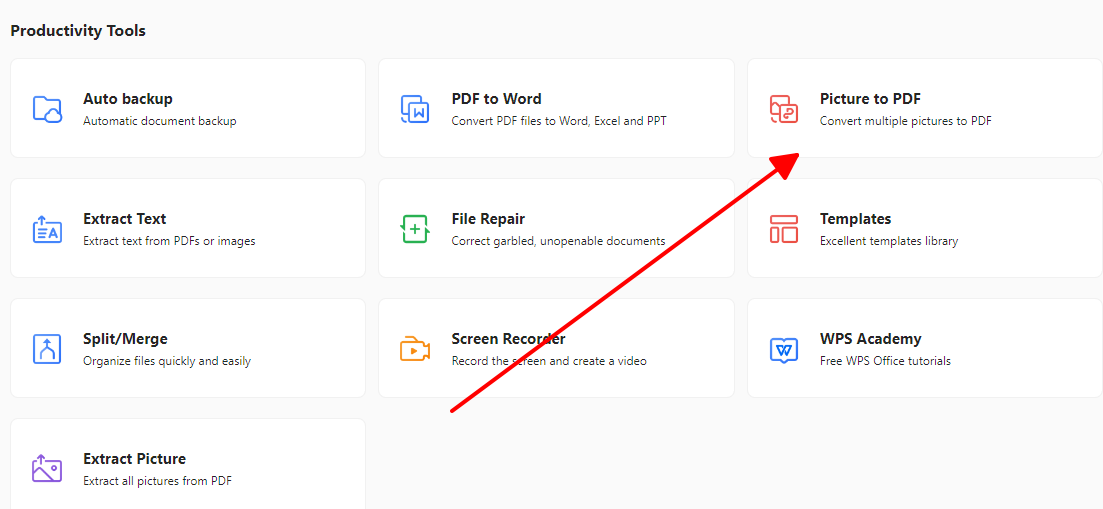
Step 1: Launch WPS Office and select Tools > Picture to PDF.
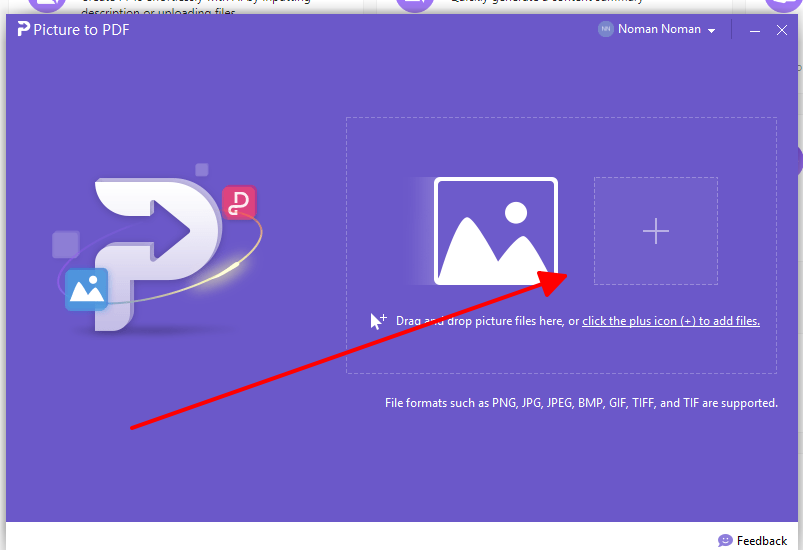
Step 2: Add images via plus icon or drag.
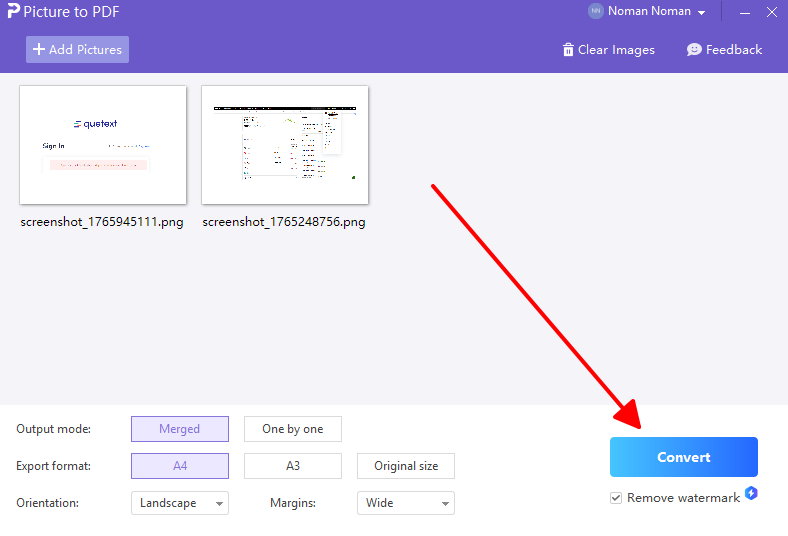
Step 3: Customize layout and orientation.
Step 4: Convert and export.
WPS Office saved me hours converting school scans with OCR that made text searchable instantly. I processed 50 images offline into a perfect report, loving the lightweight feel versus heavier suites. Its free tier handles pro work without nagging upgrades.
2. Wondershare PDFelement
Wondershare PDFelement powers advanced conversions from images to PDF, with built-in editing for post-conversion tweaks ideal for business users. Its intuitive interface handles complex batches, making it valuable for those needing more than basic merging.
Step 1: Open PDFelement and choose Create PDF > Image.
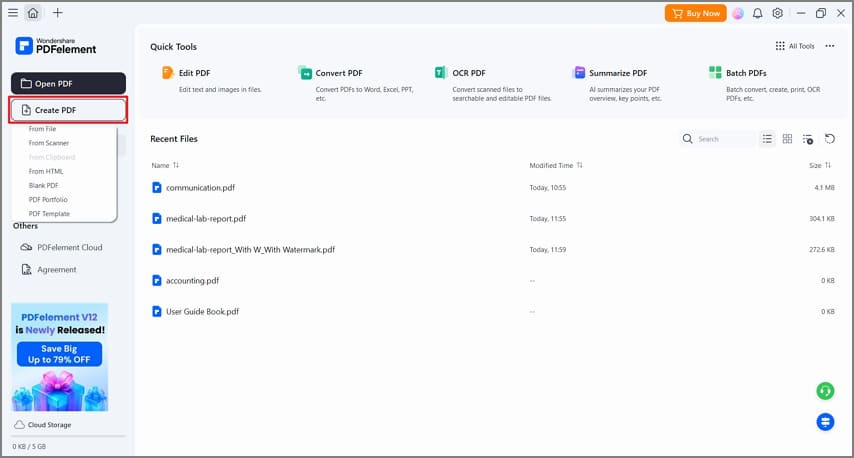
Step 2: Import JPG files.
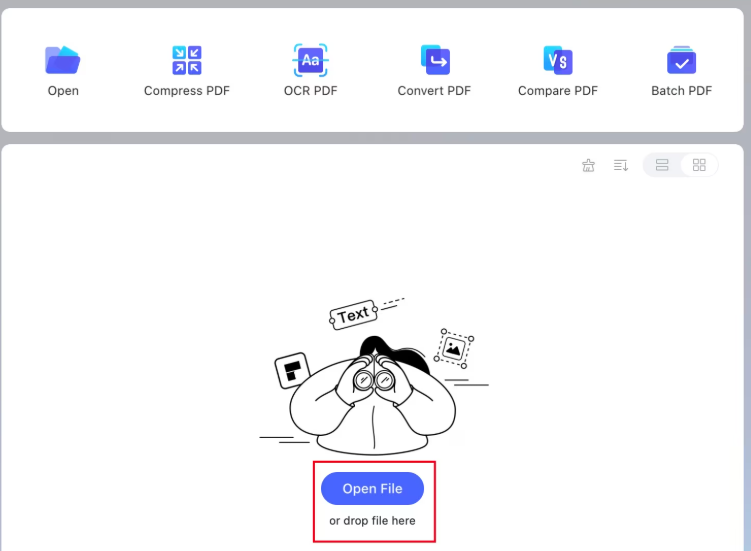
Step 3: Adjust settings.
Step 4: Generate PDF.
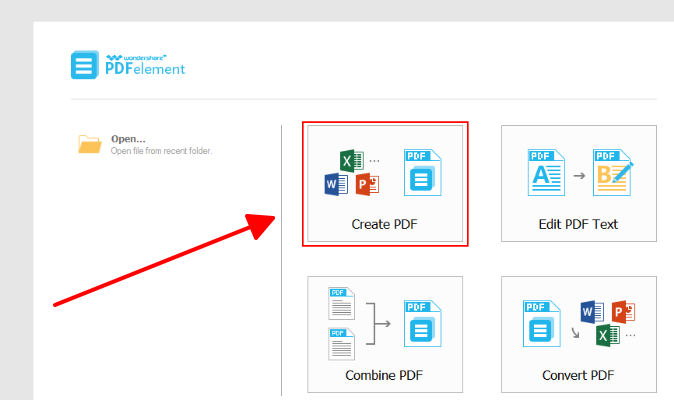
Wondershare impressed me editing batches of 20 contract scans directly after conversion, with precise layout controls. The trial worked well but nagged for purchase on heavy use, unlike free WPS. Powerful for detailed pro tasks in my experience.
Method 3: Built-in Tools
Your computer's native features enable how to create PDF from images without extras, perfect for quick, no-cost solutions on Windows or Mac. These methods leverage familiar apps, resolving frustrations with simple, always-available options that maintain decent quality.
On Windows:
Step 1: Open File Explorer and navigate to your image folder.
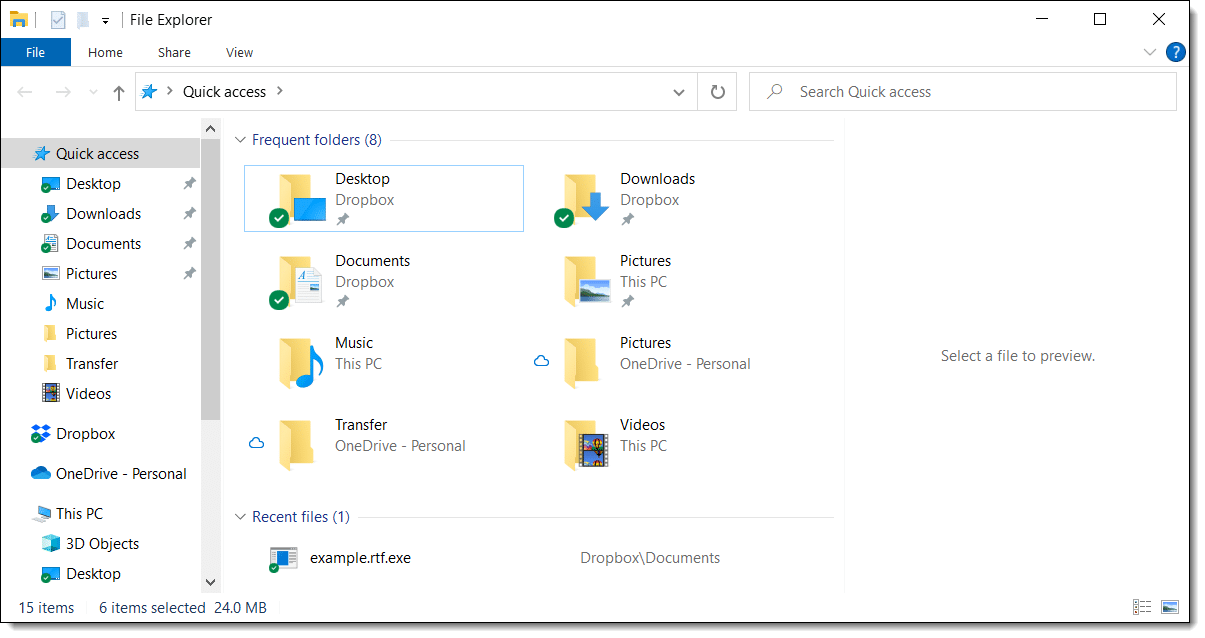
Step 2: Select all images by holding Ctrl and clicking each, or Ctrl+A for all.
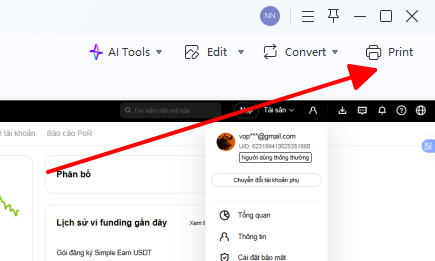
Step 3: Right-click the first image and choose Print.
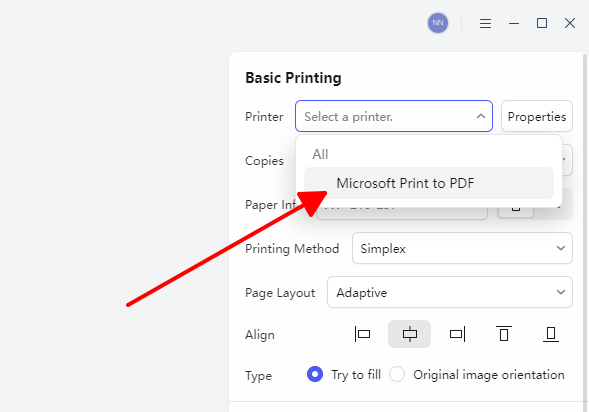
Step 4: In Print Pictures dialog, select Microsoft Print to PDF as printer.
Step 5: Choose layout like Full page, adjust quality if needed.
Step 6: Click Print, name your PDF, and save.
On Mac:
Step 1: In Finder, select all images you want to combine.
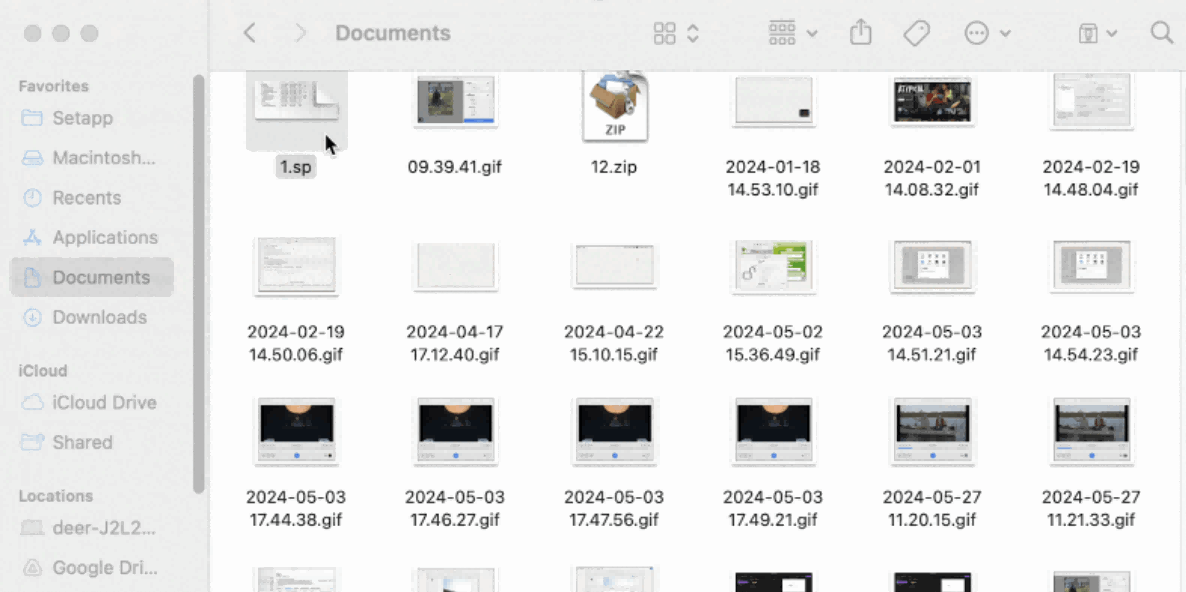
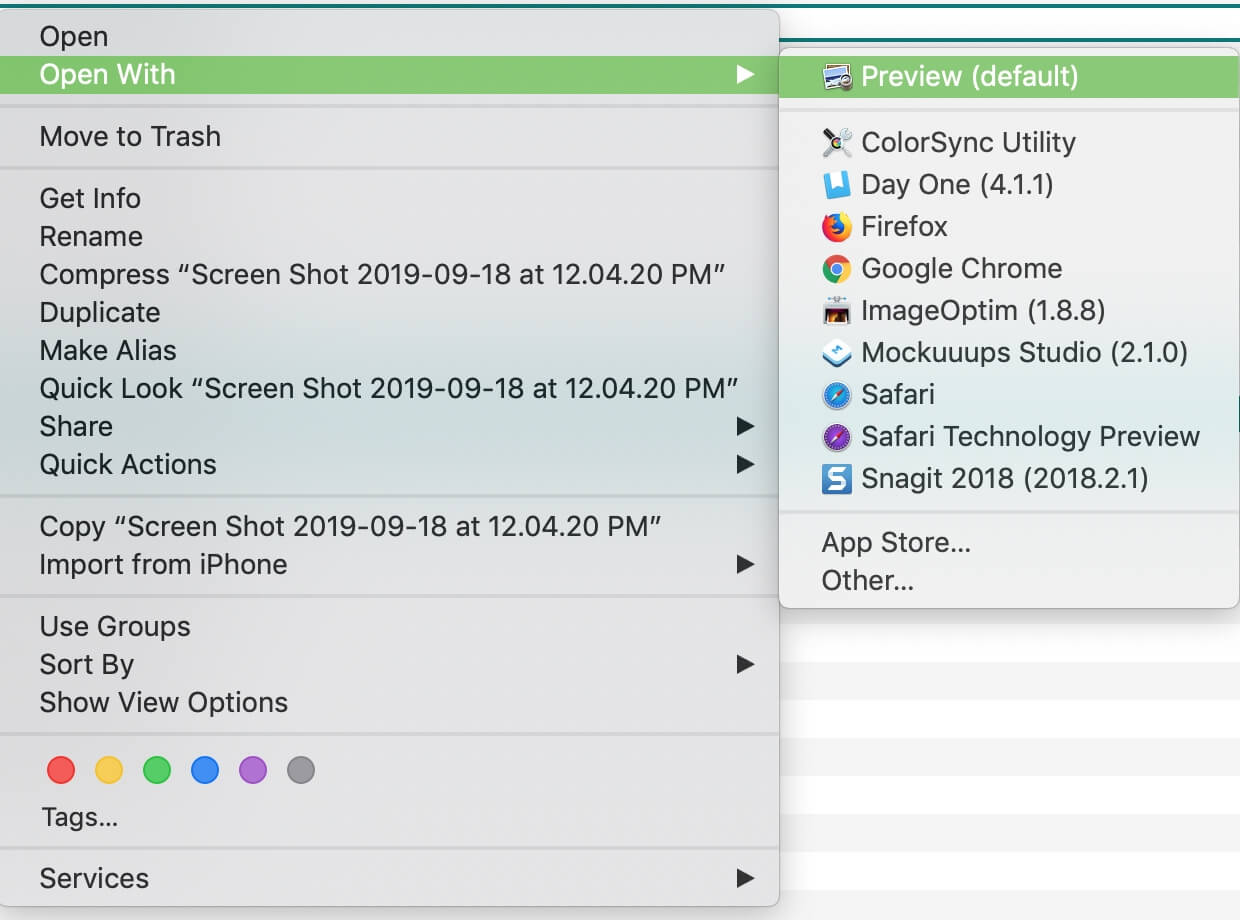
Step 2: Right-click and choose Open With > Preview.
Step 3: In Preview sidebar, drag thumbnails to reorder pages.
Step 4: Go to File > Print or Cmd+P.
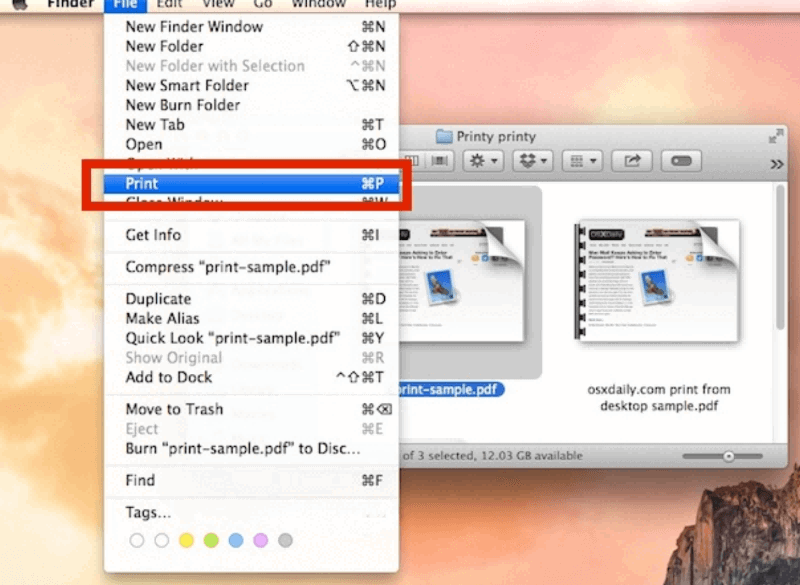
Step 5: Click PDF dropdown > Save as PDF.
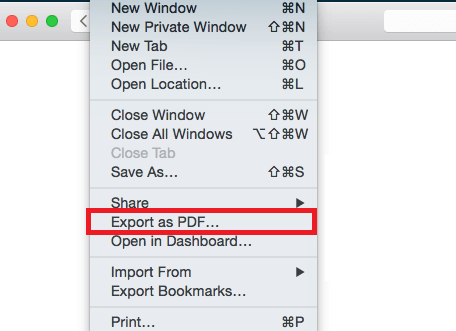
Step 6: Name file, choose location, and save.
Windows Print to PDF got me through urgent deadlines with basic scans turned multi-page files reliably. Mac Preview handled portfolios losslessly but lacked tweaks, fine for simple jobs in my tests. Both beat hunting for tools when offline.
Method 4: Mobile Phone
Mobile methods let you create PDF from images anywhere, targeting users scanning receipts or photos on Android or iPhone without apps. They focus on native tools for fast, portable conversions fitting busy lifestyles.
On Android:
Step 1: Open Google Drive app and tap the plus (+) icon.

Step 2: Choose Camera to scan or Gallery to select existing images.
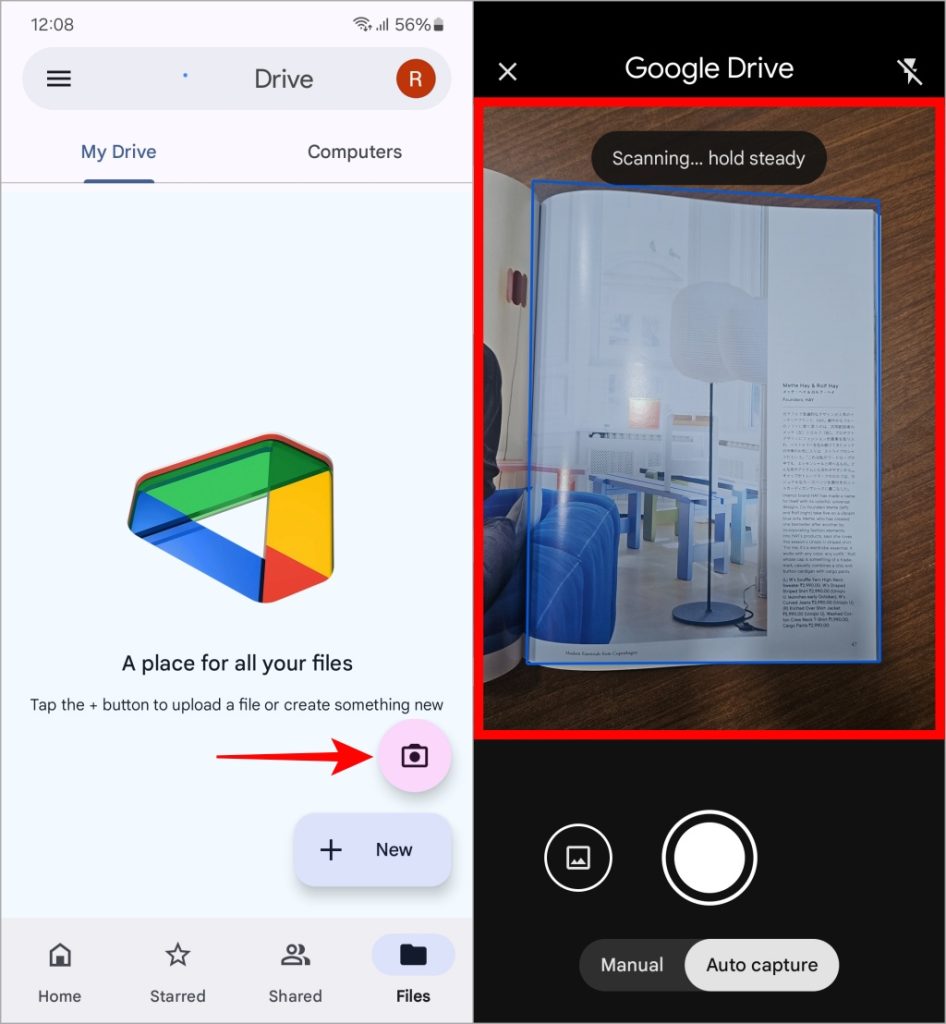
Step 3: Adjust crop or enhancements if scanning live.
Step 4: Tap Save and select PDF format.
On iPhone:
Step 1: Open Photos app and select one or multiple images.
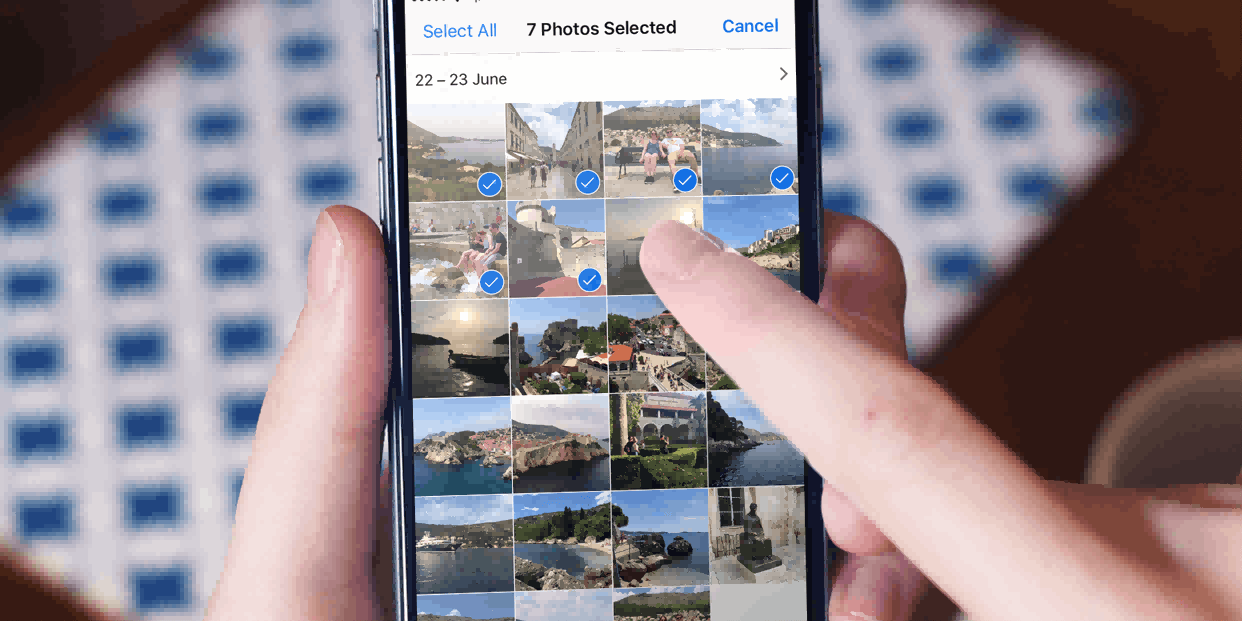
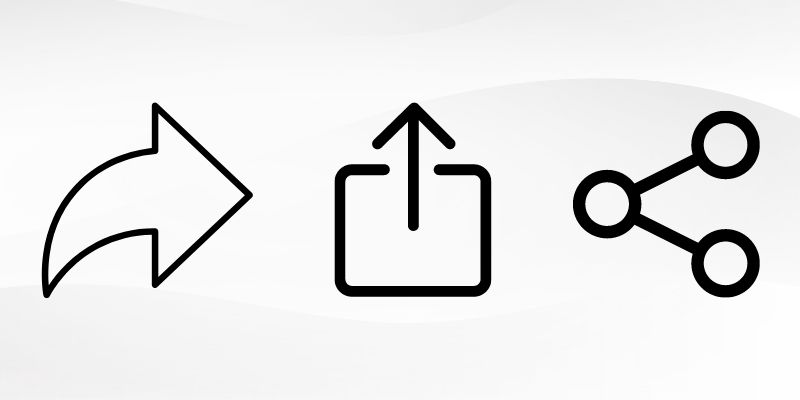
Step 2: Tap Share button (square with arrow).
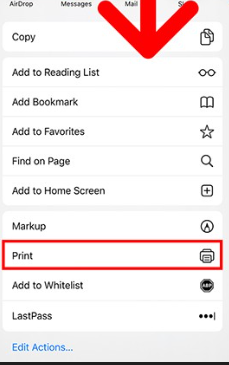
Step 3: Scroll to Print option and tap it.
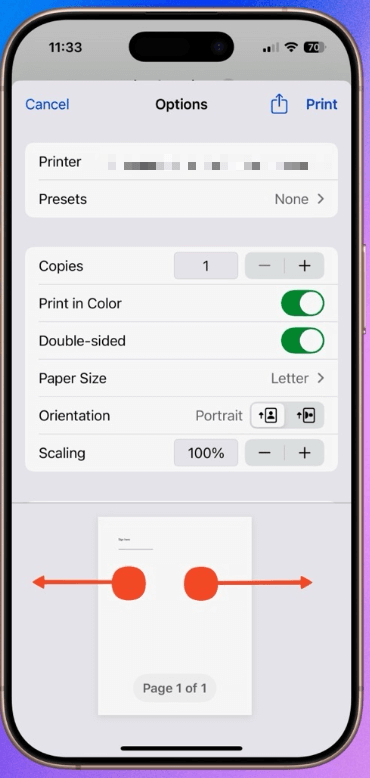
Step 4: Pinch out with two fingers to expand preview to full PDF view.
Step 5: Tap Share again > Save to Files.
Step 6: Choose folder and save.
Android Drive nailed receipt PDFs during travel without apps, though cropping needed care. iPhone Print trick worked for singles fast but fumbled multiples, preferring dedicated apps like WPS mobile for batches in practice.
Best Helper for Editing PDF File – WPS Office
After mastering how to create PDF from images, editing often follows to refine text or layouts. WPS Office steps in as the ideal all-in-one solution.
Overview: WPS Office is a free suite rivaling premium tools, featuring PDF editing alongside Writer and Sheets. Pros include tabbed views, cloud sync, OCR; cons are premium features for heavy collaboration.
Unique Advantages: Direct text/image edits,
compression, annotations across platforms.
How to Edit PDF File:
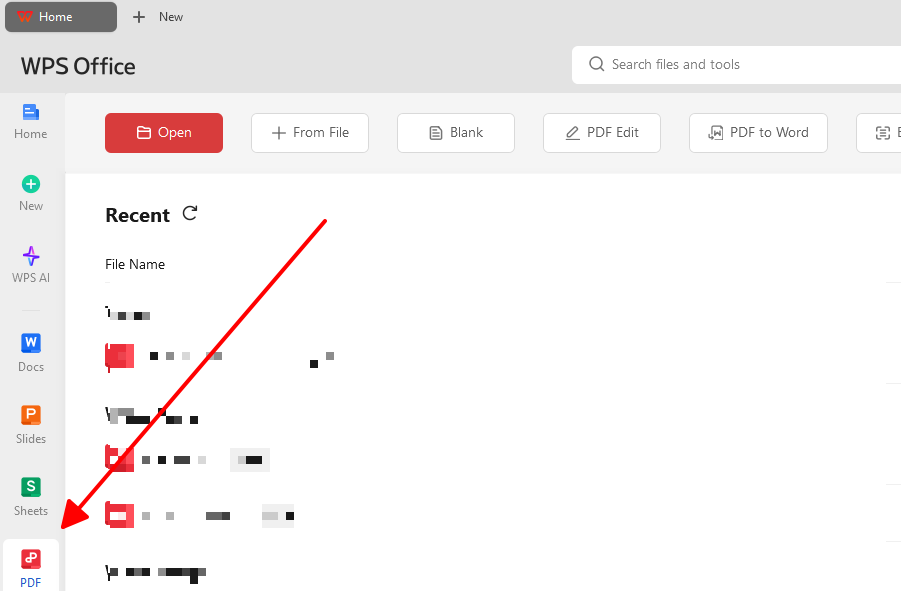
Step 1: Open PDF in WPS.
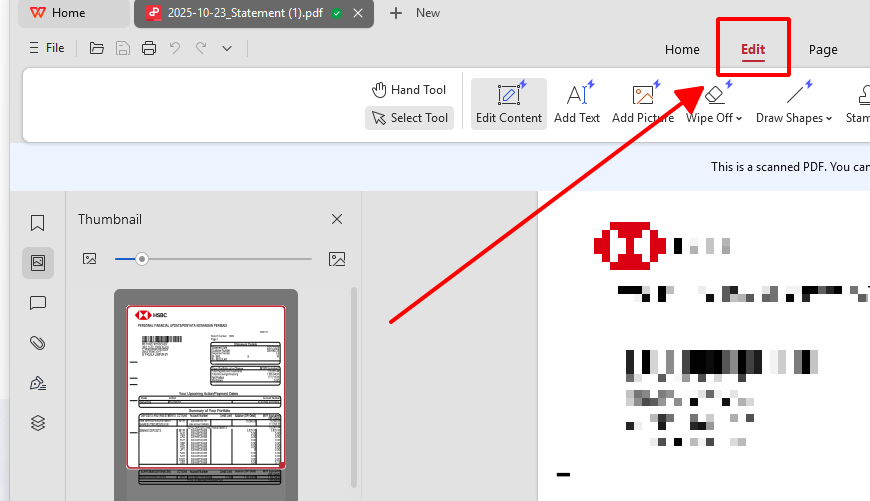
Step 2: Select Edit mode, modify elements.
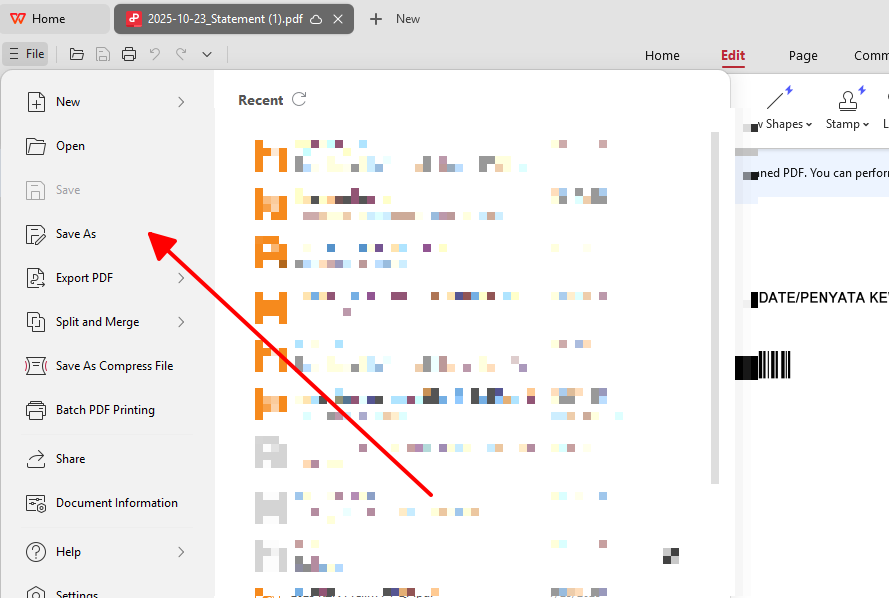
Step 3: Save changes.
WPS editing turned my raw converted portfolios into polished docs in minutes, with OCR extracting scan text flawlessly. Cross-platform sync kept files accessible, outperforming clunky rivals. Free power made it indispensable in my daily grind.
FAQs
1. Does the conversion process reduce the clarity or resolution of my original images?
Quality converters preserve image clarity by embedding originals without heavy recompression, ideal for sharp scans or photos. Choose tools avoiding aggressive settings or tiny page sizes to prevent minor losses. Options like WPS Online ensure outputs match inputs closely for professional use.
2. Is it possible to create a PDF from images while offline?
Yes, desktop apps like WPS Office or built-in tools such as Windows Print to PDF and Mac Preview handle conversions without internet. These suit low-connectivity spots, ensuring workflow continuity after one-time setup. Offline access proves reliable for repeated tasks.
3. Which image format is best to use as the source when creating a PDF: JPG or PNG?
JPG works best for photographs with colors and gradients, yielding smaller PDFs without visible loss. PNG suits scans, text, or graphics for lossless sharpness and clear edges on every detail. Match format to content type for optimal size and quality balance.
4. What are free limits on online jpg to pdf converters?
Most cap at 100MB daily like iLovePDF, but WPS offers unlimited batches for unrestricted use. For larger files exceeding limits, switch to desktop software to avoid interruptions. This flexibility accommodates all project scales smoothly.
5. Can I reorder pages after creating PDF from images?
Yes, tools like WPS Office let you drag thumbnails post-conversion for easy reordering without reprocessing. Online options may require re-uploading files, so preview arrangements first. This feature streamlines organizing complex multi-image documents efficiently.

'%3e%3cpath%20d='M19.9911%204.11386V6.471H18.5894C18.0775%206.471%2017.7322%206.57814%2017.5536%206.79243C17.3751%207.00671%2017.2858%207.32814%2017.2858%207.75671V9.44421H19.9019L19.5536%2012.0871H17.2858V18.8639H14.5536V12.0871H12.2769V9.44421H14.5536V7.49779C14.5536%206.39064%2014.8632%205.53201%2015.4822%204.92189C16.1013%204.31177%2016.9257%204.00671%2017.9554%204.00671C18.8304%204.00671%2019.509%204.04243%2019.9911%204.11386Z'%20fill='%23333333'/%3e%3c/g%3e%3cdefs%3e%3cclipPath%20id='clip0_2938_8199'%3e%3crect%20width='16'%20height='16'%20fill='white'%20transform='translate(8%204.00671)'/%3e%3c/clipPath%3e%3c/defs%3e%3c/svg%3e)
'%3e%3cpath%20d='M17.5237%2010.7813L23.4811%204H22.0699L16.8949%209.88693L12.7648%204H8L14.2469%2012.9029L8%2020.0133H9.4112L14.8725%2013.7952L19.2352%2020.0133H24M9.92053%205.04213H12.0885L22.0688%2019.0224H19.9003'%20fill='%23333333'/%3e%3c/g%3e%3cdefs%3e%3cclipPath%20id='clip0_2938_8200'%3e%3crect%20width='16'%20height='16.0134'%20fill='white'%20transform='translate(8%204)'/%3e%3c/clipPath%3e%3c/defs%3e%3c/svg%3e)


