

'%3e%3cpath%20d='M8%200C12.4183%200%2016%203.58172%2016%208C16%2012.4183%2012.4183%2016%208%2016C3.58172%2016%200%2012.4183%200%208C0%203.58172%203.58172%200%208%200ZM11.6162%204.38379C11.2257%203.99337%2010.5927%203.99338%2010.2021%204.38379L8%206.58594L5.79785%204.38379C5.40732%203.99334%204.77429%203.99329%204.38379%204.38379C3.99331%204.77429%203.99335%205.40733%204.38379%205.79785L6.58594%208L4.38379%2010.2021C3.99348%2010.5927%203.99341%2011.2257%204.38379%2011.6162C4.77426%2012.0066%205.40734%2012.0065%205.79785%2011.6162L8%209.41406L10.2021%2011.6162C10.5927%2012.0066%2011.2257%2012.0067%2011.6162%2011.6162C12.0067%2011.2257%2012.0066%2010.5927%2011.6162%2010.2021L9.41406%208L11.6162%205.79785C12.0066%205.40735%2012.0066%204.77429%2011.6162%204.38379Z'%20fill='%23080E17'%20fill-opacity='0.46'/%3e%3c/g%3e%3cdefs%3e%3cclipPath%20id='clip0_3761_713'%3e%3crect%20width='16'%20height='16'%20fill='white'/%3e%3c/clipPath%3e%3c/defs%3e%3c/svg%3e)




'%3e%3cpath%20fill-rule='evenodd'%20clip-rule='evenodd'%20d='M21.4999%2010.9993C21.4999%205.20009%2016.7986%200.498901%2010.9993%200.498901C5.19994%200.498901%200.498657%205.20009%200.498657%2010.9993C0.498657%2016.2404%204.33858%2020.5844%209.35855%2021.3722V14.0346H6.69238V10.9993H9.35855V8.68594C9.35855%206.05427%2010.9262%204.60062%2013.3248%204.60062C14.4736%204.60062%2015.6753%204.80571%2015.6753%204.80571V7.38979H14.3512C13.0468%207.38979%2012.64%208.19921%2012.64%209.0296V10.9993H15.5523L15.0867%2014.0346H12.64V21.3722C17.66%2020.5844%2021.4999%2016.2404%2021.4999%2010.9993Z'%20fill='%231568EA'/%3e%3c/g%3e%3c/svg%3e)


'%3e%3cpath%20d='M2.42045%2022.1876H6.31818V12.7217L0.75%208.54553V20.5171C0.75%2021.4414%201.49892%2022.1876%202.42045%2022.1876Z'%20fill='%234285F4'/%3e%3cpath%20d='M19.682%2022.1876H23.5797C24.5041%2022.1876%2025.2502%2021.4387%2025.2502%2020.5171V8.54553L19.682%2012.7217'%20fill='%2334A853'/%3e%3cpath%20d='M19.682%205.48293V12.7216L25.2502%208.54543V6.31816C25.2502%204.25236%2022.8921%203.07469%2021.2411%204.31361'%20fill='%23FBBC04'/%3e%3cpath%20d='M6.31824%2012.7217V5.48303L13.0001%2010.4944L19.6819%205.48303V12.7217L13.0001%2017.733'%20fill='%23EA4335'/%3e%3cpath%20d='M0.75%206.31816V8.54543L6.31818%2012.7216V5.48293L4.75909%204.31361C3.10534%203.07469%200.75%204.25236%200.75%206.31816Z'%20fill='%23C5221F'/%3e%3c/g%3e%3cdefs%3e%3cclipPath%20id='clip0_2954_7305'%3e%3crect%20width='24.5'%20height='18.375'%20fill='white'%20transform='translate(0.75%203.8125)'/%3e%3c/clipPath%3e%3c/defs%3e%3c/svg%3e)


PDFs often contain important graphics, but reusing them is difficult. You've probably tried screenshots, but that's time-consuming and ruins the quality, especially with large documents. Many online converters fail to detect all the images, add watermarks, or require payment. This is where a proper tool to extract images from PDF is essential. I'll show you the top 5 free tools that will help you exactly how to extract images from PDF.


Top 5 Tools to Extract Images from PDF
A reliable tool to extract images from PDF files is a massive time-saver. It saves you hours of tedious screenshotting and ensures your visuals remain sharp and usable. The right tool should be quick, accurate, and simple enough for anyone to use. Below are five of the best options I’ve tested that help you extract images from PDFs without losing quality.
1. WPS PDF Tool
WPS PDF Tool is an all-in-one PDF solution, not just a single web page for one task. It’s designed to help you extract images either through its fast, online tool or its more powerful, full-featured desktop app that works offline. WPS goes beyond basic page-to-image conversion, which often results in blurry pictures.
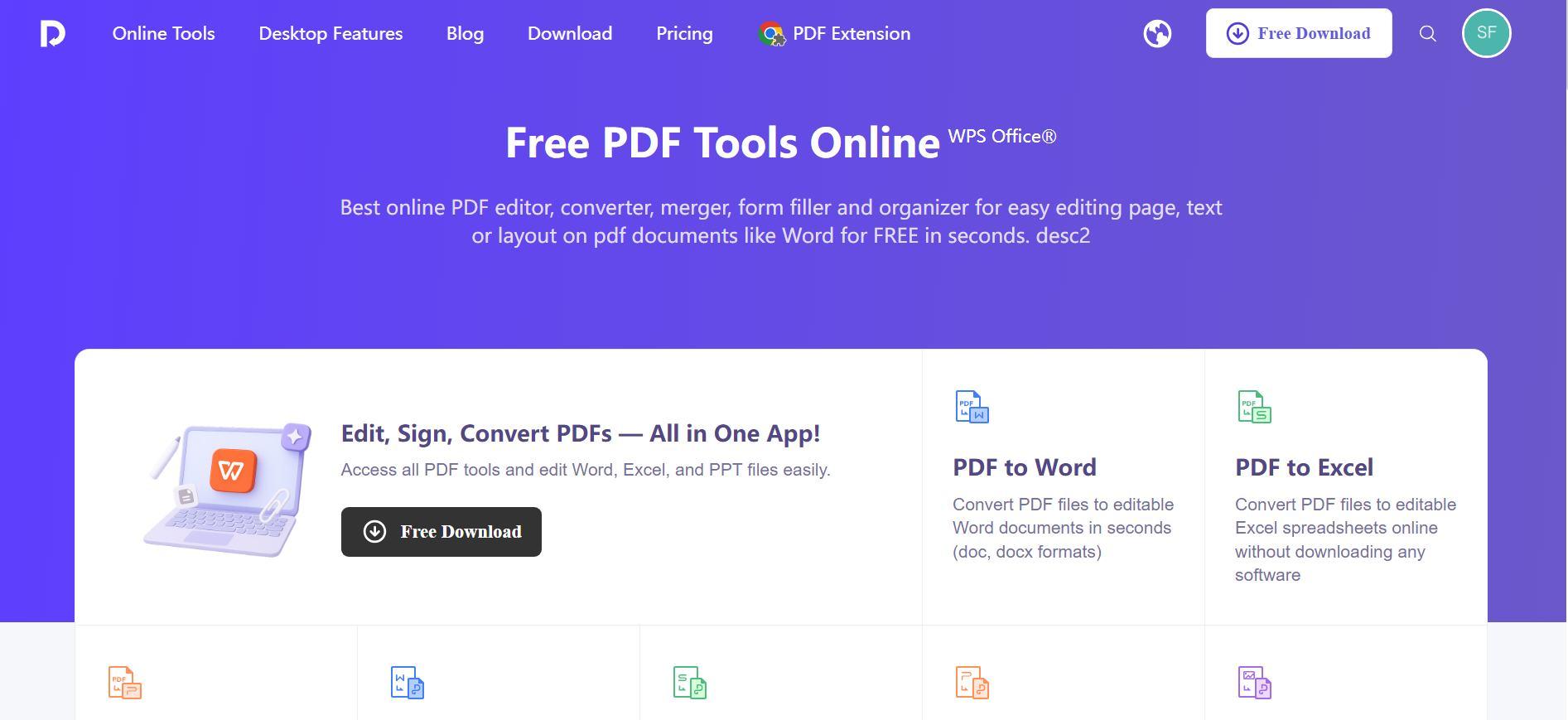
It has a true extraction engine that pulls the original, high-resolution images from inside the PDF file, making sure the output is high quality. The best part is how it handles large files because you can batch extract images from a PDF in just one click, so you're not saving them one by one.
How to Use:
Step 1: First, head over to the online WPS PDF Tool website.
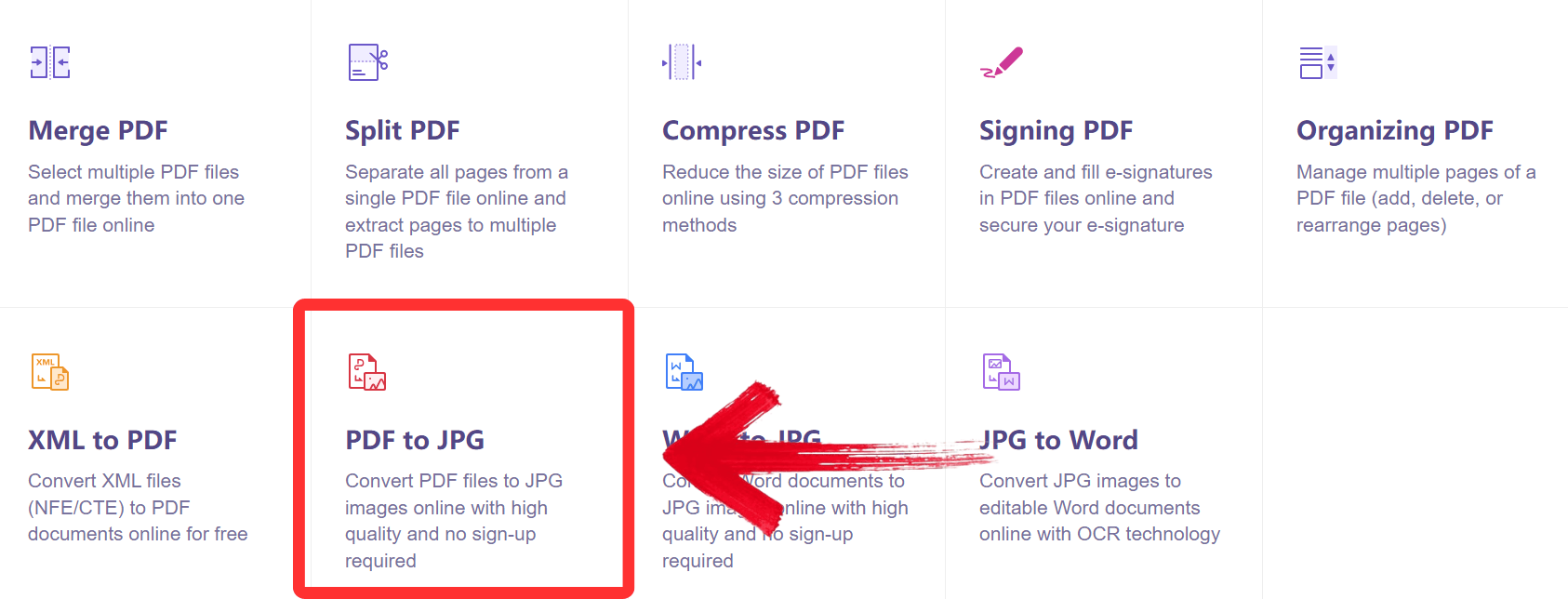
Step 2: Then, select ‘PDF to JPG 'among the many different options.
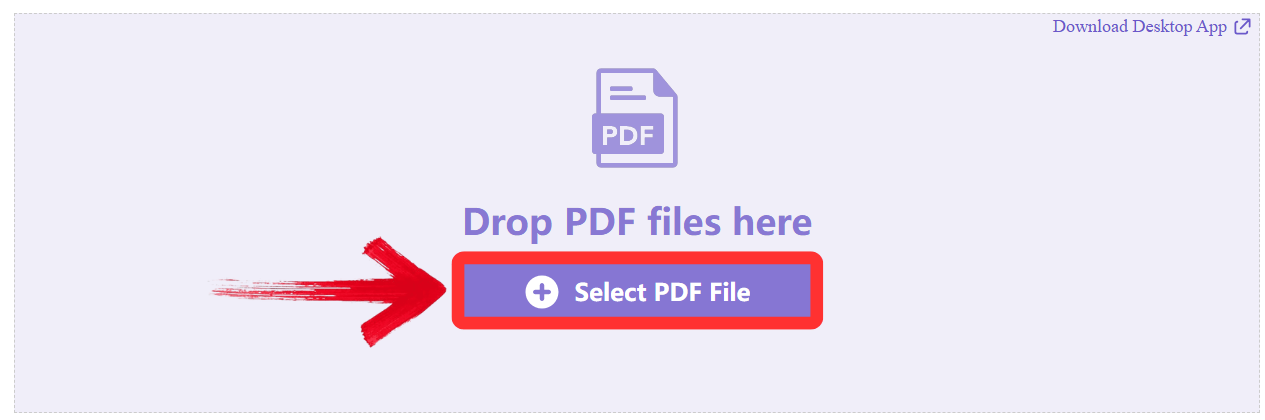
Step 3: Upload your files by dragging them or clicking the ‘Select PDF File’ button.
Step 4: Your file will be converted automatically, then just click ‘Download’ to save the extracted file onto your device.
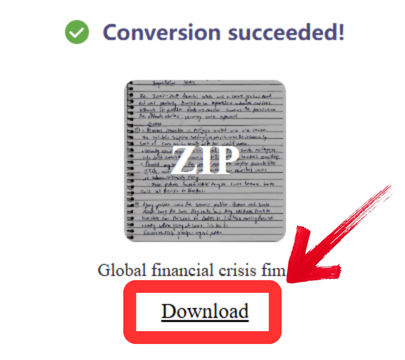
I found the WPS PDF Tool is ideal for users who want precision and flexibility. The offline app is a huge plus, and its ability to handle scanned documents with OCR is a feature that most free online tools simply don't offer.
2. PDF24 Tools
PDF24 is a free, browser-based suite of tools that makes image extraction incredibly straightforward. It's 100% free and requires no software installation or even an account registration. Its main strength is its sheer simplicity. It focuses on one-click batch extraction and automatically zips all the extracted images for you. This is the perfect tool to bookmark for a fast, no-nonsense job where you just need to get the images and go.
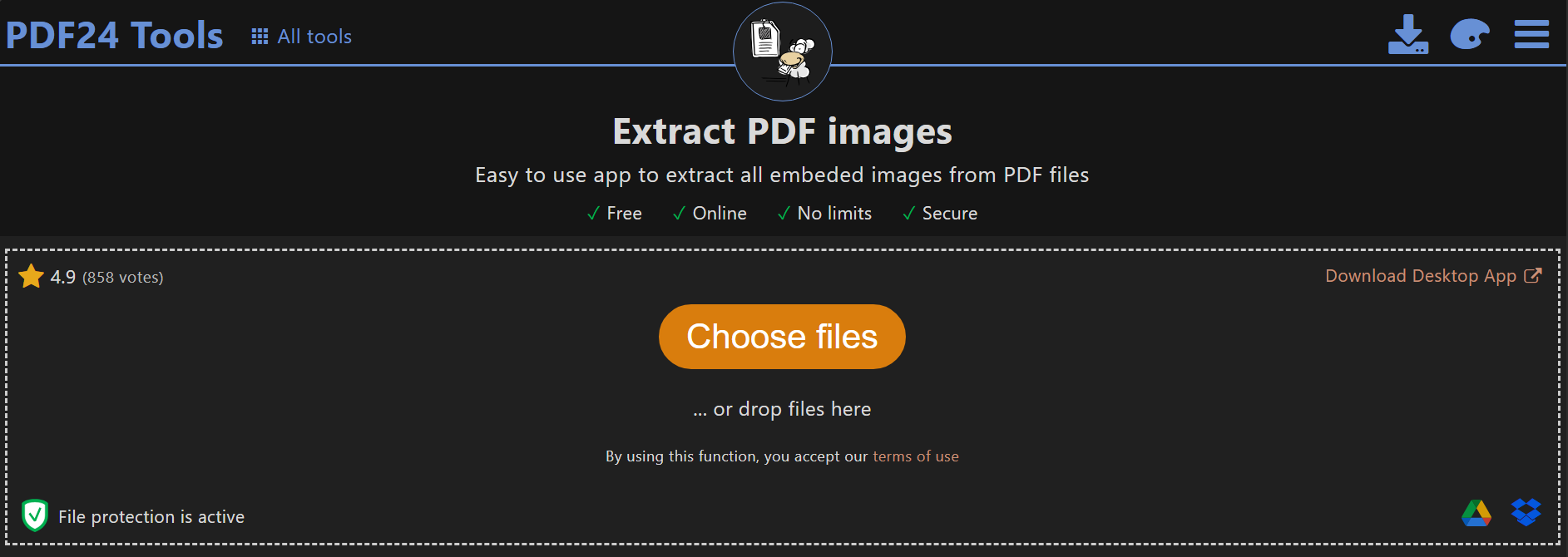
How to Use:
Step 1: Go to the PDF24 Extract Images tool website.
Step 2: Then, click ‘Choose files’ or drag and drop the file onto the screen.
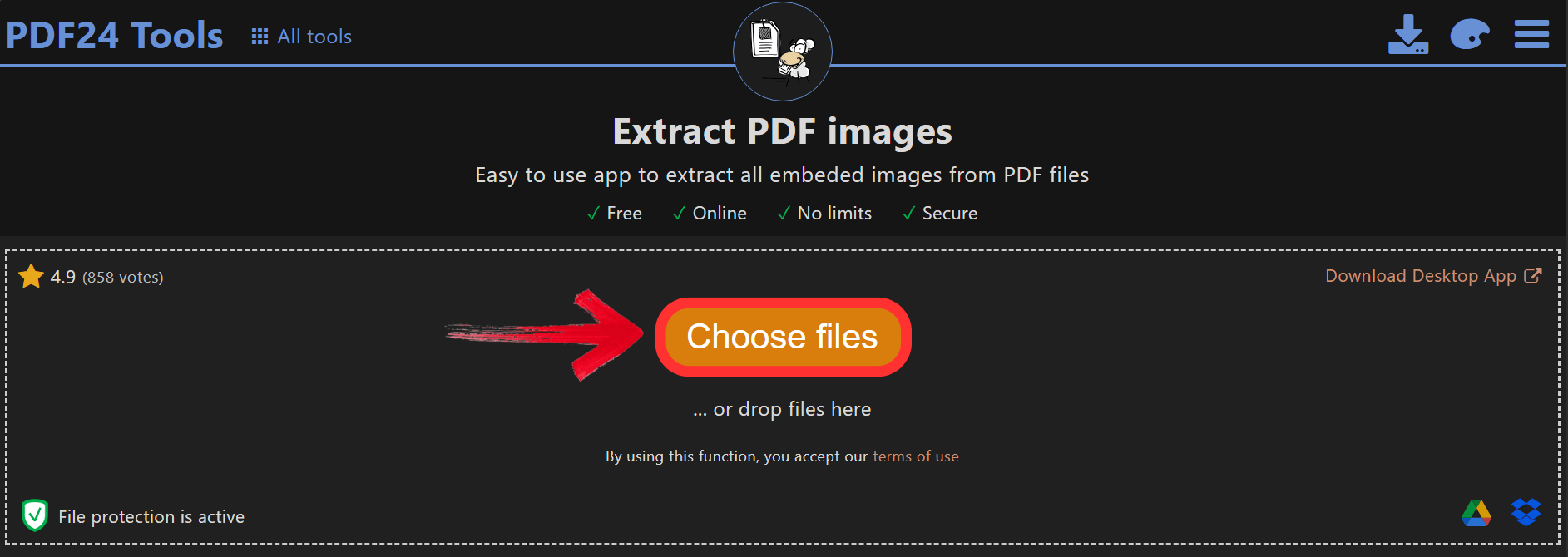
Step 3: Click ‘Extract images' and just wait a moment for the tool to work.
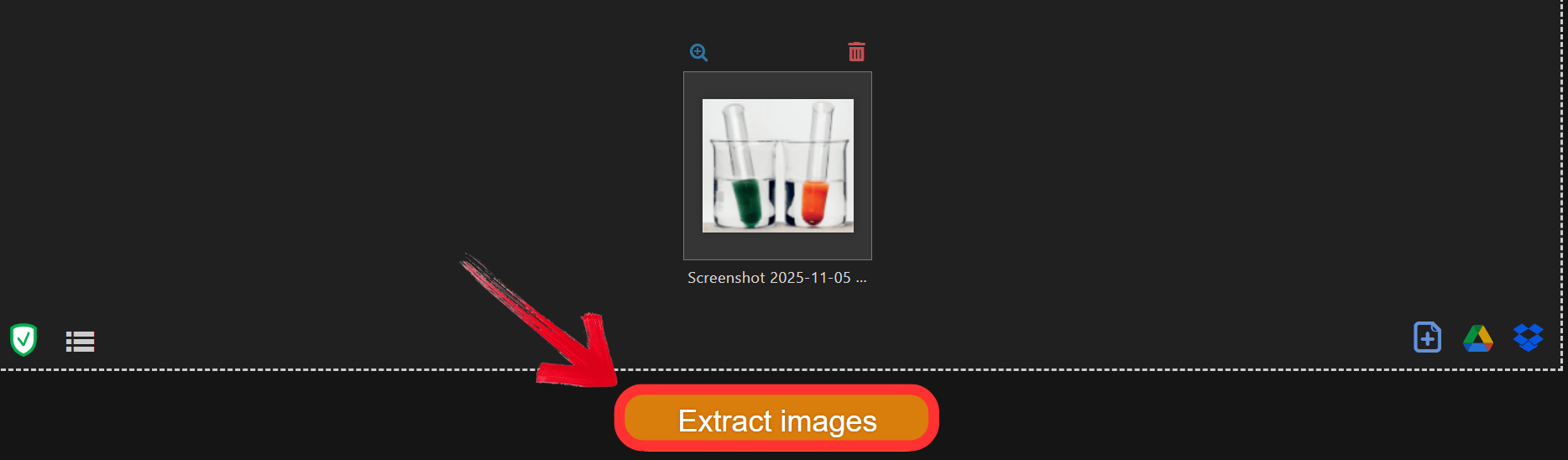
Step 4: Finally, click the ‘Download’ button to export the extracted image.
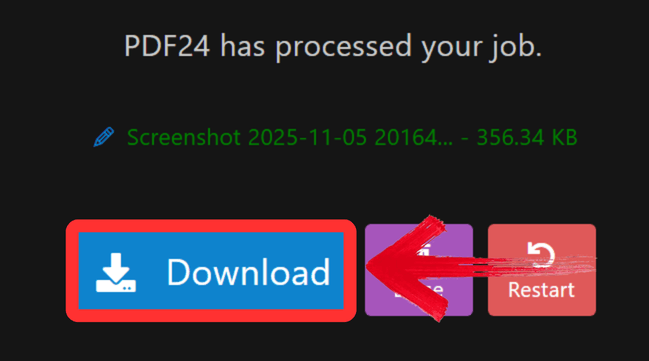
I was really impressed by how fast and simple this was. There are no ads, and you don't have to click through multiple screens. It's the best free PDF image extractor I've found for one-click jobs.
3. PDFCandy
PDFCandy provides a simple and efficient online tool for a variety of PDF tasks. It's free, web-based, and has a very clean, visual interface that I find is great for non-technical users. It gives you two clear and useful options: you can either extract only the embedded pictures (pulling the original, high-quality files) or convert entire pages to images. This is a reliable, straightforward tool that's perfect for basic extraction tasks without any confusing settings.
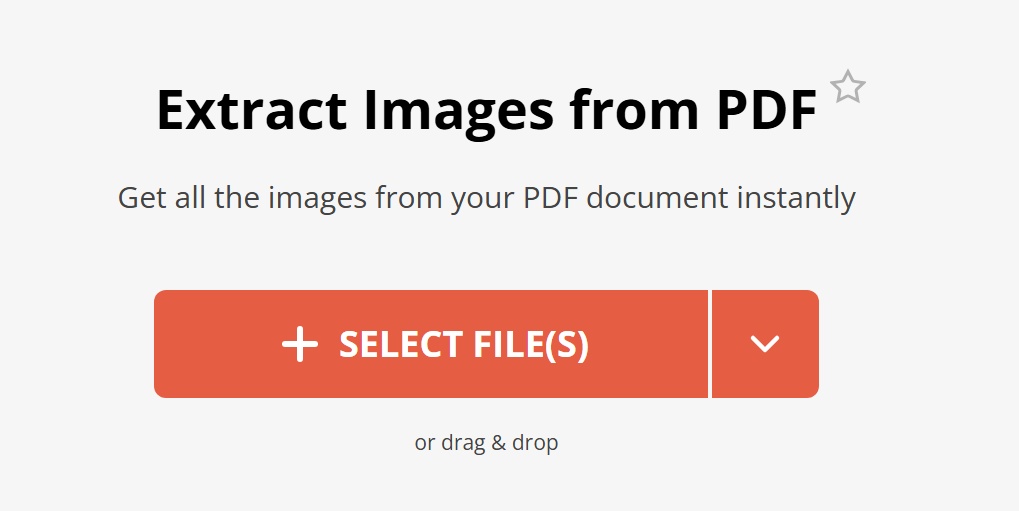
How to Use:
Step 1: Go to the PDFCandy Extract Images site.
Step 2: Click ‘Select File’ or drag and drop the file onto the screen.
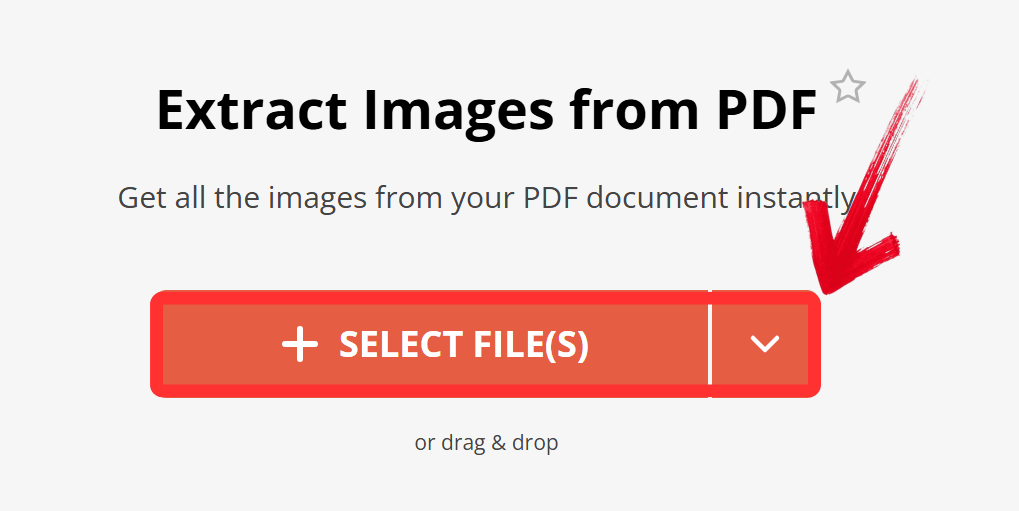
Step 3: Click 'Extract Images' and the tool will process the file.

Step 4: Finally, click the 'Download' button to export your results.
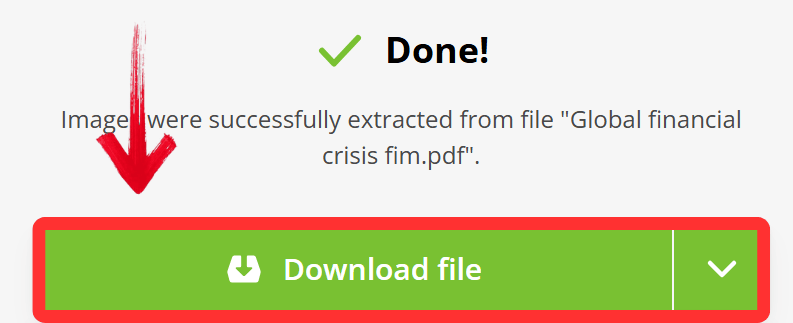
PDFCandy is a very dependable PDF to image converter that's perfect for non-technical users. It's fast, easy to understand, and the options are clear, which makes it great for simple, everyday extractions.
4. iLovePDF
iLovePDF is one of the most popular platforms for online PDF tools, and for good reason. It's known for its user-friendly design and its excellent integration with Google Drive and Dropbox. Its primary function here is converting PDF to JPG, which it does very well. It lets you choose to either extract all images at once or convert full pages to JPG, giving you valuable flexibility. This is my go-to when I'm working entirely in the cloud, as its integration is seamless.
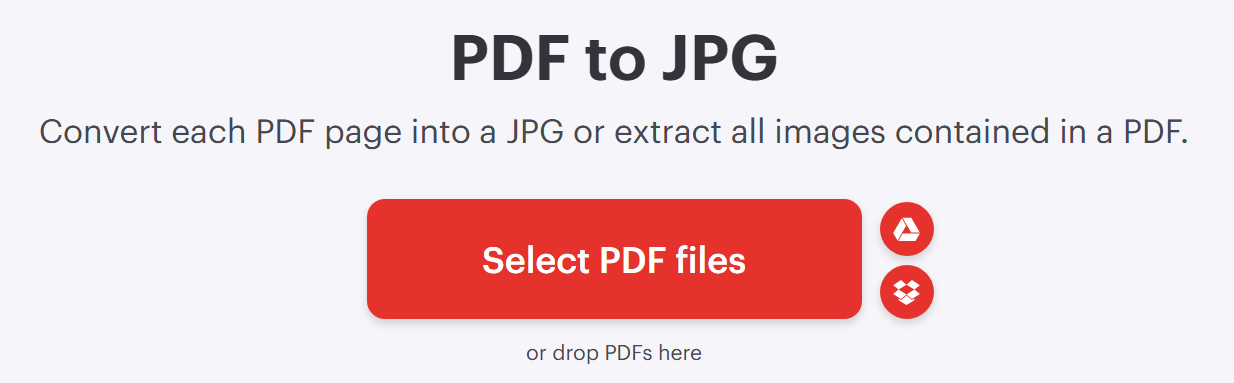
How to Use:
Step 1: Go to the iLovePDF PDF to JPG tool website.
Step 2: Click ‘Select PDF files’ or drag and drop the file onto the screen.
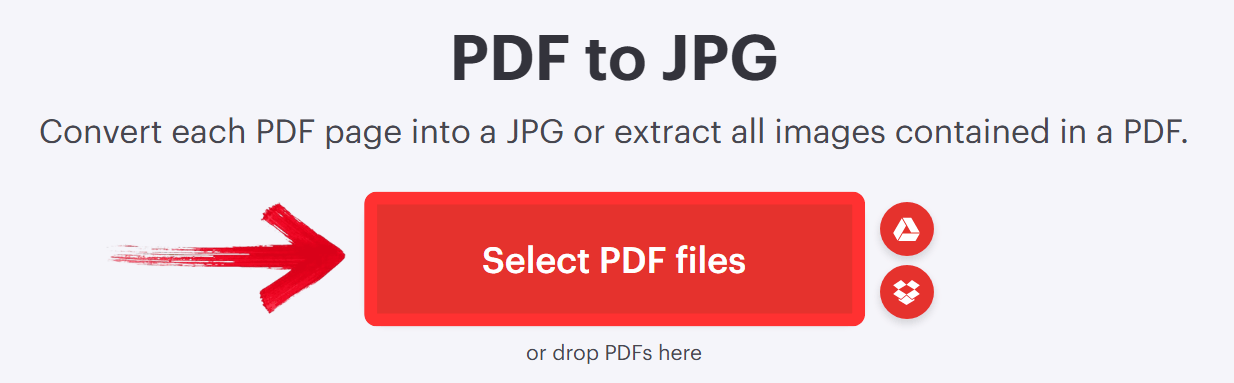
Step 3: On the right, make sure you select the Extract Images option (not "Page to JPG"). Then click ‘Convert to JPG'.
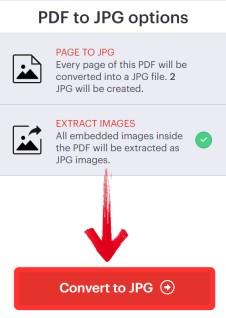
Step 4: Then click 'Download' to export your extracted images.

iLovePDF is a fantastic all-rounder. Its interface is clean, it's fast, and its cloud support is a huge time-saver. It's a great, reliable tool to extract photos from PDF file when you're working in the cloud.
5. Sejda PDF
Sejda is a professional-grade PDF management tool that works both online and as a downloadable desktop app. Its biggest selling point is privacy and security; it's designed for handling sensitive documents and even works on password-protected files. It's similar to WPS in that it offers an offline solution, which is a major benefit. This is the tool I'd choose if I were handling a confidential document, like a contract or a financial report, and didn't want it processed on a public server.
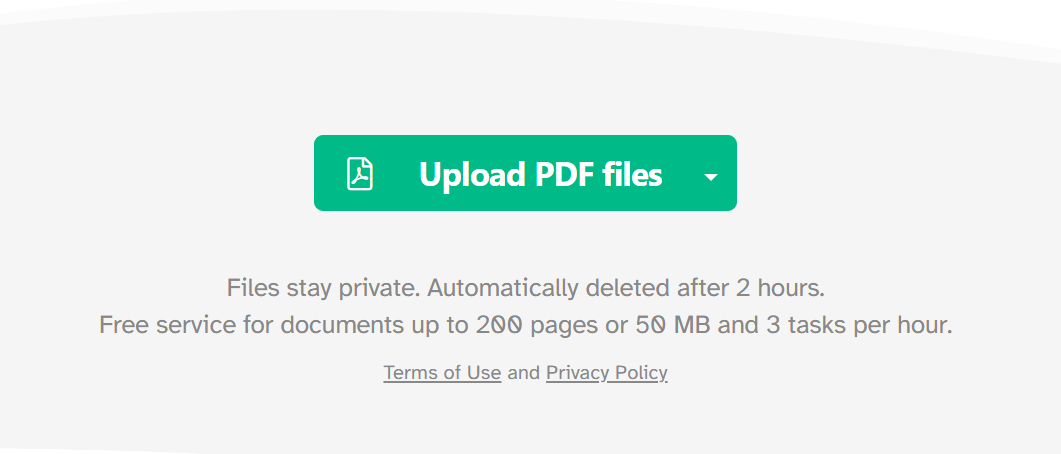
How to Use:
Step 1: Go to the Sejda Extract Images tool website.
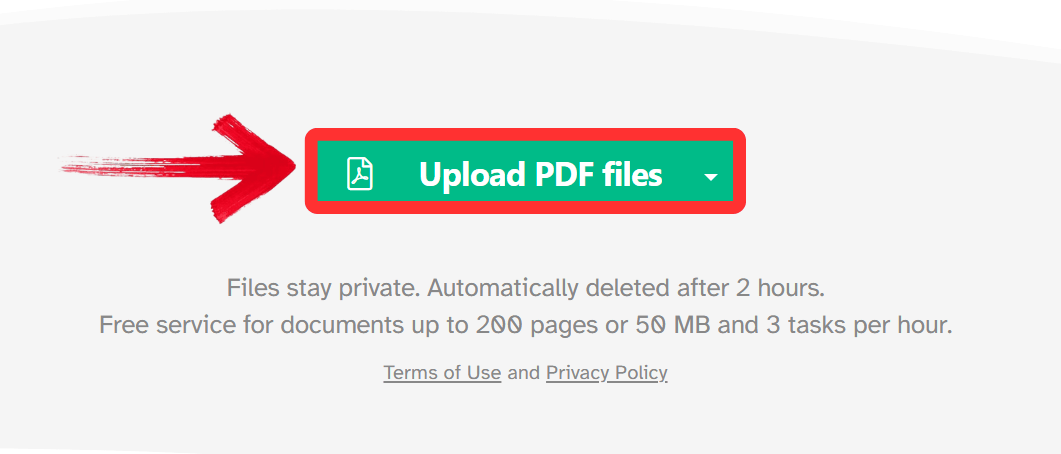
Step 2: Click ‘Upload PDF files’ or drag and drop the file onto the screen.
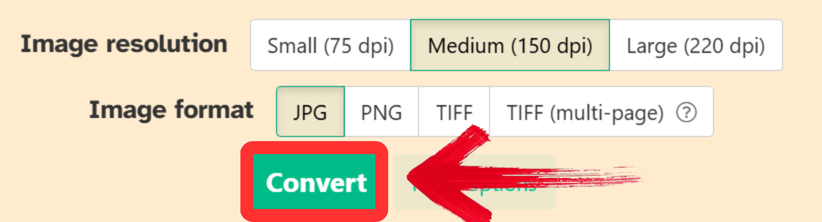
Step 3: Then select your Image resolution and Image format, and then click 'Convert' and let the tool process the file.
Step 4:Then click 'Download' to export your extracted images.

Sejda is perfect for users who prioritize data privacy. The free online version is limited, but the offline app is excellent. It's a professional tool for when security is more important than just convenience.
Quick Comparison Table of the Top 5 Tools to Extract Images from PDF
Choosing the right tool to extract images from PDF isn't just about pulling a single picture. It’s about finding a solution that fits your workflow, whether you need security, speed, or batch processing. To help you decide, I’ve compared the top five options based on their most notable features.
| Tool | Best For | Offline Use | Batch Extraction | Free to Use | Output Quality | Ease of Use |
|---|---|---|---|---|---|---|
| WPS PDF Tool | All-in-one extraction & conversion | Yes | Yes | Yes | ⭐⭐⭐⭐⭐ | ⭐⭐⭐⭐⭐ |
| PDF24 Tools | Fast and simple online use | No | Yes | Yes | ⭐⭐⭐⭐☆ | ⭐⭐⭐⭐⭐ |
| PDFCandy | Basic everyday extractions | No | Yes | Yes | ⭐⭐⭐⭐☆ | ⭐⭐⭐⭐☆ |
| iLovePDF | Cloud integration & speed | No | Yes | Partly Free | ⭐⭐⭐⭐☆ | ⭐⭐⭐⭐⭐ |
| Sejda PDF | Privacy & professional users | Yes | Yes | Limited Free | ⭐⭐⭐⭐⭐ | ⭐⭐⭐⭐☆ |
While all five tools get the job done, they're built for different needs. PDF24 and PDFCandy are fantastic for their sheer, one-click simplicity. Sejda stands out for its security features, making it ideal for sensitive documents. However, WPS PDF Tool really leads the pack. While the others are mostly online-only, WPS offers a complete, robust experience both online and as a powerful desktop app. This offline capability, combined with its high-quality output and ability to convert multiple formats, gives it a clear edge as the most balanced and reliable solution.
Why WPS PDF Tool Stands Out?
Using online tools is fast, but I've often felt hesitant about uploading sensitive documents to a web server. You also risk losing quality, and you're stuck if your internet connection is unstable. From all the tools I've tested, the WPS PDF Tool is the one that really stands out because it solves this problem perfectly, since you can use it offline on its desktop app.
It also provides unmatched versatility. It’s not just a simple PDF-to-image extractor, it’s a complete document management solution for editing, converting, and protecting your files.
From my perspective, the real power of the WPS suite is its versatility. It’s not just an extractor; it's a complete document solution. The feature I use constantly is the JPG to Word converter. It doesn't just paste the image; it uses AI to perform OCR and extract thetext from the image, which is a massive time-saver. This combination of free online tools for quick jobs and a powerful, secure offline app makes it the top choice for professionals and students alike. For more PDF editors, check out TheBusinessDive's list of PDF editors.
FAQs
Q1: How can I extract images from a PDF file?
You can extract images from a PDF using tools like WPS PDF Tool, PDF24, or iLovePDF. Simply upload your PDF file, choose the Extract Images option, and download the pictures in JPG or PNG format.
Q2: Can I extract all images from a PDF at once?
Yes. Most tools that extract images from PDF, including WPS PDF Tool and PDFCandy, support batch extraction, allowing you to save all embedded images in one click.
Q3: Will the images extracted from PDF lose quality?
High-quality tools like WPS PDF Tool and Sejda maintain the original resolution and color accuracy of images extracted from PDFs. Free web tools may compress images slightly to speed up processing.
Q4: Is it safe to use online tools to extract images from PDF?
Most trusted online platforms for extracting images from PDF, such as PDF24 and PDFCandy, delete files automatically after conversion. For confidential documents, offline tools like WPS PDF Tool are safer.
Q5: Can I extract images from a scanned PDF file?
Yes. Tools like WPS PDF Tool include an OCR function that allows users to extract images from scanned PDFs, ensuring even non-editable documents can be processed accurately.
Q6: Can I use programming, like Python, to extract images?
Yes, technical users can use programming libraries, such as Python libraries like PyMuPDF, to write a script that automatically extracts images. However, for most users, a dedicated tool like WPS is much simpler and faster.
Q7: Are these tools compatible with Linux?
Most of the online tools, like PDF24 and iLovePDF, will work on any operating system, including Linux, because they run in a web browser. For desktop software, WPS Office also offers a native version for Linux.

'%3e%3cpath%20d='M19.9911%204.11386V6.471H18.5894C18.0775%206.471%2017.7322%206.57814%2017.5536%206.79243C17.3751%207.00671%2017.2858%207.32814%2017.2858%207.75671V9.44421H19.9019L19.5536%2012.0871H17.2858V18.8639H14.5536V12.0871H12.2769V9.44421H14.5536V7.49779C14.5536%206.39064%2014.8632%205.53201%2015.4822%204.92189C16.1013%204.31177%2016.9257%204.00671%2017.9554%204.00671C18.8304%204.00671%2019.509%204.04243%2019.9911%204.11386Z'%20fill='%23333333'/%3e%3c/g%3e%3cdefs%3e%3cclipPath%20id='clip0_2938_8199'%3e%3crect%20width='16'%20height='16'%20fill='white'%20transform='translate(8%204.00671)'/%3e%3c/clipPath%3e%3c/defs%3e%3c/svg%3e)
'%3e%3cpath%20d='M17.5237%2010.7813L23.4811%204H22.0699L16.8949%209.88693L12.7648%204H8L14.2469%2012.9029L8%2020.0133H9.4112L14.8725%2013.7952L19.2352%2020.0133H24M9.92053%205.04213H12.0885L22.0688%2019.0224H19.9003'%20fill='%23333333'/%3e%3c/g%3e%3cdefs%3e%3cclipPath%20id='clip0_2938_8200'%3e%3crect%20width='16'%20height='16.0134'%20fill='white'%20transform='translate(8%204)'/%3e%3c/clipPath%3e%3c/defs%3e%3c/svg%3e)


