Over 2.5 trillion PDFs are created globally each year. While PDFs are
excellent for sharing reports, manuals, and e-books, only 37% of PDF
content is indexed by search engines, limiting its online reach. In
contrast, HTML pages are fully searchable, responsive, and easy to
integrate with web design elements. This gap creates a barrier for web
professionals and marketers: how do you make valuable PDF content
visible, interactive, and user-friendly online? In this guide, I’ll show
effective PDF to HTML converters, ensuring your content is accessible,
SEO-friendly, and perfectly formatted for modern devices.
Use Word, Excel, and PPT for FREE
PDF to HTML Converter
How to Convert PDF to HTML
Publishing content from a PDF directly on a website often creates
accessibility and SEO challenges, especially with reports, manuals, or e-books that include complex formatting. Converting a PDF into HTML ensures the
content becomes responsive, searchable, and easy to edit for web use.
This process preserves layouts, images, tables, and other key elements
while transforming static content into a format that works seamlessly
across devices.
PDF to HTML
Advantages of PDF to HTML
Text becomes searchable by search engines, improving SEO.
The content displays correctly on any device, including mobile and tablets.
Updates and edits can be made without needing the original PDF software.
The HTML integrates seamlessly with web styling and interactive features.
With these benefits in mind, the next step is choosing the right tool
to convert PDFs to HTML efficiently. The following top converters
simplify this process while maintaining formatting, layout, and
usability.
WPS Office (Desktop)
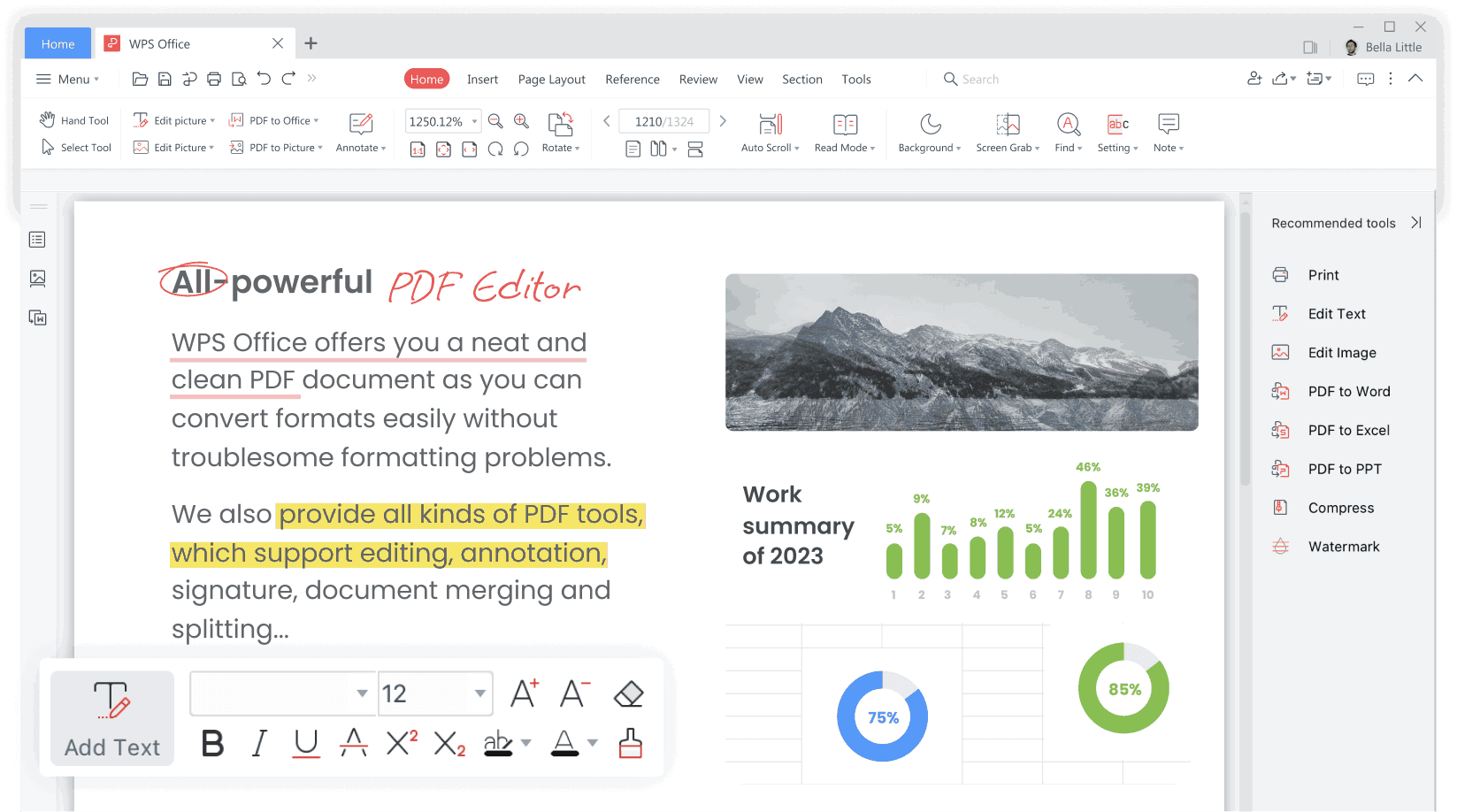
WPS Office is a versatile
office suite that has grown in popularity for its robust PDF tools and
cross-platform support. Beyond basic document editing, it allows
seamless conversion of PDFs into HTML while preserving complex layouts,
tables, and images. The software supports batch processing, which is
ideal for handling multiple files efficiently, and integrates smoothly
with other WPS document tools. Its desktop version ensures fast offline
conversions, making it reliable even without an internet connection. WPS
Office also provides customization options for page layouts and styles,
which is especially useful for professional web publishing.
WPS Office
Features
Preserves text, images, tables, and layout structures when exporting PDF content.
Supports batch processing so you can convert multiple files at once.
Offers desktop offline conversion without needing a browser.
Integrates with full document editing tools beyond just PDF tasks.
Provides options to customize page layout before export.
Pros:
Clean and structured HTML output
Supports complex layouts
Easy-to-use interface
Cons:
Requires desktop installation
Advanced features may need a premium subscription
Here’s how you can convert a PDF to HTML using WPS Office without
disrupting your existing document structure.
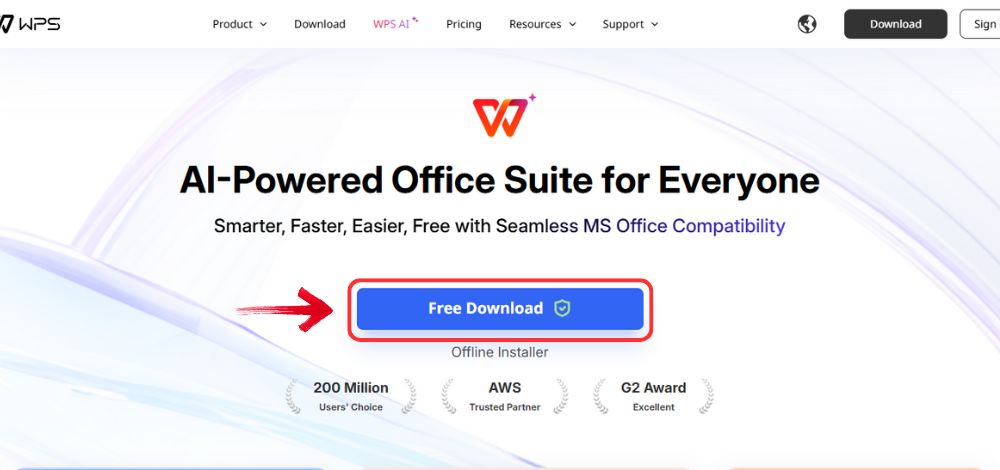
Step 1: Visit the WPS Office website and click the “Free Download” button to start downloading the
software.
Download WPS Office
Step 2: Once the download is complete, open the
installation file just like you would for any other program on your
computer.
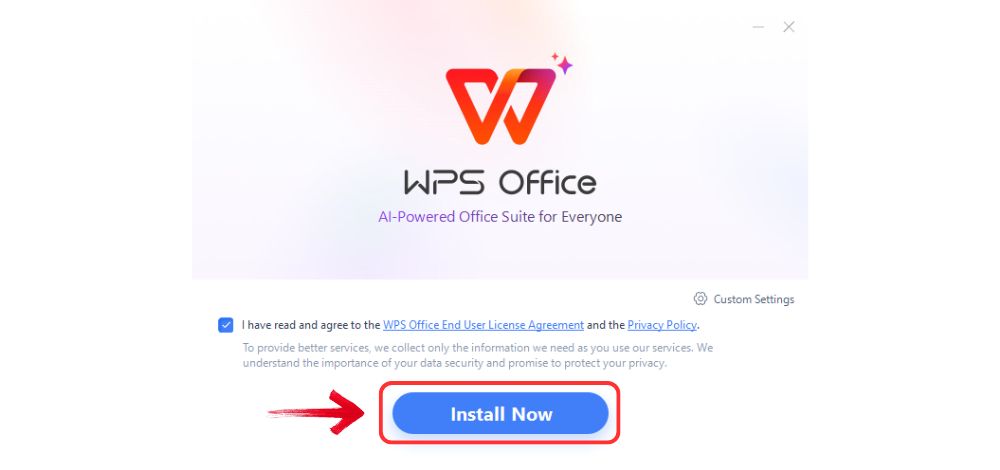
Step 3: Read and accept the terms and conditions,
then click “Install Now” to begin the setup. The
process only takes a few minutes.
Install WPS Office
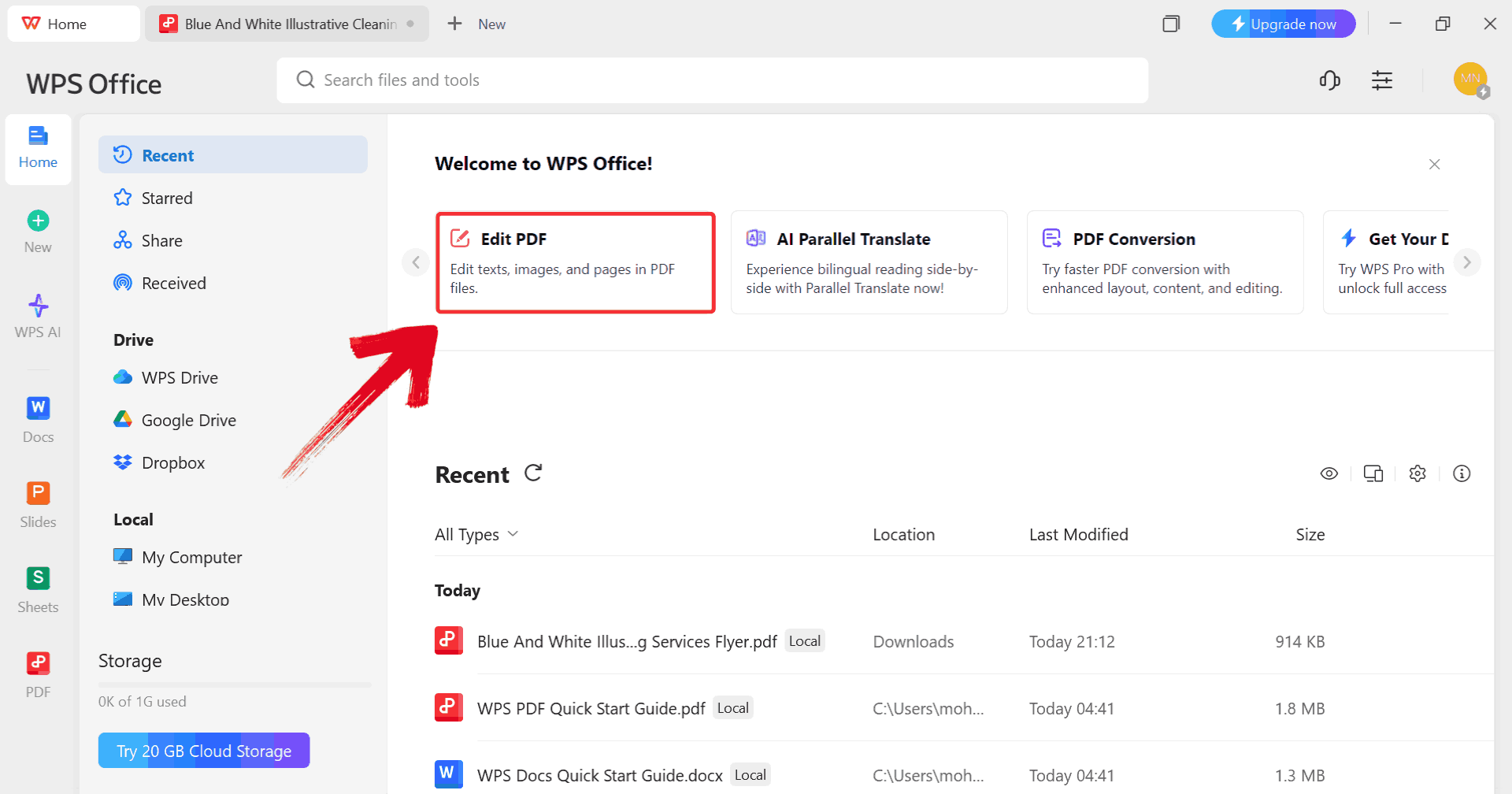
Step 4: Click on “Edit PDF” on the
WPS Office dashboard to import your file.
Click Edit PDF
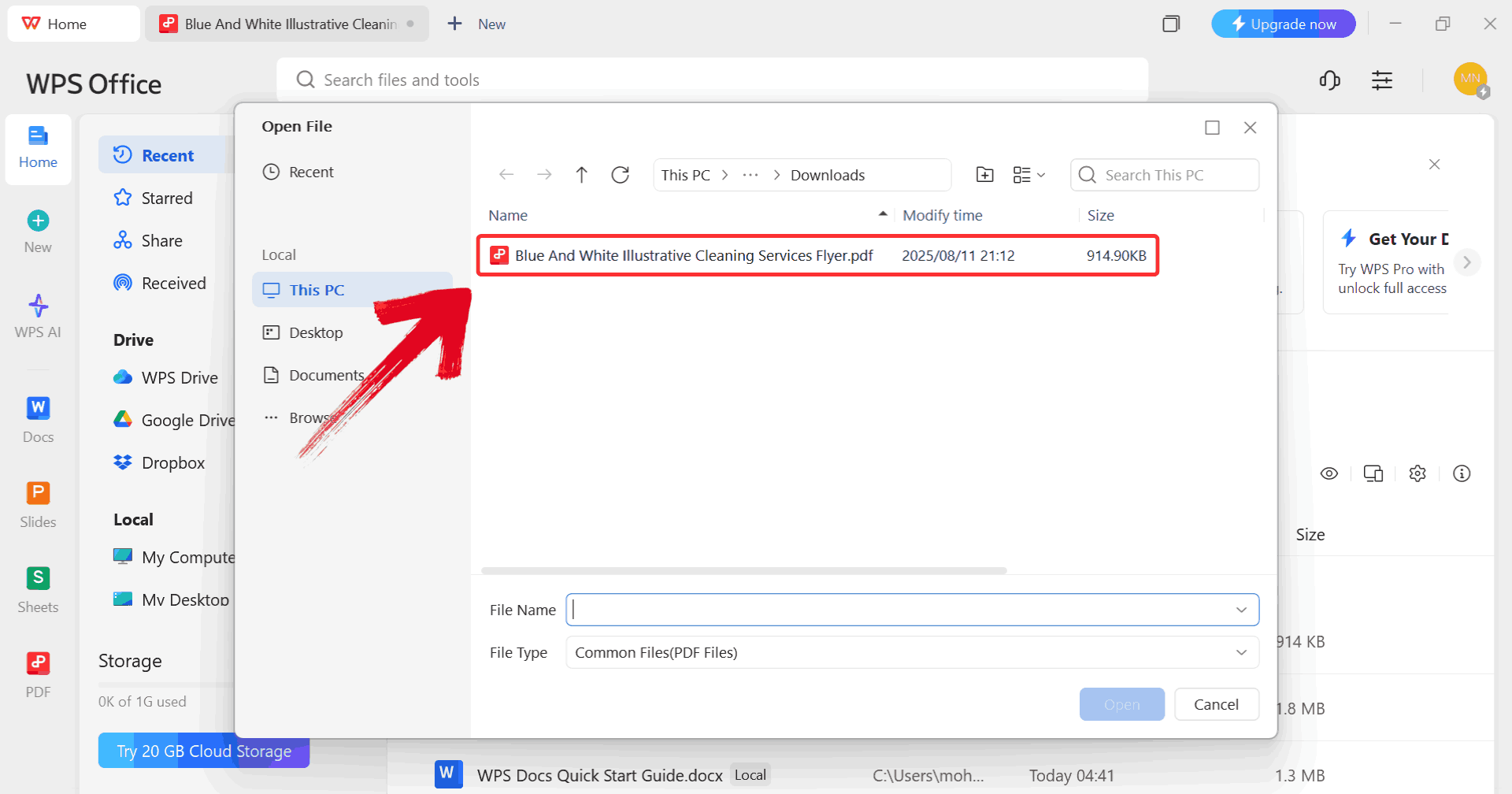
Step 5: When prompted, browse through your computer
and select the PDF file you want to edit.
Select PDF
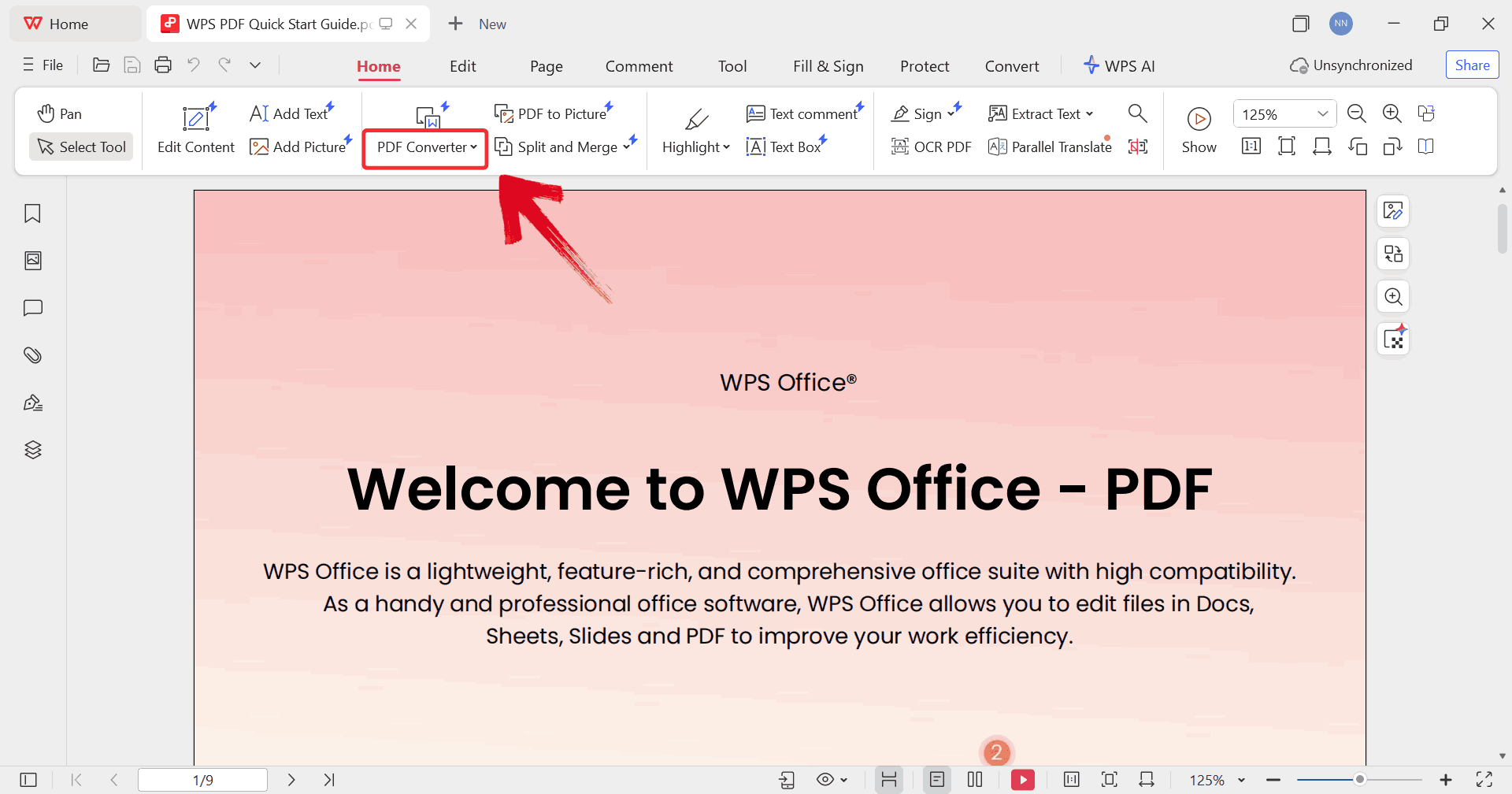
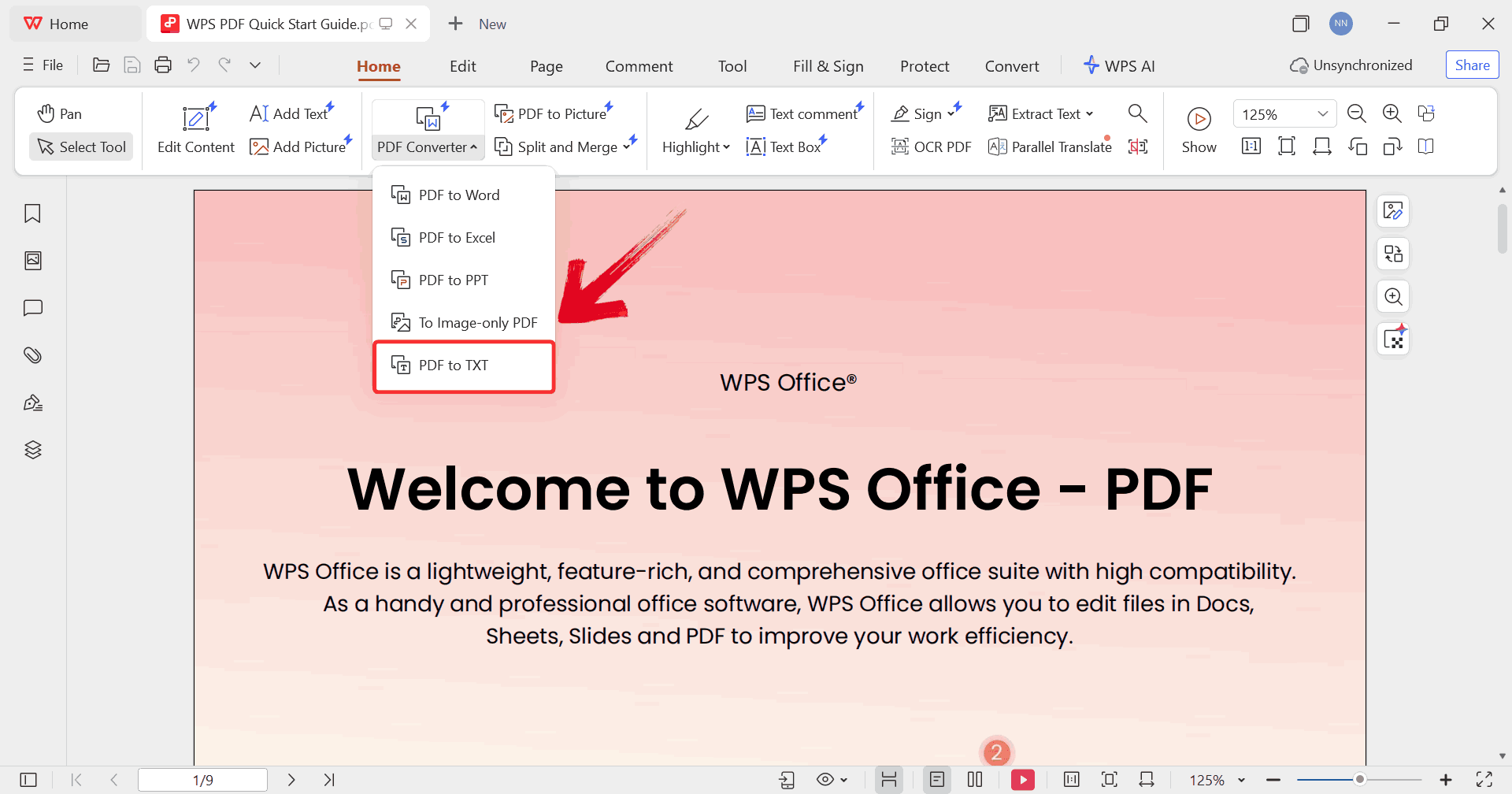
Step 6: Click on “PDF Converter” from the toolbar at the top of the WPS Office interface.
PDF Converter
Step 7: From the PDF Converter panel, select “PDF to TXT” as the conversion option.
PDF to TXT
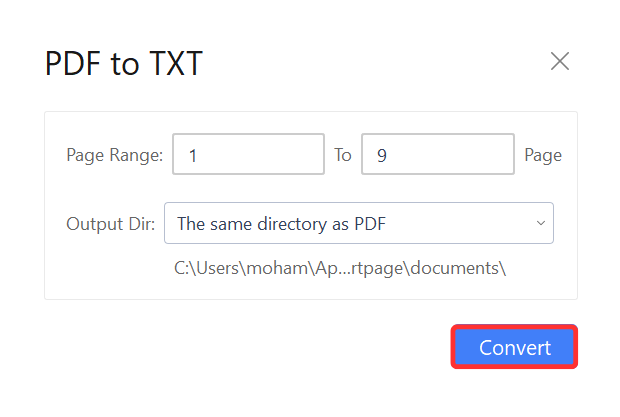
Step 8: Select the directory where you want to save
the converted file, then click the blue “Convert” button. WPS Office will process your PDF and generate a fully formatted
HTML file in the chosen location.
Convert
Adobe Acrobat
Adobe Acrobat is a long-standing industry standard for PDF management, known for its
accuracy and professional-grade features. It enables users to convert
PDFs into clean HTML that retains formatting, embedded images, and
hyperlinks. Acrobat supports interactive PDFs, ensuring elements like
forms or clickable tables remain functional in the conversion. With
cloud integration, users can access and convert files from anywhere,
simplifying workflows for teams. While it requires a subscription, the
level of control and reliability makes it a preferred choice for
corporate and high-volume PDF conversion tasks.
Adobe Acrobat
Features:
Converts PDFs directly to HTML webpages with options to split into single or multi-page HTML files.
Retains fonts, images, hyperlinks, and overall document structure in the resulting HTML.
Lets you adjust export settings like including navigation or image content.
Works across devices and platforms via cloud or desktop tools.
Offers industry‑standard reliability as Adobe created the PDF format.
Converting a PDF to HTML in Acrobat follows a clear workflow that
aligns with its export-focused design. Here’s how to convert PDF to HTML
in Adobe.
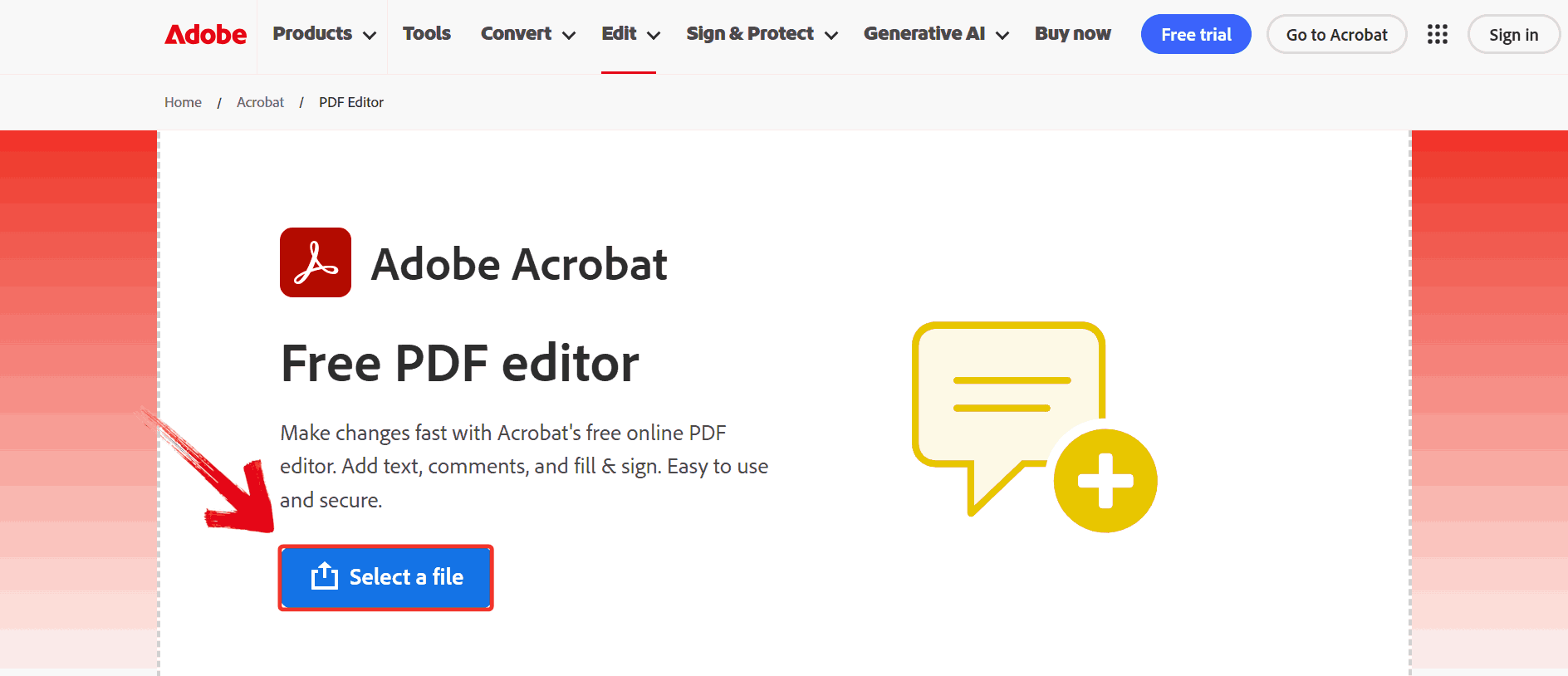
Step 1: Visit the Adobe Acrobat website and click “Select a file” to upload the PDF you want to
convert to HTML.
Select a File
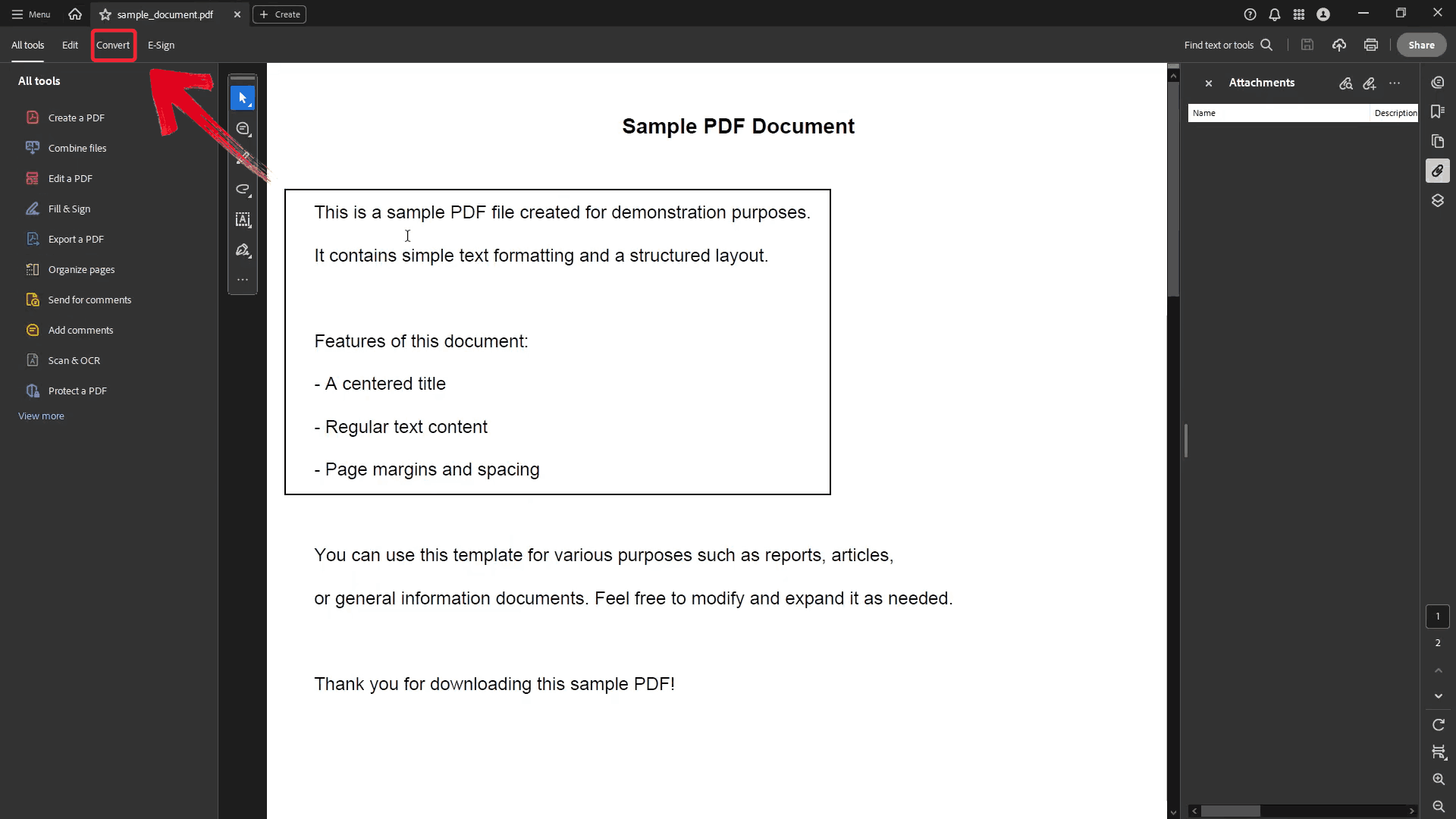
Step 2: Once the file is uploaded, click on “Convert” on the top left.
Click Convert
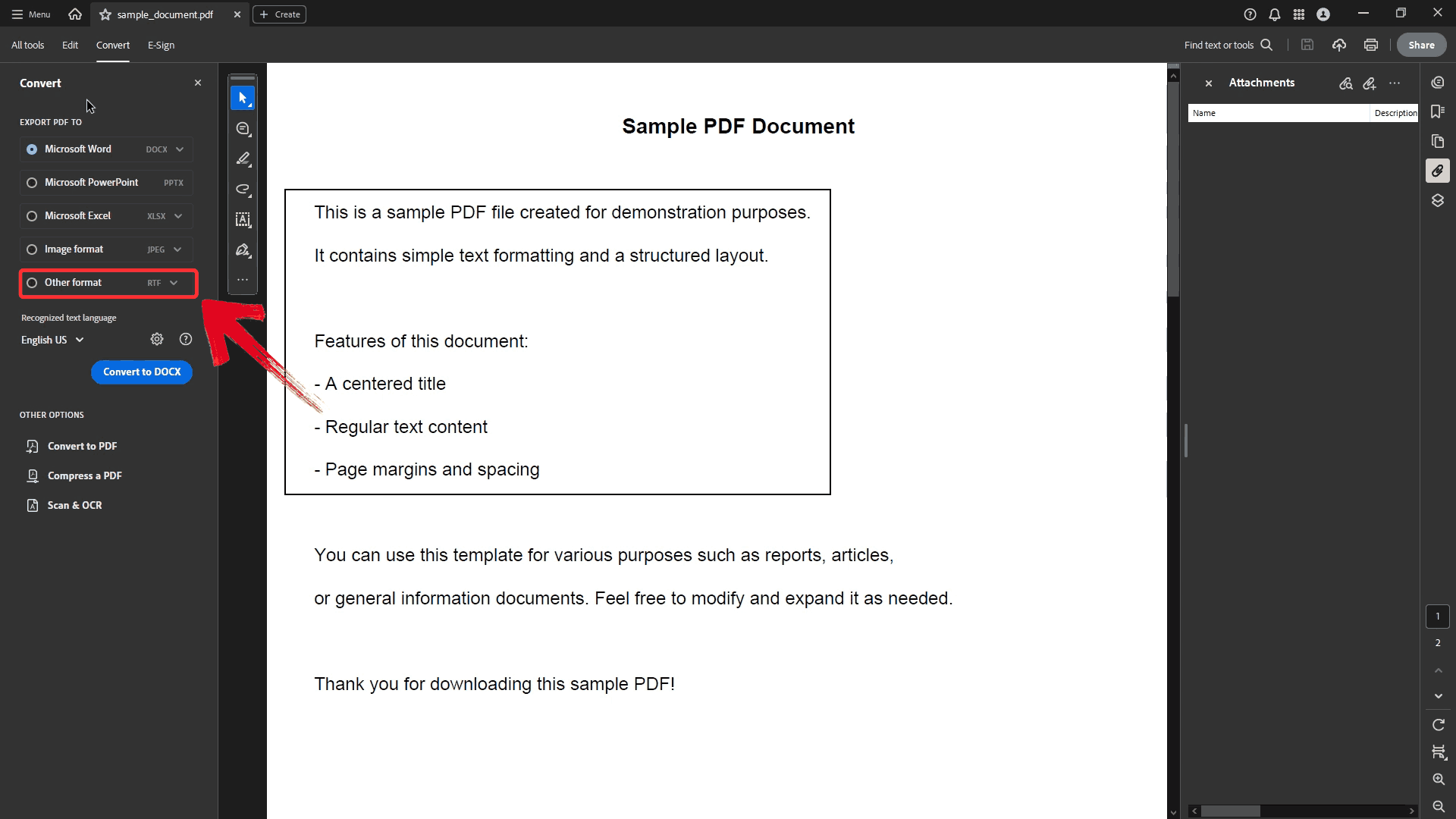
Step 3: After the conversion options load, click on “Other formats” to open the dropdown menu.
Click Other Format
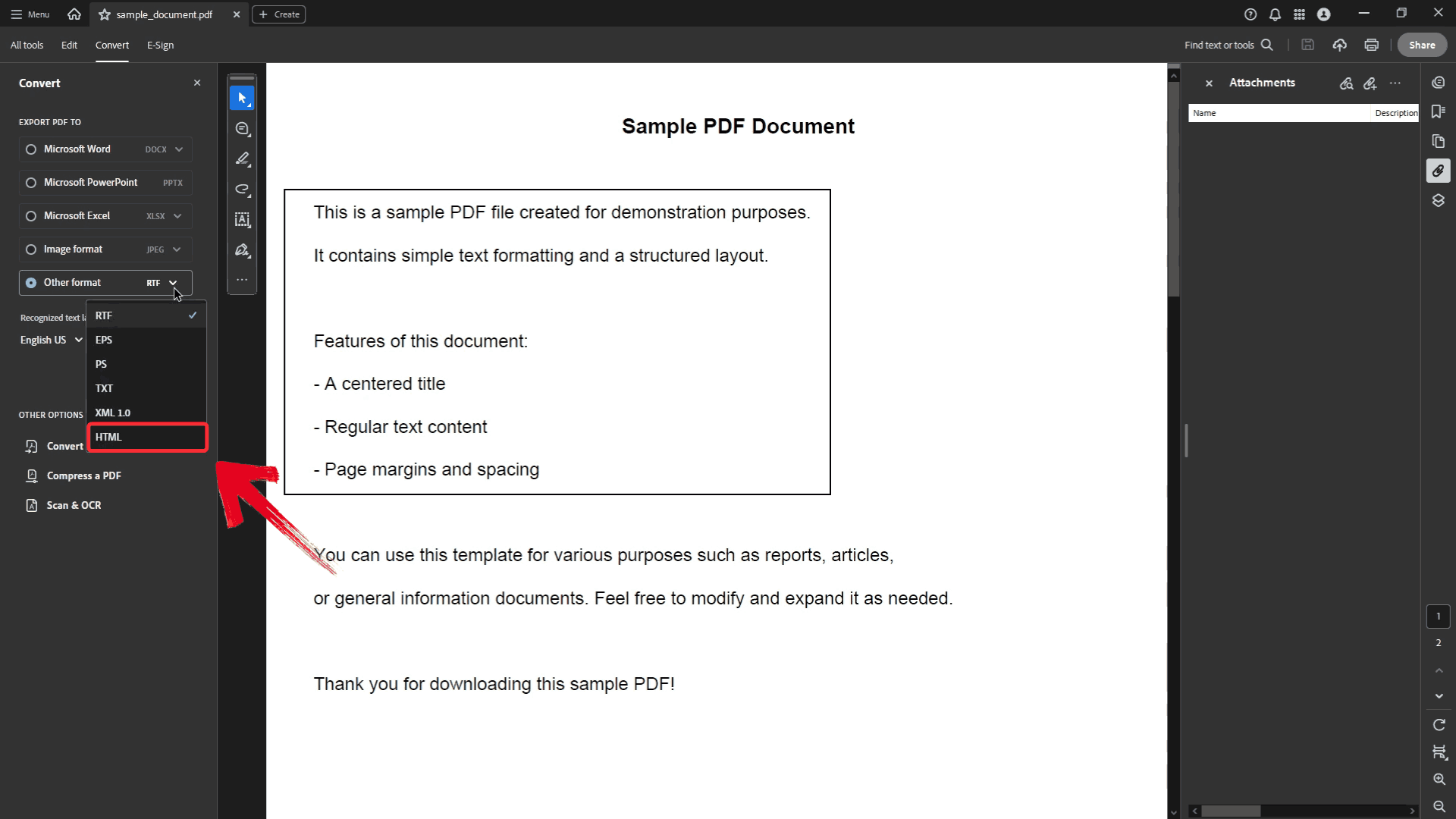
Step 4: From the dropdown menu, select “HTML” as your desired output format to finalize the
conversion settings.
Select HTML
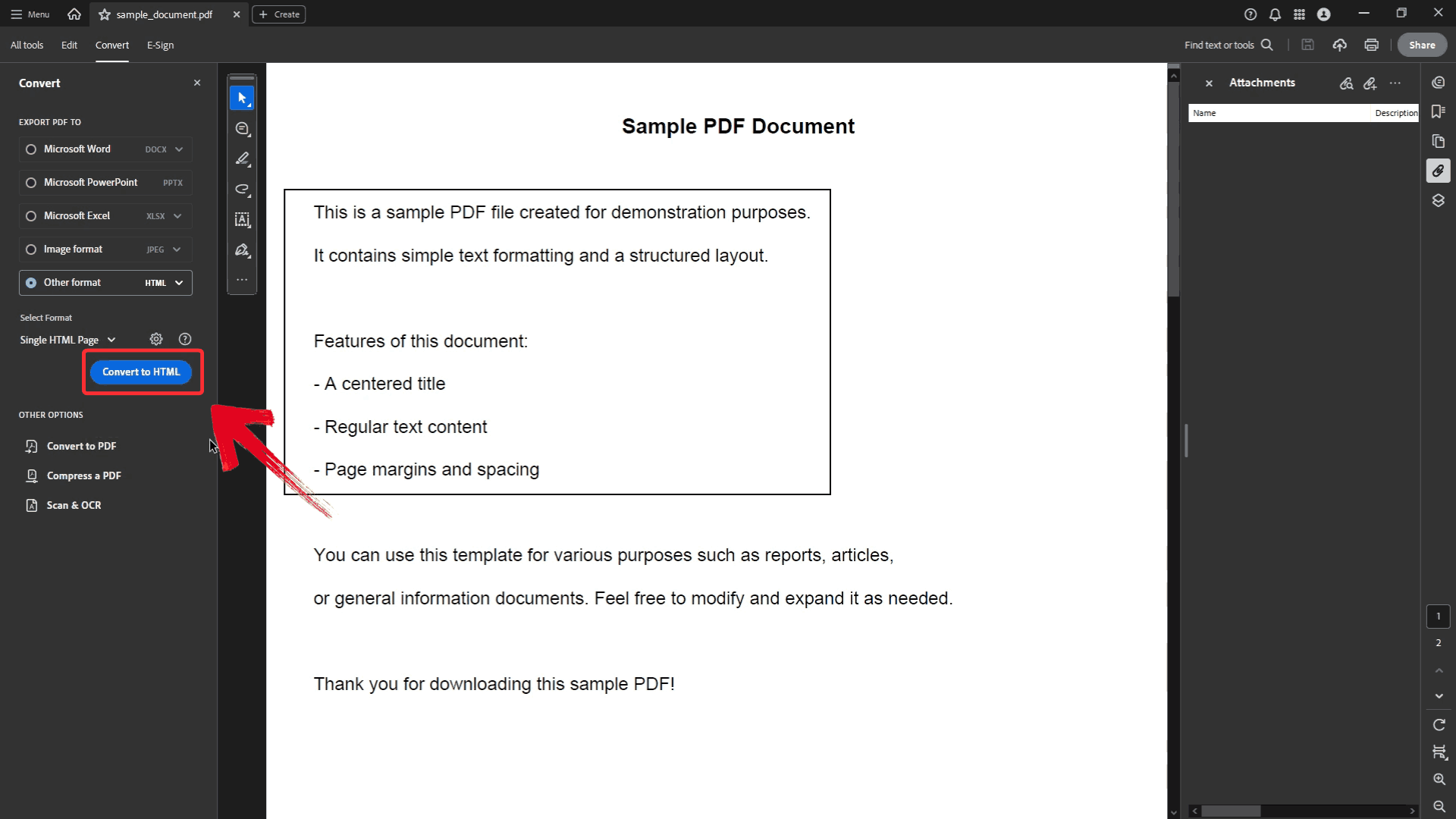
Step 5: Click the blue “Convert to
HTML” button to complete the conversion and generate your HTML
file.
Convert to HTML
Xodo
Xodo is an online and
mobile-friendly PDF platform that focuses on speed and accessibility. It
allows users to convert PDFs into HTML without installing software,
making it convenient for quick tasks. While simpler than desktop suites,
Xodo preserves basic layouts, images, and links, making it effective for
small to medium-sized documents. Its cross-device synchronization
ensures that work started on one device can continue seamlessly on
another. Xodo also offers annotation and commenting features, which can
be handy before finalizing a PDF for conversion.
Xodo
Features
Converts PDFs into HTML5 or SVG‑based web pages, preserving layout elements such as text and images.
Lets you specify page ranges and customize image compression during conversion.
Supports batch or multiple file conversion workflows via desktop Xodo PDF Studio.
Works securely in the browser with automatic file deletion after processing.
Available on all major platforms, including Windows, Mac, Linux, and mobile.
Pros:
Fast online conversion
Free to use
Accessible on multiple devices
Cons:
Limited formatting options
Dependent on internet connection
Xodo’s simplicity and cross-device access make it ideal for fast
conversions when installation isn’t practical. Converting a PDF to HTML
with Xodo is a straightforward process designed to get usable web output
quickly.
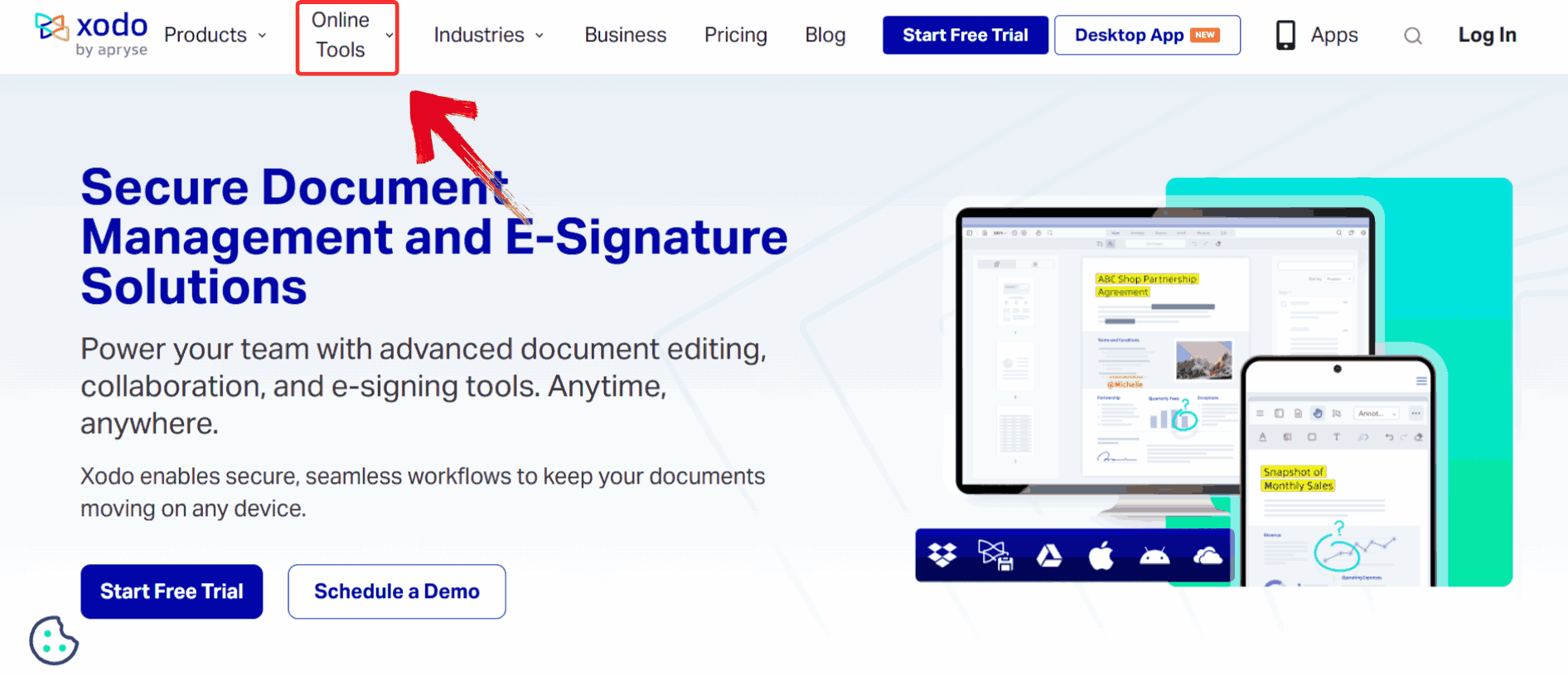
Step 1: Go to the Xodo website and click on the “Online Tools" option to open conversion options.
Online Tools
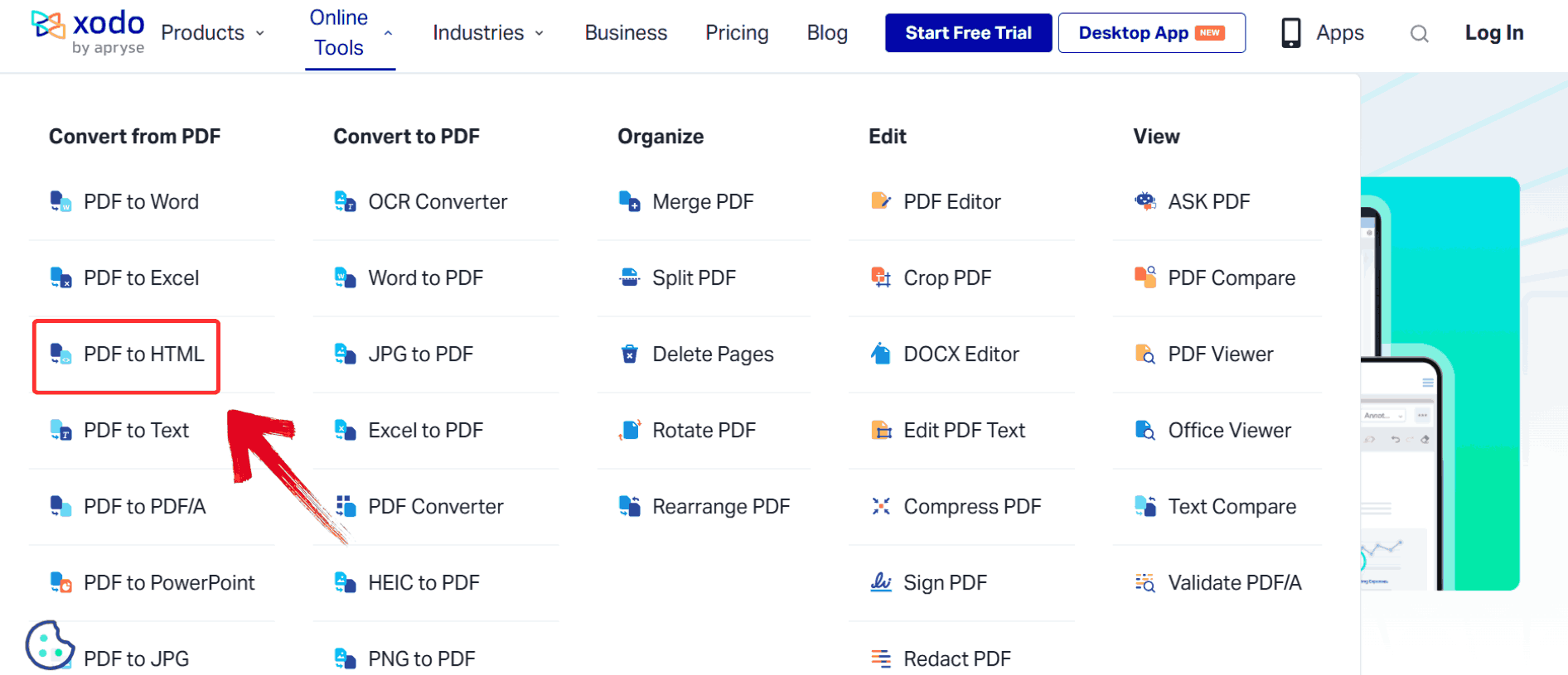
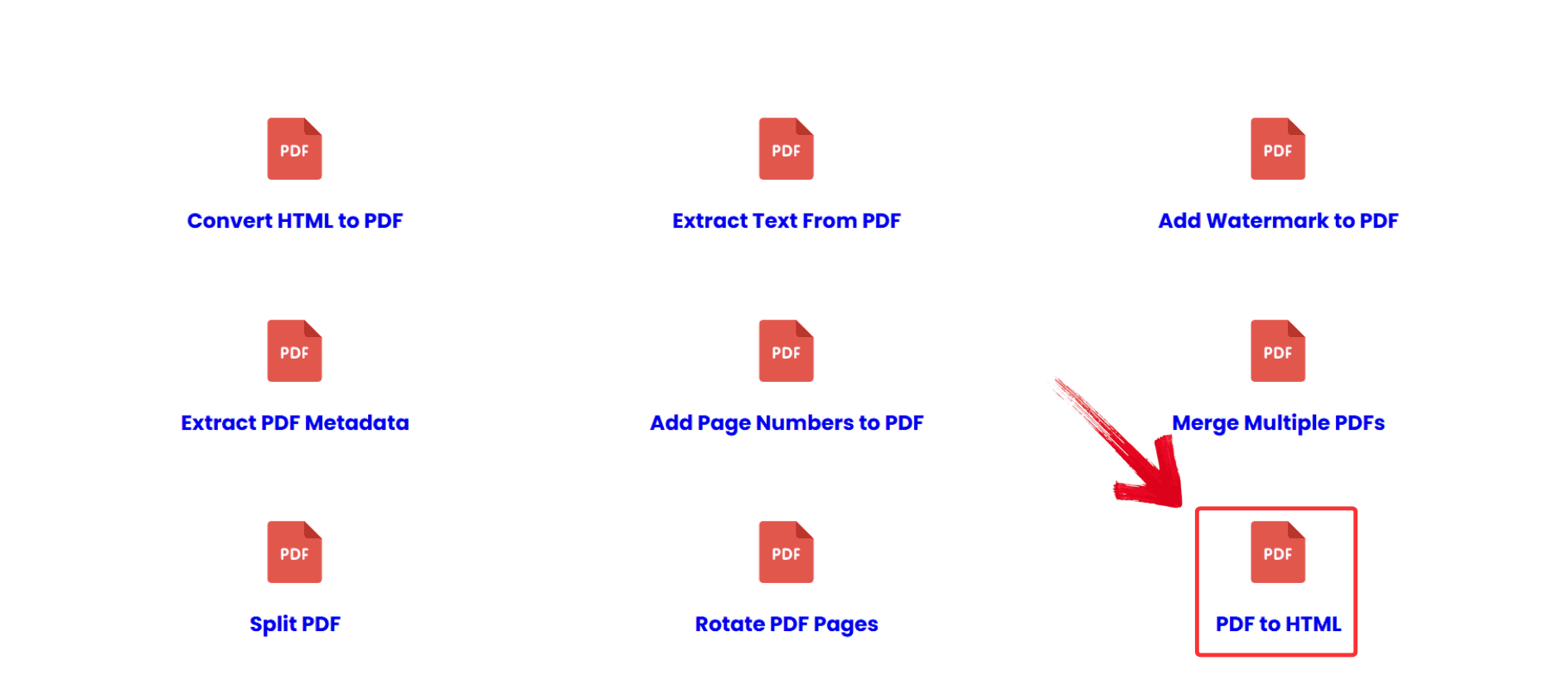
Step 2: From the list of available tools, click on “PDF to HTML” to start the conversion process.
Open PDF to HTML
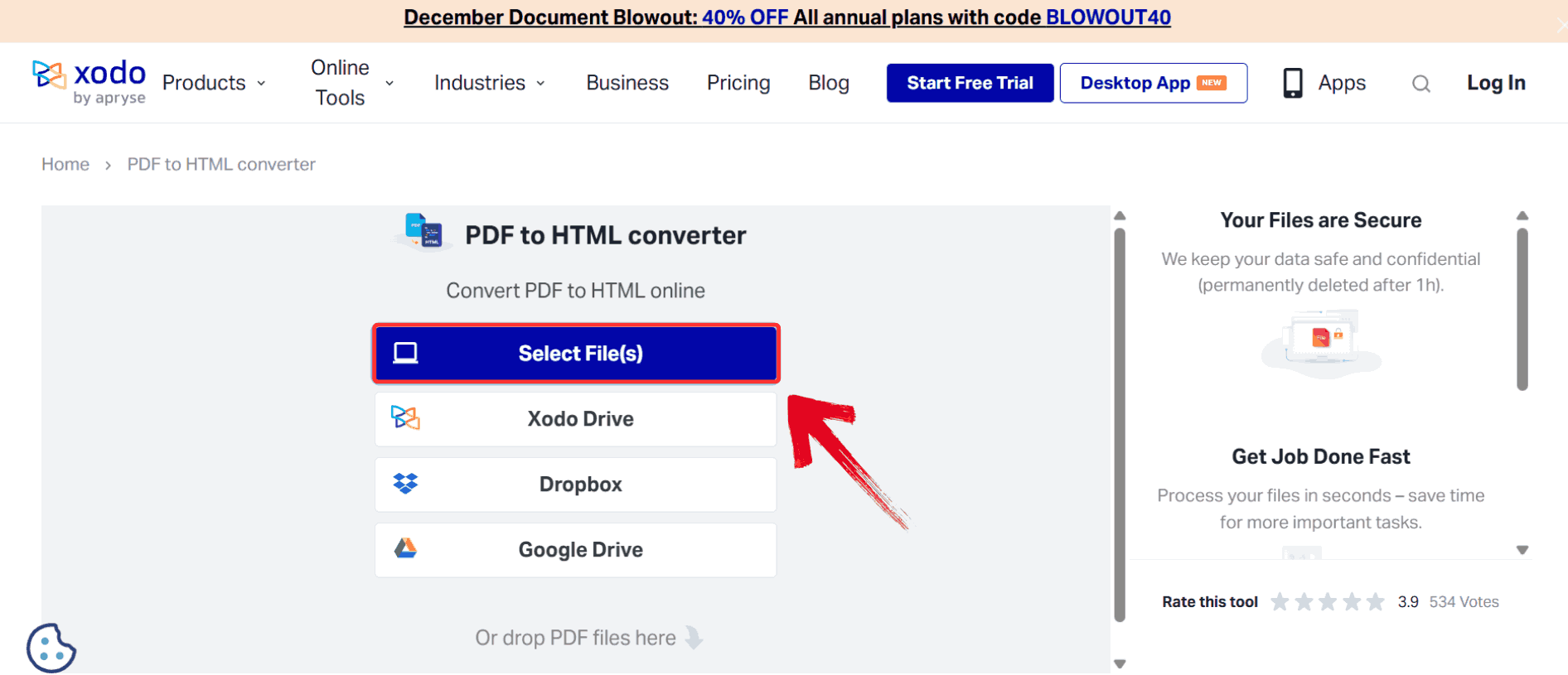
Step 3: Click “Select files” to
upload the PDF you want to convert into HTML.
Click Blue Button
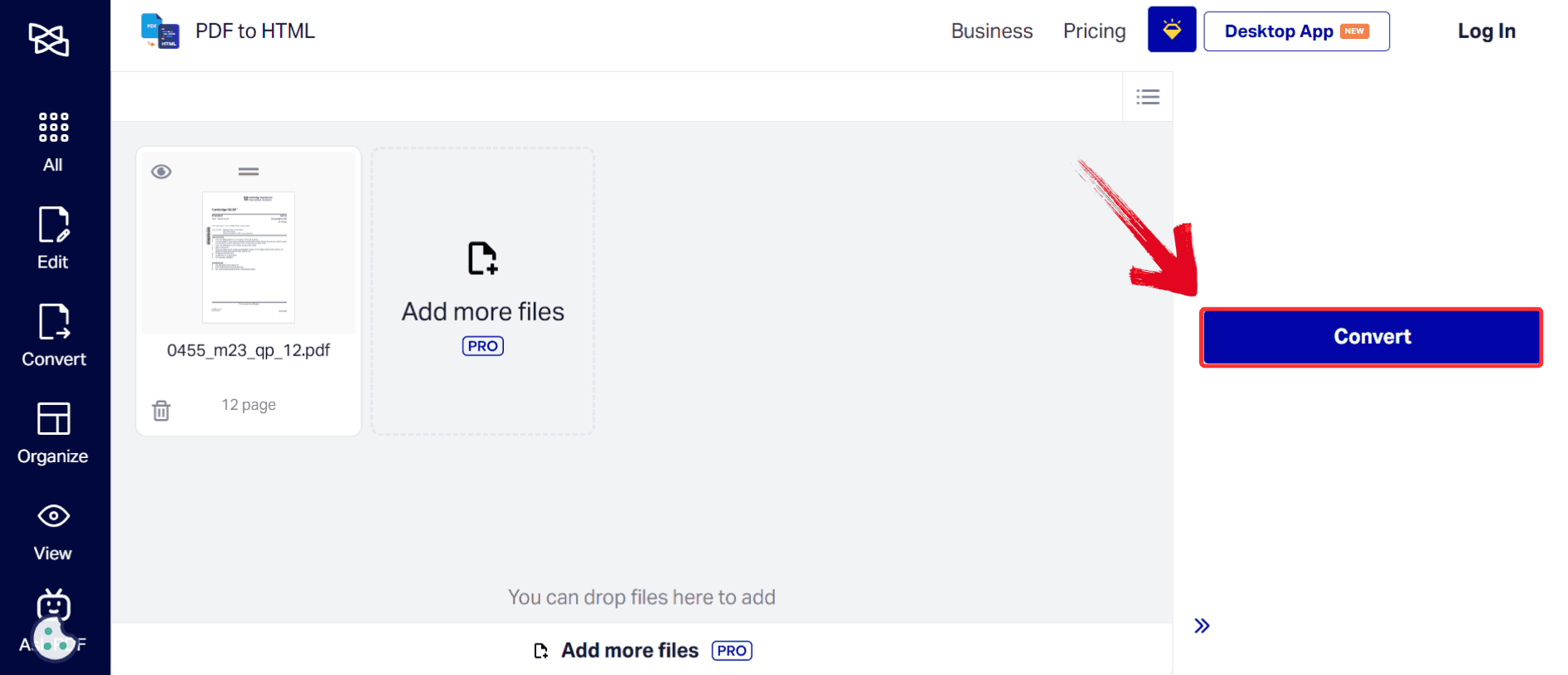
Step 4: Click the blue “Convert” button to start the conversion.
Select Convert
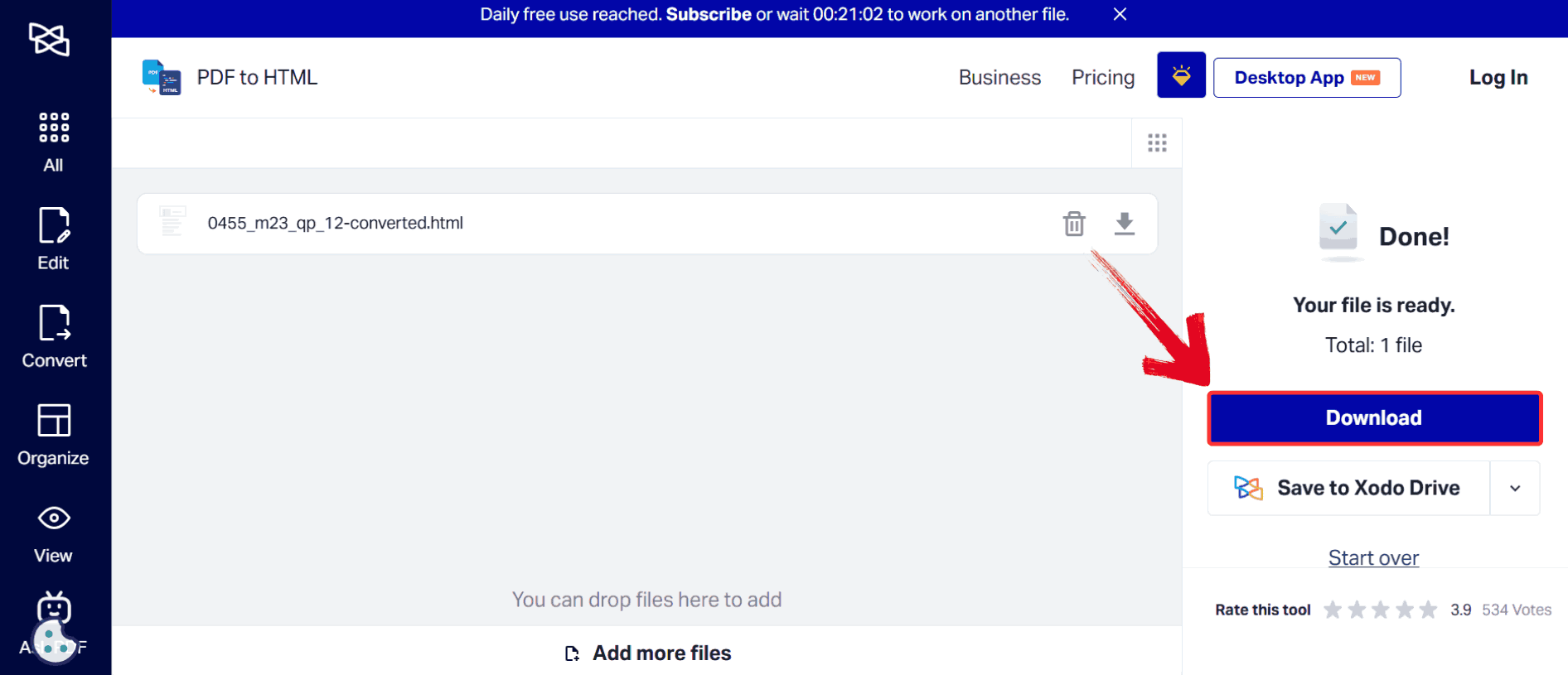
Step 5: Once the process is complete, click “Download” to save your converted HTML file to your
device.
Choose Download
Apitemplate
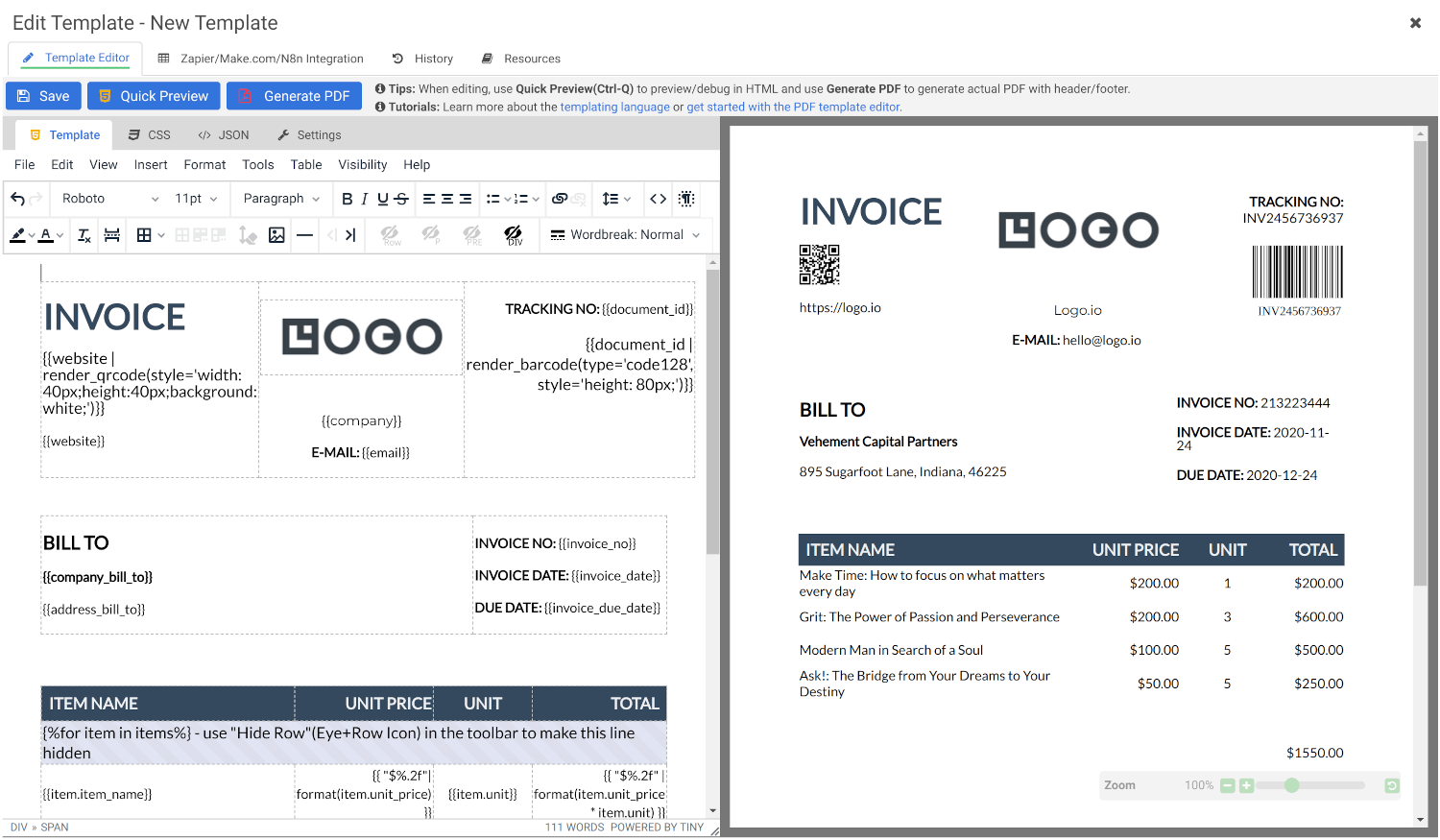
Apitemplate is an
API-driven solution designed for developers and automated workflows,
particularly for bulk PDF conversions. It allows PDFs to be converted
into structured HTML programmatically, which is ideal for applications
that handle large numbers of documents. The platform emphasizes
security, with access control and encrypted processing for sensitive
data. Apitemplate also supports advanced layout customization through
API parameters, allowing developers to maintain consistency across
multiple conversions. Its flexibility and automation capabilities make
it suitable for enterprise environments.
Apitemplate
Features:
Provides drag‑and‑drop PDF to HTML conversion via a simple web interface.
Outputs clean and accessible HTML code that developers can use directly in web projects.
Completely free to start converting with no hidden fees.
Designed for automated workflows and integration with platforms like Zapier or REST API calls.
Part of a larger suite of PDF tools that includes text extraction, merging, and image conversion.
Pros:
Automates bulk conversions
Ideal for developer workflows
Secure processing
Cons:
Requires technical knowledge
Paid plan for advanced features
Using Apitemplate to convert PDFs to HTML typically involves
configuring the conversion method that best fits your work.
Step 1: Go to the Apitemplate PDF Tools
page and click on “PDF to HTML” to open the
conversion interface.
PDF Tools Page
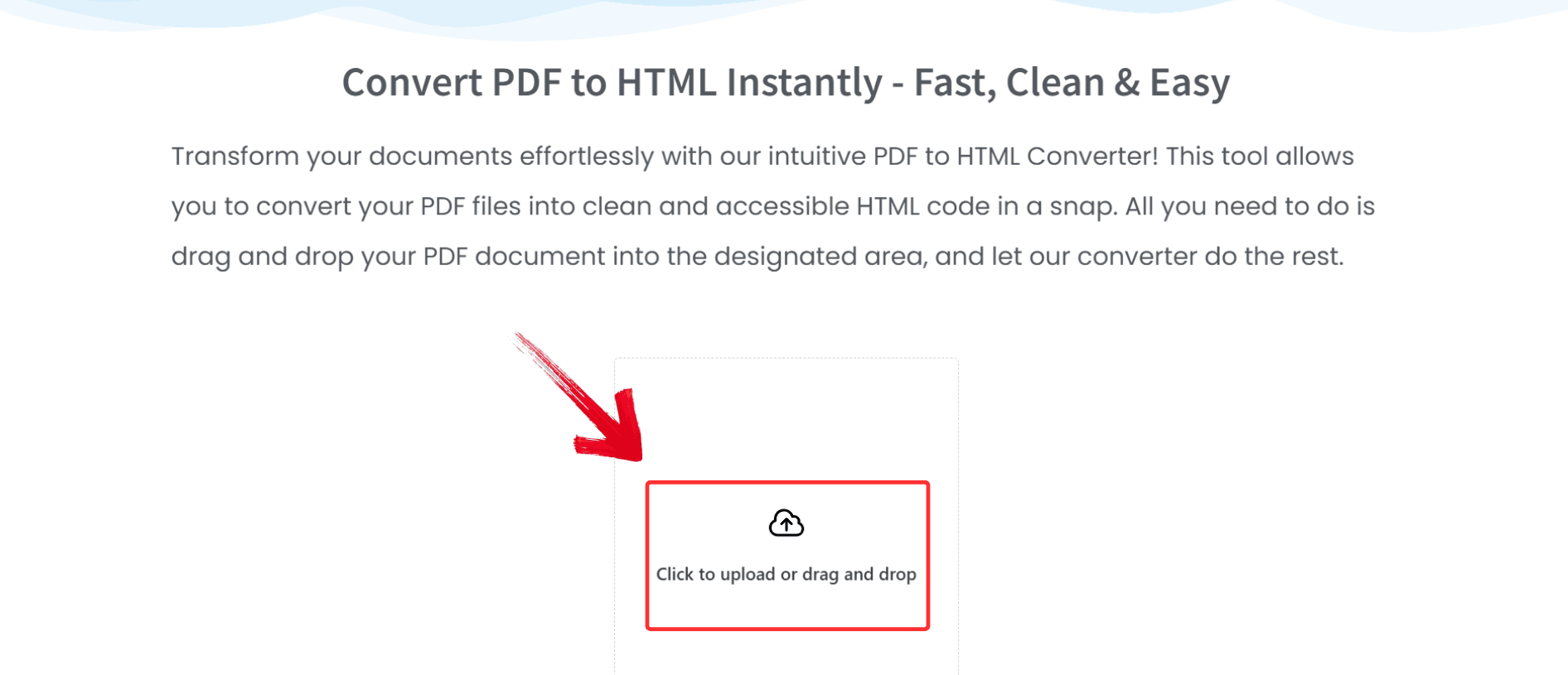
Step 2: Choose “Click to Upload” to
select the PDF file you want to convert to HTML.
Click to Upload
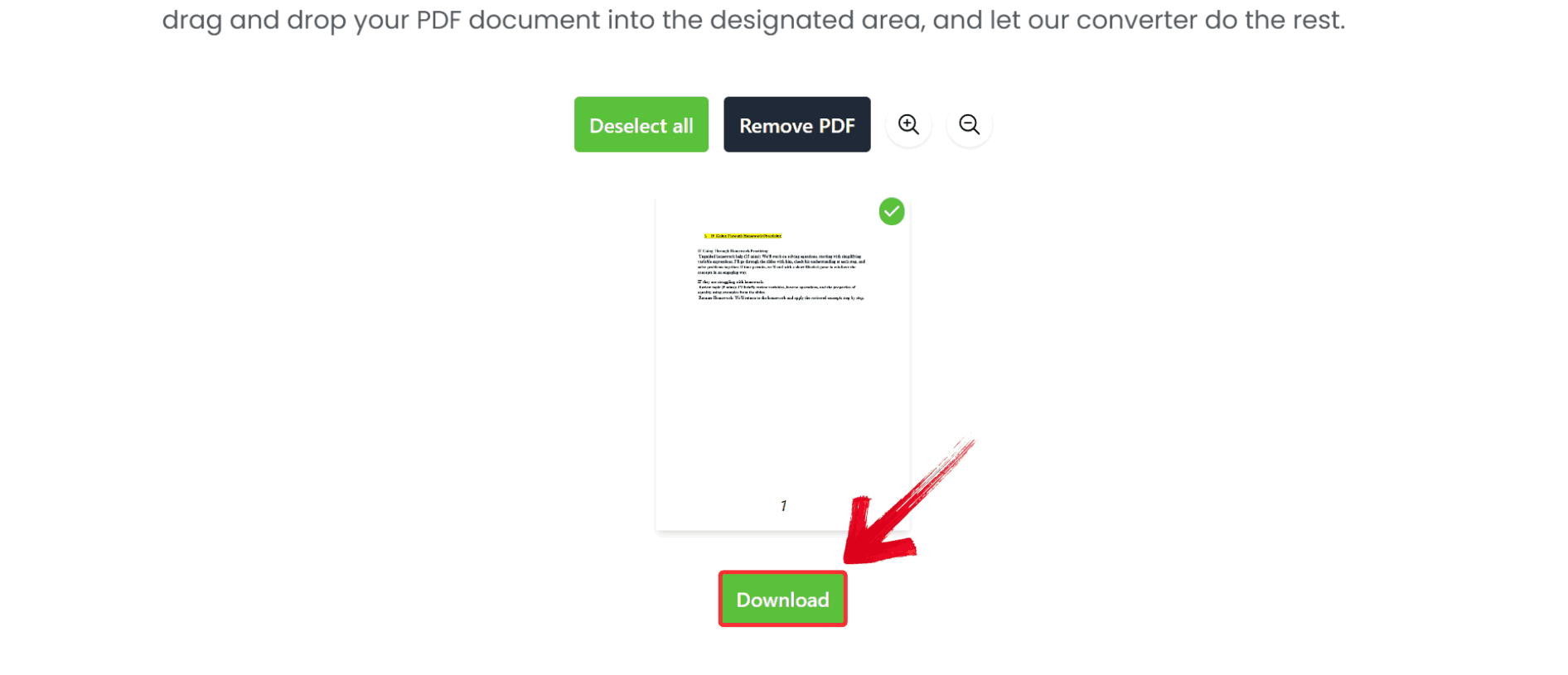
Step 3: After the conversion is complete, click the
green “Download” button to save your HTML file.
Click Green Button
FreeConvert
FreeConvert is a
browser-based platform that offers fast and straightforward PDF to HTML
conversion. It doesn’t require installation, which makes it accessible
from any operating system. The service supports multiple file formats
and can handle small to moderately sized PDFs efficiently. While free
users face some limitations in file size and advanced formatting, the
platform remains a convenient choice for one-off or occasional
conversions. FreeConvert also uses secure, encrypted connections to
ensure file privacy during the conversion process.
FreeConvert
Features
Supports PDF to HTML conversion for files up to 1 GB directly from your device or cloud storage.
Includes optional advanced settings like embedding fonts, images, CSS, and JavaScript in the output.
Batch conversion available to process several PDFs in one go.
Uses 256‑bit SSL encryption with automatic deletion of uploaded files for privacy.
Browser‑based and compatible with any operating system without installation.
Pros:
Quick and easy to use
Free for small conversions
Works on any OS
Cons:
Limited file size for free users
Formatting can be inconsistent for complex PDFs
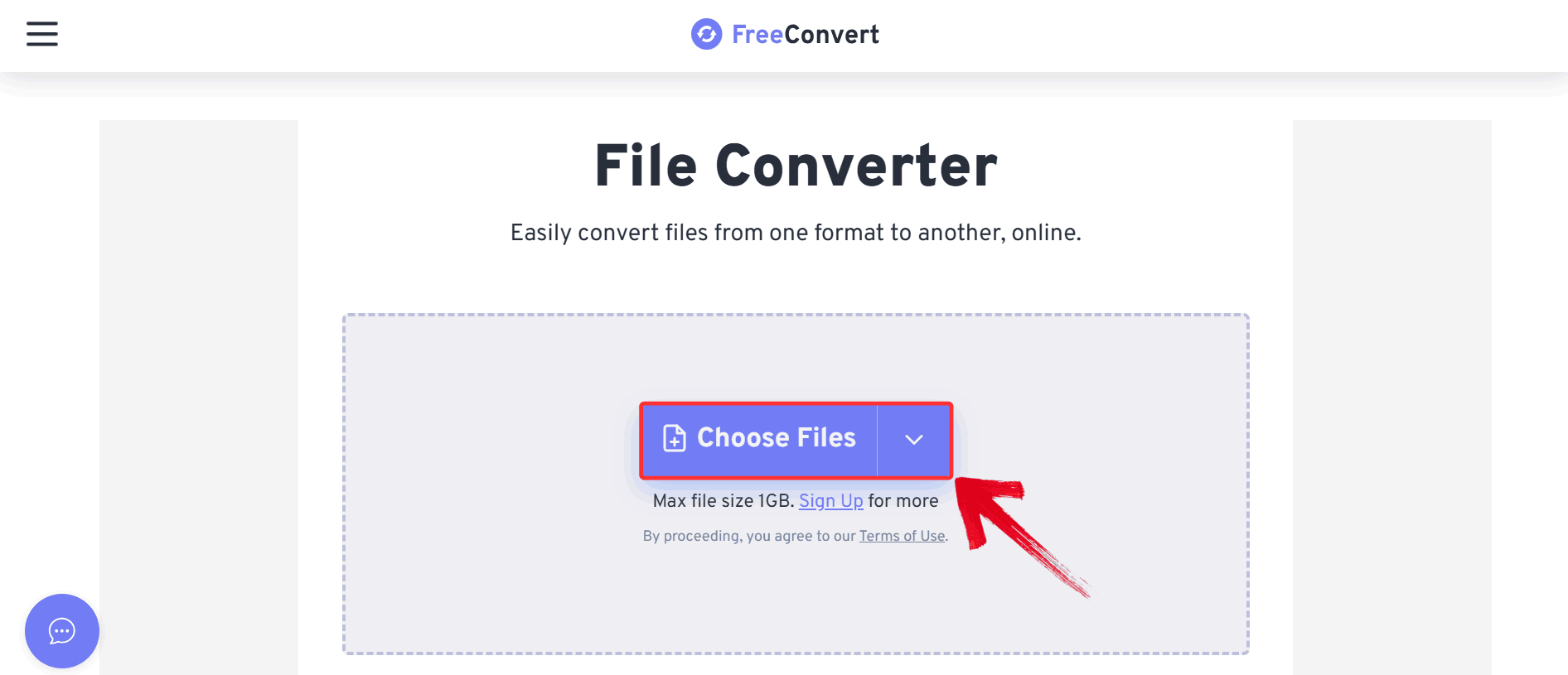
FreeConvert.com provides fast browser-based conversion for simple PDF
files. The following steps show how to get HTML output efficiently using
FreeConvert.com.
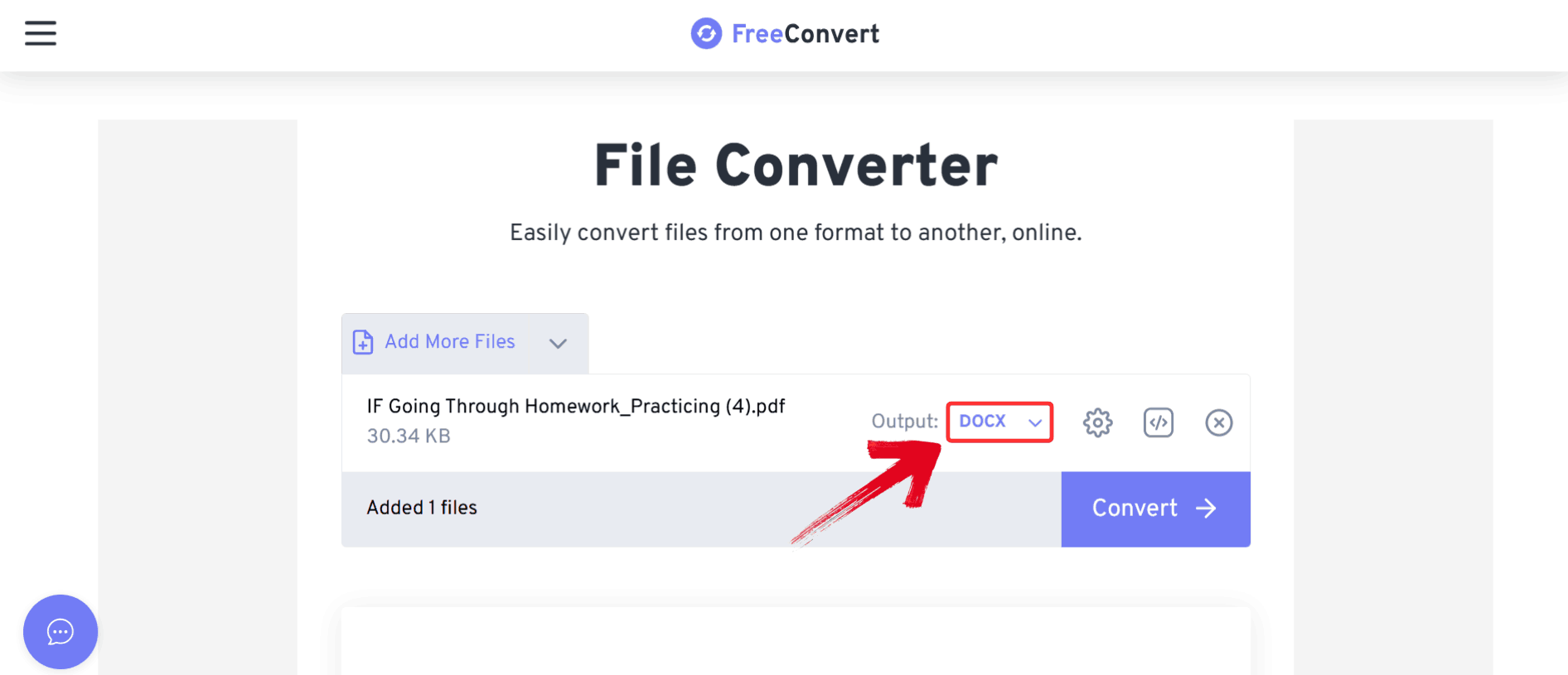
Step 2: Once your file is uploaded, click the option
next to “Output” to open the dropdown menu.
Output
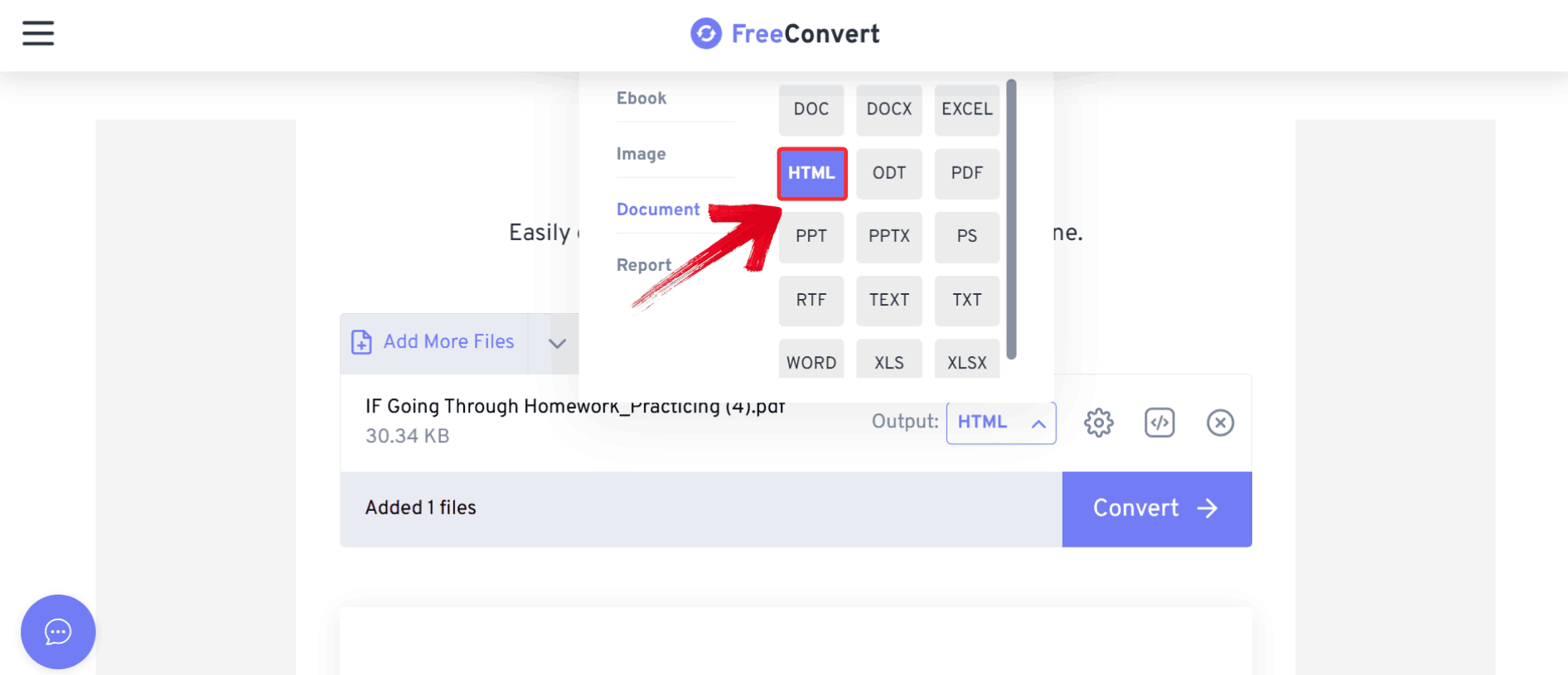
Step 3: From the dropdown menu, select “HTML” as your output format. This tells the converter
to generate a web-ready HTML file instead of another document type.
Select HTML
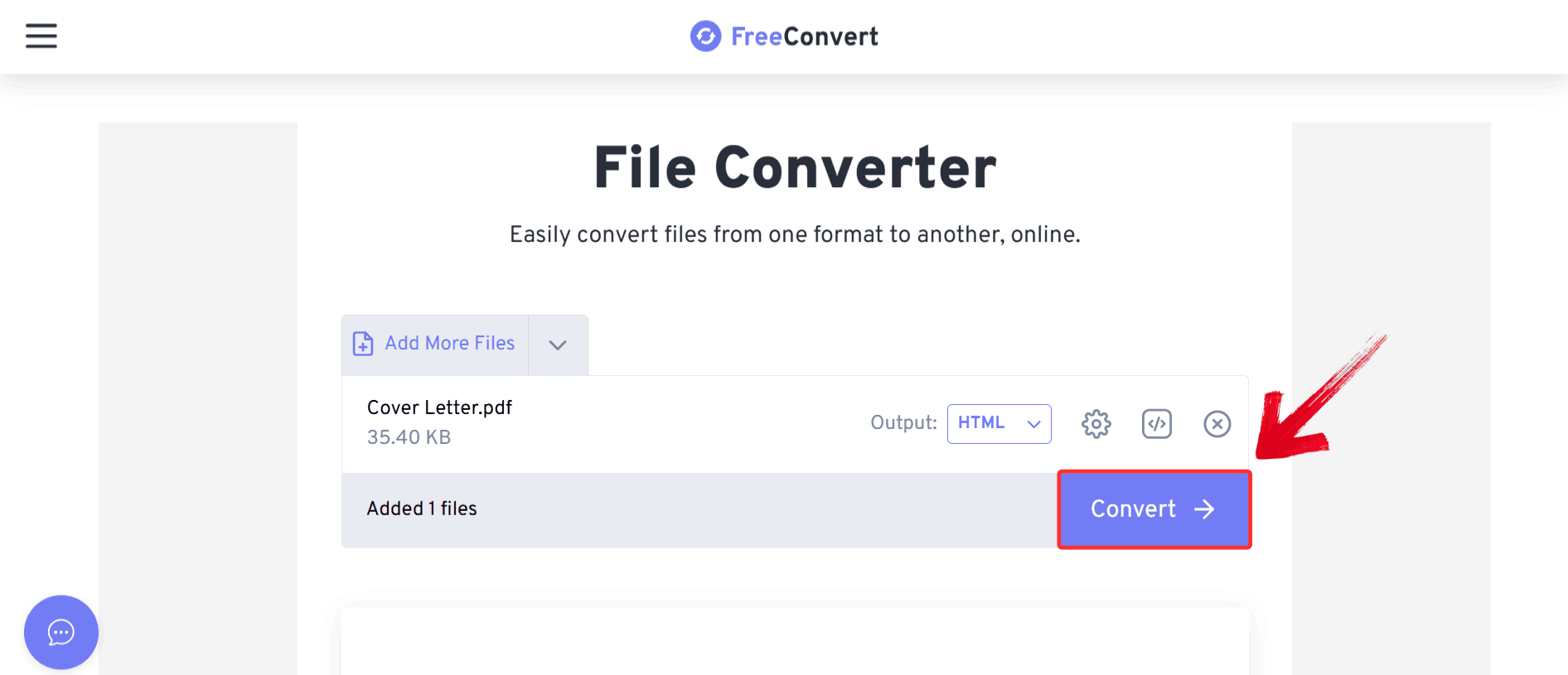
Step 4: Click the blue “Convert” button to start the PDF to HTML conversion.
Convert File
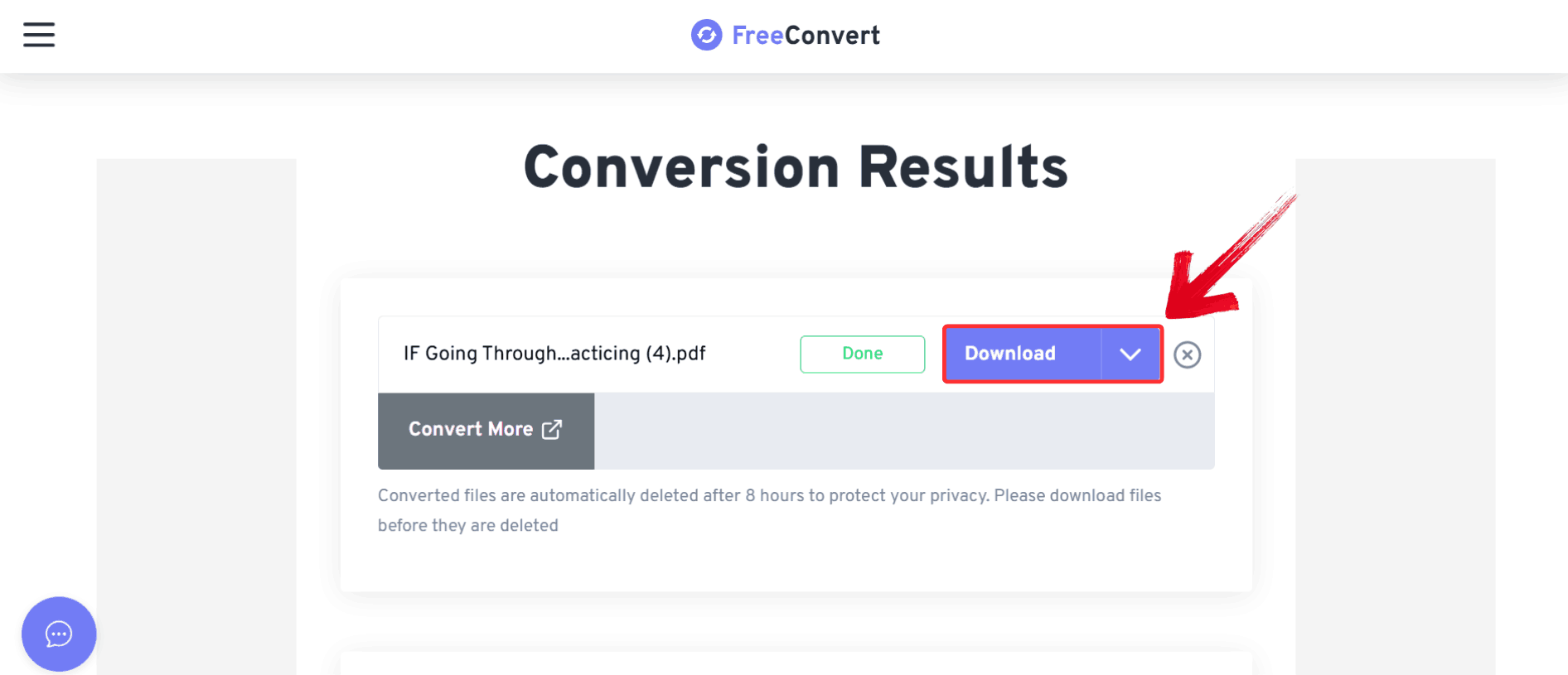
Step 5: Click the blue “Download” button to save the converted HTML file to your device.
Download HTML File
Quick
Comparison Table of PDF to HTML Converters
It’s clear that not all converters are created equal. Desktop
applications such as WPS Office and Adobe Acrobat tend to produce
cleaner HTML with better structure retention, whereas web‑based tools
like Xodo and FreeConvert.com offer faster, installation‑free workflows
that are ideal for occasional conversions. API‑driven solutions like
Apitemplate shine in automated, large‑scale scenarios where repeated
conversions must be reliable and secure. To help you evaluate these
differences at a glance and choose the right PDF to HTML converter for
your workflow, the table below summarizes key capabilities and trade‑offs across the leading
options.
Tool
Output Accuracy
Ease of Use
Platforms
Cost
Key Feature
WPS Office
High
Easy
Windows, Mac
Free/Premium
Batch processing, layout
preservation
Adobe Acrobat
Very High
Moderate
Windows, Mac
Paid
Preserves complex formatting
Xodo
Medium
Easy
Web, iOS, Android
Free
Online quick conversion
Apitemplate
High
Advanced
Web/API
Paid
API-based automation
FreeConvert.com
Medium
Very Easy
Web
Free/Limited
Browser-based drag-and-drop
Looking at the comparison, WPS Office offers a strong combination of
layout accuracy, batch processing, and offline desktop reliability. It
simplifies handling PDFs for web publishing. Its versatility across different document types also adds
value beyond just PDF to HTML conversion.
Why Choose WPS to Convert
PDF to HTML
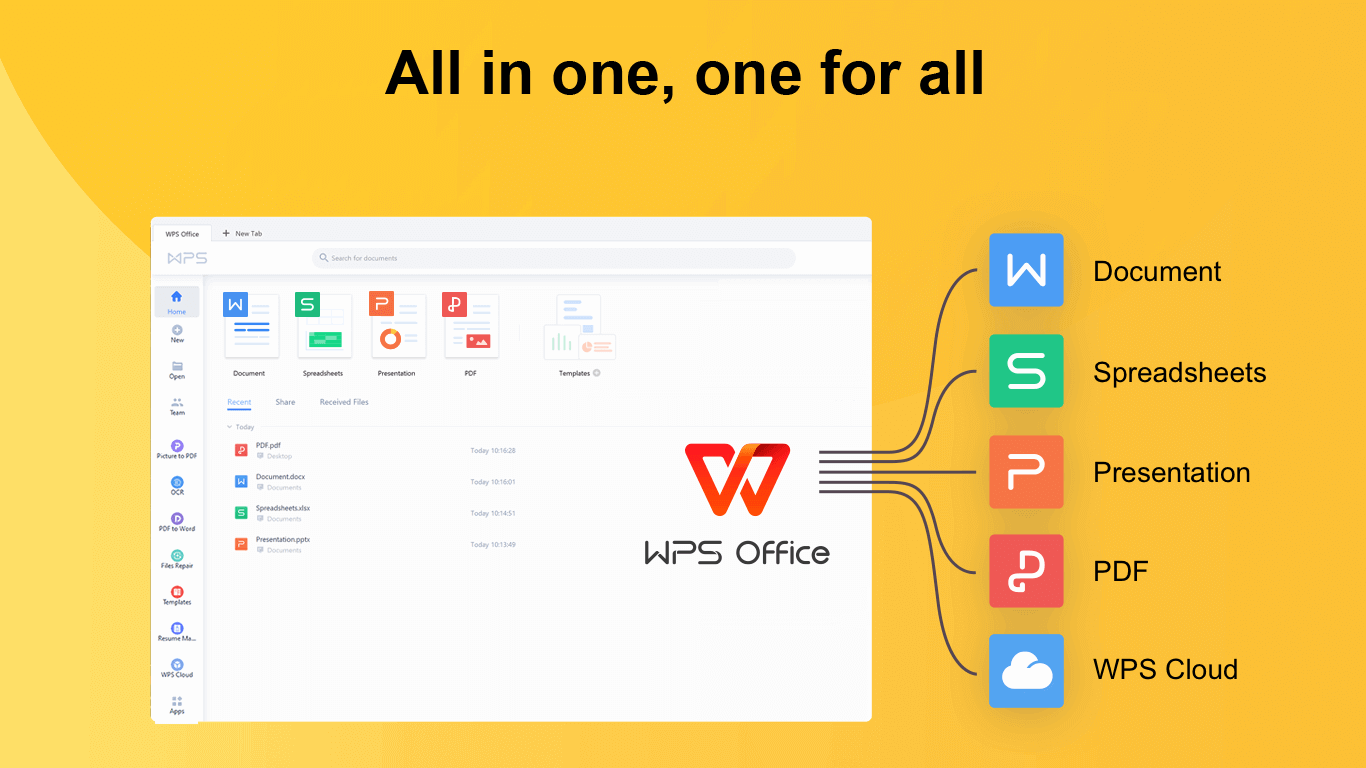
WPS Office offers a
comprehensive solution for working with PDFs while also supporting a
full suite of document formats like Word, Excel, and PowerPoint. It
provides precise control over text, images, and tables during
conversion, ensuring that HTML output maintains the structure and
clarity of the original PDF. Its integration across different document
types allows seamless transitions between editing, formatting, and
publishing tasks. By centralizing these tools in one platform, WPS
Office simplifies the workflow, whether preparing content for web
publishing, collaborative projects, or internal documentation.
WPS Office
Key Benefits
Preserves Formatting and Structure: Maintains text, images, tables, and overall layout during PDF to HTML conversion, ensuring the output matches the original document.
Batch Processing Support: Allows multiple PDFs to be converted simultaneously, saving time and effort for large projects.
Full Office Suite Integration: Works seamlessly with Word, Excel, and PowerPoint, enabling smooth transitions between editing, formatting, and publishing tasks.
Fast Desktop Conversion: Operates as a desktop application, providing quick, reliable conversions without needing an internet connection.
Many users convert PDF files to HTML for web publishing, then need to convert the HTML back into PDF for archiving or sharing. WPS PDF Tools supports the reverse conversion process:
Browser-based HTML to PDF conversion
Quick publishing and sharing capabilities
Layout preservation from HTML to PDF
Accessible across devices and operating systems
Fully integrated with the WPS document ecosystem
By combining WPS Office and WPS PDF Tools, you cover both directions
of the PDF–HTML workflow. You can convert PDFs to editable HTML for web
use, and later convert updated HTML back to PDF when needed.
100% secure
FAQs
1.
How does the output from a converter differ from manually coding the
page?
A converter automates the process, saving hours of work. While manual
coding allows highly optimized HTML, modern converters like WPS produce
structured and clean HTML suitable for most web publishing needs.
2.
What is the best PDF to HTML converter for maintaining layout?
Tools like WPS Office and WPS PDF Tools are designed to preserve
text, images, and formatting accurately. They are ideal for professional
and personal use.
3. Can I convert multiple
PDFs at once?
Yes, WPS Office supports batch conversion, saving time when handling
multiple files. Other tools like Apitemplate also offer API-based bulk
processing.
4. Is online conversion
secure?
Most reputable converters, such as Xodo and FreeConvert.com, use
encrypted connections. However, for sensitive data, desktop tools like
WPS Office or Adobe Acrobat are safer.
HTML Highlighted with QPS
A PDF to HTML converter is essential for web accessibility, SEO, and content usability. While several tools can perform this task, from WPS Office and Adobe Acrobat to Xodo, Apitemplate, and FreeConvert, WPS Office wins the race for its combination of accuracy, batch processing, and integration with a full office suite.
By using WPS Office for PDF to HTML conversion and WPS PDF Tools for HTML back to PDF, you can manage a complete workflow, ensuring your documents are web-ready and professional. It provides the reliability and versatility needed to streamline your content conversion tasks efficiently.
7+ years in productivity tech. I test and review the latest tools to simplify your workflow. Follow for honest app comparisons, practical guides, and curated tech picks to boost efficiency.


'%3e%3cpath%20d='M8%200C12.4183%200%2016%203.58172%2016%208C16%2012.4183%2012.4183%2016%208%2016C3.58172%2016%200%2012.4183%200%208C0%203.58172%203.58172%200%208%200ZM11.6162%204.38379C11.2257%203.99337%2010.5927%203.99338%2010.2021%204.38379L8%206.58594L5.79785%204.38379C5.40732%203.99334%204.77429%203.99329%204.38379%204.38379C3.99331%204.77429%203.99335%205.40733%204.38379%205.79785L6.58594%208L4.38379%2010.2021C3.99348%2010.5927%203.99341%2011.2257%204.38379%2011.6162C4.77426%2012.0066%205.40734%2012.0065%205.79785%2011.6162L8%209.41406L10.2021%2011.6162C10.5927%2012.0066%2011.2257%2012.0067%2011.6162%2011.6162C12.0067%2011.2257%2012.0066%2010.5927%2011.6162%2010.2021L9.41406%208L11.6162%205.79785C12.0066%205.40735%2012.0066%204.77429%2011.6162%204.38379Z'%20fill='%23080E17'%20fill-opacity='0.46'/%3e%3c/g%3e%3cdefs%3e%3cclipPath%20id='clip0_3761_713'%3e%3crect%20width='16'%20height='16'%20fill='white'/%3e%3c/clipPath%3e%3c/defs%3e%3c/svg%3e)




'%3e%3cpath%20fill-rule='evenodd'%20clip-rule='evenodd'%20d='M21.4999%2010.9993C21.4999%205.20009%2016.7986%200.498901%2010.9993%200.498901C5.19994%200.498901%200.498657%205.20009%200.498657%2010.9993C0.498657%2016.2404%204.33858%2020.5844%209.35855%2021.3722V14.0346H6.69238V10.9993H9.35855V8.68594C9.35855%206.05427%2010.9262%204.60062%2013.3248%204.60062C14.4736%204.60062%2015.6753%204.80571%2015.6753%204.80571V7.38979H14.3512C13.0468%207.38979%2012.64%208.19921%2012.64%209.0296V10.9993H15.5523L15.0867%2014.0346H12.64V21.3722C17.66%2020.5844%2021.4999%2016.2404%2021.4999%2010.9993Z'%20fill='%231568EA'/%3e%3c/g%3e%3c/svg%3e)


'%3e%3cpath%20d='M2.42045%2022.1876H6.31818V12.7217L0.75%208.54553V20.5171C0.75%2021.4414%201.49892%2022.1876%202.42045%2022.1876Z'%20fill='%234285F4'/%3e%3cpath%20d='M19.682%2022.1876H23.5797C24.5041%2022.1876%2025.2502%2021.4387%2025.2502%2020.5171V8.54553L19.682%2012.7217'%20fill='%2334A853'/%3e%3cpath%20d='M19.682%205.48293V12.7216L25.2502%208.54543V6.31816C25.2502%204.25236%2022.8921%203.07469%2021.2411%204.31361'%20fill='%23FBBC04'/%3e%3cpath%20d='M6.31824%2012.7217V5.48303L13.0001%2010.4944L19.6819%205.48303V12.7217L13.0001%2017.733'%20fill='%23EA4335'/%3e%3cpath%20d='M0.75%206.31816V8.54543L6.31818%2012.7216V5.48293L4.75909%204.31361C3.10534%203.07469%200.75%204.25236%200.75%206.31816Z'%20fill='%23C5221F'/%3e%3c/g%3e%3cdefs%3e%3cclipPath%20id='clip0_2954_7305'%3e%3crect%20width='24.5'%20height='18.375'%20fill='white'%20transform='translate(0.75%203.8125)'/%3e%3c/clipPath%3e%3c/defs%3e%3c/svg%3e)



'%3e%3cpath%20d='M19.9911%204.11386V6.471H18.5894C18.0775%206.471%2017.7322%206.57814%2017.5536%206.79243C17.3751%207.00671%2017.2858%207.32814%2017.2858%207.75671V9.44421H19.9019L19.5536%2012.0871H17.2858V18.8639H14.5536V12.0871H12.2769V9.44421H14.5536V7.49779C14.5536%206.39064%2014.8632%205.53201%2015.4822%204.92189C16.1013%204.31177%2016.9257%204.00671%2017.9554%204.00671C18.8304%204.00671%2019.509%204.04243%2019.9911%204.11386Z'%20fill='%23333333'/%3e%3c/g%3e%3cdefs%3e%3cclipPath%20id='clip0_2938_8199'%3e%3crect%20width='16'%20height='16'%20fill='white'%20transform='translate(8%204.00671)'/%3e%3c/clipPath%3e%3c/defs%3e%3c/svg%3e)
'%3e%3cpath%20d='M17.5237%2010.7813L23.4811%204H22.0699L16.8949%209.88693L12.7648%204H8L14.2469%2012.9029L8%2020.0133H9.4112L14.8725%2013.7952L19.2352%2020.0133H24M9.92053%205.04213H12.0885L22.0688%2019.0224H19.9003'%20fill='%23333333'/%3e%3c/g%3e%3cdefs%3e%3cclipPath%20id='clip0_2938_8200'%3e%3crect%20width='16'%20height='16.0134'%20fill='white'%20transform='translate(8%204)'/%3e%3c/clipPath%3e%3c/defs%3e%3c/svg%3e)


