In the digital world, content exists in two primary states: static
and dynamic. PDFs are perfect for preserving layouts for printing and
offline distribution, while HTML powers responsive, searchable, and
interactive web pages. The issue arises when you need to bring static
content into a dynamic environment. Uploading a PDF directly to your
website can limit accessibility, hurt SEO, and irritate mobile users.
Manually recreating content in HTML is tedious and error-prone. In this
guide, I’ll show you how to convert PDF to HTML efficiently, preserving
structure, formatting, and usability.
Use Word, Excel, and PPT for FREE
Convert PDF to HTML
How to Convert PDF to HTML
Online
When it comes to publishing a long PDF report on a website, dragging
a PDF onto a page isn’t nearly as useful as having the content live in
HTML. HTML files let readers scroll smoothly on mobile, search engines index text, and designers restyle
content without shrinking it into a static embed. Online PDF to HTML
converter free tools are made for that purpose. They are simple
browser-based tools that extract text, images, and structure so you get
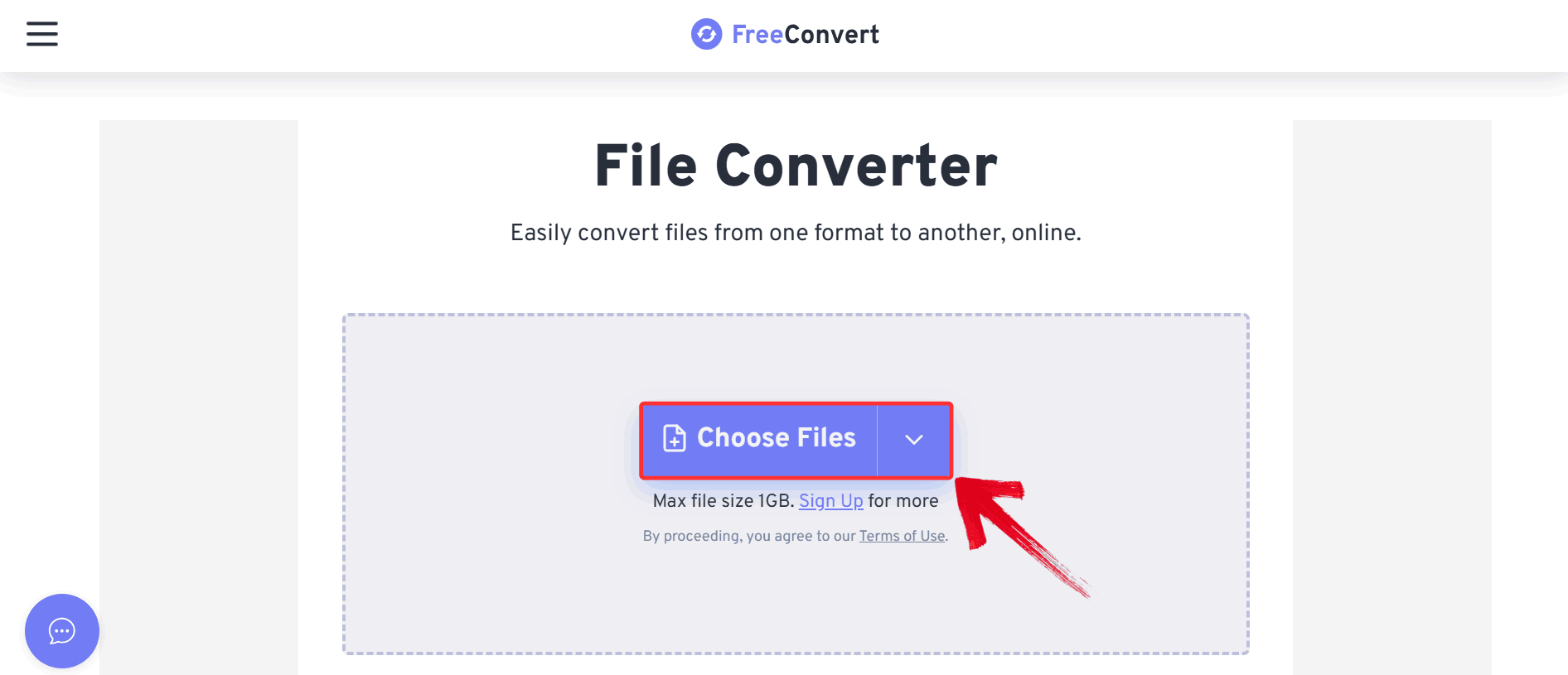
usable HTML without installing software. For example, tools like
FreeConvert’s online converter let you upload a PDF right in your
browser and download the HTML file within minutes. Here’s how to use
it.
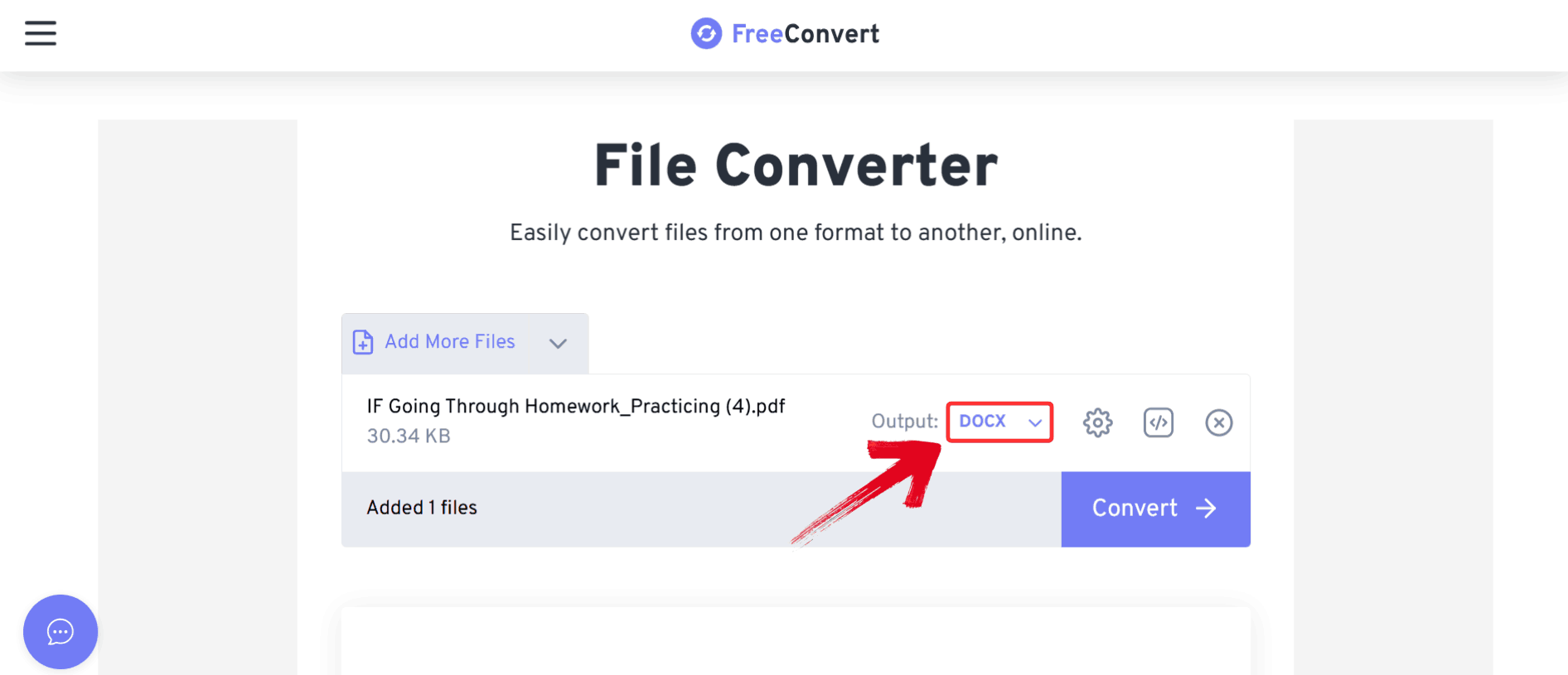
Step 2: Once your file is uploaded, click the option
next to “Output” to open the dropdown menu.
Output
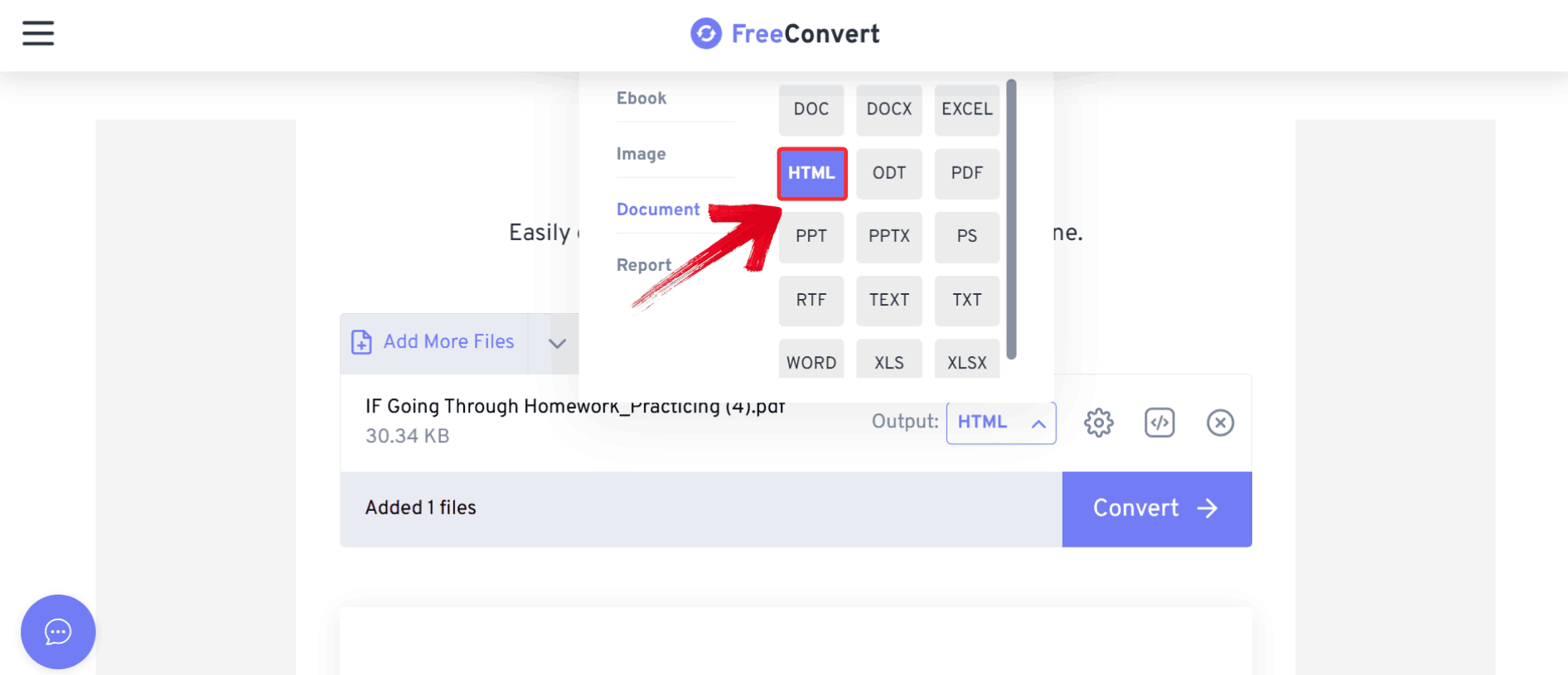
Step 3: From the dropdown menu, select “HTML” as your output format. This tells the converter
to generate a web-ready HTML file instead of another document type.
Select HTML
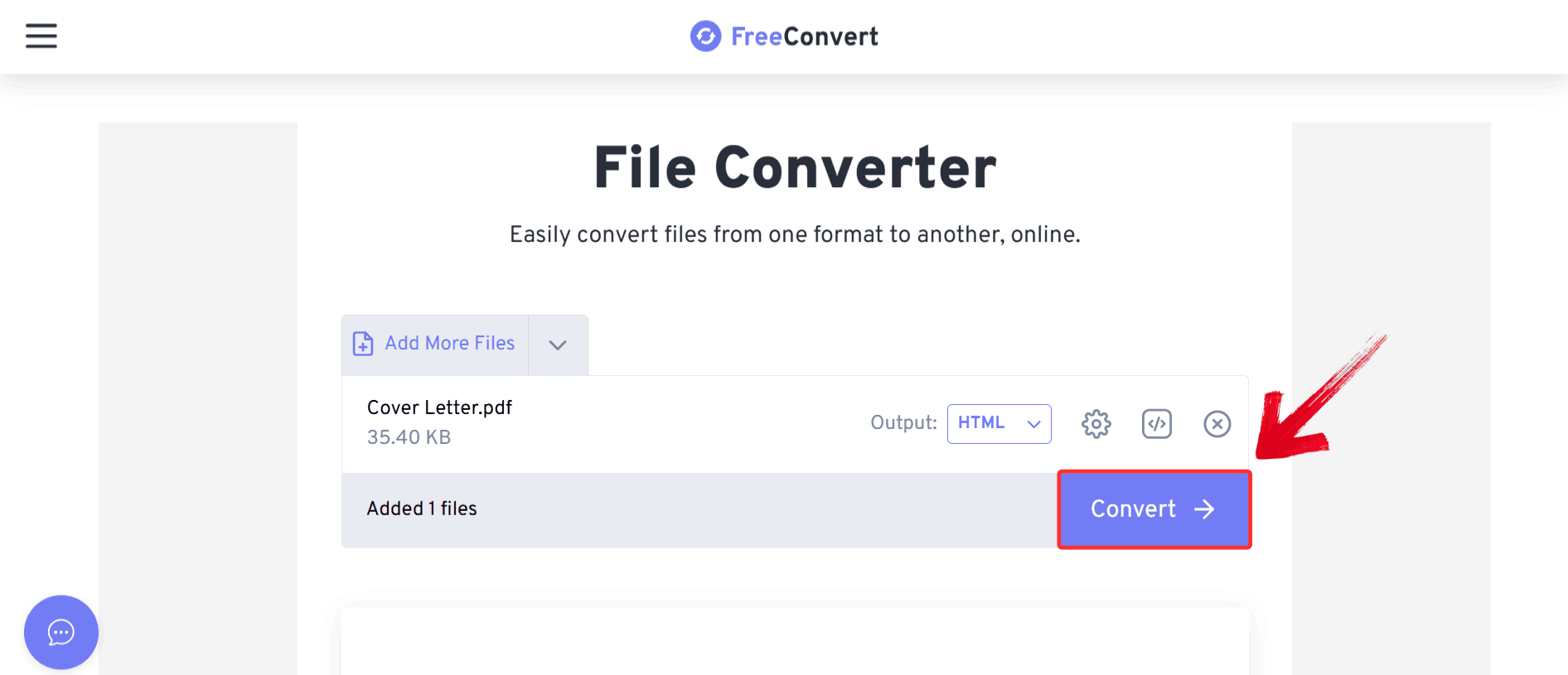
Step 4: Click the blue “Convert” button to start the PDF to HTML conversion.
Convert File
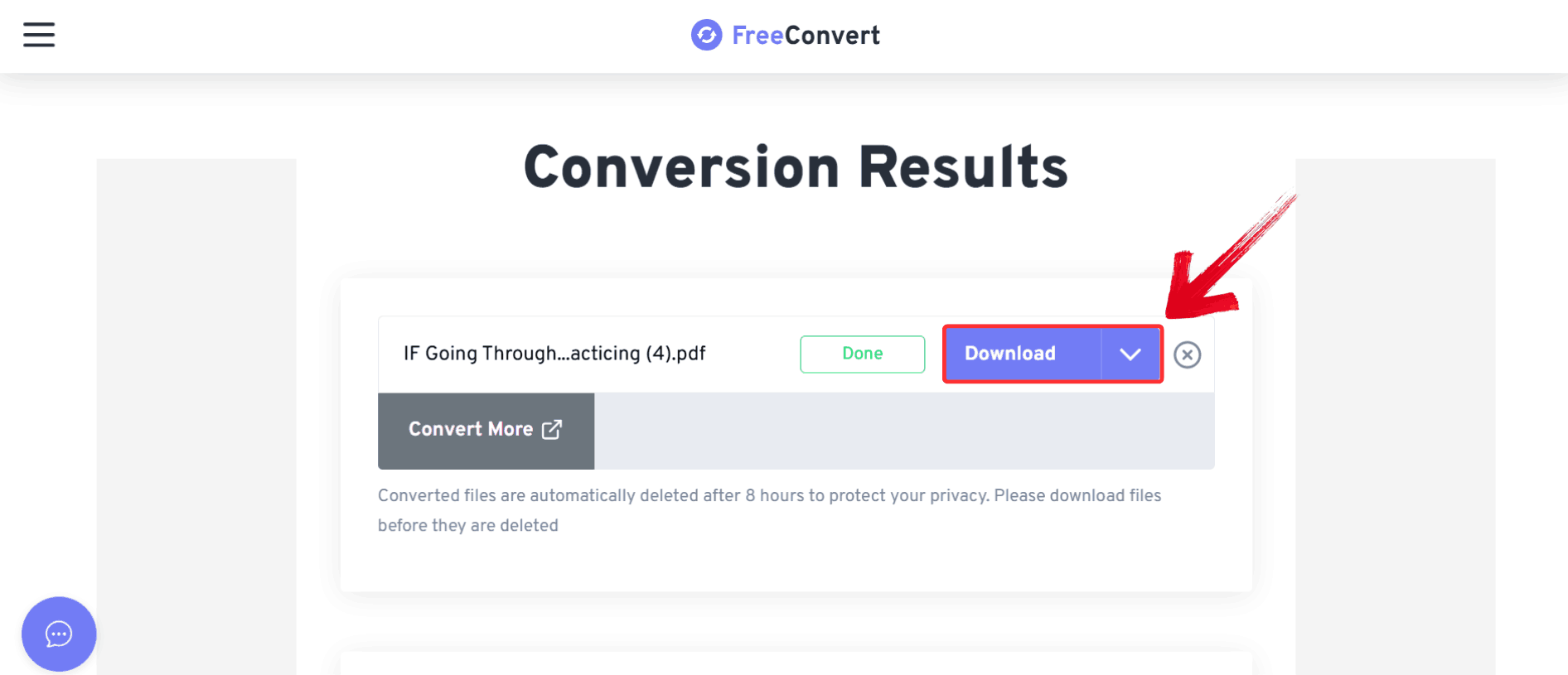
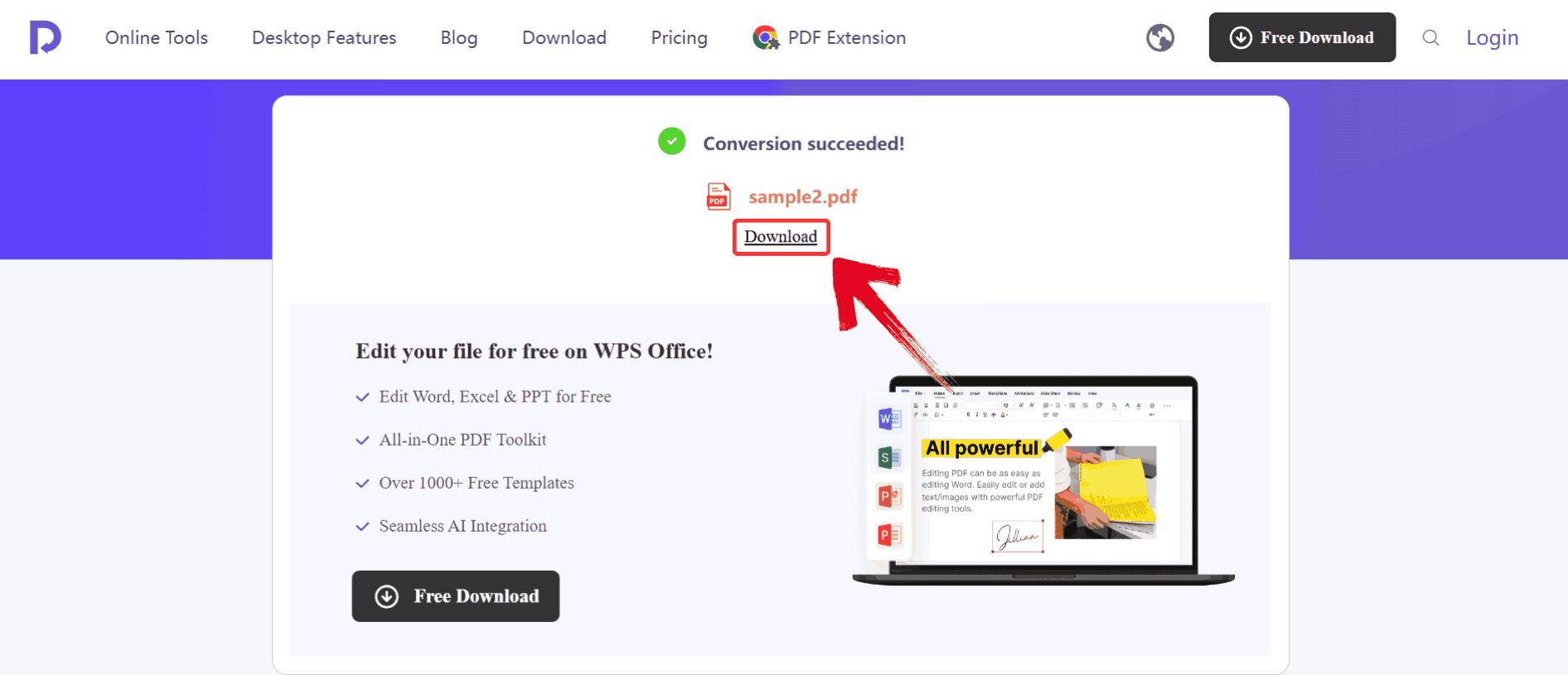
Step 5: Click the blue “Download” button to save the converted HTML file to your device.
Download HTML File
Once you’ve gone through the conversion steps, it becomes clear that
while the process itself is simple, the quality of the final HTML can
vary a lot depending on the tool you use. To help you choose the right
option, let’s take a closer look at how popular online PDF to HTML
converters compare in terms of layout accuracy, ease of use, and overall
output quality.
Tool
Conversion Quality
Layout
Preservation
Features
Xodo PDF to HTML
Moderate
Basic
Free, simple UI
Adobe Acrobat Online
High
Moderate
Requires Adobe account, advanced
editing
FreeConvert
Moderate
Basic
Limited file size
Using online tools is fast and convenient, but they may have
limitations with large files or sensitive documents. For more control
and advanced options, desktop solutions are recommended.
How to Convert
PDF to HTML with Desktop Tools
After using online converters enough times, you will quickly run into
their limits: large files timing out, complex layouts losing CSS details, and inconsistent handling of tables and images.
Compared with desktop tools, the difference is immediate. Applications
like WPS Office give you full control over the conversion process right
from your computer, without relying on an internet connection. In my
experience, WPS’s desktop PDF converter not only handles large and
complex PDFs more reliably but also preserves structural elements like
headings, embedded images, and multi-column text much better than most
browser-based alternatives. Here’s how to convert PDF to HTML using WPS
Office.
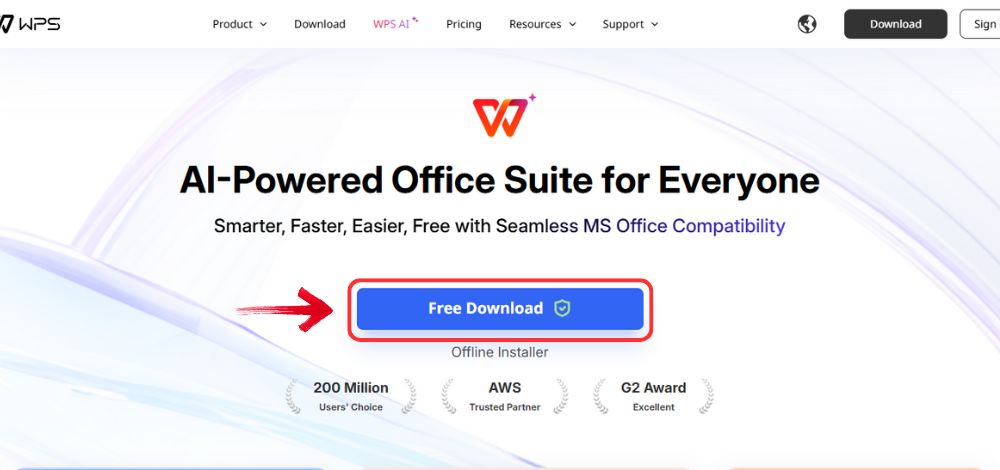
Step 1: Visit the WPS Office website and click the “Free Download” button to start downloading the
software.
Download WPS Office
Step 2: Once the download is complete, open the
installation file just like you would for any other program on your
computer.
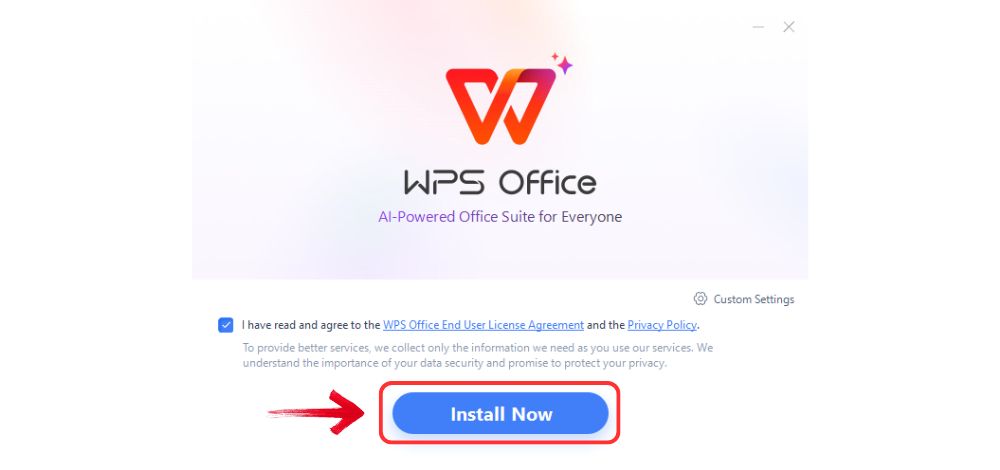
Step 3: Read and accept the terms and conditions,
then click “Install Now” to begin the setup. The
process only takes a few minutes.
Install WPS Office
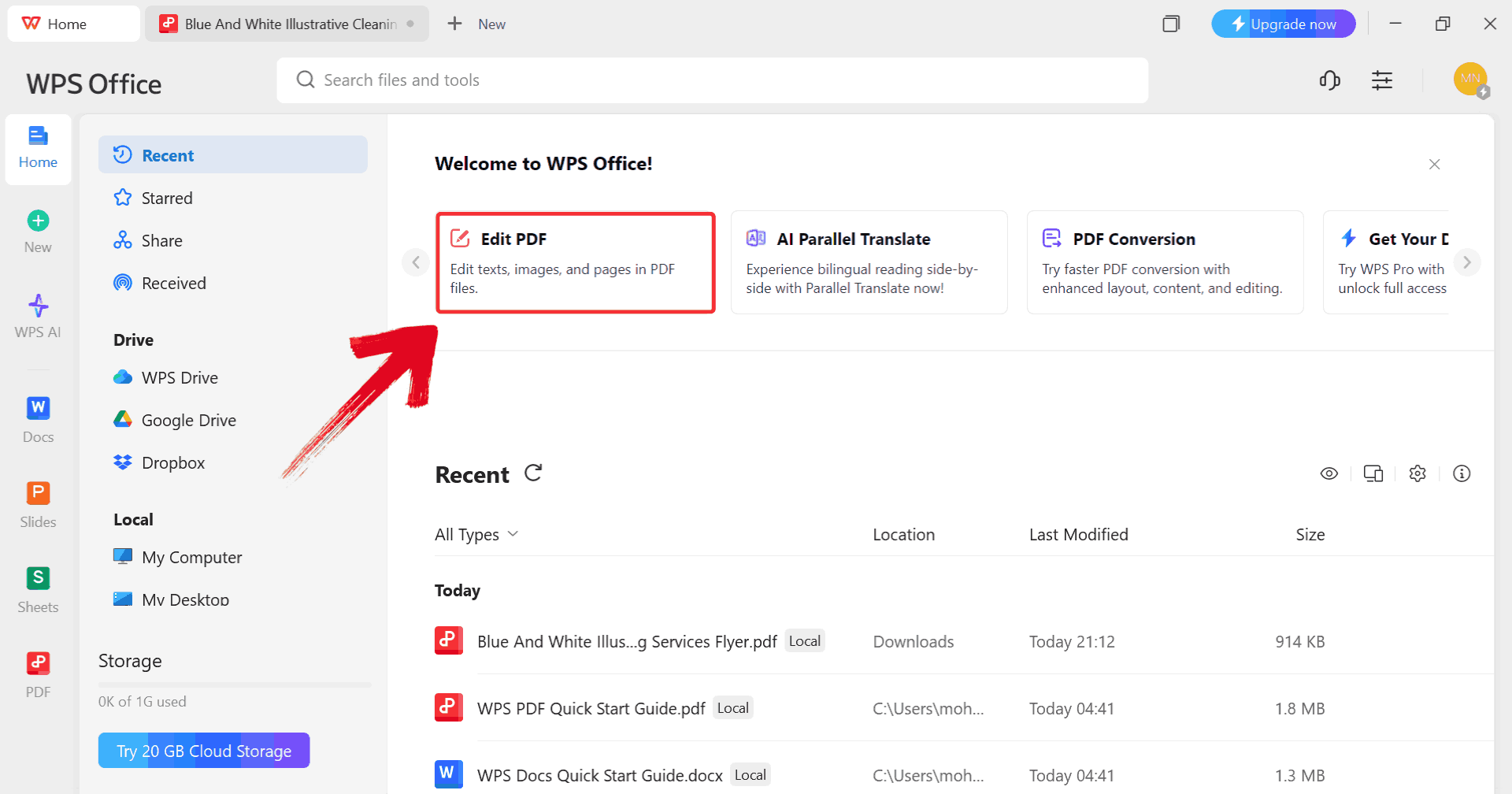
Step 4: Click on “Edit PDF” on the
WPS Office dashboard to import your file.
Click Edit PDF
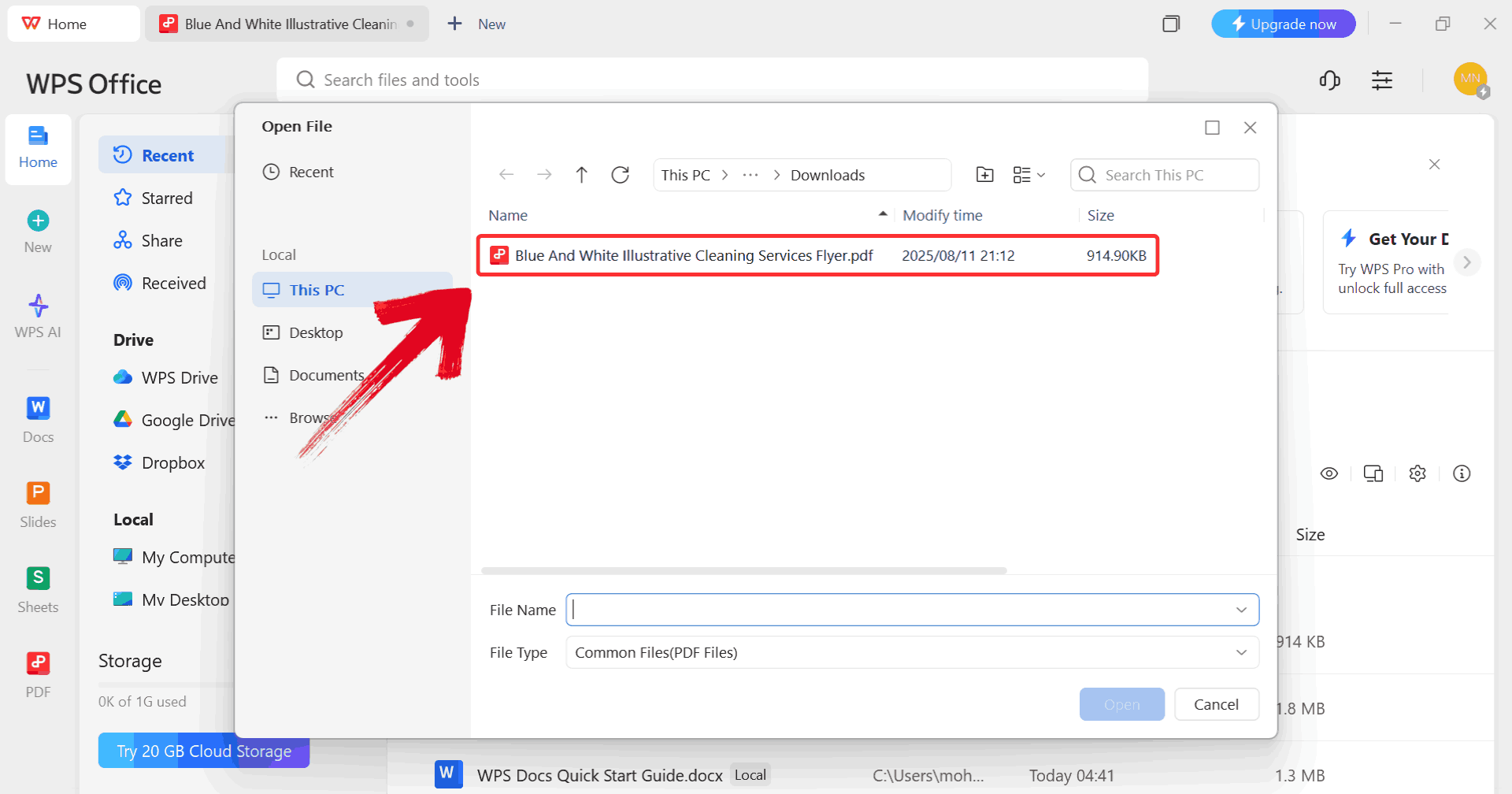
Step 5: When prompted, browse through your computer
and select the PDF file you want to edit.
Select PDF
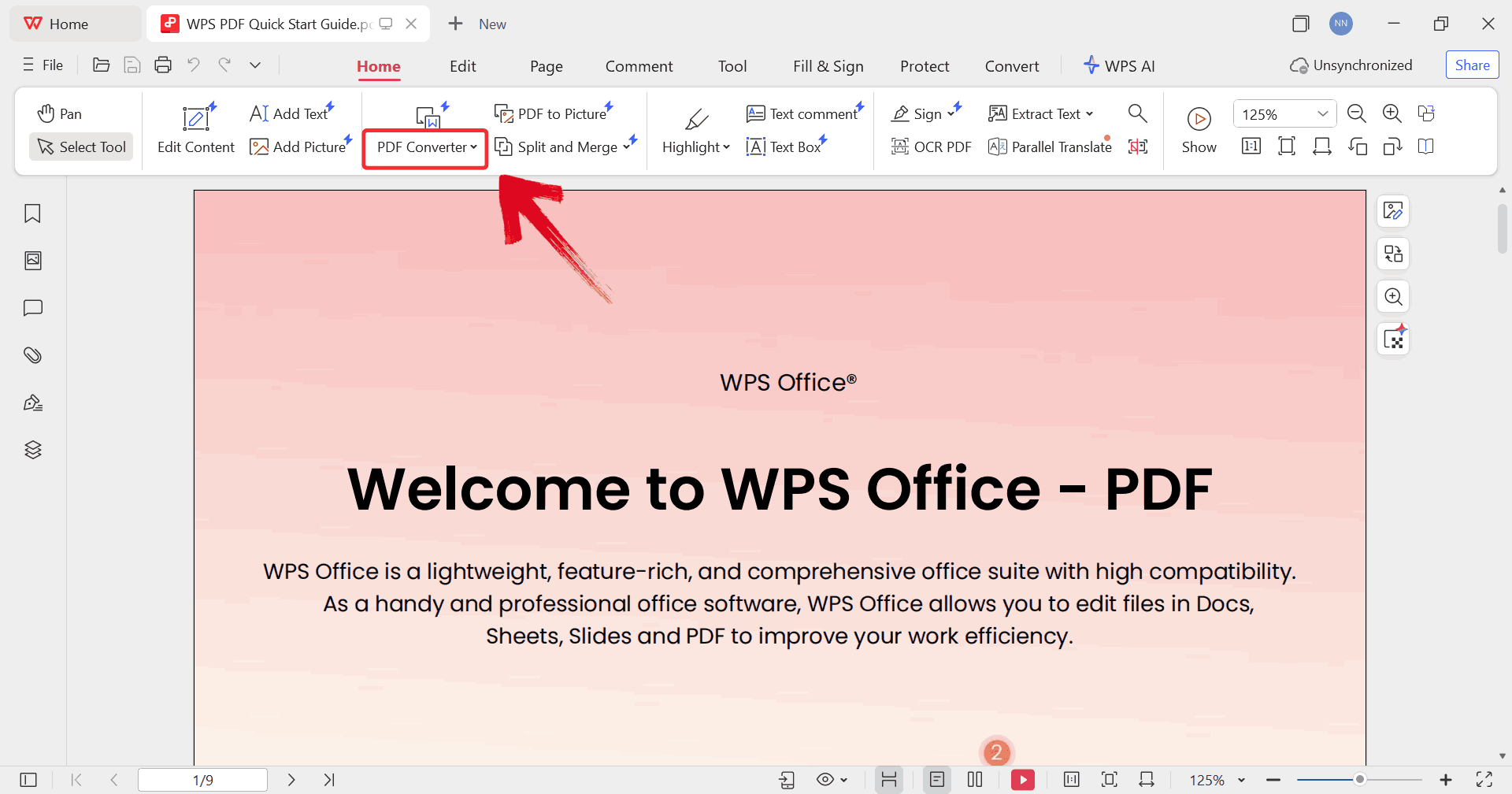
Step 6: Click on “PDF Converter” from the toolbar at the top of the WPS Office interface.
PDF Converter
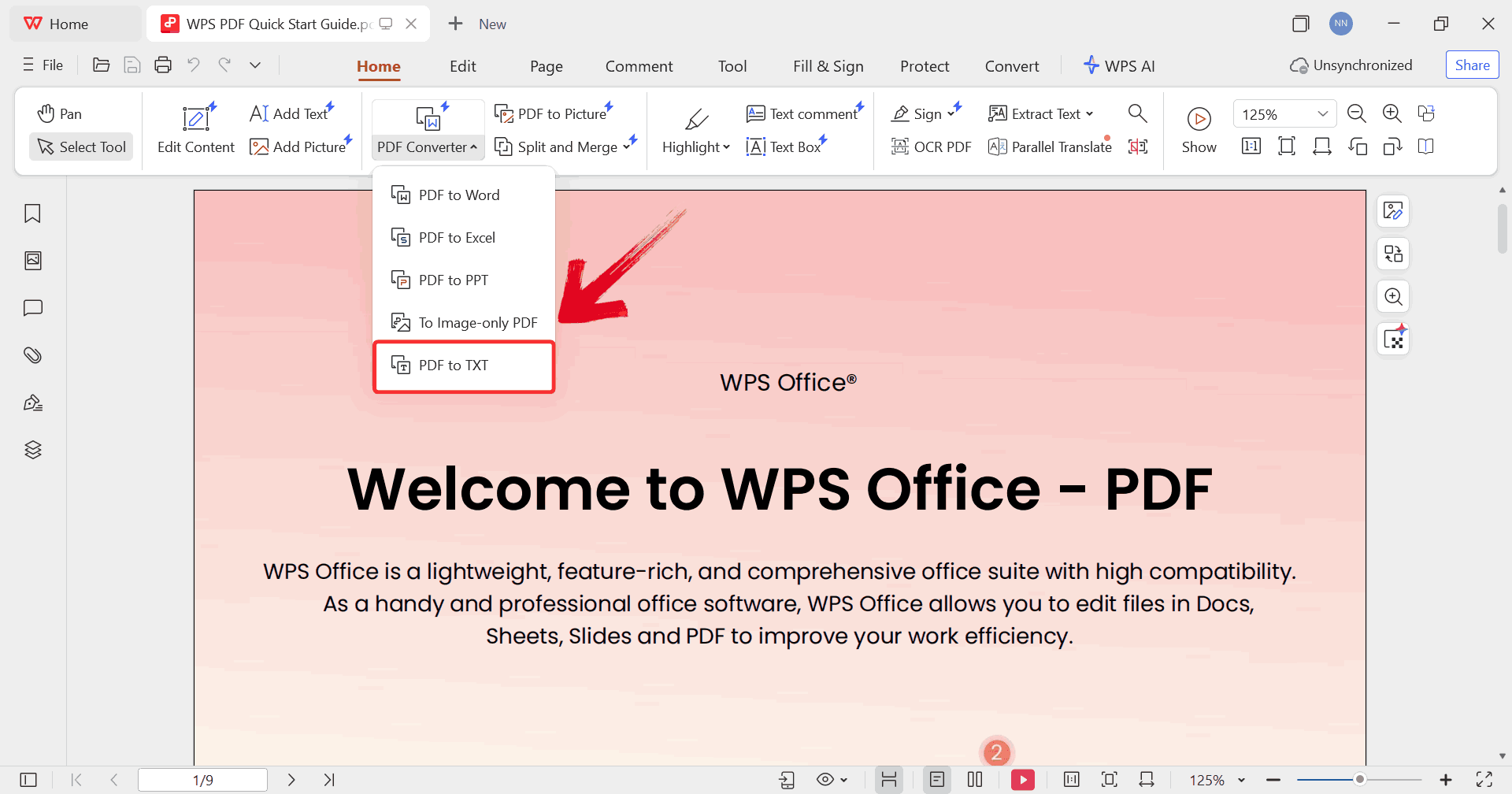
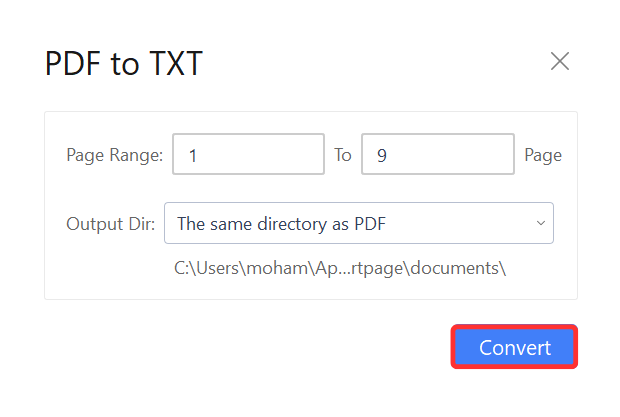
Step 7: From the PDF Converter panel, select “PDF to TXT” as the conversion option.
PDF to TXT
Step 8: Select the directory where you want to save
the converted file, then click the blue “Convert” button. WPS Office will process your PDF and generate a fully formatted
HTML file in the chosen location.
Convert
WPS Office outperforms competitors in preserving CSS and layout
fidelity, ensuring the HTML is ready for immediate web publishing
without manual changes.
From HTML Back to
PDF: Using WPS PDF Tools
Both online converters and desktop software make it straightforward
to turn PDFs into HTML. But in real-world workflows, the process often
goes both ways. Once you’ve edited or published your content in HTML,
whether on a website, CMS, or internal platform, you may need to convert
it back into PDF for sharing, archiving,
or printing. For instance, you might take a PDF report, convert it to
HTML to update content or add web-friendly formatting, and then finalize
it as a PDF for official distribution. In these cases, WPS PDF Tools
provides a simple, browser-based solution to convert HTML back to PDF
quickly and accurately, without requiring any software installation.
Benefits of WPS PDF Tools:
Fully browser-based; no installation required.
Maintains structured layout from HTML content.
Works across devices and operating systems.
Integrated within the WPS document ecosystem for seamless workflow.
With all these advantages in mind, getting acquainted with
HTML-to-PDF conversion is easy. The process is intuitive, even if you’re
new to WPS PDF Tools, and only takes a few seconds to turn your edited
HTML files into professional-quality PDFs. Here’s how you can do it step
by step.
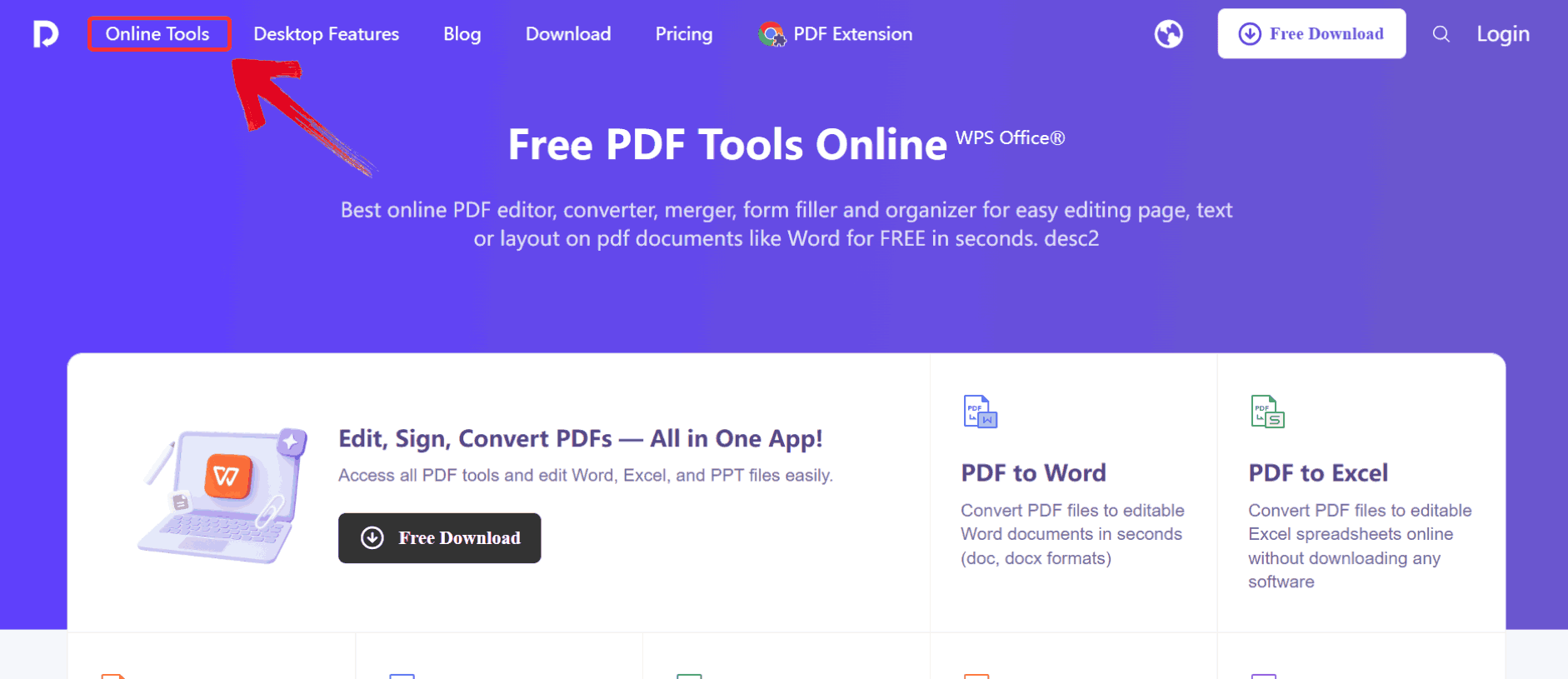
Step 1: Head over to the official WPS PDF website and navigate to
the “Online Tools” section, which lists all the
available PDF features.
Click Online Tools
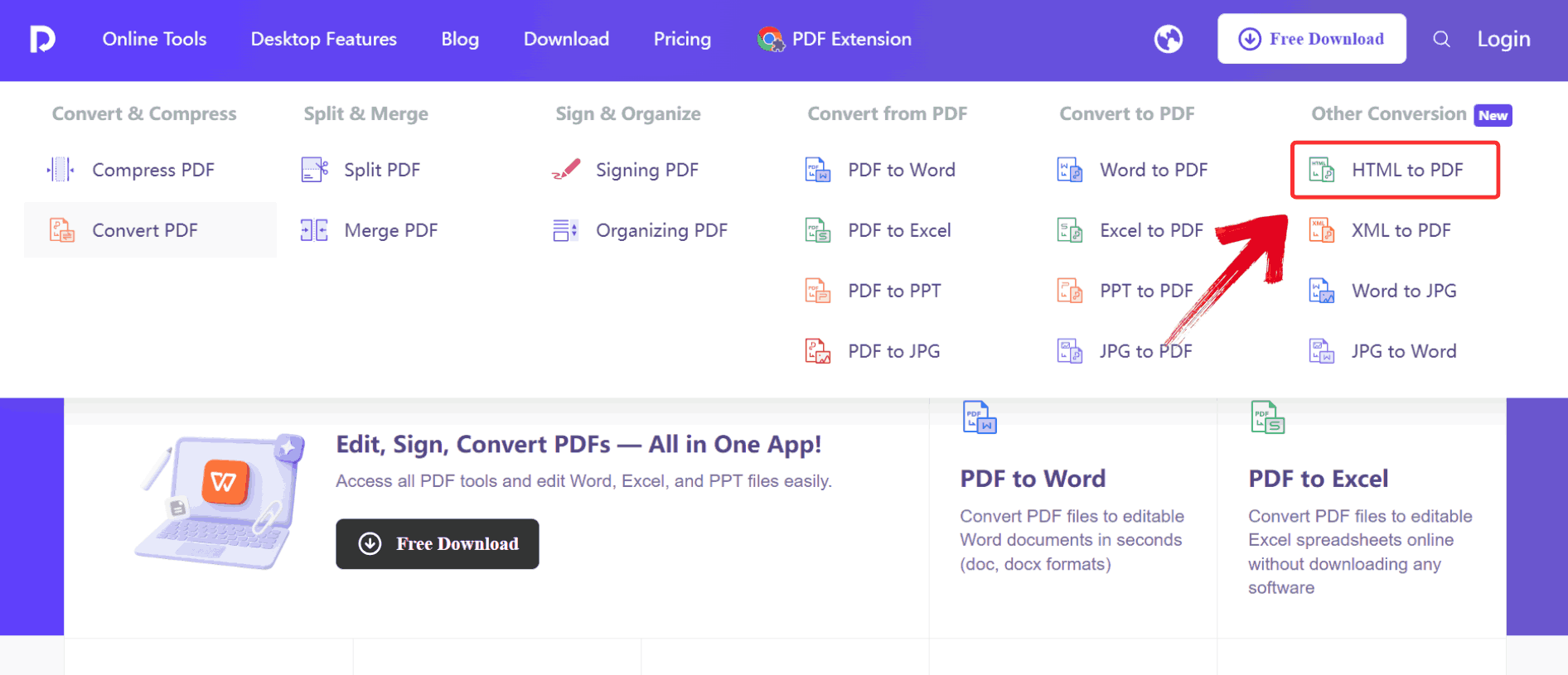
Step 2: Once you’re in the section, browse through
the options and click on “HTML to PDF”.
Click Option
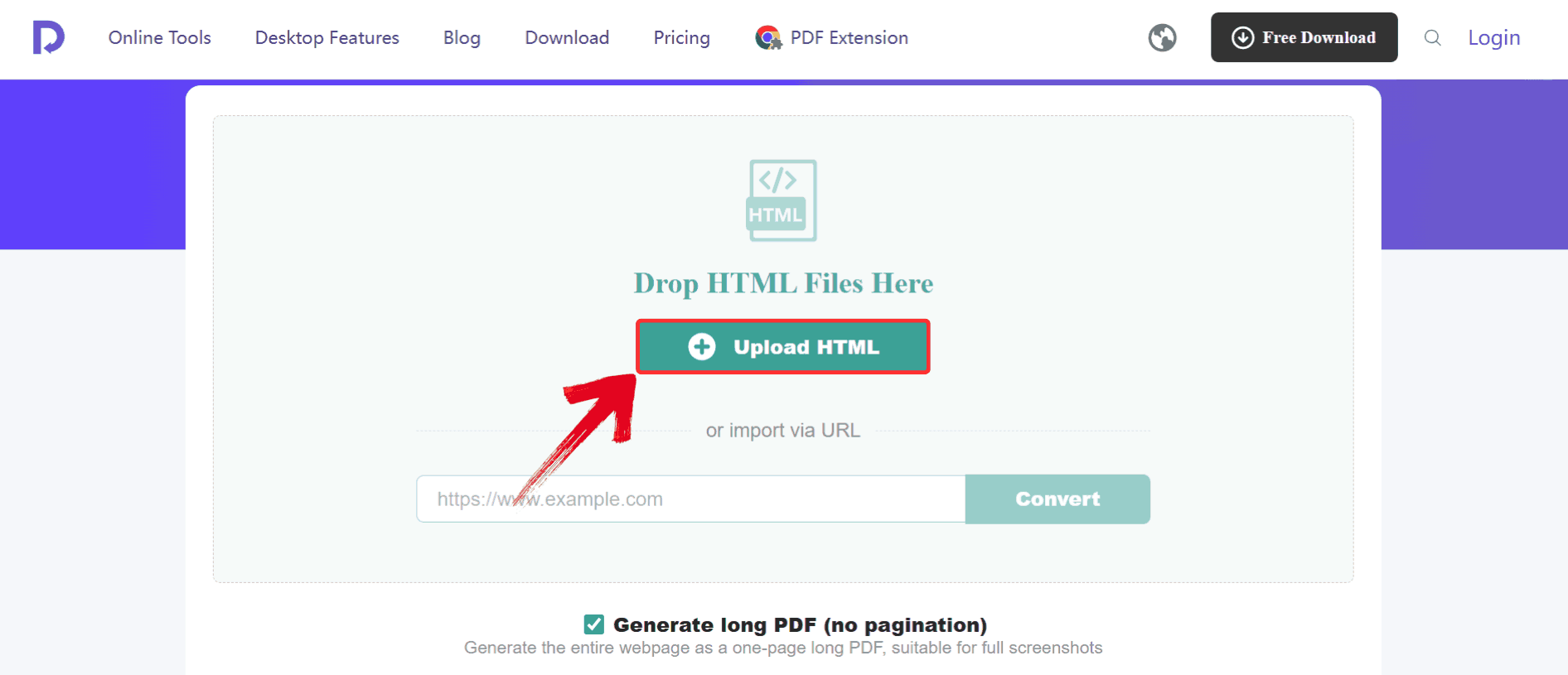
Step 3: On the HTML to PDF converter page, click the “Upload HTML” button. This lets you browse your
computer and choose the HTMLyou want to convert.
Select File from PC
Step 4: Once the conversion is complete, click on “Download” to view your newly created PDF.
Click Download
This approach ensures your documents are ready for print or digital
distribution while preserving the structure of your HTML content.
Why Choose WPS PDF
Tools for PDF to HTML
When it comes to converting PDFs into web-ready HTML, consistency and
precision make all the difference. WPS
PDF Tools distinguishes itself by offering a conversion
environment that keeps your formatting intact while giving you options
to fine-tune output before finalizing it. Unlike basic converters that
often strip styling or misalign tables, WPS lets you control how images,
text blocks, and links are handled, ensuring that the HTML you publish
matches your vision. Beyond single-file conversions, the tool’s
work-friendly interface supports multiple formats, so you can experiment
with different outputs and adapt your documents for websites, blogs, or
internal portals.
WPS PDF Tools
Features
Batch Conversion: Convert multiple PDF files to HTML simultaneously, saving time when working with large document libraries.
Link & Bookmark Preservation: Retains clickable links, bookmarks, and table-of-contents structures for easy navigation in HTML.
Customizable Output: Adjust page layout, image handling, and text formatting before conversion to get the exact HTML structure you need.
Lightweight Interface: Minimal system resources required, so the tool runs smoothly even on older or lower-spec devices.
Cross-Platform Support: Access the conversion tool on Windows, Mac, or via the web without compatibility issues.
Unlike basic online converters, WPS ensures responsive, clean HTML
code suitable for web publishing and SEO, making it ideal for
developers, marketers, and content managers.
100% secure
FAQs
1.
Is it better to use a desktop application or an online converter?
While online tools are convenient for quick, one-off tasks, a desktop
application like WPS Office offers significant advantages. It’s more
secure for sensitive documents, works offline, and provides more
powerful and accurate conversion engines without file size
limitations.
2.
How does the output from a converter differ from manually coding the
page?
A converter automates the process, which is much faster than manual
coding. While a skilled developer can optimize code further, modern
converters like WPS produce clean, structured HTML that is ready for
most web publishing needs.
3. Can I
batch convert multiple PDFs to HTML at once?
Yes. Desktop tools like WPS Office support batch processing, saving
you time when handling multiple documents simultaneously.
4.
Will the converted HTML maintain responsive design for mobile
devices?
Yes. WPS focuses on preserving layout and CSS, ensuring that HTML
files are responsive and accessible across desktops, tablets, and
smartphones.
5. Are WPS PDF Tools free to
use?
WPS offers both free online tools and paid desktop options. The
online version is excellent for small, one-time conversions, while the
desktop app provides advanced features and batch processing for frequent
users.
The Conversion Corner
To convert PDF to HTML is an essential skill for web developers, content managers, and marketers who want to make static documents accessible, searchable, and responsive online. Online converters like Xodo, Adobe Acrobat, and FreeConvert provide fast, convenient options, but desktop tools like WPS Office offer superior quality, offline capability, and advanced features.
If you want your HTML to look just like the original PDF, with all the styles, tables, and layouts intact, WPS PDF Tools is a reliable choice. It handles both directions, turning PDFs into HTML and turning edited HTML back into PDFs, without losing structure or formatting. On top of that, WPS isn’t limited to just one type of conversion; you can also go from PDF to Word, PDF to Excel, or try other formats, making it a versatile tool for anyone who works with documents regularly.
7+ years in productivity tech. I test and review the latest tools to simplify your workflow. Follow for honest app comparisons, practical guides, and curated tech picks to boost efficiency.


'%3e%3cpath%20d='M8%200C12.4183%200%2016%203.58172%2016%208C16%2012.4183%2012.4183%2016%208%2016C3.58172%2016%200%2012.4183%200%208C0%203.58172%203.58172%200%208%200ZM11.6162%204.38379C11.2257%203.99337%2010.5927%203.99338%2010.2021%204.38379L8%206.58594L5.79785%204.38379C5.40732%203.99334%204.77429%203.99329%204.38379%204.38379C3.99331%204.77429%203.99335%205.40733%204.38379%205.79785L6.58594%208L4.38379%2010.2021C3.99348%2010.5927%203.99341%2011.2257%204.38379%2011.6162C4.77426%2012.0066%205.40734%2012.0065%205.79785%2011.6162L8%209.41406L10.2021%2011.6162C10.5927%2012.0066%2011.2257%2012.0067%2011.6162%2011.6162C12.0067%2011.2257%2012.0066%2010.5927%2011.6162%2010.2021L9.41406%208L11.6162%205.79785C12.0066%205.40735%2012.0066%204.77429%2011.6162%204.38379Z'%20fill='%23080E17'%20fill-opacity='0.46'/%3e%3c/g%3e%3cdefs%3e%3cclipPath%20id='clip0_3761_713'%3e%3crect%20width='16'%20height='16'%20fill='white'/%3e%3c/clipPath%3e%3c/defs%3e%3c/svg%3e)




'%3e%3cpath%20fill-rule='evenodd'%20clip-rule='evenodd'%20d='M21.4999%2010.9993C21.4999%205.20009%2016.7986%200.498901%2010.9993%200.498901C5.19994%200.498901%200.498657%205.20009%200.498657%2010.9993C0.498657%2016.2404%204.33858%2020.5844%209.35855%2021.3722V14.0346H6.69238V10.9993H9.35855V8.68594C9.35855%206.05427%2010.9262%204.60062%2013.3248%204.60062C14.4736%204.60062%2015.6753%204.80571%2015.6753%204.80571V7.38979H14.3512C13.0468%207.38979%2012.64%208.19921%2012.64%209.0296V10.9993H15.5523L15.0867%2014.0346H12.64V21.3722C17.66%2020.5844%2021.4999%2016.2404%2021.4999%2010.9993Z'%20fill='%231568EA'/%3e%3c/g%3e%3c/svg%3e)


'%3e%3cpath%20d='M2.42045%2022.1876H6.31818V12.7217L0.75%208.54553V20.5171C0.75%2021.4414%201.49892%2022.1876%202.42045%2022.1876Z'%20fill='%234285F4'/%3e%3cpath%20d='M19.682%2022.1876H23.5797C24.5041%2022.1876%2025.2502%2021.4387%2025.2502%2020.5171V8.54553L19.682%2012.7217'%20fill='%2334A853'/%3e%3cpath%20d='M19.682%205.48293V12.7216L25.2502%208.54543V6.31816C25.2502%204.25236%2022.8921%203.07469%2021.2411%204.31361'%20fill='%23FBBC04'/%3e%3cpath%20d='M6.31824%2012.7217V5.48303L13.0001%2010.4944L19.6819%205.48303V12.7217L13.0001%2017.733'%20fill='%23EA4335'/%3e%3cpath%20d='M0.75%206.31816V8.54543L6.31818%2012.7216V5.48293L4.75909%204.31361C3.10534%203.07469%200.75%204.25236%200.75%206.31816Z'%20fill='%23C5221F'/%3e%3c/g%3e%3cdefs%3e%3cclipPath%20id='clip0_2954_7305'%3e%3crect%20width='24.5'%20height='18.375'%20fill='white'%20transform='translate(0.75%203.8125)'/%3e%3c/clipPath%3e%3c/defs%3e%3c/svg%3e)



'%3e%3cpath%20d='M19.9911%204.11386V6.471H18.5894C18.0775%206.471%2017.7322%206.57814%2017.5536%206.79243C17.3751%207.00671%2017.2858%207.32814%2017.2858%207.75671V9.44421H19.9019L19.5536%2012.0871H17.2858V18.8639H14.5536V12.0871H12.2769V9.44421H14.5536V7.49779C14.5536%206.39064%2014.8632%205.53201%2015.4822%204.92189C16.1013%204.31177%2016.9257%204.00671%2017.9554%204.00671C18.8304%204.00671%2019.509%204.04243%2019.9911%204.11386Z'%20fill='%23333333'/%3e%3c/g%3e%3cdefs%3e%3cclipPath%20id='clip0_2938_8199'%3e%3crect%20width='16'%20height='16'%20fill='white'%20transform='translate(8%204.00671)'/%3e%3c/clipPath%3e%3c/defs%3e%3c/svg%3e)
'%3e%3cpath%20d='M17.5237%2010.7813L23.4811%204H22.0699L16.8949%209.88693L12.7648%204H8L14.2469%2012.9029L8%2020.0133H9.4112L14.8725%2013.7952L19.2352%2020.0133H24M9.92053%205.04213H12.0885L22.0688%2019.0224H19.9003'%20fill='%23333333'/%3e%3c/g%3e%3cdefs%3e%3cclipPath%20id='clip0_2938_8200'%3e%3crect%20width='16'%20height='16.0134'%20fill='white'%20transform='translate(8%204)'/%3e%3c/clipPath%3e%3c/defs%3e%3c/svg%3e)


