

'%3e%3cpath%20d='M8%200C12.4183%200%2016%203.58172%2016%208C16%2012.4183%2012.4183%2016%208%2016C3.58172%2016%200%2012.4183%200%208C0%203.58172%203.58172%200%208%200ZM11.6162%204.38379C11.2257%203.99337%2010.5927%203.99338%2010.2021%204.38379L8%206.58594L5.79785%204.38379C5.40732%203.99334%204.77429%203.99329%204.38379%204.38379C3.99331%204.77429%203.99335%205.40733%204.38379%205.79785L6.58594%208L4.38379%2010.2021C3.99348%2010.5927%203.99341%2011.2257%204.38379%2011.6162C4.77426%2012.0066%205.40734%2012.0065%205.79785%2011.6162L8%209.41406L10.2021%2011.6162C10.5927%2012.0066%2011.2257%2012.0067%2011.6162%2011.6162C12.0067%2011.2257%2012.0066%2010.5927%2011.6162%2010.2021L9.41406%208L11.6162%205.79785C12.0066%205.40735%2012.0066%204.77429%2011.6162%204.38379Z'%20fill='%23080E17'%20fill-opacity='0.46'/%3e%3c/g%3e%3cdefs%3e%3cclipPath%20id='clip0_3761_713'%3e%3crect%20width='16'%20height='16'%20fill='white'/%3e%3c/clipPath%3e%3c/defs%3e%3c/svg%3e)




'%3e%3cpath%20fill-rule='evenodd'%20clip-rule='evenodd'%20d='M21.4999%2010.9993C21.4999%205.20009%2016.7986%200.498901%2010.9993%200.498901C5.19994%200.498901%200.498657%205.20009%200.498657%2010.9993C0.498657%2016.2404%204.33858%2020.5844%209.35855%2021.3722V14.0346H6.69238V10.9993H9.35855V8.68594C9.35855%206.05427%2010.9262%204.60062%2013.3248%204.60062C14.4736%204.60062%2015.6753%204.80571%2015.6753%204.80571V7.38979H14.3512C13.0468%207.38979%2012.64%208.19921%2012.64%209.0296V10.9993H15.5523L15.0867%2014.0346H12.64V21.3722C17.66%2020.5844%2021.4999%2016.2404%2021.4999%2010.9993Z'%20fill='%231568EA'/%3e%3c/g%3e%3c/svg%3e)


'%3e%3cpath%20d='M2.42045%2022.1876H6.31818V12.7217L0.75%208.54553V20.5171C0.75%2021.4414%201.49892%2022.1876%202.42045%2022.1876Z'%20fill='%234285F4'/%3e%3cpath%20d='M19.682%2022.1876H23.5797C24.5041%2022.1876%2025.2502%2021.4387%2025.2502%2020.5171V8.54553L19.682%2012.7217'%20fill='%2334A853'/%3e%3cpath%20d='M19.682%205.48293V12.7216L25.2502%208.54543V6.31816C25.2502%204.25236%2022.8921%203.07469%2021.2411%204.31361'%20fill='%23FBBC04'/%3e%3cpath%20d='M6.31824%2012.7217V5.48303L13.0001%2010.4944L19.6819%205.48303V12.7217L13.0001%2017.733'%20fill='%23EA4335'/%3e%3cpath%20d='M0.75%206.31816V8.54543L6.31818%2012.7216V5.48293L4.75909%204.31361C3.10534%203.07469%200.75%204.25236%200.75%206.31816Z'%20fill='%23C5221F'/%3e%3c/g%3e%3cdefs%3e%3cclipPath%20id='clip0_2954_7305'%3e%3crect%20width='24.5'%20height='18.375'%20fill='white'%20transform='translate(0.75%203.8125)'/%3e%3c/clipPath%3e%3c/defs%3e%3c/svg%3e)


Converting a PDF to audio always takes two steps, because a PDF stores text and page layout instead of sound: you pull the text out, then a speech engine reads it aloud. The fastest free route is a browser reader that starts playing in seconds, followed by WPS PDF Read Aloud when you want to listen without leaving your desktop app.
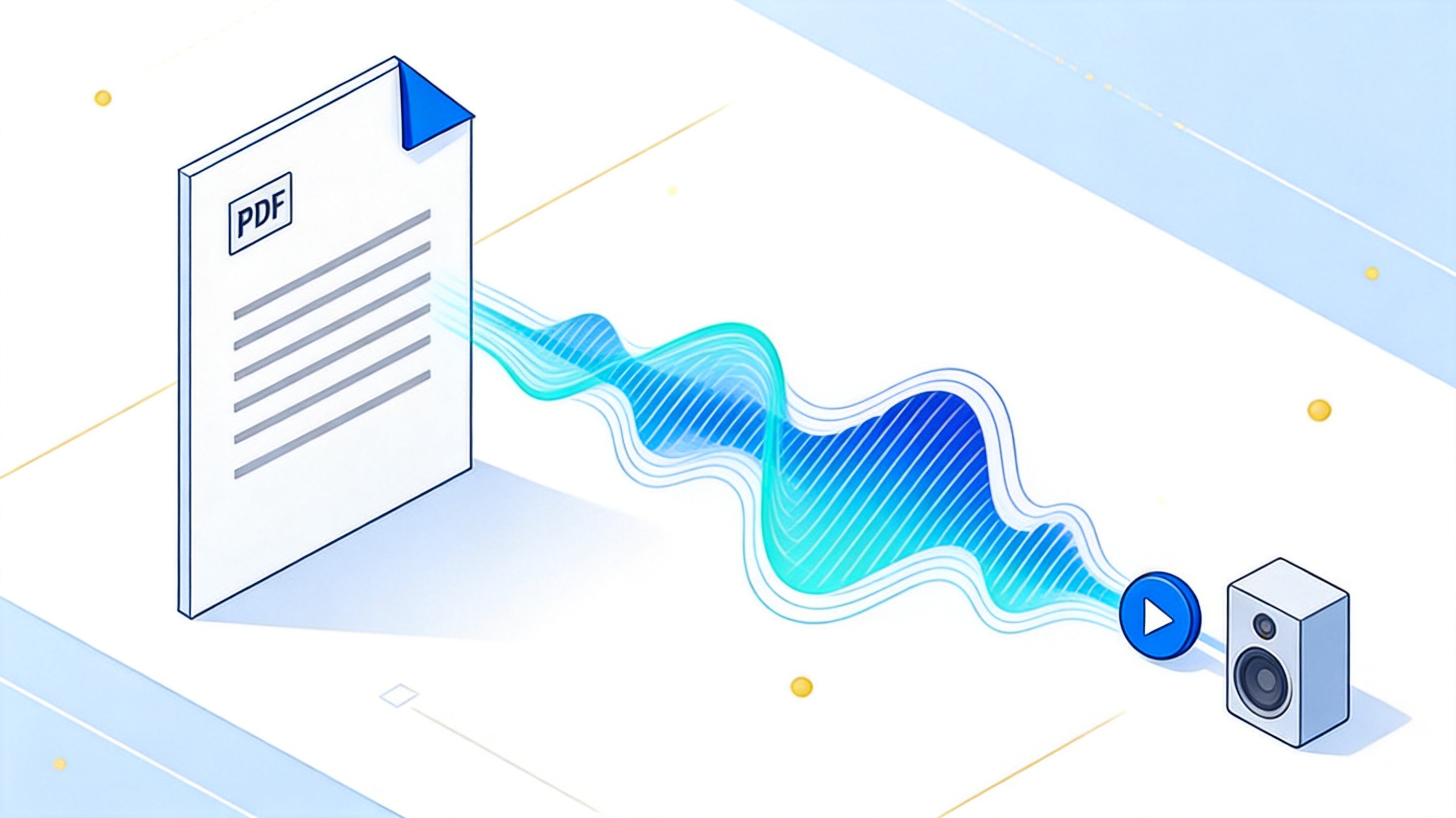
How to Convert PDF to Audio: Free Read-Aloud and MP3 Methods
Read a PDF Aloud in Your Browser (Fastest Free PDF to Audio Method)
A browser reader needs no installation, and when it processes the file locally the document never leaves your computer. Text PDFs begin playing almost immediately, and most readers add a speed control plus an export button for the audio.
Open a browser PDF to audio reader. Tools such as SpeechGen or Kingy Document to Audio run in the tab and need no account.
Drop the PDF in and check that text was found. The words appear straight away for a text PDF; an empty box means the file is a scan.
Choose a voice and a speed. Around 1.25x to 1.5x is a comfortable pace for reports and manual reading.
Listen, or export MP3 or WAV. Export is the only difference between a listening session and a file you can keep.
Free tiers differ, so test with a short document first: some readers export audio without an account while others reserve long files or download access for a paid plan. Confirm the export works before you queue up a three-hundred-page report.
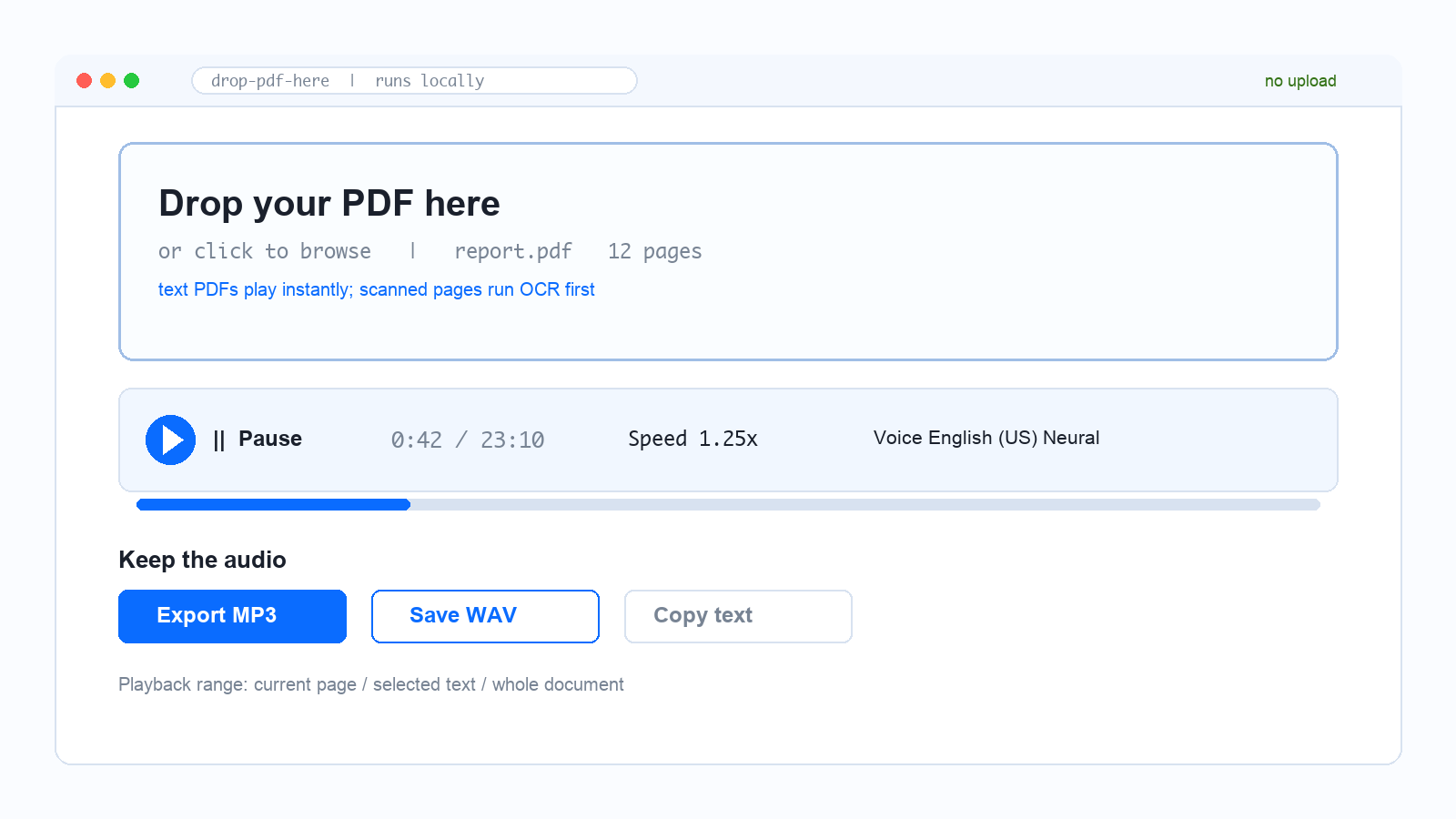
Browser PDF to audio reader


Turn a Scanned PDF into Audio with OCR First
A scanned PDF is a stack of page images, so there is no text for a speech engine to find. That is why read aloud can stay silent, jump to the end, or report that no readable text was detected. Optical character recognition adds a text layer on top of the scan, and everything you hear afterwards comes from that layer.
Open the scan in WPS PDF and run OCR. Choose Tools, then Extract Text, to recognise the pages and build a searchable document.
Check a difficult paragraph. Zoom in and select text; if characters come out as symbols, re-scan at 300 dpi or crop the page margins and run OCR again.
Read aloud or export as normal. The recognised text behaves like any other PDF text, so every method in this guide now works.
OCR quality decides audio quality. A clean 300 dpi scan with straight pages produces narration you can listen to for an hour, while a skewed phone photo of a printed page often misreads numbers and names, so spot check the first pages before trusting the whole recording. WPS also offers a free OCR tool and a dedicated extract text from PDF workflow if you prefer to recognise the pages before opening them in a reader.
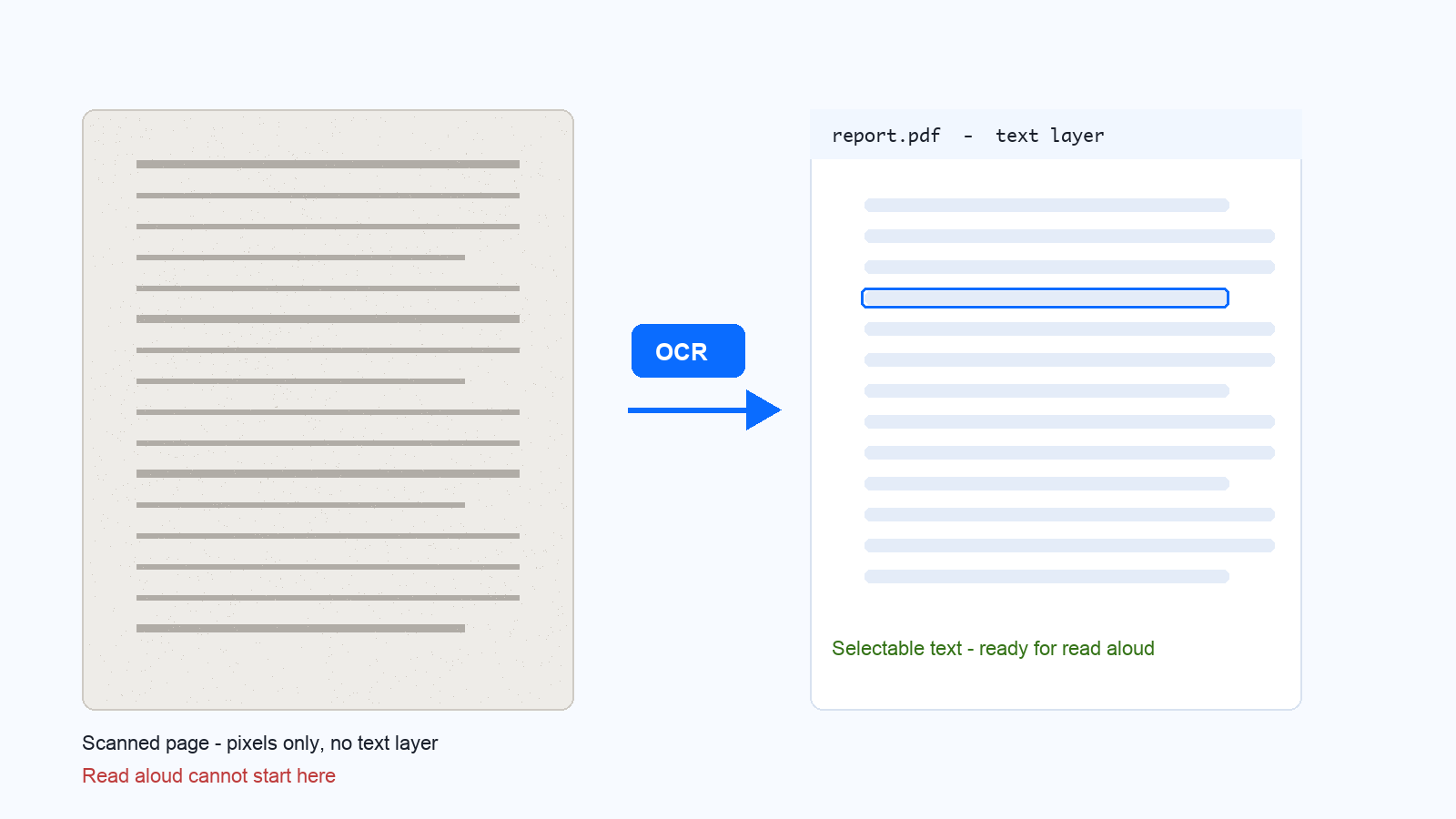
Scanned PDF converted to text layer
Listen to Any PDF with WPS PDF Read Aloud
WPS PDF includes a read-aloud engine, so a document that already has a text layer can be listened to without converting it to MP3 first. Open the PDF, go to the Start menu, click the arrow under Read Aloud and pick Entire Document, Current Page, or Selected Text.
Speed, pitch and volume are adjustable from the reading toolbar while the document keeps playing, so you can slow down a dense section and rush through an appendix.
Pause, resume and stop stay available in the toolbar; clicking Read Aloud again stops the narration.
Follow along on screen. The sentence being spoken is highlighted, which makes listening a real proofreading method rather than a distraction.
Background playback lets WPS 365 business plans keep narrating while you work in other windows or listen on headphones.
Read aloud is the quickest option for long reports, contract review or any moment when your eyes are busy, and it keeps confidential documents on your own machine. What it does not do is write an audio file, so if the goal is an MP3 you can carry, use the export route in the next section.
WPS PDF read aloud toolbar
Convert PDF to Audio as MP3 or WAV When You Need a File
Read aloud plays text, it does not package it. Turning a PDF into a downloadable audio file always adds a text-to-speech step that can render sound and save it, and there are three practical routes.
Your operating system. macOS ships the
saycommand, which renders a text file straight to audio; Windows Read Aloud cannot export, so record the session with Xbox Game Bar and keep the audio track instead.A cloud text-to-speech engine. Google Cloud Text-to-Speech, Azure Speech and ElevenLabs produce near-human narration, bill per character, and let you split a long book into chapter files.
A browser reader with export. The simplest option: paste the text, pick a voice, and save MP3 or WAV, provided the free tier allows the length you need.
say -f report.txt -o report.aiffThat single command on a Mac turns an extracted text file into audio you can convert to MP3, and it proves the whole idea: extraction plus speech synthesis, nothing more. Budget time as well as money. Narration runs at roughly 150 words per minute, so a 15,000-word report becomes about 100 minutes of audio, and a full book can run for many hours.
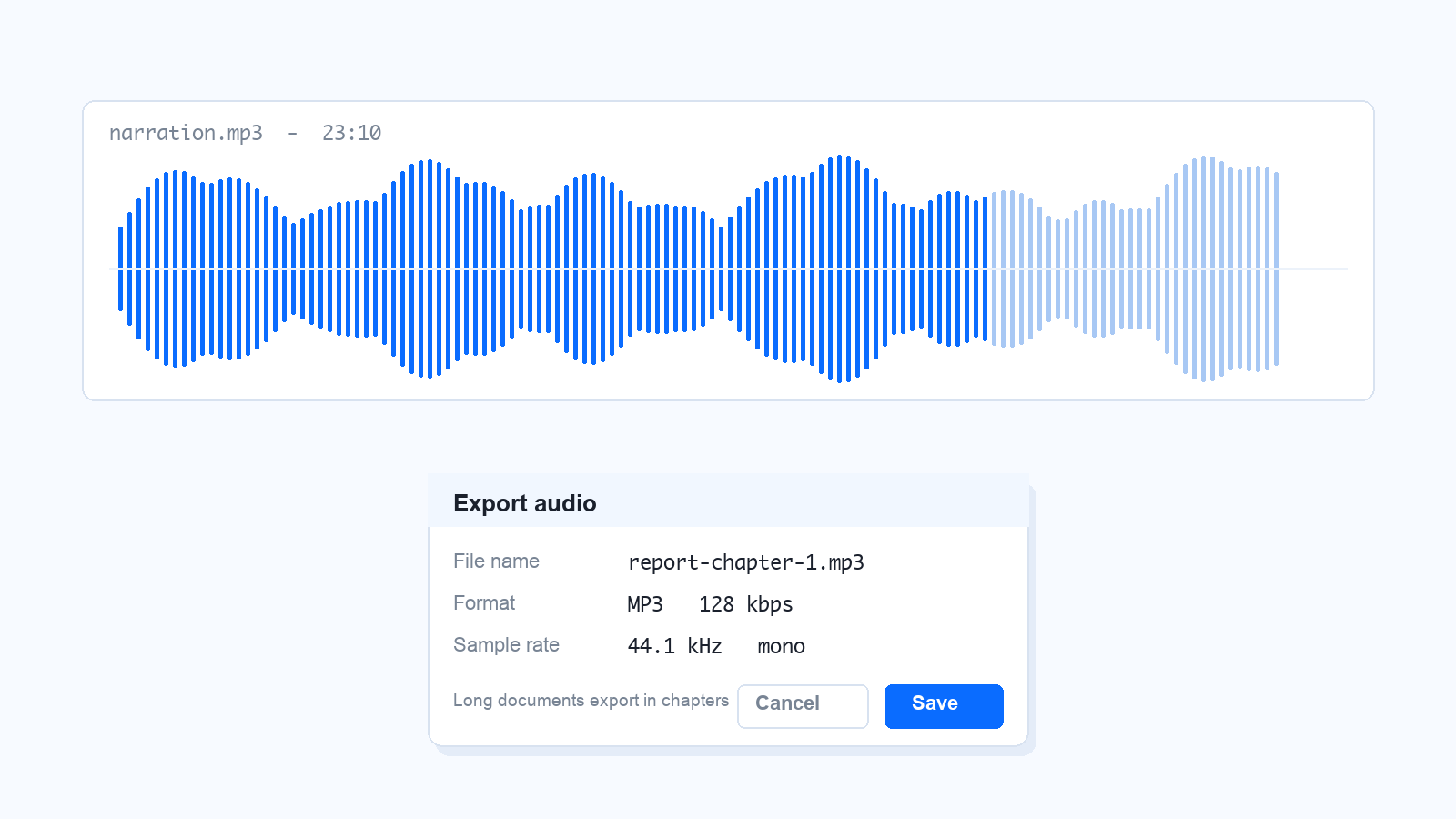
MP3 export dialog with audio settings
Pick the Right PDF to Audio Method for Your Use Case
A quick listen, no file needed: use WPS PDF Read Aloud or a browser reader.
A scanned document or a photo of a page: run OCR first, then read aloud or export.
An MP3 or audiobook you want to keep: use a text-to-speech engine with export and split long documents by chapter.
Confidential or offline material: stay on the desktop and avoid upload-based converters.
Hundreds of files: script it, extracting text with a command-line tool and feeding a local or cloud speech engine.
Whatever you choose, check two things. First, accuracy: voices mispronounce names, units, numbers and formulas, so listen to the opening minutes before trusting an hour of narration. Second, rights: narrating a document you own for personal listening is one thing, publishing or distributing that audio is another.
The Best Free Alternative: WPS Office
Read-aloud tools stop where the document starts, and WPS Office covers the rest of the job in one free app. WPS PDF opens the same file you just listened to and lets you edit the text, add a signature, compress or split pages, and convert the PDF to Word, Excel or PowerPoint, with OCR for the scans that read aloud could not touch. It runs on Windows, macOS, Android and iOS, so the document you listened to on the train opens on your desk without a single conversion.
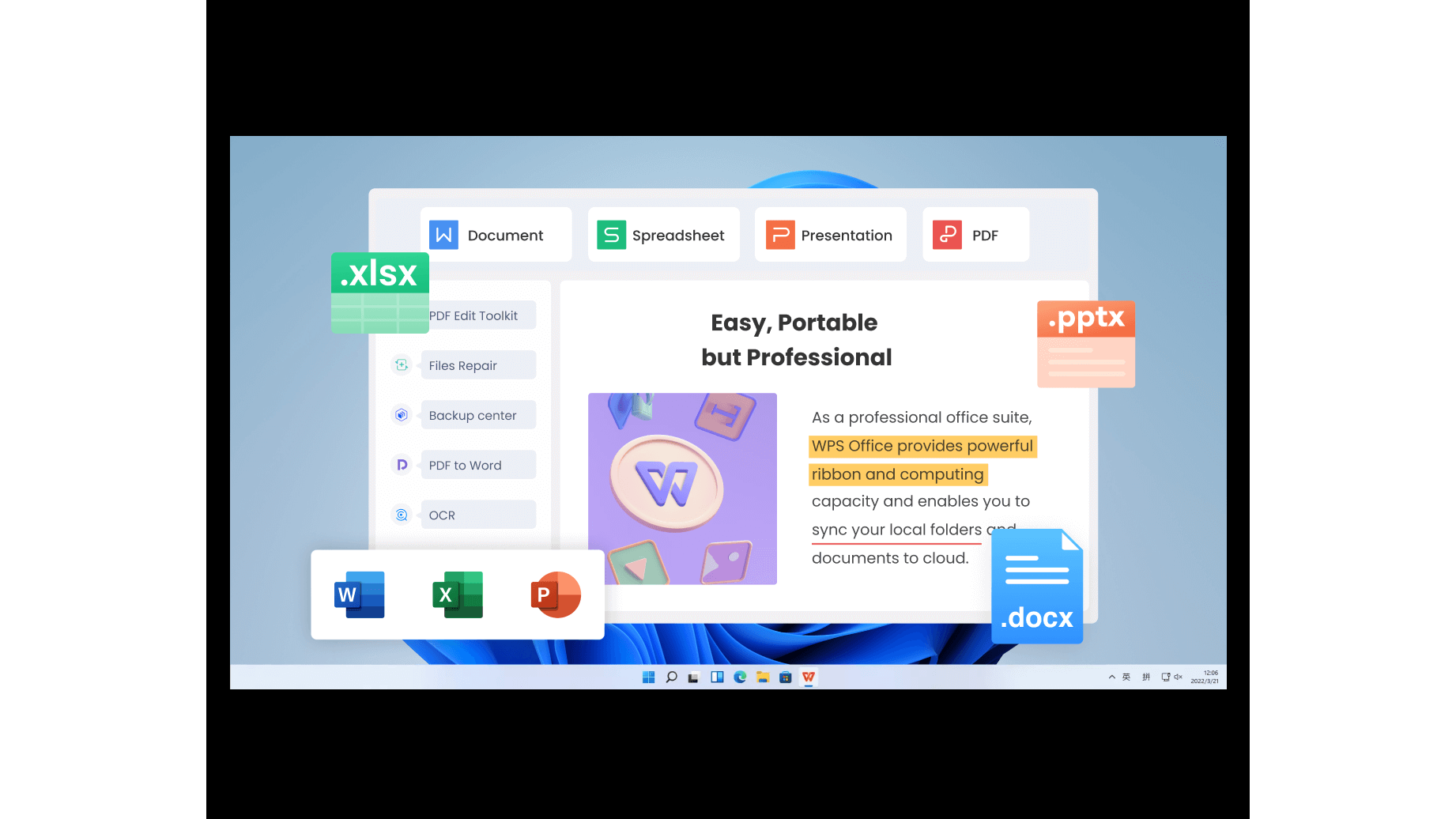
WPS Office suite with PDF tools
FAQs
1. Can I convert a PDF to MP3 in one step?
Not really. A PDF holds text and layout rather than audio, so any one-click tool is quietly running two steps for you: extracting the text, then synthesising speech. Tools that skip the visible extraction simply hide the first step.
2. Why does read aloud say there is no text in my PDF?
The file is a scan or an image export, so the pages have no text layer to read. Run OCR on it first, which adds an invisible text layer behind the page image, and speech engines can then read the document normally.
3. Does WPS PDF have a read-aloud feature?
Yes. Open the PDF in WPS PDF, click the arrow under Read Aloud on the Start menu and choose Entire Document, Current Page or Selected Text. Speed, pitch and volume can be adjusted while the document is playing.
4. Is an online PDF to audio converter safe for confidential files?
It depends on where the file is processed. A reader that extracts text inside your browser keeps the document on your device, while one that uploads it sends the content to someone else's server. For contracts or personal records, stay with a desktop app such as WPS PDF.
5. How long does it take to narrate a long PDF?
Expect roughly 150 words per minute at normal speed, so a 15,000-word report becomes about 100 minutes of audio. Splitting by chapter and listening at 1.5x cuts that dramatically.


'%3e%3cpath%20d='M19.9911%204.11386V6.471H18.5894C18.0775%206.471%2017.7322%206.57814%2017.5536%206.79243C17.3751%207.00671%2017.2858%207.32814%2017.2858%207.75671V9.44421H19.9019L19.5536%2012.0871H17.2858V18.8639H14.5536V12.0871H12.2769V9.44421H14.5536V7.49779C14.5536%206.39064%2014.8632%205.53201%2015.4822%204.92189C16.1013%204.31177%2016.9257%204.00671%2017.9554%204.00671C18.8304%204.00671%2019.509%204.04243%2019.9911%204.11386Z'%20fill='%23333333'/%3e%3c/g%3e%3cdefs%3e%3cclipPath%20id='clip0_2938_8199'%3e%3crect%20width='16'%20height='16'%20fill='white'%20transform='translate(8%204.00671)'/%3e%3c/clipPath%3e%3c/defs%3e%3c/svg%3e)
'%3e%3cpath%20d='M17.5237%2010.7813L23.4811%204H22.0699L16.8949%209.88693L12.7648%204H8L14.2469%2012.9029L8%2020.0133H9.4112L14.8725%2013.7952L19.2352%2020.0133H24M9.92053%205.04213H12.0885L22.0688%2019.0224H19.9003'%20fill='%23333333'/%3e%3c/g%3e%3cdefs%3e%3cclipPath%20id='clip0_2938_8200'%3e%3crect%20width='16'%20height='16.0134'%20fill='white'%20transform='translate(8%204)'/%3e%3c/clipPath%3e%3c/defs%3e%3c/svg%3e)


