

'%3e%3cpath%20d='M8%200C12.4183%200%2016%203.58172%2016%208C16%2012.4183%2012.4183%2016%208%2016C3.58172%2016%200%2012.4183%200%208C0%203.58172%203.58172%200%208%200ZM11.6162%204.38379C11.2257%203.99337%2010.5927%203.99338%2010.2021%204.38379L8%206.58594L5.79785%204.38379C5.40732%203.99334%204.77429%203.99329%204.38379%204.38379C3.99331%204.77429%203.99335%205.40733%204.38379%205.79785L6.58594%208L4.38379%2010.2021C3.99348%2010.5927%203.99341%2011.2257%204.38379%2011.6162C4.77426%2012.0066%205.40734%2012.0065%205.79785%2011.6162L8%209.41406L10.2021%2011.6162C10.5927%2012.0066%2011.2257%2012.0067%2011.6162%2011.6162C12.0067%2011.2257%2012.0066%2010.5927%2011.6162%2010.2021L9.41406%208L11.6162%205.79785C12.0066%205.40735%2012.0066%204.77429%2011.6162%204.38379Z'%20fill='%23080E17'%20fill-opacity='0.46'/%3e%3c/g%3e%3cdefs%3e%3cclipPath%20id='clip0_3761_713'%3e%3crect%20width='16'%20height='16'%20fill='white'/%3e%3c/clipPath%3e%3c/defs%3e%3c/svg%3e)




'%3e%3cpath%20fill-rule='evenodd'%20clip-rule='evenodd'%20d='M21.4999%2010.9993C21.4999%205.20009%2016.7986%200.498901%2010.9993%200.498901C5.19994%200.498901%200.498657%205.20009%200.498657%2010.9993C0.498657%2016.2404%204.33858%2020.5844%209.35855%2021.3722V14.0346H6.69238V10.9993H9.35855V8.68594C9.35855%206.05427%2010.9262%204.60062%2013.3248%204.60062C14.4736%204.60062%2015.6753%204.80571%2015.6753%204.80571V7.38979H14.3512C13.0468%207.38979%2012.64%208.19921%2012.64%209.0296V10.9993H15.5523L15.0867%2014.0346H12.64V21.3722C17.66%2020.5844%2021.4999%2016.2404%2021.4999%2010.9993Z'%20fill='%231568EA'/%3e%3c/g%3e%3c/svg%3e)


'%3e%3cpath%20d='M2.42045%2022.1876H6.31818V12.7217L0.75%208.54553V20.5171C0.75%2021.4414%201.49892%2022.1876%202.42045%2022.1876Z'%20fill='%234285F4'/%3e%3cpath%20d='M19.682%2022.1876H23.5797C24.5041%2022.1876%2025.2502%2021.4387%2025.2502%2020.5171V8.54553L19.682%2012.7217'%20fill='%2334A853'/%3e%3cpath%20d='M19.682%205.48293V12.7216L25.2502%208.54543V6.31816C25.2502%204.25236%2022.8921%203.07469%2021.2411%204.31361'%20fill='%23FBBC04'/%3e%3cpath%20d='M6.31824%2012.7217V5.48303L13.0001%2010.4944L19.6819%205.48303V12.7217L13.0001%2017.733'%20fill='%23EA4335'/%3e%3cpath%20d='M0.75%206.31816V8.54543L6.31818%2012.7216V5.48293L4.75909%204.31361C3.10534%203.07469%200.75%204.25236%200.75%206.31816Z'%20fill='%23C5221F'/%3e%3c/g%3e%3cdefs%3e%3cclipPath%20id='clip0_2954_7305'%3e%3crect%20width='24.5'%20height='18.375'%20fill='white'%20transform='translate(0.75%203.8125)'/%3e%3c/clipPath%3e%3c/defs%3e%3c/svg%3e)


If an API response, email, or data URI handed you a PDF as one long Base64 string, you can turn those characters back into a working .pdf file in under a minute with no account and no install. Paste the string into a browser decoder and download it, or run the one-line Python command in this guide, then open the restored file in WPS Office.
How to Convert Base64 to PDF: Free Methods That Work
Decode Base64 to PDF Directly in Your Browser
A browser decoder is the fastest way to convert Base64 to PDF because there is nothing to install and the string never has to leave your tab. Pick one that processes the file on your device, such as base64.dev, so confidential documents are not uploaded.
Copy the complete Base64 string. It works with or without the
data:application/pdf;base64,prefix.Open the decoder and paste the string into the input box.
Click Decode or Convert to PDF and wait for the preview to render.
Click Download PDF and save the file with a .pdf name.
A valid PDF starts with %PDF-, which appears as JVBERi0 at the beginning of its Base64 form. If the preview stays empty, the string is probably truncated, so copy it again from the original source.
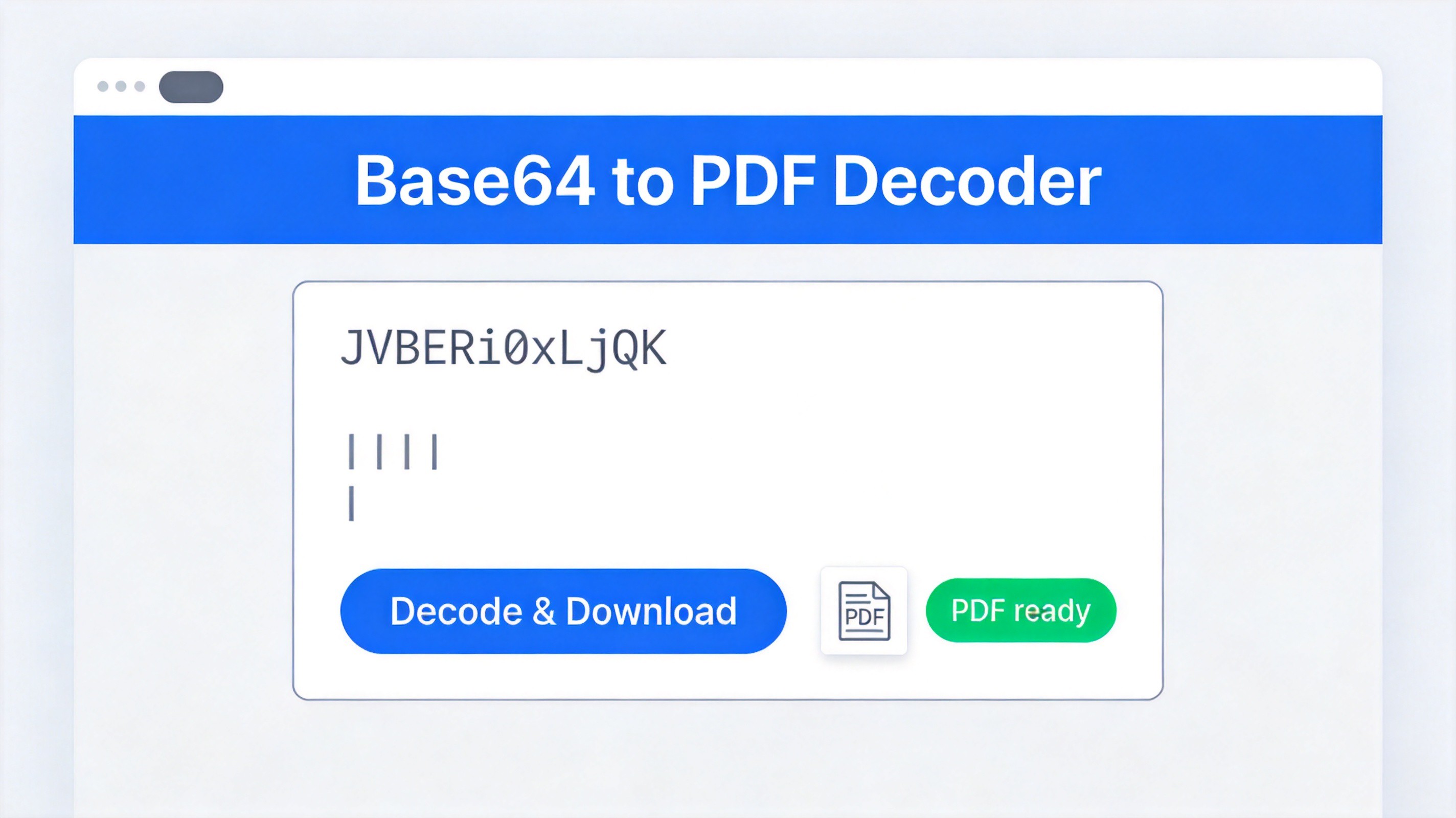
Browser decoder converts Base64 to PDF


Convert Base64 to PDF with a Python One-Liner
When the document is sensitive or the string is very long, decode it locally instead. This Python 3 snippet reads the string, drops a data-URI prefix if present, and writes restored.pdf in the same folder:
from pathlib import Path
import base64

txt = Path("encoded.txt").read_text()
clean = txt.split(",", 1)[-1]  # strips a data: URI prefix
Path("restored.pdf").write_bytes(base64.b64decode(clean, validate=True))
Save the string in encoded.txt next to the script, run python3 decode.py, and restored.pdf appears. The official Python Base64 reference covers streaming and error handling if you work with very large files.
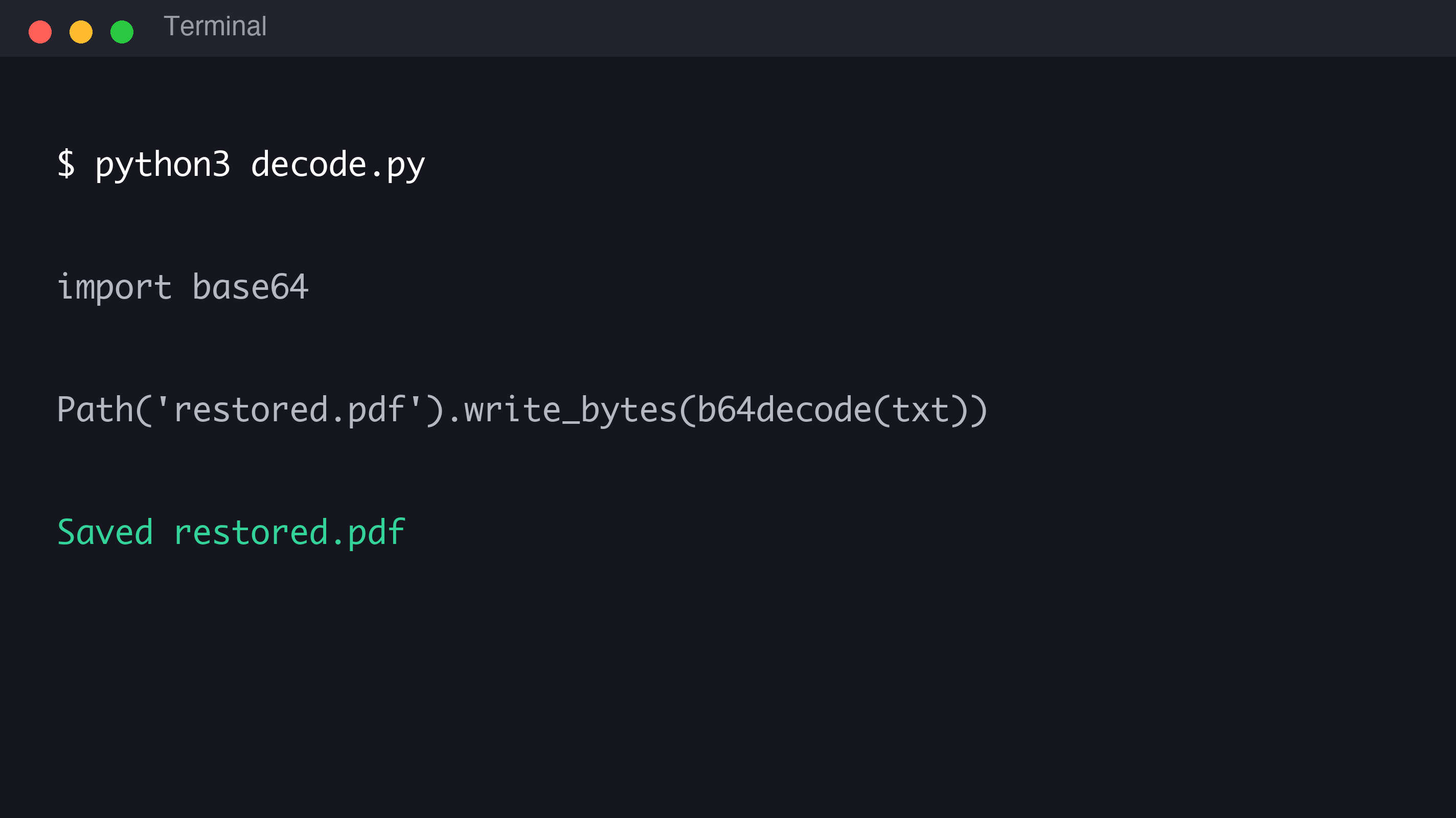
Python one-liner decodes Base64 to PDF
Convert Base64 to PDF in Windows PowerShell
On Windows without Python, PowerShell does the same job. Save the Base64 string as encoded.txt and run this in that folder:
$b64 = Get-Content -Raw encoded.txt
if ($b64.Contains(",")) { $b64 = $b64.Split(",")[1] }
[IO.File]::WriteAllBytes("$PWD\restored.pdf", [Convert]::FromBase64String($b64.Trim()))
FromBase64String turns the characters back into bytes and WriteAllBytes saves the file. An "Invalid length" error means the string is truncated, contains stray whitespace, or uses the wrong alphabet, so trim it and copy it again.
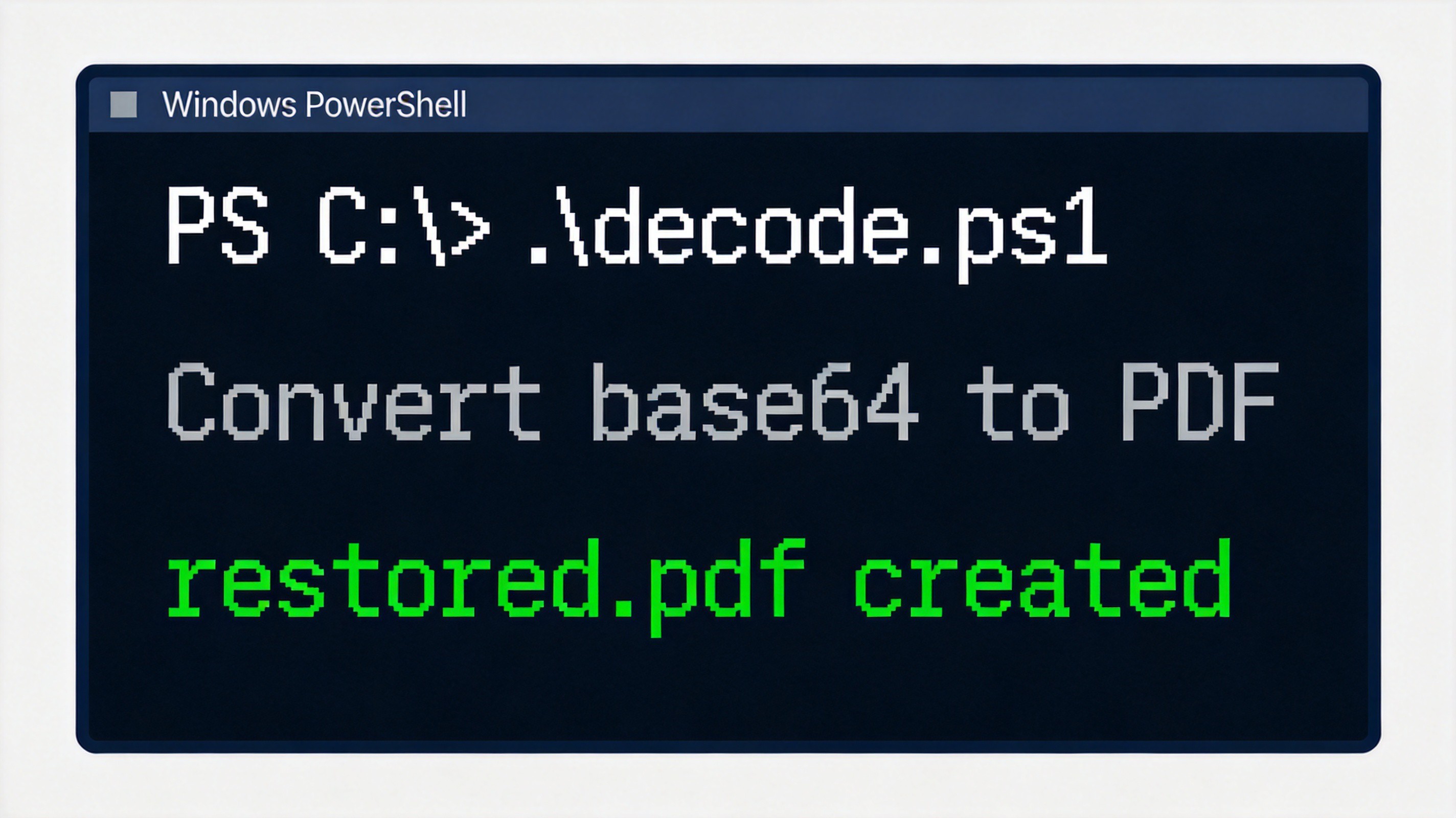
PowerShell command converts Base64 to PDF
Verify Your Base64 to PDF Output and Fix Common Errors
Before you rely on the file, make sure the conversion really produced a PDF. Four quick checks catch almost every failure:
Header: the decoded file must begin with
%PDF-. Any other first bytes mean the string was not PDF data.Padding and alphabet: for URL-safe Base64, replace
-with+and_with/, then restore any missing=padding at the end.Truncation: Base64 is about a third larger than the PDF bytes, so a string that ends abruptly produces a broken file. Re-copy the full string.
Whitespace: spaces and line breaks are normally ignored, but
+signs can turn into spaces in forms and URLs.
When the checks pass, open restored.pdf and confirm every page renders.
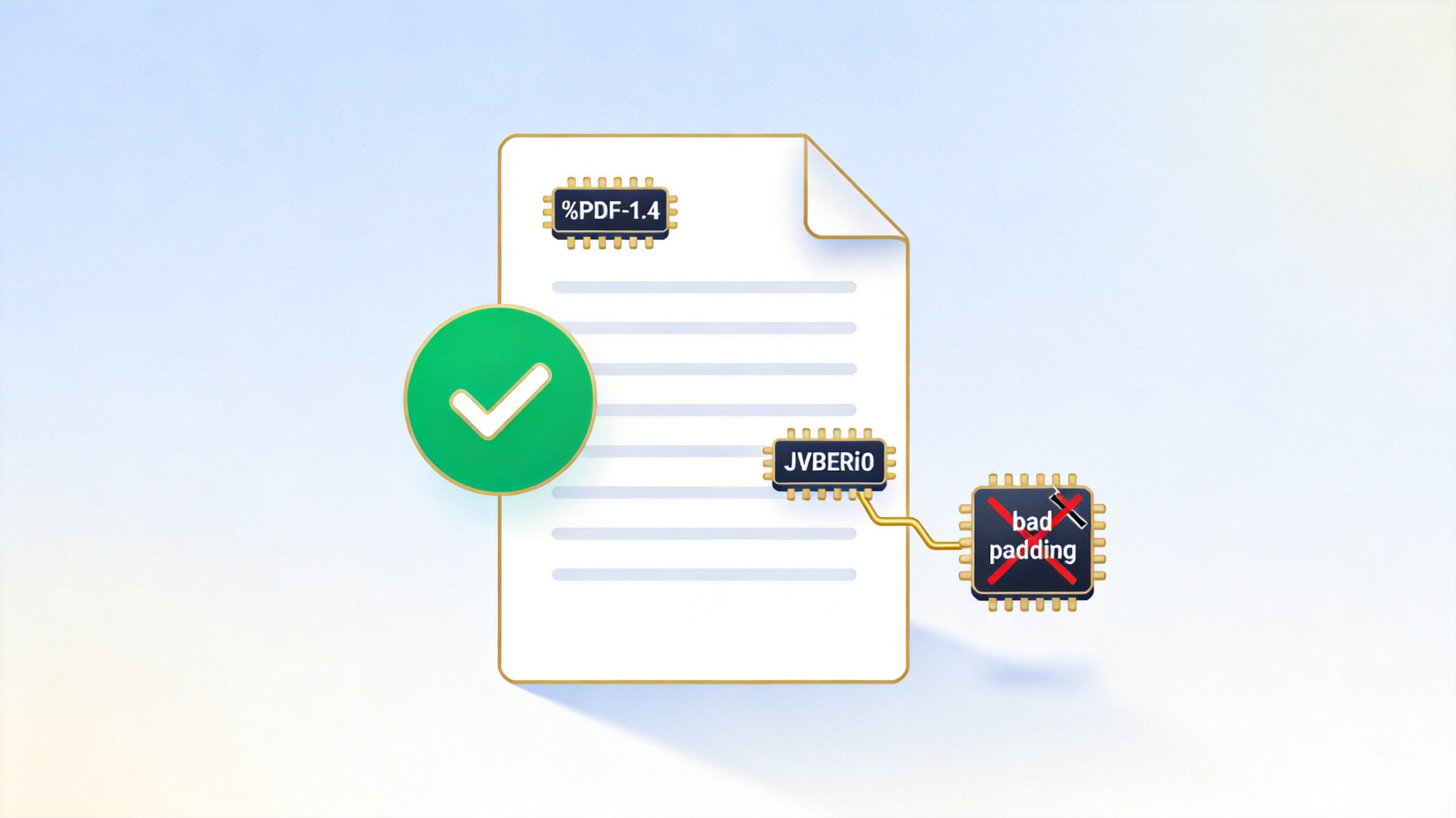
Verify Base64 PDF header and padding
After You Decode Base64 to PDF: Open, Edit, and Convert in WPS Office
The decoded file is a normal PDF, so everything you can do with a PDF you can do with it in WPS PDF, free on Windows, macOS, Linux, and mobile:
Open the PDF in WPS PDF and check that every page renders; if Windows keeps handing PDFs to a browser, set WPS as the default reader as shown in this guide to opening PDF files.
Edit the text: select any paragraph and retype it, or use the same tab to fill forms and add a signature.
Convert to Word when you need to rework the content, using the offline steps in how to convert PDF to Word offline for free.
Translate or reuse the text: the same PDF-to-Word workflow keeps everything editable, which also covers translating a PDF to Word while keeping the formatting.
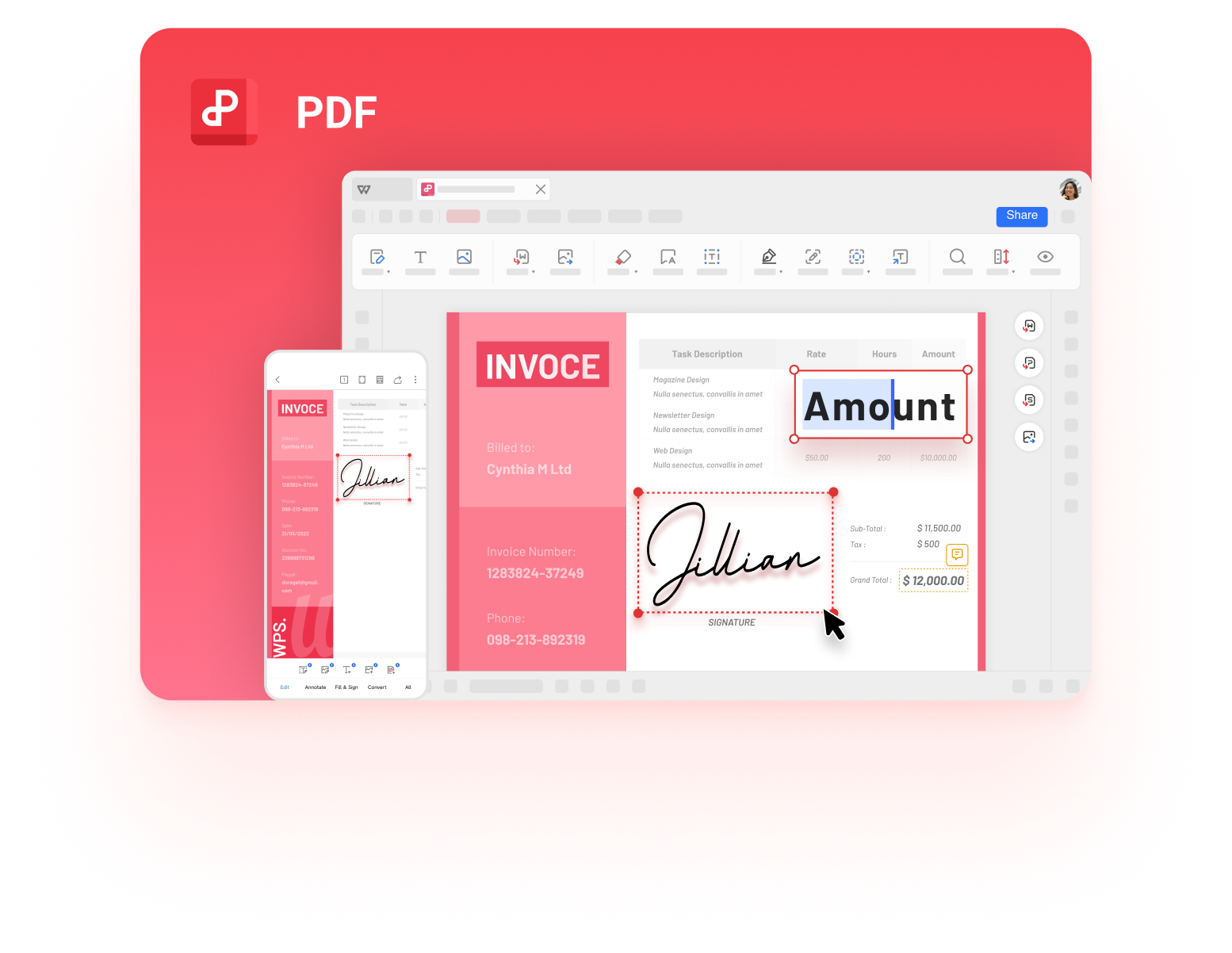
Decoded PDF opened in WPS Office
The Best Free Alternative: WPS Office
Online decoders stop at the download button, while WPS Office is where you open the file next. It combines Writer, Spreadsheet, Presentation, and a complete PDF toolkit for editing, form filling, and signing in one free download that works on every major platform and keeps your files on your device.
Free PDF editing without a subscription: change text, fill forms, and add signatures directly in WPS PDF.
Familiar, Microsoft-like interface: menus and shortcuts feel natural, so there is almost no learning curve.
Works offline by default: decoded PDFs never leave your computer when you work locally.
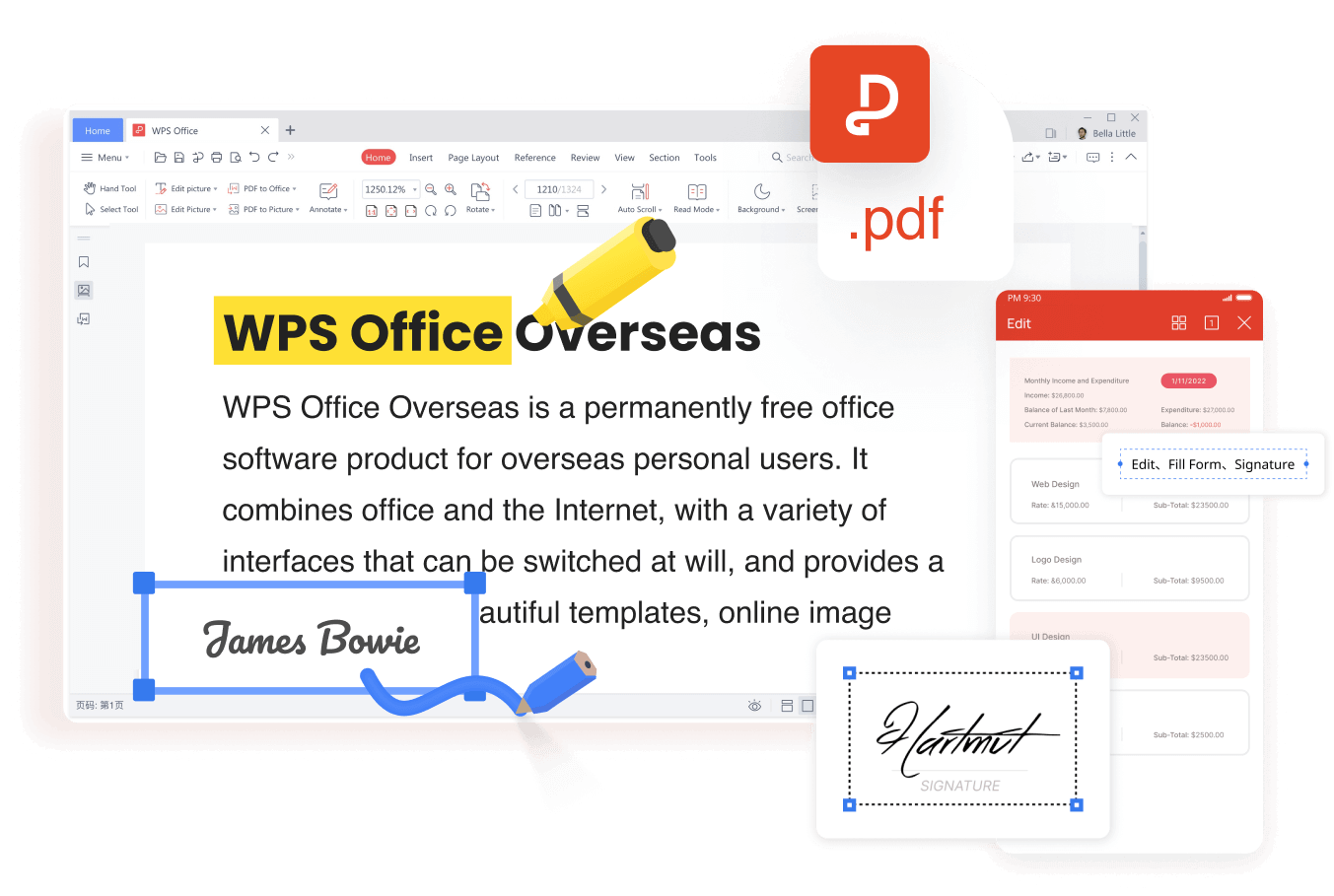
WPS PDF edit and sign interface
FAQs
1. Can I convert Base64 to PDF without installing anything?
Yes. Paste the string into a browser decoder such as base64.dev, click Decode, and download the PDF. Nothing is installed, and a local decoder never uploads the file.
2. Do I need to remove the data:application/pdf;base64, prefix first?
Most online decoders strip it automatically, and the code snippets in this guide remove it before decoding. The prefix is metadata that describes the payload, not part of the PDF bytes.
3. Why does my decoded PDF fail to open?
The string is usually truncated, or it uses URL-safe characters or missing padding. Re-copy the complete string, fix - and _ characters and = padding, then check that the saved file starts with %PDF-.
4. Can WPS Office open a PDF converted from Base64?
Yes. Open the restored file in WPS PDF to read, edit text, fill forms, sign, or convert it to Word, without paying for a separate PDF editor.
5. Is it safe to paste a Base64 PDF into an online converter?
Choose a decoder that processes the file inside your browser without uploading it. For confidential documents, use the local Python or PowerShell method in this guide so the string never leaves your device.


'%3e%3cpath%20d='M19.9911%204.11386V6.471H18.5894C18.0775%206.471%2017.7322%206.57814%2017.5536%206.79243C17.3751%207.00671%2017.2858%207.32814%2017.2858%207.75671V9.44421H19.9019L19.5536%2012.0871H17.2858V18.8639H14.5536V12.0871H12.2769V9.44421H14.5536V7.49779C14.5536%206.39064%2014.8632%205.53201%2015.4822%204.92189C16.1013%204.31177%2016.9257%204.00671%2017.9554%204.00671C18.8304%204.00671%2019.509%204.04243%2019.9911%204.11386Z'%20fill='%23333333'/%3e%3c/g%3e%3cdefs%3e%3cclipPath%20id='clip0_2938_8199'%3e%3crect%20width='16'%20height='16'%20fill='white'%20transform='translate(8%204.00671)'/%3e%3c/clipPath%3e%3c/defs%3e%3c/svg%3e)
'%3e%3cpath%20d='M17.5237%2010.7813L23.4811%204H22.0699L16.8949%209.88693L12.7648%204H8L14.2469%2012.9029L8%2020.0133H9.4112L14.8725%2013.7952L19.2352%2020.0133H24M9.92053%205.04213H12.0885L22.0688%2019.0224H19.9003'%20fill='%23333333'/%3e%3c/g%3e%3cdefs%3e%3cclipPath%20id='clip0_2938_8200'%3e%3crect%20width='16'%20height='16.0134'%20fill='white'%20transform='translate(8%204)'/%3e%3c/clipPath%3e%3c/defs%3e%3c/svg%3e)


