

'%3e%3cpath%20d='M8%200C12.4183%200%2016%203.58172%2016%208C16%2012.4183%2012.4183%2016%208%2016C3.58172%2016%200%2012.4183%200%208C0%203.58172%203.58172%200%208%200ZM11.6162%204.38379C11.2257%203.99337%2010.5927%203.99338%2010.2021%204.38379L8%206.58594L5.79785%204.38379C5.40732%203.99334%204.77429%203.99329%204.38379%204.38379C3.99331%204.77429%203.99335%205.40733%204.38379%205.79785L6.58594%208L4.38379%2010.2021C3.99348%2010.5927%203.99341%2011.2257%204.38379%2011.6162C4.77426%2012.0066%205.40734%2012.0065%205.79785%2011.6162L8%209.41406L10.2021%2011.6162C10.5927%2012.0066%2011.2257%2012.0067%2011.6162%2011.6162C12.0067%2011.2257%2012.0066%2010.5927%2011.6162%2010.2021L9.41406%208L11.6162%205.79785C12.0066%205.40735%2012.0066%204.77429%2011.6162%204.38379Z'%20fill='%23080E17'%20fill-opacity='0.46'/%3e%3c/g%3e%3cdefs%3e%3cclipPath%20id='clip0_3761_713'%3e%3crect%20width='16'%20height='16'%20fill='white'/%3e%3c/clipPath%3e%3c/defs%3e%3c/svg%3e)




'%3e%3cpath%20fill-rule='evenodd'%20clip-rule='evenodd'%20d='M21.4999%2010.9993C21.4999%205.20009%2016.7986%200.498901%2010.9993%200.498901C5.19994%200.498901%200.498657%205.20009%200.498657%2010.9993C0.498657%2016.2404%204.33858%2020.5844%209.35855%2021.3722V14.0346H6.69238V10.9993H9.35855V8.68594C9.35855%206.05427%2010.9262%204.60062%2013.3248%204.60062C14.4736%204.60062%2015.6753%204.80571%2015.6753%204.80571V7.38979H14.3512C13.0468%207.38979%2012.64%208.19921%2012.64%209.0296V10.9993H15.5523L15.0867%2014.0346H12.64V21.3722C17.66%2020.5844%2021.4999%2016.2404%2021.4999%2010.9993Z'%20fill='%231568EA'/%3e%3c/g%3e%3c/svg%3e)


'%3e%3cpath%20d='M2.42045%2022.1876H6.31818V12.7217L0.75%208.54553V20.5171C0.75%2021.4414%201.49892%2022.1876%202.42045%2022.1876Z'%20fill='%234285F4'/%3e%3cpath%20d='M19.682%2022.1876H23.5797C24.5041%2022.1876%2025.2502%2021.4387%2025.2502%2020.5171V8.54553L19.682%2012.7217'%20fill='%2334A853'/%3e%3cpath%20d='M19.682%205.48293V12.7216L25.2502%208.54543V6.31816C25.2502%204.25236%2022.8921%203.07469%2021.2411%204.31361'%20fill='%23FBBC04'/%3e%3cpath%20d='M6.31824%2012.7217V5.48303L13.0001%2010.4944L19.6819%205.48303V12.7217L13.0001%2017.733'%20fill='%23EA4335'/%3e%3cpath%20d='M0.75%206.31816V8.54543L6.31818%2012.7216V5.48293L4.75909%204.31361C3.10534%203.07469%200.75%204.25236%200.75%206.31816Z'%20fill='%23C5221F'/%3e%3c/g%3e%3cdefs%3e%3cclipPath%20id='clip0_2954_7305'%3e%3crect%20width='24.5'%20height='18.375'%20fill='white'%20transform='translate(0.75%203.8125)'/%3e%3c/clipPath%3e%3c/defs%3e%3c/svg%3e)


How to Convert PDF to PowerPoint Without Losing Formatting
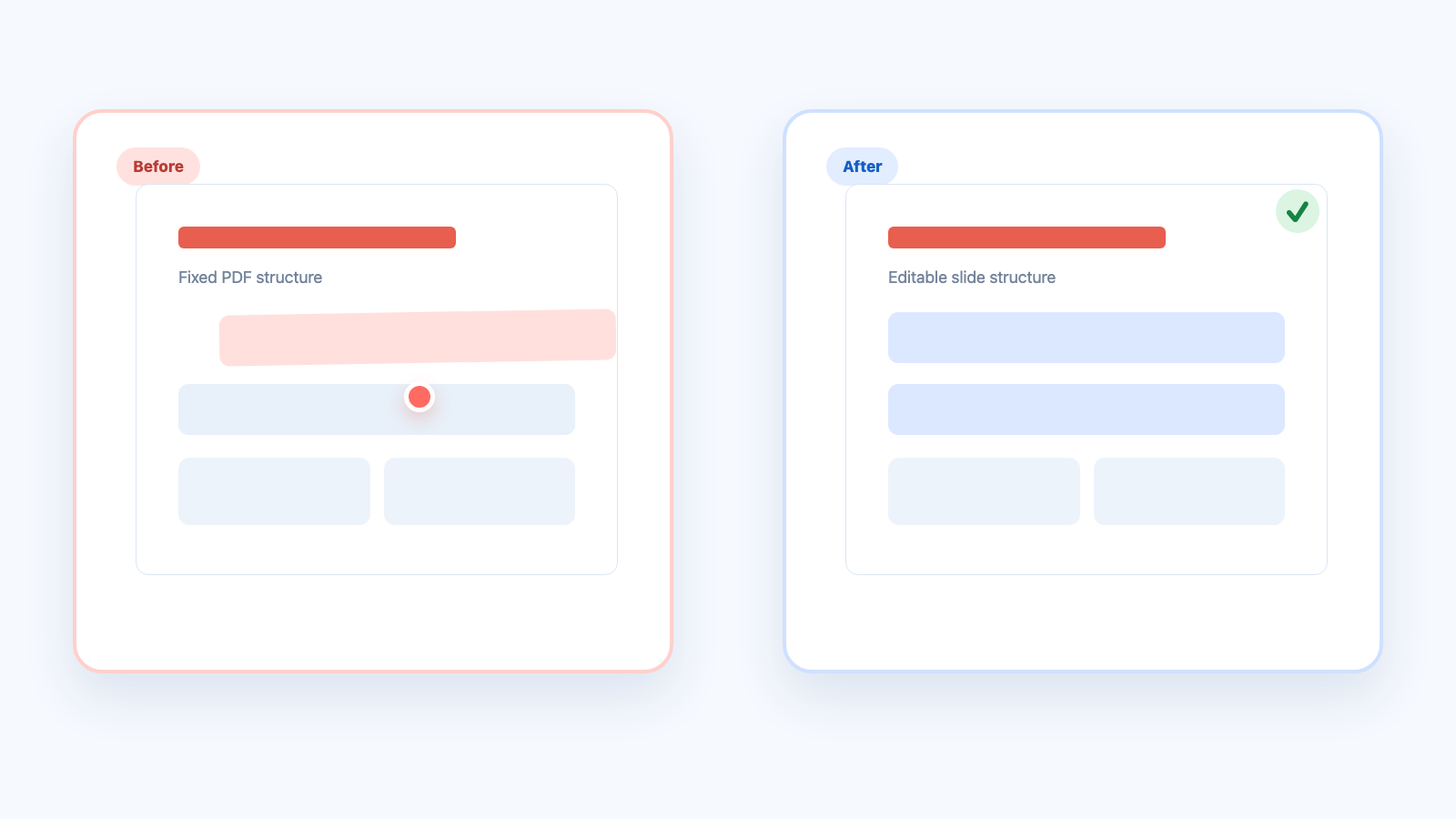
PDFs are built for fixed pages. PowerPoint decks are built for editable objects. That difference is why a PDF to PowerPoint conversion can look perfect in one section and broken in another: a heading may split into multiple text boxes, an image can cover surrounding copy, or a table may arrive as a loose group of shapes.
WPS gives you two practical paths: convert in the browser for a quick one-off deck, or use WPS PDF Tools on desktop when the file needs more preparation and cleanup. This guide covers both workflows, plus the checks that keep the final PPTX usable.
Before you start, make sure the PDF is not password-protected and that scanned pages have searchable text or OCR applied. Those two issues affect conversion quality more than most settings.
How to Convert PDF to PowerPoint Without Losing Formatting
Why PDF to PowerPoint Conversions Lose Formatting
A PDF stores page content as a fixed layout. Text might be positioned character by character, a table may be drawn from separate lines and boxes, and a scanned page may contain no editable text at all. A PDF to PowerPoint converter has to interpret those elements and rebuild them as slide objects.
Some files convert cleanly because they were exported from a structured document. Others need cleanup because the converter has to guess where paragraphs, columns, and table cells begin and end. The result can still be useful, but you should know where problems usually appear.
Multi-column pages: text may be read in the wrong order or placed in narrow boxes.
Scanned PDFs: pages may arrive as large images, so words cannot be selected or edited without OCR.
Unusual fonts: WPS or PowerPoint may substitute a font when the original typeface is missing.
Tables and charts: grid lines, labels, and data marks can separate into many small objects.
Mixed orientation: portrait PDF pages may leave large empty areas on a widescreen slide.
The goal is not pixel-for-pixel similarity. It is a presentation with readable text, stable images, and enough structure for you to edit the deck efficiently. Use the conversion method that gives you the best starting point, then fix only the slides that need attention.
PDF to PowerPoint layout comparison


How to Convert PDF to PowerPoint Online with WPS
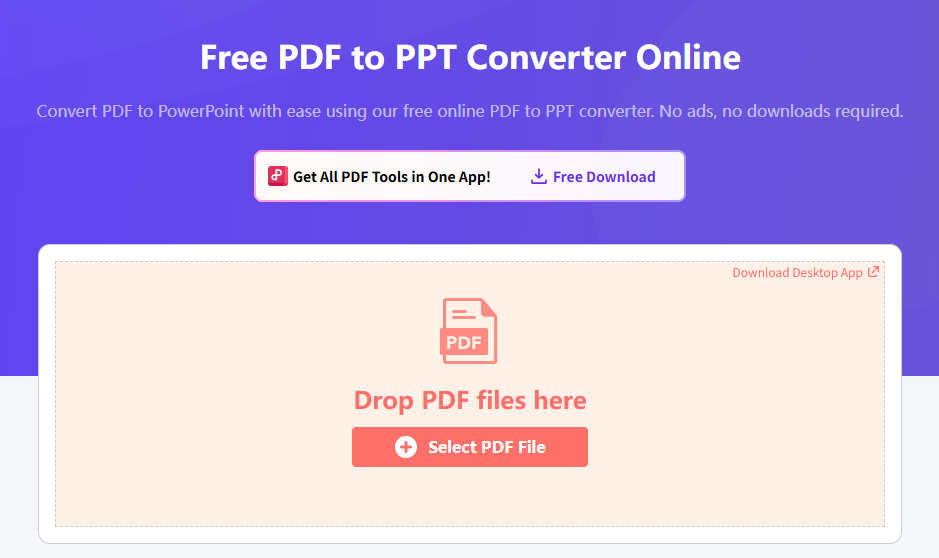
For a quick conversion, open the free WPS PDF to PowerPoint converter. It runs in your browser, requires no desktop installation, and creates a PPTX file you can open in WPS Presentation or Microsoft PowerPoint.
Open the converter. Go to the WPS online PDF to PPT page and confirm that the upload area is ready.
WPS online PDF to PowerPoint converter
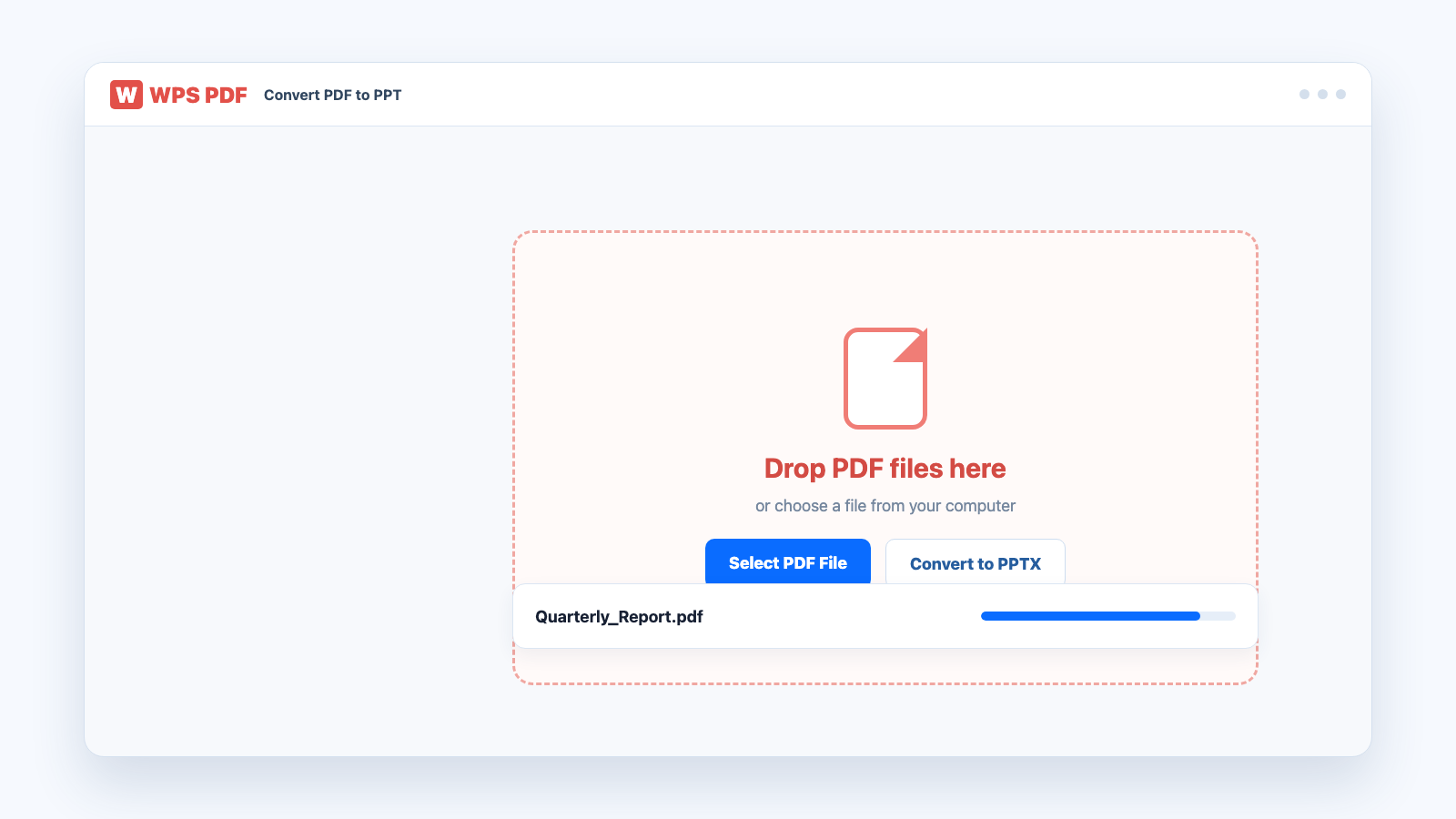
Add the PDF file. Drag the file into the upload area or choose it from your computer. Wait for the file name and size to appear before continuing.
Upload PDF in WPS converter
Start the conversion. Select the conversion button and wait for WPS to finish rebuilding the pages as slides. Keep the browser tab open until the process is complete.
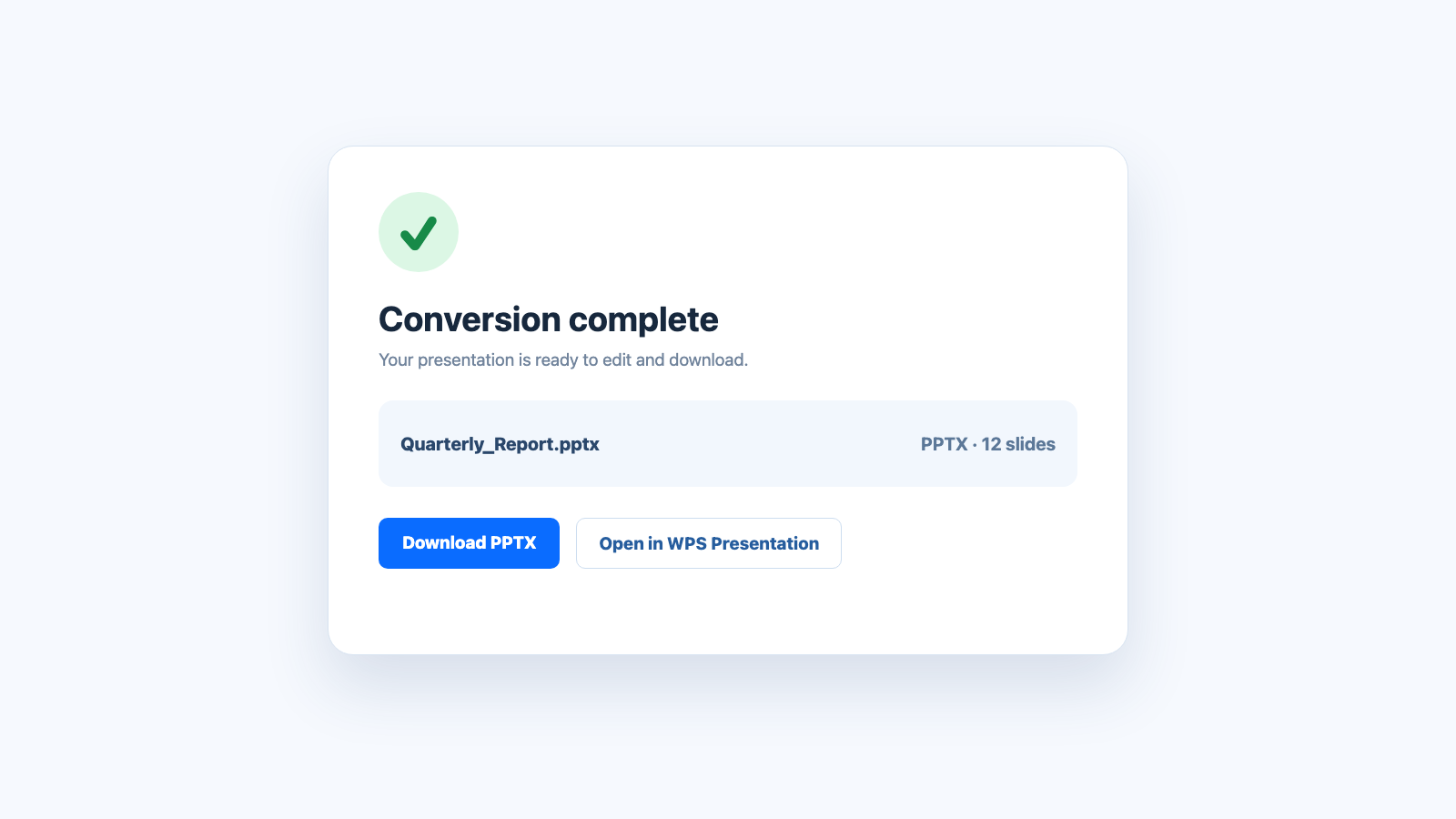
Download editable PowerPoint slides from WPS
Download and open the PPTX. Save the presentation, open it in WPS Presentation, and scan the first few slides for missing text or shifted images.
If several PDFs belong to the same presentation, convert the main document first and add the remaining pages inside WPS Presentation. This usually gives you more control than converting unrelated files and merging them afterward.
How to Convert PDF to PowerPoint on Windows and Mac
Use the desktop path when you want to prepare the PDF, convert it, and edit the slides in the same app. The WPS PDF converter on Windows and Mac accepts PDF files and can export them to presentation format.
Open WPS PDF Tools. Launch WPS Office, select PDF, and open the file you want to convert. Check that the pages are rotated correctly before conversion.
Choose PDF to PPT. Open the conversion tools and select PDF to PPT. If the option is not visible, update WPS Office or use the online converter instead.
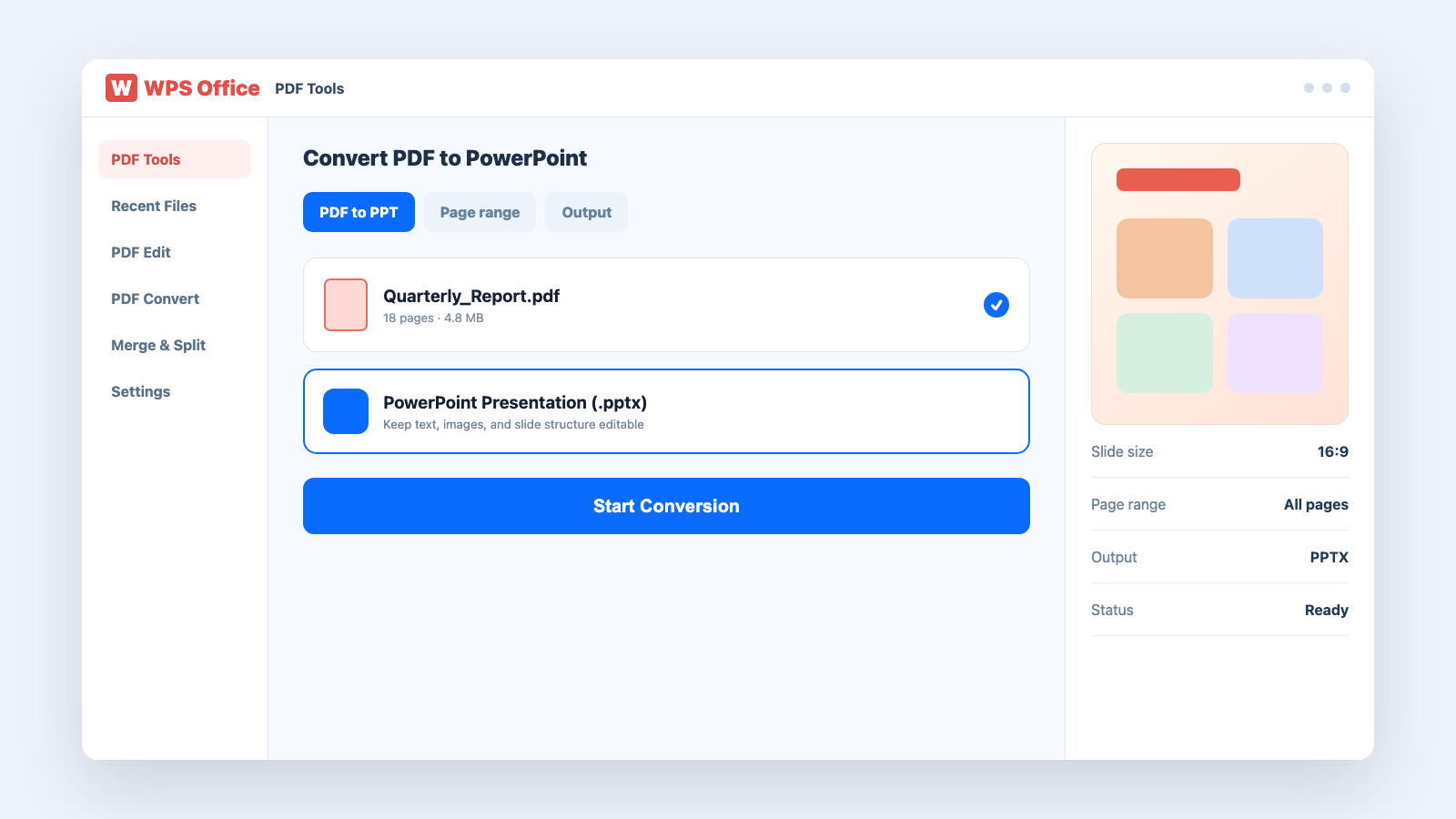
WPS PDF to PowerPoint settings
Set the output options. Choose the page range, slide size, and output folder available in your version. For most presentations, keep the original page range and use a widescreen 16:9 layout unless the source is designed for another ratio.
Convert and review the result. Start the conversion, open the PPTX file, and make a copy before editing. Check headings, tables, image edges, and page order.
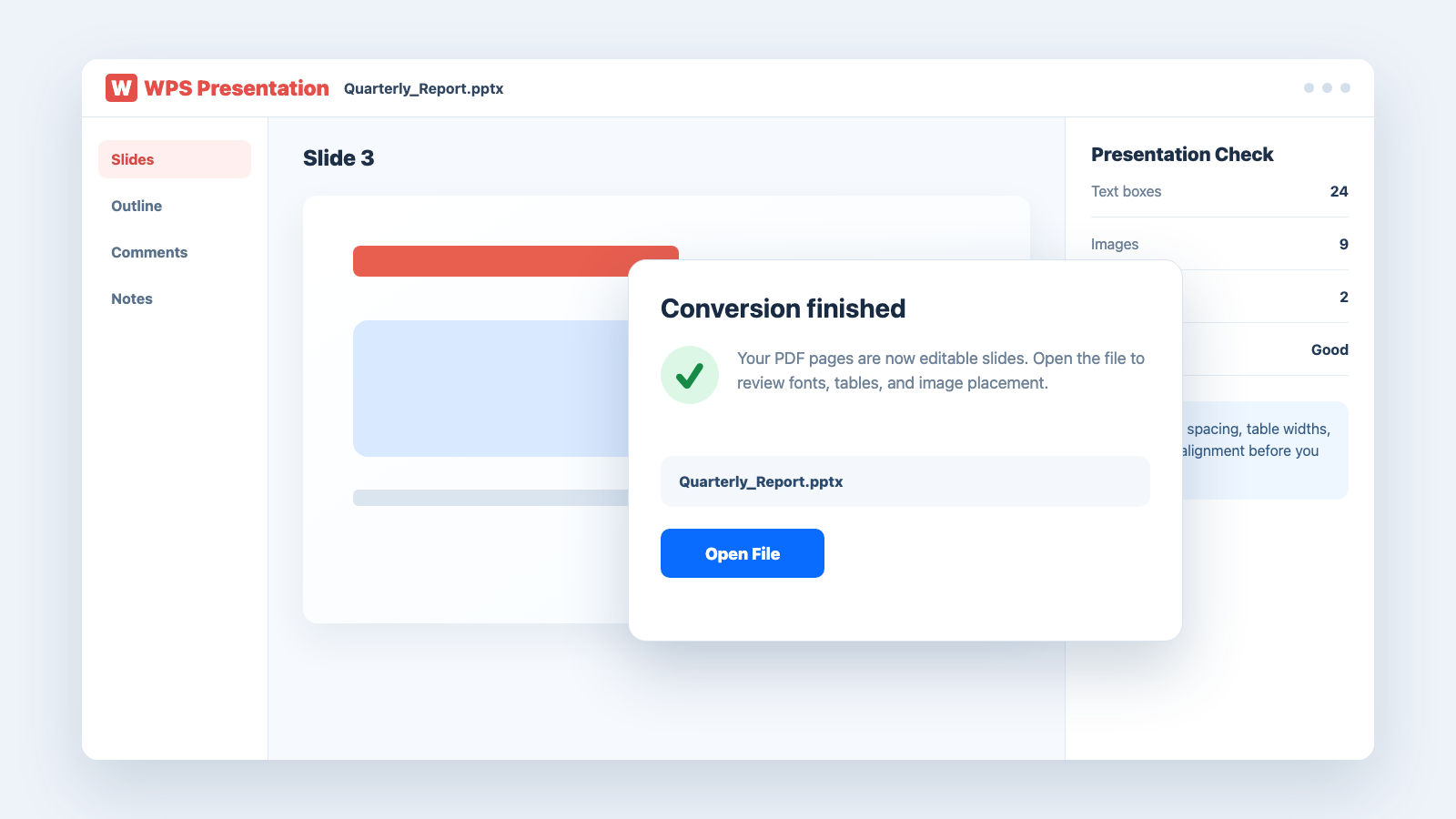
Open converted PowerPoint in WPS Presentation
Keep the original PDF until the presentation is approved. If the converted deck needs major restructuring, it is often faster to rebuild a few complex slides from the PDF than to repair dozens of disconnected objects.
How to Fix PDF to PowerPoint Formatting Issues
Most PDF to PowerPoint formatting issues fall into a small number of categories. Identify the problem first, then apply the least invasive fix so you do not break other slides.
| Issue | What to do in WPS Presentation |
|---|---|
| Text is split into small boxes | Join related lines into one text box, then reapply the paragraph spacing. |
| Fonts changed | Install the missing font or replace it consistently through the Slide Master. |
| Tables broke apart | Rebuild the table with WPS table tools when each cell became a separate shape. |
| Scanned pages are not editable | Apply OCR before conversion when text editing matters. Otherwise use the page as an image and add speaker notes. |
| Images cover text | Send the image backward, resize it, or place the text in a clean box above it. |
Work through the deck in slide order and check one issue at a time. Use consistent fonts, margins, and alignment so a repaired slide matches the rest of the presentation. If you need a comparison workflow, this WPS guide explains how to convert PDF to PPT online and edit the result.
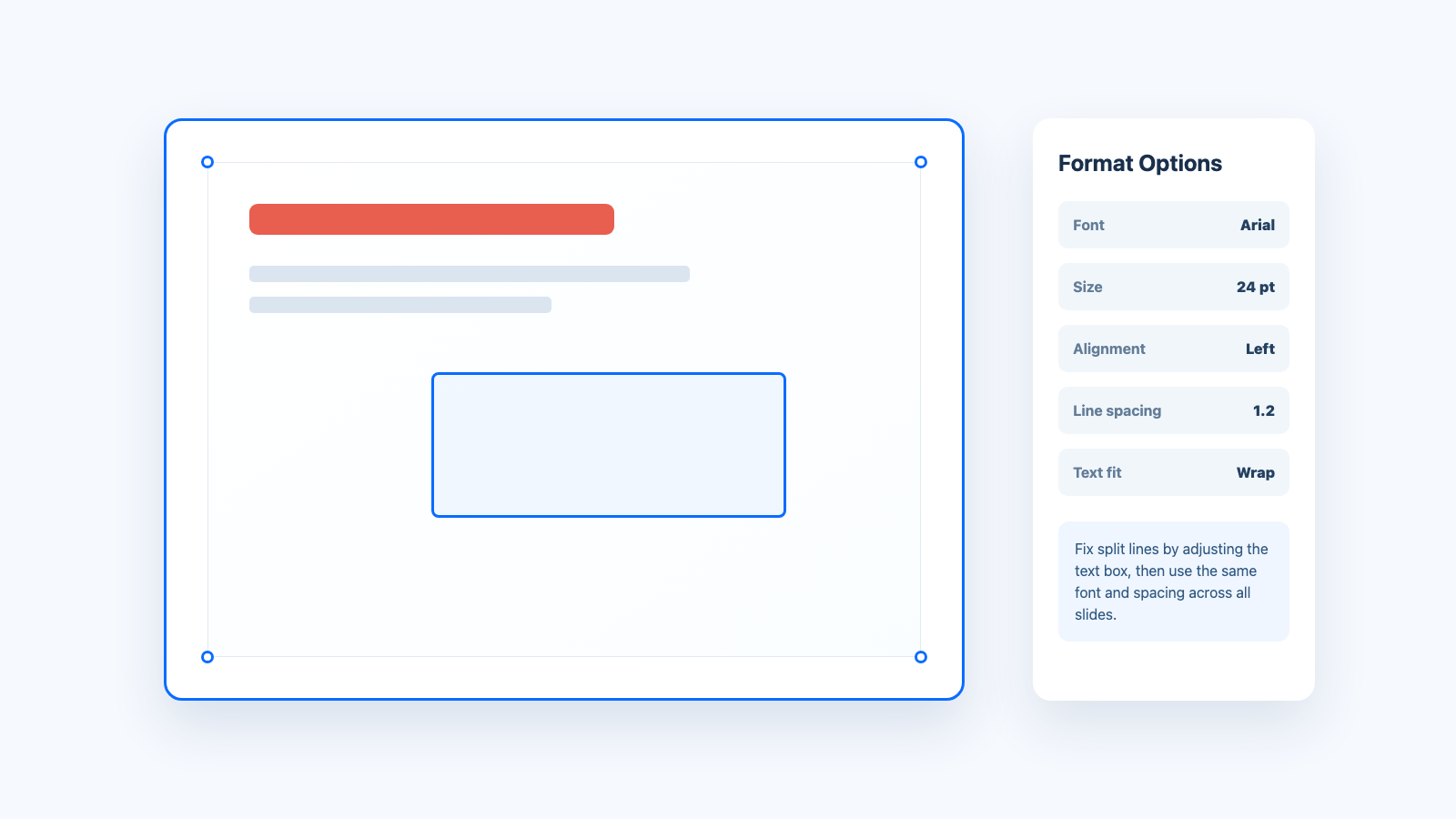
Fix PDF to PowerPoint formatting
The Best Free Alternative: WPS Office
WPS Office is a strong fit when PDF to PowerPoint conversion is only the first step. The free office suite lets you convert, open, and refine a presentation without moving between a separate converter, an editor, and a presentation tool.
| What matters | WPS Office workflow |
|---|---|
| Workflow efficiency | Convert, open, and refine the deck in one place instead of downloading through several tools. |
| Ease of access | Use the browser converter for a quick job or WPS PDF Tools when you need more control. |
| Editing capabilities | Repair text boxes, adjust images, rebuild tables, and apply consistent slide styles in WPS Presentation. |
| Export and sharing | Save the editable PPTX and export a final PDF when you need a fixed-format copy. |
| Pricing and accessibility | Use the free core office tools across common desktop and mobile platforms; some advanced features may require a premium plan. |
One workflow for conversion and editing: Keep the PDF, PPTX, and final export together.
Presentation-ready tools: Use layouts, fonts, images, tables, and slide design controls to repair converted pages.
Free access to essential tools: Start with the online converter or the free WPS Office suite before paying for specialized software.
Install WPS Office from the official download page, or learn more about WPS Presentation before you convert your next PDF.
WPS Presentation free PowerPoint alternative
FAQs
Can I convert PDF to PowerPoint for free?
Yes. The WPS online PDF to PowerPoint converter is free to use, and WPS Office includes core PDF and presentation tools at no cost. Advanced features may require a premium plan.
Will my PDF formatting stay exactly the same?
Simple PDFs often convert very closely, but complex or scanned files may need cleanup. Conversion quality depends on whether the PDF contains real text, tables, columns, and fonts that can be reconstructed as slide objects.
Can I edit the text after converting PDF to PowerPoint?
You can edit text when the PDF contains selectable text and the converter creates editable text boxes. If a page is a scan, apply OCR first or the page may remain an image.
What should I do if my PDF is a scan?
Run OCR first when you need editable words, then convert the PDF to PowerPoint. If OCR is not suitable, keep the page as an image and add speaker notes or new text boxes.
Which WPS method should I use for a large or private PDF?
Use WPS PDF Tools on desktop when you want more control over page range, output settings, and editing. Use the online converter for quick one-off jobs when uploading the file is acceptable under your organization’s rules.


'%3e%3cpath%20d='M19.9911%204.11386V6.471H18.5894C18.0775%206.471%2017.7322%206.57814%2017.5536%206.79243C17.3751%207.00671%2017.2858%207.32814%2017.2858%207.75671V9.44421H19.9019L19.5536%2012.0871H17.2858V18.8639H14.5536V12.0871H12.2769V9.44421H14.5536V7.49779C14.5536%206.39064%2014.8632%205.53201%2015.4822%204.92189C16.1013%204.31177%2016.9257%204.00671%2017.9554%204.00671C18.8304%204.00671%2019.509%204.04243%2019.9911%204.11386Z'%20fill='%23333333'/%3e%3c/g%3e%3cdefs%3e%3cclipPath%20id='clip0_2938_8199'%3e%3crect%20width='16'%20height='16'%20fill='white'%20transform='translate(8%204.00671)'/%3e%3c/clipPath%3e%3c/defs%3e%3c/svg%3e)
'%3e%3cpath%20d='M17.5237%2010.7813L23.4811%204H22.0699L16.8949%209.88693L12.7648%204H8L14.2469%2012.9029L8%2020.0133H9.4112L14.8725%2013.7952L19.2352%2020.0133H24M9.92053%205.04213H12.0885L22.0688%2019.0224H19.9003'%20fill='%23333333'/%3e%3c/g%3e%3cdefs%3e%3cclipPath%20id='clip0_2938_8200'%3e%3crect%20width='16'%20height='16.0134'%20fill='white'%20transform='translate(8%204)'/%3e%3c/clipPath%3e%3c/defs%3e%3c/svg%3e)


