

'%3e%3cpath%20d='M8%200C12.4183%200%2016%203.58172%2016%208C16%2012.4183%2012.4183%2016%208%2016C3.58172%2016%200%2012.4183%200%208C0%203.58172%203.58172%200%208%200ZM11.6162%204.38379C11.2257%203.99337%2010.5927%203.99338%2010.2021%204.38379L8%206.58594L5.79785%204.38379C5.40732%203.99334%204.77429%203.99329%204.38379%204.38379C3.99331%204.77429%203.99335%205.40733%204.38379%205.79785L6.58594%208L4.38379%2010.2021C3.99348%2010.5927%203.99341%2011.2257%204.38379%2011.6162C4.77426%2012.0066%205.40734%2012.0065%205.79785%2011.6162L8%209.41406L10.2021%2011.6162C10.5927%2012.0066%2011.2257%2012.0067%2011.6162%2011.6162C12.0067%2011.2257%2012.0066%2010.5927%2011.6162%2010.2021L9.41406%208L11.6162%205.79785C12.0066%205.40735%2012.0066%204.77429%2011.6162%204.38379Z'%20fill='%23080E17'%20fill-opacity='0.46'/%3e%3c/g%3e%3cdefs%3e%3cclipPath%20id='clip0_3761_713'%3e%3crect%20width='16'%20height='16'%20fill='white'/%3e%3c/clipPath%3e%3c/defs%3e%3c/svg%3e)




'%3e%3cpath%20fill-rule='evenodd'%20clip-rule='evenodd'%20d='M21.4999%2010.9993C21.4999%205.20009%2016.7986%200.498901%2010.9993%200.498901C5.19994%200.498901%200.498657%205.20009%200.498657%2010.9993C0.498657%2016.2404%204.33858%2020.5844%209.35855%2021.3722V14.0346H6.69238V10.9993H9.35855V8.68594C9.35855%206.05427%2010.9262%204.60062%2013.3248%204.60062C14.4736%204.60062%2015.6753%204.80571%2015.6753%204.80571V7.38979H14.3512C13.0468%207.38979%2012.64%208.19921%2012.64%209.0296V10.9993H15.5523L15.0867%2014.0346H12.64V21.3722C17.66%2020.5844%2021.4999%2016.2404%2021.4999%2010.9993Z'%20fill='%231568EA'/%3e%3c/g%3e%3c/svg%3e)


'%3e%3cpath%20d='M2.42045%2022.1876H6.31818V12.7217L0.75%208.54553V20.5171C0.75%2021.4414%201.49892%2022.1876%202.42045%2022.1876Z'%20fill='%234285F4'/%3e%3cpath%20d='M19.682%2022.1876H23.5797C24.5041%2022.1876%2025.2502%2021.4387%2025.2502%2020.5171V8.54553L19.682%2012.7217'%20fill='%2334A853'/%3e%3cpath%20d='M19.682%205.48293V12.7216L25.2502%208.54543V6.31816C25.2502%204.25236%2022.8921%203.07469%2021.2411%204.31361'%20fill='%23FBBC04'/%3e%3cpath%20d='M6.31824%2012.7217V5.48303L13.0001%2010.4944L19.6819%205.48303V12.7217L13.0001%2017.733'%20fill='%23EA4335'/%3e%3cpath%20d='M0.75%206.31816V8.54543L6.31818%2012.7216V5.48293L4.75909%204.31361C3.10534%203.07469%200.75%204.25236%200.75%206.31816Z'%20fill='%23C5221F'/%3e%3c/g%3e%3cdefs%3e%3cclipPath%20id='clip0_2954_7305'%3e%3crect%20width='24.5'%20height='18.375'%20fill='white'%20transform='translate(0.75%203.8125)'/%3e%3c/clipPath%3e%3c/defs%3e%3c/svg%3e)


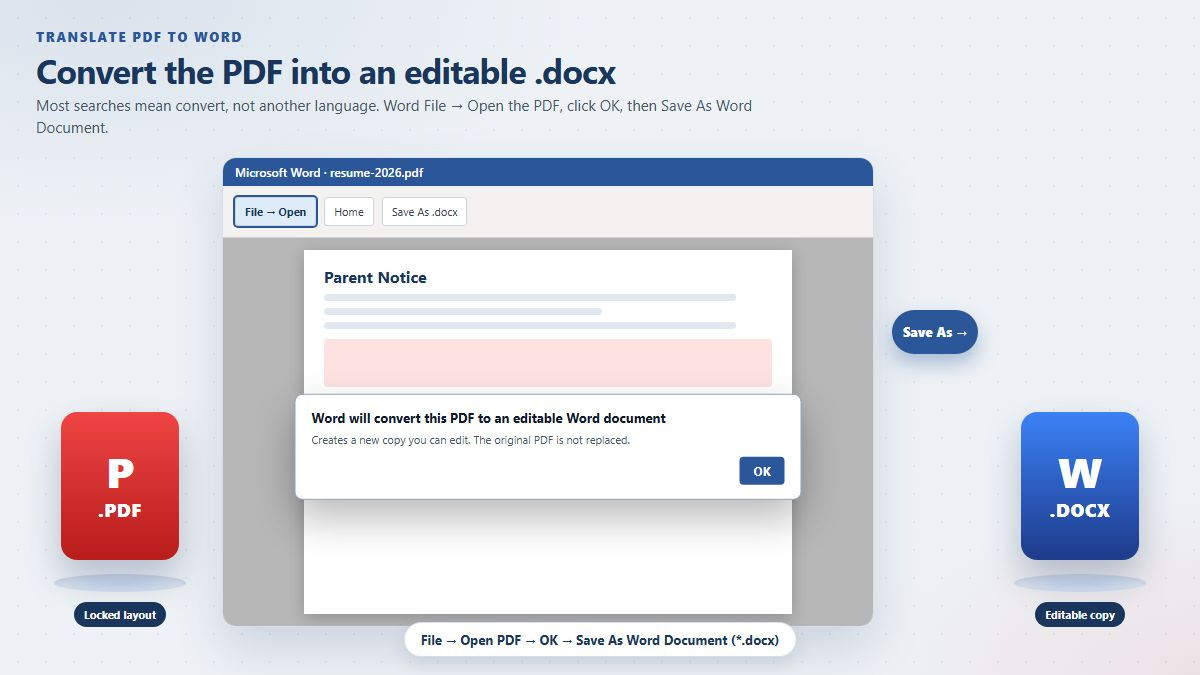
Quick answer: Searches for translate PDF to Word almost always mean convert the file so you can edit it. In Microsoft Word, go to File → Open, choose the PDF, click OK when Word offers to convert it, then File → Save As → Word Document (*.docx). Your original PDF stays unchanged. Text-based PDFs convert best. If you cannot select words in the PDF, it is a scan—run OCR first or Word will drop in page pictures. Keep contracts and IDs on the PC; skip random upload sites. If you also need another language, convert to Word first, then use Review → Translate.
US searchers for this phrase usually want four things: a free path that does not require Adobe, a Word file they can actually type in, formatting that does not explode, and a warning when the PDF is only a photo of a page. A smaller group wants the PDF translated into another language and then saved as Word. Both jobs are covered below, starting with conversion.
How do I convert a PDF to an editable Word document?
Word has a built-in converter. You do not need a third-party website for a typical resume, letter, or school handout.
Open Microsoft Word (desktop). Word for the web can also convert an uploaded PDF.
Go to File → Open and browse to the PDF (or drag the file onto the Word window).
When Word says it will convert the PDF into an editable document, click OK.
Wait for conversion. Then immediately File → Save As and pick Word Document (*.docx) with a new name.
Switch to Print Layout and skim headings, tables, and page breaks before you edit.
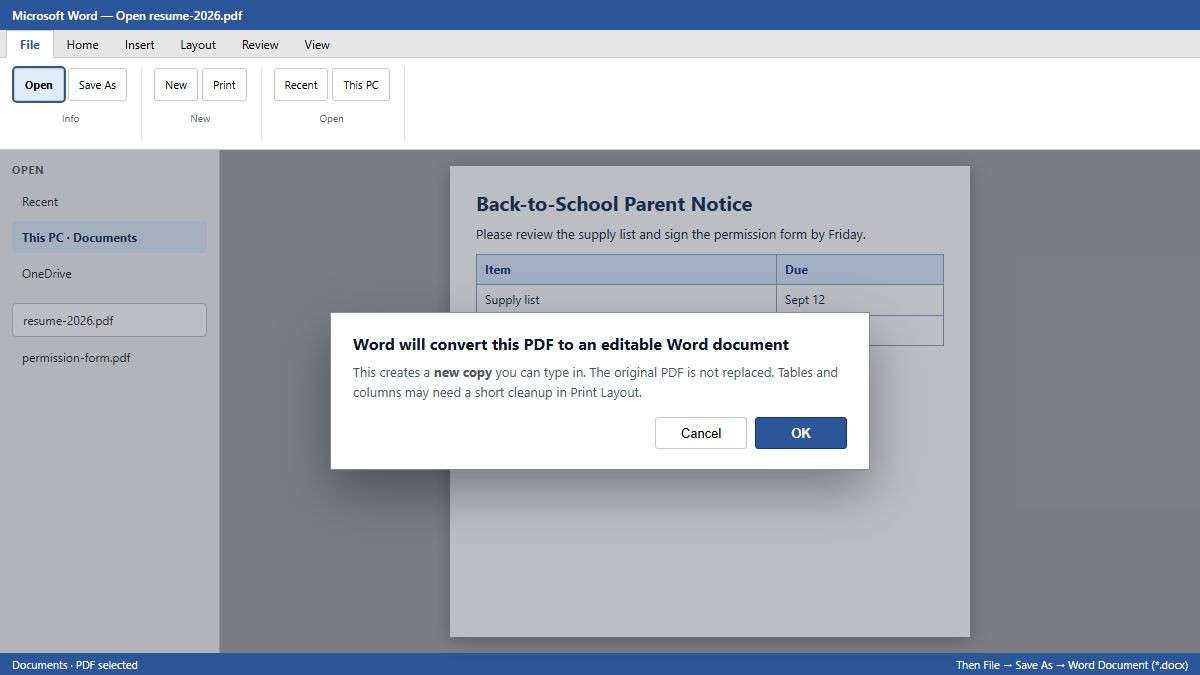
Tip: conversion works best on PDFs that started as Word, Google Docs, or similar—mostly text, simple tables. Magazines, fillable forms, and heavily designed flyers will need cleanup. Microsoft notes that lines and pages may break in different places than the PDF.
How do I convert PDF to Word for free online?
If Word is not installed, browser tools (Adobe Acrobat online, Smallpdf, and similar) let you drag a PDF and download a .docx. That path is convenient and usually free for a few files per day.
Watch for sign-in walls, daily limits, and watermarks on the free tier.
Output is a standard .docx you can open in Word, Google Docs, or WPS Writer.
Online conversion is a poor fit for anything confidential—see the privacy section below.
Word’s own converter is still the first choice when Office is already on the PC: no extra account, no upload, no per-day cap.
How do I convert PDF to Word without losing formatting?
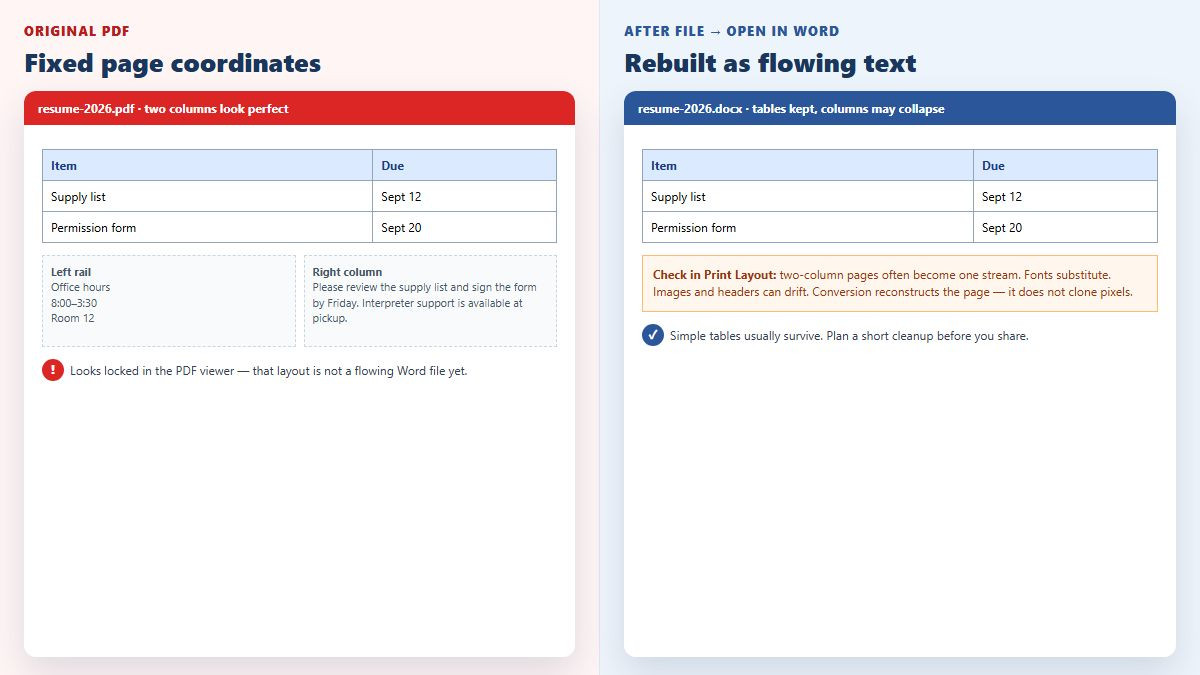
PDF stores objects at fixed coordinates. Word stores flowing paragraphs. Every converter rebuilds the page; it does not photocopy it. Expect “good enough,” not pixel-perfect.
Tables: simple bordered tables often become real Word tables. Merged cells, nested tables, and form grids may split or lose borders—fix column widths after convert.
Columns: two-column newsletters frequently collapse into one long stream. Reapply Layout → Columns if you still need the rail.
Fonts: if the PDF font is not installed, Word substitutes another face and text reflows. Install the original font when you can.
Images and headers: pictures can drift; headers/footers may become body text. Check every section in Print Layout.
If you only need the words (not the layout), copying from the PDF or exporting to plain text is cleaner than forcing a complex page into .docx. If you still have the original .docx, edit that instead of round-tripping PDF → Word.
How do I convert a scanned PDF to Word?
Do this 10-second test in any PDF reader: try to highlight a sentence and use Ctrl+F.
Text highlights / search works: use File → Open in Word. No OCR required.
Nothing selects, search finds zero hits: the file is a scan or a photo. You need optical character recognition (OCR) before or during conversion.
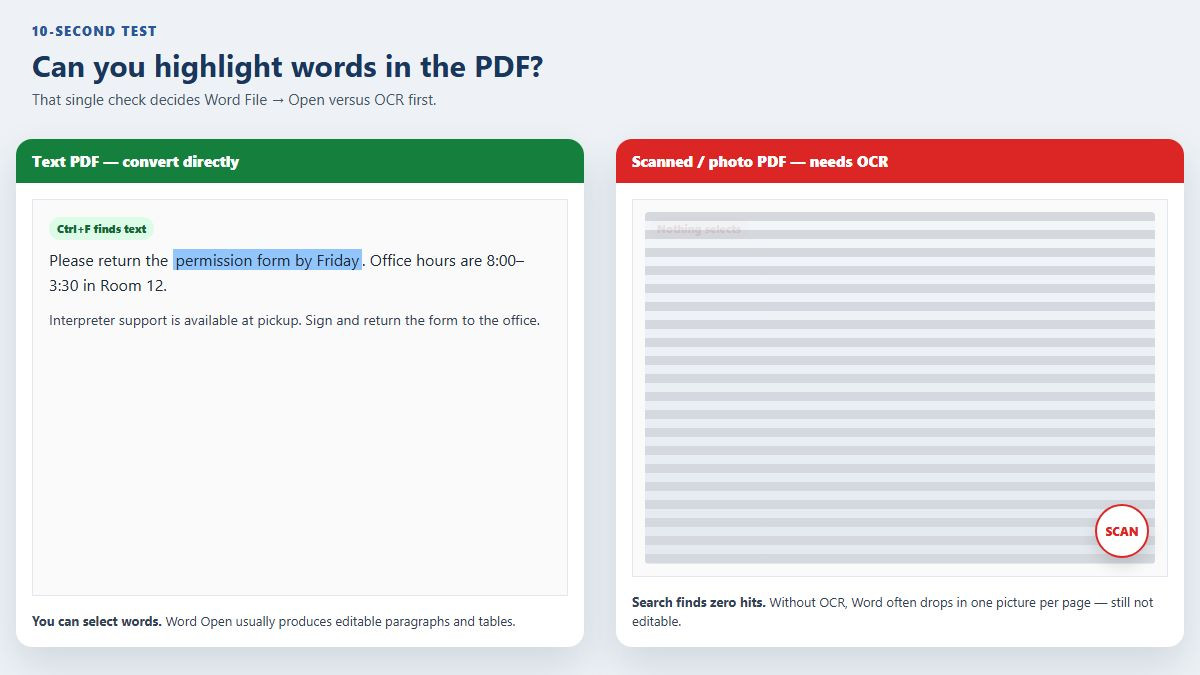
Without OCR, converters still “succeed,” but each Word page is an image—you cannot edit a typo. Use Word’s scan/OCR tools if your Office build includes them, Adobe Acrobat OCR, or another OCR-enabled converter, and pick the correct language for the page. Then proof names, dates, and dollar amounts; OCR misses characters on blurry or skewed scans. Aim for a 300 DPI straight scan if you control the scanner.
Is it safe to upload a PDF? How do I convert without uploading?
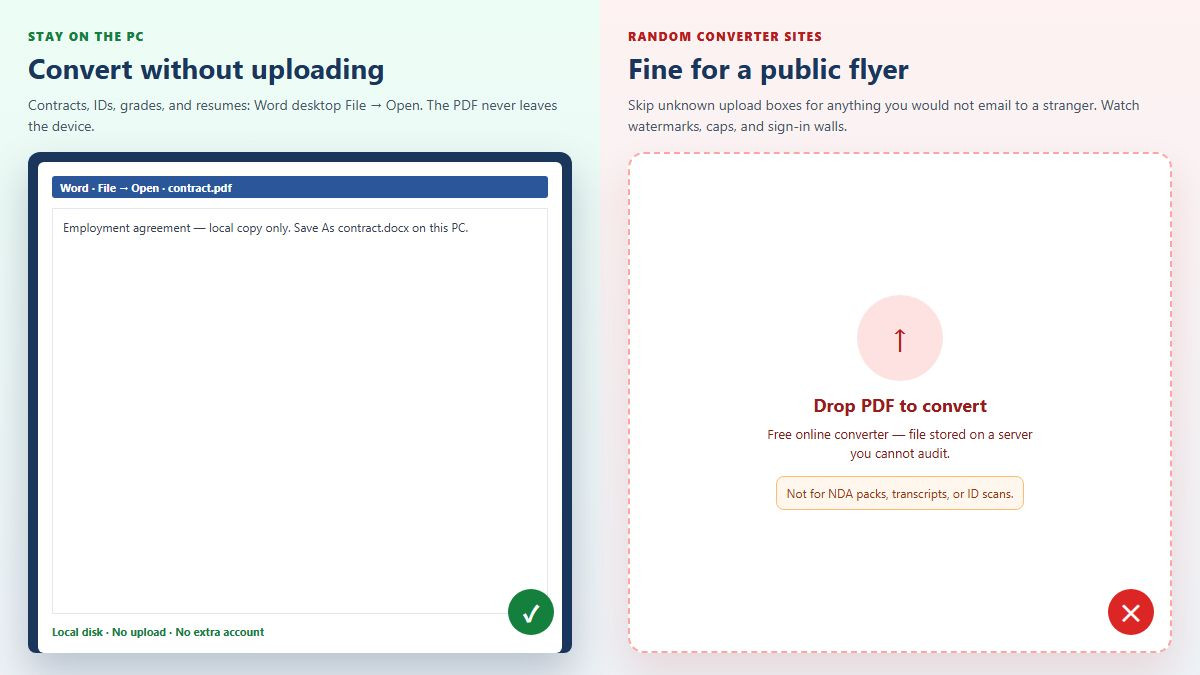
Free converter landing pages dominate this keyword. For a public flyer, they are fine. For a signed contract, transcript, or ID scan, treat an unknown upload box like emailing the file to a stranger.
No upload: Word desktop File → Open (this article’s default). Keep the .docx on the same drive.
Password PDFs: if you know the password, enter it in Word/Acrobat or unlock with a tool you already license. If you do not have permission, ask the owner for an editable copy—do not hunt “cracker” sites.
Mac / no Microsoft 365: Word for the web, Google Docs (upload PDF, Open with Google Docs), or WPS Writer after a local convert.
How do I translate a PDF into another language and save it as Word?
This is the smaller search intent: you want Spanish, English, or another language—not just .docx. Word cannot reliably translate a locked PDF in one click. Convert first, then translate.
Turn the PDF into an editable .docx using File → Open (and OCR if needed).
Clean obvious layout breaks so Translator is not feeding it broken tables.
Go to Review → Translate → Translate Document, pick the target language, click Translate. Word opens a new file.
Alternatively upload the PDF to Google Translate → Documents or DeepL’s file translator, then paste or download and tidy in Word. Layout is usually worse than Word’s own converter-plus-Translate path.
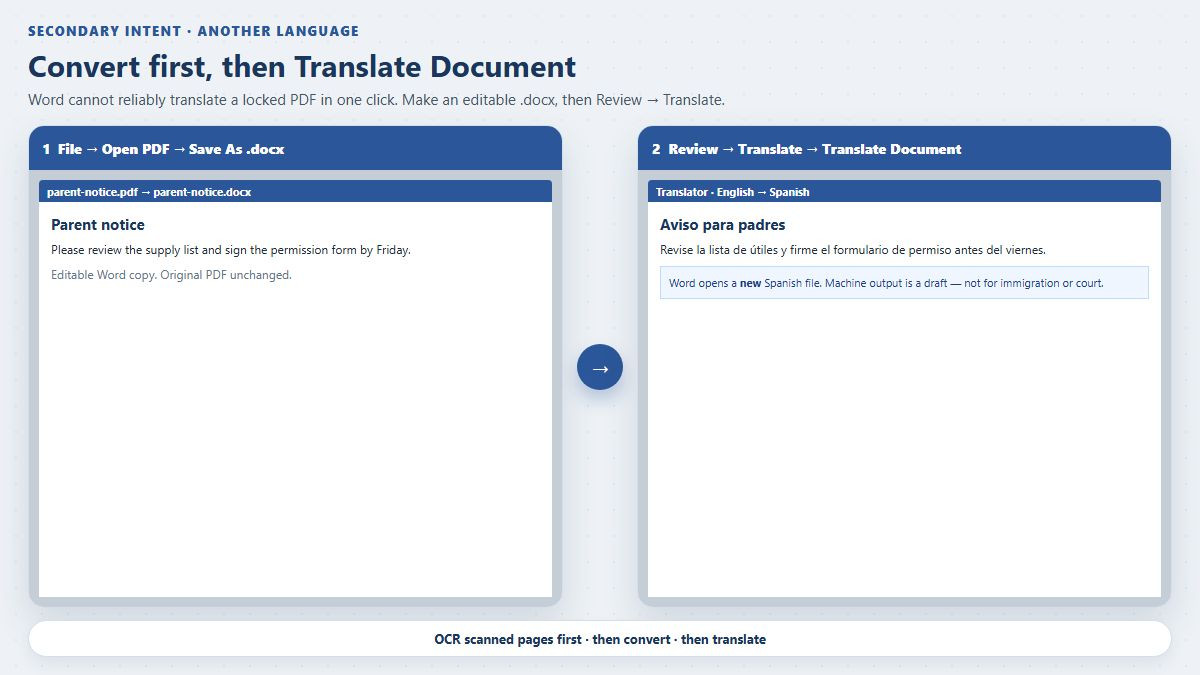
Machine translation is a draft for handouts and internal notes. It is not accepted for immigration, court, or certified records. Scanned PDFs still need OCR before any translator can see the words.
Another option: edit the converted file in WPS Writer
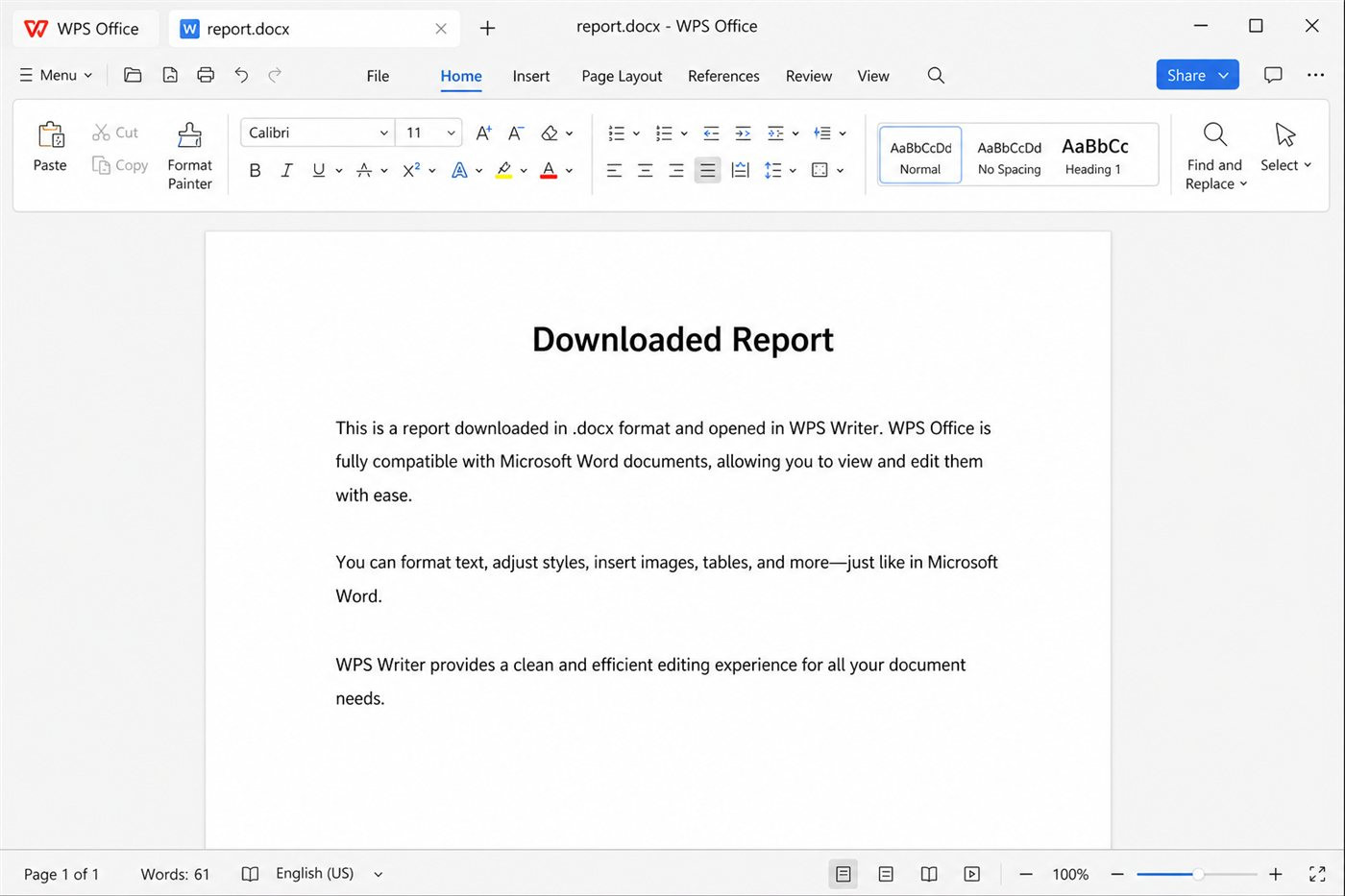
After Word (or another converter) gives you a .docx, you can open the same file in WPS Office Writer to fix wording, widen table rows, and export PDF for email—useful when teammates do not all have Microsoft 365.
That does not replace learning File → Open in Word, but it keeps mixed Windows/Mac teams moving on a standard .docx without a second Office license on every PC.
FAQ
How do I convert a PDF to Word for free?
In Word, File → Open the PDF → OK → Save As .docx. That uses the converter already in Word. Browser converters also work for a few files a day if you accept uploading.
Can I open a PDF in Microsoft Word and edit it?
Yes. Word converts it into an editable copy. Save as .docx immediately so you are not stuck with a one-off conversion view.
Does converting PDF to Word keep tables and images?
Simple tables and images often carry over. Multi-column layouts, merged cells, and missing fonts are the usual breakage points—always check Print Layout.
Why can’t I edit the PDF after converting to Word?
Most often the PDF was a scan (no text layer). Enable OCR, or you will get page images inside Word. Also check that the file is not still open as a read-only PDF preview.
How do I convert a scanned PDF to Word?
If text will not highlight, run OCR in the correct language, then export or open as Word. Proofread numbers and names.
How do I convert PDF to Word without uploading?
Use Word on the desktop: File → Open. Keep contracts and IDs off consumer converter websites.
Can I convert a password-protected PDF to Word?
Only if you have the password or the owner’s permission. Unlock or enter the password in Word/Acrobat, then convert. Do not use unauthorized password-removal sites.
How do I translate a PDF into another language as a Word file?
Convert PDF → .docx first, then Review → Translate → Translate Document. Or use a document translator, then clean the layout in Word. Machine output is not certified.
Summary
To translate PDF to Word, start with File → Open in Microsoft Word and Save As .docx—that is the convert job most searchers actually want. Expect to tidy tables and columns. If you cannot select text, add OCR before you edit. Keep sensitive files local. When the goal is another language, convert first, then use Review → Translate (draft quality only). Open the finished .docx in WPS Writer if you need a free editor that still speaks Word format.



'%3e%3cpath%20d='M19.9911%204.11386V6.471H18.5894C18.0775%206.471%2017.7322%206.57814%2017.5536%206.79243C17.3751%207.00671%2017.2858%207.32814%2017.2858%207.75671V9.44421H19.9019L19.5536%2012.0871H17.2858V18.8639H14.5536V12.0871H12.2769V9.44421H14.5536V7.49779C14.5536%206.39064%2014.8632%205.53201%2015.4822%204.92189C16.1013%204.31177%2016.9257%204.00671%2017.9554%204.00671C18.8304%204.00671%2019.509%204.04243%2019.9911%204.11386Z'%20fill='%23333333'/%3e%3c/g%3e%3cdefs%3e%3cclipPath%20id='clip0_2938_8199'%3e%3crect%20width='16'%20height='16'%20fill='white'%20transform='translate(8%204.00671)'/%3e%3c/clipPath%3e%3c/defs%3e%3c/svg%3e)
'%3e%3cpath%20d='M17.5237%2010.7813L23.4811%204H22.0699L16.8949%209.88693L12.7648%204H8L14.2469%2012.9029L8%2020.0133H9.4112L14.8725%2013.7952L19.2352%2020.0133H24M9.92053%205.04213H12.0885L22.0688%2019.0224H19.9003'%20fill='%23333333'/%3e%3c/g%3e%3cdefs%3e%3cclipPath%20id='clip0_2938_8200'%3e%3crect%20width='16'%20height='16.0134'%20fill='white'%20transform='translate(8%204)'/%3e%3c/clipPath%3e%3c/defs%3e%3c/svg%3e)


