

'%3e%3cpath%20d='M8%200C12.4183%200%2016%203.58172%2016%208C16%2012.4183%2012.4183%2016%208%2016C3.58172%2016%200%2012.4183%200%208C0%203.58172%203.58172%200%208%200ZM11.6162%204.38379C11.2257%203.99337%2010.5927%203.99338%2010.2021%204.38379L8%206.58594L5.79785%204.38379C5.40732%203.99334%204.77429%203.99329%204.38379%204.38379C3.99331%204.77429%203.99335%205.40733%204.38379%205.79785L6.58594%208L4.38379%2010.2021C3.99348%2010.5927%203.99341%2011.2257%204.38379%2011.6162C4.77426%2012.0066%205.40734%2012.0065%205.79785%2011.6162L8%209.41406L10.2021%2011.6162C10.5927%2012.0066%2011.2257%2012.0067%2011.6162%2011.6162C12.0067%2011.2257%2012.0066%2010.5927%2011.6162%2010.2021L9.41406%208L11.6162%205.79785C12.0066%205.40735%2012.0066%204.77429%2011.6162%204.38379Z'%20fill='%23080E17'%20fill-opacity='0.46'/%3e%3c/g%3e%3cdefs%3e%3cclipPath%20id='clip0_3761_713'%3e%3crect%20width='16'%20height='16'%20fill='white'/%3e%3c/clipPath%3e%3c/defs%3e%3c/svg%3e)




'%3e%3cpath%20fill-rule='evenodd'%20clip-rule='evenodd'%20d='M21.4999%2010.9993C21.4999%205.20009%2016.7986%200.498901%2010.9993%200.498901C5.19994%200.498901%200.498657%205.20009%200.498657%2010.9993C0.498657%2016.2404%204.33858%2020.5844%209.35855%2021.3722V14.0346H6.69238V10.9993H9.35855V8.68594C9.35855%206.05427%2010.9262%204.60062%2013.3248%204.60062C14.4736%204.60062%2015.6753%204.80571%2015.6753%204.80571V7.38979H14.3512C13.0468%207.38979%2012.64%208.19921%2012.64%209.0296V10.9993H15.5523L15.0867%2014.0346H12.64V21.3722C17.66%2020.5844%2021.4999%2016.2404%2021.4999%2010.9993Z'%20fill='%231568EA'/%3e%3c/g%3e%3c/svg%3e)


'%3e%3cpath%20d='M2.42045%2022.1876H6.31818V12.7217L0.75%208.54553V20.5171C0.75%2021.4414%201.49892%2022.1876%202.42045%2022.1876Z'%20fill='%234285F4'/%3e%3cpath%20d='M19.682%2022.1876H23.5797C24.5041%2022.1876%2025.2502%2021.4387%2025.2502%2020.5171V8.54553L19.682%2012.7217'%20fill='%2334A853'/%3e%3cpath%20d='M19.682%205.48293V12.7216L25.2502%208.54543V6.31816C25.2502%204.25236%2022.8921%203.07469%2021.2411%204.31361'%20fill='%23FBBC04'/%3e%3cpath%20d='M6.31824%2012.7217V5.48303L13.0001%2010.4944L19.6819%205.48303V12.7217L13.0001%2017.733'%20fill='%23EA4335'/%3e%3cpath%20d='M0.75%206.31816V8.54543L6.31818%2012.7216V5.48293L4.75909%204.31361C3.10534%203.07469%200.75%204.25236%200.75%206.31816Z'%20fill='%23C5221F'/%3e%3c/g%3e%3cdefs%3e%3cclipPath%20id='clip0_2954_7305'%3e%3crect%20width='24.5'%20height='18.375'%20fill='white'%20transform='translate(0.75%203.8125)'/%3e%3c/clipPath%3e%3c/defs%3e%3c/svg%3e)


WhatsApp is one of the most popular messaging apps in the world, and you do not have to stay glued to your phone to use it. If you own a Mac, you can get WhatsApp on your desktop in two ways: install the official WhatsApp Desktop app, or run WhatsApp Web in your browser. Both options mirror your phone account, so your chats, contacts, and media stay in sync.
In this guide, you will learn how to get WhatsApp on Mac step by step — from the official download page and the Mac App Store to WhatsApp Web — plus what you need before linking your devices and how to handle the documents and images people send you.
How to Get WhatsApp on Mac
What You Need Before Getting WhatsApp on Mac
WhatsApp Desktop and WhatsApp Web are extensions of your phone account, not standalone apps. Before you start, make sure you have the following:
An active WhatsApp account on your smartphone. The desktop version must be linked to your phone during setup.
macOS 11 or later. The official WhatsApp Desktop app requires macOS 11 (Big Sur) or a newer version. Older systems can still use WhatsApp Web in a browser.
A stable internet connection. Both your Mac and your phone need to be online for messages to sync.
An updated browser. Safari, Chrome, Edge, or Firefox all work if you plan to use WhatsApp Web.
Keep in mind that your phone remains the primary device. You can link up to four additional devices to your account, and each one stays connected even when your phone is temporarily offline.
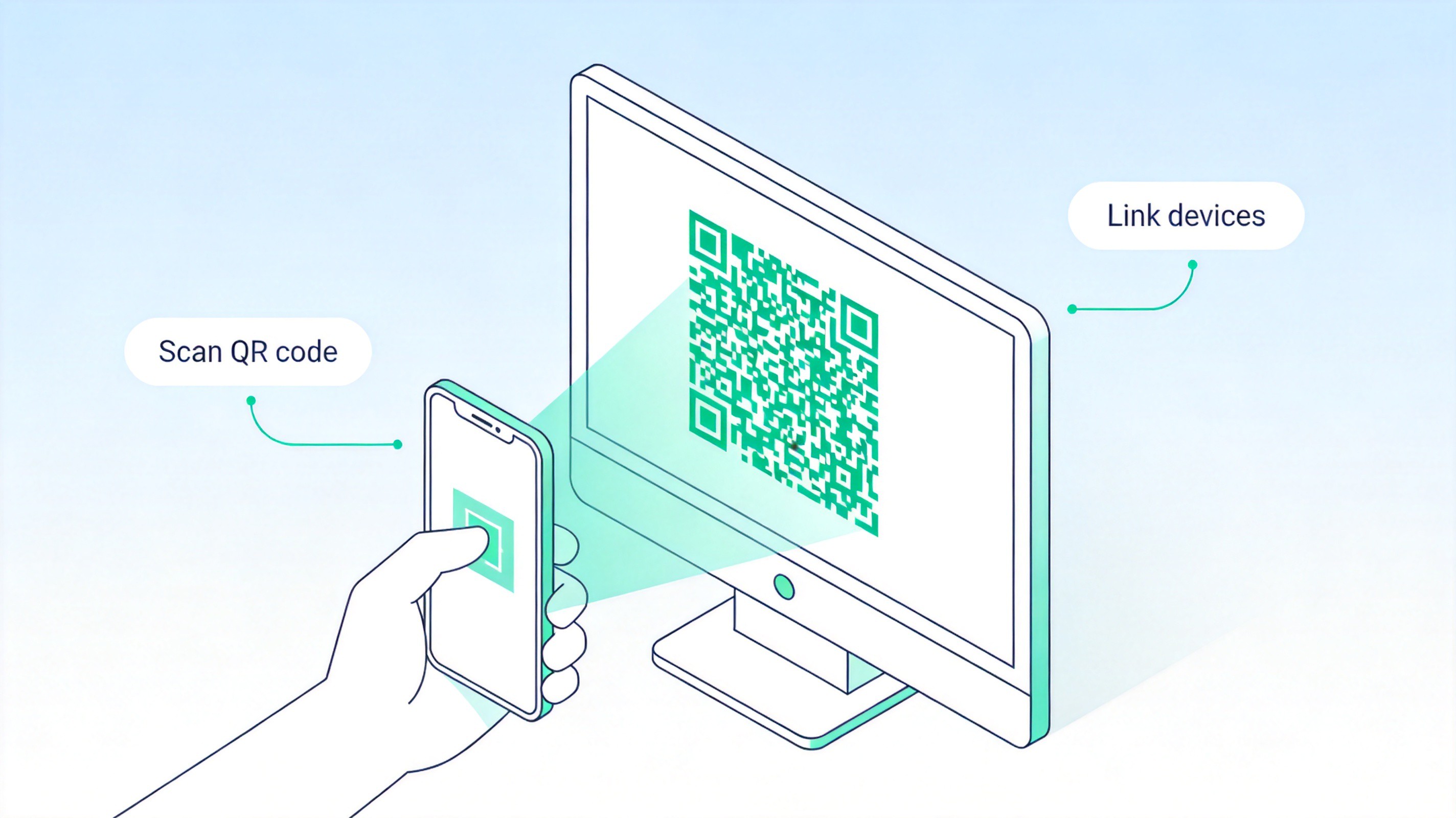
Scan QR code to link WhatsApp


How to Download WhatsApp on Mac from the Official Website
The fastest way to get WhatsApp on Mac is to download the desktop app from the official website. The site detects your operating system automatically, so you always get the correct version.
Open your browser and go to whatsapp.com/download.
Click the Download button under the Mac section. The .dmg installer file will be saved to your Downloads folder.
Open the .dmg file and drag the WhatsApp icon into the Applications folder.
Launch WhatsApp from the Applications folder and click Open to confirm the first-launch prompt.
Scan the QR code with your phone: on iPhone, open WhatsApp and go to Settings > Linked Devices > Link a Device; on Android, tap the three-dot menu and choose Linked Devices. Point your phone camera at the QR code on your Mac screen.
Check Keep me signed in below the QR code so you do not have to scan every time you open the app.
After scanning, your chats will sync and WhatsApp will run as a native app on your Mac, complete with desktop notifications and keyboard shortcuts.
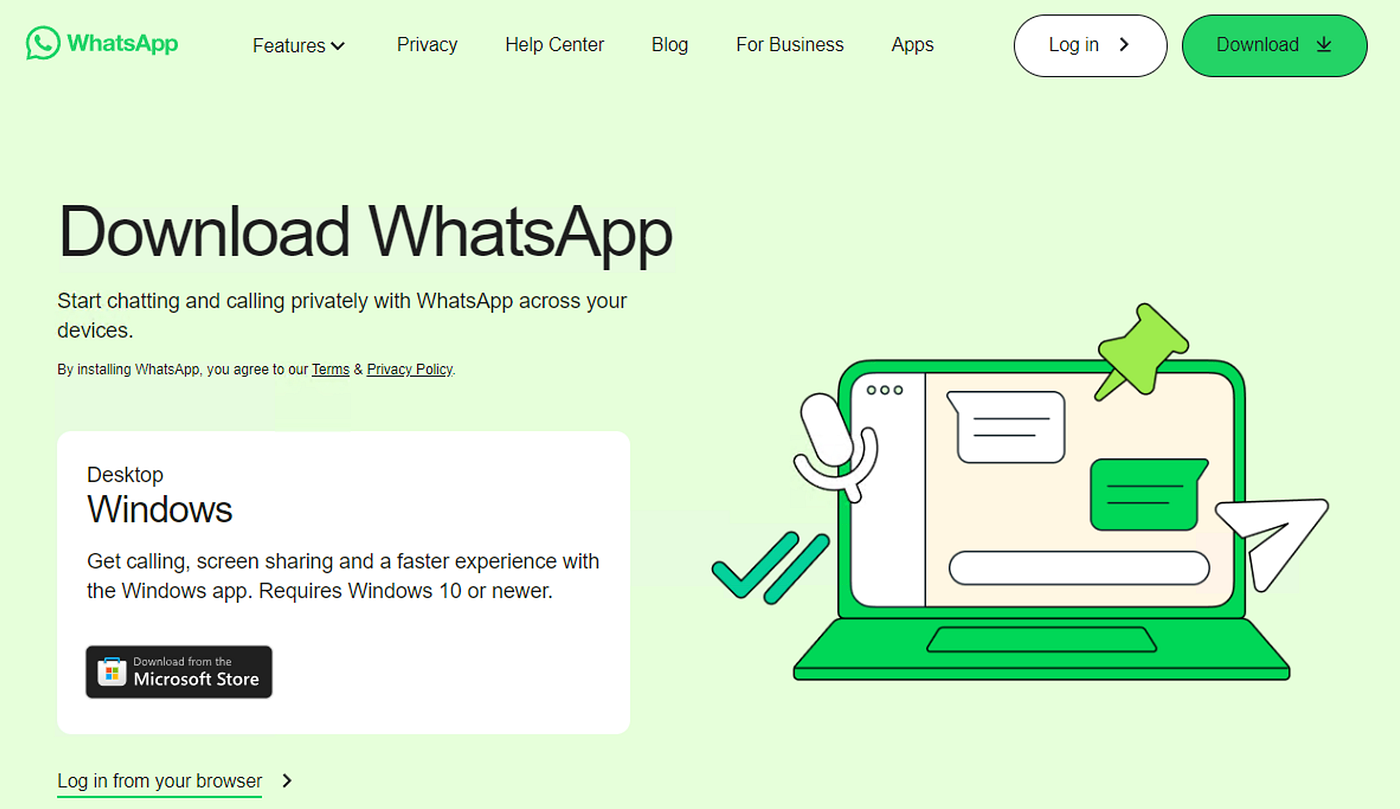
WhatsApp download page
How to Install WhatsApp on Mac from the App Store
If you prefer managing apps through Apple's store, the Mac App Store offers the same official WhatsApp Desktop app with automatic updates.
Open the App Store from the Dock or Launchpad on your Mac.
Search for WhatsApp and select WhatsApp Messenger published by WhatsApp Inc.
Click Get / Install and confirm with your Apple ID if prompted. The app downloads and installs automatically.
Open WhatsApp from Launchpad or the Applications folder.
Link your phone by scanning the QR code on screen with Linked Devices in the WhatsApp mobile app, exactly as described above.
The App Store version updates itself in the background, which makes it a good choice if you do not want to check the website for new releases.
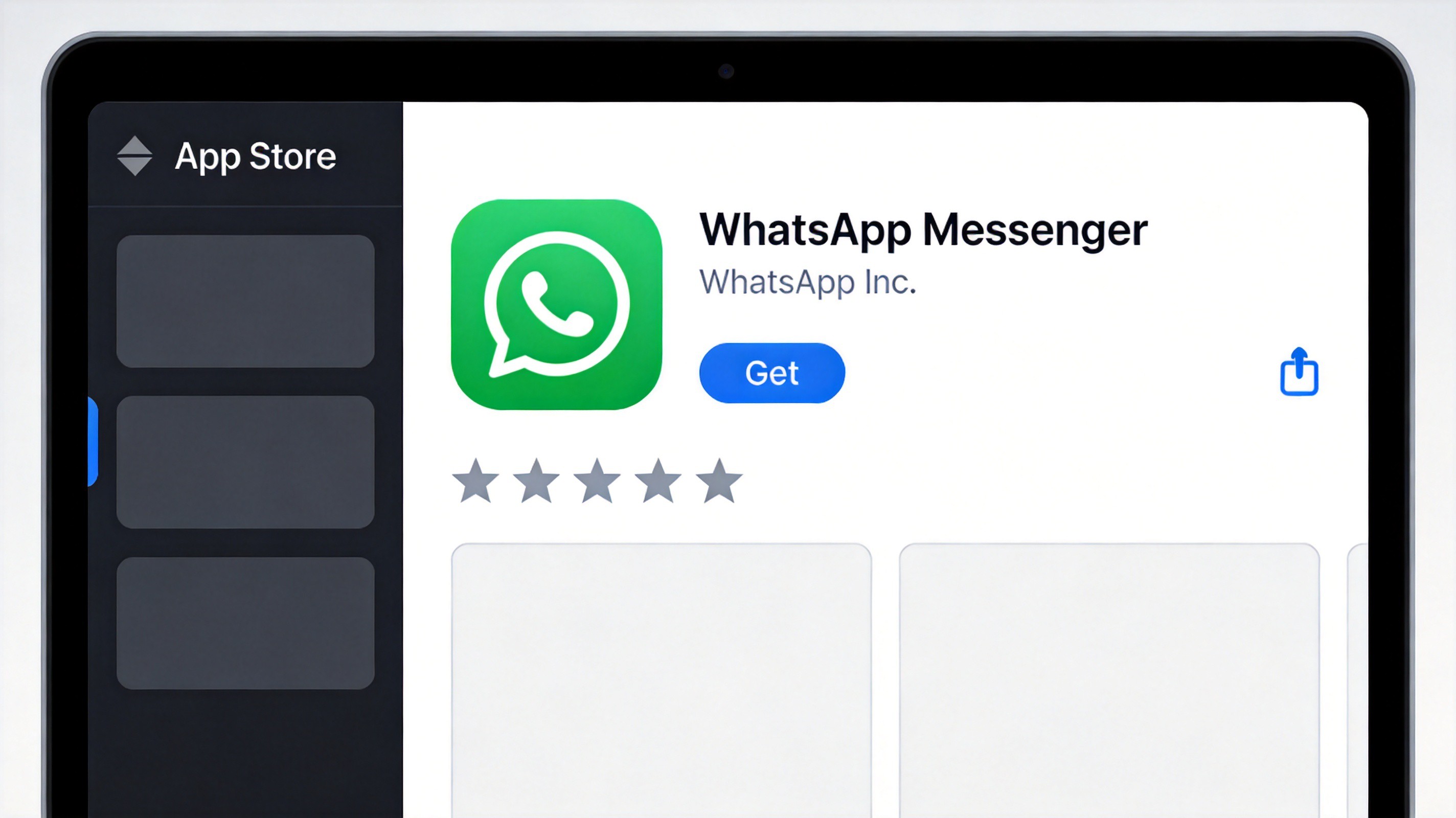
Install WhatsApp from Mac App Store
How to Use WhatsApp Web on Mac
WhatsApp Web works in any modern browser and needs no installation, which is handy on older Macs or when you are using someone else's computer.
Open your browser and visit web.whatsapp.com.
Open WhatsApp on your phone and go to Settings > Linked Devices > Link a Device (iPhone) or the three-dot menu > Linked Devices (Android).
Scan the QR code displayed in the browser window with your phone camera.
Wait for the sync to finish. Your contacts and chat history will appear in the browser, and you can start chatting right away.
WhatsApp Web supports most features you need day to day, including sending photos, audio messages, and documents. The main limitation is that it depends on the browser session — if you close the tab, you need to reopen the page, while the desktop app stays signed in.
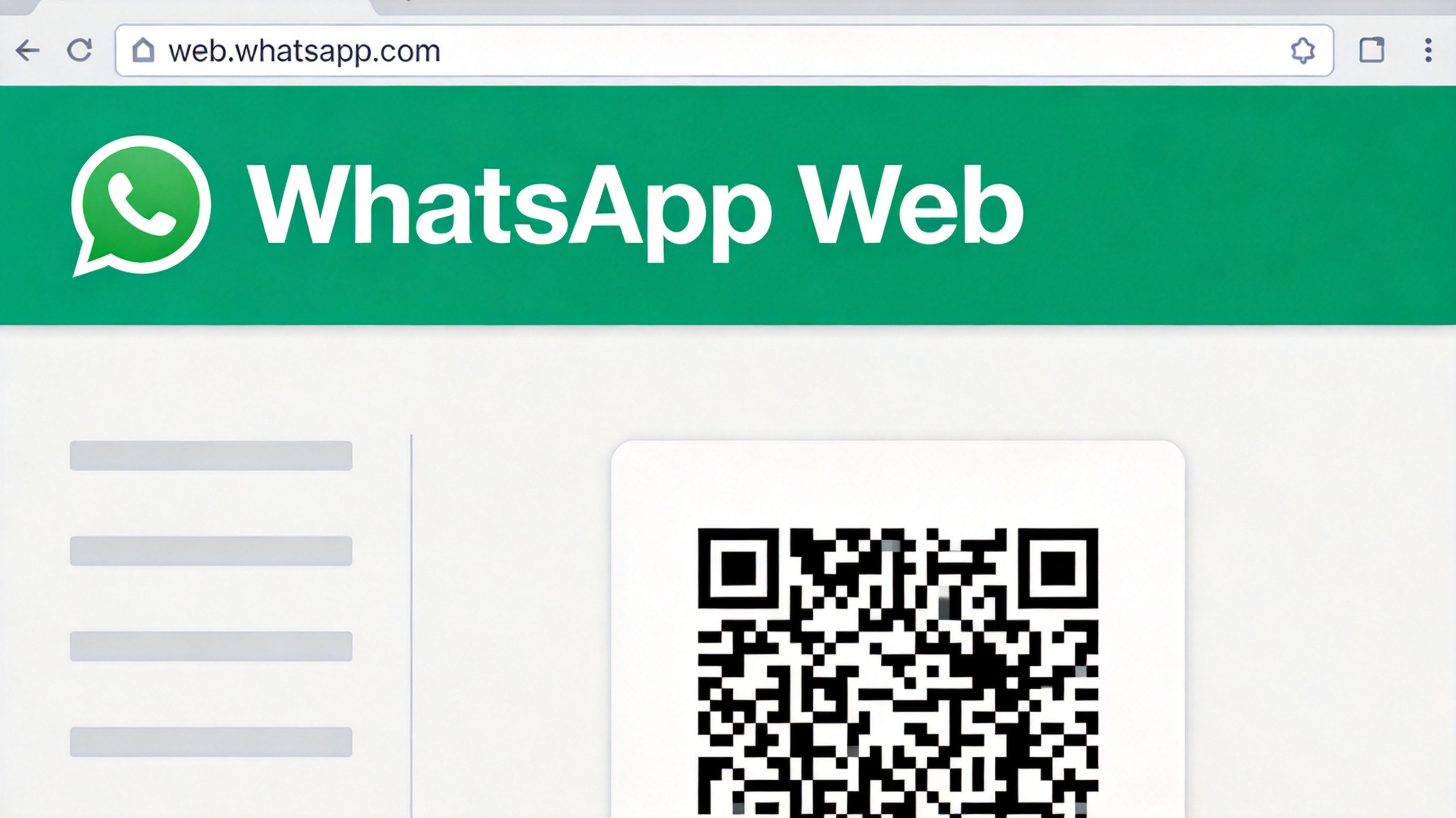
WhatsApp Web QR code on Mac
The Best Free Alternative: WPS Office for WhatsApp Files on Mac
Once WhatsApp is running on your Mac, you will inevitably receive work documents, images, and PDFs in your chats. To open, edit, or convert them, you need an office suite — and that is where WPS Office comes in.
WPS Office is a free, all-in-one suite for Mac that opens Word, Excel, PowerPoint, and PDF files. It is especially useful for WhatsApp attachments:
Open and edit any attachment. DOCX reports, XLSX sheets, and PPTX decks from chats open directly in WPS Writer, Spreadsheet, and Presentation.
Convert files for free. You can turn documents into PDF or export PDFs back into editable formats.
Convert WhatsApp images to PDF. If you receive screenshots or photos that need to be filed, see How to Convert WhatsApp Image to PDF for Free Online and Offline.
Work across devices. Files you edit on your Mac stay accessible on WPS's mobile and web apps.
WPS Office
FAQs
Q1: Is WhatsApp free to use on Mac?
Yes. The WhatsApp Desktop app and WhatsApp Web are both free. You only need an active WhatsApp account on your phone and an internet connection.
Q2: What macOS version do I need for WhatsApp on Mac?
The official WhatsApp Desktop app requires macOS 11 (Big Sur) or later. If your Mac runs an older system, you can still use WhatsApp Web in a browser.
Q3: Can I use WhatsApp on Mac without my phone?
After linking, you can send and receive messages on up to four linked devices even if your phone is offline for a while. However, you need the phone to scan the QR code the first time you set up each device.
Q4: Is WhatsApp safe to download from third-party sites?
No. Only download WhatsApp from the official website whatsapp.com/download or the Mac App Store. Unofficial installers can be outdated, modified, or bundled with malware.
Q5: Does WhatsApp Desktop have all the features of the mobile app?
Almost. Chats, voice and video calls, file sharing, and status updates work on the desktop app, but some mobile-only features, such as managing your account or broadcast lists, still require the phone app.


'%3e%3cpath%20d='M19.9911%204.11386V6.471H18.5894C18.0775%206.471%2017.7322%206.57814%2017.5536%206.79243C17.3751%207.00671%2017.2858%207.32814%2017.2858%207.75671V9.44421H19.9019L19.5536%2012.0871H17.2858V18.8639H14.5536V12.0871H12.2769V9.44421H14.5536V7.49779C14.5536%206.39064%2014.8632%205.53201%2015.4822%204.92189C16.1013%204.31177%2016.9257%204.00671%2017.9554%204.00671C18.8304%204.00671%2019.509%204.04243%2019.9911%204.11386Z'%20fill='%23333333'/%3e%3c/g%3e%3cdefs%3e%3cclipPath%20id='clip0_2938_8199'%3e%3crect%20width='16'%20height='16'%20fill='white'%20transform='translate(8%204.00671)'/%3e%3c/clipPath%3e%3c/defs%3e%3c/svg%3e)
'%3e%3cpath%20d='M17.5237%2010.7813L23.4811%204H22.0699L16.8949%209.88693L12.7648%204H8L14.2469%2012.9029L8%2020.0133H9.4112L14.8725%2013.7952L19.2352%2020.0133H24M9.92053%205.04213H12.0885L22.0688%2019.0224H19.9003'%20fill='%23333333'/%3e%3c/g%3e%3cdefs%3e%3cclipPath%20id='clip0_2938_8200'%3e%3crect%20width='16'%20height='16.0134'%20fill='white'%20transform='translate(8%204)'/%3e%3c/clipPath%3e%3c/defs%3e%3c/svg%3e)


