

'%3e%3cpath%20d='M8%200C12.4183%200%2016%203.58172%2016%208C16%2012.4183%2012.4183%2016%208%2016C3.58172%2016%200%2012.4183%200%208C0%203.58172%203.58172%200%208%200ZM11.6162%204.38379C11.2257%203.99337%2010.5927%203.99338%2010.2021%204.38379L8%206.58594L5.79785%204.38379C5.40732%203.99334%204.77429%203.99329%204.38379%204.38379C3.99331%204.77429%203.99335%205.40733%204.38379%205.79785L6.58594%208L4.38379%2010.2021C3.99348%2010.5927%203.99341%2011.2257%204.38379%2011.6162C4.77426%2012.0066%205.40734%2012.0065%205.79785%2011.6162L8%209.41406L10.2021%2011.6162C10.5927%2012.0066%2011.2257%2012.0067%2011.6162%2011.6162C12.0067%2011.2257%2012.0066%2010.5927%2011.6162%2010.2021L9.41406%208L11.6162%205.79785C12.0066%205.40735%2012.0066%204.77429%2011.6162%204.38379Z'%20fill='%23080E17'%20fill-opacity='0.46'/%3e%3c/g%3e%3cdefs%3e%3cclipPath%20id='clip0_3761_713'%3e%3crect%20width='16'%20height='16'%20fill='white'/%3e%3c/clipPath%3e%3c/defs%3e%3c/svg%3e)




'%3e%3cpath%20fill-rule='evenodd'%20clip-rule='evenodd'%20d='M21.4999%2010.9993C21.4999%205.20009%2016.7986%200.498901%2010.9993%200.498901C5.19994%200.498901%200.498657%205.20009%200.498657%2010.9993C0.498657%2016.2404%204.33858%2020.5844%209.35855%2021.3722V14.0346H6.69238V10.9993H9.35855V8.68594C9.35855%206.05427%2010.9262%204.60062%2013.3248%204.60062C14.4736%204.60062%2015.6753%204.80571%2015.6753%204.80571V7.38979H14.3512C13.0468%207.38979%2012.64%208.19921%2012.64%209.0296V10.9993H15.5523L15.0867%2014.0346H12.64V21.3722C17.66%2020.5844%2021.4999%2016.2404%2021.4999%2010.9993Z'%20fill='%231568EA'/%3e%3c/g%3e%3c/svg%3e)


'%3e%3cpath%20d='M2.42045%2022.1876H6.31818V12.7217L0.75%208.54553V20.5171C0.75%2021.4414%201.49892%2022.1876%202.42045%2022.1876Z'%20fill='%234285F4'/%3e%3cpath%20d='M19.682%2022.1876H23.5797C24.5041%2022.1876%2025.2502%2021.4387%2025.2502%2020.5171V8.54553L19.682%2012.7217'%20fill='%2334A853'/%3e%3cpath%20d='M19.682%205.48293V12.7216L25.2502%208.54543V6.31816C25.2502%204.25236%2022.8921%203.07469%2021.2411%204.31361'%20fill='%23FBBC04'/%3e%3cpath%20d='M6.31824%2012.7217V5.48303L13.0001%2010.4944L19.6819%205.48303V12.7217L13.0001%2017.733'%20fill='%23EA4335'/%3e%3cpath%20d='M0.75%206.31816V8.54543L6.31818%2012.7216V5.48293L4.75909%204.31361C3.10534%203.07469%200.75%204.25236%200.75%206.31816Z'%20fill='%23C5221F'/%3e%3c/g%3e%3cdefs%3e%3cclipPath%20id='clip0_2954_7305'%3e%3crect%20width='24.5'%20height='18.375'%20fill='white'%20transform='translate(0.75%203.8125)'/%3e%3c/clipPath%3e%3c/defs%3e%3c/svg%3e)


To combine two PDFs, add both files to a PDF merger, put the first document before the second, and save the result as a new PDF. Before sharing it, check the page where the two documents meet: that is where a missing page or incorrect order is easiest to spot.
WPS offers an online merge tool and a desktop PDF Merge workflow. Use the browser option for a quick upload you are permitted to make, or the desktop workflow when you prefer working from files on your computer. Check the tool's current limits and account requirements before starting.
How to Combine Two PDFs in the Right Order
Combine Two PDFs Online with WPS
The WPS online PDF merger lets you add PDF files and arrange the material before combining it. Keep both original files unchanged so you can repeat the operation if the wrong pages are included.
Step 1: Open the merger and select both PDFs
Open the official merge page and use its file-selection control to add the two documents. You can also use drag and drop where offered. Wait until both files appear in the tool before continuing. If an account prompt or usage limit appears, review it before processing the files.
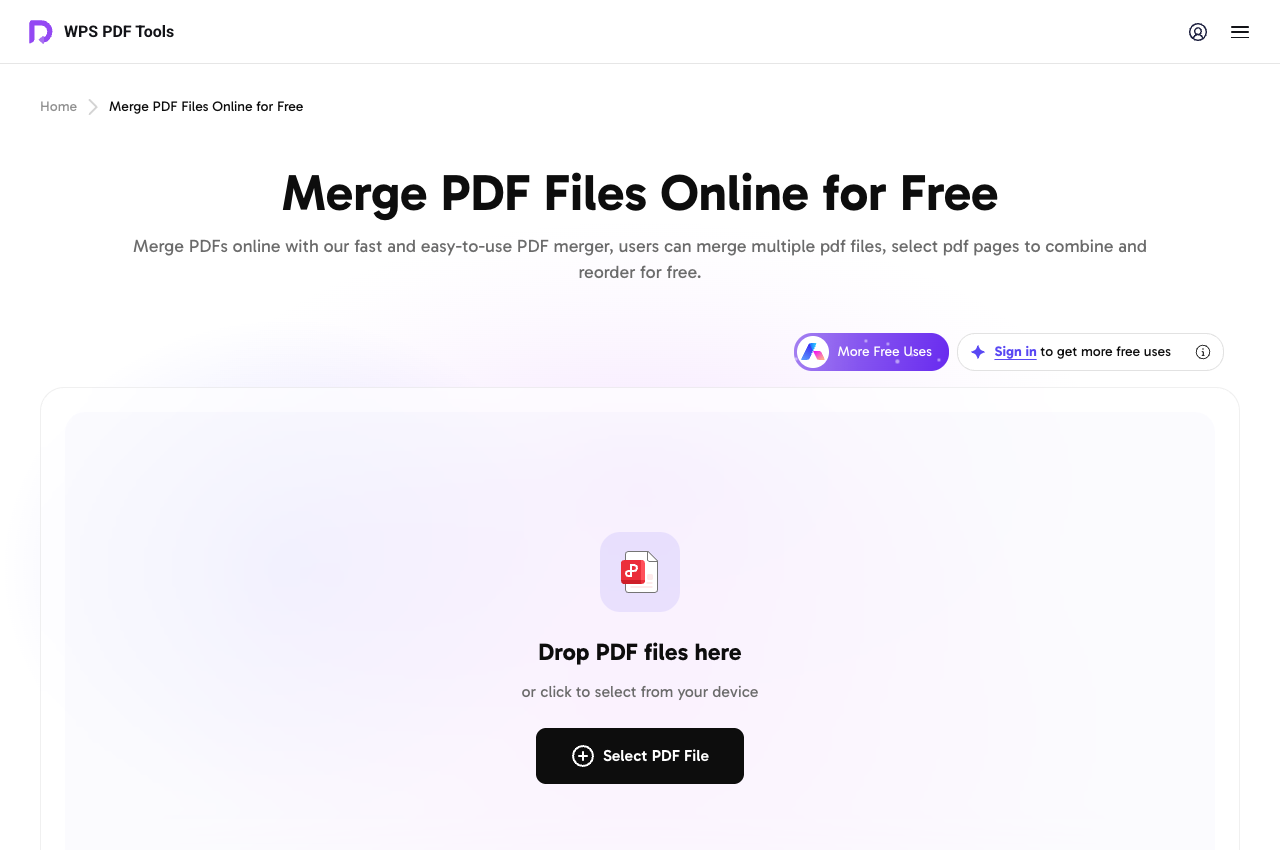
WPS online PDF merge upload screen
Step 2: Put the files in reading order
Place the document that should start the combined PDF first. Then place the second document after it. Use the available file or page controls to adjust the order and confirm that only the intended pages are included. A merge normally appends documents; alternating front and back pages from separate scans is a different arrangement that needs an explicit page-order check.
For example, if a cover letter has two pages and the supporting report has five, the expected result is seven pages. The report should begin on page three. This simple calculation is an example you can adapt to your own pair of files.
Step 3: Merge, download, and reopen
Run the merge and download the finished PDF. Give it a meaningful name such as application-with-supporting-report.pdf. Open the downloaded file itself, not just the website preview, and confirm the first page, the joining point, and the last page.
Online processing involves submitting files to a service. For workplace documents, follow the document owner's sharing rules. Do not infer permission to upload a file merely because the merge page is available. The free allowance shown by the tool can change; the live page is the place to check your current access.


Combine Two PDFs on Desktop and Check Every Page
WPS documents a desktop PDF Merge workflow with page selection and an output name. Its official split-and-merge guide also identifies Premium access for this functionality. A free download of the suite should not be read as a guarantee of free desktop merging.
Step 1: Open the PDF Merge tool
In WPS Office, locate the PDF tools or PDF Converter and choose Merge PDF or PDF Merge. The official guide shows the converter under the WPS AI productivity tools, while entry points can differ between desktop builds. Use the tool name to locate the matching feature.
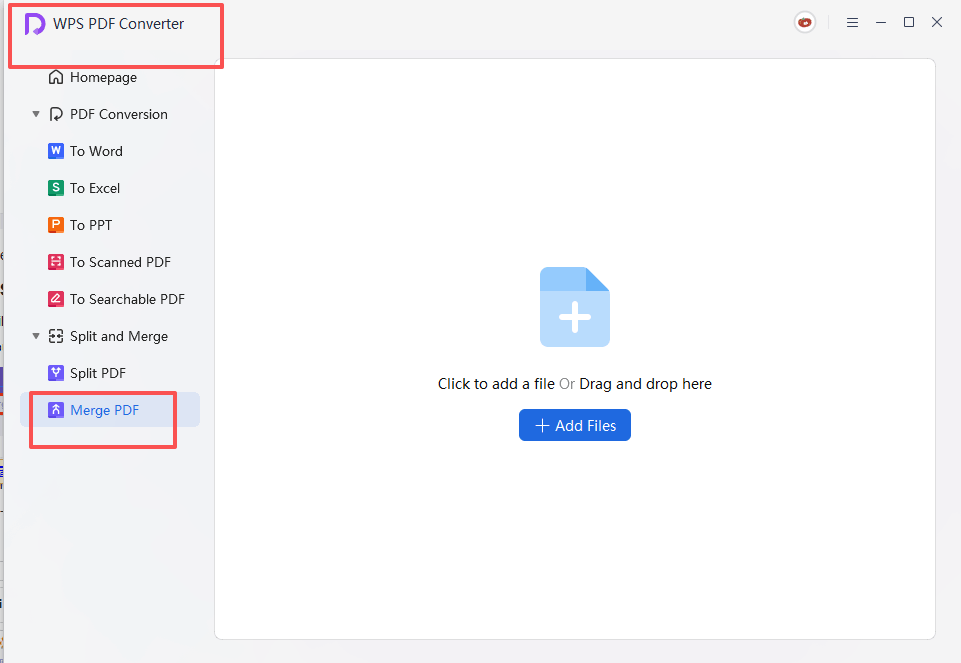
WPS PDF Converter merge file selection
Step 2: Add two files and select the required pages
Add both PDFs. Check their names carefully if the folder contains several revisions. Select all pages when you want both complete documents, or choose only the ranges you need if the dialog supports that selection. Set the document order and review the output name and destination.
Keep the planned page count beside you. Combining a four-page proposal with a three-page appendix should produce seven pages when no pages are excluded. If the tool's result differs, inspect the selected ranges and look for a duplicated cover or missing appendix.
Step 3: Save a new combined document
Select Merge and open the saved output. Preserve the two source files. Reusing an existing filename makes it harder to tell which document is the combined version, particularly when several colleagues are reviewing the same folder.
Step 4: Check the details that a page count cannot catch
Order: inspect the last page of the first file and the first page of the second.
Orientation: confirm landscape tables and portrait pages remain readable.
Content: compare small text, images, annotations, and any completed fields.
Navigation: test links and bookmarks that matter to the recipient.
Final size: compare the result with the destination's upload limit before sending.
If one input will not open, solve that issue first. Use an authorized password when required, or request an accessible copy from the owner. For files whose signatures or form behavior must remain intact, test the combined copy in the intended workflow and retain the originals.
WPS Office: More Control Around a Two-PDF Merge
The practical value of WPS PDF extends beyond joining two attachments. It provides a place to review the inputs, work with pages, and inspect the finished result. The wider WPS suite also helps when a document needs to be corrected before it becomes part of the combined file.
Prepare consistent source documents
Suppose you need to send a proposal and a cost estimate together. Edit the proposal in Writer and review the estimate in Spreadsheet before exporting each as a PDF. Check the organization name, dates, and revision labels in both originals. Merging does not reconcile contradictory versions, so preparing the sources first prevents a polished-looking packet from containing outdated information.
For presentation material, use Presentation to revise the original slide rather than placing an annotation over an obsolete PDF slide. Re-export the corrected file, then combine it with the second PDF. This keeps future revisions tied to the editable source.
Handle page-level adjustments deliberately
Use the PDF tools available in your plan to inspect or organize pages before the final merge. If you only need part of a long report, selecting the relevant range can be clearer than sending the full report and asking the recipient to ignore the rest. If a page is sideways, correct its orientation and verify the saved output.
For a recurring workflow, keep three folders or clearly named versions: source PDFs, review copies, and the final combined document. Record the expected order in the filename or your handoff note. WPS supplies the tools; this small review routine makes the result predictable.
Choose the appropriate WPS entry point
The online merger is convenient for an occasional task that fits its live allowance. The desktop route is useful when you are already editing files in WPS and have access to PDF Merge. These routes can have different limits and subscription requirements. Check the exact tool you will use instead of assuming the same entitlement applies everywhere.
Desktop software also does not automatically mean every feature operates without a network connection. Account checks, cloud services, and connected features can have their own requirements. If a job requires strictly local processing, verify the selected workflow against that requirement before using it.
Start with two non-sensitive sample files to learn the controls, then repeat the same sequence for your real documents: add, order, select pages, merge, and inspect. The official WPS download is a useful starting point when you want PDF work alongside your everyday document editing.
WPS PDF Editor official product overview
FAQs
Can I combine two PDFs for free?
WPS offers an online merge tool with a free allowance subject to its current limits. Desktop PDF Merge may require Premium access. Check the prompt shown in the specific tool.
Will combining PDFs reduce their quality?
Merging pages does not inherently require lowering image resolution, but tools and settings differ. Avoid unnecessary compression or image conversion and compare the saved output with both originals.
How do I put the second PDF first?
Change the file order before merging, or use the tool's page-order controls when available. Reopen the final PDF to confirm the order actually saved.
Can I combine only selected pages from two PDFs?
Yes, when the merger supports page selection. Choose the intended ranges, or extract the needed pages into separate copies first using an available page-management tool, then merge those copies.
Why does my merged PDF have extra pages?
Check for blank pages already present in the inputs, duplicated covers, or an unintended page range. Compare the final page count with the total number you selected.


'%3e%3cpath%20d='M19.9911%204.11386V6.471H18.5894C18.0775%206.471%2017.7322%206.57814%2017.5536%206.79243C17.3751%207.00671%2017.2858%207.32814%2017.2858%207.75671V9.44421H19.9019L19.5536%2012.0871H17.2858V18.8639H14.5536V12.0871H12.2769V9.44421H14.5536V7.49779C14.5536%206.39064%2014.8632%205.53201%2015.4822%204.92189C16.1013%204.31177%2016.9257%204.00671%2017.9554%204.00671C18.8304%204.00671%2019.509%204.04243%2019.9911%204.11386Z'%20fill='%23333333'/%3e%3c/g%3e%3cdefs%3e%3cclipPath%20id='clip0_2938_8199'%3e%3crect%20width='16'%20height='16'%20fill='white'%20transform='translate(8%204.00671)'/%3e%3c/clipPath%3e%3c/defs%3e%3c/svg%3e)
'%3e%3cpath%20d='M17.5237%2010.7813L23.4811%204H22.0699L16.8949%209.88693L12.7648%204H8L14.2469%2012.9029L8%2020.0133H9.4112L14.8725%2013.7952L19.2352%2020.0133H24M9.92053%205.04213H12.0885L22.0688%2019.0224H19.9003'%20fill='%23333333'/%3e%3c/g%3e%3cdefs%3e%3cclipPath%20id='clip0_2938_8200'%3e%3crect%20width='16'%20height='16.0134'%20fill='white'%20transform='translate(8%204)'/%3e%3c/clipPath%3e%3c/defs%3e%3c/svg%3e)


