

'%3e%3cpath%20d='M8%200C12.4183%200%2016%203.58172%2016%208C16%2012.4183%2012.4183%2016%208%2016C3.58172%2016%200%2012.4183%200%208C0%203.58172%203.58172%200%208%200ZM11.6162%204.38379C11.2257%203.99337%2010.5927%203.99338%2010.2021%204.38379L8%206.58594L5.79785%204.38379C5.40732%203.99334%204.77429%203.99329%204.38379%204.38379C3.99331%204.77429%203.99335%205.40733%204.38379%205.79785L6.58594%208L4.38379%2010.2021C3.99348%2010.5927%203.99341%2011.2257%204.38379%2011.6162C4.77426%2012.0066%205.40734%2012.0065%205.79785%2011.6162L8%209.41406L10.2021%2011.6162C10.5927%2012.0066%2011.2257%2012.0067%2011.6162%2011.6162C12.0067%2011.2257%2012.0066%2010.5927%2011.6162%2010.2021L9.41406%208L11.6162%205.79785C12.0066%205.40735%2012.0066%204.77429%2011.6162%204.38379Z'%20fill='%23080E17'%20fill-opacity='0.46'/%3e%3c/g%3e%3cdefs%3e%3cclipPath%20id='clip0_3761_713'%3e%3crect%20width='16'%20height='16'%20fill='white'/%3e%3c/clipPath%3e%3c/defs%3e%3c/svg%3e)




'%3e%3cpath%20fill-rule='evenodd'%20clip-rule='evenodd'%20d='M21.4999%2010.9993C21.4999%205.20009%2016.7986%200.498901%2010.9993%200.498901C5.19994%200.498901%200.498657%205.20009%200.498657%2010.9993C0.498657%2016.2404%204.33858%2020.5844%209.35855%2021.3722V14.0346H6.69238V10.9993H9.35855V8.68594C9.35855%206.05427%2010.9262%204.60062%2013.3248%204.60062C14.4736%204.60062%2015.6753%204.80571%2015.6753%204.80571V7.38979H14.3512C13.0468%207.38979%2012.64%208.19921%2012.64%209.0296V10.9993H15.5523L15.0867%2014.0346H12.64V21.3722C17.66%2020.5844%2021.4999%2016.2404%2021.4999%2010.9993Z'%20fill='%231568EA'/%3e%3c/g%3e%3c/svg%3e)


'%3e%3cpath%20d='M2.42045%2022.1876H6.31818V12.7217L0.75%208.54553V20.5171C0.75%2021.4414%201.49892%2022.1876%202.42045%2022.1876Z'%20fill='%234285F4'/%3e%3cpath%20d='M19.682%2022.1876H23.5797C24.5041%2022.1876%2025.2502%2021.4387%2025.2502%2020.5171V8.54553L19.682%2012.7217'%20fill='%2334A853'/%3e%3cpath%20d='M19.682%205.48293V12.7216L25.2502%208.54543V6.31816C25.2502%204.25236%2022.8921%203.07469%2021.2411%204.31361'%20fill='%23FBBC04'/%3e%3cpath%20d='M6.31824%2012.7217V5.48303L13.0001%2010.4944L19.6819%205.48303V12.7217L13.0001%2017.733'%20fill='%23EA4335'/%3e%3cpath%20d='M0.75%206.31816V8.54543L6.31818%2012.7216V5.48293L4.75909%204.31361C3.10534%203.07469%200.75%204.25236%200.75%206.31816Z'%20fill='%23C5221F'/%3e%3c/g%3e%3cdefs%3e%3cclipPath%20id='clip0_2954_7305'%3e%3crect%20width='24.5'%20height='18.375'%20fill='white'%20transform='translate(0.75%203.8125)'/%3e%3c/clipPath%3e%3c/defs%3e%3c/svg%3e)


Need to translate a PDF from English to Gujarati without losing the layout or spending money? The right method depends on what kind of PDF you have and how polished the result needs to be. A text-based report, a scanned contract, and a marketing flyer each call for a different workflow.
This guide walks through the main ways to translate an English PDF into Gujarati step by step, including a desktop route with WPS Office, a free browser route with Google tools, and the font and review checks that keep the Gujarati output readable and accurate.
How to Translate PDF from English to Gujarati: Step-by-Step Guide
Choose the Right English-to-Gujarati PDF Translation Workflow
Before you translate anything, check what kind of PDF you are holding. Open it and try to select a sentence with your cursor:
Selectable text means the file is a text-based PDF. You can convert it to an editable format and translate directly with good formatting control.
Nothing selects or the page looks like a photo, so the file is a scanned PDF. It needs OCR (optical character recognition) before translation.
Then match the workflow to your goal. For business documents you will edit or repurpose, convert the PDF to Word and translate section by section. For a quick readable draft of a long report, a browser-based translator is faster, though it usually flattens the layout. Confidential files are safer in a desktop app than on an upload service, because nothing leaves your computer.
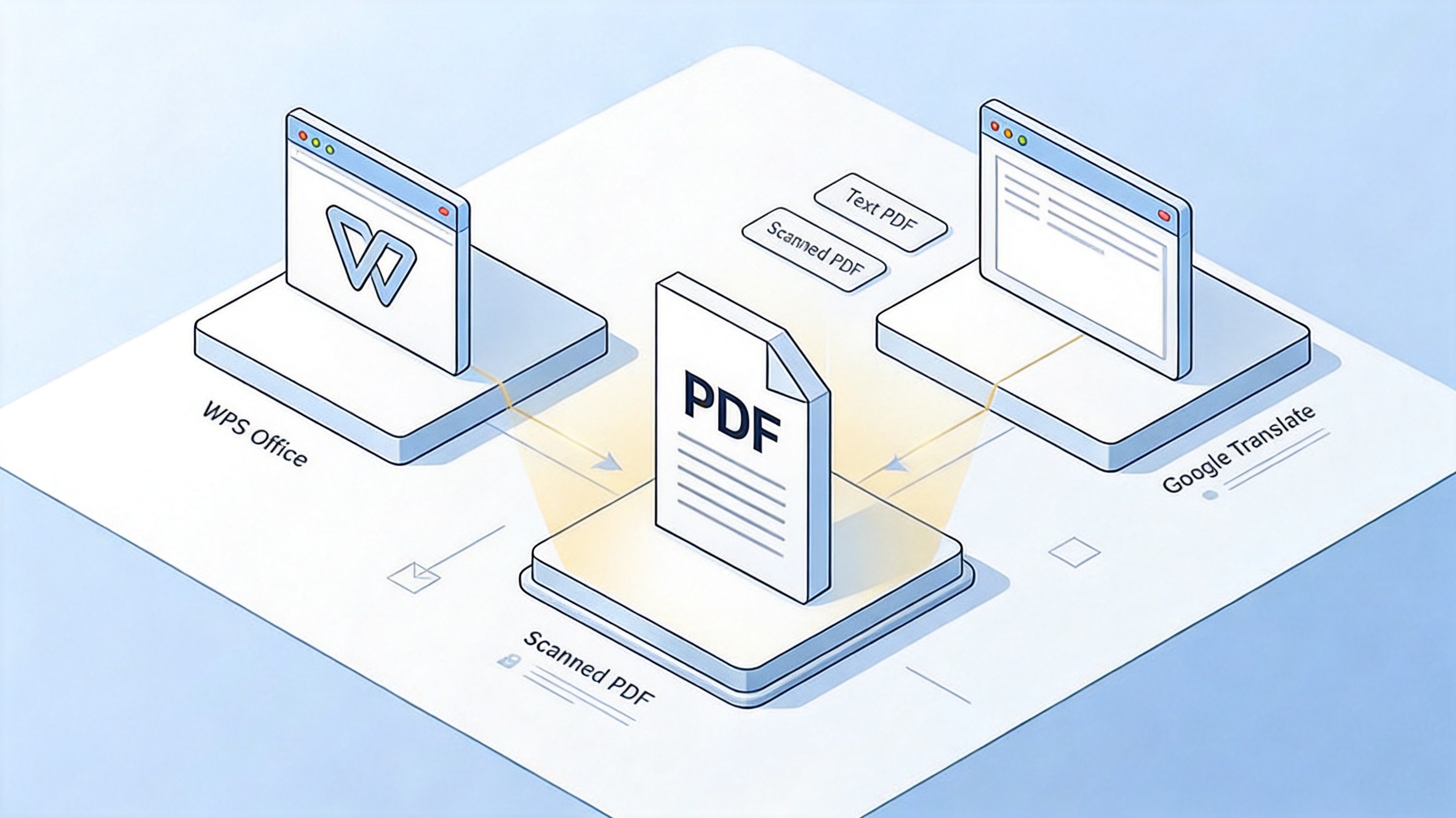
English PDF to Gujarati workflow


Translate PDF English to Gujarati with WPS Office
The most controlled route is to make the document editable first, then translate in sections. WPS Office handles the PDF conversion, the editing, and the final export in one free desktop app:
Inspect the PDF. Open the file in WPS PDF and confirm the English text is selectable. If it is a scan, use the OCR feature to recognize the text first, then proofread the recognized output.
Convert to an editable format. Go to PDF to Word (or use Convert > To Word), pick the page range, and start the conversion. Check the result against the original for broken columns or tables.
Translate in controlled sections. Copy one heading or paragraph at a time into your translator of choice, review the Gujarati output, and paste it back in place. Working in short sections keeps formatting and terminology consistent.
Set the Gujarati font. Select the translated text and apply a font with full Gujarati glyph coverage, such as Shruti or Noto Sans Gujarati, so nothing renders as boxes.
Compare and export. Read the finished document side by side with the original, fix any missed sections, then use File > Export to PDF to produce the final Gujarati PDF.
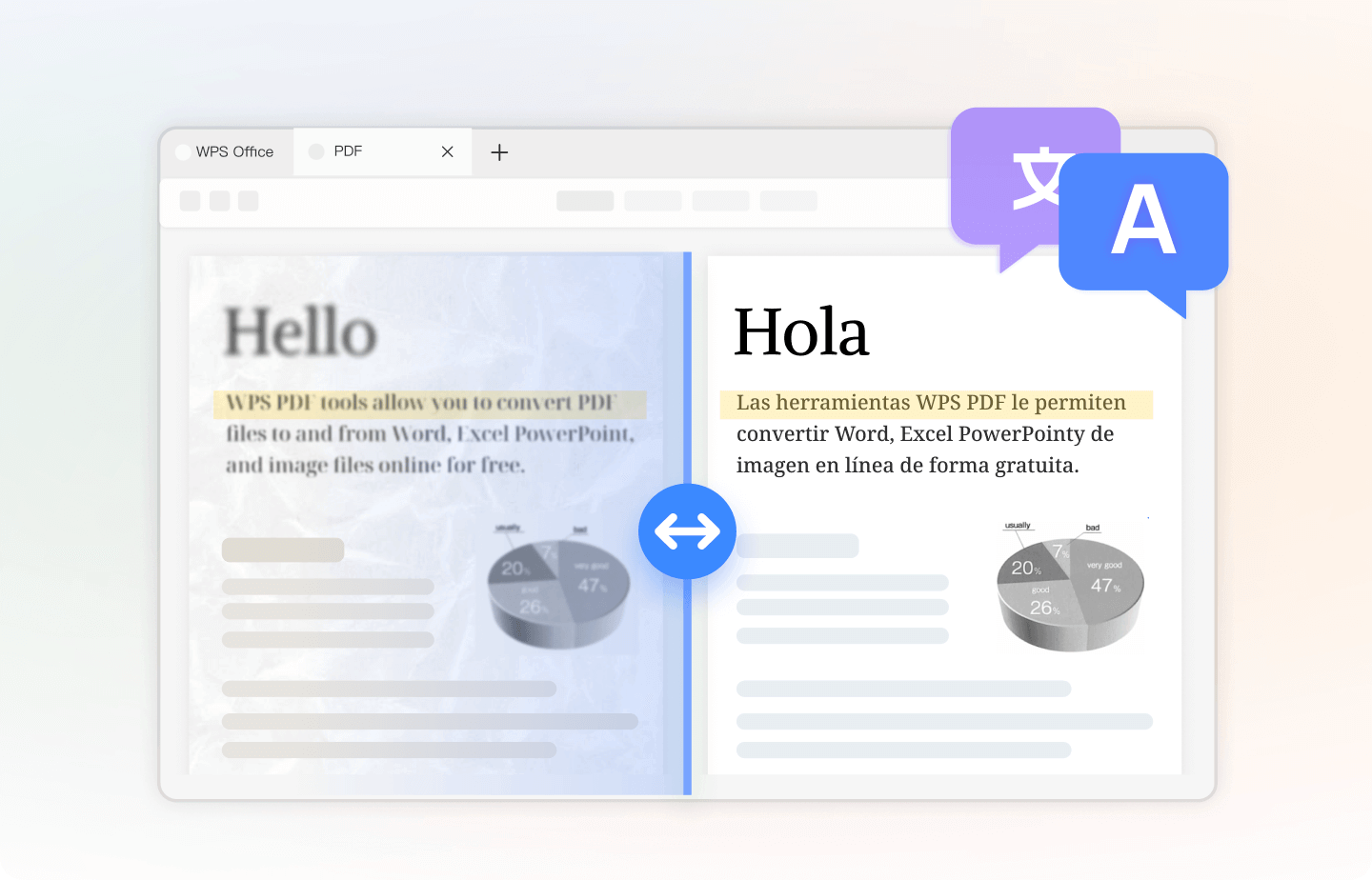
Translate PDF in WPS
Translate an English PDF to Gujarati with Free Google Tools
If you need a fast draft and can accept simpler formatting, the Google Translate Documents tab accepts whole PDF files. It is free, needs no install, and handles long documents in one pass:
Open the Documents tab. Go to Google Translate in your browser and click the Documents tab instead of Text.
Upload the PDF. Click Browse your files, select your English PDF, and set the language pair from English to Gujarati.
Translate and download. Click Translate, wait for processing, then download the translated result. Note that formatting support is limited: complex tables, columns, and images may shift.
Polish the result. Open the translated file in an editor, correct terminology and names, and re-export to PDF if you need a clean final copy.
For scanned PDFs this route will not read the images, so run OCR first or convert the pages to editable text before uploading.
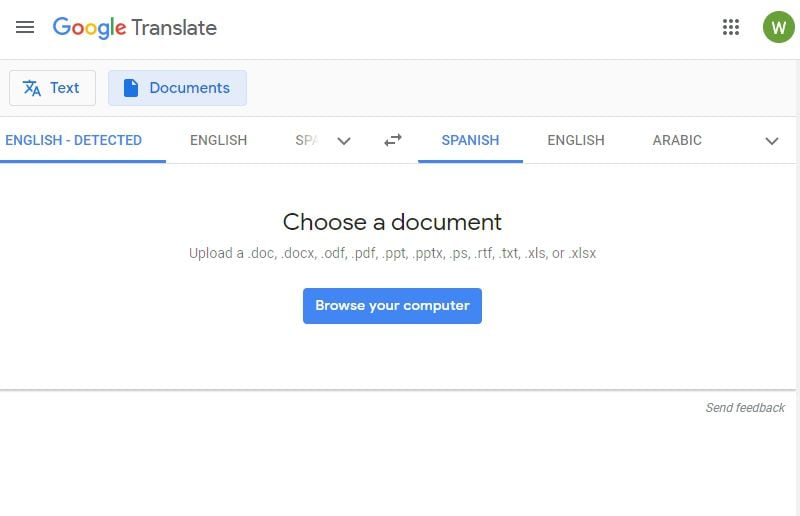
Google Translate document upload PDF
Fix Gujarati Fonts and Review the PDF Before Sharing
Much of the quality of a translated Gujarati PDF comes from two post-translation checks. First, fonts: Gujarati uses a complex script with conjuncts and matras, so a font without full coverage shows hollow boxes or misplaced marks. Second, content: machine translation of English into Gujarati often smooths over names, numbers, and polite forms, so a human pass matters.
Apply a complete Gujarati font. Use Shruti (shipped with Windows) or Noto Sans Gujarati (free from Google Fonts). Select all translated text and set the font explicitly rather than leaving it on the default.
Check text direction and line breaks. Gujarati flows left to right like English, but long compound words can break awkwardly at line ends. Fix any word split mid-conjunct.
Proofread against the original. Compare paragraph by paragraph: heading accuracy, numbers, dates, and honorific forms are the most common machine-translation errors.
Export and verify. Export to PDF, then reopen it and confirm every character renders correctly on another computer or phone before you share the file.
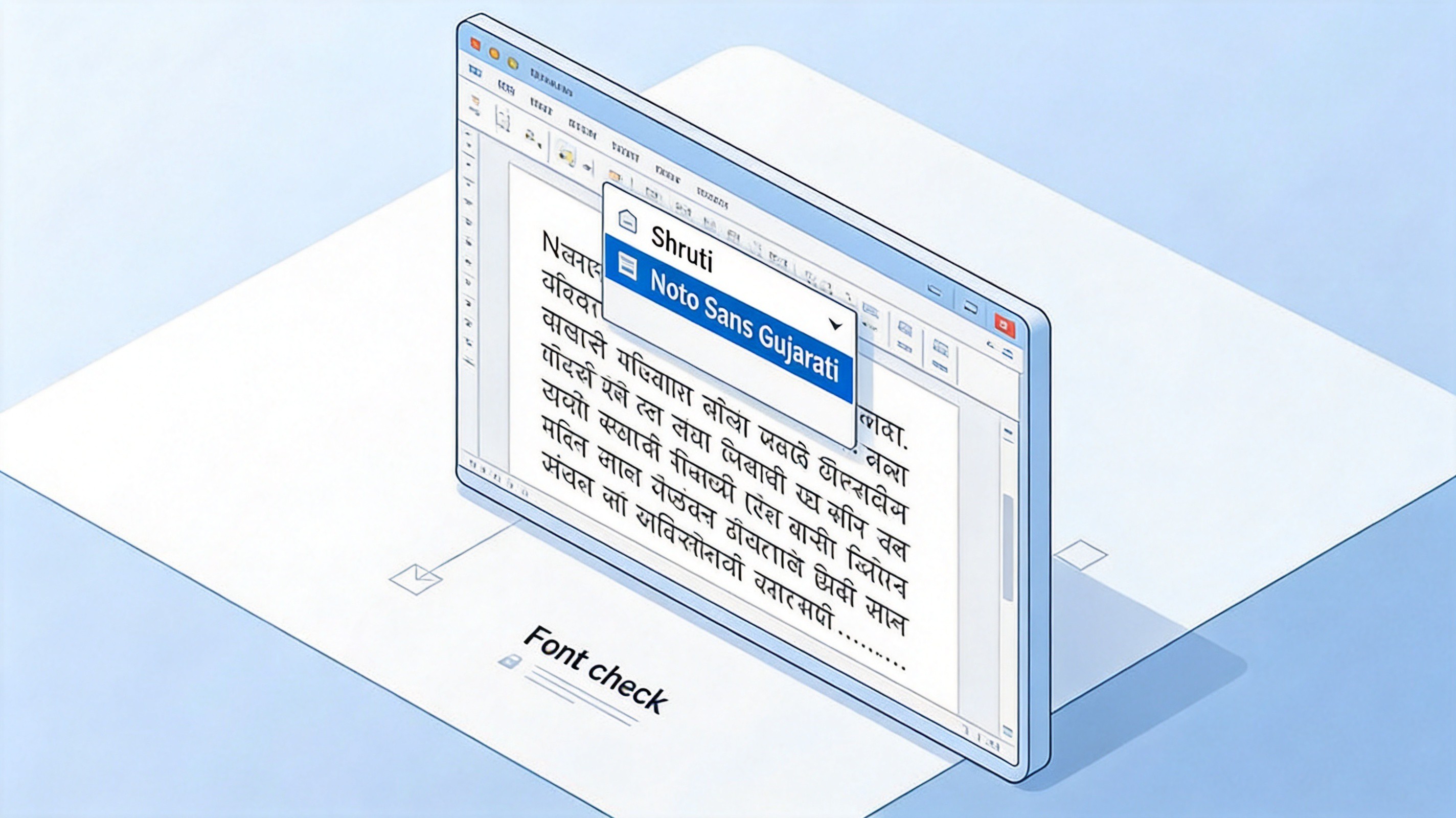
Gujarati font selection in editor
The Best Free Alternative: WPS Office
When you translate PDFs regularly, jumping between a converter, a translator, and a PDF exporter gets tedious. WPS Office bundles the whole pipeline for free: convert the English PDF to Word, translate and edit the Gujarati text in Writer, fix fonts, and export a final PDF, all in one desktop app with a familiar Microsoft-like interface.
It also keeps confidential documents local instead of uploading them to a web service, which matters for contracts, HR files, and client reports. The free plan covers the conversion and editing features described in this guide, and the app runs on Windows, macOS, and Linux.
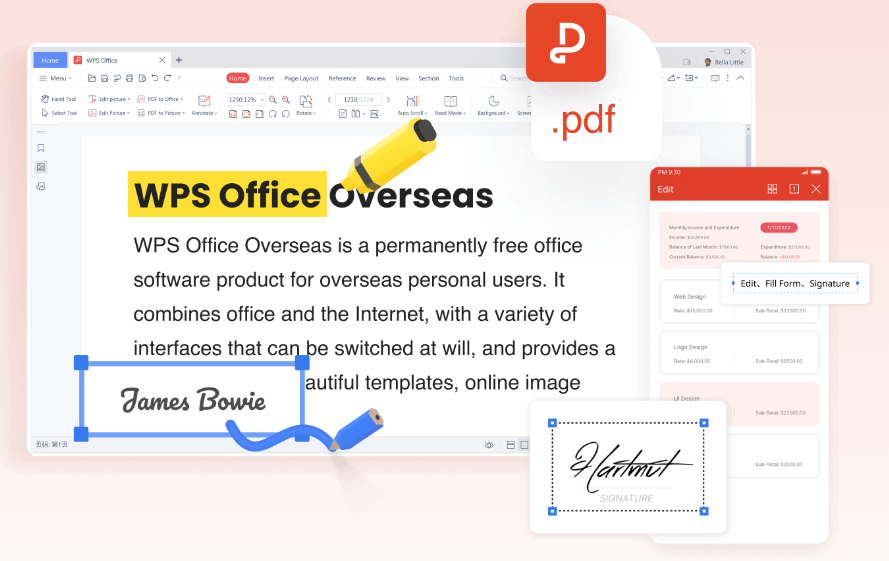
WPS PDF Editor free
FAQs
Can Google Translate translate a whole PDF into Gujarati?
Yes, the Documents tab on Google Translate accepts PDF files, but formatting support is limited; converting to Word first gives better control over tables, columns, and fonts.
How do I translate a scanned English PDF to Gujarati?
Run OCR first to recognize the English text, correct any recognition errors, then translate the text. A pure image-to-image translator cannot reliably read scanned Gujarati output back.
Will the translated Gujarati PDF keep the original formatting?
Simple paragraphs usually transfer well; tables, multi-column layouts, and decorative fonts often need manual adjustment after translation.
Which font should I use for Gujarati text?
Use Shruti or Noto Sans Gujarati, which have full Gujarati glyph coverage and render reliably across Windows, macOS, and PDF export.
Is it safe to upload a confidential PDF to an online translator?
Check the service's privacy and data-retention terms first; for confidential files prefer a local desktop workflow where the document never leaves your computer.


'%3e%3cpath%20d='M19.9911%204.11386V6.471H18.5894C18.0775%206.471%2017.7322%206.57814%2017.5536%206.79243C17.3751%207.00671%2017.2858%207.32814%2017.2858%207.75671V9.44421H19.9019L19.5536%2012.0871H17.2858V18.8639H14.5536V12.0871H12.2769V9.44421H14.5536V7.49779C14.5536%206.39064%2014.8632%205.53201%2015.4822%204.92189C16.1013%204.31177%2016.9257%204.00671%2017.9554%204.00671C18.8304%204.00671%2019.509%204.04243%2019.9911%204.11386Z'%20fill='%23333333'/%3e%3c/g%3e%3cdefs%3e%3cclipPath%20id='clip0_2938_8199'%3e%3crect%20width='16'%20height='16'%20fill='white'%20transform='translate(8%204.00671)'/%3e%3c/clipPath%3e%3c/defs%3e%3c/svg%3e)
'%3e%3cpath%20d='M17.5237%2010.7813L23.4811%204H22.0699L16.8949%209.88693L12.7648%204H8L14.2469%2012.9029L8%2020.0133H9.4112L14.8725%2013.7952L19.2352%2020.0133H24M9.92053%205.04213H12.0885L22.0688%2019.0224H19.9003'%20fill='%23333333'/%3e%3c/g%3e%3cdefs%3e%3cclipPath%20id='clip0_2938_8200'%3e%3crect%20width='16'%20height='16.0134'%20fill='white'%20transform='translate(8%204)'/%3e%3c/clipPath%3e%3c/defs%3e%3c/svg%3e)


