Your iPhone is probably your main camera now, so turning photos into
clean PDFs matters more than ever. The problem is that iOS tools are
useful but not always obvious or flexible. Handling multiple images or
keeping quality intact can feel frustrating. So what is the most
reliable way to get professional results on an iPhone? This guide shows
built-in options and smarter tools that actually make the job
easier.
Use Word, Excel, and PPT for FREE
convert JPG to PDF on iPhone
Part 1.
Overview of JPG to PDF Conversion on iPhone
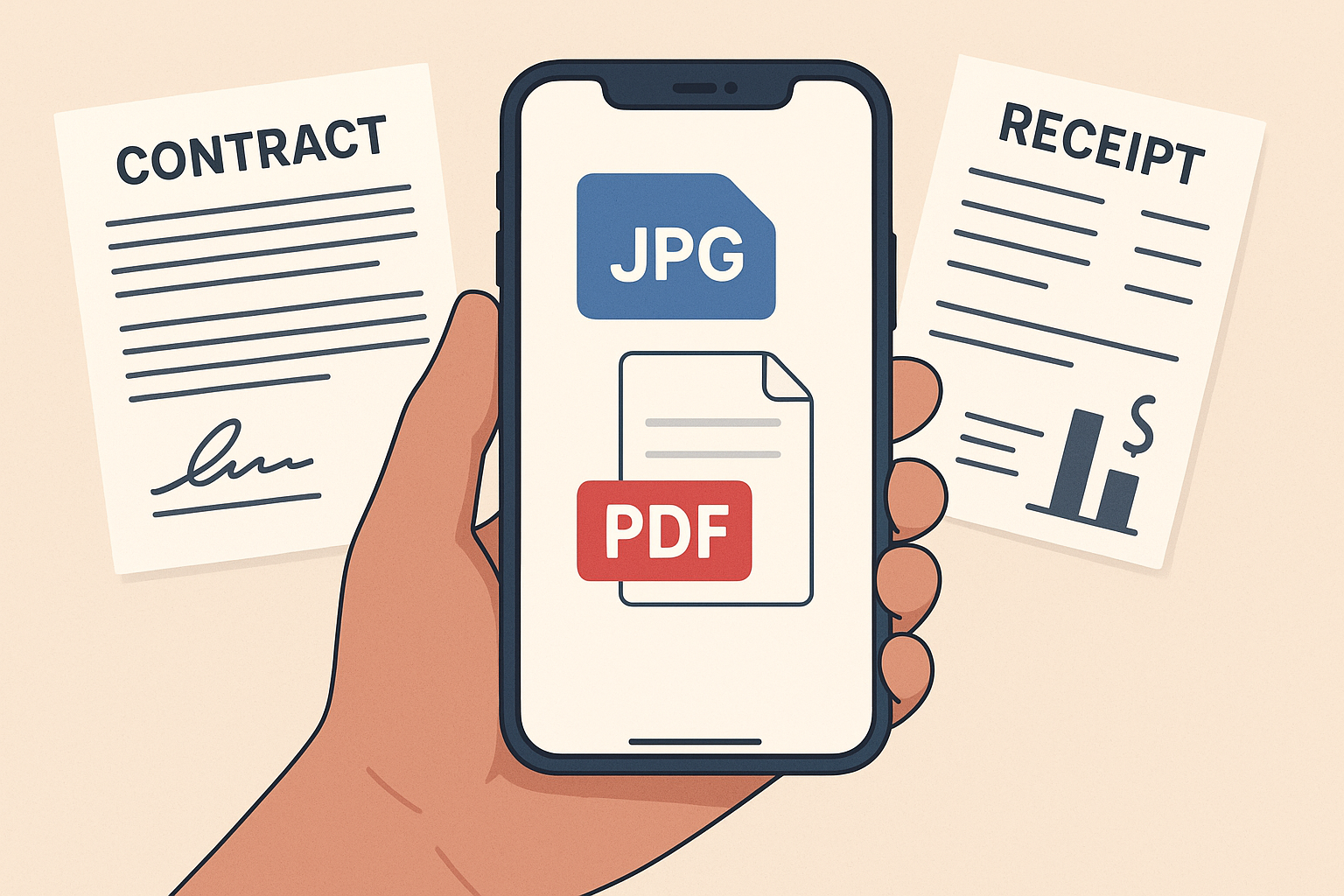
As iPhones become everyday work devices, mobile document conversion
is no longer optional. People scan contracts, save receipts, and submit
assignments directly from their phones. This is why converting
JPG to PDF iPhone workflows are now part of daily
productivity.
convert JPG to PDF iPhone
Turning JPG to PDF improves compatibility across devices
and platforms. PDFs open the same way everywhere, look more
professional, and are easier to share. File sizes are often smaller and
cleaner, especially when multiple images are combined into one
document.
Common use cases include scanning handwritten notes, archiving
expense receipts, submitting academic work, and sending business
reports. Apple has gradually improved iOS document handling, but many
users still struggle to find the right features or go beyond basic
conversion. That gap is why tools focused on convert jpg to PDF
iPhone tasks continue to grow in popularity.
Part 2. How
to Convert JPG to PDF on iPhone
Method
1: Step-by-step tutorial for iOS Files app:
This is the simplest free option and works well for basic needs.
Steps:
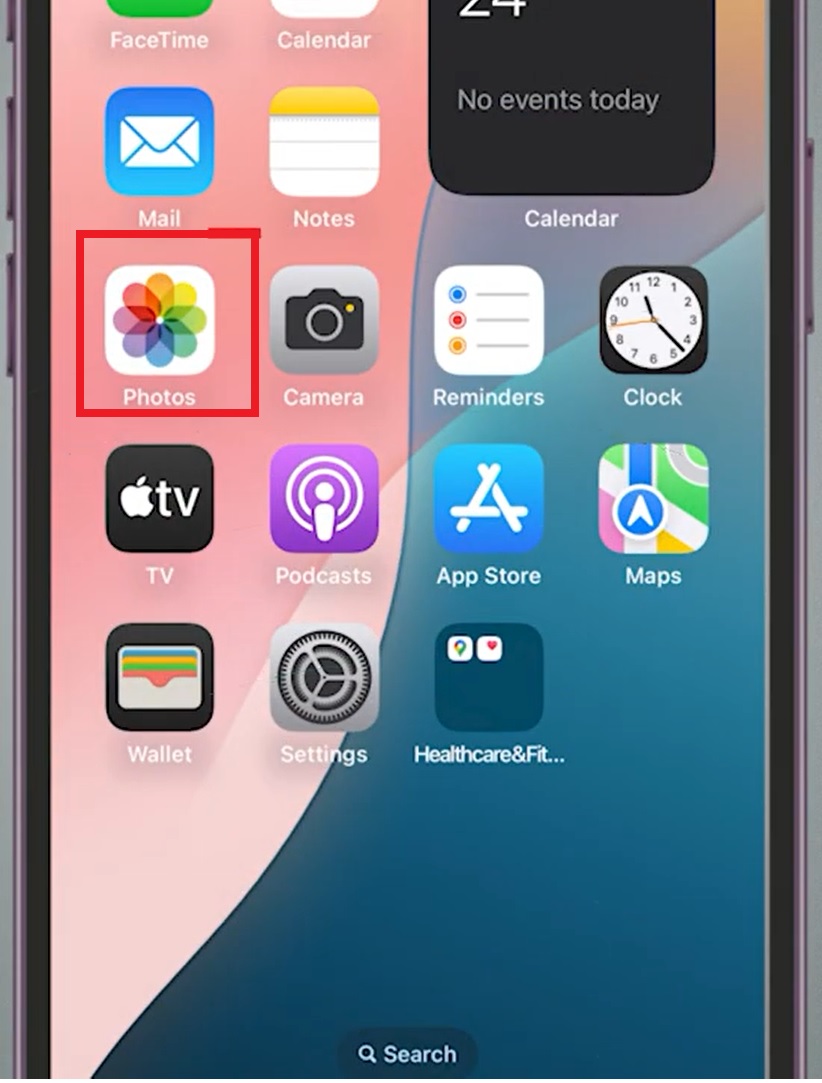
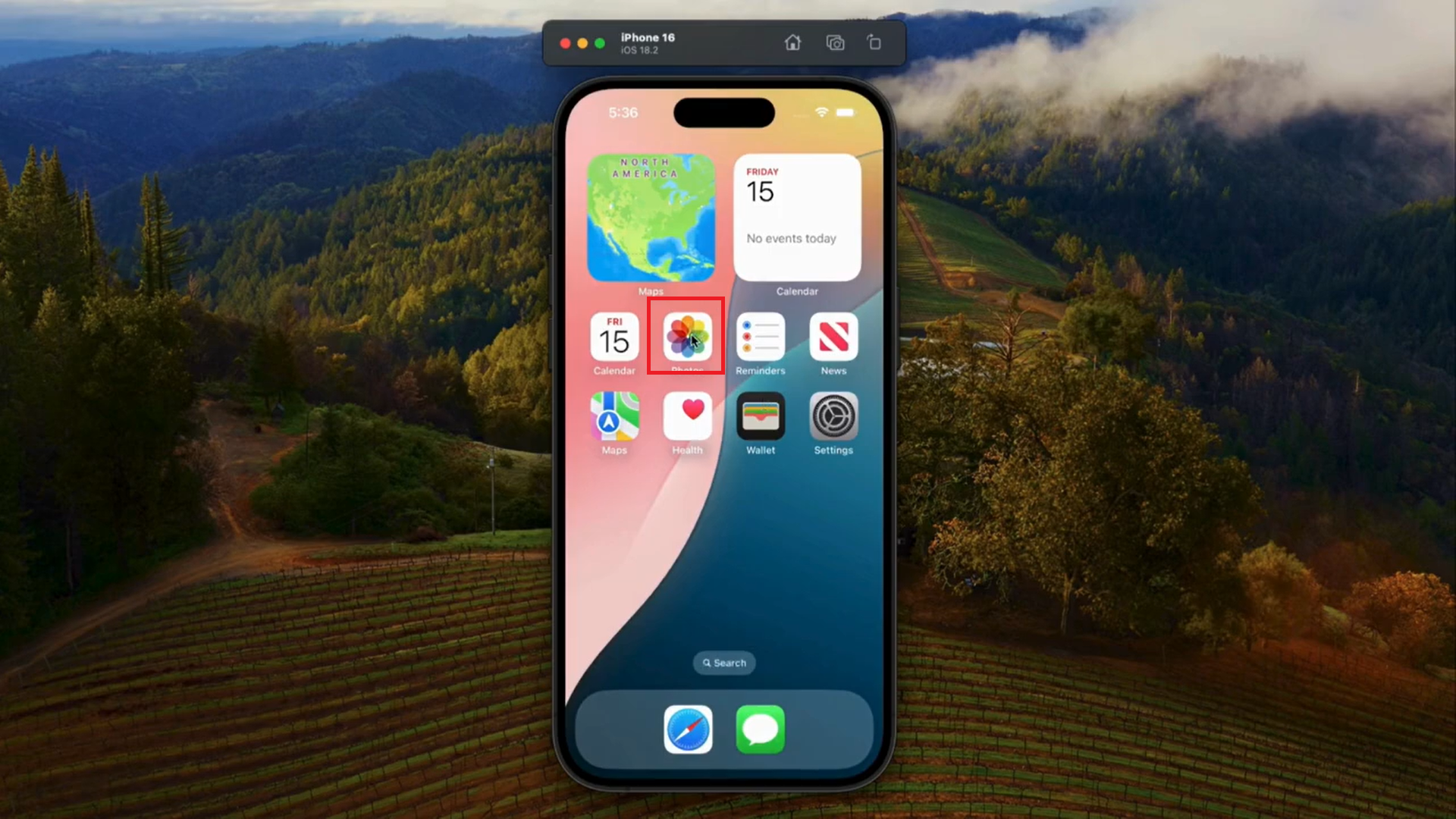
Open the Photos app on your iPhone and select your JPG
images.
Open the Photos app on your iPhone
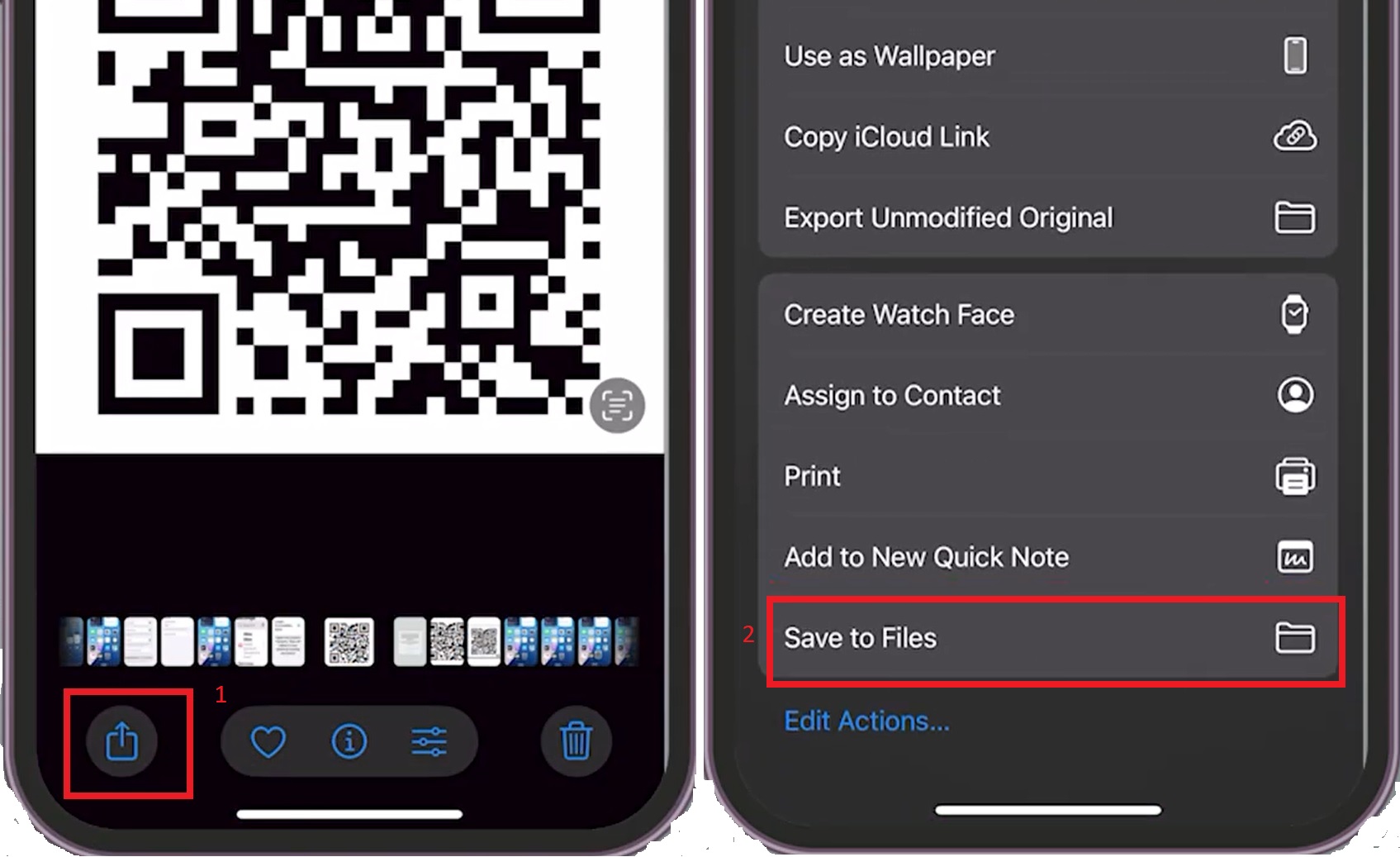
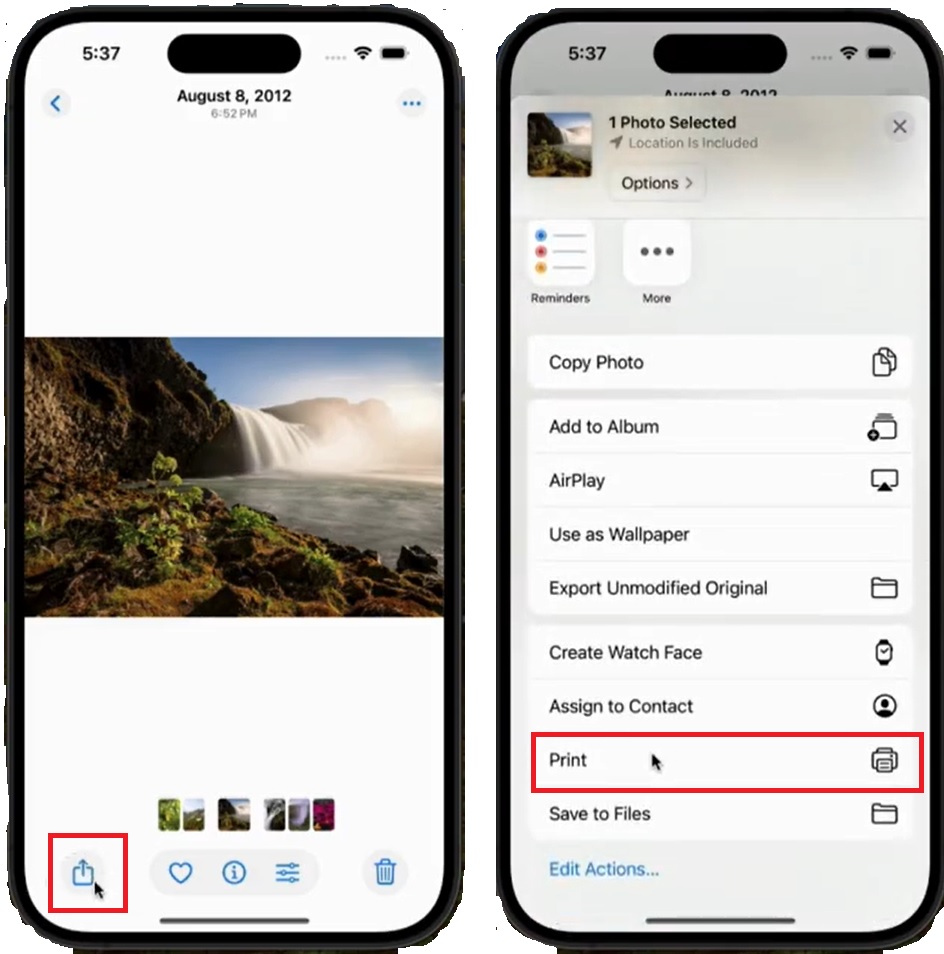
Tap Share, then choose Save to Files.
Tap Share, then choose Save to Files
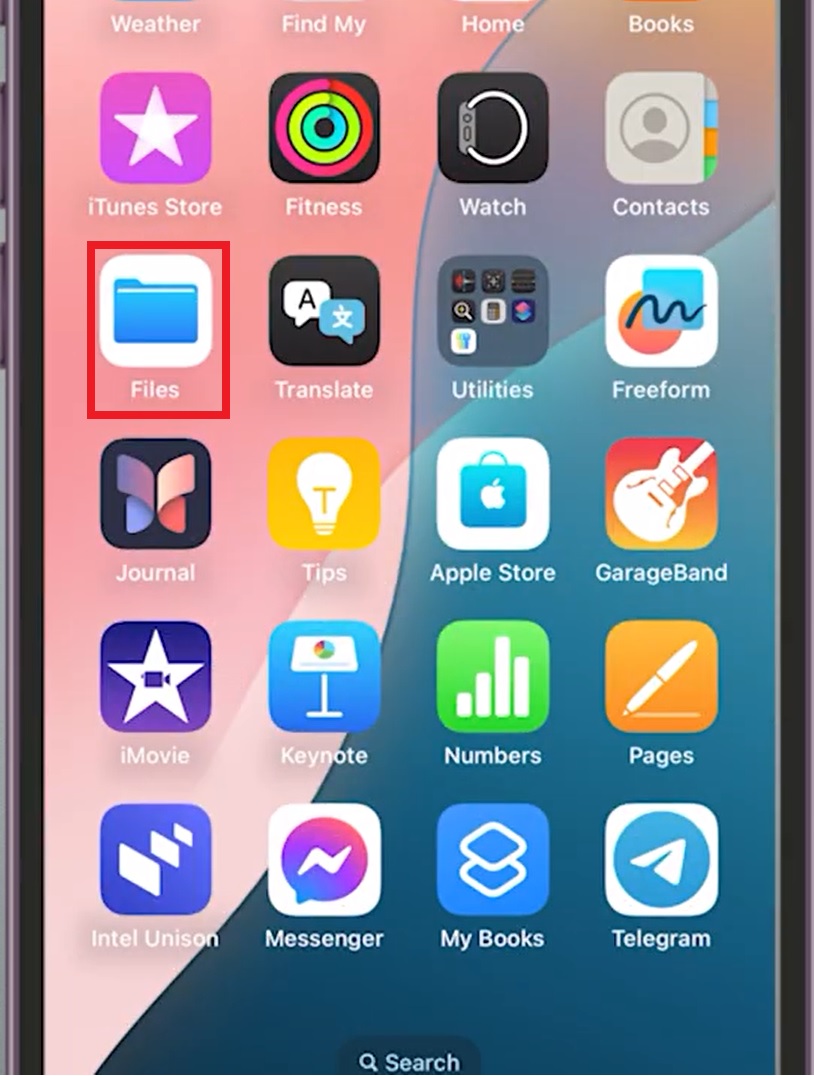
Open the Files app and locate the saved images.
Open the Files app
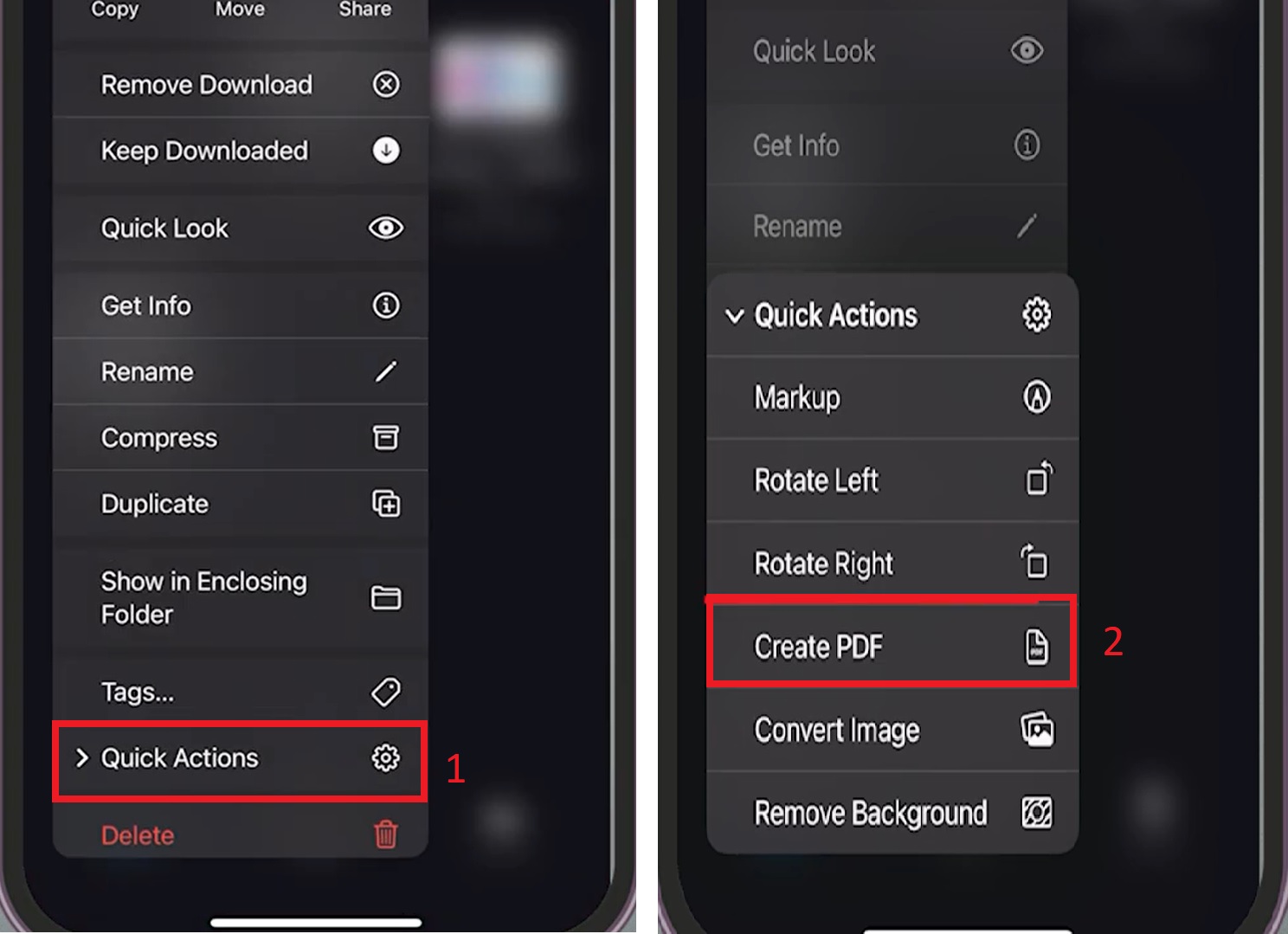
Long press the image and select Quick Actions from the available
options, then choose Create PDF.
Select Quick Actions and then choose Create PDF
Why it works: No extra apps, full privacy, and completely free.
Limitations: Very limited control over quality and layout, especially with
multiple images.
Method
2: Step-by-step Tutorial for the Print to PDF Method:
This method is hidden, but it becomes very useful once you know
it.
Steps:
Open Photos on your iPhone.
Open Photos on your iPhone
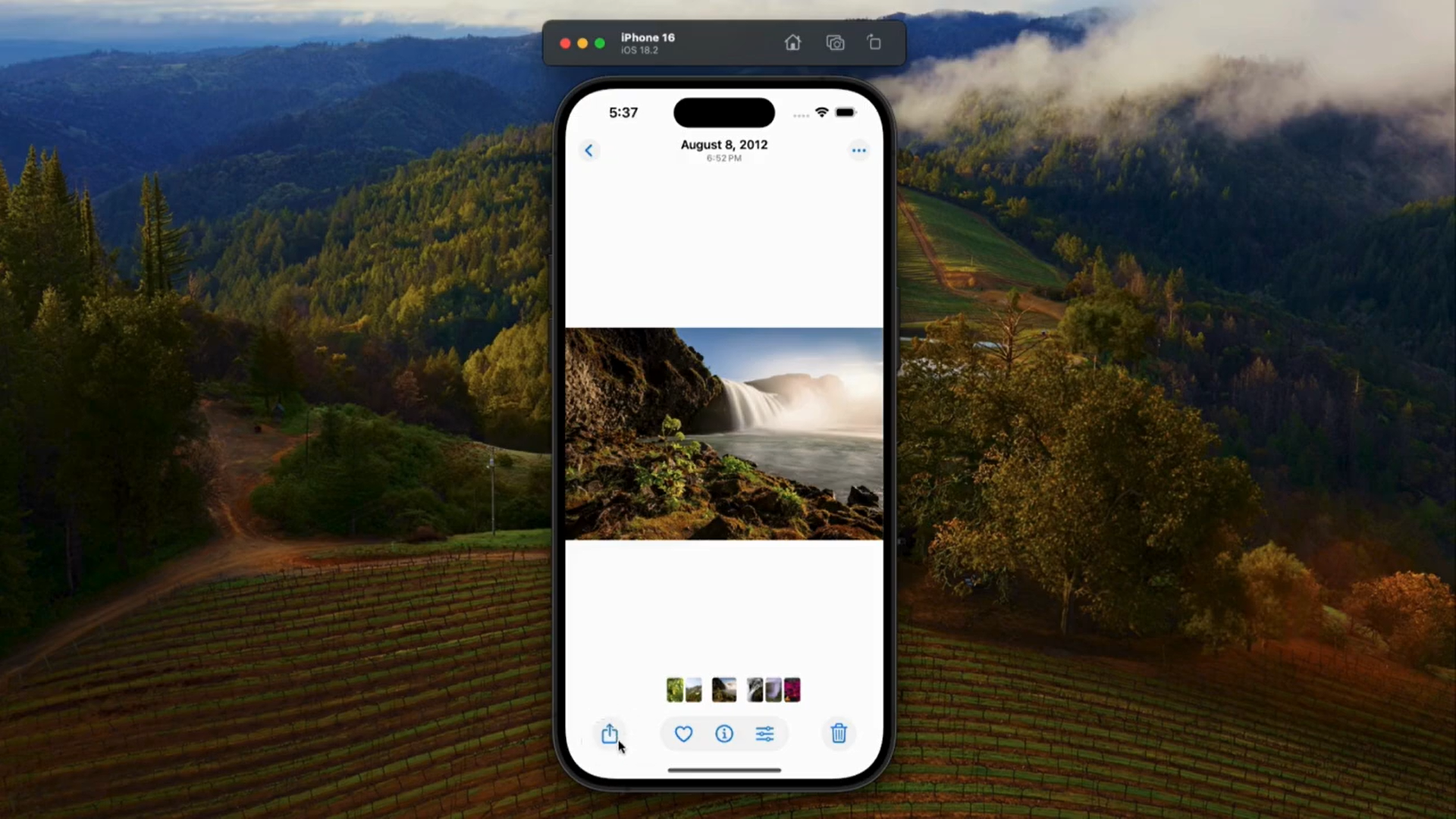
Select a JPG image you want to convert to PDF.
Select a JPG image
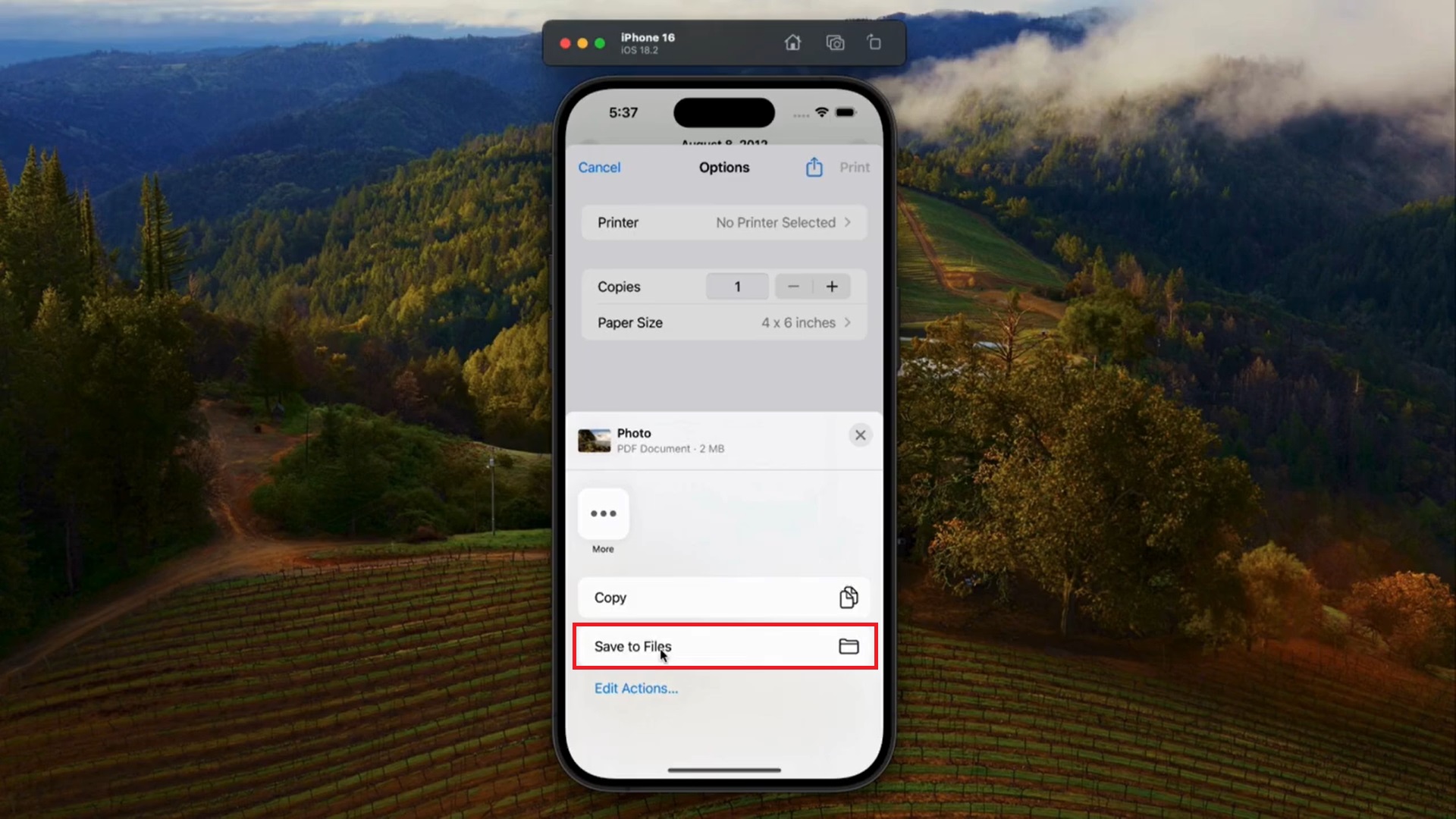
Tap Share, then Print.
Tap Share, then Print.
Save to Files or share directly.
Save to Files
This approach is quick, but again, customization is minimal.
Extra Tip: Using the
Notes App
Many users do not realize that Notes can also help with how
to convert a picture to pdf on iPhone Notes, especially when
scanning documents. You can scan images directly inside a note and
export them as a PDF, which works well for paperwork and handwritten
pages.
Method
3: Using the WPS Office App (For More Features)
If you regularly deal with documents, this method feels like a real
upgrade from the built-in options. WPS PDF works directly in Safari, so
there is no need to install another app or manage storage. It is
especially helpful when you need control, consistency, or batch
conversions.
Step-by-Step:
Convert JPG to PDF Using WPS PDF on iPhone
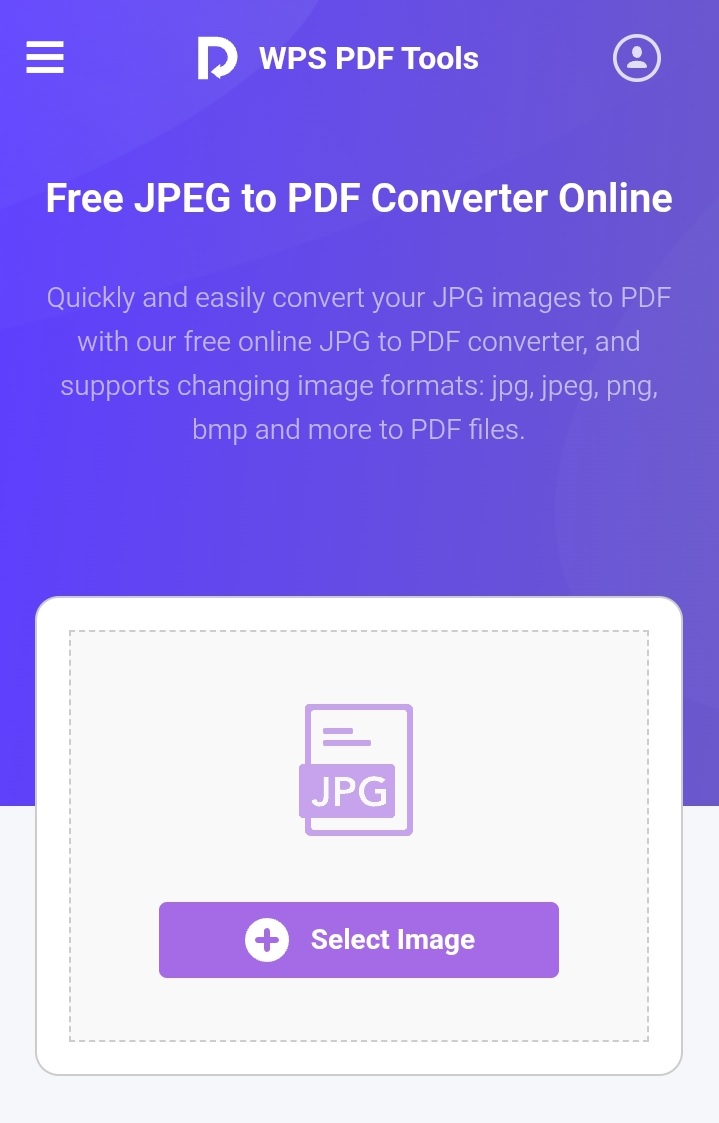
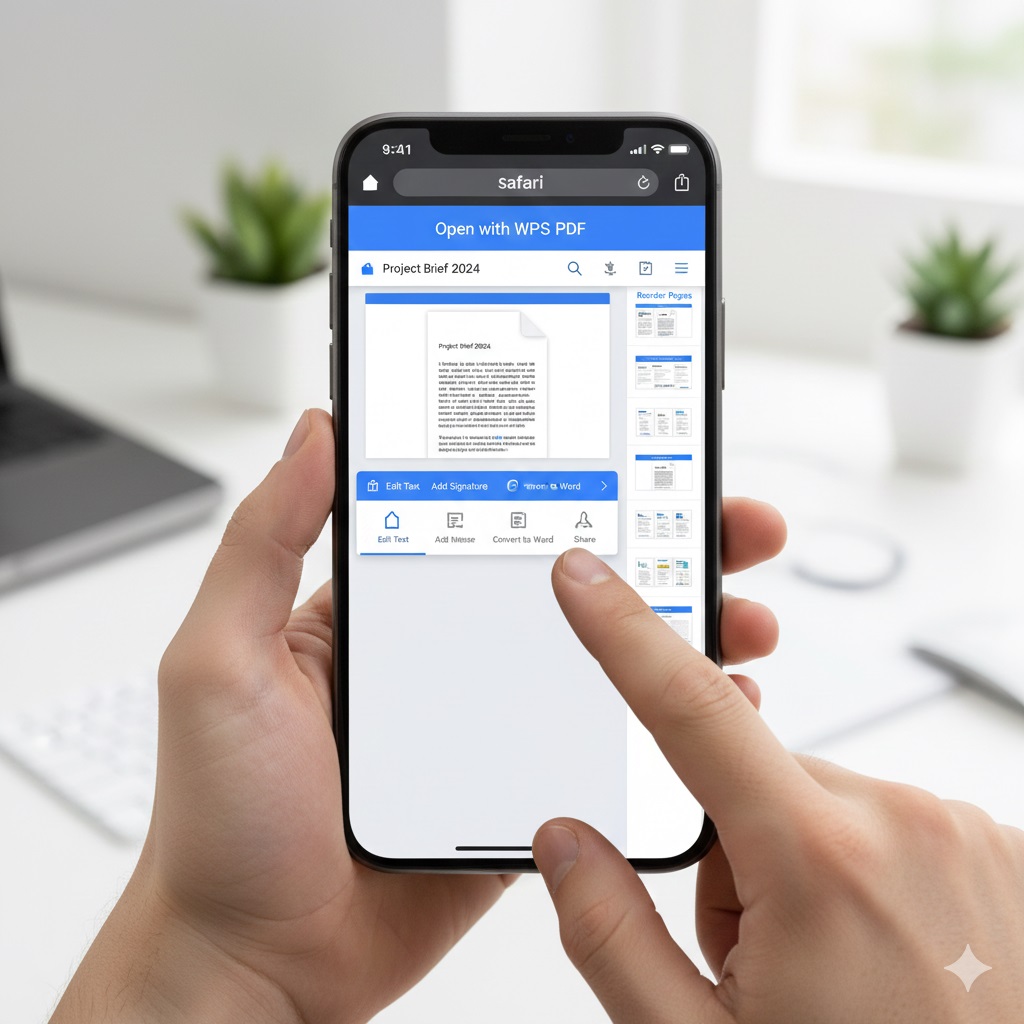
Step 1: Open WPS PDF in Safari Launch Safari on your iPhone and visit the WPS JPG to PDF conversion
page. The site automatically adjusts to your screen size. You do
not need to sign in to start.
WPS PDF on Safari
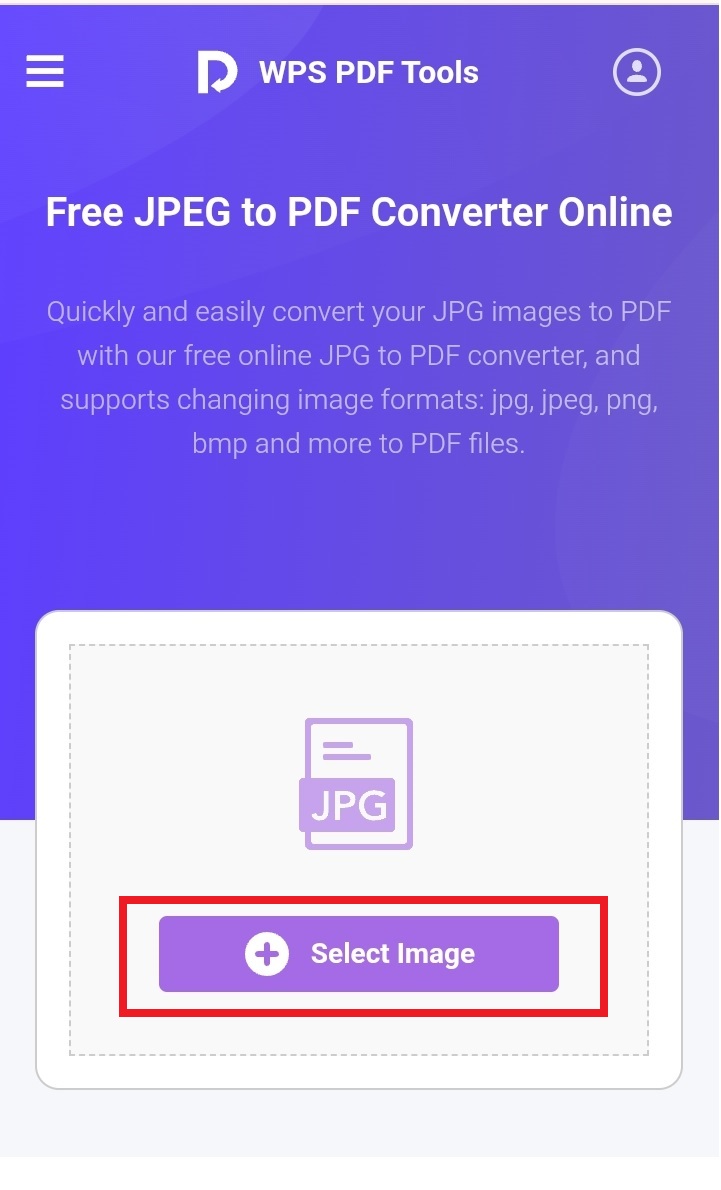
Step 2: Upload Your JPG Images Tap the Select Image button and choose Photo Library. From here, you can pick one image or
select multiple photos at once. This is where WPS PDF is better than iOS
tools.
Tap the Select Image button
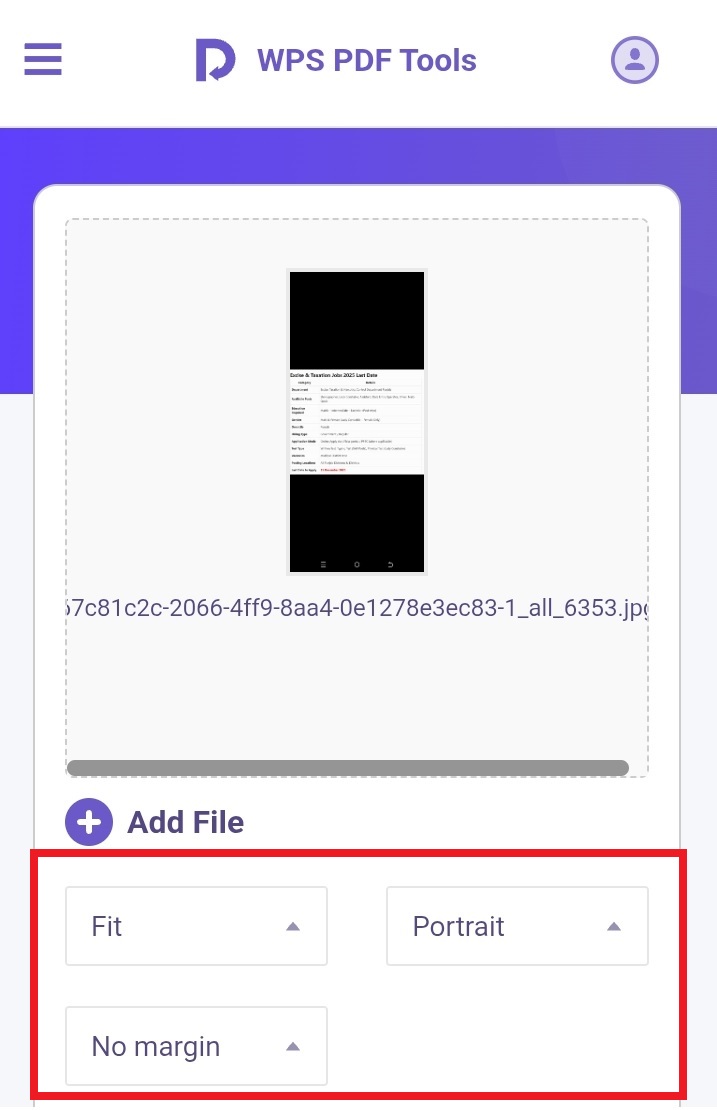
Step 3: Arrange and Review Images Once uploaded, you can reorder images by dragging them. This is
useful for receipts, scanned pages, or assignments where order matters.
You can also change the layout, margin, etc. of the output PDF file.
Arrange and Review Images
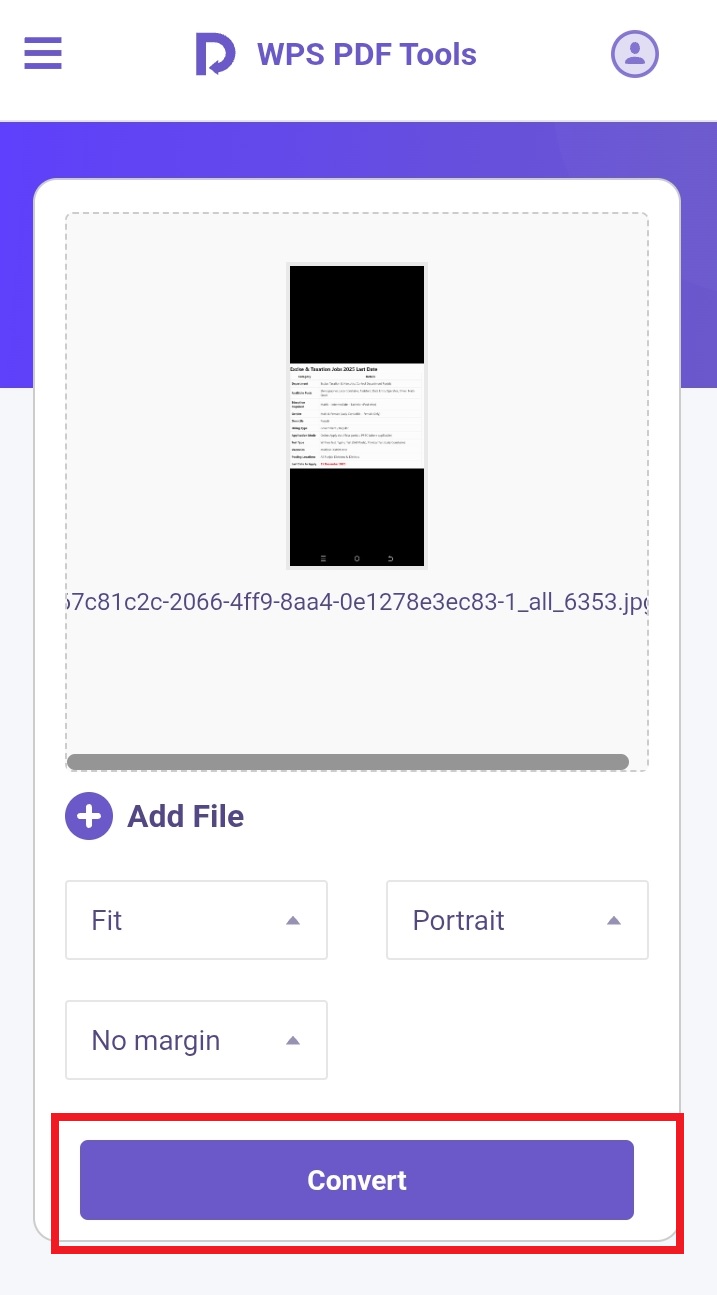
Step 4: Convert and Download Tap Convert and wait a few seconds. Even with
multiple images, the process is fast. When the PDF is ready, download it
directly to your iPhone. You can save it to the Files app, send it by
email, or share it through messaging apps.
Convert and Download the PDF
Step 5: Manage and Reuse Files Your PDFs stay accessible through the Files app. If you use WPS
Office later, you can open the same files for editing, annotation, or
sharing without repeating the conversion.
Why This Method is Better in Real Use
From experience, WPS PDF saves time when handling more than one
image. The ability to reorder pages and control quality avoids the
frustrations that add up with iOS-only methods. It also avoids
watermarks, which is a common issue with many free apps.
Practical Tips for
iPhone Users
Add the WPS PDF page to your Home Screen for one-tap
access.
Use batch selection in Photos to speed things up.
Save finished PDFs to iCloud Drive for easy access on Mac or
iPad.
Built-in iOS vs WPS PDF
Tools
Feature
Built-in iOS Tools
WPS PDF Tools
Cost
Free
Freemium
App Installation
Not required
Not required for web version
Multiple Images
Limited
Smooth batch handling
Page Reordering
Very limited
Easy drag-and-drop
Quality Control
Basic
Adjustable
OCR Support
Not available
Available
Watermarks
None
None for basic conversion
Best For
Quick one-off conversions
Regular and professional use
If you only convert a photo once in a while, the built-in tools are
fine. But if you deal with documents weekly or need clean, reliable
PDFs, WPS PDF clearly offers more flexibility without making things
complicated.
Part
3. Why Choose WPS PDF for JPG to PDF Conversion on iPhone
When iPhone users move beyond one or two images, built-in tools start
to feel restrictive. This is where WPS PDF stands out. It is a web-based
tool that runs smoothly in Safari and focuses on giving you more control
without adding complexity. For anyone who frequently needs toconvert JPG to PDF iPhone files for work or study, this
approach feels far more practical.
Web-Based Solution for
iPhone
WPS PDF works entirely in the browser, which makes it ideal for
iPhone users. You do not need to download an app, sign up immediately,
or worry about storage space. The interface is optimized for mobile
screens, with clear buttons and simple navigation. It feels natural on
iOS and avoids the clutter common in many App Store apps.
Key Advantages of WPS
PDF
Superior Batch Processing One of the biggest pain points with iOS tools is handling
multiple images. WPS PDF lets you upload many JPG files at once, reorder
them easily, and merge them into a single PDF. This is especially useful
for scanned documents, receipts, or multi-page assignments.
Key Advantages of WPS PDF
Consistent High Quality WPS PDF maintains image clarity and layout during conversion.
Whether you are converting one photo or ten, the output remains sharp
and professional. You can also choose quality settings based on your
needs, which helps balance file size and visual clarity.
Completely Free Core Features Unlike many iOS apps that lock basic features behind paywalls,
WPS PDF allows free JPG to PDF conversion without watermarks. This makes
it dependable for important documents where presentation matters.
Why WPS PDF Is
Ideal for iPhone Users
Seamless iPhone Integration Using WPS PDF in Safari feels like an extension of iOS rather
than a separate tool. Files save directly to the Files app, and sharing
options work exactly as you expect on an iPhone.
Using WPS PDF in Safari
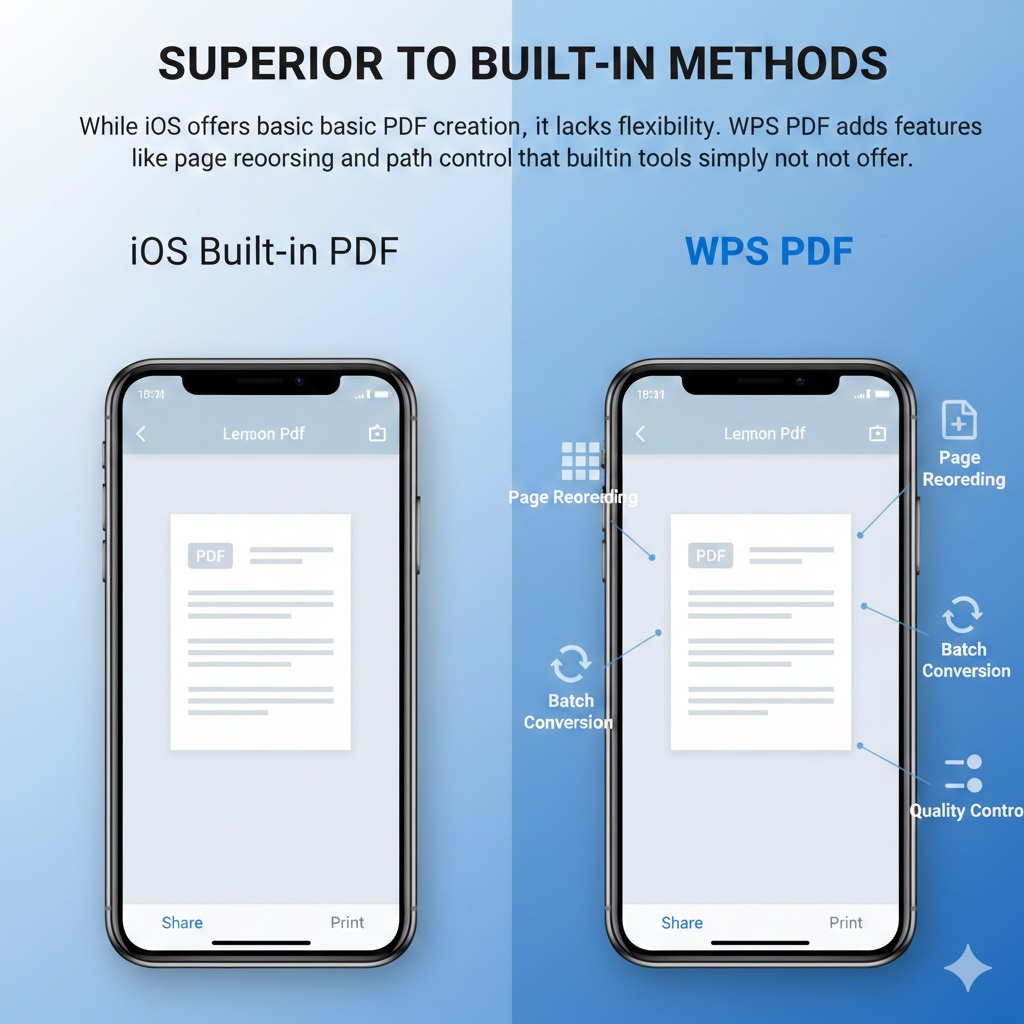
Superior to Built-in Methods While iOS offers basic PDF creation, it lacks flexibility. WPS
PDF adds features like page reordering, batch conversion, and quality
control that built-in tools simply do not offer.
WPS PDF benefits
Better Than Most iOS Apps Many free PDF apps reduce image quality or add watermarks
unless you subscribe. WPS PDF avoids both, which makes it more
trustworthy for everyday and professional use.
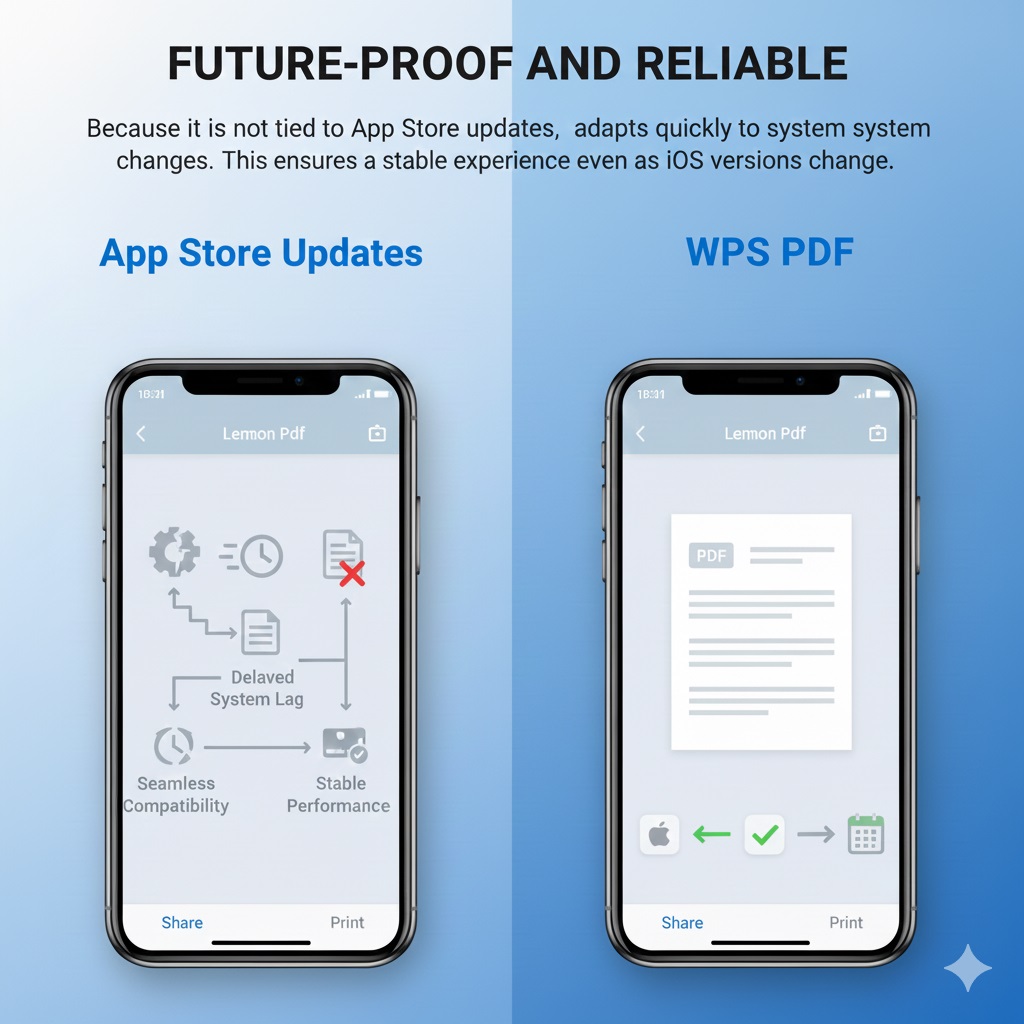
Future-Proof and Reliable Because it is not tied to App Store updates, WPS PDF adapts
quickly to system changes. This ensures a stable experience even as iOS
versions change.
WPS PDF adapts quickly to system changes
From regular use on iPhone, WPS PDF feels like the most balanced
option for me. It saves time when handling multiple images and avoids
the small frustrations that come with iOS-only methods. For users who
often need to convert JPG to PDF iPhone documents
without compromising quality, it quickly becomes the go-to solution. WPS
PDF feels like the best JPG to pdf converter for iPhone for people who want reliable results without unnecessary steps.
100% secure
FAQs
1. Can I convert JPG to PDF on iPhone without any app? Yes. You can use the Files app or the Print to PDF method built
into iOS.
2. How do I convert multiple JPG files into one PDF? Built-in tools are limited. WPS PDF lets you combine multiple
images into a single PDF easily.
3. Will quality drop when converting JPG to PDF? Quality usually stays intact if the original photo is clear.
WPS PDF lets you adjust quality settings for better results.
4. Is this safe for private documents? Built-in iOS tools stay entirely on your device. WPS PDF uses
secure processing and works well for everyday documents.
5. What is the easiest option for beginners? For basic needs, the Files app works. For frequent use, WPS PDF
saves time.
Summary
This guide explained why JPG to PDF conversion matters on iPhone. You learned built-in iOS methods and their limitations. We covered a smarter approach using WPS PDF for better control. If you want speed and quality, web-based tools stand out. For reliable results, convert JPG to PDF iPhone workflows work best with WPS PDF when needs grow beyond basics.
With 12 years of hands-on experience in Office tools, productivity software, and emerging technology trends, my passion lies in exploring the latest tech solutions and simplifying them for everyday use.


'%3e%3cpath%20d='M8%200C12.4183%200%2016%203.58172%2016%208C16%2012.4183%2012.4183%2016%208%2016C3.58172%2016%200%2012.4183%200%208C0%203.58172%203.58172%200%208%200ZM11.6162%204.38379C11.2257%203.99337%2010.5927%203.99338%2010.2021%204.38379L8%206.58594L5.79785%204.38379C5.40732%203.99334%204.77429%203.99329%204.38379%204.38379C3.99331%204.77429%203.99335%205.40733%204.38379%205.79785L6.58594%208L4.38379%2010.2021C3.99348%2010.5927%203.99341%2011.2257%204.38379%2011.6162C4.77426%2012.0066%205.40734%2012.0065%205.79785%2011.6162L8%209.41406L10.2021%2011.6162C10.5927%2012.0066%2011.2257%2012.0067%2011.6162%2011.6162C12.0067%2011.2257%2012.0066%2010.5927%2011.6162%2010.2021L9.41406%208L11.6162%205.79785C12.0066%205.40735%2012.0066%204.77429%2011.6162%204.38379Z'%20fill='%23080E17'%20fill-opacity='0.46'/%3e%3c/g%3e%3cdefs%3e%3cclipPath%20id='clip0_3761_713'%3e%3crect%20width='16'%20height='16'%20fill='white'/%3e%3c/clipPath%3e%3c/defs%3e%3c/svg%3e)




'%3e%3cpath%20fill-rule='evenodd'%20clip-rule='evenodd'%20d='M21.4999%2010.9993C21.4999%205.20009%2016.7986%200.498901%2010.9993%200.498901C5.19994%200.498901%200.498657%205.20009%200.498657%2010.9993C0.498657%2016.2404%204.33858%2020.5844%209.35855%2021.3722V14.0346H6.69238V10.9993H9.35855V8.68594C9.35855%206.05427%2010.9262%204.60062%2013.3248%204.60062C14.4736%204.60062%2015.6753%204.80571%2015.6753%204.80571V7.38979H14.3512C13.0468%207.38979%2012.64%208.19921%2012.64%209.0296V10.9993H15.5523L15.0867%2014.0346H12.64V21.3722C17.66%2020.5844%2021.4999%2016.2404%2021.4999%2010.9993Z'%20fill='%231568EA'/%3e%3c/g%3e%3c/svg%3e)


'%3e%3cpath%20d='M2.42045%2022.1876H6.31818V12.7217L0.75%208.54553V20.5171C0.75%2021.4414%201.49892%2022.1876%202.42045%2022.1876Z'%20fill='%234285F4'/%3e%3cpath%20d='M19.682%2022.1876H23.5797C24.5041%2022.1876%2025.2502%2021.4387%2025.2502%2020.5171V8.54553L19.682%2012.7217'%20fill='%2334A853'/%3e%3cpath%20d='M19.682%205.48293V12.7216L25.2502%208.54543V6.31816C25.2502%204.25236%2022.8921%203.07469%2021.2411%204.31361'%20fill='%23FBBC04'/%3e%3cpath%20d='M6.31824%2012.7217V5.48303L13.0001%2010.4944L19.6819%205.48303V12.7217L13.0001%2017.733'%20fill='%23EA4335'/%3e%3cpath%20d='M0.75%206.31816V8.54543L6.31818%2012.7216V5.48293L4.75909%204.31361C3.10534%203.07469%200.75%204.25236%200.75%206.31816Z'%20fill='%23C5221F'/%3e%3c/g%3e%3cdefs%3e%3cclipPath%20id='clip0_2954_7305'%3e%3crect%20width='24.5'%20height='18.375'%20fill='white'%20transform='translate(0.75%203.8125)'/%3e%3c/clipPath%3e%3c/defs%3e%3c/svg%3e)





'%3e%3cpath%20d='M19.9911%204.11386V6.471H18.5894C18.0775%206.471%2017.7322%206.57814%2017.5536%206.79243C17.3751%207.00671%2017.2858%207.32814%2017.2858%207.75671V9.44421H19.9019L19.5536%2012.0871H17.2858V18.8639H14.5536V12.0871H12.2769V9.44421H14.5536V7.49779C14.5536%206.39064%2014.8632%205.53201%2015.4822%204.92189C16.1013%204.31177%2016.9257%204.00671%2017.9554%204.00671C18.8304%204.00671%2019.509%204.04243%2019.9911%204.11386Z'%20fill='%23333333'/%3e%3c/g%3e%3cdefs%3e%3cclipPath%20id='clip0_2938_8199'%3e%3crect%20width='16'%20height='16'%20fill='white'%20transform='translate(8%204.00671)'/%3e%3c/clipPath%3e%3c/defs%3e%3c/svg%3e)
'%3e%3cpath%20d='M17.5237%2010.7813L23.4811%204H22.0699L16.8949%209.88693L12.7648%204H8L14.2469%2012.9029L8%2020.0133H9.4112L14.8725%2013.7952L19.2352%2020.0133H24M9.92053%205.04213H12.0885L22.0688%2019.0224H19.9003'%20fill='%23333333'/%3e%3c/g%3e%3cdefs%3e%3cclipPath%20id='clip0_2938_8200'%3e%3crect%20width='16'%20height='16.0134'%20fill='white'%20transform='translate(8%204)'/%3e%3c/clipPath%3e%3c/defs%3e%3c/svg%3e)


