

'%3e%3cpath%20d='M8%200C12.4183%200%2016%203.58172%2016%208C16%2012.4183%2012.4183%2016%208%2016C3.58172%2016%200%2012.4183%200%208C0%203.58172%203.58172%200%208%200ZM11.6162%204.38379C11.2257%203.99337%2010.5927%203.99338%2010.2021%204.38379L8%206.58594L5.79785%204.38379C5.40732%203.99334%204.77429%203.99329%204.38379%204.38379C3.99331%204.77429%203.99335%205.40733%204.38379%205.79785L6.58594%208L4.38379%2010.2021C3.99348%2010.5927%203.99341%2011.2257%204.38379%2011.6162C4.77426%2012.0066%205.40734%2012.0065%205.79785%2011.6162L8%209.41406L10.2021%2011.6162C10.5927%2012.0066%2011.2257%2012.0067%2011.6162%2011.6162C12.0067%2011.2257%2012.0066%2010.5927%2011.6162%2010.2021L9.41406%208L11.6162%205.79785C12.0066%205.40735%2012.0066%204.77429%2011.6162%204.38379Z'%20fill='%23080E17'%20fill-opacity='0.46'/%3e%3c/g%3e%3cdefs%3e%3cclipPath%20id='clip0_3761_713'%3e%3crect%20width='16'%20height='16'%20fill='white'/%3e%3c/clipPath%3e%3c/defs%3e%3c/svg%3e)




'%3e%3cpath%20fill-rule='evenodd'%20clip-rule='evenodd'%20d='M21.4999%2010.9993C21.4999%205.20009%2016.7986%200.498901%2010.9993%200.498901C5.19994%200.498901%200.498657%205.20009%200.498657%2010.9993C0.498657%2016.2404%204.33858%2020.5844%209.35855%2021.3722V14.0346H6.69238V10.9993H9.35855V8.68594C9.35855%206.05427%2010.9262%204.60062%2013.3248%204.60062C14.4736%204.60062%2015.6753%204.80571%2015.6753%204.80571V7.38979H14.3512C13.0468%207.38979%2012.64%208.19921%2012.64%209.0296V10.9993H15.5523L15.0867%2014.0346H12.64V21.3722C17.66%2020.5844%2021.4999%2016.2404%2021.4999%2010.9993Z'%20fill='%231568EA'/%3e%3c/g%3e%3c/svg%3e)


'%3e%3cpath%20d='M2.42045%2022.1876H6.31818V12.7217L0.75%208.54553V20.5171C0.75%2021.4414%201.49892%2022.1876%202.42045%2022.1876Z'%20fill='%234285F4'/%3e%3cpath%20d='M19.682%2022.1876H23.5797C24.5041%2022.1876%2025.2502%2021.4387%2025.2502%2020.5171V8.54553L19.682%2012.7217'%20fill='%2334A853'/%3e%3cpath%20d='M19.682%205.48293V12.7216L25.2502%208.54543V6.31816C25.2502%204.25236%2022.8921%203.07469%2021.2411%204.31361'%20fill='%23FBBC04'/%3e%3cpath%20d='M6.31824%2012.7217V5.48303L13.0001%2010.4944L19.6819%205.48303V12.7217L13.0001%2017.733'%20fill='%23EA4335'/%3e%3cpath%20d='M0.75%206.31816V8.54543L6.31818%2012.7216V5.48293L4.75909%204.31361C3.10534%203.07469%200.75%204.25236%200.75%206.31816Z'%20fill='%23C5221F'/%3e%3c/g%3e%3cdefs%3e%3cclipPath%20id='clip0_2954_7305'%3e%3crect%20width='24.5'%20height='18.375'%20fill='white'%20transform='translate(0.75%203.8125)'/%3e%3c/clipPath%3e%3c/defs%3e%3c/svg%3e)


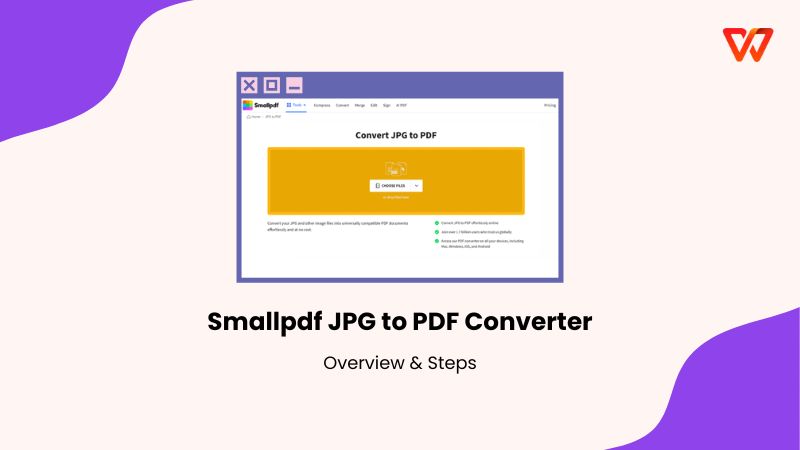
Smallpdf is the most popular tool for converting JPGs to PDFs because of its simplicity and ease of use. However, most of its advanced features are locked behind a subscription, along with a slow processing speed for free users. If you are looking for efficient, high-quality conversions without the paywalls, you might need a better option. This guide walks you through using the Smallpdf JPG to PDF tool while introducing a higher-quality, free alternative to streamline your document management.


Overview of Smallpdf JPG to PDF Converter
Smallpdf is a comprehensive online PDF software that offers numerous tools to convert, compress, and edit files for free. While many converters exist, what makes Smallpdf special is its deep integration into the workflows users already use daily. It offers a dedicated Chrome extension, allowing users to access its tools instantly whenever they open a PDF in their browser, eliminating the need to navigate away from their current tab.

Beyond simple conversion, Smallpdf embeds its functionality directly into major productivity platforms. You can access its tools inside Google Workspace and the Dropbox App to compress, sign, merge, and even summarize PDF files using Smallpdf’s AI feature without ever leaving those environments. Furthermore, the platform recently launched a OneDrive integration, enabling seamless file management directly within the Microsoft ecosystem.
How to Convert JPG to PDF on Smallpdf
Using Smallpdf JPG to PDF converter is straightforward, designed to get you from image to document in as few clicks as possible, and if you’re wondering how to convert PDF to JPG on Smallpdf, then the flow is the same. You just need to head over to Smallpdf PDF to JPG and follow the exact steps below.
That said, here is how to convert JPG to PDF on Smallpdf step by step:
Step 1: First, head on over to the Smallpdf JPG to PDF website.
Step 2: Then upload your image by dropping your image onto the interface or clicking “CHOOSE FILES”.

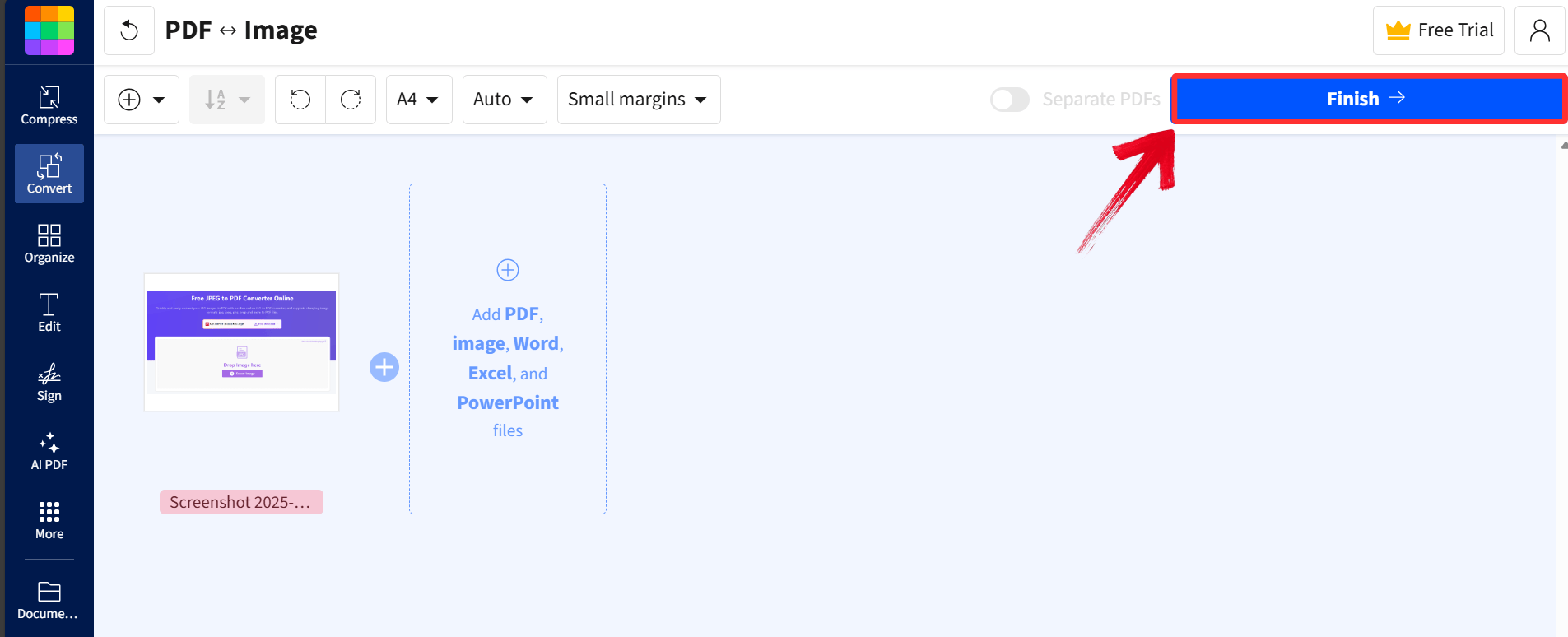
Step 3: Then adjust your image and click “Finish” to confirm your changes.
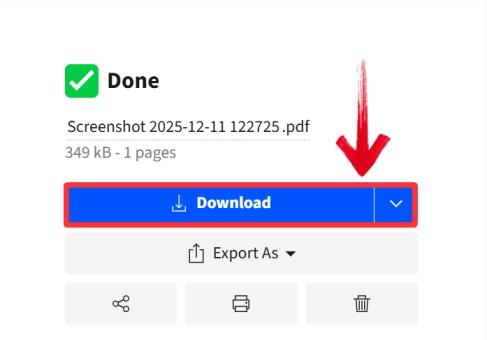
Step 4: Finally, download the PDF onto your device by clicking “Download” to export the PDF.
WPS Online Converter: Best Alternative to Smallpdf JPG to PDF Converter
While Smallpdf is great for quick, one-off tasks, it can feel limiting if you have heavy document needs or hit the free daily cap. This is where WPS Online Converter shines as a superior alternative. It is part of the comprehensive WPS Office ecosystem, meaning it isn't just a standalone converter, as it is a gateway to full document editing.
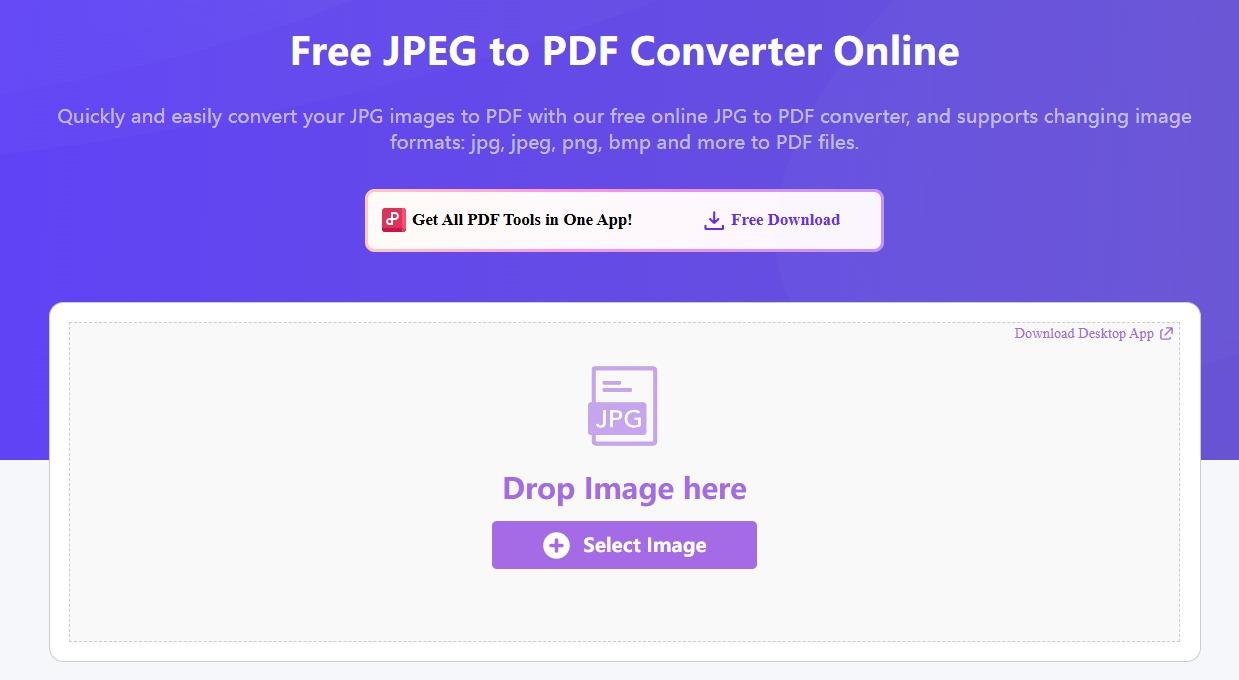
WPS Online Converter focuses on delivering high-fidelity conversions with fewer restrictions. It is designed for users who need professional-grade output and seamless integration with document editing tools. Unlike Smallpdf's strict paywall for volume, WPS offers robust performance for free, with the added benefit of being able to open your converted PDF directly in a powerful editor.
How to Convert JPG to PDF Using WPS PDF:
Using WPS PDF to convert your documents from one format to another is simple. It skips the layout phase entirely, allowing you to go from image to document in seconds.
Step 1: First, head on over to the WPS JPG to PDF tool.
Step 2: Upload your Image by dragging it or clicking the “Select Image” button.
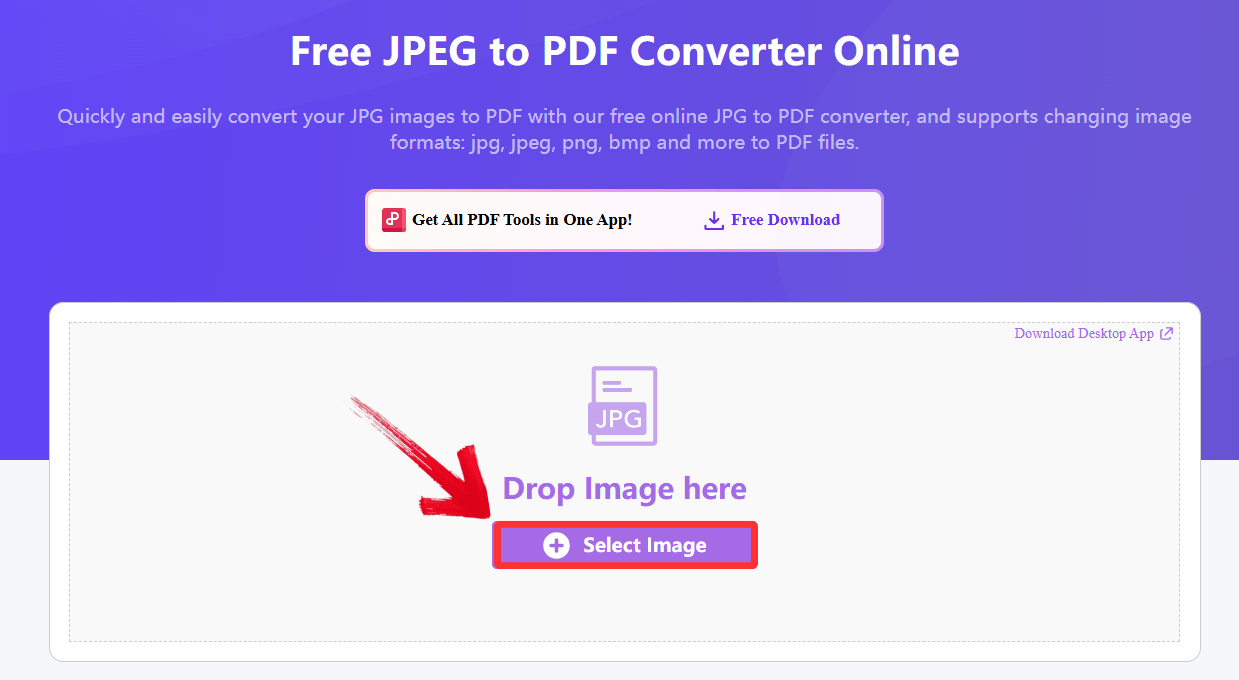
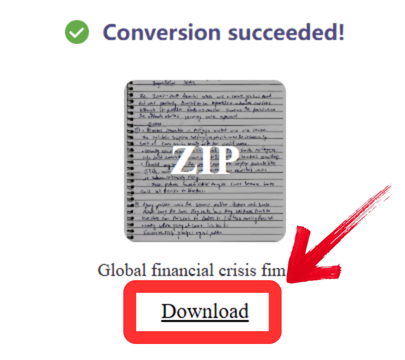
Step 3: Your file will be converted automatically, then just click “Download” to save the extracted file onto your device.
WPS Online Converter V.S. Smallpdf Converter
To help you choose the right tool for your workflow, I have compared them across key performance metrics.
| Feature | WPS Online Converter | Smallpdf |
|---|---|---|
| Ease of Use | Very High | Very High |
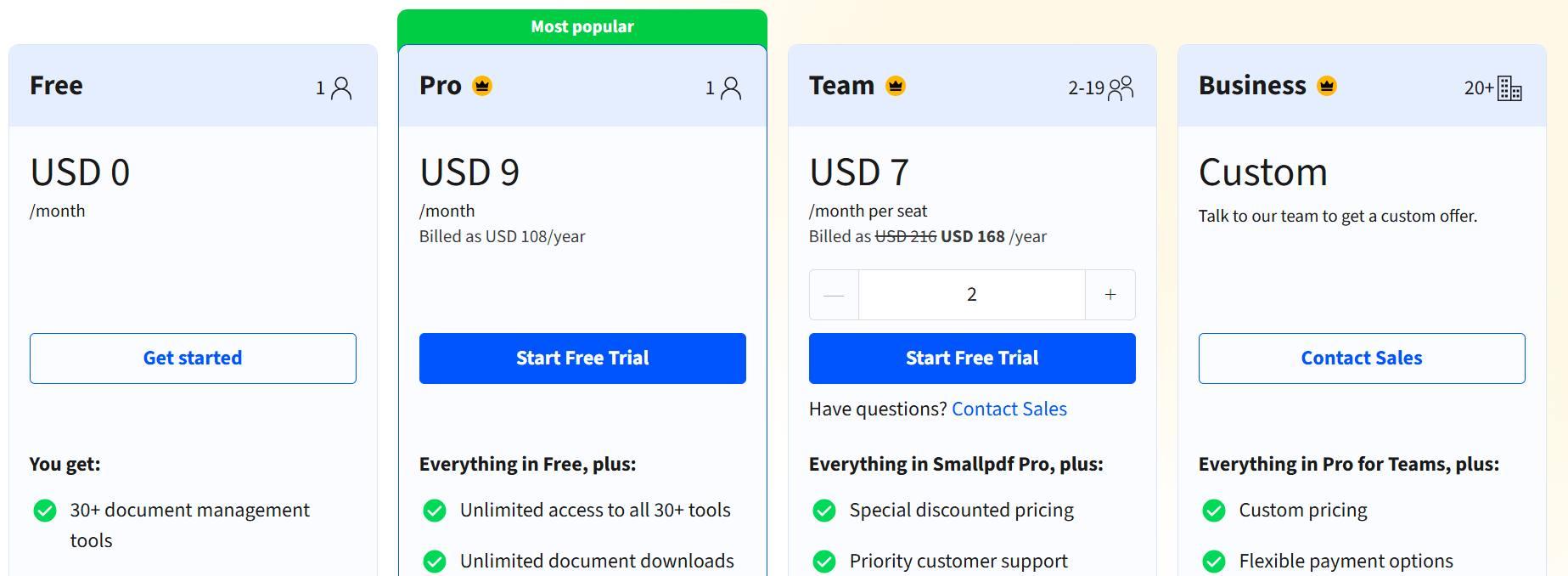
| Free Usage Limits | Generous / Unlimited | Strict Daily Limit (2 tasks) |
| Format Preservation | Excellent (High Fidelity) | Good |
| Conversion Speed | Fast | Moderate (Depends on server load) |
| Batch Processing | Robust | Restricted (Often Pro only) |
| Ecosystem Integration | Seamless (WPS Office) | Limited (Standalone) |
If you need to convert one single image once a week, Smallpdf is fine. But for anyone doing regular work, the restrictions on Smallpdf become a problem very quickly. WPS offers the same ease of use without any hefty subscriptions. What stands out to me with WPS is the lack of friction. I don't have to worry about counting how many files I've converted today. Plus, knowing I can open the result in the WPS desktop app to fix a typo or add a signature makes it a much more practical tool for actual work.
FAQs
Q1: Why should I choose WPS Online Converter over Smallpdf for my JPG to PDF needs?
WPS Online Converter is the ideal solution for users who want a fast, integrated experience without strict daily limits. Its direct link to the WPS Office suite provides a significant advantage if you need to edit, sign, or manage your documents after conversion, offering a more complete workflow than Smallpdf's standalone tool.
Q2: Can I use these converters on my mobile device?
Yes, both converters are fully accessible on mobile devices. Since they are browser-based, you can simply visit the website on your phone or tablet to convert files without downloading a separate app.
Q3: Do I need to install any software to use these converters?
No installation is required for the online versions of either tool. You can access both WPS Online Converter and Smallpdf directly from your web browser on any operating system (Windows, Mac, Linux, Android, iOS).
Q4: Is it safe to upload private documents to these converters?
Both platforms use SSL encryption to protect your files during transfer. Smallpdf automatically deletes files after one hour. WPS also adheres to strict privacy standards to ensure your data remains secure during the conversion process.
Q5: Can I convert multiple JPGs into a single PDF file?
Yes, both tools support merging multiple images into one document. However, Smallpdf may limit the number of files you can merge in the free version, whereas WPS typically handles larger batches more effectively.
You can read a full

'%3e%3cpath%20d='M19.9911%204.11386V6.471H18.5894C18.0775%206.471%2017.7322%206.57814%2017.5536%206.79243C17.3751%207.00671%2017.2858%207.32814%2017.2858%207.75671V9.44421H19.9019L19.5536%2012.0871H17.2858V18.8639H14.5536V12.0871H12.2769V9.44421H14.5536V7.49779C14.5536%206.39064%2014.8632%205.53201%2015.4822%204.92189C16.1013%204.31177%2016.9257%204.00671%2017.9554%204.00671C18.8304%204.00671%2019.509%204.04243%2019.9911%204.11386Z'%20fill='%23333333'/%3e%3c/g%3e%3cdefs%3e%3cclipPath%20id='clip0_2938_8199'%3e%3crect%20width='16'%20height='16'%20fill='white'%20transform='translate(8%204.00671)'/%3e%3c/clipPath%3e%3c/defs%3e%3c/svg%3e)
'%3e%3cpath%20d='M17.5237%2010.7813L23.4811%204H22.0699L16.8949%209.88693L12.7648%204H8L14.2469%2012.9029L8%2020.0133H9.4112L14.8725%2013.7952L19.2352%2020.0133H24M9.92053%205.04213H12.0885L22.0688%2019.0224H19.9003'%20fill='%23333333'/%3e%3c/g%3e%3cdefs%3e%3cclipPath%20id='clip0_2938_8200'%3e%3crect%20width='16'%20height='16.0134'%20fill='white'%20transform='translate(8%204)'/%3e%3c/clipPath%3e%3c/defs%3e%3c/svg%3e)


