

'%3e%3cpath%20d='M8%200C12.4183%200%2016%203.58172%2016%208C16%2012.4183%2012.4183%2016%208%2016C3.58172%2016%200%2012.4183%200%208C0%203.58172%203.58172%200%208%200ZM11.6162%204.38379C11.2257%203.99337%2010.5927%203.99338%2010.2021%204.38379L8%206.58594L5.79785%204.38379C5.40732%203.99334%204.77429%203.99329%204.38379%204.38379C3.99331%204.77429%203.99335%205.40733%204.38379%205.79785L6.58594%208L4.38379%2010.2021C3.99348%2010.5927%203.99341%2011.2257%204.38379%2011.6162C4.77426%2012.0066%205.40734%2012.0065%205.79785%2011.6162L8%209.41406L10.2021%2011.6162C10.5927%2012.0066%2011.2257%2012.0067%2011.6162%2011.6162C12.0067%2011.2257%2012.0066%2010.5927%2011.6162%2010.2021L9.41406%208L11.6162%205.79785C12.0066%205.40735%2012.0066%204.77429%2011.6162%204.38379Z'%20fill='%23080E17'%20fill-opacity='0.46'/%3e%3c/g%3e%3cdefs%3e%3cclipPath%20id='clip0_3761_713'%3e%3crect%20width='16'%20height='16'%20fill='white'/%3e%3c/clipPath%3e%3c/defs%3e%3c/svg%3e)




'%3e%3cpath%20fill-rule='evenodd'%20clip-rule='evenodd'%20d='M21.4999%2010.9993C21.4999%205.20009%2016.7986%200.498901%2010.9993%200.498901C5.19994%200.498901%200.498657%205.20009%200.498657%2010.9993C0.498657%2016.2404%204.33858%2020.5844%209.35855%2021.3722V14.0346H6.69238V10.9993H9.35855V8.68594C9.35855%206.05427%2010.9262%204.60062%2013.3248%204.60062C14.4736%204.60062%2015.6753%204.80571%2015.6753%204.80571V7.38979H14.3512C13.0468%207.38979%2012.64%208.19921%2012.64%209.0296V10.9993H15.5523L15.0867%2014.0346H12.64V21.3722C17.66%2020.5844%2021.4999%2016.2404%2021.4999%2010.9993Z'%20fill='%231568EA'/%3e%3c/g%3e%3c/svg%3e)


'%3e%3cpath%20d='M2.42045%2022.1876H6.31818V12.7217L0.75%208.54553V20.5171C0.75%2021.4414%201.49892%2022.1876%202.42045%2022.1876Z'%20fill='%234285F4'/%3e%3cpath%20d='M19.682%2022.1876H23.5797C24.5041%2022.1876%2025.2502%2021.4387%2025.2502%2020.5171V8.54553L19.682%2012.7217'%20fill='%2334A853'/%3e%3cpath%20d='M19.682%205.48293V12.7216L25.2502%208.54543V6.31816C25.2502%204.25236%2022.8921%203.07469%2021.2411%204.31361'%20fill='%23FBBC04'/%3e%3cpath%20d='M6.31824%2012.7217V5.48303L13.0001%2010.4944L19.6819%205.48303V12.7217L13.0001%2017.733'%20fill='%23EA4335'/%3e%3cpath%20d='M0.75%206.31816V8.54543L6.31818%2012.7216V5.48293L4.75909%204.31361C3.10534%203.07469%200.75%204.25236%200.75%206.31816Z'%20fill='%23C5221F'/%3e%3c/g%3e%3cdefs%3e%3cclipPath%20id='clip0_2954_7305'%3e%3crect%20width='24.5'%20height='18.375'%20fill='white'%20transform='translate(0.75%203.8125)'/%3e%3c/clipPath%3e%3c/defs%3e%3c/svg%3e)


Photopea is a free, fully web-based image editor designed to provide a familiar experience to Photoshop but without the expensive subscription fees. However, many users face many issues when dealing with basic selection operations, especially with the Magic Wand tool. So, how can users quickly remove your Magic Wand selections in Photopea? In this Photopea selection tools guide, I’ll be walking you through how to deselect Magic Wand in Photopea using simple and easy methods.

Overview of Photopea
If you want an experience similar to Photoshop without breaking your wallet on hefty subscription fees, Photopea is one of the most reliable and effective alternatives out there. It provides a fully web-based experience filled with advanced photo editing tools to help you polish your images with ease, regardless of the device you’re on. I found it to work seamlessly for all my creative work, giving me everything I need to remain productive and efficientin my workflow.
Features
Browser-Based Functionality: Works entirely in your browser, making it incredibly accessible across multiple devices.
Full Layer & Mask Support: Allows you to use layers, blending modes, and masks to polish your images.
RAW Photo Editing: Support for RAW files and lets you adjust the exposure, contrast, color balanceand even highlights and shadows.
Pros
Completely free to use
Works offline after loading
AI-powered assistance
Versatile export options
Cons
Occasional ads in the free version
Performance depends on your browser and device
Pricing
Free: Full functionality with 0.5GB PeaDrive storage.
Premium ($5/month): Ad-free experience with 5GB PeaDrive storage.
How to Deselect Magic Wand in Photopea – Step-by-Step Guide
If you’re using Photopea for your photo editing needs, Magic Wand can be one of the most useful tools when it comes to selecting objectsand elements in your photos. However, it can get a bit confusing to figure out how to unselect in an online photo editor, especially if you’re a beginner. In this guide, I’ll be showing you how to remove Magic Wand selection and showing you the Photopea deselectshortcut to simplify the process.
Step 1: Launch Photopea in your web browser and upload the image you want to edit.
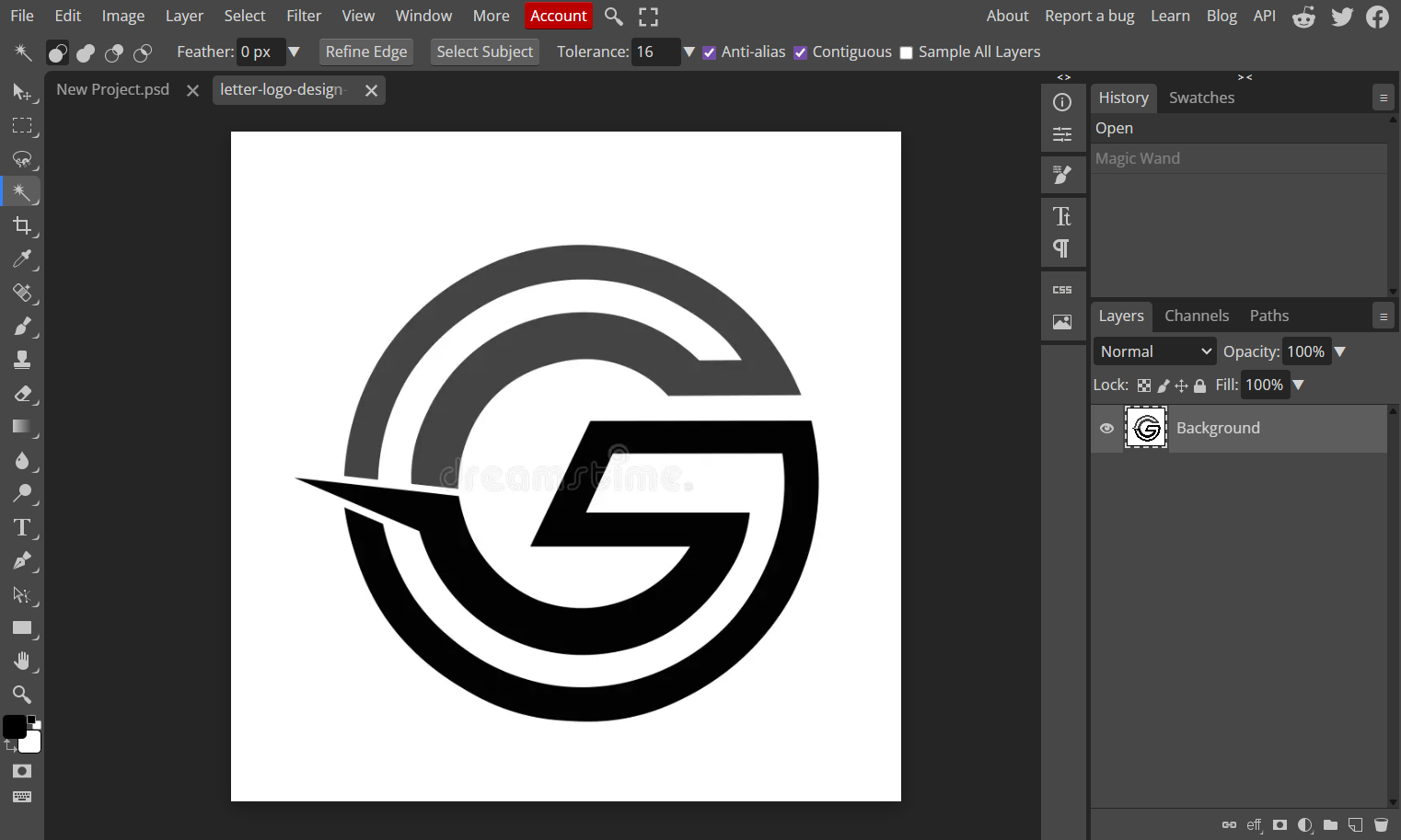
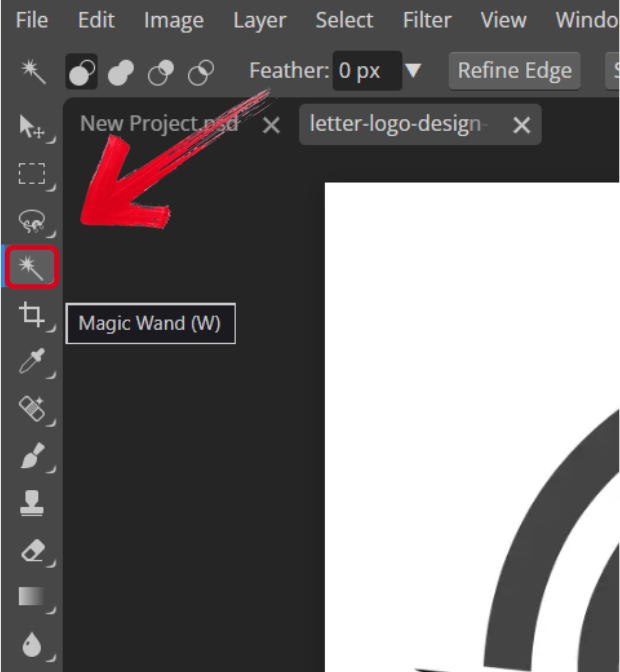
Step 2: From the toolbar given on the side of your screen, select the Magic Wand to get started.
Step 3: Once selected, move your cursor to the object you want to use and select it.
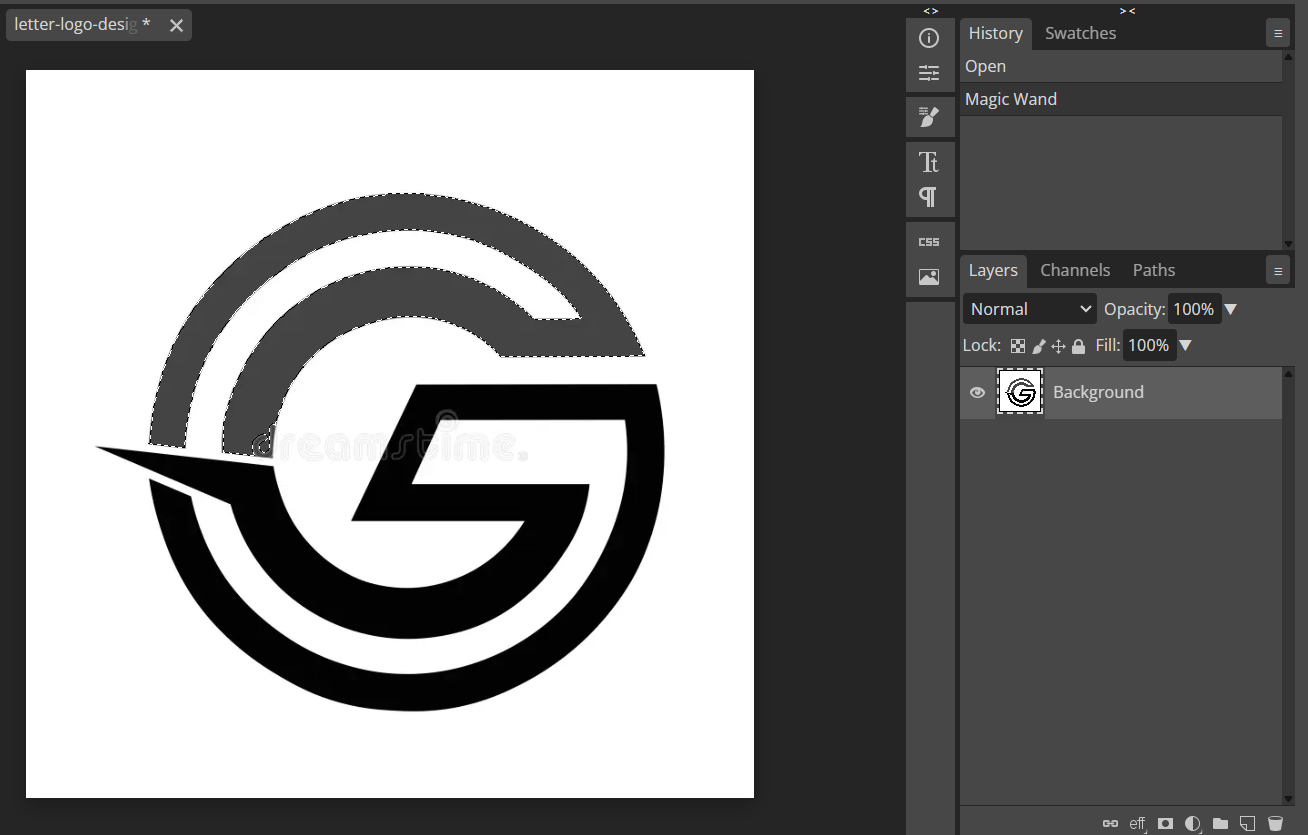
Step 4: Navigate to the Select tab and press Deselect to undo your selection.
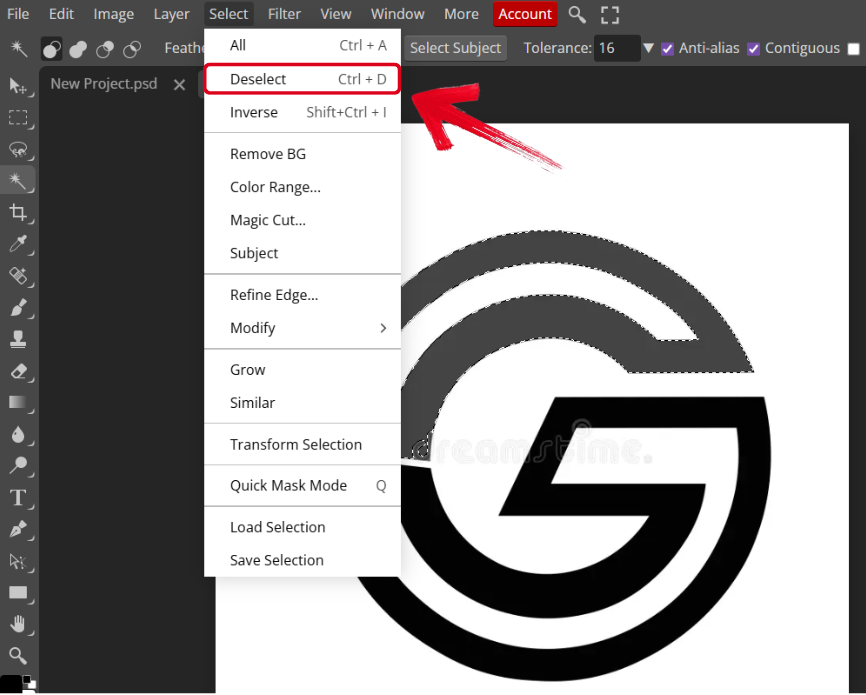
Tip: You can also press Ctrl + D to deselect your Magic Wand selection.
Another AI Photo Solution – WPS Photos
Photopea can be a great photo editing solution to polish your images and master your skills, having access to all the advanced features provided by Photoshop, but without the expensive subscription fees. I’ve found that combining it with a smart tool like WPS Photocan help enhance my photos after I’m done editing them in Photopea. It’s completely free and filled with AI-powered features to help me refine my photos in just a few simple steps.

Features
AI-driven photo enhancement
Smart background removal
Auto color and lighting correction
High-resolution upscaling
Using WPS Photo is a wise choice for anyone trying to elevate their photo editing workflow without much hassle. I’ll highlight the steps you need to follow to elevate and enhance your images using the AI-powered features provided by WPS.
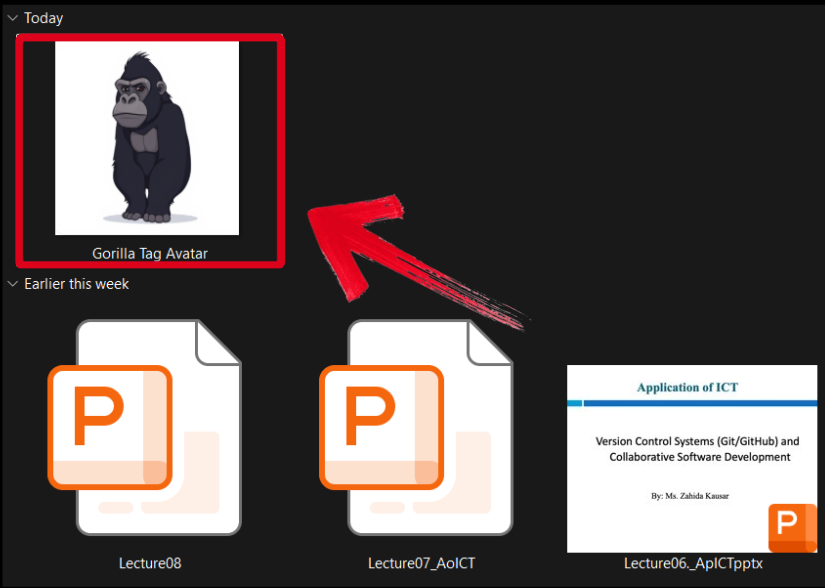
Step 1: Open the photo you want to edit using WPS Photo to get started.
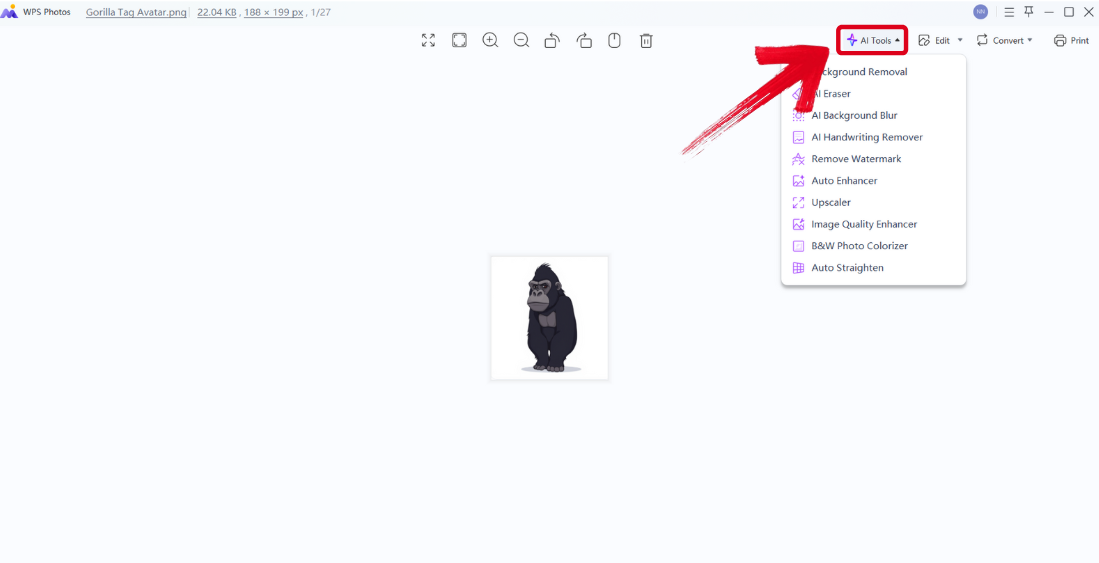
Step 2: In the WPS Photo window, you’ll see a variety of different editing features given to you, each one helping you enhance your photos reliably.
AI Image Enhancer: Improve the quality of your image instantly using AI enhancement.
AI Upscaler: Restore your old photos and bring life back to them with the AI upscaler.
AI Watermark Removal: If there are any watermarks on your template, you can elevate the visual appeal with the watermark removal tool.
AI Background Blur: Emphasize focus on the main subjects of your photo by blurring the background.
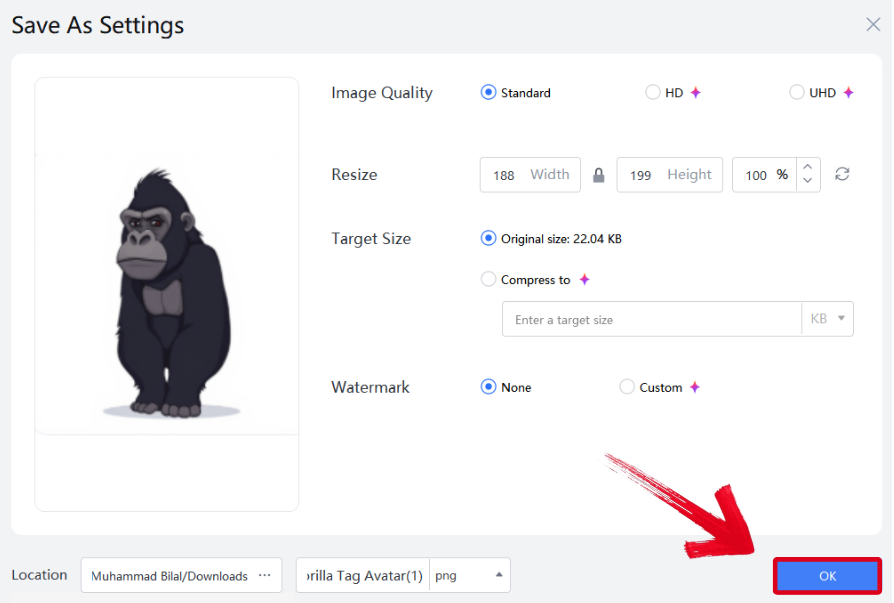
Step 3: Press Ctrl + S to open theSave As window. Adjust the image quality, size, and format, and then press OK to finish.
FAQs
Q1: Is Photopea free to use?
Yes, Photopea is completely free with ads and offers a premium ad-free version.
Q2: Does Photopea support Photoshop shortcuts like Ctrl + D?
Yes, Photopea supports most Photoshop shortcuts, includingCtrl/Cmd + D for deselecting.
Q3: Why won’t my selection deselect in Photopea?
You may have additive selection enabled or an active mask layer. Ensure both are turned off.
Q4: What is the difference between Photopea and WPS Photos?
Photopea is a full-featured editor, while WPS Photos offers fast, AI-powered image enhancement and cleanup.
Streamlining Photo Editing with Photopea
Photopea is one of the best alternatives for Photoshop out there, providing smart and efficient features like Magic Wand. However, many people can’t figure out how to deselect their selections when they accidentally select something. In this guide, I’ve covered a detailed step-by-step walkthrough of how to deselect Magic Wand in Photopea. You can further enhance your edited images using WPS Phototo bring their original quality back. It’s free and is filled with smart AI features to help you polish your images with ease.

'%3e%3cpath%20d='M19.9911%204.11386V6.471H18.5894C18.0775%206.471%2017.7322%206.57814%2017.5536%206.79243C17.3751%207.00671%2017.2858%207.32814%2017.2858%207.75671V9.44421H19.9019L19.5536%2012.0871H17.2858V18.8639H14.5536V12.0871H12.2769V9.44421H14.5536V7.49779C14.5536%206.39064%2014.8632%205.53201%2015.4822%204.92189C16.1013%204.31177%2016.9257%204.00671%2017.9554%204.00671C18.8304%204.00671%2019.509%204.04243%2019.9911%204.11386Z'%20fill='%23333333'/%3e%3c/g%3e%3cdefs%3e%3cclipPath%20id='clip0_2938_8199'%3e%3crect%20width='16'%20height='16'%20fill='white'%20transform='translate(8%204.00671)'/%3e%3c/clipPath%3e%3c/defs%3e%3c/svg%3e)
'%3e%3cpath%20d='M17.5237%2010.7813L23.4811%204H22.0699L16.8949%209.88693L12.7648%204H8L14.2469%2012.9029L8%2020.0133H9.4112L14.8725%2013.7952L19.2352%2020.0133H24M9.92053%205.04213H12.0885L22.0688%2019.0224H19.9003'%20fill='%23333333'/%3e%3c/g%3e%3cdefs%3e%3cclipPath%20id='clip0_2938_8200'%3e%3crect%20width='16'%20height='16.0134'%20fill='white'%20transform='translate(8%204)'/%3e%3c/clipPath%3e%3c/defs%3e%3c/svg%3e)


