

'%3e%3cpath%20d='M8%200C12.4183%200%2016%203.58172%2016%208C16%2012.4183%2012.4183%2016%208%2016C3.58172%2016%200%2012.4183%200%208C0%203.58172%203.58172%200%208%200ZM11.6162%204.38379C11.2257%203.99337%2010.5927%203.99338%2010.2021%204.38379L8%206.58594L5.79785%204.38379C5.40732%203.99334%204.77429%203.99329%204.38379%204.38379C3.99331%204.77429%203.99335%205.40733%204.38379%205.79785L6.58594%208L4.38379%2010.2021C3.99348%2010.5927%203.99341%2011.2257%204.38379%2011.6162C4.77426%2012.0066%205.40734%2012.0065%205.79785%2011.6162L8%209.41406L10.2021%2011.6162C10.5927%2012.0066%2011.2257%2012.0067%2011.6162%2011.6162C12.0067%2011.2257%2012.0066%2010.5927%2011.6162%2010.2021L9.41406%208L11.6162%205.79785C12.0066%205.40735%2012.0066%204.77429%2011.6162%204.38379Z'%20fill='%23080E17'%20fill-opacity='0.46'/%3e%3c/g%3e%3cdefs%3e%3cclipPath%20id='clip0_3761_713'%3e%3crect%20width='16'%20height='16'%20fill='white'/%3e%3c/clipPath%3e%3c/defs%3e%3c/svg%3e)




'%3e%3cpath%20fill-rule='evenodd'%20clip-rule='evenodd'%20d='M21.4999%2010.9993C21.4999%205.20009%2016.7986%200.498901%2010.9993%200.498901C5.19994%200.498901%200.498657%205.20009%200.498657%2010.9993C0.498657%2016.2404%204.33858%2020.5844%209.35855%2021.3722V14.0346H6.69238V10.9993H9.35855V8.68594C9.35855%206.05427%2010.9262%204.60062%2013.3248%204.60062C14.4736%204.60062%2015.6753%204.80571%2015.6753%204.80571V7.38979H14.3512C13.0468%207.38979%2012.64%208.19921%2012.64%209.0296V10.9993H15.5523L15.0867%2014.0346H12.64V21.3722C17.66%2020.5844%2021.4999%2016.2404%2021.4999%2010.9993Z'%20fill='%231568EA'/%3e%3c/g%3e%3c/svg%3e)


'%3e%3cpath%20d='M2.42045%2022.1876H6.31818V12.7217L0.75%208.54553V20.5171C0.75%2021.4414%201.49892%2022.1876%202.42045%2022.1876Z'%20fill='%234285F4'/%3e%3cpath%20d='M19.682%2022.1876H23.5797C24.5041%2022.1876%2025.2502%2021.4387%2025.2502%2020.5171V8.54553L19.682%2012.7217'%20fill='%2334A853'/%3e%3cpath%20d='M19.682%205.48293V12.7216L25.2502%208.54543V6.31816C25.2502%204.25236%2022.8921%203.07469%2021.2411%204.31361'%20fill='%23FBBC04'/%3e%3cpath%20d='M6.31824%2012.7217V5.48303L13.0001%2010.4944L19.6819%205.48303V12.7217L13.0001%2017.733'%20fill='%23EA4335'/%3e%3cpath%20d='M0.75%206.31816V8.54543L6.31818%2012.7216V5.48293L4.75909%204.31361C3.10534%203.07469%200.75%204.25236%200.75%206.31816Z'%20fill='%23C5221F'/%3e%3c/g%3e%3cdefs%3e%3cclipPath%20id='clip0_2954_7305'%3e%3crect%20width='24.5'%20height='18.375'%20fill='white'%20transform='translate(0.75%203.8125)'/%3e%3c/clipPath%3e%3c/defs%3e%3c/svg%3e)


Drawing in Microsoft Word lets you add handwritten notes, sketches, lines, arrows, and simple diagrams to your documents. You can scribble freehand for quick annotations or use standard shapes for clean flowcharts and illustrations. This guide covers drawing on Windows and Mac, how to restore a missing Draw tab, and a free option if you do not have Microsoft 365.
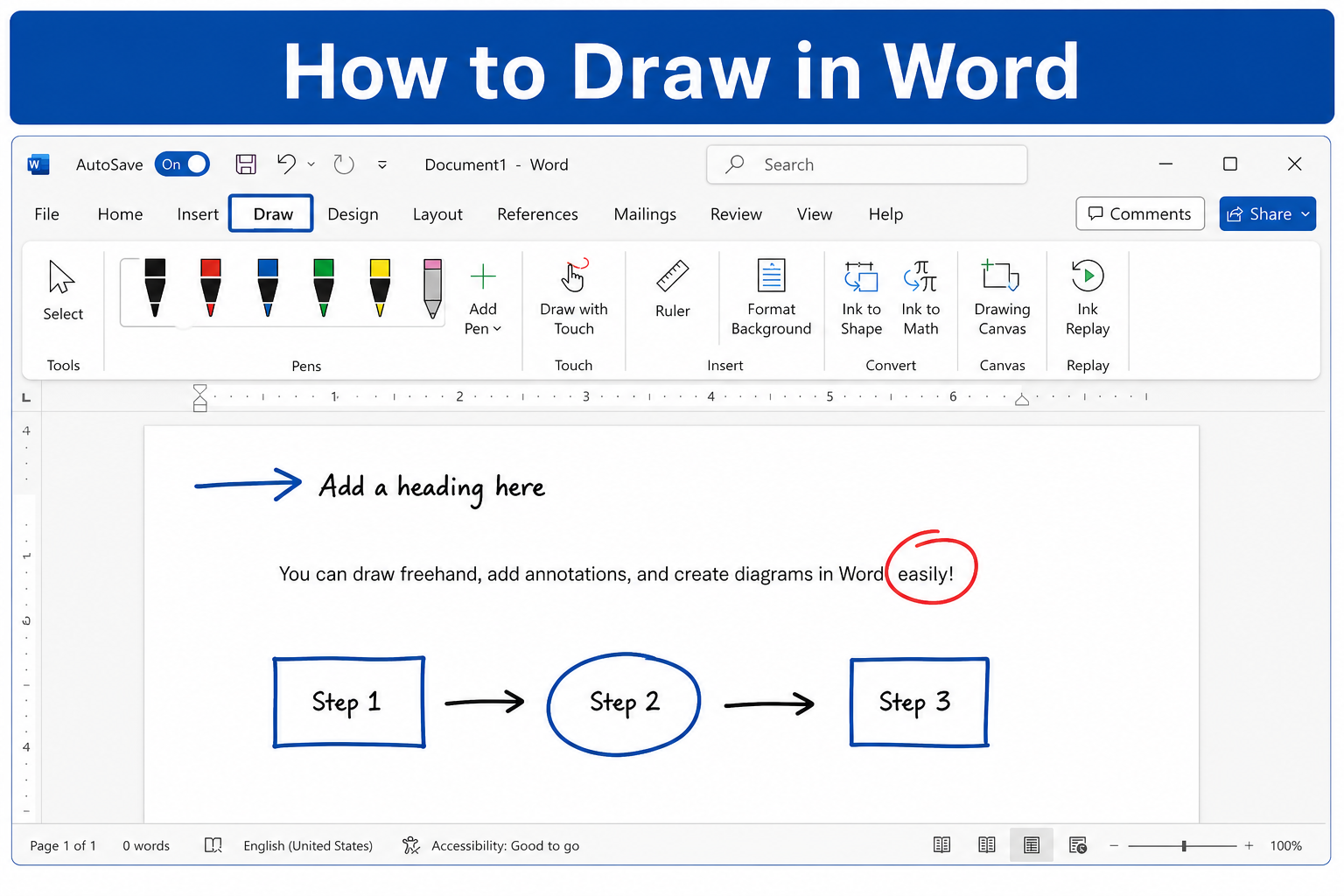
Quick answer: For freehand ink, open the Draw tab → pick a pen or highlighter → drag on the page. For lines and shapes, go to Insert → Shapes → choose Scribble or a preset shape → customize under Shape Format.
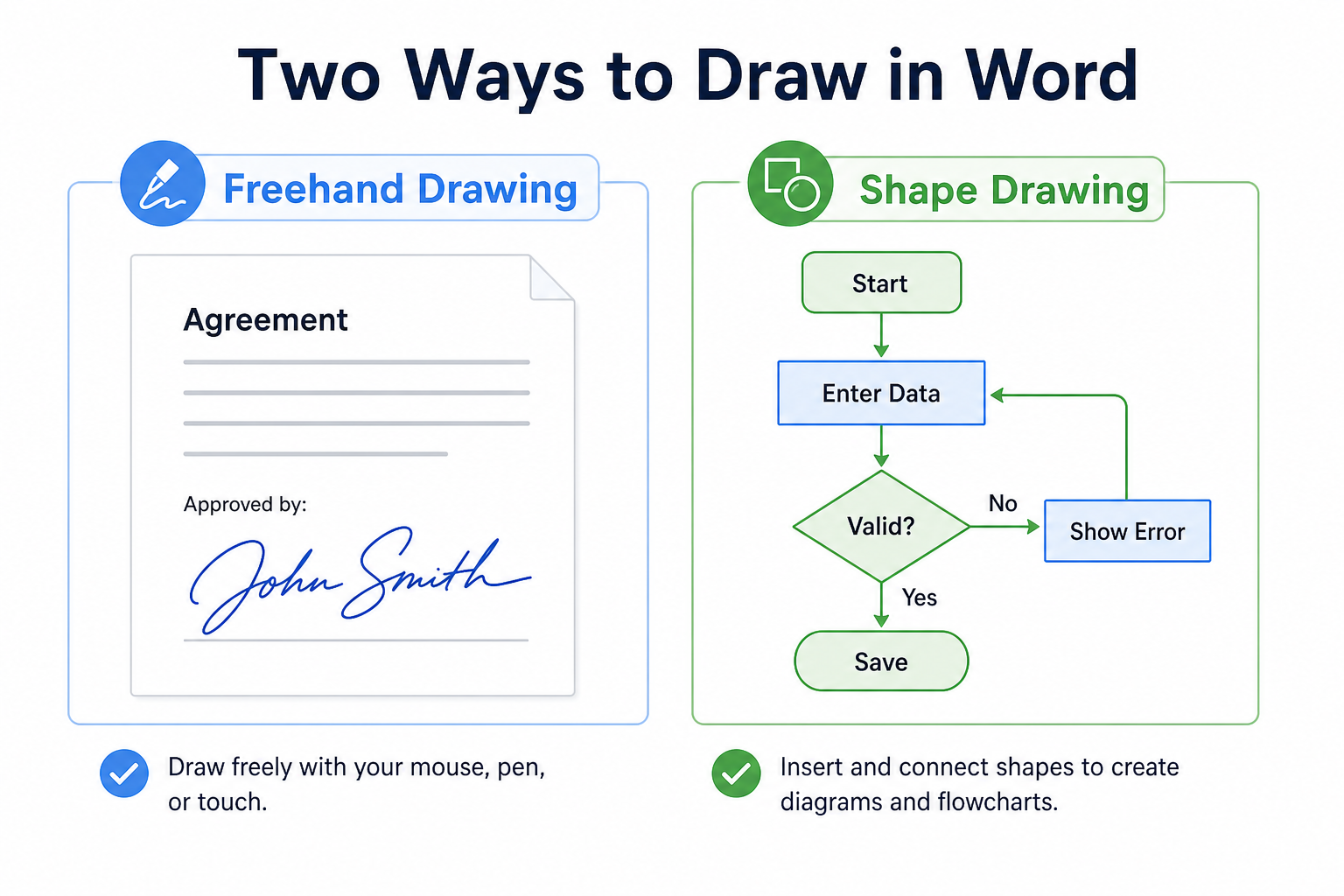
Two Common Ways to Draw in Word
| Method | Best for | Where to find it |
|---|---|---|
| Freehand drawing | Signatures, quick notes, casual markup | Draw tab or Insert → Shapes → Scribble |
| Shape drawing | Lines, arrows, circles, flowcharts | Insert → Shapes |
How to Freehand Draw in Word (Windows)
Method 1: Use the Draw tab
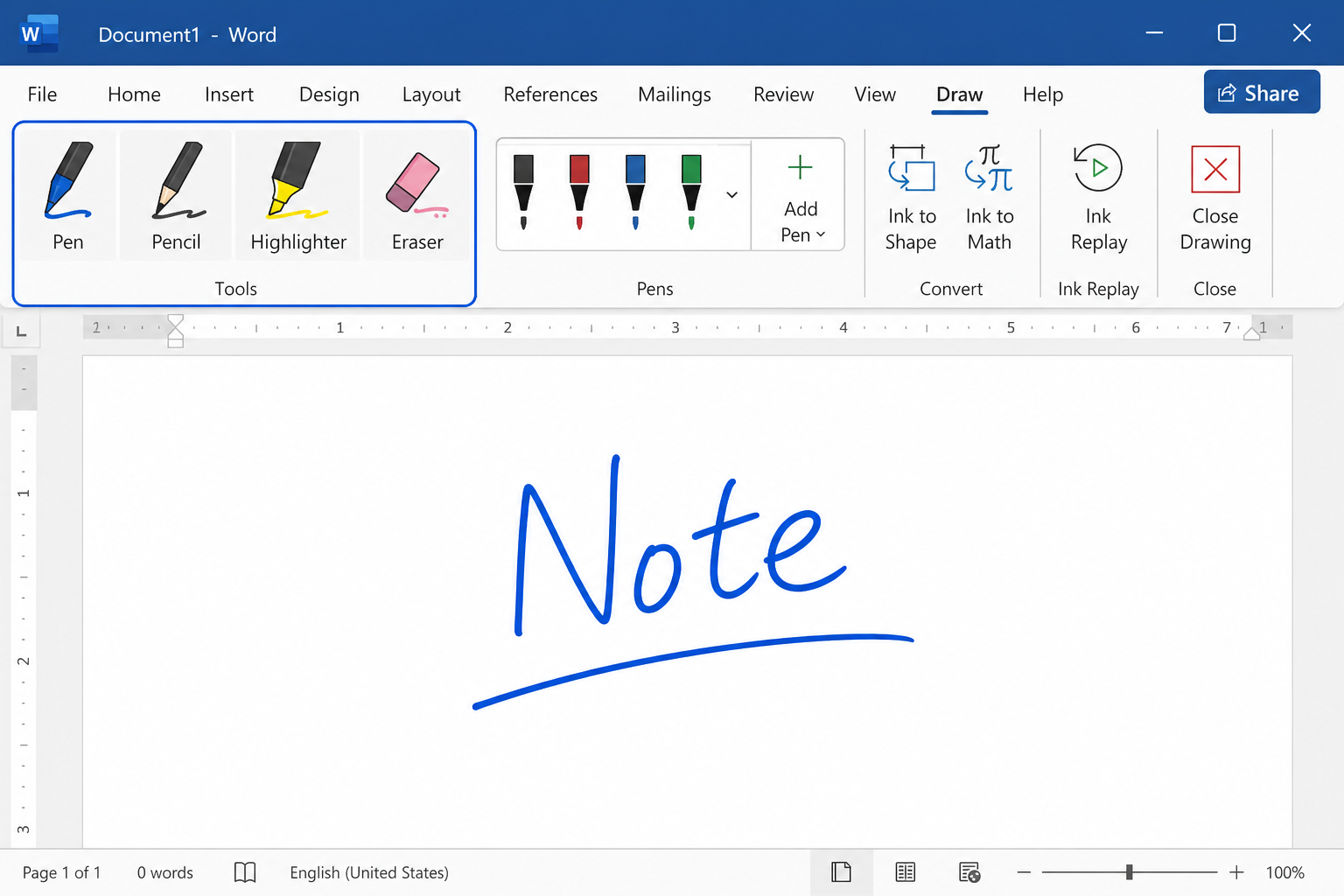
Open your Word document.
Click the Draw tab on the ribbon.
Select a pen, highlighter, or eraser.
Click and drag your mouse (or stylus) to draw on the page.
Method 2: Use the Scribble tool
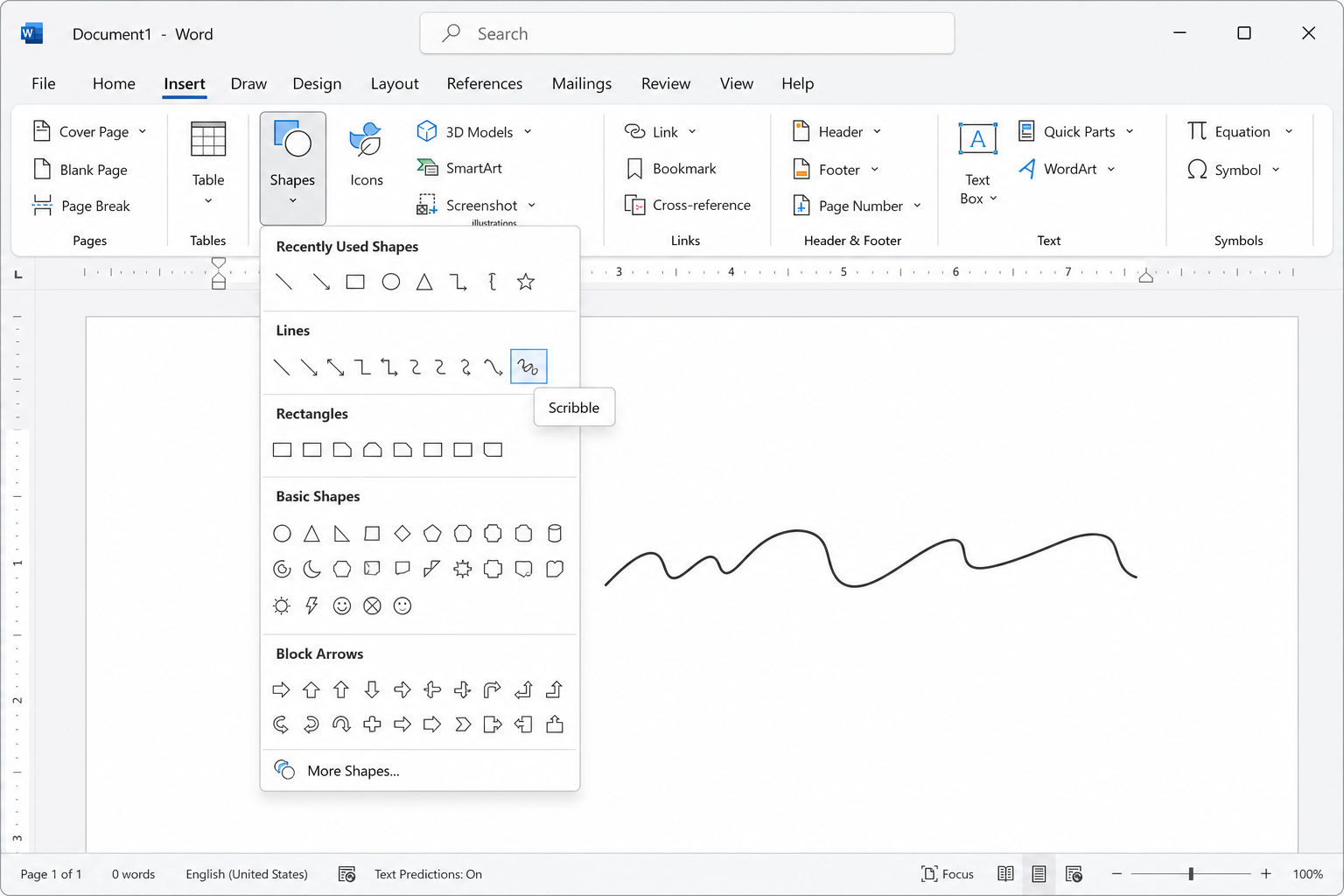
Go to Insert → Shapes.
In the Lines group, choose Scribble.
Drag your mouse to create custom hand-drawn lines.
Double-click anywhere on the page to finish drawing.
Tip: The Draw tab works best for natural ink-style markup. Use Scribble when you want a hand-drawn line you can move or resize like any other shape.
How to Draw Lines and Standard Shapes (Windows)
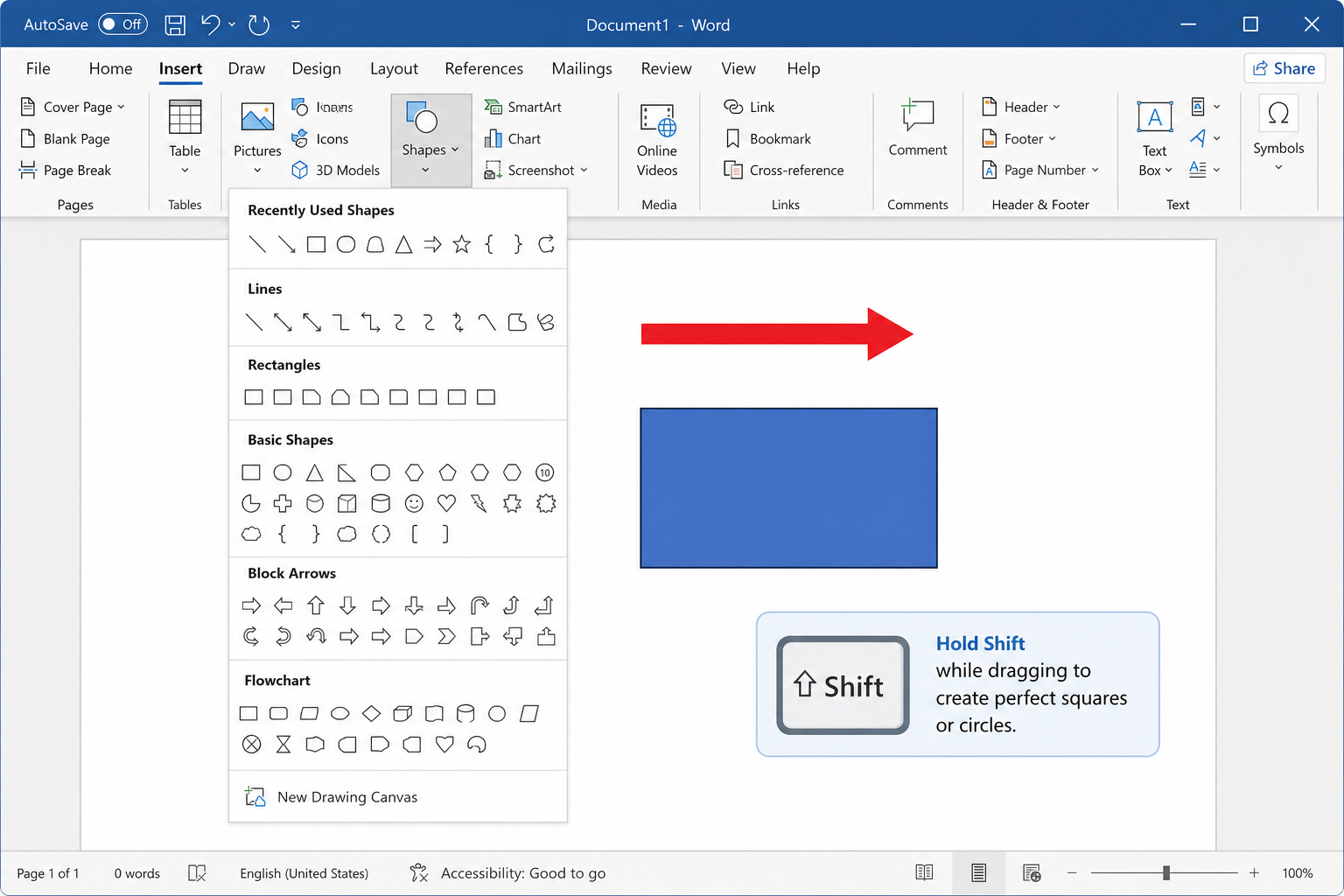
Go to Insert → Shapes.
Select a line, arrow, rectangle, circle, or flowchart shape.
Click and drag on the document to draw it.
Hold Shift while dragging to lock straight lines, squares, or perfect circles.
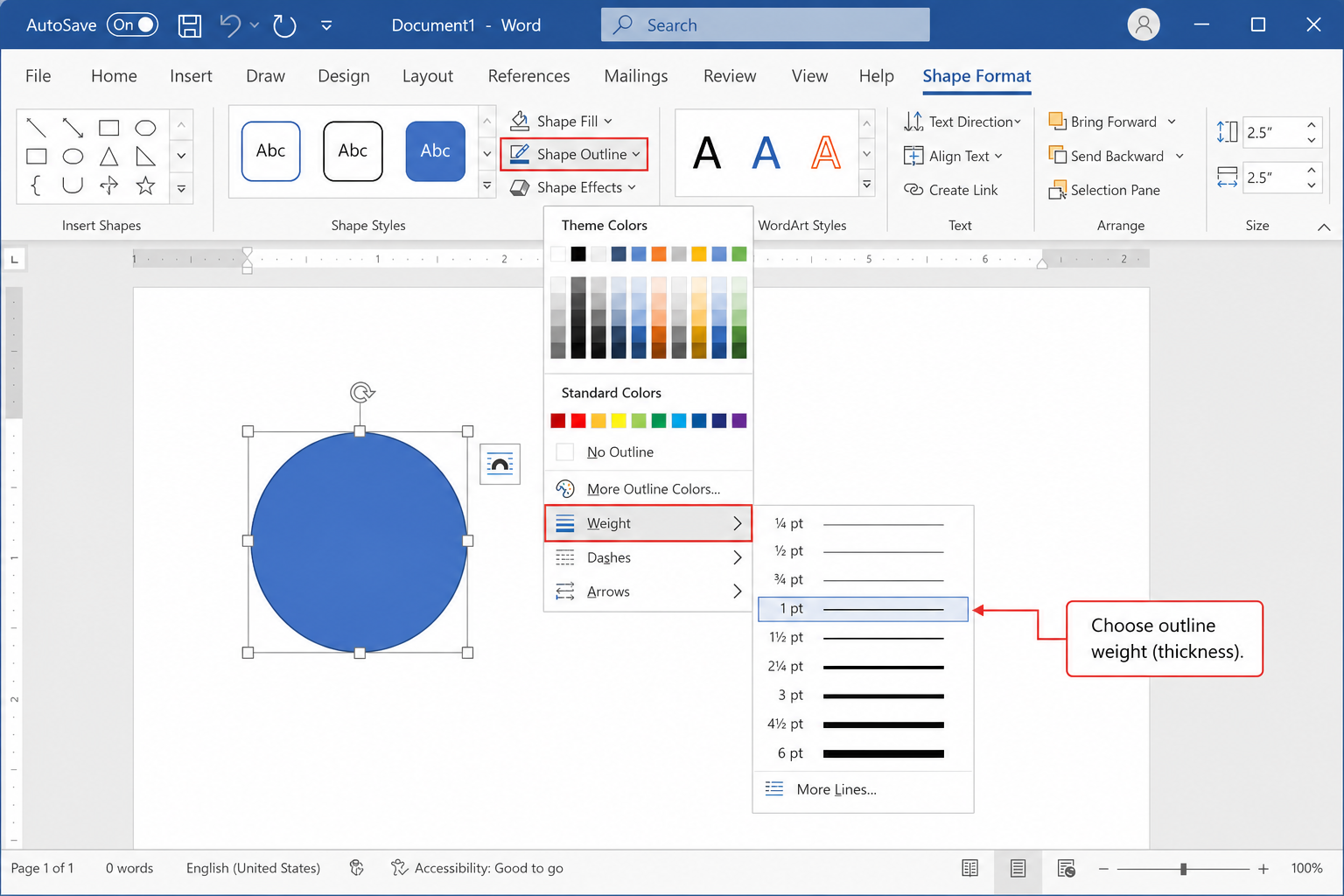
Use Shape Format to change fill color, outline, thickness, and effects.
How to Draw in Word (Mac)
Open your Word file.
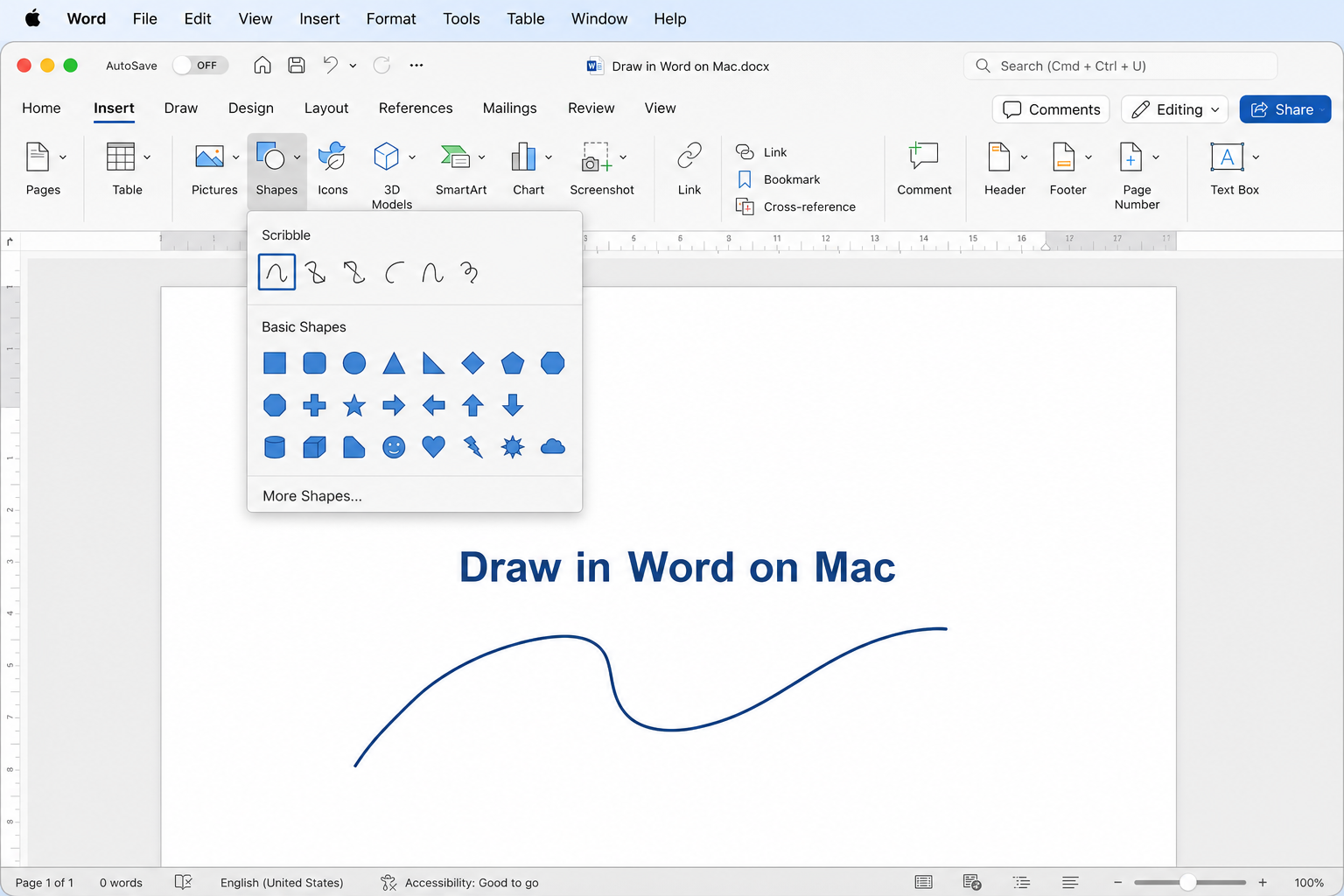
Go to Insert → Shapes.
Choose Scribble for freehand drawing, or pick a standard shape.
Drag on the page to draw.
Customize color, outline, and style under Shape Format.
Note: Some Mac Word versions do not include the full Windows Draw ink toolbar. Shapes and Scribble cover most everyday drawing needs.
Fix: Draw Tab Missing in Word
The Draw tab is hidden by default in many Word installs.
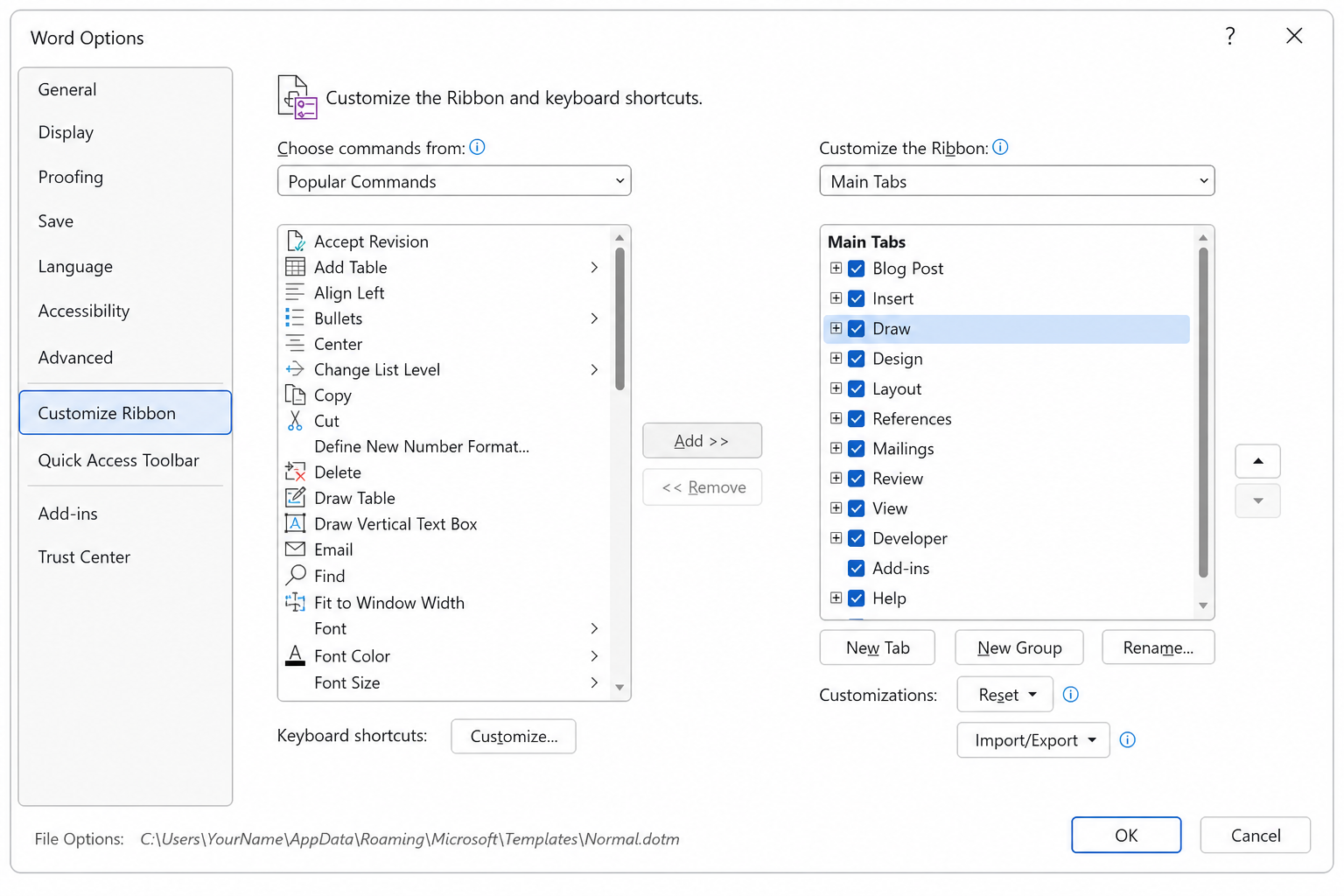
Go to File → Options → Customize Ribbon.
Under Main Tabs, check Draw.
Click OK. The drawing tools should appear on the ribbon.
| Problem | What to try |
|---|---|
| No Draw tab after enabling it | Update Word, or use Insert → Shapes → Scribble instead |
| Pen tools grayed out | Click Enable Editing if the file opened in Protected View |
| Drawing looks blurry when printed | Use vector shapes instead of low-resolution ink where possible |
Free Way to Draw in Word Without Microsoft 365
Full ink drawing and some advanced shape tools in official Word often require Microsoft 365. Free or web-only Word setups may limit hand-drawing features.
WPS Writer is a free, Word-compatible option for everyday sketches and diagrams. You can use pens, erasers, and shape tools, then save as .docx for sharing in Microsoft Word.
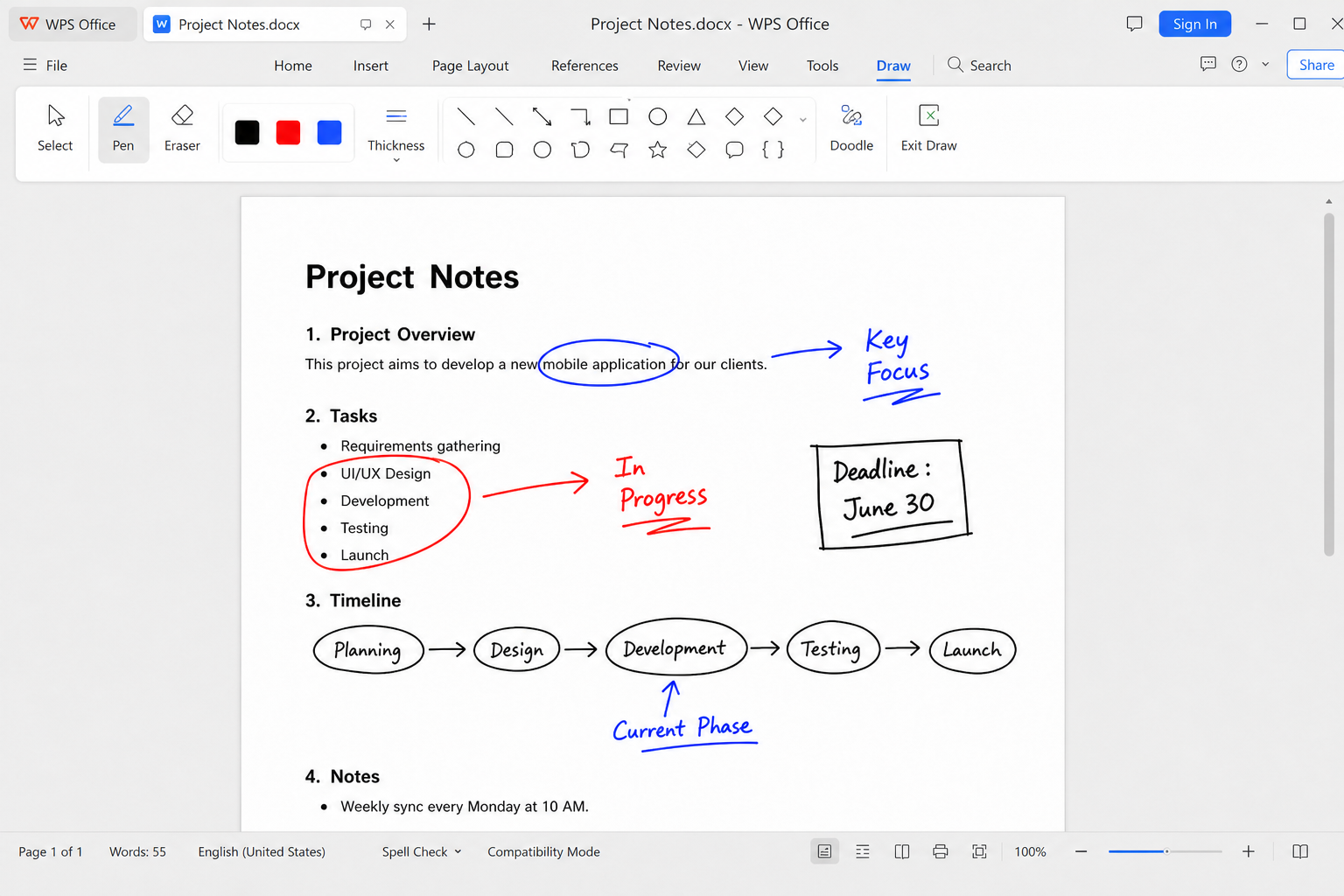
No paid subscription required — Core drawing and shape tools for daily use
Strong Word compatibility — Share common .docx files with Word users
Straightforward editing — Adjust line color, thickness, and layout without extra steps
Cross-platform — Windows, Mac, Android, and iOS
Useful Drawing Tips
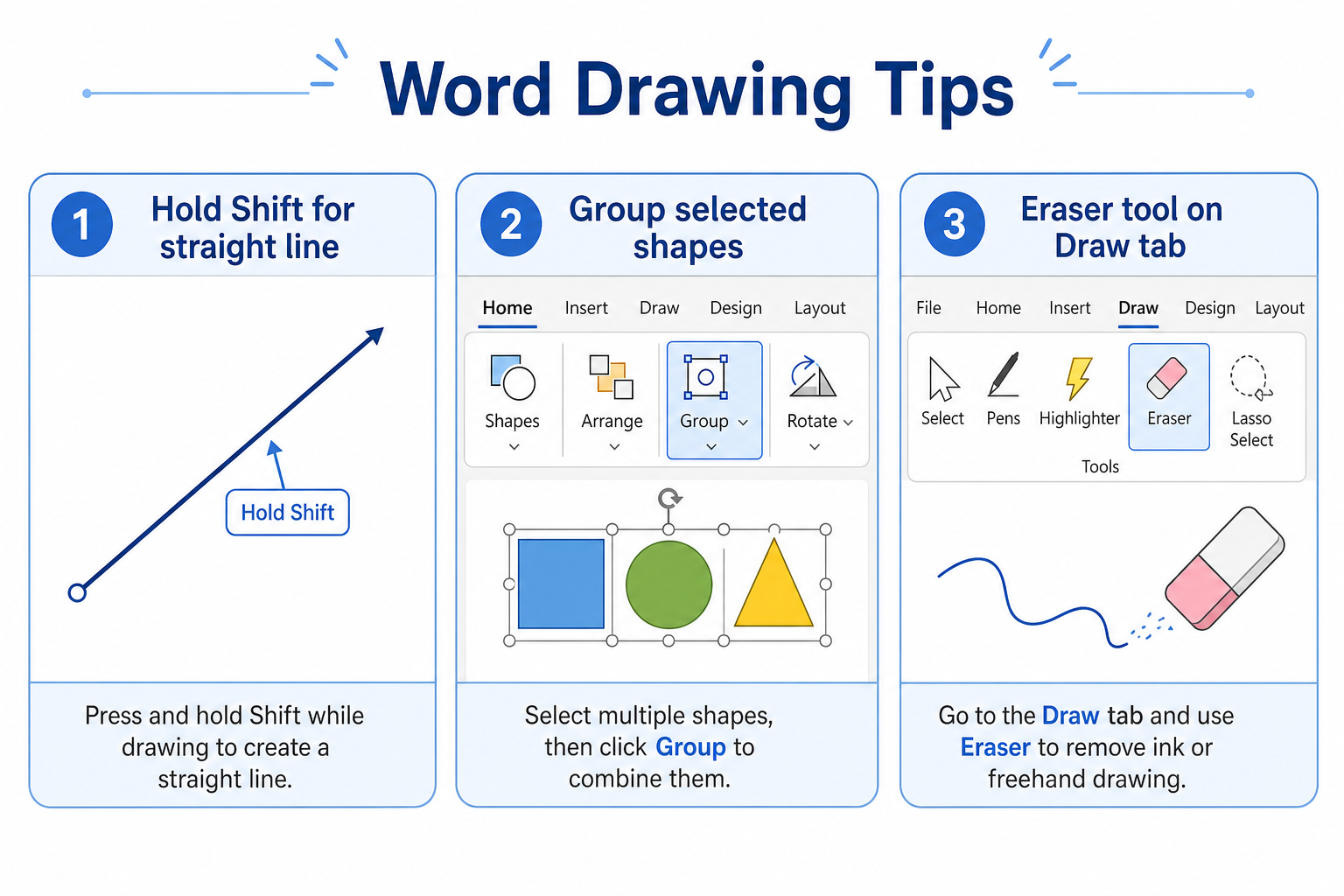
Hold Shift to draw proportional shapes and straight lines.
Double-click to exit Scribble mode quickly.
Select multiple shapes and choose Group to keep diagram layouts stable.
Use the eraser on the Draw tab to clean up hand-drawn details.
Right-click a shape and choose Send to Back or Bring to Front to layer text and graphics.
FAQ
How do I draw freehand in Word?
Use ink pens on the Draw tab, or insert the Scribble shape under Insert → Shapes for hand-drawn lines you can edit.
Why is my Draw tab not showing in Word?
It is hidden by default. Enable it under File → Options → Customize Ribbon, then check Draw.
Can I draw in Word without Microsoft 365?
Yes. Basic shapes work in many Word versions. For fuller freehand and shape tools without a subscription, try a compatible app such as WPS Writer.
Do WPS drawings work in Microsoft Word?
Yes—when you save as a standard Word format, shapes and sketches usually open and edit normally in Microsoft Word.
Conclusion
Word supports both freehand markup and precise shape drawing for notes and diagrams. Enable the Draw tab for ink tools, or use Insert → Shapes for lines, arrows, and flowcharts. If your version limits drawing features or the Draw tab is unavailable, WPS Writer is a practical free way to create compatible sketches in Word documents.



'%3e%3cpath%20d='M19.9911%204.11386V6.471H18.5894C18.0775%206.471%2017.7322%206.57814%2017.5536%206.79243C17.3751%207.00671%2017.2858%207.32814%2017.2858%207.75671V9.44421H19.9019L19.5536%2012.0871H17.2858V18.8639H14.5536V12.0871H12.2769V9.44421H14.5536V7.49779C14.5536%206.39064%2014.8632%205.53201%2015.4822%204.92189C16.1013%204.31177%2016.9257%204.00671%2017.9554%204.00671C18.8304%204.00671%2019.509%204.04243%2019.9911%204.11386Z'%20fill='%23333333'/%3e%3c/g%3e%3cdefs%3e%3cclipPath%20id='clip0_2938_8199'%3e%3crect%20width='16'%20height='16'%20fill='white'%20transform='translate(8%204.00671)'/%3e%3c/clipPath%3e%3c/defs%3e%3c/svg%3e)
'%3e%3cpath%20d='M17.5237%2010.7813L23.4811%204H22.0699L16.8949%209.88693L12.7648%204H8L14.2469%2012.9029L8%2020.0133H9.4112L14.8725%2013.7952L19.2352%2020.0133H24M9.92053%205.04213H12.0885L22.0688%2019.0224H19.9003'%20fill='%23333333'/%3e%3c/g%3e%3cdefs%3e%3cclipPath%20id='clip0_2938_8200'%3e%3crect%20width='16'%20height='16.0134'%20fill='white'%20transform='translate(8%204)'/%3e%3c/clipPath%3e%3c/defs%3e%3c/svg%3e)


