

'%3e%3cpath%20d='M8%200C12.4183%200%2016%203.58172%2016%208C16%2012.4183%2012.4183%2016%208%2016C3.58172%2016%200%2012.4183%200%208C0%203.58172%203.58172%200%208%200ZM11.6162%204.38379C11.2257%203.99337%2010.5927%203.99338%2010.2021%204.38379L8%206.58594L5.79785%204.38379C5.40732%203.99334%204.77429%203.99329%204.38379%204.38379C3.99331%204.77429%203.99335%205.40733%204.38379%205.79785L6.58594%208L4.38379%2010.2021C3.99348%2010.5927%203.99341%2011.2257%204.38379%2011.6162C4.77426%2012.0066%205.40734%2012.0065%205.79785%2011.6162L8%209.41406L10.2021%2011.6162C10.5927%2012.0066%2011.2257%2012.0067%2011.6162%2011.6162C12.0067%2011.2257%2012.0066%2010.5927%2011.6162%2010.2021L9.41406%208L11.6162%205.79785C12.0066%205.40735%2012.0066%204.77429%2011.6162%204.38379Z'%20fill='%23080E17'%20fill-opacity='0.46'/%3e%3c/g%3e%3cdefs%3e%3cclipPath%20id='clip0_3761_713'%3e%3crect%20width='16'%20height='16'%20fill='white'/%3e%3c/clipPath%3e%3c/defs%3e%3c/svg%3e)




'%3e%3cpath%20fill-rule='evenodd'%20clip-rule='evenodd'%20d='M21.4999%2010.9993C21.4999%205.20009%2016.7986%200.498901%2010.9993%200.498901C5.19994%200.498901%200.498657%205.20009%200.498657%2010.9993C0.498657%2016.2404%204.33858%2020.5844%209.35855%2021.3722V14.0346H6.69238V10.9993H9.35855V8.68594C9.35855%206.05427%2010.9262%204.60062%2013.3248%204.60062C14.4736%204.60062%2015.6753%204.80571%2015.6753%204.80571V7.38979H14.3512C13.0468%207.38979%2012.64%208.19921%2012.64%209.0296V10.9993H15.5523L15.0867%2014.0346H12.64V21.3722C17.66%2020.5844%2021.4999%2016.2404%2021.4999%2010.9993Z'%20fill='%231568EA'/%3e%3c/g%3e%3c/svg%3e)


'%3e%3cpath%20d='M2.42045%2022.1876H6.31818V12.7217L0.75%208.54553V20.5171C0.75%2021.4414%201.49892%2022.1876%202.42045%2022.1876Z'%20fill='%234285F4'/%3e%3cpath%20d='M19.682%2022.1876H23.5797C24.5041%2022.1876%2025.2502%2021.4387%2025.2502%2020.5171V8.54553L19.682%2012.7217'%20fill='%2334A853'/%3e%3cpath%20d='M19.682%205.48293V12.7216L25.2502%208.54543V6.31816C25.2502%204.25236%2022.8921%203.07469%2021.2411%204.31361'%20fill='%23FBBC04'/%3e%3cpath%20d='M6.31824%2012.7217V5.48303L13.0001%2010.4944L19.6819%205.48303V12.7217L13.0001%2017.733'%20fill='%23EA4335'/%3e%3cpath%20d='M0.75%206.31816V8.54543L6.31818%2012.7216V5.48293L4.75909%204.31361C3.10534%203.07469%200.75%204.25236%200.75%206.31816Z'%20fill='%23C5221F'/%3e%3c/g%3e%3cdefs%3e%3cclipPath%20id='clip0_2954_7305'%3e%3crect%20width='24.5'%20height='18.375'%20fill='white'%20transform='translate(0.75%203.8125)'/%3e%3c/clipPath%3e%3c/defs%3e%3c/svg%3e)


Writing on a Microsoft Word document covers more than basic typing. You can place text in custom positions, overlay labels on images, and add freehand handwritten notes. This guide walks through the main methods on Windows and Mac, shows how to restore a missing Draw tab, and shares a free option if you do not have Microsoft 365.
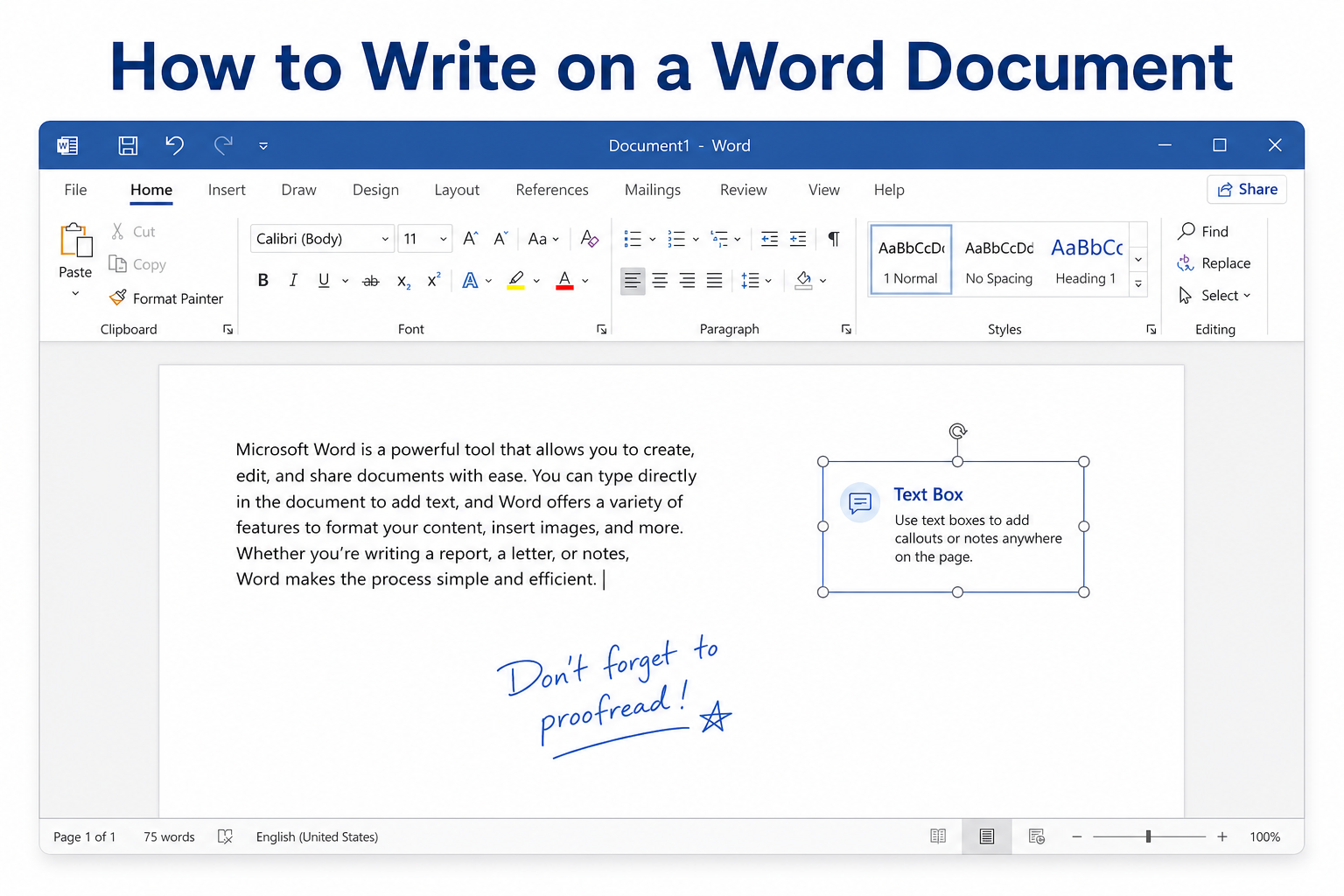
Quick answer: Click the page and type for normal writing. For text anywhere on the page, use Insert → Text Box → Draw Text Box (then set no fill / no outline). For handwriting, open the Draw tab (Windows) or use Insert → Shapes → Scribble (Mac).
Three Common Ways to Write on a Word Document
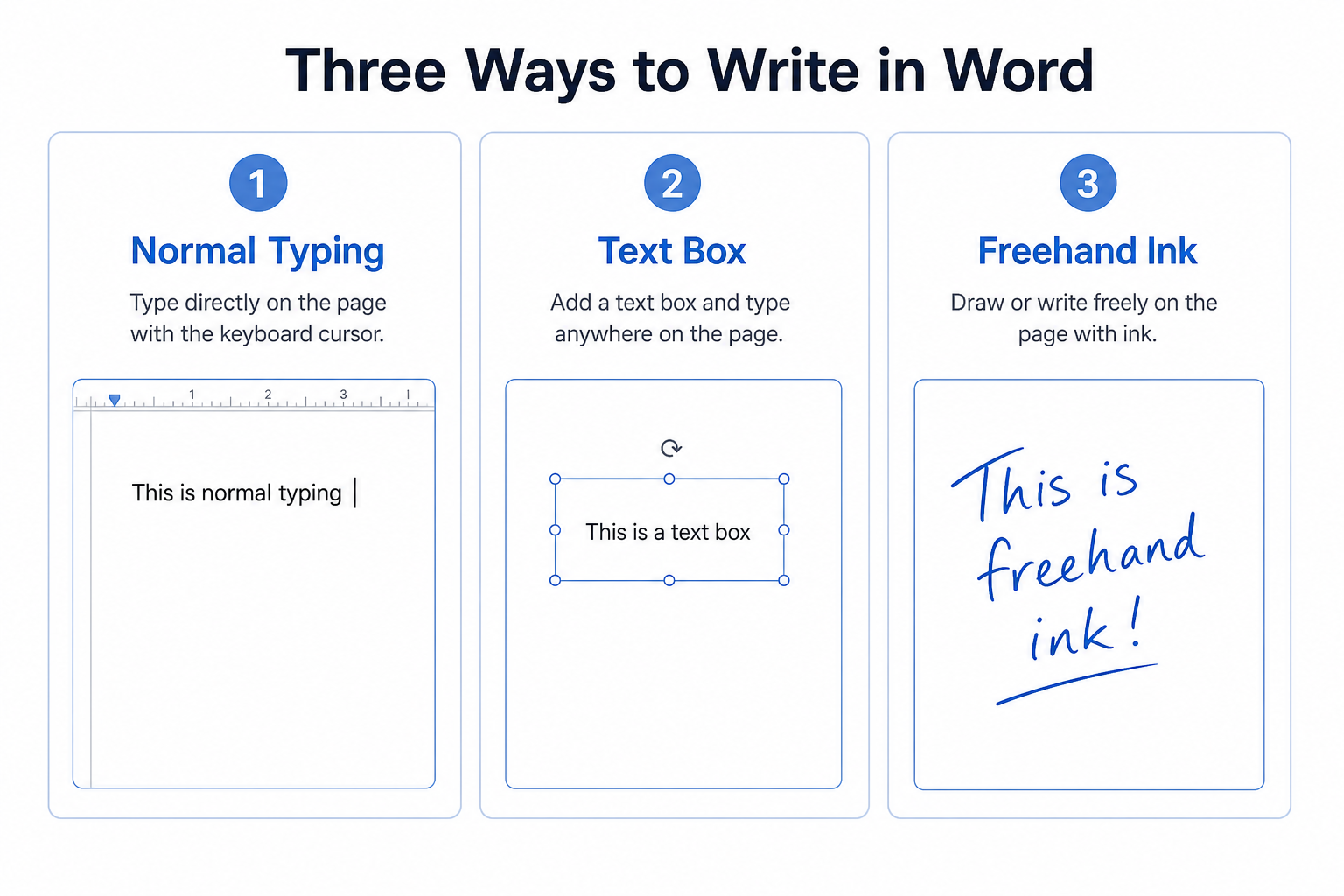
| Method | Best for | Where to start |
|---|---|---|
| Normal typing | Essays, reports, formal paragraphs | Click the page and type |
| Text box | Custom positions, labels, text on images | Insert → Text Box |
| Freehand ink / Scribble | Signatures, annotations, quick notes | Draw tab or Insert → Shapes → Scribble |
Basic Method: Type Text Normally in Word
This is the standard way to write essays, reports, notes, and other formal content.
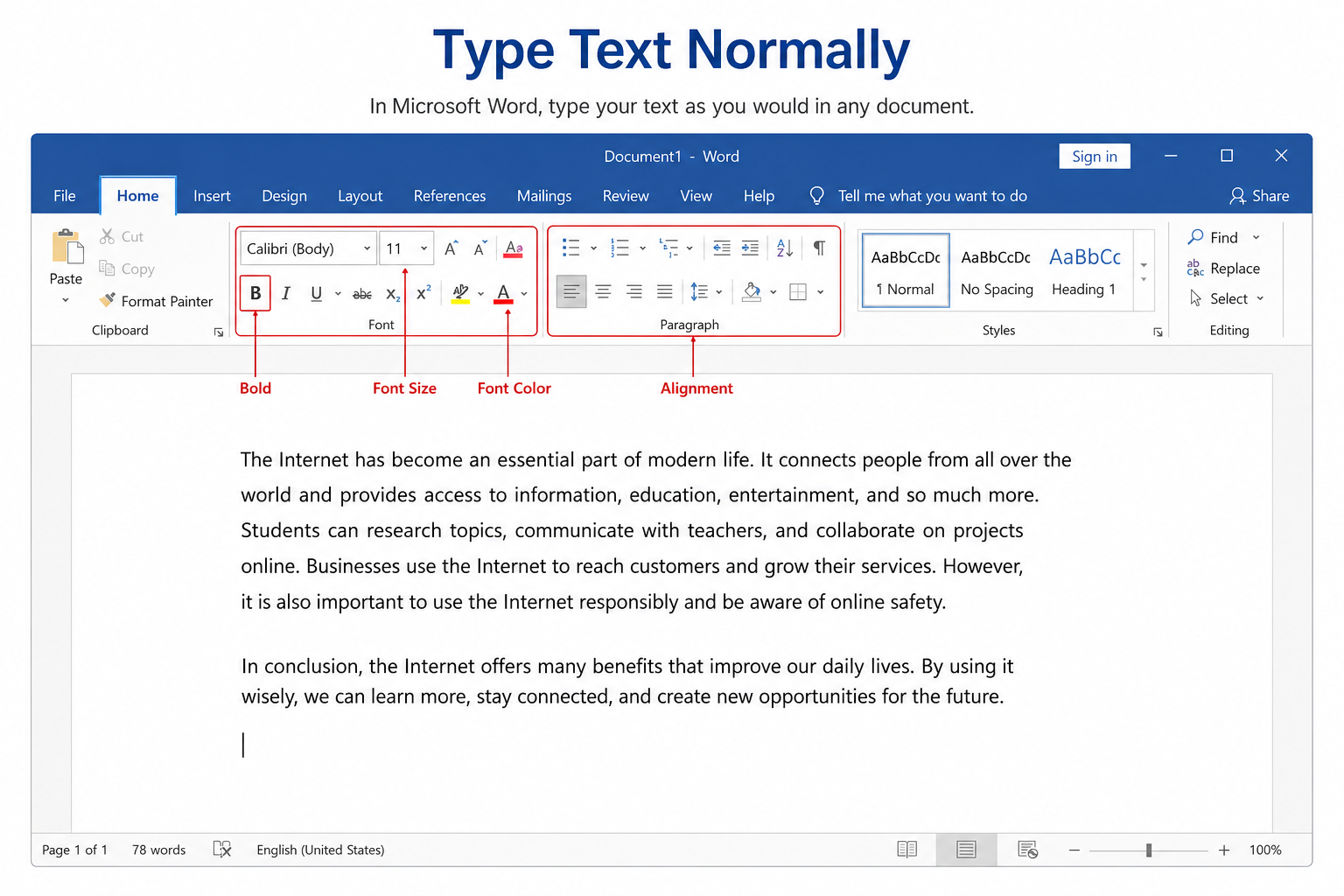
Open a new or existing Word file.
Click the page to place the blinking cursor.
Start typing with your keyboard.
Use the Home tab to change font, size, color, alignment, and style.
Tip: Press Enter for a new paragraph, or Shift + Enter for a soft line break within the same paragraph.
How to Write Text Anywhere on the Page
Normal typing follows the paragraph flow. To place text freely on the page, use a text box.
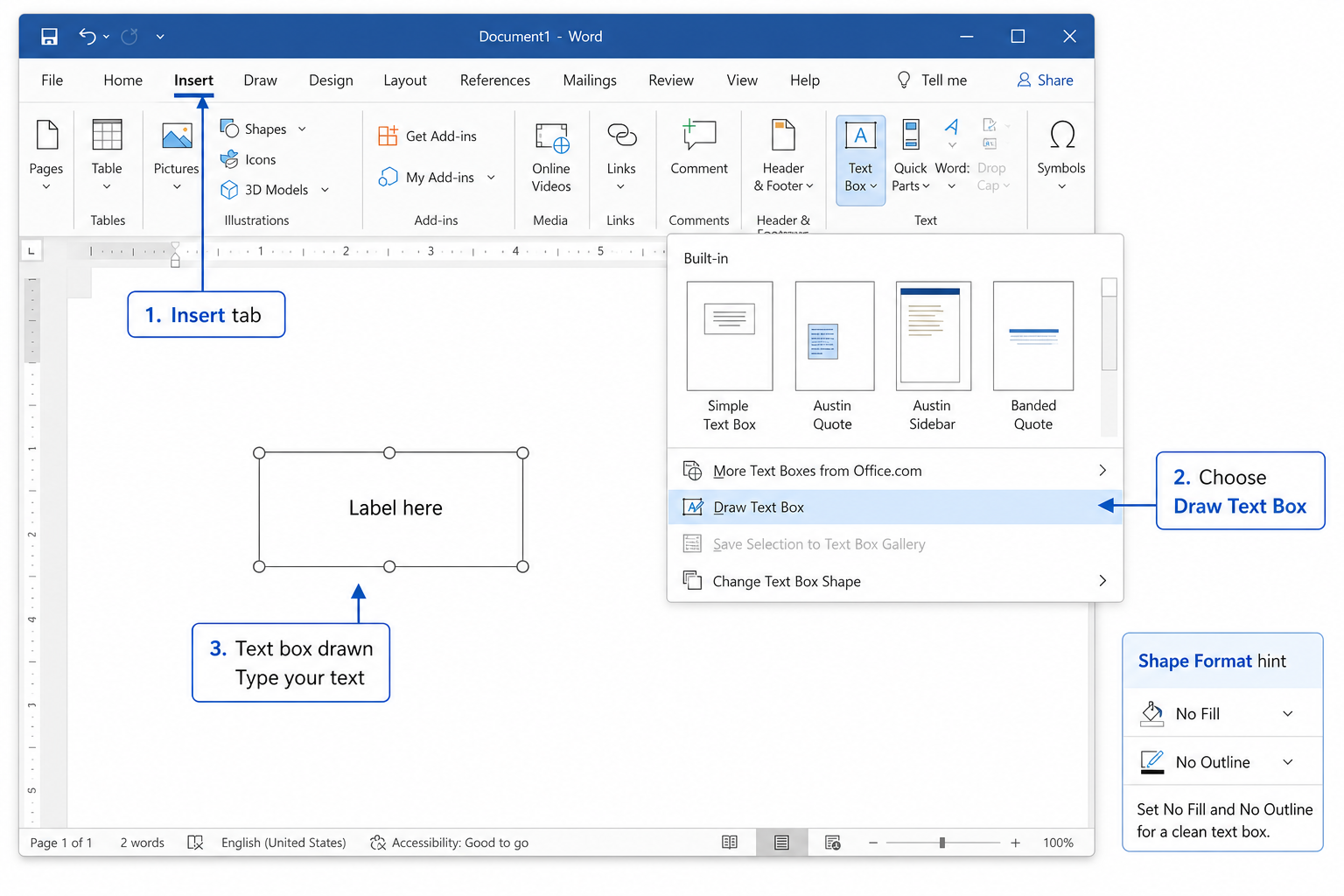
Go to Insert → Text Box → Draw Text Box.
Drag to draw a text box where you want the text.
Type inside the text box.
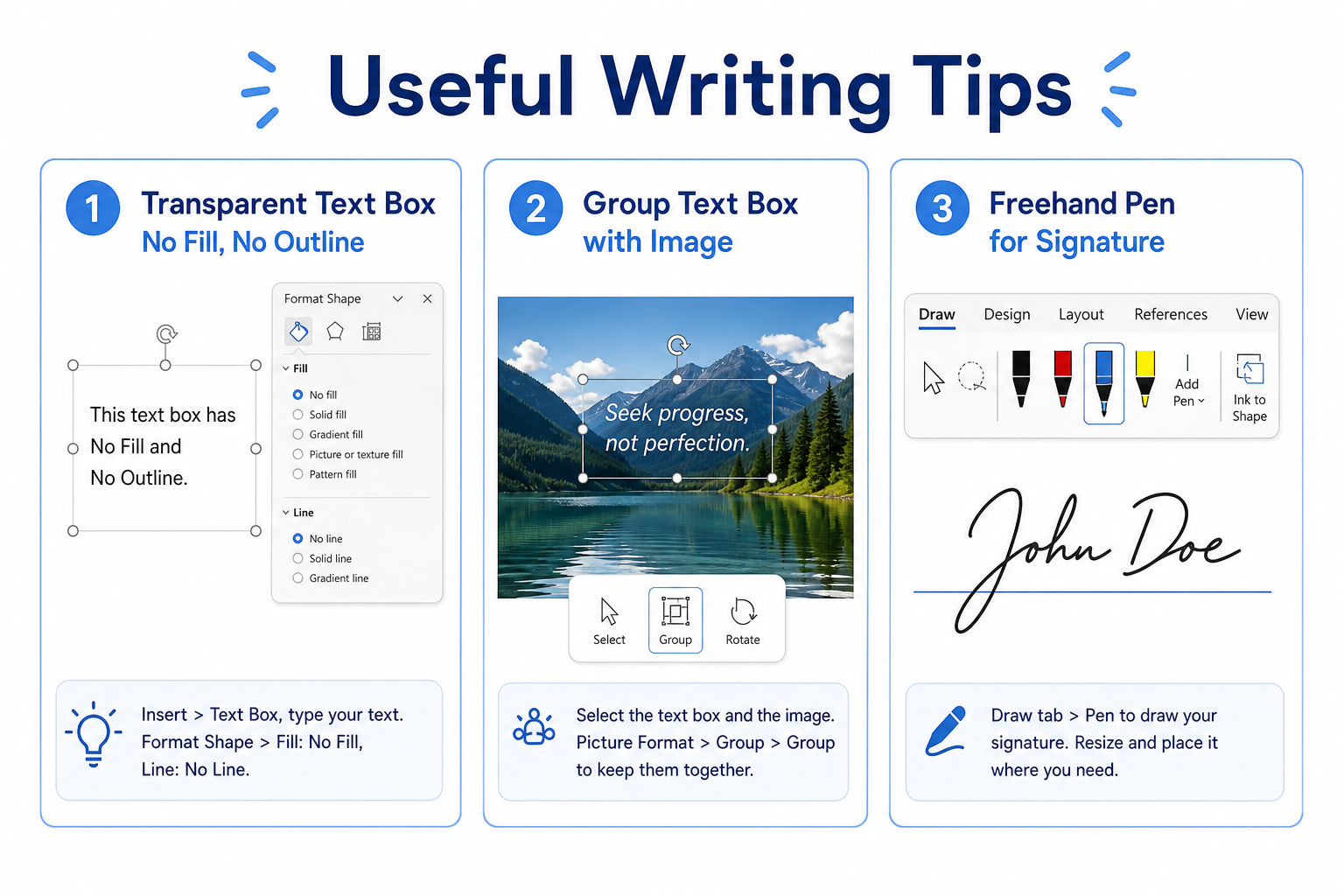
Select the box border, then set Shape Fill → No Fill and Shape Outline → No Outline so it blends with the page.
You can drag the text box later to reposition it without changing the rest of the document layout.
How to Write Text on Top of an Image
Use this for labels, captions, callouts, or short notes over a picture.
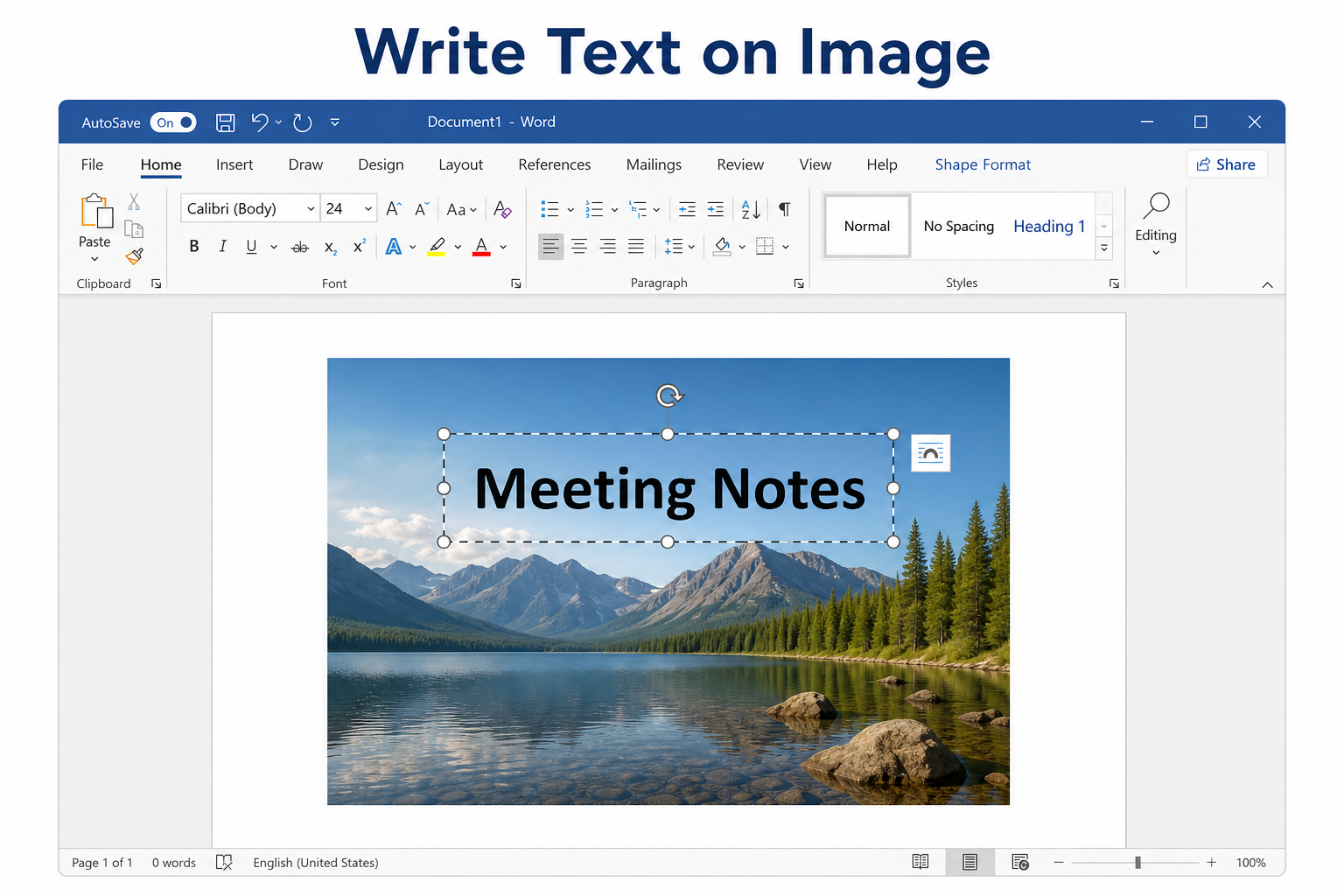
Insert your image (Insert → Pictures).
Draw a text box and place it over the image.
Type your text and adjust font size, color, and weight so it stays readable.
Remove the text box fill and outline for a clean overlay.
Tip: If the text box sits behind the picture, right-click the image and choose Wrap Text → Behind Text or In Front of Text, then bring the text box forward as needed.
How to Freehand Write and Annotate in Word
For signatures, quick notes, corrections, and casual handwriting, use Word’s ink tools or the Scribble shape.
On Windows
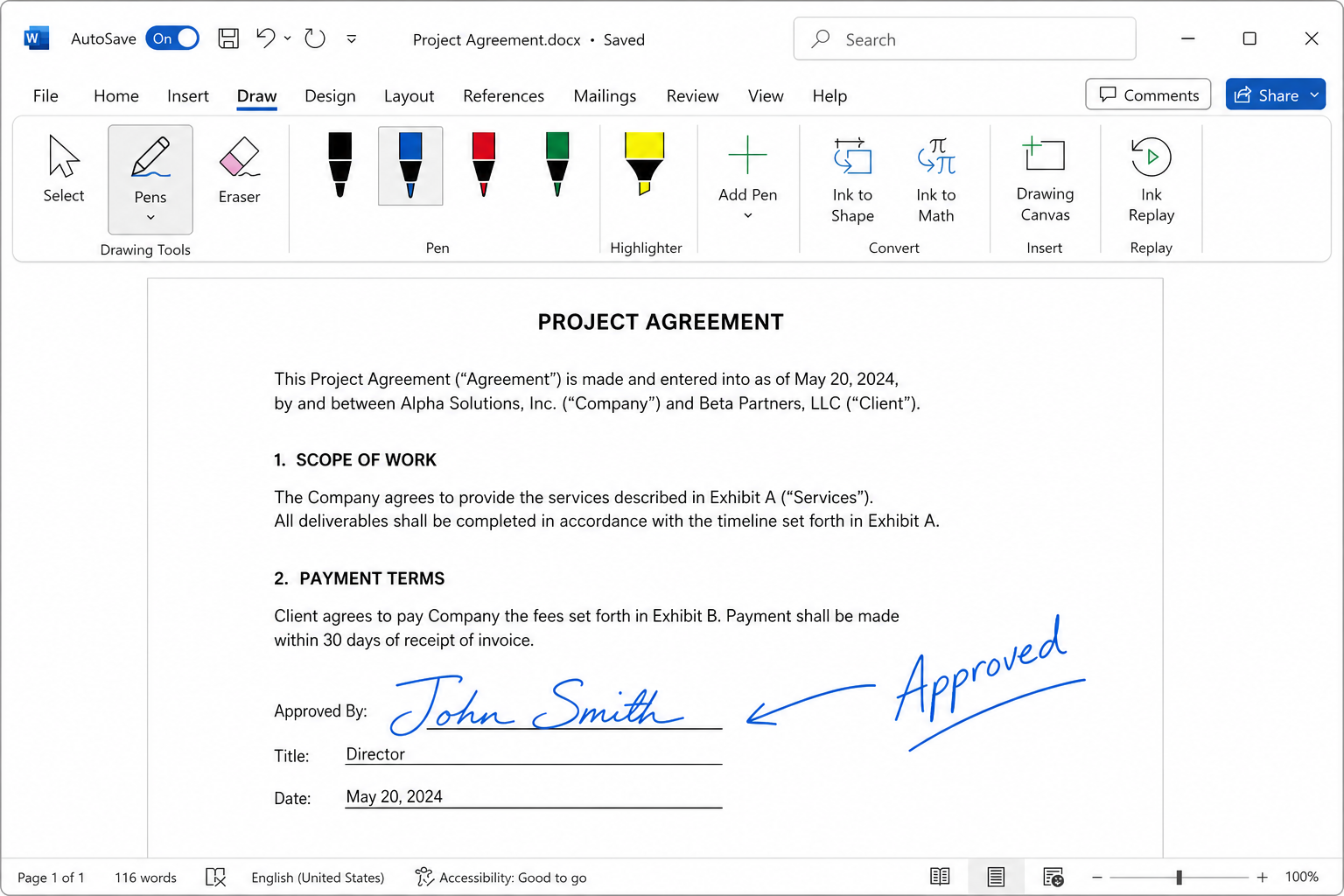
Open the Draw tab on the ribbon (enable it first if it is missing).
Select a pen or highlighter.
Click and drag your mouse or stylus to write on the page.
Use the eraser to clean up strokes you do not need.
On Mac
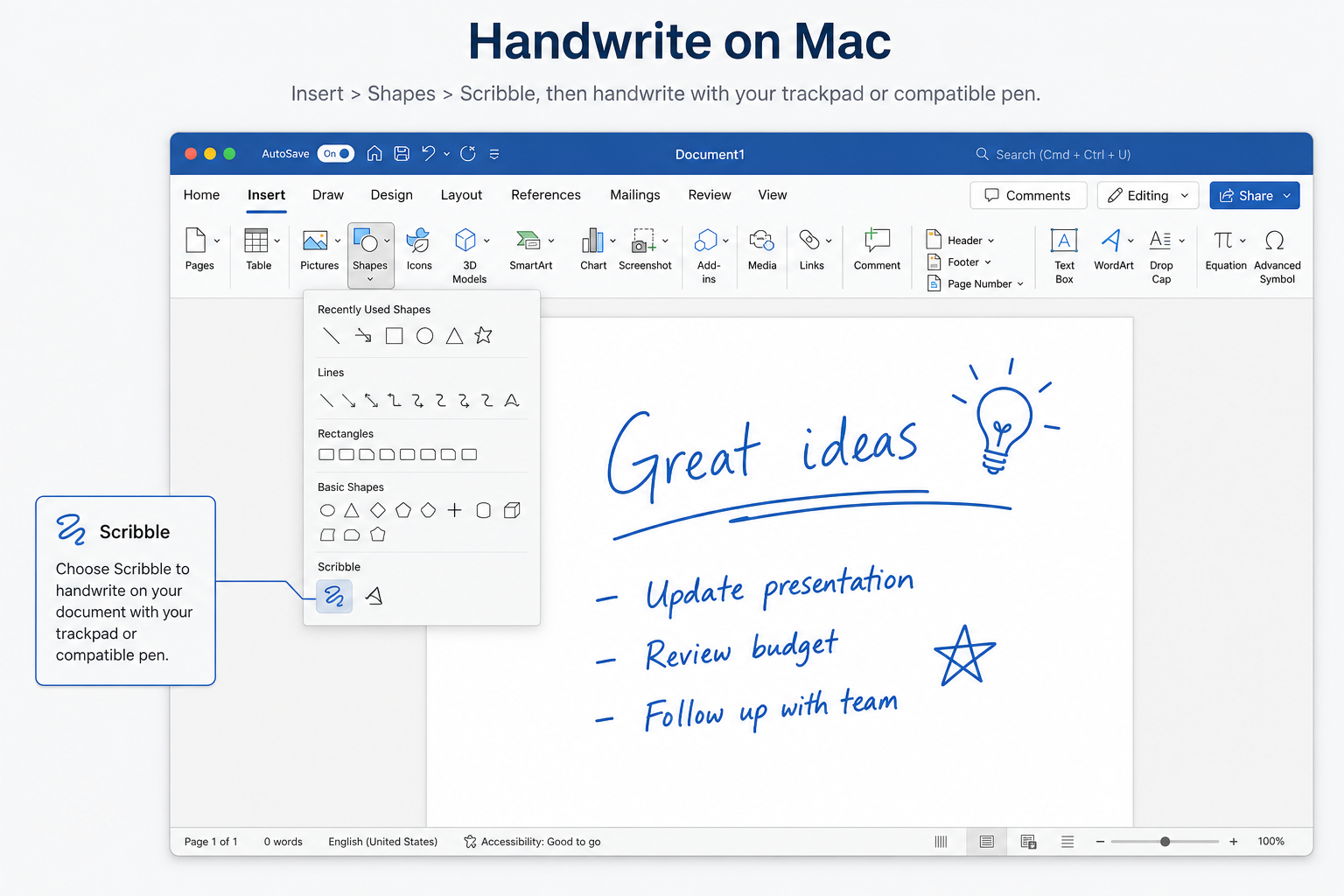
Go to Insert → Shapes → Scribble.
Draw handwritten marks or short notes with your mouse or trackpad.
Double-click the page to finish Scribble mode.
Note: Some Mac Word versions do not include the full Windows Draw ink toolbar. Scribble covers most everyday freehand needs.
Fix: Draw Tab Missing (No Handwriting Tools)
The Draw tab is hidden by default in many Word installs.
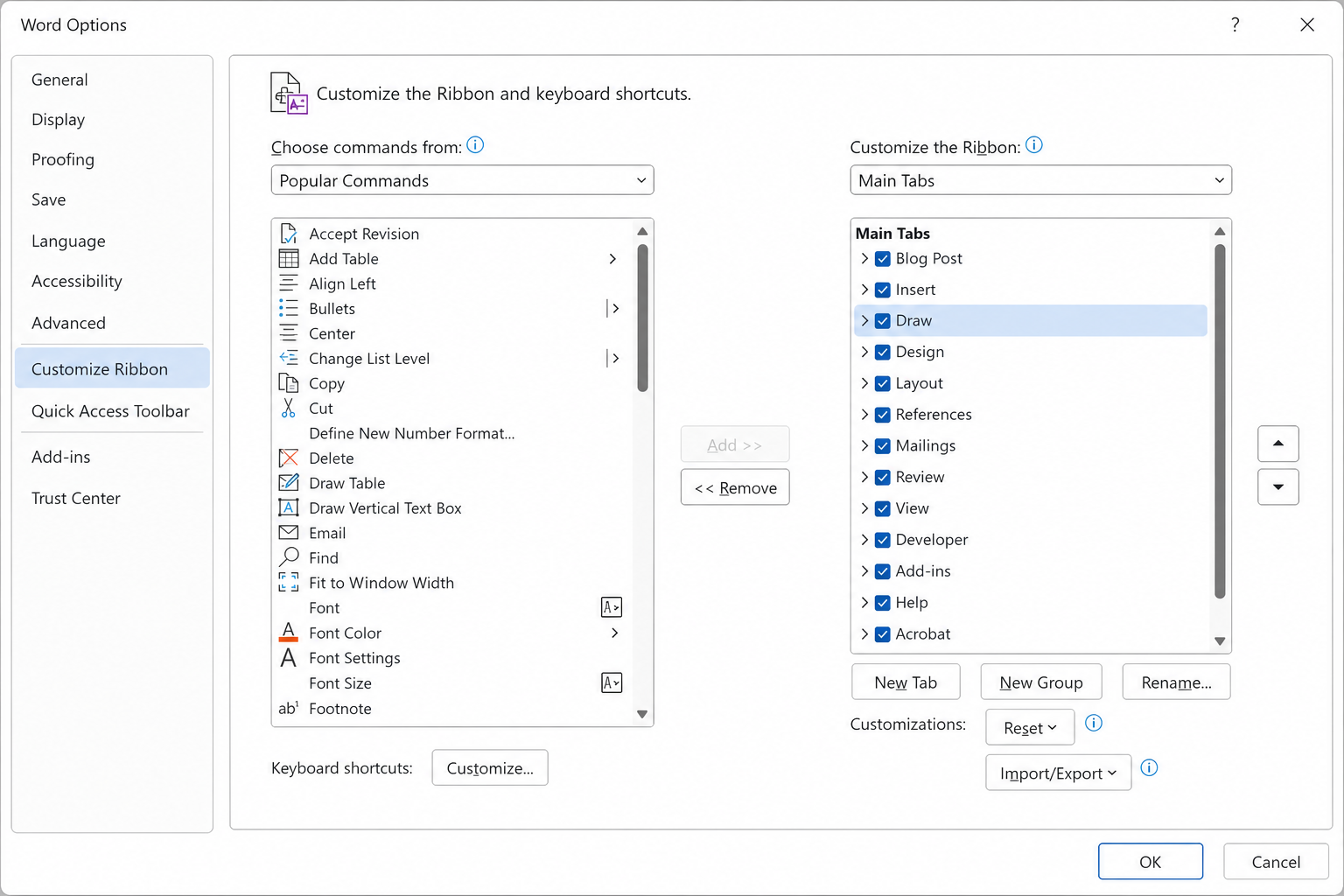
Go to File → Options → Customize Ribbon.
Under Main Tabs, check Draw.
Click OK. Pen and highlighter tools should appear.
| Problem | What to try |
|---|---|
| No Draw tab after enabling it | Update Word, or use Insert → Shapes → Scribble |
| Cannot type after clicking the page | Click Enable Editing if the file opened in Protected View |
| Text box covers other content awkwardly | Set No Fill / No Outline, then adjust wrap or layering |
Free Way to Write and Handwrite Without Microsoft 365
Full ink handwriting and some flexible layout tools in official Word often require Microsoft 365. Free or web-only Word setups may limit those features.
WPS Writer is a free, Word-compatible option for everyday typing, text boxes, image labels, and freehand notes. Save as .docx when you need to share with Microsoft Word users.
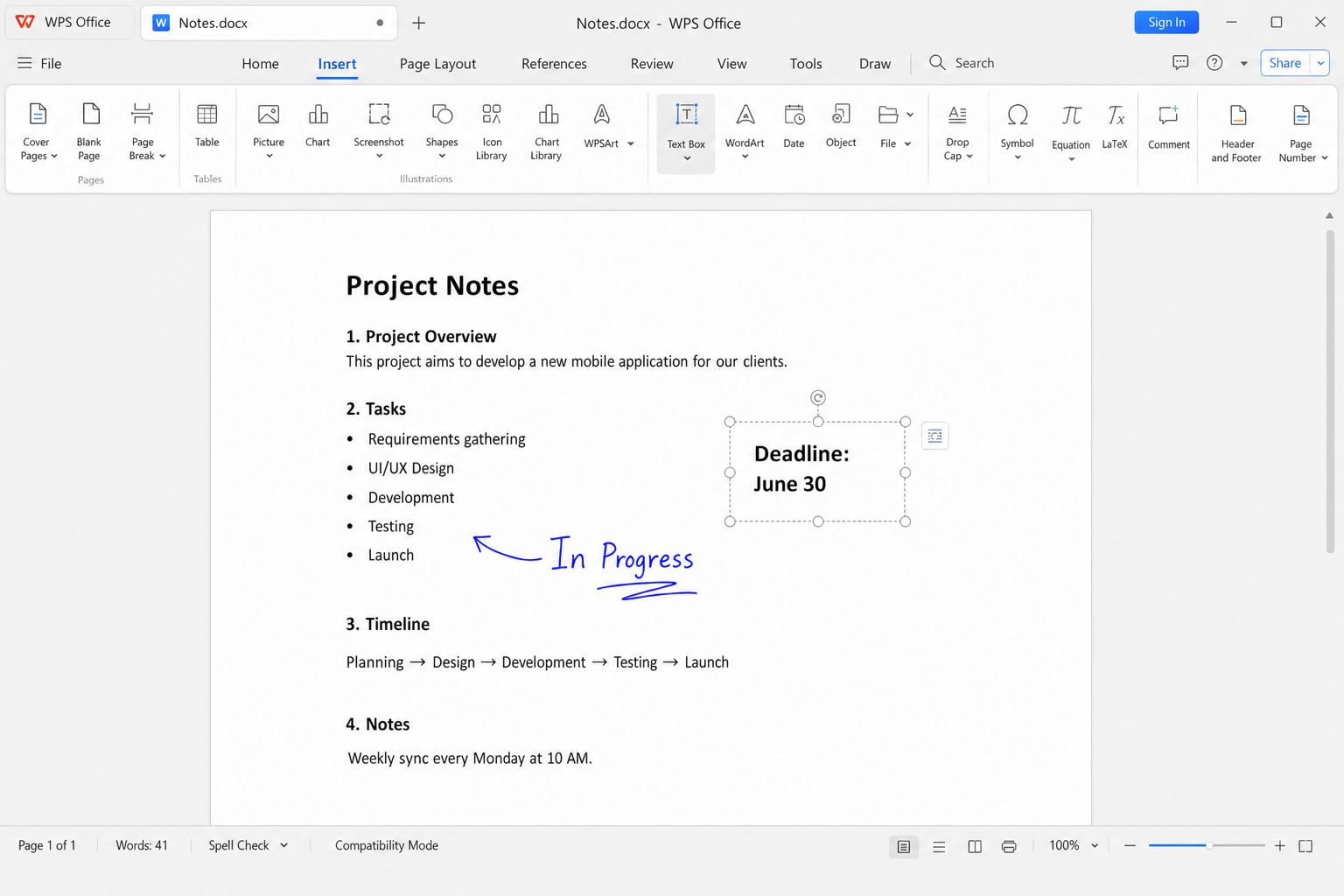
No paid subscription required — Core typing, text box, and drawing tools for daily use
Flexible text placement — Add text boxes where you need labels or free positioning
Strong Word compatibility — Share common .docx files with Word users
Cross-platform — Windows, Mac, Android, and iOS
Useful Writing Tips
Double-click a blank area to place the cursor quickly for normal typing.
Use a transparent text box when you need to break out of the default paragraph flow.
Remove text box borders so labels do not look like framed boxes.
Use freehand pens for fast corrections, signatures, and annotations.
Group a text box with an image if you want them to move together.
FAQ
How do I write on a blank Word document?
Click the page to place the cursor, then type with your keyboard. Format text from the Home tab.
How can I write text anywhere in Word?
Insert a text box with Insert → Text Box → Draw Text Box, type inside it, then set no fill and no outline.
Can I handwrite on Word without Microsoft 365?
Basic shapes and Scribble work in many Word versions. For fuller freehand tools without a subscription, try a compatible app such as WPS Writer.
How do I add text over an image in Word?
Place a transparent text box over the image, type your label, and adjust layering or wrap settings so the text stays on top.
Conclusion
You can write on a Word document in three practical ways: keyboard typing for formal content, text boxes for flexible placement and image overlays, and ink or Scribble for handwritten notes and signatures. If handwriting tools are missing or limited, enable the Draw tab—or use WPS Writer as a free, Word-compatible way to type, label, and annotate documents.



'%3e%3cpath%20d='M19.9911%204.11386V6.471H18.5894C18.0775%206.471%2017.7322%206.57814%2017.5536%206.79243C17.3751%207.00671%2017.2858%207.32814%2017.2858%207.75671V9.44421H19.9019L19.5536%2012.0871H17.2858V18.8639H14.5536V12.0871H12.2769V9.44421H14.5536V7.49779C14.5536%206.39064%2014.8632%205.53201%2015.4822%204.92189C16.1013%204.31177%2016.9257%204.00671%2017.9554%204.00671C18.8304%204.00671%2019.509%204.04243%2019.9911%204.11386Z'%20fill='%23333333'/%3e%3c/g%3e%3cdefs%3e%3cclipPath%20id='clip0_2938_8199'%3e%3crect%20width='16'%20height='16'%20fill='white'%20transform='translate(8%204.00671)'/%3e%3c/clipPath%3e%3c/defs%3e%3c/svg%3e)
'%3e%3cpath%20d='M17.5237%2010.7813L23.4811%204H22.0699L16.8949%209.88693L12.7648%204H8L14.2469%2012.9029L8%2020.0133H9.4112L14.8725%2013.7952L19.2352%2020.0133H24M9.92053%205.04213H12.0885L22.0688%2019.0224H19.9003'%20fill='%23333333'/%3e%3c/g%3e%3cdefs%3e%3cclipPath%20id='clip0_2938_8200'%3e%3crect%20width='16'%20height='16.0134'%20fill='white'%20transform='translate(8%204)'/%3e%3c/clipPath%3e%3c/defs%3e%3c/svg%3e)


